Flutter for OpenHarmony艺考真题题库app实战+学习时长分析实现
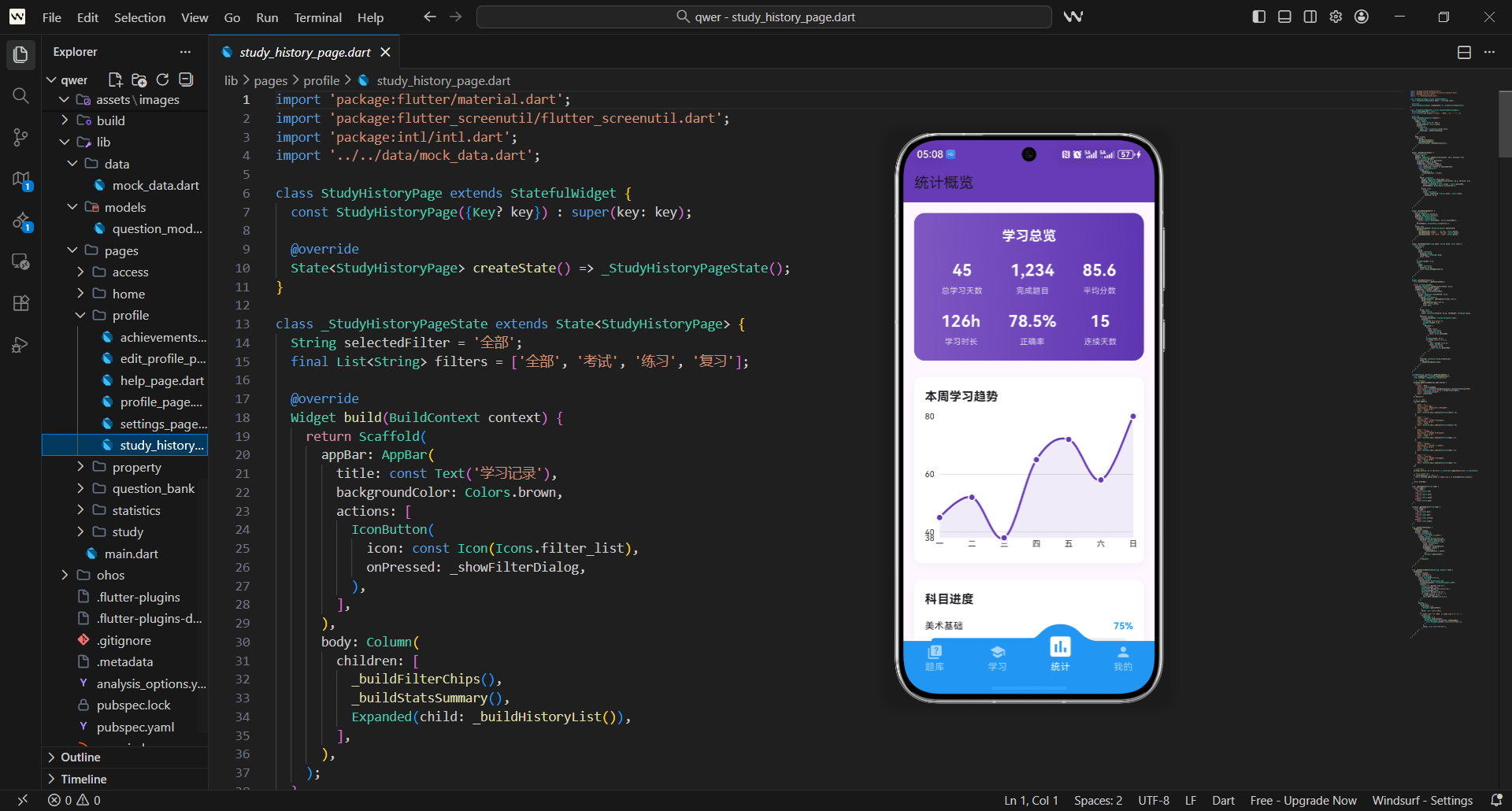
学习时长分析是艺考学习应用中的重要功能,它能够帮助用户了解自己的学习时间分配情况。今天我们将详细介绍如何构建一个功能完善的学习时长分析页面,包含时间统计、时长分布、目标管理等功能。
学习时长分析架构
学习时长分析页面核心采用StatefulWidget设计,这类组件可维护自身状态,适配视图切换时的数据更新需求。页面支持日、周、月三种时间维度切换,满足用户不同粒度的学习数据查看需求。
class LearningTimePage extends StatefulWidget {
const LearningTimePage({Key? key}) : super(key: key);
State<LearningTimePage> createState() => _LearningTimePageState();
}
在状态类中,先定义视图切换的核心变量,selectedView记录当前选中的视图类型,views数组存储所有可选视图,为后续视图切换交互提供基础。
class _LearningTimePageState extends State<LearningTimePage> {
String selectedView = '日';
final List<String> views = ['日', '周', '月'];
Widget build(BuildContext context) {
return Scaffold(
appBar: AppBar(
title: const Text('学习时长'),
backgroundColor: Colors.green,
AppBar右侧配置PopupMenuButton作为视图切换入口,该组件点击后弹出菜单列表,选中项会触发onSelected回调,通过setState更新选中视图,实现页面状态刷新。
        actions: [
          PopupMenuButton<String>(
            onSelected: (value) {
              setState(() {
                selectedView = value;
              });
            },
PopupMenuButton的itemBuilder负责构建菜单选项,遍历views数组生成对应的PopupMenuItem,每个选项标注清晰的视图名称,提升用户操作辨识度。
            itemBuilder: (context) => views.map((view) {
              return PopupMenuItem(
                value: view,
                child: Text('$view视图'),
              );
            }).toList(),
          ),
        ],
      ),
页面主体采用Column纵向布局,依次排列核心功能模块,这种布局方式能保证各模块按顺序展示,适配移动端垂直浏览的交互习惯,提升页面可读性。
      body: Column(
        children: [
          _buildTimeSummary(),
          _buildTimeChart(),
          _buildSubjectTimeDistribution(),
          _buildTimeGoals(),
        ],
      ),
    );
  }
}
时间统计概览
时间统计概览模块采用渐变背景设计,线性渐变从浅绿到深绿过渡,既贴合艺考学习应用的清新风格,又能突出统计数据的视觉层级,吸引用户注意力。
Widget _buildTimeSummary() {
  return Container(
    padding: EdgeInsets.all(20.w),
    decoration: BoxDecoration(
      gradient: LinearGradient(
        colors: [Colors.green[400]!, Colors.green[600]!],
      ),
      borderRadius: BorderRadius.circular(16.r),
    ),
模块内先设置标题和间距,标题采用加粗、大字号、白色字体,在渐变背景上保证清晰可读,SizedBox用于控制元素间距,避免内容拥挤,提升视觉舒适度。
    child: Column(
      children: [
        Text(
          '学习时长统计',
          style: TextStyle(
            fontSize: 20.sp,
            fontWeight: FontWeight.bold,
            color: Colors.white,
          ),
        ),
        SizedBox(height: 20.h),
通过Row横向布局展示核心统计项,MainAxisAlignment.spaceAround让各统计项均匀分布,保证布局美观,同时每行放置三个统计项,适配移动端屏幕宽度,避免内容溢出。
        Row(
          mainAxisAlignment: MainAxisAlignment.spaceAround,
          children: [
            _buildSummaryItem('今日', '2h 15m', Colors.white),
            _buildSummaryItem('本周', '18h 30m', Colors.white),
            _buildSummaryItem('本月', '76h 45m', Colors.white),
          ],
        ),
第二行统计项聚焦学习规律相关数据,平均每日时长反映学习稳定性,最长连续天数体现学习坚持度,总时长展示累计成果,多维度数据帮助用户全面认知学习状态。
        SizedBox(height: 20.h),
        Row(
          mainAxisAlignment: MainAxisAlignment.spaceAround,
          children: [
            _buildSummaryItem('平均每日', '1h 30m', Colors.white),
            _buildSummaryItem('最长连续', '5天', Colors.white),
            _buildSummaryItem('总时长', '126h', Colors.white),
          ],
        ),
      ],
    ),
  );
}
封装_summaryItem组件统一统计项样式,数值部分采用加粗、大字号突出核心信息,标签部分降低不透明度,形成视觉主次对比,提升数据可读性。
Widget _buildSummaryItem(String label, String value, Color color) {
  return Column(
    children: [
      Text(
        value,
        style: TextStyle(
          fontSize: 18.sp,
          fontWeight: FontWeight.bold,
          color: color,
        ),
      ),
      SizedBox(height: 4.h),
      Text(
        label,
        style: TextStyle(
          fontSize: 12.sp,
          color: color.withOpacity(0.8),
        ),
      ),
    ],
  );
}
学习时长图表
学习时长图表模块采用白色背景+阴影设计,模拟卡片质感,提升页面层次感,padding内边距保证图表与边框有足够间距,避免内容紧贴边框影响视觉效果。
Widget _buildTimeChart() {
  return Container(
    padding: EdgeInsets.all(16.w),
    decoration: BoxDecoration(
      color: Colors.white,
      borderRadius: BorderRadius.circular(12.r),
      boxShadow: [
        BoxShadow(
          color: Colors.grey.withOpacity(0.1),
          blurRadius: 10,
          offset: const Offset(0, 4),
        ),
      ],
    ),
图表标题根据选中视图动态变化,让用户清晰知晓当前图表展示的时间维度,标题采用加粗、大字号设计,突出模块主题,与下方图表形成视觉区分。
    child: Column(
      crossAxisAlignment: CrossAxisAlignment.start,
      children: [
        Text(
          '${selectedView}学习时长',
          style: TextStyle(
            fontSize: 18.sp,
            fontWeight: FontWeight.bold,
          ),
        ),
        SizedBox(height: 16.h),
使用SizedBox固定图表高度,避免图表随数据变化拉伸或压缩,保证页面布局稳定性,BarChart组件基于fl_chart插件实现,是Flutter中常用的柱状图绘制方案。
        SizedBox(
          height: 200.h,
          child: BarChart(
            BarChartData(
              gridData: FlGridData(
                show: true,
                drawVerticalLine: false,
                horizontalInterval: 30,
网格线仅展示水平方向,间隔设为30分钟,既辅助用户读取数值,又避免垂直网格线造成视觉干扰,getDrawingHorizontalLine自定义网格线样式,保证线条柔和不突兀。
                getDrawingHorizontalLine: (value) {
                  return FlLine(
                    color: Colors.grey[300],
                    strokeWidth: 1,
                  );
                },
              ),
坐标轴标题配置区分主次,左侧Y轴显示时长(分钟),底部X轴根据视图类型展示不同维度,右侧和顶部坐标轴隐藏,简化图表视觉元素,聚焦核心数据。
              titlesData: FlTitlesData(
                leftTitles: AxisTitles(
                  sideTitles: SideTitles(
                    showTitles: true,
                    interval: 30,
                    getTitlesWidget: (value, meta) {
                      return Text(
                        '${value.toInt()}m',
                        style: TextStyle(fontSize: 12.sp),
                      );
                    },
                  ),
                ),
                rightTitles: AxisTitles(sideTitles: SideTitles(showTitles: false)),
                topTitles: AxisTitles(sideTitles: SideTitles(showTitles: false)),
底部X轴标题根据选中视图动态生成,日视图展示关键时段,周视图展示星期,月视图展示关键日期,贴合用户不同维度的查看习惯,提升数据解读效率。
                bottomTitles: AxisTitles(
                  sideTitles: SideTitles(
                    showTitles: true,
                    getTitlesWidget: (value, meta) {
                      if (selectedView == '日') {
                        final hours = ['6时', '9时', '12时', '15时', '18时', '21时'];
                        if (value.toInt() < hours.length) {
                          return Text(hours[value.toInt()], style: TextStyle(fontSize: 10.sp));
                        }
                      } else if (selectedView == '周') {
                        final days = ['周一', '周二', '周三', '周四', '周五', '周六', '周日'];
                        if (value.toInt() < days.length) {
                          return Text(days[value.toInt()], style: TextStyle(fontSize: 10.sp));
                        }
                      } else {
                        final dates = ['1日', '5日', '10日', '15日', '20日', '25日', '30日'];
                        if (value.toInt() < dates.length) {
                          return Text(dates[value.toInt()], style: TextStyle(fontSize: 10.sp));
                        }
                      }
                      return const Text('');
                    },
                  ),
                ),
              ),
隐藏图表边框,减少视觉干扰,barGroups加载动态生成的柱状图数据,保证图表数据与选中视图匹配,实现视图切换时图表数据的实时更新。
              borderData: FlBorderData(show: false),
              barGroups: _getBarGroups(),
            ),
          ),
        ),
      ],
    ),
  );
}
柱状图数据生成
_getBarGroups方法根据选中视图返回对应数据集,日视图聚焦一天内6个关键时段的学习时长,数据值以分钟为单位,贴合用户小时级的学习时间感知。
List<BarChartGroupData> _getBarGroups() {
  if (selectedView == '日') {
    return [
      BarChartGroupData(x: 0, barRods: [
        BarChartRodData(toY: 45, color: Colors.green, width: 20.w),
      ]),
      BarChartGroupData(x: 1, barRods: [
        BarChartRodData(toY: 30, color: Colors.green, width: 20.w),
      ]),
      BarChartGroupData(x: 2, barRods: [
        BarChartRodData(toY: 60, color: Colors.green, width: 20.w),
      ]),
    ];
  }
周视图覆盖一周7天的学习时长数据,数据值反映每日学习投入差异,帮助用户发现一周内的学习规律,比如周末学习时长是否高于工作日。
  else if (selectedView == '周') {
    return [
      BarChartGroupData(x: 0, barRods: [
        BarChartRodData(toY: 120, color: Colors.green, width: 20.w),
      ]),
      BarChartGroupData(x: 1, barRods: [
        BarChartRodData(toY: 90, color: Colors.green, width: 20.w),
      ]),
      BarChartGroupData(x: 2, barRods: [
        BarChartRodData(toY: 150, color: Colors.green, width: 20.w),
      ]),
    ];
  }
月视图选取7个关键日期展示学习时长,覆盖月初、月中、月末等节点,帮助用户把握月度学习节奏,识别学习时长的高峰期与低谷期。
  else {
    return [
      BarChartGroupData(x: 0, barRods: [
        BarChartRodData(toY: 480, color: Colors.green, width: 20.w),
      ]),
      BarChartGroupData(x: 1, barRods: [
        BarChartRodData(toY: 520, color: Colors.green, width: 20.w),
      ]),
      BarChartGroupData(x: 2, barRods: [
        BarChartRodData(toY: 450, color: Colors.green, width: 20.w),
      ]),
    ];
  }
}
科目时长分布
科目时长分布模块采用饼图展示不同艺考科目的学习时间占比,先定义科目数据列表,包含科目名称、学习时长、代表颜色,为饼图绘制提供基础数据。
Widget _buildSubjectTimeDistribution() {
  final subjects = [
    {'name': '美术基础', 'time': 45, 'color': Colors.blue},
    {'name': '音乐理论', 'time': 30, 'color': Colors.purple},
    {'name': '舞蹈基础', 'time': 25, 'color': Colors.orange},
    {'name': '播音主持', 'time': 35, 'color': Colors.red},
  ];

  return Container(
    padding: EdgeInsets.all(16.w),
    decoration: BoxDecoration(
      color: Colors.white,
      borderRadius: BorderRadius.circular(12.r),
饼图模块同样采用卡片式设计,阴影效果增强立体感,与图表模块视觉风格统一,提升页面整体设计一致性,标题突出“科目时长分布”主题,引导用户关注科目时间分配。
      boxShadow: [
        BoxShadow(
          color: Colors.grey.withOpacity(0.1),
          blurRadius: 10,
          offset: const Offset(0, 4),
        ),
      ],
    ),
    child: Column(
      crossAxisAlignment: CrossAxisAlignment.start,
      children: [
        Text(
          '科目时长分布',
          style: TextStyle(
            fontSize: 18.sp,
            fontWeight: FontWeight.bold,
          ),
        ),
        SizedBox(height: 16.h),
固定饼图高度保证布局稳定,PieChart组件基于fl_chart实现,sections遍历科目数据生成饼图扇区,每个扇区对应一个科目,直观展示时间占比。
        SizedBox(
          height: 200.h,
          child: PieChart(
            PieChartData(
              sections: subjects.map((subject) {
                return PieChartSectionData(
                  value: subject['time'] as double,
                  title: '${subject['name']}\n${subject['time']}h',
                  color: subject['color'] as Color,
饼图扇区标题包含科目名称和时长,白色加粗字体保证在彩色扇区上清晰可读,radius设置扇区半径,平衡饼图大小与页面布局,提升视觉舒适度。
                  titleStyle: TextStyle(
                    fontSize: 12.sp,
                    color: Colors.white,
                    fontWeight: FontWeight.bold,
                  ),
                  radius: 80.r,
                );
              }).toList(),
            ),
          ),
        ),
      ],
    ),
  );
}
学习目标管理
学习目标管理模块展示用户设定的学习目标及完成情况,先定义目标数据列表,包含目标名称、当前完成时长、目标时长、单位,覆盖日/周/月三个维度。
Widget _buildTimeGoals() {
  final goals = [
    {'name': '每日目标', 'current': 135, 'target': 120, 'unit': '分钟'},
    {'name': '每周目标', 'current': 945, 'target': 840, 'unit': '分钟'},
    {'name': '每月目标', 'current': 4065, 'target': 3600, 'unit': '分钟'},
  ];

  return Container(
    padding: EdgeInsets.all(16.w),
    decoration: BoxDecoration(
      color: Colors.white,
      borderRadius: BorderRadius.circular(12.r),
目标模块延续卡片式设计,保持与图表、饼图模块的视觉统一,通过遍历goals数组生成每个目标的展示项,每个目标项之间设置间距,避免内容拥挤。
      boxShadow: [
        BoxShadow(
          color: Colors.grey.withOpacity(0.1),
          blurRadius: 10,
          offset: const Offset(0, 4),
        ),
      ],
    ),
    child: Column(
      crossAxisAlignment: CrossAxisAlignment.start,
      children: [
        Text(
          '学习目标',
          style: TextStyle(
            fontSize: 18.sp,
            fontWeight: FontWeight.bold,
          ),
        ),
        SizedBox(height: 16.h),
        ...goals.map((goal) {
          final progress = (goal['current'] as double) / (goal['target'] as double);
          final isAchieved = progress >= 1.0;
每个目标项先展示名称和时长对比,当前完成时长加粗显示,达成目标时用绿色突出,未达成时用蓝色,目标时长用灰色辅助展示,形成视觉对比。
          return Padding(
            padding: EdgeInsets.only(bottom: 16.h),
            child: Column(
              crossAxisAlignment: CrossAxisAlignment.start,
              children: [
                Row(
                  mainAxisAlignment: MainAxisAlignment.spaceBetween,
                  children: [
                    Text(goal['name'] as String, style: TextStyle(fontSize: 14.sp)),
                    Row(
                      children: [
                        Text(
                          '${(goal['current'] as int) ~/ 60}h${(goal['current'] as int) % 60}m',
                          style: TextStyle(
                            fontSize: 14.sp,
                            fontWeight: FontWeight.bold,
                            color: isAchieved ? Colors.green : Colors.blue,
                          ),
                        ),
                        Text(
                          ' / ${(goal['target'] as int) ~/ 60}h${(goal['target'] as int) % 60}m',
                          style: TextStyle(fontSize: 12.sp, color: Colors.grey[600]),
                        ),
                      ],
                    ),
                  ],
                ),
使用LinearProgressIndicator展示目标完成进度,进度条背景为浅灰色,完成部分根据是否达成目标显示绿色或蓝色,进度值超过1时固定为1,避免进度条溢出。
                SizedBox(height: 8.h),
                LinearProgressIndicator(
                  value: progress > 1.0 ? 1.0 : progress,
                  backgroundColor: Colors.grey[200],
                  valueColor: AlwaysStoppedAnimation<Color>(
                    isAchieved ? Colors.green : Colors.blue,
                  ),
                ),
进度条下方展示完成状态提示,达成目标时显示“已达成目标!🎉”并标注绿色,未达成时显示完成百分比,帮助用户清晰知晓目标完成情况,提升激励效果。
                SizedBox(height: 4.h),
                Text(
                  isAchieved ? '已达成目标!🎉' : '完成${(progress * 100).toInt()}%',
                  style: TextStyle(
                    fontSize: 12.sp,
                    color: isAchieved ? Colors.green : Colors.grey[600],
                  ),
                ),
              ],
            ),
          );
        }).toList(),
      ],
    ),
  );
}
视图切换功能
视图切换功能允许用户在日、周、月三种视图之间切换。我们使用PopupMenuButton提供视图选择选项,每种视图都有不同的数据展示方式。
数据可视化优化
为了提升数据可视化的效果,我们在图表中添加了动画效果和交互提示。同时,使用不同颜色区分不同科目的学习时长,增强视觉识别度。
响应式设计
学习时长分析页面采用响应式设计,能够适配不同屏幕尺寸。我们使用flutter_screenutil插件确保在不同设备上都有良好的显示效果。
性能优化
学习时长页面包含多个图表组件,需要注意性能优化。我们使用const构造函数减少不必要的重建,合理控制图表的复杂度。
通过以上实现,我们创建了一个功能完善、视觉丰富的学习时长分析页面。这个页面不仅能够帮助用户了解自己的学习时间投入,还提供了直观的数据可视化和目标管理功能,为用户的学习提供了有力的时间管理支持。
欢迎加入开源鸿蒙跨平台社区:https://openharmonycrossplatform.csdn.net

开源鸿蒙跨平台开发社区汇聚开发者与厂商,共建“一次开发,多端部署”的开源生态,致力于降低跨端开发门槛,推动万物智联创新。
更多推荐

 9
9 0
0- 0


 已为社区贡献47条内容

所有评论(0)