Flutter for OpenHarmony艺考真题题库app实战+知识卡片实现
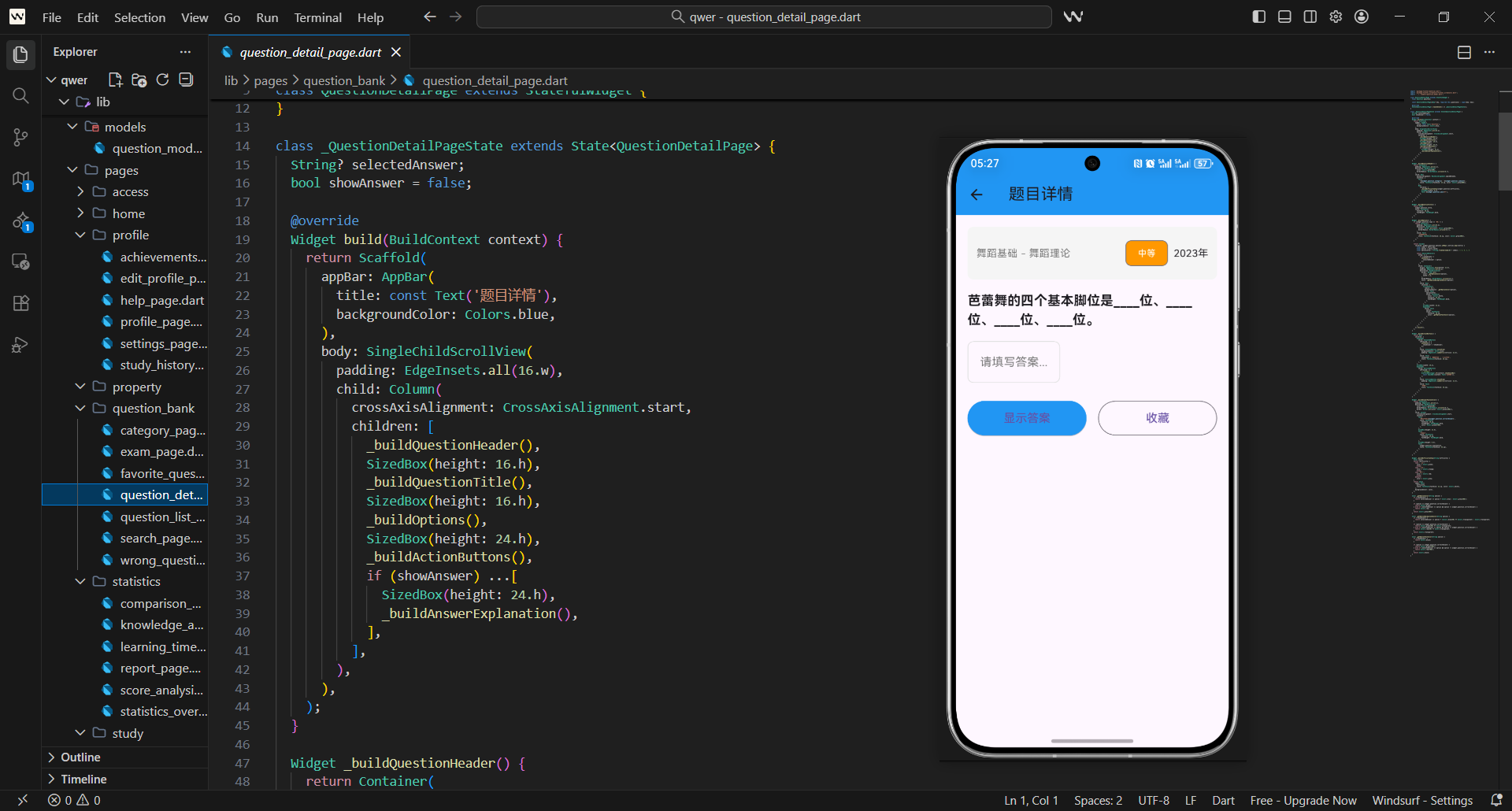
知识卡片是艺考学习应用中的创新功能,它采用翻转卡片的形式帮助用户记忆重要知识点。这种交互形式贴合人类记忆规律,能通过视觉和操作的双重刺激提升知识点的记忆效率。今天我们将详细介绍如何构建一个功能完善的知识卡片页面,包含学习模式、测试模式、进度跟踪等功能,兼顾实用性与交互体验。
知识卡片架构
知识卡片页面的核心是状态管理,因为需要实时响应卡片翻转、索引切换、模式变更等操作,所以选择StatefulWidget作为基础组件。
class FlashcardPage extends StatefulWidget {
const FlashcardPage({Key? key}) : super(key: key);
State<FlashcardPage> createState() => _FlashcardPageState();
}
在状态类中,我们需要定义核心的状态变量:存储卡片数据的列表、当前显示卡片的索引、卡片翻转状态、选中的分类以及学习/测试模式标识。
class _FlashcardPageState extends State<FlashcardPage> {
final List<Question> flashcards = [];
int currentIndex = 0;
bool isFlipped = false;
String selectedCategory = '全部';
bool isStudyMode = true; // true: 学习模式, false: 测试模式
final List<String> categories = ['全部', '美术基础', '音乐理论', '舞蹈基础', '播音主持'];
void initState() {
super.initState();
_loadFlashcards();
}
初始化方法中调用数据加载函数,确保页面启动时就能获取到知识卡片数据,避免空数据导致的界面异常。
空状态处理
当知识卡片数据未加载完成或暂无数据时,空状态界面能提升用户体验,避免空白页面带来的困惑。
Widget _buildEmptyState() {
  return Scaffold(
    appBar: AppBar(
      title: const Text('知识卡片'),
      backgroundColor: Colors.cyan,
    ),
    body: Center(
      child: Column(
        mainAxisAlignment: MainAxisAlignment.center,
        children: [
          Icon(
            Icons.style,
            size: 100.w,
            color: Colors.grey[400],
          ),
          SizedBox(height: 16.h),
          Text(
            '暂无知识卡片',
            style: TextStyle(
              fontSize: 18.sp,
              color: Colors.grey[600],
            ),
          ),
空状态界面选用柔和的灰色调图标和文字,搭配清晰的引导语,告知用户当前状态及后续处理方式,降低用户焦虑感。
          SizedBox(height: 8.h),
          Text(
            '系统正在为您生成学习卡片...',
            style: TextStyle(
              fontSize: 14.sp,
              color: Colors.grey[500],
            ),
          ),
        ],
      ),
    ),
  );
}
整个空状态布局采用居中对齐,保证视觉上的平衡感,图标尺寸和文字间距经过适配,适配不同屏幕尺寸的显示效果。
页面头部设计
页面头部作为核心信息展示区,需要清晰呈现当前学习模式和进度,帮助用户快速了解学习状态。
Widget _buildHeader() {
  return Container(
    padding: EdgeInsets.all(16.w),
    child: Row(
      mainAxisAlignment: MainAxisAlignment.spaceBetween,
      children: [
        Text(
          isStudyMode ? '学习模式' : '测试模式',
          style: TextStyle(
            fontSize: 18.sp,
            fontWeight: FontWeight.bold,
          ),
        ),
进度信息采用“当前索引/总数量”的展示形式,字体颜色选用偏灰色系,既保证可读性,又不会抢夺模式文字的视觉焦点。
        Text(
          '${currentIndex + 1} / ${flashcards.length}',
          style: TextStyle(
            fontSize: 16.sp,
            color: Colors.grey[600],
          ),
        ),
      ],
    ),
  );
}
头部容器采用对称的内边距设计,让内容与页面边缘保持合适距离,提升整体的视觉舒适度。
分类筛选功能
分类筛选功能满足不同艺考专业用户的学习需求,用户可根据自身专业方向筛选对应类别的知识卡片。
Widget _buildCategoryFilter() {
  return Container(
    height: 50.h,
    padding: EdgeInsets.symmetric(horizontal: 16.w),
    child: ListView.builder(
      scrollDirection: Axis.horizontal,
      itemCount: categories.length,
      itemBuilder: (context, index) {
        final category = categories[index];
        final isSelected = category == selectedCategory;
采用水平滚动的ListView构建分类标签,适配多分类场景下的显示需求,避免分类过多导致的布局溢出问题。
        return GestureDetector(
          onTap: () {
            setState(() {
              selectedCategory = category;
              _filterFlashcards();
            });
          },
          child: Container(
            margin: EdgeInsets.only(right: 8.w),
            padding: EdgeInsets.symmetric(horizontal: 16.w, vertical: 8.h),
选中与未选中的分类标签采用差异化的背景色和文字色,选中状态使用主题色青色,突出视觉焦点,未选中状态用浅灰色,保证界面简洁。
            decoration: BoxDecoration(
              color: isSelected ? Colors.cyan : Colors.grey[200],
              borderRadius: BorderRadius.circular(20.r),
            ),
            child: Text(
              category,
              style: TextStyle(
                color: isSelected ? Colors.white : Colors.black,
                fontSize: 14.sp,
              ),
            ),
          ),
        );
      },
    ),
  );
}
分类标签的圆角设计贴合整体的视觉风格,间距和内边距的设置让每个标签独立且不拥挤,提升点击交互的精准度。
进度指示器
进度指示器直观展示用户的学习进度,线性进度条的形式符合用户对进度的认知习惯,增强学习的目标感。
Widget _buildProgressIndicator() {
  return Container(
    padding: EdgeInsets.symmetric(horizontal: 16.w),
    child: LinearProgressIndicator(
      value: (currentIndex + 1) / flashcards.length,
      backgroundColor: Colors.grey[200],
      valueColor: AlwaysStoppedAnimation<Color>(Colors.cyan),
    ),
  );
}
进度条的背景色选用浅灰色,进度填充色使用主题青色,与页面整体配色保持一致,同时进度值根据当前卡片索引动态计算,实时反映学习进度。
知识卡片实现
知识卡片是页面的核心交互组件,3D翻转动画的实现是提升体验的关键,通过AnimatedContainer结合Matrix4矩阵变换实现平滑的翻转效果。
Widget _buildFlashcard() {
  final flashcard = flashcards[currentIndex];

  return GestureDetector(
    onTap: () {
      if (isStudyMode) {
        setState(() {
          isFlipped = !isFlipped;
        });
      }
    },
    child: Container(
      margin: EdgeInsets.all(16.w),
      child: AnimatedContainer(
        duration: const Duration(milliseconds: 600),
        transform: Matrix4.identity()
          ..rotateY(isFlipped ? 3.14159 : 0),
        transformAlignment: Alignment.center,
动画时长设置为600毫秒,这个时长既能保证翻转效果的流畅性,又不会让用户等待过久,符合移动端交互的节奏。
        child: Container(
          width: double.infinity,
          height: 300.h,
          decoration: BoxDecoration(
            gradient: LinearGradient(
              begin: Alignment.topLeft,
              end: Alignment.bottomRight,
              colors: isFlipped
                  ? [Colors.cyan[400]!, Colors.cyan[600]!]
                  : [Colors.blue[400]!, Colors.blue[600]!],
            ),
卡片正反两面采用不同的渐变色系,正面为蓝色渐变,反面为青色渐变,通过色彩区分问题和答案区域,强化用户的视觉感知。
            borderRadius: BorderRadius.circular(16.r),
            boxShadow: [
              BoxShadow(
                color: Colors.grey.withOpacity(0.3),
                blurRadius: 10,
                offset: const Offset(0, 4),
              ),
            ],
          ),
          child: Padding(
            padding: EdgeInsets.all(20.w),
            child: Column(
              mainAxisAlignment: MainAxisAlignment.center,
卡片添加轻微的阴影效果,增强立体感,内边距和居中对齐的布局让卡片内容更规整,提升阅读体验。
              children: [
                if (!isFlipped) ...[
                  Icon(
                    Icons.help_outline,
                    size: 48.w,
                    color: Colors.white,
                  ),
                  SizedBox(height: 16.h),
                  Text(
                    '问题',
                    style: TextStyle(
                      fontSize: 16.sp,
                      color: Colors.white70,
                    ),
                  ),
卡片正面以“问题”为核心,搭配帮助类图标,清晰引导用户聚焦问题内容,文字层级区分问题标题和选项,提升可读性。
                  SizedBox(height: 12.h),
                  Text(
                    flashcard.title,
                    style: TextStyle(
                      fontSize: 20.sp,
                      fontWeight: FontWeight.bold,
                      color: Colors.white,
                    ),
                    textAlign: TextAlign.center,
                  ),
                  if (flashcard.type != '填空') ...[
                    SizedBox(height: 16.h),
                    ...flashcard.options.map((option) {
                      return Padding(
                        padding: EdgeInsets.symmetric(vertical: 4.h),
                        child: Text(
                          '• $option',
                          style: TextStyle(
                            fontSize: 16.sp,
                            color: Colors.white90,
                          ),
                        ),
                      );
                    }),
                  ],
针对不同题型(如选择题、填空题)做差异化展示,选择题显示选项列表,填空题则隐藏选项,适配不同的知识点呈现形式。
                ] else ...[
                  Icon(
                    Icons.lightbulb,
                    size: 48.w,
                    color: Colors.white,
                  ),
                  SizedBox(height: 16.h),
                  Text(
                    '答案',
                    style: TextStyle(
                      fontSize: 16.sp,
                      color: Colors.white70,
                    ),
                  ),
卡片反面以“答案”为核心,搭配灯泡图标,象征“恍然大悟”的记忆效果,强化答案的记忆点。
                  SizedBox(height: 12.h),
                  Text(
                    flashcard.correctAnswer,
                    style: TextStyle(
                      fontSize: 20.sp,
                      fontWeight: FontWeight.bold,
                      color: Colors.white,
                    ),
                    textAlign: TextAlign.center,
                  ),
                  SizedBox(height: 16.h),
                  Text(
                    flashcard.explanation,
                    style: TextStyle(
                      fontSize: 14.sp,
                      color: Colors.white90,
                    ),
                    textAlign: TextAlign.center,
                  ),
                ],
              ],
            ),
          ),
        ),
      ),
    ),
  );
}
答案区域除了展示正确答案,还补充了知识点解析,帮助用户理解答案背后的逻辑,而非单纯记忆,提升学习的深度。
导航控制
导航控制区域整合了卡片切换、掌握状态标记、随机打乱等功能,根据学习/测试模式展示不同的操作按钮,适配不同场景的交互需求。
Widget _buildNavigationButtons() {
  return Container(
    padding: EdgeInsets.all(16.w),
    child: Column(
      children: [
        if (!isStudyMode) _buildTestButtons(),
        Row(
          mainAxisAlignment: MainAxisAlignment.spaceBetween,
          children: [
            ElevatedButton.icon(
              onPressed: currentIndex > 0 ? _previousCard : null,
              icon: const Icon(Icons.arrow_back),
              label: const Text('上一张'),
“上一张”按钮在当前索引为0时置灰禁用,避免用户点击无效操作,提升交互的合理性。
              style: ElevatedButton.styleFrom(
                backgroundColor: Colors.grey,
              ),
            ),
            Row(
              children: [
                if (isStudyMode) ...[
                  IconButton(
                    onPressed: _markAsKnown,
                    icon: const Icon(Icons.check_circle),
                    iconSize: 32.w,
                    color: Colors.green,
                    tooltip: '已掌握',
                  ),
学习模式下展示“已掌握”和“需复习”按钮,通过不同颜色和图标区分,绿色代表掌握,橙色代表需复习,符合用户的视觉认知习惯。
                  IconButton(
                    onPressed: _markAsUnknown,
                    icon: const Icon(Icons.help),
                    iconSize: 32.w,
                    color: Colors.orange,
                    tooltip: '需复习',
                  ),
                ],
                IconButton(
                  onPressed: _shuffleCards,
                  icon: const Icon(Icons.shuffle),
                  iconSize: 32.w,
                  color: Colors.blue,
                  tooltip: '随机打乱',
                ),
              ],
            ),
“随机打乱”按钮可重新排序卡片,打破固定顺序的学习模式,提升记忆的灵活性,按钮配色选用蓝色,与掌握/复习按钮形成区分。
            ElevatedButton.icon(
              onPressed: currentIndex < flashcards.length - 1 ? _nextCard : null,
              icon: const Icon(Icons.arrow_forward),
              label: const Text('下一张'),
              style: ElevatedButton.styleFrom(
                backgroundColor: Colors.cyan,
              ),
            ),
          ],
        ),
      ],
    ),
  );
}
“下一张”按钮使用主题青色,突出主要操作,在索引到达最后一张时禁用,保证操作的边界合理性。
测试模式按钮
测试模式下需要用户主动作答,因此设计了选项按钮和输入框,适配选择题和填空题两种题型,提供对应的作答方式。
Widget _buildTestButtons() {
  final flashcard = flashcards[currentIndex];
  return Container(
    margin: EdgeInsets.only(bottom: 16.h),
    child: Column(
      children: [
        Text(
          '请选择答案:',
          style: TextStyle(
            fontSize: 16.sp,
            fontWeight: FontWeight.bold,
          ),
        ),
        SizedBox(height: 12.h),
        if (flashcard.type != '填空')
          Wrap(
            spacing: 8.w,
            runSpacing: 8.h,
选择题选项采用Wrap布局,自动适配屏幕宽度,避免选项过多导致的横向溢出,保证不同屏幕尺寸下的显示效果。
            children: flashcard.options.asMap().entries.map((entry) {
              final index = entry.key;
              final option = entry.value;
              final optionLetter = String.fromCharCode(65 + index);

              return SizedBox(
                width: (MediaQuery.of(context).size.width - 64.w) / 2,
                child: ElevatedButton(
                  onPressed: () => _checkAnswer(option),
                  style: ElevatedButton.styleFrom(
                    backgroundColor: Colors.blue,
                    padding: EdgeInsets.symmetric(vertical: 12.h),
                  ),
每个选项按钮设置固定宽度,保证布局的整齐性,按钮内边距充足,提升点击的舒适度。
                  child: Text('$optionLetter. $option'),
                ),
              );
            }).toList(),
          )
填空题则展示输入框,让用户手动输入答案,输入框适配屏幕宽度,边框样式清晰,提升输入体验。
        else
          SizedBox(
            width: double.infinity,
            child: TextField(
              decoration: InputDecoration(
                hintText: '输入答案...',
                border: OutlineInputBorder(),
              ),
              onSubmitted: (value) => _checkAnswer(value),
            ),
          ),
      ],
    ),
  );
}
模式切换功能
模式切换是核心交互逻辑之一,切换时重置卡片翻转状态,保证用户在新模式下从卡片正面开始学习/测试,提升体验的连贯性。
void _toggleMode() {
  setState(() {
    isStudyMode = !isStudyMode;
    isFlipped = false;
  });
}
卡片导航功能
卡片导航功能包含上一张、下一张、随机打乱,操作后均重置翻转状态,保证用户每次查看新卡片时都从正面开始,符合学习习惯。
void _previousCard() {
  setState(() {
    currentIndex--;
    isFlipped = false;
  });
}

void _nextCard() {
  setState(() {
    currentIndex++;
    isFlipped = false;
  });
}
随机打乱功能在重新排序卡片后,将索引重置为0,让用户从打乱后的第一张卡片开始学习,同时弹出提示告知用户操作结果。
void _shuffleCards() {
  setState(() {
    flashcards.shuffle();
    currentIndex = 0;
    isFlipped = false;
  });
  ScaffoldMessenger.of(context).showSnackBar(
    const SnackBar(content: Text('卡片已随机打乱')),
  );
}
掌握状态管理
掌握状态标记功能让用户可以快速标记卡片的掌握程度,标记后自动切换到下一张卡片,提升学习效率,同时通过提示反馈操作结果。
void _markAsKnown() {
  _showFeedback('已掌握', Colors.green);
  _nextCard();
}

void _markAsUnknown() {
  _showFeedback('需要复习', Colors.orange);
  _nextCard();
}
答案检查功能
测试模式下的答案检查功能是核心交互,通过对比用户作答和正确答案,给出即时反馈,同时自动翻转卡片展示答案和解析,帮助用户及时纠错。
void _checkAnswer(String userAnswer) {
  final flashcard = flashcards[currentIndex];
  final isCorrect = userAnswer == flashcard.correctAnswer;

  _showFeedback(
    isCorrect ? '回答正确!' : '回答错误',
    isCorrect ? Colors.green : Colors.red,
  );

  setState(() {
    isFlipped = true;
  });
}
反馈提示
反馈提示采用SnackBar实现,不同操作对应不同的颜色和提示语,提示时长控制在1秒,既保证用户能看到反馈,又不会遮挡界面过久。
void _showFeedback(String message, Color color) {
  ScaffoldMessenger.of(context).showSnackBar(
    SnackBar(
      content: Text(message),
      backgroundColor: color,
      duration: const Duration(seconds: 1),
    ),
  );
}
数据加载和筛选
数据加载函数在页面初始化时调用,从模拟数据中获取所有题目并转换为知识卡片数据,保证页面启动时有数据可展示。
void _loadFlashcards() {
  final allQuestions = MockData.getQuestions();
  flashcards.addAll(allQuestions);
}
筛选功能根据选中的分类过滤卡片数据,“全部”分类展示所有卡片,其他分类仅展示对应专业的卡片,筛选后重置索引和翻转状态,保证筛选后的体验连贯性。
void _filterFlashcards() {
  final allQuestions = MockData.getQuestions();
  if (selectedCategory == '全部') {
    flashcards.clear();
    flashcards.addAll(allQuestions);
  } else {
    flashcards.clear();
    flashcards.addAll(
      allQuestions.where((q) => q.category == selectedCategory).toList(),
    );
  }
  currentIndex = 0;
  isFlipped = false;
}
性能优化
知识卡片页面使用AnimatedContainer来实现翻转动画,需要注意性能优化。我们使用const构造函数减少不必要的重建,合理控制动画时长。
用户体验优化
为了提升用户体验,我们在卡片翻转时添加了平滑的动画效果。同时,在测试模式下提供即时反馈,让用户清楚知道答案是否正确。
响应式设计
知识卡片页面采用响应式设计,能够适配不同屏幕尺寸。我们使用flutter_screenutil插件确保在不同设备上都有良好的显示效果。
通过以上实现,我们创建了一个功能完善、交互丰富的知识卡片页面。这个页面不仅提供了学习和测试两种模式,还包含了丰富的动画效果和交互功能,为用户的学习提供了有趣且有效的方式。
欢迎加入开源鸿蒙跨平台社区:https://openharmonycrossplatform.csdn.net

开源鸿蒙跨平台开发社区汇聚开发者与厂商,共建“一次开发,多端部署”的开源生态,致力于降低跨端开发门槛,推动万物智联创新。
更多推荐

 10
10 0
0- 0


 已为社区贡献47条内容

所有评论(0)