rn_for_openharmony_steam资讯app实战-标签游戏列表实现
React Native for OpenHarmony 实战:Steam 资讯 App 标签游戏列表页面 本文介绍了使用 React Native for OpenHarmony 开发 Steam 资讯 App 中标签游戏列表页面的实现方法。该页面展示拥有特定标签的所有游戏,核心功能包括: 数据筛选逻辑:通过获取热门游戏详情并检查标签匹配来筛选游戏 状态管理:使用 useState 管理游戏列表
React Native for OpenHarmony 实战:Steam 资讯 App 标签游戏列表页面
案例开源地址:https://atomgit.com/nutpi/rn_openharmony_steam
用户在标签页面选择一个标签后,会进入标签游戏列表页面。这个页面展示拥有该标签的所有游戏。与分类游戏列表类似,但数据来源和筛选逻辑有所不同。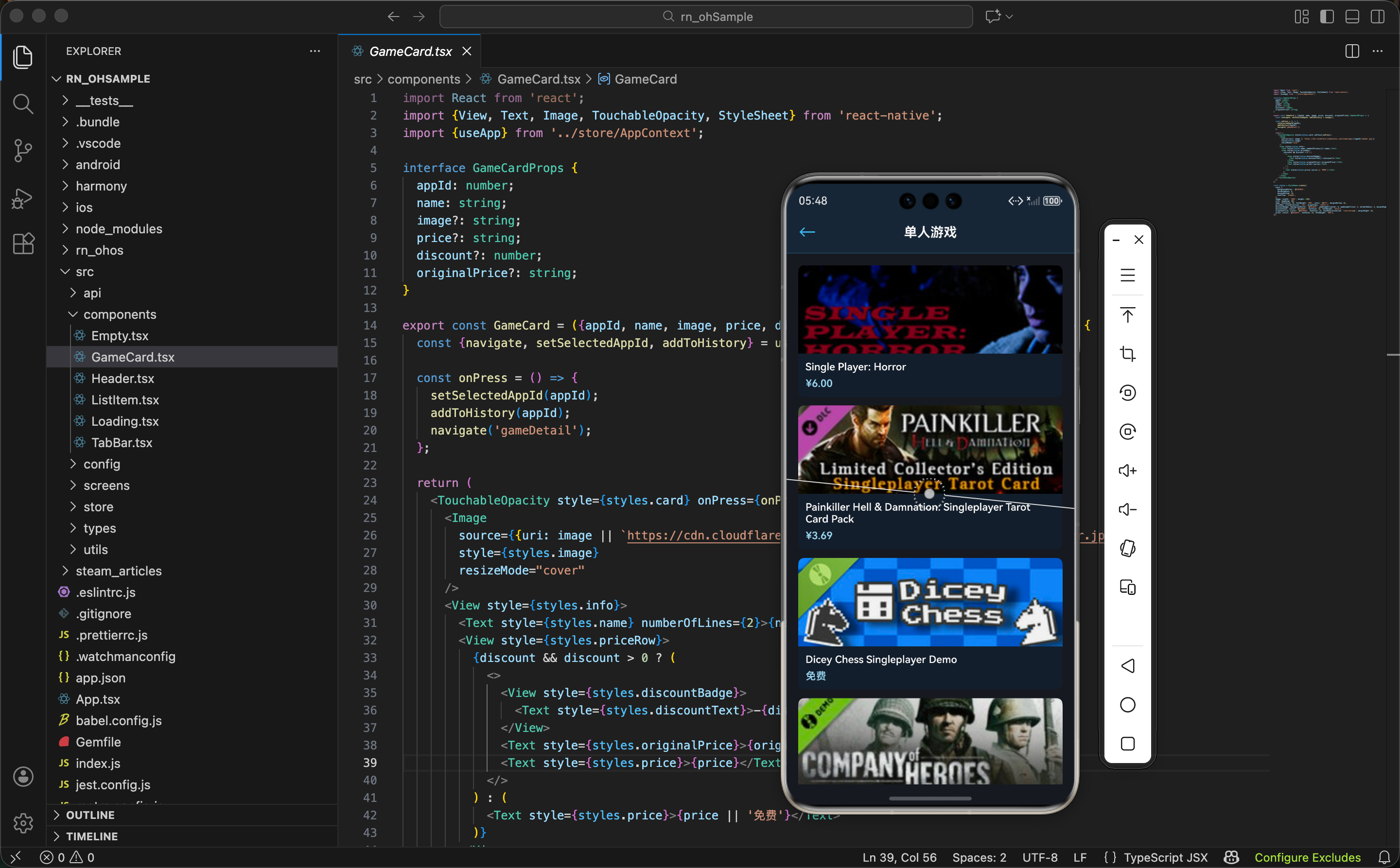
标签游戏的筛选逻辑
标签游戏列表的核心是根据标签名称筛选游戏。由于 Steam 没有直接的标签查询 API,我们需要:
- 获取热门游戏列表
- 获取每个游戏的详情
- 检查游戏是否包含指定标签
- 显示匹配的游戏
这个过程和标签页面的数据加载类似,但目的不同:标签页面是统计标签,这里是筛选游戏。
页面状态定义
export const TagGamesScreen = () => {
  const {selectedTag, navigate, setSelectedAppId, addToHistory} = useApp();
  const [games, setGames] = useState<any[]>([]);
  const [loading, setLoading] = useState(true);
  const [sortBy, setSortBy] = useState<'default' | 'price_asc' | 'price_desc'>('default');
状态的作用:
selectedTag- 从全局状态获取用户选择的标签名称,比如"单人"、"多人"等games- 存储筛选后的游戏列表,只包含拥有该标签的游戏loading- 控制加载状态,在数据加载过程中显示 Loading 组件sortBy- 当前的排序方式,支持默认排序、价格升序、价格降序
这里没有用 pageIndex 状态,因为标签游戏列表通常不会很长,不需要分页。
标签游戏的加载
页面加载时,需要获取热门游戏的详情,然后筛选出包含指定标签的游戏:
useEffect(() => {
  if (!selectedTag) return;

  const loadTagGames = async () => {
    setLoading(true);
    try {
      const gameDetails = await Promise.all(
        POPULAR_GAMES.map(appId => getAppDetails(appId))
      );

      const matchedGames = gameDetails
        .map((detail, index) => {
          const appId = POPULAR_GAMES[index];
          const data = detail?.[appId]?.data;
          if (data?.tags && data.tags.includes(selectedTag)) {
            return {id: appId, ...data};
          }
          return null;
        })
        .filter(game => game !== null);

      setGames(matchedGames);
    } catch (error) {
      console.error('Error loading tag games:', error);
    } finally {
      setLoading(false);
    }
  };

  loadTagGames();
}, [selectedTag]);
这里的处理流程:
- 检查标签 - 如果没有选中标签,直接返回,不执行后续逻辑
- 并行获取 - 用
Promise.all()同时获取所有热门游戏的详情,这比逐个请求快得多 - 标签匹配 - 对每个游戏检查其
tags数组是否包含选中的标签。用includes()方法进行精确匹配 - 数据提取 - 如果游戏包含该标签,就提取游戏数据并添加
id字段;否则返回 null - 过滤空值 - 用
filter(game => game !== null)过滤掉不匹配的游戏 - 更新状态 - 将筛选后的游戏列表存储到
games状态中
这个实现的关键是 data.tags.includes(selectedTag) 这一行,它检查游戏的标签数组是否包含用户选择的标签。
排序功能
用户可以按不同方式排序游戏:
const getSortedGames = () => {
  let sorted = [...games];

  if (sortBy === 'price_asc') {
    sorted.sort((a, b) => {
      const priceA = a.price_overview?.final_price || 0;
      const priceB = b.price_overview?.final_price || 0;
      return priceA - priceB;
    });
  } else if (sortBy === 'price_desc') {
    sorted.sort((a, b) => {
      const priceA = a.price_overview?.final_price || 0;
      const priceB = b.price_overview?.final_price || 0;
      return priceB - priceA;
    });
  }

  return sorted;
};
排序的实现细节:
- 创建副本 - 用
[...games]创建一个新数组,避免直接修改原始数据。这样可以保留原始顺序,方便用户切换回默认排序 - 价格提取 - 从
price_overview对象中提取final_price字段。如果游戏是免费的或者没有价格信息,用 0 作为默认值 - 排序逻辑 - 升序用
priceA - priceB,降序用priceB - priceA。这是 JavaScript 排序的标准写法 - 默认排序 - 如果
sortBy是 ‘default’,直接返回原始顺序,不进行排序
这样的实现让排序功能很容易扩展。如果要加新的排序方式(比如按评分排序),只需要在这个函数中添加新的条件即可。
排序按钮的 UI
在页面顶部显示排序按钮:
<View style={styles.toolbar}>
  <Text style={styles.tagTitle}>#{selectedTag}</Text>
  <View style={styles.sortButtons}>
    <TouchableOpacity
      style={[styles.sortBtn, sortBy === 'default' && styles.sortBtnActive]}
      onPress={() => setSortBy('default')}
    >
      <Text style={styles.sortBtnText}>默认</Text>
    </TouchableOpacity>
    <TouchableOpacity
      style={[styles.sortBtn, sortBy === 'price_asc' && styles.sortBtnActive]}
      onPress={() => setSortBy('price_asc')}
    >
      <Text style={styles.sortBtnText}>价格↑</Text>
    </TouchableOpacity>
    <TouchableOpacity
      style={[styles.sortBtn, sortBy === 'price_desc' && styles.sortBtnActive]}
      onPress={() => setSortBy('price_desc')}
    >
      <Text style={styles.sortBtnText}>价格↓</Text>
    </TouchableOpacity>
  </View>
</View>
工具栏的设计:
- 标签名称 - 显示当前选中的标签,用
#前缀表示这是一个标签。这是社交媒体上常见的标签表示方式 - 排序按钮 - 三个按钮分别对应三种排序方式:默认、价格升序、价格降序
- 按钮状态 - 当前选中的排序方式用
sortBtnActive样式高亮显示,让用户知道当前的排序方式 - 箭头图标 - 用 ↑ 和 ↓ 表示升序和降序,比文字更直观
这样的设计让用户可以快速了解当前的排序方式,并方便地切换。
游戏列表的渲染
游戏列表用 FlatList 渲染:
<FlatList
  data={getSortedGames()}
  keyExtractor={(item) => item.id.toString()}
  renderItem={({item}) => (
    <TouchableOpacity
      style={styles.gameItem}
      onPress={() => {
        setSelectedAppId(item.id);
        addToHistory(item.id);
        navigate('gameDetail');
      }}
    >
      <Image
        source={{uri: item.header_image}}
        style={styles.gameImage}
        resizeMode="cover"
      />
      <View style={styles.gameInfo}>
        <Text style={styles.gameName} numberOfLines={2}>{item.name}</Text>
        <Text style={styles.gameDesc} numberOfLines={1}>
          {item.short_description}
        </Text>
        <Text style={styles.gamePrice}>
          {item.price_overview?.final_price
            ? `¥${(item.price_overview.final_price / 100).toFixed(2)}`
            : '免费'}
        </Text>
      </View>
    </TouchableOpacity>
  )}
  ListEmptyComponent={
    <View style={styles.emptyContainer}>
      <Text style={styles.emptyText}>该标签下暂无游戏</Text>
    </View>
  }
/>
列表渲染的细节:
- 数据源 - 用
getSortedGames()获取排序后的游戏列表 - keyExtractor - 用游戏 ID 作为 key,确保列表项的唯一性
- 游戏卡片 - 显示游戏封面、名称、简介和价格。相比分类游戏列表,这里多了一个简介字段
- 点击处理 - 点击游戏卡片时,设置选中的游戏 ID、添加到浏览历史、导航到游戏详情页
- 价格格式化 - 将价格从分转换成元,保留两位小数。如果没有价格信息,显示"免费"
- 空状态 - 如果没有匹配的游戏,显示"该标签下暂无游戏"的提示
这里用了 short_description 字段来显示游戏简介,这是 Steam API 返回的游戏简短描述。
完整页面代码
import React, {useEffect, useState} from 'react';
import {View, Text, FlatList, TouchableOpacity, Image, StyleSheet} from 'react-native';
import {Header} from '../components/Header';
import {TabBar} from '../components/TabBar';
import {Loading} from '../components/Loading';
import {useApp} from '../store/AppContext';
import {getAppDetails, POPULAR_GAMES} from '../api/steam';

export const TagGamesScreen = () => {
  const {selectedTag, navigate, setSelectedAppId, addToHistory} = useApp();
  const [games, setGames] = useState<any[]>([]);
  const [loading, setLoading] = useState(true);
  const [sortBy, setSortBy] = useState<'default' | 'price_asc' | 'price_desc'>('default');

  const getSortedGames = () => {
    let sorted = [...games];

    if (sortBy === 'price_asc') {
      sorted.sort((a, b) => {
        const priceA = a.price_overview?.final_price || 0;
        const priceB = b.price_overview?.final_price || 0;
        return priceA - priceB;
      });
    } else if (sortBy === 'price_desc') {
      sorted.sort((a, b) => {
        const priceA = a.price_overview?.final_price || 0;
        const priceB = b.price_overview?.final_price || 0;
        return priceB - priceA;
      });
    }

    return sorted;
  };

  useEffect(() => {
    if (!selectedTag) return;

    const loadTagGames = async () => {
      setLoading(true);
      try {
        const gameDetails = await Promise.all(
          POPULAR_GAMES.map(appId => getAppDetails(appId))
        );

        const matchedGames = gameDetails
          .map((detail, index) => {
            const appId = POPULAR_GAMES[index];
            const data = detail?.[appId]?.data;
            if (data?.tags && data.tags.includes(selectedTag)) {
              return {id: appId, ...data};
            }
            return null;
          })
          .filter(game => game !== null);

        setGames(matchedGames);
      } catch (error) {
        console.error('Error loading tag games:', error);
      } finally {
        setLoading(false);
      }
    };

    loadTagGames();
  }, [selectedTag]);

  if (loading) {
    return (
      <View style={styles.container}>
        <Header title="标签游戏" showBack />
        <Loading />
        <TabBar />
      </View>
    );
  }

  return (
    <View style={styles.container}>
      <Header title={`#${selectedTag}`} showBack />

      <View style={styles.toolbar}>
        <Text style={styles.resultCount}>{games.length} 个游戏</Text>
        <View style={styles.sortButtons}>
          <TouchableOpacity
            style={[styles.sortBtn, sortBy === 'default' && styles.sortBtnActive]}
            onPress={() => setSortBy('default')}
          >
            <Text style={styles.sortBtnText}>默认</Text>
          </TouchableOpacity>
          <TouchableOpacity
            style={[styles.sortBtn, sortBy === 'price_asc' && styles.sortBtnActive]}
            onPress={() => setSortBy('price_asc')}
          >
            <Text style={styles.sortBtnText}>价格↑</Text>
          </TouchableOpacity>
          <TouchableOpacity
            style={[styles.sortBtn, sortBy === 'price_desc' && styles.sortBtnActive]}
            onPress={() => setSortBy('price_desc')}
          >
            <Text style={styles.sortBtnText}>价格↓</Text>
          </TouchableOpacity>
        </View>
      </View>

      <FlatList
        data={getSortedGames()}
        keyExtractor={(item) => item.id.toString()}
        renderItem={({item}) => (
          <TouchableOpacity
            style={styles.gameItem}
            onPress={() => {
              setSelectedAppId(item.id);
              addToHistory(item.id);
              navigate('gameDetail');
            }}
          >
            <Image
              source={{uri: item.header_image}}
              style={styles.gameImage}
              resizeMode="cover"
            />
            <View style={styles.gameInfo}>
              <Text style={styles.gameName} numberOfLines={2}>{item.name}</Text>
              <Text style={styles.gameDesc} numberOfLines={1}>
                {item.short_description}
              </Text>
              <Text style={styles.gamePrice}>
                {item.price_overview?.final_price
                  ? `¥${(item.price_overview.final_price / 100).toFixed(2)}`
                  : '免费'}
              </Text>
            </View>
          </TouchableOpacity>
        )}
        ListEmptyComponent={
          <View style={styles.emptyContainer}>
            <Text style={styles.emptyText}>该标签下暂无游戏</Text>
          </View>
        }
      />

      <TabBar />
    </View>
  );
};

const styles = StyleSheet.create({
  container: {flex: 1, backgroundColor: '#171a21'},
  toolbar: {
    flexDirection: 'row',
    justifyContent: 'space-between',
    alignItems: 'center',
    padding: 12,
    backgroundColor: '#1b2838',
    borderBottomWidth: 1,
    borderBottomColor: '#2a475e',
  },
  resultCount: {fontSize: 14, color: '#8f98a0'},
  sortButtons: {flexDirection: 'row'},
  sortBtn: {
    paddingHorizontal: 12,
    paddingVertical: 6,
    borderRadius: 4,
    backgroundColor: '#2a475e',
    marginLeft: 8,
  },
  sortBtnActive: {backgroundColor: '#66c0f4'},
  sortBtnText: {fontSize: 12, color: '#acdbf5', fontWeight: '600'},
  gameItem: {
    flexDirection: 'row',
    padding: 12,
    borderBottomWidth: 1,
    borderBottomColor: '#2a475e',
    backgroundColor: '#1b2838',
  },
  gameImage: {width: 100, height: 56, borderRadius: 4, marginRight: 12},
  gameInfo: {flex: 1, justifyContent: 'space-between'},
  gameName: {fontSize: 14, fontWeight: '600', color: '#acdbf5'},
  gameDesc: {fontSize: 12, color: '#8f98a0', marginVertical: 4},
  gamePrice: {fontSize: 12, color: '#66c0f4', fontWeight: '600'},
  emptyContainer: {flex: 1, justifyContent: 'center', alignItems: 'center', paddingVertical: 60},
  emptyText: {fontSize: 16, color: '#8f98a0'},
});
与分类游戏列表的区别
标签游戏列表和分类游戏列表虽然看起来相似,但有几个关键区别:
数据来源不同 - 分类游戏列表使用预定义的分类游戏映射(CATEGORY_GAMES),而标签游戏列表是动态筛选的。
筛选逻辑不同 - 分类游戏列表直接根据分类 ID 获取游戏列表,而标签游戏列表需要检查每个游戏的 tags 数组。
显示内容不同 - 标签游戏列表多显示了游戏简介(short_description),让用户可以更好地了解游戏。
Header 显示不同 - 标签游戏列表的 Header 显示 #标签名,而分类游戏列表显示分类名称。
性能优化建议
缓存游戏详情 - 由于标签页面和标签游戏列表页面都需要获取游戏详情,可以考虑在全局状态中缓存游戏详情,避免重复请求。
预加载 - 可以在标签页面加载时就预加载游戏详情,这样用户进入标签游戏列表页面时就不需要等待。
增量加载 - 如果热门游戏列表很长,可以先加载前 10 个游戏,然后在用户滚动时加载更多。
小结
标签游戏列表页面展示了如何根据标签筛选游戏。核心是检查每个游戏的 tags 数组是否包含指定标签。这种动态筛选的方式比预定义映射更灵活,但也需要更多的 API 请求。
欢迎加入开源鸿蒙跨平台社区:https://openharmonycrossplatform.csdn.net

开源鸿蒙跨平台开发社区汇聚开发者与厂商,共建“一次开发,多端部署”的开源生态,致力于降低跨端开发门槛,推动万物智联创新。
更多推荐
 27
27 0
0- 0


 已为社区贡献24条内容

所有评论(0)