Flutter&OpenHarmony商城App消息通知组件开发
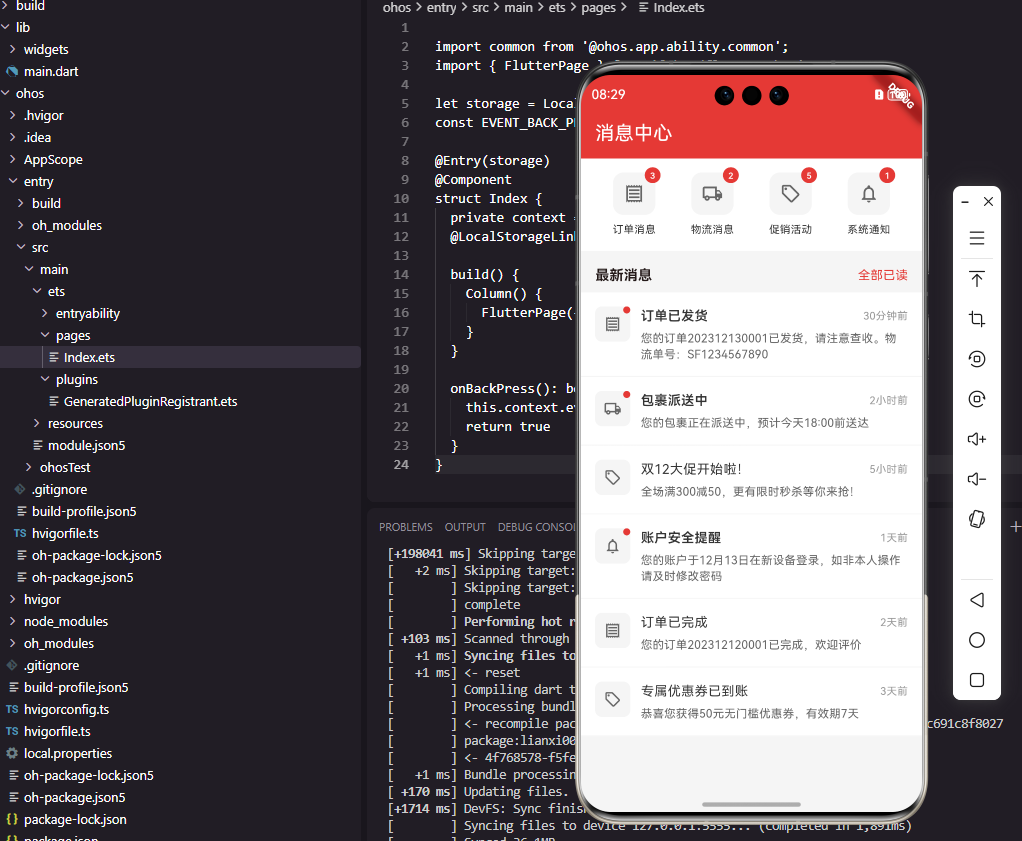
摘要 本文介绍了在Flutter和OpenHarmony平台上开发消息通知组件的关键技术。主要内容包括: 消息数据模型设计,包含消息类型、标题、内容、图片、时间、已读状态等核心属性,通过枚举类型实现分类管理 消息分类入口组件实现,采用图标+文字+未读角标的设计模式,支持用户快速查看各类消息的未读数量 未读消息角标组件,自动处理99+的显示逻辑,采用醒目的红底白字设计确保视觉辨识度 消息列表组件实现
#
前言
消息通知是商城应用中与用户保持沟通的重要渠道,包括订单状态更新、物流信息、促销活动、系统公告等各类消息。一个设计良好的消息通知组件需要清晰地分类展示不同类型的消息,并提供未读标记、消息详情等功能。本文将详细介绍如何在Flutter和OpenHarmony平台上开发消息通知相关组件,帮助开发者构建高效的消息触达系统。
消息通知的设计需要在信息传达和用户打扰之间取得平衡。重要消息需要及时触达用户,但过多的消息推送会造成用户疲劳。通过合理的消息分类和展示设计,我们可以帮助用户快速识别重要消息,同时不遗漏任何有价值的信息。
Flutter消息数据模型
首先定义消息数据的模型结构:
class Message {
  final String id;
  final MessageType type;
  final String title;
  final String content;
  final String? imageUrl;
  final DateTime createTime;
  final bool isRead;
  final String? linkUrl;

  const Message({
    required this.id,
    required this.type,
    required this.title,
    required this.content,
    this.imageUrl,
    required this.createTime,
    this.isRead = false,
    this.linkUrl,
  });
}
Message类包含了消息的核心属性。type是消息类型枚举,区分订单消息、物流消息、活动消息等。title是消息标题,content是消息内容。imageUrl是可选的消息图片,用于活动消息等需要图片展示的场景。createTime是消息创建时间,isRead标记消息是否已读,linkUrl是点击消息后跳转的目标链接。这种数据模型的设计覆盖了消息通知的主要业务场景。
消息类型枚举定义:
enum MessageType {
  order,      // 订单消息
  logistics,  // 物流消息
  promotion,  // 促销活动
  system,     // 系统通知
}

extension MessageTypeExtension on MessageType {
  String get label {
    switch (this) {
      case MessageType.order:
        return '订单消息';
      case MessageType.logistics:
        return '物流消息';
      case MessageType.promotion:
        return '促销活动';
      case MessageType.system:
        return '系统通知';
    }
  }

  IconData get icon {
    switch (this) {
      case MessageType.order:
        return Icons.receipt_outlined;
      case MessageType.logistics:
        return Icons.local_shipping_outlined;
      case MessageType.promotion:
        return Icons.local_offer_outlined;
      case MessageType.system:
        return Icons.notifications_outlined;
    }
  }
}
MessageType枚举定义了四种消息类型,扩展方法为每种类型提供对应的中文标签和图标。订单消息使用收据图标,物流消息使用货车图标,促销活动使用标签图标,系统通知使用铃铛图标。这种设计将类型相关的属性封装在枚举上,使用时更加方便,代码也更加清晰易维护。
消息分类入口组件
class MessageCategoryList extends StatelessWidget {
final Map<MessageType, int> unreadCounts;
final ValueChanged<MessageType>? onTap;
const MessageCategoryList({
Key? key,
required this.unreadCounts,
this.onTap,
}) : super(key: key);
Widget build(BuildContext context) {
return Container(
padding: const EdgeInsets.all(16),
color: Colors.white,
child: Row(
mainAxisAlignment: MainAxisAlignment.spaceAround,
children: MessageType.values.map((type) {
return _buildCategoryItem(type);
}).toList(),
),
);
}
}
MessageCategoryList组件展示消息分类入口,用户可以点击进入对应类型的消息列表。unreadCounts是一个Map,存储每种消息类型的未读数量。Row使用spaceAround均匀分布四个分类入口。MessageType.values获取枚举的所有值,map方法将每个类型转换为对应的UI组件。这种设计让用户能够快速了解各类消息的未读情况,并选择感兴趣的类型查看。
分类入口项组件:
Widget _buildCategoryItem(MessageType type) {
  final unreadCount = unreadCounts[type] ?? 0;

  return GestureDetector(
    onTap: () => onTap?.call(type),
    child: Column(
      children: [
        Stack(
          clipBehavior: Clip.none,
          children: [
            Container(
              width: 48,
              height: 48,
              decoration: BoxDecoration(
                color: const Color(0xFFF5F5F5),
                borderRadius: BorderRadius.circular(12),
              ),
              child: Icon(
                type.icon,
                size: 24,
                color: const Color(0xFF666666),
              ),
            ),
            if (unreadCount > 0)
              Positioned(
                right: -6,
                top: -6,
                child: _buildBadge(unreadCount),
              ),
          ],
        ),
        const SizedBox(height: 8),
        Text(
          type.label,
          style: const TextStyle(
            fontSize: 12,
            color: Color(0xFF333333),
          ),
        ),
      ],
    ),
  );
}
每个分类入口由图标和文字组成,使用Column垂直排列。图标容器设置48像素尺寸和圆角背景,Icon使用枚举扩展方法获取对应的图标。Stack实现图标和未读角标的层叠显示,Positioned将角标定位在右上角。条件渲染确保只有当未读数量大于0时才显示角标。GestureDetector处理点击事件,跳转到对应类型的消息列表。
未读角标组件:
Widget _buildBadge(int count) {
  final displayText = count > 99 ? '99+' : count.toString();

  return Container(
    padding: const EdgeInsets.symmetric(horizontal: 5, vertical: 2),
    constraints: const BoxConstraints(minWidth: 18),
    decoration: BoxDecoration(
      color: const Color(0xFFE53935),
      borderRadius: BorderRadius.circular(9),
    ),
    child: Text(
      displayText,
      style: const TextStyle(
        fontSize: 10,
        color: Colors.white,
        fontWeight: FontWeight.w500,
      ),
      textAlign: TextAlign.center,
    ),
  );
}
未读角标显示未读消息数量,当数量超过99时显示"99+"。Container设置最小宽度约束,确保单位数字时角标也能保持圆形外观。红色背景和白色文字形成强烈对比,确保角标在各种背景下都清晰可见。圆角半径设为高度的一半,使角标呈现圆润的胶囊形状。这种角标设计是移动应用中的通用模式,用户已经形成了认知习惯。
消息列表组件
class MessageList extends StatelessWidget {
final List<Message> messages;
final ValueChanged<Message>? onTap;
final bool isLoading;
const MessageList({
Key? key,
required this.messages,
this.onTap,
this.isLoading = false,
}) : super(key: key);
Widget build(BuildContext context) {
if (messages.isEmpty && !isLoading) {
return _buildEmptyState();
}
return ListView.builder(
itemCount: messages.length,
itemBuilder: (context, index) {
return MessageCard(
message: messages[index],
onTap: () => onTap?.call(messages[index]),
);
},
);
}
}
MessageList组件展示消息列表,支持点击查看详情。当列表为空且不在加载中时显示空状态提示。ListView.builder懒加载消息卡片,只有可见区域的卡片才会被创建。onTap回调在用户点击消息时触发,将消息数据传递给父组件处理跳转逻辑。这种设计将列表的展示逻辑与业务操作分离,组件可以在不同场景下复用。
消息卡片组件
class MessageCard extends StatelessWidget {
final Message message;
final VoidCallback? onTap;
const MessageCard({
Key? key,
required this.message,
this.onTap,
}) : super(key: key);
Widget build(BuildContext context) {
return GestureDetector(
onTap: onTap,
child: Container(
padding: const EdgeInsets.all(16),
decoration: const BoxDecoration(
color: Colors.white,
border: Border(
bottom: BorderSide(
color: Color(0xFFF5F5F5),
width: 1,
),
),
),
child: Row(
crossAxisAlignment: CrossAxisAlignment.start,
children: [
_buildIcon(),
const SizedBox(width: 12),
Expanded(child: _buildContent()),
],
),
),
);
}
}
MessageCard组件展示单条消息的信息。Container设置白色背景和底部边框,与下一条消息形成视觉分隔。Row水平排列图标和内容区,crossAxisAlignment设为start使它们顶部对齐。Expanded使内容区占据剩余宽度。GestureDetector包装整个卡片,点击时触发查看详情或跳转操作。这种布局结构清晰,信息层级分明。
消息图标组件:
Widget _buildIcon() {
  return Stack(
    children: [
      Container(
        width: 40,
        height: 40,
        decoration: BoxDecoration(
          color: const Color(0xFFF5F5F5),
          borderRadius: BorderRadius.circular(8),
        ),
        child: Icon(
          message.type.icon,
          size: 20,
          color: const Color(0xFF666666),
        ),
      ),
      if (!message.isRead)
        Positioned(
          right: 0,
          top: 0,
          child: Container(
            width: 8,
            height: 8,
            decoration: const BoxDecoration(
              color: Color(0xFFE53935),
              shape: BoxShape.circle,
            ),
          ),
        ),
    ],
  );
}
消息图标使用Stack实现图标和未读红点的层叠显示。图标容器设置40像素尺寸和圆角背景,Icon使用消息类型对应的图标。未读状态时在右上角显示一个8像素的红色圆点,这是未读消息的通用视觉标记。条件渲染确保只有未读消息才显示红点。这种设计让用户能够快速识别哪些消息还没有阅读。
消息内容区
Widget _buildContent() {
  return Column(
    crossAxisAlignment: CrossAxisAlignment.start,
    children: [
      Row(
        children: [
          Expanded(
            child: Text(
              message.title,
              style: TextStyle(
                fontSize: 15,
                fontWeight: message.isRead
                  ? FontWeight.normal
                  : FontWeight.w600,
                color: const Color(0xFF333333),
              ),
              maxLines: 1,
              overflow: TextOverflow.ellipsis,
            ),
          ),
          Text(
            _formatTime(message.createTime),
            style: const TextStyle(
              fontSize: 12,
              color: Color(0xFF999999),
            ),
          ),
        ],
      ),
      const SizedBox(height: 6),
      Text(
        message.content,
        style: const TextStyle(
          fontSize: 13,
          color: Color(0xFF666666),
          height: 1.4,
        ),
        maxLines: 2,
        overflow: TextOverflow.ellipsis,
      ),
    ],
  );
}
消息内容区包含标题、时间和内容摘要。标题根据已读状态显示不同字重,未读消息使用粗体突出显示。时间显示在标题右侧,使用灰色小字号。内容摘要限制两行显示,超出部分显示省略号。Column垂直排列这些元素,crossAxisAlignment设为start使内容左对齐。这种设计在有限空间内展示了消息的关键信息。
时间格式化方法:
String _formatTime(DateTime time) {
  final now = DateTime.now();
  final diff = now.difference(time);

  if (diff.inMinutes < 1) {
    return '刚刚';
  } else if (diff.inHours < 1) {
    return '${diff.inMinutes}分钟前';
  } else if (diff.inDays < 1) {
    return '${diff.inHours}小时前';
  } else if (diff.inDays < 7) {
    return '${diff.inDays}天前';
  } else {
    return DateFormat('MM-dd').format(time);
  }
}
时间格式化方法将消息时间转换为友好的相对时间显示。1分钟内显示"刚刚",1小时内显示"X分钟前",1天内显示"X小时前",7天内显示"X天前",超过7天显示具体日期。这种相对时间的显示方式更加直观,用户能够快速了解消息的新旧程度。
OpenHarmony消息卡片实现
@Component
struct MessageCard {
  @Prop message: MessageInfo
  private onTap: () => void = () => {}

  build() {
    Row() {
      this.MessageIcon()

      Column() {
        this.TitleRow()
        Text(this.message.content)
          .fontSize(13)
          .fontColor('#666666')
          .maxLines(2)
          .textOverflow({ overflow: TextOverflow.Ellipsis })
          .margin({ top: 6 })
      }
      .layoutWeight(1)
      .alignItems(HorizontalAlign.Start)
      .margin({ left: 12 })
    }
    .width('100%')
    .padding(16)
    .backgroundColor(Color.White)
    .border({ width: { bottom: 1 }, color: '#F5F5F5' })
    .alignItems(VerticalAlign.Top)
    .onClick(() => this.onTap())
  }
}
OpenHarmony的消息卡片使用Row水平排列图标和内容区。@Prop装饰的message属性从父组件接收消息数据。Column垂直排列标题行和内容摘要,layoutWeight(1)使其占据剩余宽度。alignItems设为VerticalAlign.Top使图标和内容顶部对齐。border只设置底部边框作为分隔线。onClick事件处理器在用户点击时触发回调。
消息数据接口:
interface MessageInfo {
  id: string
  type: string
  title: string
  content: string
  imageUrl?: string
  createTime: string
  isRead: boolean
  linkUrl?: string
}
TypeScript接口定义了消息的数据结构。type使用string类型存储消息类型值,imageUrl和linkUrl使用可选标记。isRead使用boolean类型标记已读状态。接口定义为组件提供了类型安全保障。
消息图标ArkUI实现
@Builder
MessageIcon() {
  Stack() {
    Column() {
      Image(this.getTypeIcon())
        .width(20)
        .height(20)
    }
    .width(40)
    .height(40)
    .backgroundColor('#F5F5F5')
    .borderRadius(8)
    .justifyContent(FlexAlign.Center)

    if (!this.message.isRead) {
      Circle()
        .width(8)
        .height(8)
        .fill('#E53935')
        .position({ x: 32, y: 0 })
    }
  }
}
@Builder装饰器定义了消息图标的构建方法。Stack层叠图标容器和未读红点。Column包裹Image组件并设置居中对齐,作为图标容器。条件渲染使用if语句,只有当消息未读时才显示红点。Circle组件绘制红色圆点,position设置其在Stack中的位置。这种实现方式与Flutter版本的视觉效果完全一致。
总结
本文详细介绍了Flutter和OpenHarmony平台上消息通知组件的开发过程。消息通知作为商城应用与用户沟通的重要渠道,其设计质量直接影响用户的信息获取效率和应用粘性。通过消息分类入口、消息列表、消息卡片等组件的合理设计,我们为用户提供了清晰高效的消息管理功能。在实际项目中,还可以进一步添加消息推送、消息设置、批量操作等功能。
欢迎加入开源鸿蒙跨平台社区:https://openharmonycrossplatform.csdn.net

开源鸿蒙跨平台开发社区汇聚开发者与厂商,共建“一次开发,多端部署”的开源生态,致力于降低跨端开发门槛,推动万物智联创新。
更多推荐

 3
3 0
0- 0


 已为社区贡献23条内容

所有评论(0)