Flutter&OpenHarmony商城App物流跟踪组件开发
本文介绍了在Flutter和OpenHarmony平台上开发物流跟踪组件的关键技术。文章首先定义了物流数据模型LogisticsInfo和LogisticsTrace,包含快递单号、公司信息、物流状态及轨迹节点等核心数据。然后详细讲解了物流状态卡片组件LogisticsStatusCard的实现,包括头部信息展示、状态标签渲染以及快递员信息显示等功能。组件采用卡片式设计,通过条件渲染展示不同物流状
#
前言
物流跟踪是商城应用中用户关注度最高的功能之一,用户下单后会频繁查看物流状态了解包裹的配送进度。一个设计良好的物流跟踪组件需要清晰地展示物流轨迹、预计送达时间、快递员信息等,让用户随时掌握包裹动态。本文将详细介绍如何在Flutter和OpenHarmony平台上开发物流跟踪相关组件,帮助开发者构建直观的物流信息展示功能。
物流跟踪的设计需要考虑信息的时效性和可读性。用户最关心的是包裹当前在哪里、什么时候能送达,因此最新的物流状态应该放在最显眼的位置。同时,完整的物流轨迹可以帮助用户了解配送全过程,增强对物流服务的信任感。
Flutter物流数据模型
首先定义物流数据的模型结构:
class LogisticsInfo {
  final String trackingNo;
  final String companyName;
  final String companyLogo;
  final LogisticsStatus status;
  final String? courierName;
  final String? courierPhone;
  final List<LogisticsTrace> traces;

  const LogisticsInfo({
    required this.trackingNo,
    required this.companyName,
    required this.companyLogo,
    required this.status,
    this.courierName,
    this.courierPhone,
    required this.traces,
  });
}
LogisticsInfo类包含了物流信息的核心数据。trackingNo是快递单号,companyName和companyLogo是快递公司名称和图标。status是当前物流状态枚举,courierName和courierPhone是快递员信息,在派送阶段显示。traces是物流轨迹列表,记录包裹的每一个流转节点。这种数据模型的设计覆盖了物流跟踪的主要展示需求。
物流轨迹数据模型:
class LogisticsTrace {
  final String content;
  final DateTime time;
  final String? location;
  final bool isCurrentNode;

  const LogisticsTrace({
    required this.content,
    required this.time,
    this.location,
    this.isCurrentNode = false,
  });
}

enum LogisticsStatus {
  pending,    // 待揽收
  collected,  // 已揽收
  inTransit,  // 运输中
  delivering, // 派送中
  delivered,  // 已签收
}
LogisticsTrace类定义了单条物流轨迹的信息。content是轨迹描述文字,time是发生时间,location是可选的地点信息,isCurrentNode标记是否为当前最新节点。LogisticsStatus枚举定义了物流的五种状态,从待揽收到已签收覆盖了完整的配送流程。这种数据结构可以清晰地表示物流的时间线。
物流状态卡片组件
class LogisticsStatusCard extends StatelessWidget {
final LogisticsInfo logistics;
final VoidCallback? onCallCourier;
const LogisticsStatusCard({
Key? key,
required this.logistics,
this.onCallCourier,
}) : super(key: key);
Widget build(BuildContext context) {
return Container(
margin: const EdgeInsets.all(16),
padding: const EdgeInsets.all(16),
decoration: BoxDecoration(
color: Colors.white,
borderRadius: BorderRadius.circular(12),
boxShadow: [
BoxShadow(
color: Colors.black.withOpacity(0.05),
blurRadius: 10,
offset: const Offset(0, 2),
),
],
),
child: Column(
crossAxisAlignment: CrossAxisAlignment.start,
children: [
_buildHeader(),
const Divider(height: 24),
_buildLatestTrace(),
if (logistics.status == LogisticsStatus.delivering)
_buildCourierInfo(),
],
),
);
}
}
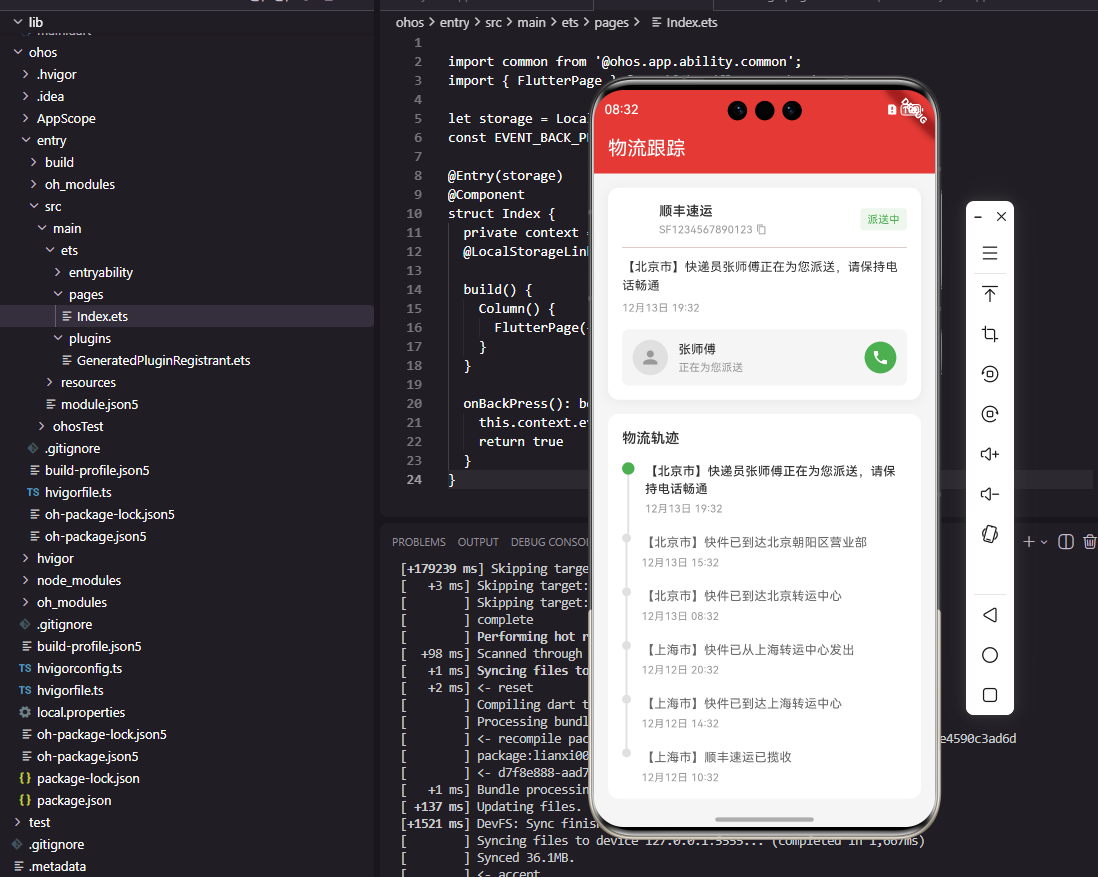
LogisticsStatusCard组件展示物流的当前状态和最新轨迹。Container使用白色背景、圆角和阴影营造卡片效果。Column垂直排列头部信息、分隔线、最新轨迹和快递员信息。条件渲染确保只有在派送中状态才显示快递员信息。这种设计让用户能够快速了解包裹的当前状态。
头部信息组件:
Widget _buildHeader() {
  return Row(
    children: [
      ClipRRect(
        borderRadius: BorderRadius.circular(4),
        child: Image.network(
          logistics.companyLogo,
          width: 32,
          height: 32,
          fit: BoxFit.cover,
        ),
      ),
      const SizedBox(width: 10),
      Expanded(
        child: Column(
          crossAxisAlignment: CrossAxisAlignment.start,
          children: [
            Text(
              logistics.companyName,
              style: const TextStyle(
                fontSize: 15,
                fontWeight: FontWeight.w600,
                color: Color(0xFF333333),
              ),
            ),
            const SizedBox(height: 2),
            Text(
              logistics.trackingNo,
              style: const TextStyle(
                fontSize: 12,
                color: Color(0xFF999999),
              ),
            ),
          ],
        ),
      ),
      _buildStatusBadge(),
    ],
  );
}
头部信息包含快递公司图标、名称、单号和状态标签。图标使用32像素尺寸和圆角裁剪。公司名称使用15像素粗体,单号使用灰色小字号。状态标签显示在右侧,使用不同颜色区分不同状态。Row水平排列这些元素,Expanded使公司信息占据中间空间。这种布局让用户能够快速识别快递公司和当前状态。
状态标签组件:
Widget _buildStatusBadge() {
  final statusConfig = _getStatusConfig();

  return Container(
    padding: const EdgeInsets.symmetric(horizontal: 8, vertical: 4),
    decoration: BoxDecoration(
      color: statusConfig.color.withOpacity(0.1),
      borderRadius: BorderRadius.circular(4),
    ),
    child: Text(
      statusConfig.label,
      style: TextStyle(
        fontSize: 12,
        color: statusConfig.color,
      ),
    ),
  );
}

({String label, Color color}) _getStatusConfig() {
  switch (logistics.status) {
    case LogisticsStatus.pending:
      return (label: '待揽收', color: const Color(0xFFFF9800));
    case LogisticsStatus.collected:
      return (label: '已揽收', color: const Color(0xFF2196F3));
    case LogisticsStatus.inTransit:
      return (label: '运输中', color: const Color(0xFF2196F3));
    case LogisticsStatus.delivering:
      return (label: '派送中', color: const Color(0xFF4CAF50));
    case LogisticsStatus.delivered:
      return (label: '已签收', color: const Color(0xFF4CAF50));
  }
}
状态标签根据物流状态显示不同的文字和颜色。待揽收使用橙色提醒用户关注,已揽收和运输中使用蓝色表示进行中,派送中和已签收使用绿色表示即将完成或已完成。_getStatusConfig方法使用Dart 3的记录类型返回标签和颜色的组合。这种颜色编码帮助用户快速识别物流状态。
最新轨迹组件
Widget _buildLatestTrace() {
  if (logistics.traces.isEmpty) {
    return const Text(
      '暂无物流信息',
      style: TextStyle(
        fontSize: 14,
        color: Color(0xFF999999),
      ),
    );
  }

  final latest = logistics.traces.first;

  return Column(
    crossAxisAlignment: CrossAxisAlignment.start,
    children: [
      Text(
        latest.content,
        style: const TextStyle(
          fontSize: 14,
          color: Color(0xFF333333),
          height: 1.5,
        ),
      ),
      const SizedBox(height: 6),
      Text(
        _formatDateTime(latest.time),
        style: const TextStyle(
          fontSize: 12,
          color: Color(0xFF999999),
        ),
      ),
    ],
  );
}
最新轨迹组件显示物流的最新状态信息。当轨迹列表为空时显示"暂无物流信息"提示。否则取列表第一条作为最新轨迹,显示轨迹内容和时间。内容使用14像素字号和1.5倍行高,确保多行文字清晰易读。时间使用灰色小字号作为辅助信息。这种设计让用户能够快速了解包裹的最新动态。
快递员信息组件
Widget _buildCourierInfo() {
  return Container(
    margin: const EdgeInsets.only(top: 16),
    padding: const EdgeInsets.all(12),
    decoration: BoxDecoration(
      color: const Color(0xFFF5F5F5),
      borderRadius: BorderRadius.circular(8),
    ),
    child: Row(
      children: [
        const CircleAvatar(
          radius: 20,
          backgroundColor: Color(0xFFE0E0E0),
          child: Icon(Icons.person, color: Color(0xFF999999)),
        ),
        const SizedBox(width: 12),
        Expanded(
          child: Column(
            crossAxisAlignment: CrossAxisAlignment.start,
            children: [
              Text(
                logistics.courierName ?? '快递员',
                style: const TextStyle(
                  fontSize: 14,
                  fontWeight: FontWeight.w500,
                  color: Color(0xFF333333),
                ),
              ),
              const SizedBox(height: 2),
              const Text(
                '正在为您派送',
                style: TextStyle(
                  fontSize: 12,
                  color: Color(0xFF999999),
                ),
              ),
            ],
          ),
        ),
        GestureDetector(
          onTap: onCallCourier,
          child: Container(
            padding: const EdgeInsets.all(8),
            decoration: const BoxDecoration(
              color: Color(0xFF4CAF50),
              shape: BoxShape.circle,
            ),
            child: const Icon(
              Icons.phone,
              size: 20,
              color: Colors.white,
            ),
          ),
        ),
      ],
    ),
  );
}
快递员信息组件在派送中状态显示,包含快递员头像、姓名和联系按钮。CircleAvatar显示默认头像图标,实际项目中可以显示快递员真实头像。姓名和状态文字垂直排列在头像右侧。绿色圆形电话按钮放在最右侧,点击可以拨打快递员电话。这种设计让用户能够方便地联系快递员了解配送情况。
物流轨迹时间线
class LogisticsTimeline extends StatelessWidget {
final List<LogisticsTrace> traces;
const LogisticsTimeline({
Key? key,
required this.traces,
}) : super(key: key);
Widget build(BuildContext context) {
return Container(
margin: const EdgeInsets.symmetric(horizontal: 16),
padding: const EdgeInsets.all(16),
decoration: BoxDecoration(
color: Colors.white,
borderRadius: BorderRadius.circular(12),
),
child: Column(
crossAxisAlignment: CrossAxisAlignment.start,
children: [
const Text(
'物流轨迹',
style: TextStyle(
fontSize: 16,
fontWeight: FontWeight.w600,
color: Color(0xFF333333),
),
),
const SizedBox(height: 16),
...traces.asMap().entries.map((entry) {
return _buildTraceItem(entry.value, entry.key == 0);
}),
],
),
);
}
}
LogisticsTimeline组件以时间线形式展示完整的物流轨迹。Container使用白色背景和圆角,Column垂直排列标题和轨迹列表。asMap().entries将列表转换为带索引的迭代器,用于判断是否为第一条轨迹以显示不同样式。展开运算符将轨迹项列表展开到Column的children中。这种设计让用户能够查看包裹的完整配送历程。
轨迹项组件:
Widget _buildTraceItem(LogisticsTrace trace, bool isFirst) {
  return IntrinsicHeight(
    child: Row(
      crossAxisAlignment: CrossAxisAlignment.start,
      children: [
        _buildTimelineIndicator(isFirst),
        const SizedBox(width: 12),
        Expanded(
          child: Padding(
            padding: const EdgeInsets.only(bottom: 20),
            child: Column(
              crossAxisAlignment: CrossAxisAlignment.start,
              children: [
                Text(
                  trace.content,
                  style: TextStyle(
                    fontSize: 14,
                    color: isFirst
                      ? const Color(0xFF333333)
                      : const Color(0xFF666666),
                    fontWeight: isFirst
                      ? FontWeight.w500
                      : FontWeight.normal,
                  ),
                ),
                const SizedBox(height: 4),
                Text(
                  _formatDateTime(trace.time),
                  style: const TextStyle(
                    fontSize: 12,
                    color: Color(0xFF999999),
                  ),
                ),
              ],
            ),
          ),
        ),
      ],
    ),
  );
}
每条轨迹项由时间线指示器和内容组成。IntrinsicHeight使Row的高度自适应内容,确保时间线正确连接。第一条轨迹使用深色粗体文字突出显示,其他轨迹使用普通样式。时间显示在内容下方,使用灰色小字号。底部padding为下一条轨迹留出空间。这种设计清晰地展示了物流的时间顺序。
时间线指示器
Widget _buildTimelineIndicator(bool isFirst) {
  return Column(
    children: [
      Container(
        width: 12,
        height: 12,
        decoration: BoxDecoration(
          shape: BoxShape.circle,
          color: isFirst
            ? const Color(0xFF4CAF50)
            : const Color(0xFFE0E0E0),
          border: isFirst
            ? Border.all(
                color: const Color(0xFF4CAF50).withOpacity(0.3),
                width: 3,
              )
            : null,
        ),
      ),
      Expanded(
        child: Container(
          width: 2,
          color: const Color(0xFFE0E0E0),
        ),
      ),
    ],
  );
}
时间线指示器由圆点和连接线组成。第一条轨迹的圆点使用绿色并带有外圈光晕效果,表示当前最新状态。其他轨迹使用灰色圆点。Expanded使连接线填充剩余高度,与下一条轨迹的圆点连接。这种视觉设计清晰地表示了时间的流向和当前位置。
OpenHarmony物流时间线实现
@Component
struct LogisticsTimeline {
  @Prop traces: LogisticsTraceInfo[] = []

  build() {
    Column() {
      Text('物流轨迹')
        .fontSize(16)
        .fontWeight(FontWeight.Medium)
        .fontColor('#333333')

      ForEach(this.traces, (trace: LogisticsTraceInfo, index: number) => {
        this.TraceItem(trace, index === 0)
      })
    }
    .width('100%')
    .padding(16)
    .backgroundColor(Color.White)
    .borderRadius(12)
    .margin({ left: 16, right: 16 })
    .alignItems(HorizontalAlign.Start)
  }
}
OpenHarmony的物流时间线使用Column垂直排列标题和轨迹列表。ForEach遍历轨迹数组,通过index判断是否为第一条轨迹。样式设置包括白色背景、圆角和外边距。alignItems设为HorizontalAlign.Start使内容左对齐。这种实现方式与Flutter版本结构一致。
轨迹数据接口:
interface LogisticsTraceInfo {
  content: string
  time: string
  location?: string
  isCurrentNode: boolean
}
TypeScript接口定义了物流轨迹的数据结构。location使用可选标记,表示地点信息可以不存在。time使用string类型存储时间字符串。接口定义为组件提供了类型安全保障。
轨迹项ArkUI实现
@Builder
TraceItem(trace: LogisticsTraceInfo, isFirst: boolean) {
  Row() {
    Column() {
      Circle()
        .width(12)
        .height(12)
        .fill(isFirst ? '#4CAF50' : '#E0E0E0')

      Line()
        .width(2)
        .height(40)
        .backgroundColor('#E0E0E0')
    }
    .alignItems(HorizontalAlign.Center)

    Column() {
      Text(trace.content)
        .fontSize(14)
        .fontColor(isFirst ? '#333333' : '#666666')
        .fontWeight(isFirst ? FontWeight.Medium : FontWeight.Normal)

      Text(trace.time)
        .fontSize(12)
        .fontColor('#999999')
        .margin({ top: 4 })
    }
    .alignItems(HorizontalAlign.Start)
    .margin({ left: 12 })
    .layoutWeight(1)
  }
  .width('100%')
  .alignItems(VerticalAlign.Top)
  .margin({ top: 16 })
}
@Builder装饰器定义了轨迹项的构建方法。Row水平排列时间线指示器和内容。Circle绘制圆点,第一条使用绿色其他使用灰色。Line绘制连接线,固定高度40像素。内容Column垂直排列轨迹描述和时间。alignItems设为VerticalAlign.Top使指示器和内容顶部对齐。这种实现方式与Flutter版本的视觉效果一致。
总结
本文详细介绍了Flutter和OpenHarmony平台上物流跟踪组件的开发过程。物流跟踪作为商城应用的重要功能,其设计质量直接影响用户的购物体验和对平台的信任度。通过物流状态卡片、快递员信息、物流时间线等组件的合理设计,我们为用户提供了清晰直观的物流信息展示功能。在实际项目中,还可以进一步添加地图轨迹、预计送达时间、异常提醒等功能。
欢迎加入开源鸿蒙跨平台社区:https://openharmonycrossplatform.csdn.net

开源鸿蒙跨平台开发社区汇聚开发者与厂商,共建“一次开发,多端部署”的开源生态,致力于降低跨端开发门槛,推动万物智联创新。
更多推荐
 17
17 0
0- 0


 已为社区贡献28条内容

所有评论(0)