Flutter & OpenHarmony OA系统数据统计图表组件开发指南
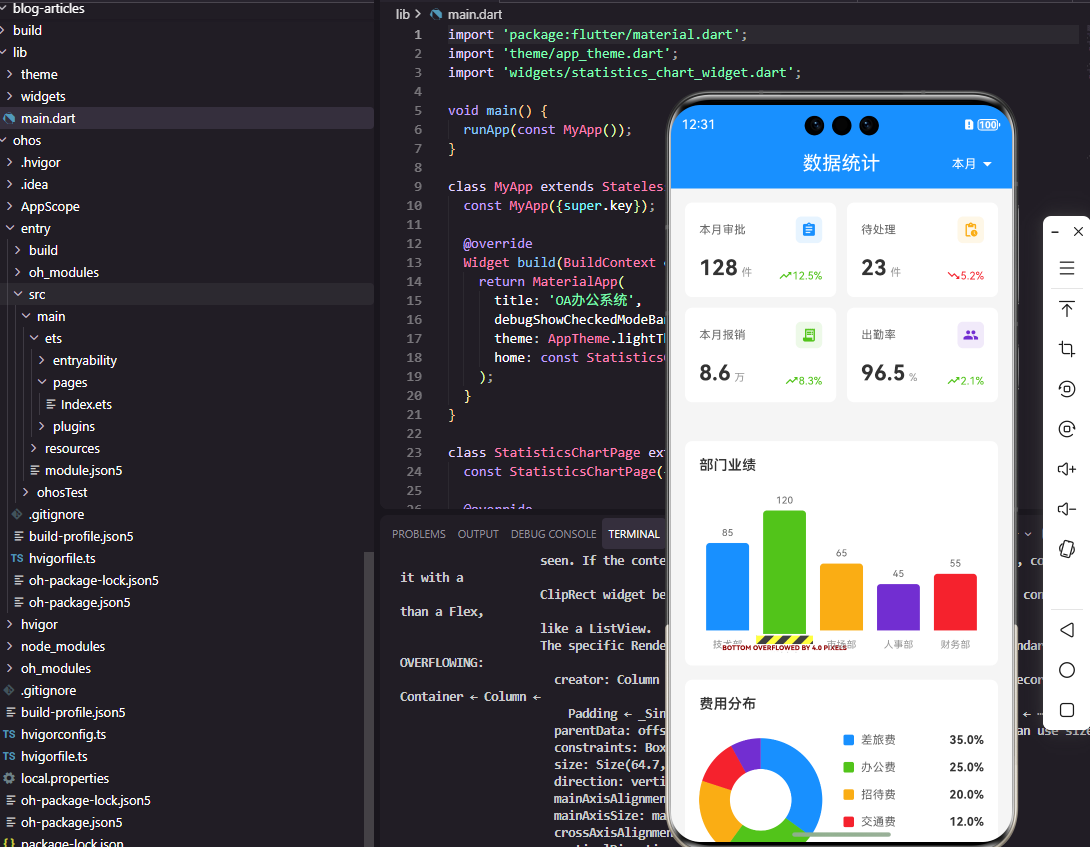
本文介绍了如何使用Flutter和OpenHarmony开发多功能数据统计图表组件。主要内容包括: 组件功能规划:支持柱状图、折线图、饼图等常见类型,具备数据动态更新、动画效果和交互功能 Flutter实现: 定义数据模型(ChartData/ChartSeries) 基础组件结构(ChartWidget) 柱状图绘制(BarChartPainter) 饼图绘制(PieChartPainter)
前言
数据统计图表是OA系统中展示业务数据的重要工具,它将枯燥的数字转化为直观的可视化图形,帮助管理者快速了解业务状况、发现问题趋势。一个优秀的图表组件需要支持多种图表类型、数据动态更新、交互操作等功能。本文将详细介绍如何使用Flutter和OpenHarmony开发一个功能丰富的数据统计图表组件。
组件功能规划
数据统计图表组件需要支持柱状图、折线图、饼图、环形图等常见图表类型。组件需要支持数据动态更新和动画效果,提供图例、标签、提示框等辅助元素。在交互上,支持点击查看详情、缩放查看趋势等操作。同时需要考虑响应式布局,适应不同屏幕尺寸。
Flutter端实现
定义图表数据模型:
class ChartData {
  final String label;
  final double value;
  final Color? color;

  ChartData({
    required this.label,
    required this.value,
    this.color,
  });
}

class ChartSeries {
  final String name;
  final List<ChartData> data;
  final Color color;

  ChartSeries({
    required this.name,
    required this.data,
    required this.color,
  });
}
ChartData定义单个数据点,包含标签、数值和可选的颜色。ChartSeries定义数据系列,用于多系列图表如多条折线图。color字段用于区分不同系列。
图表组件的基础结构:
class ChartWidget extends StatefulWidget {
final List<ChartData> data;
final ChartType type;
final String? title;
final bool showLegend;
const ChartWidget({
Key? key,
required this.data,
required this.type,
this.title,
this.showLegend = true,
}) : super(key: key);
State<ChartWidget> createState() => _ChartWidgetState();
}
组件接收数据列表、图表类型和配置选项。ChartType枚举定义支持的图表类型,showLegend控制是否显示图例。
柱状图绑制:
Widget _buildBarChart() {
  return CustomPaint(
    painter: BarChartPainter(
      data: widget.data,
      maxValue: widget.data.map((d) => d.value).reduce(max),
      barColor: Colors.blue,
      animationValue: _animationController.value,
    ),
    size: Size.infinite,
  );
}
柱状图使用CustomPaint自定义绘制,传入数据和最大值用于计算柱子高度比例。animationValue用于实现加载动画效果。
柱状图绘制器:
class BarChartPainter extends CustomPainter {
void paint(Canvas canvas, Size size) {
final barWidth = (size.width - 40) / data.length - 10;
final chartHeight = size.height - 40;
for (int i = 0; i < data.length; i++) {
final item = data[i];
final barHeight = (item.value / maxValue) * chartHeight * animationValue;
final x = 20 + i * (barWidth + 10);
final y = chartHeight - barHeight;
final paint = Paint()
..color = item.color ?? barColor
..style = PaintingStyle.fill;
canvas.drawRRect(
RRect.fromRectAndRadius(
Rect.fromLTWH(x, y, barWidth, barHeight),
Radius.circular(4),
),
paint,
);
_drawLabel(canvas, item.label, x + barWidth / 2, size.height - 10);
}
}
}
柱状图绘制器计算每个柱子的宽度和高度,使用drawRRect绘制圆角矩形。animationValue控制柱子高度实现动画效果,标签绘制在柱子下方。
饼图绘制:
Widget _buildPieChart() {
  return CustomPaint(
    painter: PieChartPainter(
      data: widget.data,
      total: widget.data.fold(0, (sum, d) => sum + d.value),
      animationValue: _animationController.value,
    ),
    size: Size.infinite,
  );
}
饼图需要计算数据总和用于计算每个扇形的角度比例。
OpenHarmony鸿蒙端实现
定义图表数据接口:
interface ChartData {
  label: string
  value: number
  color?: ResourceColor
}

type ChartType = 'bar' | 'line' | 'pie' | 'ring'
ChartData定义数据点,color为可选字段,未指定时使用默认颜色。ChartType定义支持的图表类型。
图表组件的基础结构:
@Component
struct ChartWidget {
  @Prop data: ChartData[] = []
  @Prop chartType: ChartType = 'bar'
  @Prop title: string = ''
  @Prop showLegend: boolean = true
  @State animationProgress: number = 0

  private context: CanvasRenderingContext2D = new CanvasRenderingContext2D()
}
使用@Prop接收图表配置,@State管理动画进度。CanvasRenderingContext2D用于Canvas绑制。
柱状图绘制:
private drawBarChart() {
  const ctx = this.context
  const width = ctx.width
  const height = ctx.height
  const chartHeight = height - 60
  const barWidth = (width - 40) / this.data.length - 10
  const maxValue = Math.max(...this.data.map(d => d.value))

  this.data.forEach((item, index) => {
    const barHeight = (item.value / maxValue) * chartHeight * this.animationProgress
    const x = 20 + index * (barWidth + 10)
    const y = chartHeight - barHeight

    ctx.fillStyle = item.color || this.getDefaultColor(index)
    ctx.beginPath()
    ctx.roundRect(x, y, barWidth, barHeight, 4)
    ctx.fill()

    ctx.fillStyle = '#666666'
    ctx.font = '12px sans-serif'
    ctx.textAlign = 'center'
    ctx.fillText(item.label, x + barWidth / 2, height - 20)
  })
}
柱状图遍历数据绘制每个柱子,高度根据数值比例和动画进度计算。roundRect绘制圆角矩形,标签显示在柱子下方居中位置。
折线图绘制:
private drawLineChart() {
  const ctx = this.context
  const width = ctx.width
  const height = ctx.height
  const chartHeight = height - 60
  const stepX = (width - 40) / (this.data.length - 1)
  const maxValue = Math.max(...this.data.map(d => d.value))

  ctx.strokeStyle = '#1890FF'
  ctx.lineWidth = 2
  ctx.beginPath()

  this.data.forEach((item, index) => {
    const x = 20 + index * stepX
    const y = chartHeight - (item.value / maxValue) * chartHeight * this.animationProgress

    if (index === 0) {
      ctx.moveTo(x, y)
    } else {
      ctx.lineTo(x, y)
    }
  })

  ctx.stroke()

  this.data.forEach((item, index) => {
    const x = 20 + index * stepX
    const y = chartHeight - (item.value / maxValue) * chartHeight * this.animationProgress

    ctx.fillStyle = '#1890FF'
    ctx.beginPath()
    ctx.arc(x, y, 4, 0, Math.PI * 2)
    ctx.fill()
  })
}
折线图先绘制连接线,再绘制数据点圆圈。moveTo和lineTo连接各个数据点,arc绘制圆形数据点标记。
饼图绘制:
private drawPieChart() {
  const ctx = this.context
  const centerX = ctx.width / 2
  const centerY = ctx.height / 2
  const radius = Math.min(centerX, centerY) - 40
  const total = this.data.reduce((sum, d) => sum + d.value, 0)

  let startAngle = -Math.PI / 2

  this.data.forEach((item, index) => {
    const sweepAngle = (item.value / total) * Math.PI * 2 * this.animationProgress

    ctx.fillStyle = item.color || this.getDefaultColor(index)
    ctx.beginPath()
    ctx.moveTo(centerX, centerY)
    ctx.arc(centerX, centerY, radius, startAngle, startAngle + sweepAngle)
    ctx.closePath()
    ctx.fill()

    startAngle += sweepAngle
  })
}
饼图从圆心开始绘制扇形,每个扇形的角度根据数值占比计算。startAngle累加确保扇形依次排列,animationProgress控制动画效果。
图例组件:
@Builder
Legend() {
  Flex({ wrap: FlexWrap.Wrap }) {
    ForEach(this.data, (item: ChartData, index: number) => {
      Row() {
        Circle()
          .width(12)
          .height(12)
          .fill(item.color || this.getDefaultColor(index))

        Text(item.label)
          .fontSize(12)
          .fontColor('#666666')
          .margin({ left: 4 })
      }
      .margin({ right: 16, bottom: 8 })
    })
  }
  .width('100%')
  .padding(16)
}
图例使用Flex布局自动换行,每个图例项包含颜色圆点和标签文字。颜色与图表中对应数据的颜色一致,帮助用户识别数据含义。
动画控制:
aboutToAppear() {
  animateTo({
    duration: 1000,
    curve: Curve.EaseOut,
    onFinish: () => {}
  }, () => {
    this.animationProgress = 1
  })
}
aboutToAppear生命周期方法启动动画,animateTo实现平滑的动画效果。动画时长1秒,使用EaseOut缓动曲线使动画更自然。
总结
本文详细介绍了Flutter和OpenHarmony平台上数据统计图表组件的开发方法。图表组件使用Canvas自定义绑制实现,支持柱状图、折线图、饼图等常见类型。两个平台都提供了Canvas API和动画支持,开发者需要注意数据比例计算和动画效果的实现。图表组件可以帮助管理者直观了解业务数据。
欢迎加入开源鸿蒙跨平台社区:https://openharmonycrossplatform.csdn.net

开源鸿蒙跨平台开发社区汇聚开发者与厂商,共建“一次开发,多端部署”的开源生态,致力于降低跨端开发门槛,推动万物智联创新。
更多推荐
 13
13 0
0- 0


 已为社区贡献12条内容

所有评论(0)