Flutter & OpenHarmony OA系统工作流程图组件开发指南
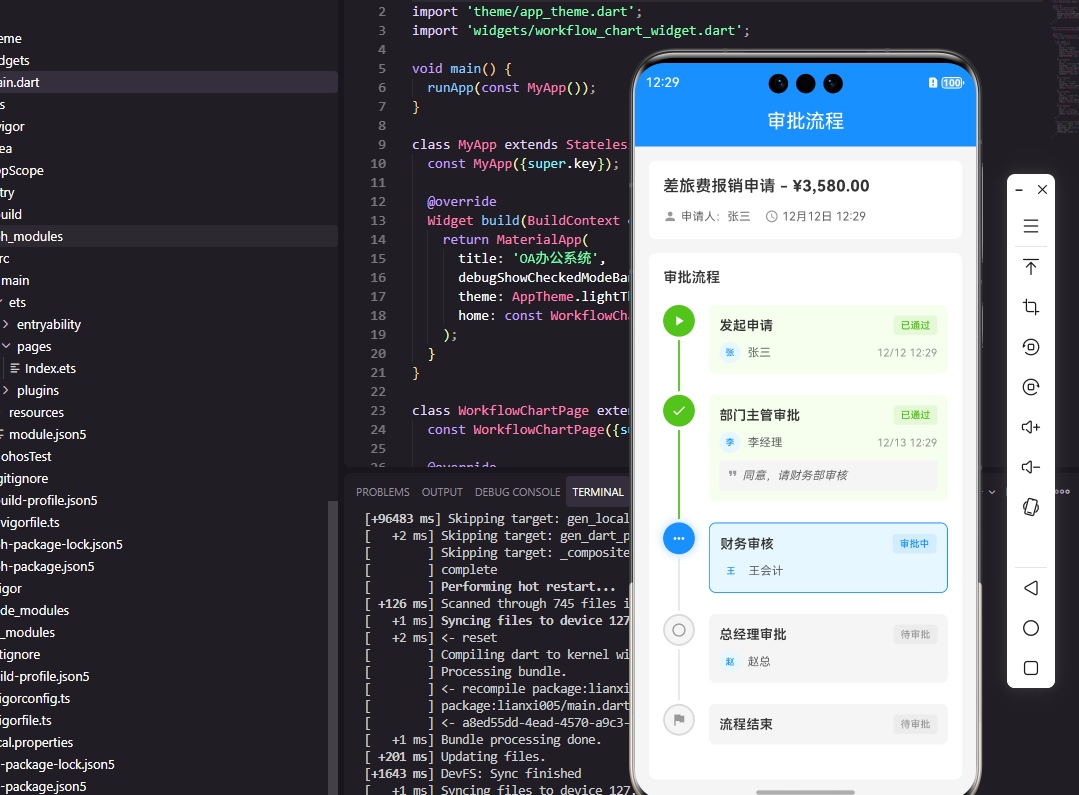
本文介绍了如何使用Flutter和OpenHarmony开发工作流程图组件。在Flutter端,通过CustomPainter实现节点和连接线的绘制,支持多种节点类型和状态显示,并添加了缩放平移手势交互。OpenHarmony端采用Canvas组件绘制流程图,通过PinchGesture和PanGesture实现缩放平移功能。两端都定义了FlowNode和FlowEdge数据模型来表示流程结构,组
前言
工作流程图是OA系统中展示审批流程、业务流程的重要组件,它以可视化的方式呈现流程节点和流转关系,帮助用户理解复杂的业务逻辑。一个优秀的流程图组件需要支持多种节点类型、连接线绘制、节点状态展示、缩放平移等功能。本文将详细介绍如何使用Flutter和OpenHarmony开发一个功能完善的工作流程图组件。
组件功能设计
工作流程图组件的核心是节点和连接线的绘制。节点类型包括开始节点、结束节点、审批节点、条件节点、并行节点等。连接线表示流程的流转方向,支持直线和折线两种样式。组件需要支持缩放和平移操作,便于查看复杂的大型流程图。节点状态用不同颜色标识,如已完成、进行中、待处理等。
Flutter端实现
定义流程节点和连接线数据模型:
enum NodeType { start, end, approval, condition, parallel, task }
enum NodeStatus { pending, processing, completed, rejected }

class FlowNode {
  final String id;
  final String name;
  final NodeType type;
  final NodeStatus status;
  final double x;
  final double y;
  final String? assignee;

  FlowNode({
    required this.id,
    required this.name,
    required this.type,
    this.status = NodeStatus.pending,
    required this.x,
    required this.y,
    this.assignee,
  });
}

class FlowEdge {
  final String id;
  final String sourceId;
  final String targetId;
  final String? label;

  FlowEdge({
    required this.id,
    required this.sourceId,
    required this.targetId,
    this.label,
  });
}
FlowNode定义流程节点,包含位置坐标和状态信息。FlowEdge定义连接线,通过sourceId和targetId关联两个节点。label用于显示条件分支的判断条件。
流程图组件的基础结构:
class FlowChartWidget extends StatefulWidget {
final List<FlowNode> nodes;
final List<FlowEdge> edges;
final Function(FlowNode)? onNodeTap;
const FlowChartWidget({
Key? key,
required this.nodes,
required this.edges,
this.onNodeTap,
}) : super(key: key);
State<FlowChartWidget> createState() => _FlowChartWidgetState();
}
组件接收节点列表、连接线列表和节点点击回调。这种数据驱动的设计使流程图可以动态更新,适应不同的业务流程。
状态类中的缩放平移控制:
class _FlowChartWidgetState extends State<FlowChartWidget> {
double _scale = 1.0;
Offset _offset = Offset.zero;
Widget build(BuildContext context) {
return GestureDetector(
onScaleStart: (details) => _onScaleStart(details),
onScaleUpdate: (details) => _onScaleUpdate(details),
child: ClipRect(
child: CustomPaint(
painter: FlowChartPainter(
nodes: widget.nodes,
edges: widget.edges,
scale: _scale,
offset: _offset,
),
size: Size.infinite,
),
),
);
}
}
使用GestureDetector处理缩放和平移手势,CustomPaint绘制流程图。_scale控制缩放比例,_offset控制平移偏移。ClipRect确保绘制内容不超出组件边界。
流程图绘制器:
class FlowChartPainter extends CustomPainter {
final List<FlowNode> nodes;
final List<FlowEdge> edges;
final double scale;
final Offset offset;
void paint(Canvas canvas, Size size) {
canvas.save();
canvas.translate(offset.dx, offset.dy);
canvas.scale(scale);
for (var edge in edges) {
_drawEdge(canvas, edge);
}
for (var node in nodes) {
_drawNode(canvas, node);
}
canvas.restore();
}
}
FlowChartPainter继承CustomPainter实现自定义绘制。先应用平移和缩放变换,然后依次绘制连接线和节点。先绘制连接线确保节点覆盖在线上方。
节点绘制方法:
void _drawNode(Canvas canvas, FlowNode node) {
  final paint = Paint()
    ..color = _getStatusColor(node.status)
    ..style = PaintingStyle.fill;

  final rect = Rect.fromCenter(
    center: Offset(node.x, node.y),
    width: 120,
    height: 60,
  );

  switch (node.type) {
    case NodeType.start:
    case NodeType.end:
      canvas.drawOval(rect, paint);
      break;
    case NodeType.condition:
      _drawDiamond(canvas, rect, paint);
      break;
    default:
      canvas.drawRRect(
        RRect.fromRectAndRadius(rect, Radius.circular(8)),
        paint,
      );
  }

  _drawNodeText(canvas, node, rect);
}
根据节点类型绘制不同形状,开始和结束节点用椭圆,条件节点用菱形,其他节点用圆角矩形。颜色根据节点状态动态设置,已完成显示绿色,进行中显示蓝色等。
OpenHarmony鸿蒙端实现
定义流程节点和连接线接口:
type NodeType = 'start' | 'end' | 'approval' | 'condition' | 'parallel' | 'task'
type NodeStatus = 'pending' | 'processing' | 'completed' | 'rejected'

interface FlowNode {
  id: string
  name: string
  type: NodeType
  status: NodeStatus
  x: number
  y: number
  assignee?: string
}

interface FlowEdge {
  id: string
  sourceId: string
  targetId: string
  label?: string
}
使用联合类型定义节点类型和状态,x和y记录节点在画布上的位置坐标。
流程图组件的基础结构:
@Component
struct FlowChart {
  @Prop nodes: FlowNode[] = []
  @Prop edges: FlowEdge[] = []
  @State scale: number = 1
  @State offsetX: number = 0
  @State offsetY: number = 0

  private onNodeTap: (node: FlowNode) => void = () => {}
}
使用@State管理缩放和平移状态,@Prop接收节点和连接线数据。
画布组件:
@Builder
FlowCanvas() {
  Canvas(this.context)
    .width('100%')
    .height('100%')
    .onReady(() => {
      this.drawFlowChart()
    })
    .gesture(
      GestureGroup(GestureMode.Parallel,
        PinchGesture()
          .onActionUpdate((event: GestureEvent) => {
            this.scale = Math.max(0.5, Math.min(2, this.scale * event.scale))
            this.drawFlowChart()
          }),
        PanGesture()
          .onActionUpdate((event: GestureEvent) => {
            this.offsetX += event.offsetX
            this.offsetY += event.offsetY
            this.drawFlowChart()
          })
      )
    )
}
Canvas组件用于自定义绑制,onReady回调在画布准备好后开始绑制。GestureGroup组合捏合缩放和平移手势,实现流程图的交互操作。
绑制流程图:
private drawFlowChart() {
  const ctx = this.context
  ctx.clearRect(0, 0, ctx.width, ctx.height)

  ctx.save()
  ctx.translate(this.offsetX, this.offsetY)
  ctx.scale(this.scale, this.scale)

  this.edges.forEach(edge => this.drawEdge(ctx, edge))
  this.nodes.forEach(node => this.drawNode(ctx, node))

  ctx.restore()
}
drawFlowChart方法清空画布后应用变换,依次绘制连接线和节点。save和restore保存和恢复绑制状态,避免变换影响后续绑制。
绘制节点:
private drawNode(ctx: CanvasRenderingContext2D, node: FlowNode) {
  const color = this.getStatusColor(node.status)
  ctx.fillStyle = color

  switch (node.type) {
    case 'start':
    case 'end':
      ctx.beginPath()
      ctx.ellipse(node.x, node.y, 50, 25, 0, 0, Math.PI * 2)
      ctx.fill()
      break
    case 'condition':
      this.drawDiamond(ctx, node.x, node.y, 60, 40)
      break
    default:
      ctx.beginPath()
      ctx.roundRect(node.x - 60, node.y - 25, 120, 50, 8)
      ctx.fill()
  }

  ctx.fillStyle = '#FFFFFF'
  ctx.font = '14px sans-serif'
  ctx.textAlign = 'center'
  ctx.textBaseline = 'middle'
  ctx.fillText(node.name, node.x, node.y)
}
根据节点类型绘制不同形状,使用Canvas API的ellipse、roundRect等方法。节点名称使用白色文字居中显示在节点内部。
绘制连接线:
private drawEdge(ctx: CanvasRenderingContext2D, edge: FlowEdge) {
  const source = this.nodes.find(n => n.id === edge.sourceId)
  const target = this.nodes.find(n => n.id === edge.targetId)
  if (!source || !target) return

  ctx.strokeStyle = '#999999'
  ctx.lineWidth = 2
  ctx.beginPath()
  ctx.moveTo(source.x, source.y + 25)
  ctx.lineTo(target.x, target.y - 25)
  ctx.stroke()

  this.drawArrow(ctx, source.x, source.y + 25, target.x, target.y - 25)

  if (edge.label) {
    const midX = (source.x + target.x) / 2
    const midY = (source.y + target.y) / 2
    ctx.fillStyle = '#666666'
    ctx.font = '12px sans-serif'
    ctx.fillText(edge.label, midX, midY)
  }
}
连接线从源节点底部连接到目标节点顶部,使用moveTo和lineTo绑制直线。drawArrow方法在线段末端绘制箭头表示方向。如果有标签则显示在线段中点。
节点点击检测:
private handleTap(x: number, y: number) {
  const adjustedX = (x - this.offsetX) / this.scale
  const adjustedY = (y - this.offsetY) / this.scale

  for (const node of this.nodes) {
    if (this.isPointInNode(adjustedX, adjustedY, node)) {
      this.onNodeTap(node)
      return
    }
  }
}

private isPointInNode(x: number, y: number, node: FlowNode): boolean {
  return x >= node.x - 60 && x <= node.x + 60 &&
         y >= node.y - 25 && y <= node.y + 25
}
点击检测需要将屏幕坐标转换为画布坐标,考虑平移和缩放的影响。isPointInNode判断点击位置是否在节点范围内,命中则触发回调。
总结
本文详细介绍了Flutter和OpenHarmony平台上工作流程图组件的开发方法。流程图组件使用Canvas自定义绑制实现,需要处理节点绑制、连接线绘制、缩放平移等功能。两个平台都提供了Canvas API支持自定义绑制,开发者需要注意坐标变换和手势处理的逻辑。流程图组件可以帮助用户直观理解复杂的业务流程。
欢迎加入开源鸿蒙跨平台社区:https://openharmonycrossplatform.csdn.net

开源鸿蒙跨平台开发社区汇聚开发者与厂商,共建“一次开发,多端部署”的开源生态,致力于降低跨端开发门槛,推动万物智联创新。
更多推荐
 4
4 0
0- 0


 已为社区贡献12条内容

所有评论(0)