Flutter&OpenHarmony商城App数量选择器组件开发
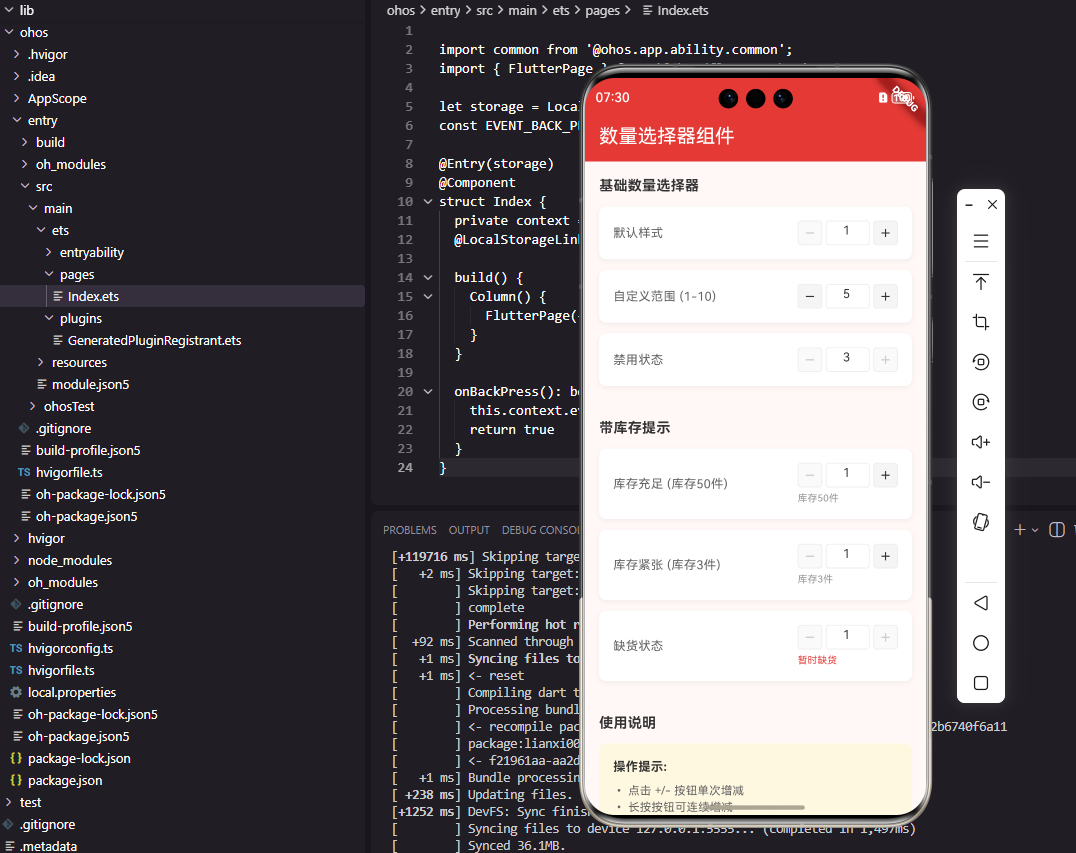
本文介绍了在Flutter和OpenHarmony平台上开发数量选择器组件的实现方法。该组件支持点击增减按钮和手动输入两种操作方式,包含库存边界检查、输入验证等核心功能。文章详细讲解了组件的基础结构、UI布局、增减按钮实现以及输入框处理逻辑,重点展示了如何通过合理的交互设计为用户提供安全便捷的数量选择体验。组件采用无状态设计,通过回调与父组件通信,具有良好的可复用性和可测试性。
#
前言
数量选择器是商城应用中用户选择购买数量的基础组件,广泛应用于商品详情页、购物车等场景。一个设计良好的数量选择器需要支持点击增减、手动输入、库存限制等功能,并提供清晰的操作反馈。本文将详细介绍如何在Flutter和OpenHarmony平台上开发数量选择器组件。
数量选择器的设计需要考虑操作的便捷性和错误的预防。用户应该能够快速调整数量,同时不会误操作导致数量超出合理范围。通过合理的交互设计和边界处理,我们可以为用户提供安全便捷的数量选择体验。
Flutter数量选择器基础实现
首先实现数量选择器的基础结构:
class QuantitySelector extends StatefulWidget {
final int value;
final int min;
final int max;
final ValueChanged<int>? onChanged;
final bool enabled;
const QuantitySelector({
Key? key,
required this.value,
this.min = 1,
this.max = 99,
this.onChanged,
this.enabled = true,
}) : super(key: key);
State<QuantitySelector> createState() => _QuantitySelectorState();
}
class _QuantitySelectorState extends State<QuantitySelector> {
late TextEditingController _controller;
void initState() {
super.initState();
_controller = TextEditingController(text: widget.value.toString());
}
void didUpdateWidget(QuantitySelector oldWidget) {
super.didUpdateWidget(oldWidget);
if (oldWidget.value != widget.value) {
_controller.text = widget.value.toString();
}
}
void dispose() {
_controller.dispose();
super.dispose();
}
}
QuantitySelector组件接收当前值、最小值、最大值和变化回调。min默认为1确保至少购买一件,max默认为99限制最大购买数量。enabled控制组件是否可操作,库存不足时可以禁用。TextEditingController管理输入框的文本,didUpdateWidget在外部value变化时同步更新输入框内容。这种设计支持受控和非受控两种使用方式。
组件UI构建:
Widget build(BuildContext context) {
return Row(
mainAxisSize: MainAxisSize.min,
children: [
_buildButton(
icon: Icons.remove,
onTap: _canDecrease ? _decrease : null,
),
_buildInput(),
_buildButton(
icon: Icons.add,
onTap: _canIncrease ? _increase : null,
),
],
);
}
bool get _canDecrease => widget.enabled && widget.value > widget.min;
bool get _canIncrease => widget.enabled && widget.value < widget.max;
Row水平排列减少按钮、输入框和增加按钮,mainAxisSize.min使组件宽度自适应内容。_canDecrease和_canIncrease计算属性判断按钮是否可点击,当数量达到边界值时禁用对应按钮。这种设计通过视觉反馈告知用户当前的操作限制,避免无效点击。
增减按钮组件
Widget _buildButton({
  required IconData icon,
  VoidCallback? onTap,
}) {
  final isEnabled = onTap != null;

  return GestureDetector(
    onTap: onTap,
    child: Container(
      width: 28,
      height: 28,
      decoration: BoxDecoration(
        color: isEnabled
          ? const Color(0xFFF5F5F5)
          : const Color(0xFFFAFAFA),
        borderRadius: BorderRadius.circular(4),
        border: Border.all(
          color: const Color(0xFFEEEEEE),
        ),
      ),
      child: Icon(
        icon,
        size: 16,
        color: isEnabled
          ? const Color(0xFF333333)
          : const Color(0xFFCCCCCC),
      ),
    ),
  );
}
增减按钮使用28像素的正方形尺寸,圆角和边框使外观更加精致。根据是否可点击显示不同的背景色和图标颜色,禁用状态使用更浅的颜色表明不可操作。GestureDetector处理点击事件,onTap为null时点击无响应。这种设计让用户能够清晰地识别按钮的可用状态。
增减操作方法:
void _decrease() {
  if (_canDecrease) {
    final newValue = widget.value - 1;
    widget.onChanged?.call(newValue);
  }
}

void _increase() {
  if (_canIncrease) {
    final newValue = widget.value + 1;
    widget.onChanged?.call(newValue);
  }
}
_decrease和_increase方法分别处理减少和增加操作。方法内部再次检查边界条件,确保数量不会超出范围。计算新值后调用onChanged回调通知父组件,由父组件决定是否更新状态。这种设计将状态管理交给父组件,组件本身保持无状态,便于测试和复用。
数量输入框
Widget _buildInput() {
  return Container(
    width: 50,
    height: 28,
    margin: const EdgeInsets.symmetric(horizontal: 4),
    decoration: BoxDecoration(
      border: Border.all(color: const Color(0xFFEEEEEE)),
      borderRadius: BorderRadius.circular(4),
    ),
    child: TextField(
      controller: _controller,
      enabled: widget.enabled,
      textAlign: TextAlign.center,
      keyboardType: TextInputType.number,
      inputFormatters: [
        FilteringTextInputFormatter.digitsOnly,
        LengthLimitingTextInputFormatter(2),
      ],
      decoration: const InputDecoration(
        border: InputBorder.none,
        contentPadding: EdgeInsets.zero,
        isDense: true,
      ),
      style: const TextStyle(
        fontSize: 14,
        color: Color(0xFF333333),
      ),
      onSubmitted: _handleInputSubmit,
      onTapOutside: (_) => _handleInputSubmit(_controller.text),
    ),
  );
}
输入框允许用户直接输入数量,适合需要输入较大数量的场景。Container设置50像素宽度和边框样式。TextField使用数字键盘,inputFormatters限制只能输入数字且最多2位。textAlign居中显示数字,decoration移除默认边框和内边距。onSubmitted在用户按下确认键时处理输入,onTapOutside在点击输入框外部时也触发处理。
输入处理方法:
void _handleInputSubmit(String text) {
  int? newValue = int.tryParse(text);

  if (newValue == null) {
    _controller.text = widget.value.toString();
    return;
  }

  if (newValue < widget.min) {
    newValue = widget.min;
  } else if (newValue > widget.max) {
    newValue = widget.max;
  }

  _controller.text = newValue.toString();

  if (newValue != widget.value) {
    widget.onChanged?.call(newValue);
  }
}
_handleInputSubmit方法处理用户输入的数量。首先尝试将输入转换为整数,如果转换失败则恢复原值。然后将数量限制在最小值和最大值之间,更新输入框显示。最后如果数量发生变化则通知父组件。这种处理确保用户输入的任何值都会被修正到合理范围内。
OpenHarmony数量选择器实现
@Component
struct QuantitySelector {
  @Prop value: number = 1
  @Prop min: number = 1
  @Prop max: number = 99
  @Prop enabled: boolean = true
  private onChanged: (value: number) => void = () => {}

  build() {
    Row() {
      this.DecreaseButton()
      this.InputField()
      this.IncreaseButton()
    }
  }

  canDecrease(): boolean {
    return this.enabled && this.value > this.min
  }

  canIncrease(): boolean {
    return this.enabled && this.value < this.max
  }
}
OpenHarmony的数量选择器使用@Component装饰器定义。@Prop装饰的属性从父组件接收数据,包括当前值、边界值和启用状态。Row水平排列减少按钮、输入框和增加按钮。canDecrease和canIncrease方法判断按钮是否可点击。这种实现方式与Flutter版本结构一致。
减少按钮ArkUI实现:
@Builder
DecreaseButton() {
  Column() {
    Image($r('app.media.minus'))
      .width(16)
      .height(16)
  }
  .width(28)
  .height(28)
  .backgroundColor(this.canDecrease() ? '#F5F5F5' : '#FAFAFA')
  .borderRadius(4)
  .border({ width: 1, color: '#EEEEEE' })
  .justifyContent(FlexAlign.Center)
  .onClick(() => {
    if (this.canDecrease()) {
      this.onChanged(this.value - 1)
    }
  })
}
@Builder装饰器定义了减少按钮的构建方法。Column包裹Image组件并设置居中对齐。backgroundColor根据可点击状态设置不同颜色。onClick事件在按钮可点击时调用onChanged回调。这种实现方式与Flutter版本的视觉效果一致。
输入框ArkUI实现:
@Builder
InputField() {
  TextInput({ text: this.value.toString() })
    .width(50)
    .height(28)
    .margin({ left: 4, right: 4 })
    .textAlign(TextAlign.Center)
    .type(InputType.Number)
    .maxLength(2)
    .borderRadius(4)
    .border({ width: 1, color: '#EEEEEE' })
    .backgroundColor(Color.White)
    .enabled(this.enabled)
    .onChange((value: string) => {
      this.handleInputChange(value)
    })
}

handleInputChange(text: string) {
  let newValue = parseInt(text) || this.min
  newValue = Math.max(this.min, Math.min(this.max, newValue))
  if (newValue !== this.value) {
    this.onChanged(newValue)
  }
}
TextInput组件创建数字输入框,type设为InputType.Number显示数字键盘。maxLength限制最多输入2位数字。textAlign居中显示内容。onChange回调在输入变化时处理数量更新。handleInputChange方法将输入值限制在有效范围内并通知父组件。
长按连续增减
class _QuantitySelectorState extends State<QuantitySelector> {
Timer? _timer;
void _startContinuousChange(bool isIncrease) {
_timer?.cancel();
_timer = Timer.periodic(
const Duration(milliseconds: 100),
(_) {
if (isIncrease) {
if (_canIncrease) _increase();
} else {
if (_canDecrease) _decrease();
}
},
);
}
void _stopContinuousChange() {
_timer?.cancel();
_timer = null;
}
void dispose() {
_timer?.cancel();
_controller.dispose();
super.dispose();
}
}
长按连续增减功能让用户可以快速调整较大的数量变化。Timer.periodic创建周期性定时器,每100毫秒触发一次增减操作。_startContinuousChange在长按开始时调用,_stopContinuousChange在长按结束时调用。dispose方法中取消定时器避免内存泄漏。这种设计提升了大数量调整的操作效率。
长按按钮实现:
Widget _buildButton({
  required IconData icon,
  VoidCallback? onTap,
  bool isIncrease = false,
}) {
  final isEnabled = onTap != null;

  return GestureDetector(
    onTap: onTap,
    onLongPressStart: isEnabled
      ? (_) => _startContinuousChange(isIncrease)
      : null,
    onLongPressEnd: isEnabled
      ? (_) => _stopContinuousChange()
      : null,
    child: Container(
      // ... 样式代码
    ),
  );
}
GestureDetector添加onLongPressStart和onLongPressEnd回调处理长按事件。长按开始时启动连续变化,长按结束时停止。isIncrease参数区分是增加还是减少操作。只有按钮可用时才响应长按事件。这种交互设计符合用户的操作习惯。
带库存提示的选择器
class QuantitySelectorWithStock extends StatelessWidget {
final int value;
final int stock;
final ValueChanged<int>? onChanged;
const QuantitySelectorWithStock({
Key? key,
required this.value,
required this.stock,
this.onChanged,
}) : super(key: key);
Widget build(BuildContext context) {
return Column(
crossAxisAlignment: CrossAxisAlignment.start,
children: [
QuantitySelector(
value: value,
min: 1,
max: stock,
onChanged: onChanged,
enabled: stock > 0,
),
const SizedBox(height: 4),
Text(
stock > 0 ? '库存$stock件' : '暂时缺货',
style: TextStyle(
fontSize: 11,
color: stock > 0
? const Color(0xFF999999)
: const Color(0xFFE53935),
),
),
],
);
}
}
QuantitySelectorWithStock组件在数量选择器下方显示库存信息。max设置为库存数量,确保用户不能选择超过库存的数量。当库存为0时禁用选择器并显示"暂时缺货"提示。库存充足时显示具体库存数量,帮助用户了解可购买范围。这种设计将库存限制与数量选择紧密结合。
总结
本文详细介绍了Flutter和OpenHarmony平台上数量选择器组件的开发过程。数量选择器作为商城应用的基础组件,其设计质量直接影响用户的购买体验。通过点击增减、手动输入、长按连续变化、库存限制等功能的合理设计,我们为用户提供了便捷安全的数量选择体验。在实际项目中,还可以进一步添加步进值设置、数量规格联动等功能。
欢迎加入开源鸿蒙跨平台社区:https://openharmonycrossplatform.csdn.net

开源鸿蒙跨平台开发社区汇聚开发者与厂商,共建“一次开发,多端部署”的开源生态,致力于降低跨端开发门槛,推动万物智联创新。
更多推荐

 15
15 0
0- 0


 已为社区贡献18条内容

所有评论(0)