Flutter & OpenHarmony 运动App运动数据导出组件开发
本文介绍了Flutter与OpenHarmony平台上运动数据导出功能的实现方案。Flutter端通过ExportConfig模型定义导出参数,支持CSV、JSON、GPX和TCX四种格式,可设置时间范围、数据类型及是否包含GPS和心率数据。OpenHarmony端提供文件导出服务,实现了CSV表格生成、JSON格式化输出和GPX轨迹文件转换功能,所有文件保存在应用专属目录下。Flutter界面部
前言
运动数据导出是帮助用户备份和分析数据的重要功能。用户可能需要将运动数据导出到其他应用、分享给教练或进行深度分析。本文将详细介绍如何在Flutter与OpenHarmony平台上实现运动数据导出组件,包括多格式导出、文件分享、批量导出等功能模块的完整实现方案。
Flutter导出数据模型
class ExportConfig {
  final ExportFormat format;
  final DateTimeRange dateRange;
  final List<String> dataTypes;
  final bool includeGPS;
  final bool includeHeartRate;

  ExportConfig({
    required this.format,
    required this.dateRange,
    required this.dataTypes,
    this.includeGPS = true,
    this.includeHeartRate = true,
  });
}

enum ExportFormat { csv, json, gpx, tcx }

class ExportResult {
  final String filePath;
  final String fileName;
  final int recordCount;
  final int fileSize;

  ExportResult({
    required this.filePath,
    required this.fileName,
    required this.recordCount,
    required this.fileSize,
  });
}
导出配置模型定义了导出的参数选项。支持CSV、JSON、GPX和TCX四种常用格式。dateRange指定导出的时间范围,dataTypes选择要导出的数据类型。includeGPS和includeHeartRate控制是否包含详细的轨迹和心率数据。ExportResult封装导出结果信息,包括文件路径、记录数和文件大小。
OpenHarmony文件导出服务
import fileIo from '@ohos.file.fs';

class FileExportService {
  async exportToCSV(data: Array<object>, fileName: string): Promise<string> {
    let headers = Object.keys(data[0] || {}).join(',');
    let rows = data.map(item => Object.values(item).join(','));
    let csvContent = headers + '\n' + rows.join('\n');

    let filePath = globalThis.context.filesDir + '/exports/' + fileName + '.csv';
    await this.ensureDirectory(globalThis.context.filesDir + '/exports');

    let file = await fileIo.open(filePath, fileIo.OpenMode.CREATE | fileIo.OpenMode.WRITE_ONLY);
    await fileIo.write(file.fd, csvContent);
    await fileIo.close(file);

    return filePath;
  }

  async exportToJSON(data: Array<object>, fileName: string): Promise<string> {
    let jsonContent = JSON.stringify(data, null, 2);

    let filePath = globalThis.context.filesDir + '/exports/' + fileName + '.json';
    await this.ensureDirectory(globalThis.context.filesDir + '/exports');

    let file = await fileIo.open(filePath, fileIo.OpenMode.CREATE | fileIo.OpenMode.WRITE_ONLY);
    await fileIo.write(file.fd, jsonContent);
    await fileIo.close(file);

    return filePath;
  }

  async exportToGPX(trackPoints: Array<object>, fileName: string): Promise<string> {
    let gpxContent = '<?xml version="1.0" encoding="UTF-8"?>\n';
    gpxContent += '<gpx version="1.1" creator="FitnessApp">\n';
    gpxContent += '  <trk>\n    <trkseg>\n';

    for (let point of trackPoints) {
      gpxContent += `      <trkpt lat="${point['lat']}" lon="${point['lng']}">\n`;
      gpxContent += `        <ele>${point['altitude']}</ele>\n`;
      gpxContent += `        <time>${new Date(point['timestamp']).toISOString()}</time>\n`;
      gpxContent += '      </trkpt>\n';
    }

    gpxContent += '    </trkseg>\n  </trk>\n</gpx>';

    let filePath = globalThis.context.filesDir + '/exports/' + fileName + '.gpx';
    await this.ensureDirectory(globalThis.context.filesDir + '/exports');

    let file = await fileIo.open(filePath, fileIo.OpenMode.CREATE | fileIo.OpenMode.WRITE_ONLY);
    await fileIo.write(file.fd, gpxContent);
    await fileIo.close(file);

    return filePath;
  }

  private async ensureDirectory(path: string): Promise<void> {
    try {
      await fileIo.mkdir(path);
    } catch (e) {
      // 目录已存在
    }
  }
}
文件导出服务支持多种格式的数据导出。exportToCSV方法生成逗号分隔的表格文件,适合在Excel中打开。exportToJSON方法生成格式化的JSON文件,便于程序处理。exportToGPX方法生成GPS交换格式文件,可以导入到其他运动应用或地图软件。所有文件保存在应用的exports目录下。
Flutter导出设置界面
class ExportSettingsPage extends StatefulWidget {
final Function(ExportConfig) onExport;
const ExportSettingsPage({Key? key, required this.onExport}) : super(key: key);
State<ExportSettingsPage> createState() => _ExportSettingsPageState();
}
class _ExportSettingsPageState extends State<ExportSettingsPage> {
ExportFormat _format = ExportFormat.csv;
DateTimeRange _dateRange = DateTimeRange(
start: DateTime.now().subtract(Duration(days: 30)),
end: DateTime.now(),
);
Set<String> _selectedTypes = {'workouts', 'weight', 'steps'};
bool _includeGPS = true;
bool _includeHeartRate = true;
Widget build(BuildContext context) {
return Scaffold(
appBar: AppBar(title: Text('导出数据')),
body: ListView(
padding: EdgeInsets.all(16),
children: [
Text('导出格式', style: TextStyle(fontWeight: FontWeight.bold)),
SizedBox(height: 8),
Wrap(
spacing: 8,
children: ExportFormat.values.map((format) => ChoiceChip(
label: Text(_getFormatName(format)),
selected: _format == format,
onSelected: (_) => setState(() => _format = format),
)).toList(),
),
SizedBox(height: 16),
ListTile(
title: Text('时间范围'),
subtitle: Text('${_formatDate(_dateRange.start)} - ${_formatDate(_dateRange.end)}'),
trailing: Icon(Icons.calendar_today),
onTap: _selectDateRange,
),
SizedBox(height: 16),
Text('数据类型', style: TextStyle(fontWeight: FontWeight.bold)),
CheckboxListTile(
title: Text('运动记录'),
value: _selectedTypes.contains('workouts'),
onChanged: (v) => _toggleType('workouts', v!),
),
CheckboxListTile(
title: Text('体重记录'),
value: _selectedTypes.contains('weight'),
onChanged: (v) => _toggleType('weight', v!),
),
CheckboxListTile(
title: Text('步数记录'),
value: _selectedTypes.contains('steps'),
onChanged: (v) => _toggleType('steps', v!),
),
SizedBox(height: 16),
SwitchListTile(
title: Text('包含GPS轨迹'),
subtitle: Text('导出详细的位置数据'),
value: _includeGPS,
onChanged: (v) => setState(() => _includeGPS = v),
),
SwitchListTile(
title: Text('包含心率数据'),
subtitle: Text('导出详细的心率记录'),
value: _includeHeartRate,
onChanged: (v) => setState(() => _includeHeartRate = v),
),
SizedBox(height: 24),
ElevatedButton(
onPressed: _startExport,
child: Text('开始导出'),
),
],
),
);
}
String _getFormatName(ExportFormat format) {
switch (format) {
case ExportFormat.csv: return 'CSV';
case ExportFormat.json: return 'JSON';
case ExportFormat.gpx: return 'GPX';
case ExportFormat.tcx: return 'TCX';
}
}
String _formatDate(DateTime date) {
return '${date.year}/${date.month}/${date.day}';
}
void _toggleType(String type, bool selected) {
setState(() {
if (selected) {
_selectedTypes.add(type);
} else {
_selectedTypes.remove(type);
}
});
}
void _selectDateRange() async {
var picked = await showDateRangePicker(
context: context,
firstDate: DateTime(2020),
lastDate: DateTime.now(),
initialDateRange: _dateRange,
);
if (picked != null) {
setState(() => _dateRange = picked);
}
}
void _startExport() {
widget.onExport(ExportConfig(
format: _format,
dateRange: _dateRange,
dataTypes: _selectedTypes.toList(),
includeGPS: _includeGPS,
includeHeartRate: _includeHeartRate,
));
}
}
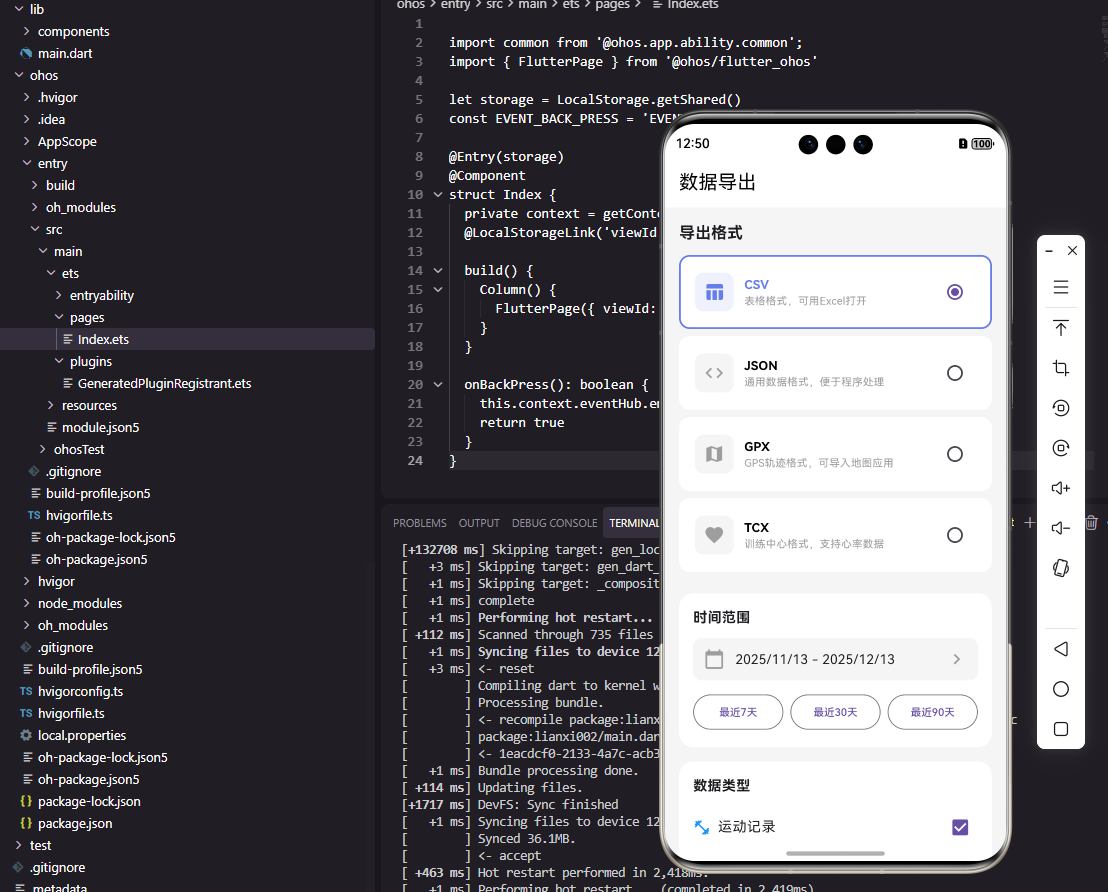
导出设置界面让用户配置导出参数。格式选择使用ChoiceChip,时间范围点击后弹出日期选择器,数据类型使用CheckboxListTile多选。GPS和心率数据使用开关控制,因为这些详细数据会显著增加文件大小。配置完成后点击导出按钮开始处理。
OpenHarmony文件分享服务
import common from '@ohos.app.ability.common';

class FileShareService {
  async shareFile(context: common.UIAbilityContext, filePath: string, mimeType: string): Promise<void> {
    await context.startAbility({
      action: 'ohos.want.action.select',
      type: mimeType,
      parameters: {
        'stream': filePath,
      }
    });
  }

  getMimeType(format: string): string {
    switch (format) {
      case 'csv': return 'text/csv';
      case 'json': return 'application/json';
      case 'gpx': return 'application/gpx+xml';
      case 'tcx': return 'application/vnd.garmin.tcx+xml';
      default: return 'application/octet-stream';
    }
  }
}
文件分享服务调用系统分享功能将导出的文件分享到其他应用。根据文件格式设置正确的MIME类型,确保接收应用能够正确识别文件类型。用户可以选择通过邮件、云盘或其他应用分享导出的数据文件。
Flutter导出进度组件
class ExportProgressDialog extends StatelessWidget {
final double progress;
final String status;
final VoidCallback? onCancel;
const ExportProgressDialog({
Key? key,
required this.progress,
required this.status,
this.onCancel,
}) : super(key: key);
Widget build(BuildContext context) {
return AlertDialog(
title: Text('导出数据'),
content: Column(
mainAxisSize: MainAxisSize.min,
children: [
LinearProgressIndicator(value: progress),
SizedBox(height: 16),
Text(status),
SizedBox(height: 8),
Text('${(progress * 100).toInt()}%', style: TextStyle(fontWeight: FontWeight.bold)),
],
),
actions: [
if (onCancel != null)
TextButton(onPressed: onCancel, child: Text('取消')),
],
);
}
}
导出进度对话框显示导出过程的进度。进度条显示完成百分比,状态文字说明当前正在处理的内容(如"正在导出运动记录…")。取消按钮允许用户中断导出过程。这种进度反馈在导出大量数据时特别重要,让用户知道应用正在工作。
Flutter导出结果组件
class ExportResultCard extends StatelessWidget {
final ExportResult result;
final VoidCallback onShare;
final VoidCallback onOpen;
const ExportResultCard({
Key? key,
required this.result,
required this.onShare,
required this.onOpen,
}) : super(key: key);
Widget build(BuildContext context) {
return Card(
child: Padding(
padding: EdgeInsets.all(16),
child: Column(
crossAxisAlignment: CrossAxisAlignment.start,
children: [
Row(
children: [
Icon(Icons.check_circle, color: Colors.green, size: 32),
SizedBox(width: 12),
Text('导出成功', style: TextStyle(fontSize: 18, fontWeight: FontWeight.bold)),
],
),
SizedBox(height: 16),
_buildInfoRow('文件名', result.fileName),
_buildInfoRow('记录数', '${result.recordCount} 条'),
_buildInfoRow('文件大小', _formatFileSize(result.fileSize)),
SizedBox(height: 16),
Row(
children: [
Expanded(
child: OutlinedButton.icon(
onPressed: onOpen,
icon: Icon(Icons.folder_open),
label: Text('打开文件'),
),
),
SizedBox(width: 12),
Expanded(
child: ElevatedButton.icon(
onPressed: onShare,
icon: Icon(Icons.share),
label: Text('分享'),
),
),
],
),
],
),
),
);
}
Widget _buildInfoRow(String label, String value) {
return Padding(
padding: EdgeInsets.symmetric(vertical: 4),
child: Row(
mainAxisAlignment: MainAxisAlignment.spaceBetween,
children: [
Text(label, style: TextStyle(color: Colors.grey)),
Text(value),
],
),
);
}
String _formatFileSize(int bytes) {
if (bytes < 1024) return '$bytes B';
if (bytes < 1024 * 1024) return '${(bytes / 1024).toStringAsFixed(1)} KB';
return '${(bytes / 1024 / 1024).toStringAsFixed(1)} MB';
}
}
导出结果卡片展示导出完成后的信息。显示成功图标、文件名、记录数和文件大小。提供打开文件和分享两个操作按钮。文件大小自动格式化为合适的单位。这种结果展示让用户确认导出成功并方便后续操作。
总结
本文全面介绍了Flutter与OpenHarmony平台上运动数据导出组件的实现方案。从配置模型到文件生成,从设置界面到进度显示,涵盖了数据导出功能的各个方面。通过多格式支持和便捷的分享功能,我们可以帮助用户灵活地备份和使用自己的运动数据。欢迎加入开源鸿蒙跨平台社区:https://openharmonycrossplatform.csdn.net

开源鸿蒙跨平台开发社区汇聚开发者与厂商,共建“一次开发,多端部署”的开源生态,致力于降低跨端开发门槛,推动万物智联创新。
更多推荐
 7
7 0
0- 0


 已为社区贡献13条内容

所有评论(0)