Flutter&OpenHarmony商城App商品详情页组件开发
本文介绍了商品详情页在Flutter和OpenHarmony平台的实现方案。Flutter部分使用PageView构建图片画廊,支持左右滑动查看多张商品图片,并实现页码指示器;OpenHarmony则采用Swiper组件实现类似功能。数据模型设计涵盖了商品核心信息,包括图片、价格、规格等。两种平台都实现了商品图片展示、规格选择等核心功能模块,为电商应用开发提供了参考实现。
前言
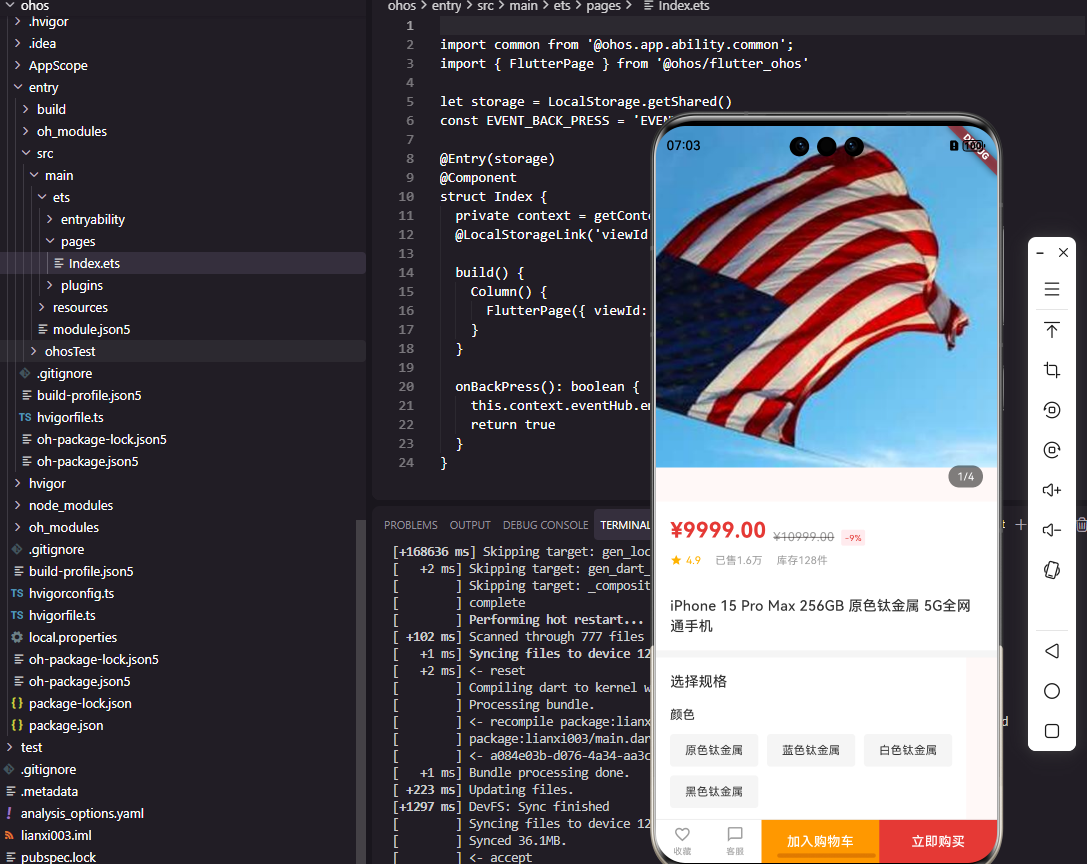
商品详情页是用户做出购买决策的关键页面,它需要全面展示商品的图片、价格、规格、描述、评价等信息,帮助用户充分了解商品。一个设计优秀的商品详情页能够有效提升用户的购买转化率。本文将详细介绍如何在Flutter和OpenHarmony平台上开发商品详情页的各个组件,包括图片画廊、规格选择器、数量选择器、底部操作栏等核心模块。
商品详情页的设计需要在信息完整性和页面简洁性之间取得平衡。用户需要看到足够的信息来做出购买决策,但过多的信息又会造成认知负担。通过合理的信息层级和视觉设计,我们可以引导用户的注意力,让重要信息优先被感知,次要信息在需要时可以方便地获取。
Flutter商品详情数据模型
首先定义商品详情的数据模型:
class ProductDetail {
  final String id;
  final String name;
  final List<String> images;
  final double price;
  final double originalPrice;
  final int stock;
  final List<ProductSpec> specs;
  final String description;

  const ProductDetail({
    required this.id,
    required this.name,
    required this.images,
    required this.price,
    required this.originalPrice,
    required this.stock,
    required this.specs,
    required this.description,
  });
}
ProductDetail类包含了商品详情页需要展示的所有核心数据。images是商品图片列表,支持多图展示。price和originalPrice分别是现价和原价,用于展示折扣信息。stock是库存数量,用于判断商品是否可购买。specs是商品规格列表,如颜色、尺寸等。description是商品详细描述,通常包含图文混排的富文本内容。这种数据模型的设计覆盖了商品详情页的主要展示需求。
规格数据模型:
class ProductSpec {
  final String name;
  final List<SpecOption> options;

  const ProductSpec({
    required this.name,
    required this.options,
  });
}

class SpecOption {
  final String id;
  final String value;
  final bool available;

  const SpecOption({
    required this.id,
    required this.value,
    this.available = true,
  });
}
ProductSpec定义了规格维度,如"颜色"、“尺寸"等,每个维度包含多个可选项。SpecOption定义了具体的规格选项,如"红色”、"XL"等,available属性表示该选项是否可选,用于处理某些规格组合无货的情况。这种两级结构可以灵活表示各种商品的规格体系,从简单的单一规格到复杂的多维规格组合都能支持。
图片画廊组件
class ImageGallery extends StatefulWidget {
final List<String> images;
const ImageGallery({
Key? key,
required this.images,
}) : super(key: key);
State<ImageGallery> createState() => _ImageGalleryState();
}
class _ImageGalleryState extends State<ImageGallery> {
int _currentIndex = 0;
final PageController _pageController = PageController();
Widget build(BuildContext context) {
return Stack(
children: [
_buildPageView(),
_buildIndicator(),
],
);
}
}
ImageGallery组件用于展示商品的多张图片,用户可以左右滑动查看不同角度的商品图片。组件使用StatefulWidget管理当前显示的图片索引。Stack将PageView和页码指示器层叠显示,PageView在底层展示图片,指示器在上层显示当前位置。这种设计让用户可以直观地了解图片总数和当前位置,提升浏览体验。
PageView的实现:
Widget _buildPageView() {
  return AspectRatio(
    aspectRatio: 1,
    child: PageView.builder(
      controller: _pageController,
      itemCount: widget.images.length,
      onPageChanged: (index) {
        setState(() {
          _currentIndex = index;
        });
      },
      itemBuilder: (context, index) {
        return GestureDetector(
          onTap: () => _showFullScreen(index),
          child: Image.network(
            widget.images[index],
            fit: BoxFit.cover,
          ),
        );
      },
    ),
  );
}
AspectRatio设置1:1的宽高比,这是商品图片最常见的展示比例。PageView.builder懒加载图片,只有当前页和相邻页的图片会被加载,节省内存和网络资源。onPageChanged回调在页面切换时更新当前索引,触发指示器的状态更新。GestureDetector为图片添加点击事件,点击后可以打开全屏查看大图。Image.network加载网络图片,BoxFit.cover确保图片完全覆盖容器。
页码指示器:
Widget _buildIndicator() {
  return Positioned(
    bottom: 16,
    right: 16,
    child: Container(
      padding: const EdgeInsets.symmetric(
        horizontal: 10,
        vertical: 4,
      ),
      decoration: BoxDecoration(
        color: Colors.black.withOpacity(0.5),
        borderRadius: BorderRadius.circular(12),
      ),
      child: Text(
        '${_currentIndex + 1}/${widget.images.length}',
        style: const TextStyle(
          fontSize: 12,
          color: Colors.white,
        ),
      ),
    ),
  );
}
页码指示器采用"当前页/总页数"的文字形式,比圆点指示器更加精确。Positioned将指示器定位在右下角,与图片内容保持适当距离。半透明黑色背景确保白色文字在各种图片背景上都清晰可见。圆角胶囊形状使指示器外观柔和,不会过于突兀。这种设计在电商应用中非常常见,用户已经形成了认知习惯。
OpenHarmony图片画廊实现
@Component
struct ImageGallery {
  @State currentIndex: number = 0
  @Prop images: string[] = []
  private swiperController: SwiperController = new SwiperController()

  build() {
    Stack({ alignContent: Alignment.BottomEnd }) {
      Swiper(this.swiperController) {
        ForEach(this.images, (imageUrl: string) => {
          Image(imageUrl)
            .width('100%')
            .aspectRatio(1)
            .objectFit(ImageFit.Cover)
        })
      }
      .indicator(false)
      .onChange((index: number) => {
        this.currentIndex = index
      })

      this.PageIndicator()
    }
    .width('100%')
  }
}
OpenHarmony使用Swiper组件实现图片画廊,比Flutter的PageView更加简洁。@State装饰的currentIndex管理当前页索引,onChange回调在页面切换时更新。indicator设为false隐藏默认指示器,使用自定义的PageIndicator组件。Stack的alignContent设为Alignment.BottomEnd使指示器定位在右下角。ForEach遍历图片列表,为每张图片创建Image组件。
页码指示器ArkUI实现:
@Builder
PageIndicator() {
  Text((this.currentIndex + 1) + '/' + this.images.length)
    .fontSize(12)
    .fontColor(Color.White)
    .padding({ left: 10, right: 10, top: 4, bottom: 4 })
    .backgroundColor('#80000000')
    .borderRadius(12)
    .margin({ right: 16, bottom: 16 })
}
@Builder装饰器定义了页码指示器的构建方法。Text组件显示当前页码和总页数,通过字符串拼接生成显示文本。样式设置与Flutter版本保持一致,包括字号、颜色、内边距、背景色和圆角。margin设置右边距和下边距,使指示器与图片边缘保持适当距离。这种实现方式简洁高效,代码量比Flutter版本更少。
规格选择器组件
class SpecSelector extends StatefulWidget {
final List<ProductSpec> specs;
final ValueChanged<Map<String, String>>? onSpecChanged;
const SpecSelector({
Key? key,
required this.specs,
this.onSpecChanged,
}) : super(key: key);
State<SpecSelector> createState() => _SpecSelectorState();
}
class _SpecSelectorState extends State<SpecSelector> {
final Map<String, String> _selectedSpecs = {};
Widget build(BuildContext context) {
return Column(
crossAxisAlignment: CrossAxisAlignment.start,
children: widget.specs.map((spec) {
return _buildSpecRow(spec);
}).toList(),
);
}
}
SpecSelector组件用于展示和选择商品规格。组件使用Map存储用户选择的规格,key是规格名称,value是选中的选项ID。onSpecChanged回调在用户选择规格时触发,将当前选择的所有规格传递给父组件,用于计算价格、库存等信息。Column垂直排列所有规格维度,每个维度独立成行,用户可以分别选择。
规格行的实现:
Widget _buildSpecRow(ProductSpec spec) {
  return Padding(
    padding: const EdgeInsets.only(bottom: 16),
    child: Column(
      crossAxisAlignment: CrossAxisAlignment.start,
      children: [
        Text(
          spec.name,
          style: const TextStyle(
            fontSize: 14,
            color: Color(0xFF333333),
            fontWeight: FontWeight.w500,
          ),
        ),
        const SizedBox(height: 12),
        Wrap(
          spacing: 10,
          runSpacing: 10,
          children: spec.options.map((option) {
            return _buildSpecOption(spec.name, option);
          }).toList(),
        ),
      ],
    ),
  );
}
每个规格行包含规格名称和选项列表。规格名称使用14像素字号和中等字重,清晰标识当前规格维度。Wrap组件实现选项的流式布局,当一行放不下时自动换行。spacing和runSpacing分别设置水平和垂直间距,使选项之间保持适当的视觉分隔。这种布局可以适应不同数量和长度的规格选项,具有良好的灵活性。
规格选项按钮:
Widget _buildSpecOption(String specName, SpecOption option) {
  final isSelected = _selectedSpecs[specName] == option.id;

  return GestureDetector(
    onTap: option.available ? () {
      setState(() {
        _selectedSpecs[specName] = option.id;
      });
      widget.onSpecChanged?.call(Map.from(_selectedSpecs));
    } : null,
    child: Container(
      padding: const EdgeInsets.symmetric(
        horizontal: 16,
        vertical: 8,
      ),
      decoration: BoxDecoration(
        color: isSelected
          ? const Color(0xFFFFF0F0)
          : const Color(0xFFF5F5F5),
        borderRadius: BorderRadius.circular(4),
        border: Border.all(
          color: isSelected
            ? const Color(0xFFE53935)
            : Colors.transparent,
        ),
      ),
      child: Text(
        option.value,
        style: TextStyle(
          fontSize: 13,
          color: option.available
            ? (isSelected
              ? const Color(0xFFE53935)
              : const Color(0xFF333333))
            : const Color(0xFFCCCCCC),
        ),
      ),
    ),
  );
}
规格选项按钮根据选中状态和可用状态显示不同样式。选中状态使用浅红色背景和红色边框,未选中状态使用灰色背景无边框。不可用的选项文字显示为浅灰色,且点击无响应。点击可用选项时更新选中状态并触发回调。Container的padding增加点击热区,使按钮更容易被点击。这种视觉设计让用户能够清晰地识别当前选择和可选范围。
OpenHarmony规格选择器
@Component
struct SpecSelector {
  @State selectedSpecs: Record<string, string> = {}
  @Prop specs: SpecInfo[] = []
  private onSpecChanged: (specs: Record<string, string>) => void = () => {}

  build() {
    Column() {
      ForEach(this.specs, (spec: SpecInfo) => {
        this.SpecRow(spec)
      })
    }
    .width('100%')
    .alignItems(HorizontalAlign.Start)
  }
}
OpenHarmony的规格选择器使用Record类型存储选中的规格,这是TypeScript中表示键值对对象的标准方式。@State装饰使selectedSpecs具有响应式特性,选择变化时UI自动更新。ForEach遍历规格列表,为每个规格维度生成SpecRow组件。Column的alignItems设为HorizontalAlign.Start使内容左对齐。
规格选项ArkUI实现:
@Builder
SpecOption(specName: string, option: OptionInfo) {
  Text(option.value)
    .fontSize(13)
    .fontColor(this.getOptionColor(specName, option))
    .padding({ left: 16, right: 16, top: 8, bottom: 8 })
    .backgroundColor(this.getOptionBgColor(specName, option))
    .borderRadius(4)
    .border({
      width: 1,
      color: this.selectedSpecs[specName] === option.id
        ? '#E53935'
        : Color.Transparent
    })
    .onClick(() => {
      if (option.available) {
        this.selectedSpecs[specName] = option.id
        this.onSpecChanged(this.selectedSpecs)
      }
    })
}
@Builder装饰器定义了规格选项的构建方法。Text组件显示选项文字,通过辅助方法getOptionColor和getOptionBgColor根据状态返回对应的颜色值。border属性设置边框,选中时显示红色边框,未选中时透明。onClick事件处理器在选项可用时更新选中状态并触发回调。这种实现方式与Flutter版本功能一致,但代码更加简洁。
底部操作栏
class BottomActionBar extends StatelessWidget {
final VoidCallback? onAddToCart;
final VoidCallback? onBuyNow;
final bool isCollected;
final VoidCallback? onToggleCollect;
const BottomActionBar({
Key? key,
this.onAddToCart,
this.onBuyNow,
this.isCollected = false,
this.onToggleCollect,
}) : super(key: key);
Widget build(BuildContext context) {
return Container(
height: 50,
decoration: const BoxDecoration(
color: Colors.white,
border: Border(
top: BorderSide(color: Color(0xFFEEEEEE)),
),
),
child: Row(
children: [
_buildIconButton(),
Expanded(child: _buildAddToCartButton()),
Expanded(child: _buildBuyNowButton()),
],
),
);
}
}
底部操作栏是商品详情页的核心交互区域,包含收藏按钮、加入购物车按钮和立即购买按钮。Container设置50像素高度和顶部边框,与页面内容形成分隔。Row水平排列三个操作区域,收藏按钮固定宽度,两个主要按钮使用Expanded平分剩余空间。这种布局确保了操作按钮有足够的点击区域,同时视觉上保持平衡。
购买按钮的实现:
Widget _buildBuyNowButton() {
  return GestureDetector(
    onTap: onBuyNow,
    child: Container(
      height: double.infinity,
      alignment: Alignment.center,
      color: const Color(0xFFE53935),
      child: const Text(
        '立即购买',
        style: TextStyle(
          fontSize: 15,
          color: Colors.white,
          fontWeight: FontWeight.w500,
        ),
      ),
    ),
  );
}
立即购买按钮使用醒目的红色背景,这是电商应用中最重要的转化按钮。Container设置无限高度填充父容器,alignment居中显示文字。白色文字与红色背景形成强烈对比,确保按钮在视觉上足够突出。15像素字号和中等字重使文字清晰易读。GestureDetector处理点击事件,触发购买流程。
总结
本文详细介绍了Flutter和OpenHarmony平台上商品详情页各组件的开发过程。商品详情页作为用户购买决策的关键页面,其设计质量直接影响转化率。通过图片画廊、规格选择器、底部操作栏等组件的合理设计,我们为用户提供了完整的商品信息展示和便捷的购买操作入口。在实际项目中,还可以进一步添加商品评价、相关推荐、客服入口等功能模块。
欢迎加入开源鸿蒙跨平台社区:https://openharmonycrossplatform.csdn.net

开源鸿蒙跨平台开发社区汇聚开发者与厂商,共建“一次开发,多端部署”的开源生态,致力于降低跨端开发门槛,推动万物智联创新。
更多推荐
 8
8 0
0- 0


 已为社区贡献16条内容

所有评论(0)