ay maui in net6 第13天 数据绑定基础
可绑定属性
我的理解就是wpf的依赖属性。
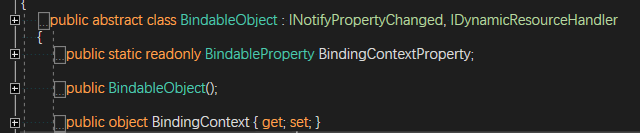
目标属性必须是可绑定属性,这意味着目标对象必须派生自 BindableObject。 Label属性(如Text)与可绑定属性TextProperty相关联。
新建 BindingDemoPage.xaml
<?xml version="1.0" encoding="utf-8" ?>
<ContentPage xmlns="http://schemas.microsoft.com/dotnet/2021/maui"
             xmlns:x="http://schemas.microsoft.com/winfx/2009/xaml"
             x:Class="MAUICH3.Views.BindingDemoPage"
             Title="www.ayjs.net BindingDemoPage">
    <StackLayout>
        <Label Text="ROTATION"
               BindingContext="{x:Reference slider}"
               Rotation="{Binding Path=Value}"
               FontAttributes="Bold"
               FontSize="18"
               HorizontalOptions="Center"
               VerticalOptions="Center" />
        <Slider x:Name="slider"
                Maximum="360"
                VerticalOptions="Center" />
        <Label BindingContext="{x:Reference slider}"
               Text="{Binding Value, StringFormat='The angle is {0:F0} degrees'}"
               FontAttributes="Bold"
               FontSize="18"
               HorizontalOptions="Center"
               VerticalOptions="Center" />
    </StackLayout>
</ContentPage>
和wpf不同,maui中,源控件通过BindingContext="{x:Reference 控件名}"设置,这个控件名的控件必须 派生自 BindableObject
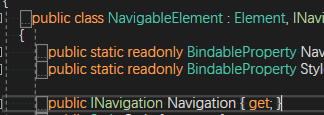
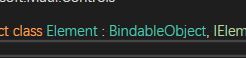
以Slider为例,我觉得学习xaml控件的属性,还有自定义控件,就看看他父类的职责是干啥的



然后添加导航按钮
        Button buttonBinding = new Button
        {
            Text = "BindingDemo",
            HorizontalOptions = LayoutOptions.Center,
            VerticalOptions = LayoutOptions.Center
        };
        buttonBinding.Clicked += buttonBinding_Clicked;
        vsl.Children.Add(buttonBinding);
    }
    private async void buttonBinding_Clicked(object sender, EventArgs e)
    {
        await Navigation.PushAsync(new BindingDemoPage());
    }
效果,slider控制了label的旋转角度
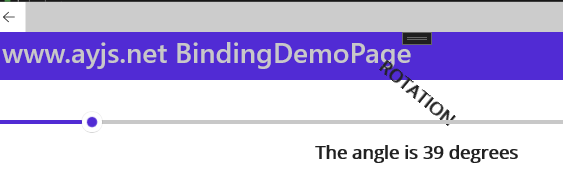
这里的Binding后,StringFormat='' 这里是单引号
思考:
如何 多值绑定,如何一个控件的A属性绑定 B控件b1属性,B属性绑定C控件的c1属性呢,只能设置一个上下文呀
绑定模式
Default
OneWay — 值从源传输到目标
OneWayToSource — 值从目标传输到源
TwoWay — 在源和目标之间双向传输值
OneTime— 数据从源到目标,但仅当更改时BindingContext
这个和WPF保持一致
<?xml version="1.0" encoding="utf-8" ?>
<ContentPage xmlns="http://schemas.microsoft.com/dotnet/2021/maui"
             xmlns:x="http://schemas.microsoft.com/winfx/2009/xaml"
             x:Class="MAUICH3.Views.BindingDemoPage"
             Title="www.ayjs.net BindingDemoPage">
    <Grid>
        <Grid.RowDefinitions>
            <RowDefinition Height="*" />
            <RowDefinition Height="Auto" />
            <RowDefinition Height="Auto" />
            <RowDefinition Height="Auto" />
            <RowDefinition Height="Auto" />
        </Grid.RowDefinitions>
        <Grid.ColumnDefinitions>
            <ColumnDefinition Width="*" />
            <ColumnDefinition Width="Auto" />
        </Grid.ColumnDefinitions>

        <!-- Scaled and rotated Label -->
        <Label x:Name="label"
               Text="TEXT"
               HorizontalOptions="Center"
               VerticalOptions="CenterAndExpand" />

        <!-- Slider and identifying Label for Scale -->
        <Slider x:Name="scaleSlider"
                BindingContext="{x:Reference label}"
                Grid.Row="1" Grid.Column="0"
                Maximum="10"
                Value="{Binding Scale, Mode=TwoWay}" />
        <Label BindingContext="{x:Reference scaleSlider}"
               Text="{Binding Value, StringFormat='Scale = {0:F1}'}"
               Grid.Row="1" Grid.Column="1"
               VerticalTextAlignment="Center" />

        <!-- Slider and identifying Label for Rotation -->
        <Slider x:Name="rotationSlider"
                BindingContext="{x:Reference label}"
                Grid.Row="2" Grid.Column="0"
                Maximum="360"
                Value="{Binding Rotation, Mode=OneWayToSource}" />
        <Label BindingContext="{x:Reference rotationSlider}"
               Text="{Binding Value, StringFormat='Rotation = {0:F0}'}"
               Grid.Row="2" Grid.Column="1"
               VerticalTextAlignment="Center" />

        <!-- Slider and identifying Label for RotationX -->
        <Slider x:Name="rotationXSlider"
                BindingContext="{x:Reference label}"
                Grid.Row="3" Grid.Column="0"
                Maximum="360"
                Value="{Binding RotationX, Mode=OneWayToSource}" />
        <Label BindingContext="{x:Reference rotationXSlider}"
               Text="{Binding Value, StringFormat='RotationX = {0:F0}'}"
               Grid.Row="3" Grid.Column="1"
               VerticalTextAlignment="Center" />

        <!-- Slider and identifying Label for RotationY -->
        <Slider x:Name="rotationYSlider"
                BindingContext="{x:Reference label}"
                Grid.Row="4" Grid.Column="0"
                Maximum="360"
                Value="{Binding RotationY, Mode=OneWayToSource}" />
        <Label BindingContext="{x:Reference rotationYSlider}"
               Text="{Binding Value, StringFormat='RotationY = {0:F0}'}"
               Grid.Row="4" Grid.Column="1"
               VerticalTextAlignment="Center" />
    </Grid>
</ContentPage>
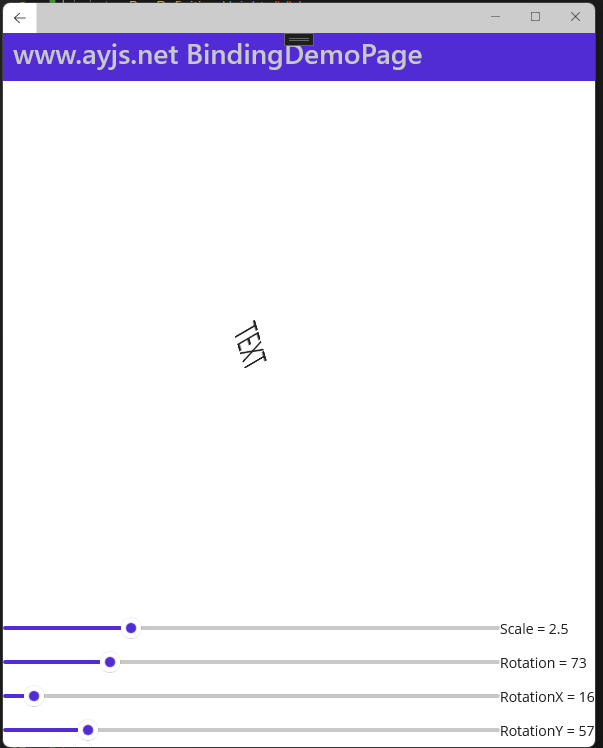
VisualElement 类还具有 ScaleX 和 ScaleY 属性,它们分别缩放 VisualElement x 轴和 y 轴。
对象绑定
比如时间
<?xml version="1.0" encoding="utf-8" ?>
<ContentPage xmlns="http://schemas.microsoft.com/dotnet/2021/maui"
             xmlns:x="http://schemas.microsoft.com/winfx/2009/xaml"
             x:Class="MAUICH3.Views.ListViewPage"
             xmlns:sys="clr-namespace:System;assembly=netstandard"
             Title="www.ayjs.net 绑定">
    <StackLayout BindingContext="{x:Static sys:DateTime.Now}"
                 HorizontalOptions="Center"
                 VerticalOptions="Center">

        <Label Text="{Binding Year, StringFormat='年: {0}'}" />
        <Label Text="{Binding StringFormat='月 {0:MMMM}'}" />
        <Label Text="{Binding Day, StringFormat='日: {0}'}" />
        <Label Text="{Binding StringFormat='时间 {0:T}'}" />
    </StackLayout>
</ContentPage>
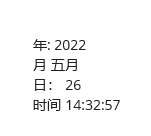
在 MVVM 中,模型对 viewmodel 无知,视图模型对视图无知
修改成vm,跟wpf一样,继承通知接口
public class ClockViewModel : INotifyPropertyChanged
{
    DateTime dateTime;
    public event PropertyChangedEventHandler PropertyChanged;

    public DateTime DateTime
    {
        get
        {
            return dateTime;
        }
        set
        {
            if (dateTime != value)
            {
                dateTime = value;
                if (PropertyChanged != null)
                {
                    PropertyChanged(this, new PropertyChangedEventArgs("DateTime"));
                }
            }
        }
    }

    public ClockViewModel()
    {
        this.DateTime = DateTime.Now;

        // Update the DateTime property every second.
        Timer timer = new Timer(new TimerCallback((s) => this.DateTime = DateTime.Now), null, 0, 1000);
    }
}
前台使用
<?xml version="1.0" encoding="utf-8" ?>
<ContentPage xmlns="http://schemas.microsoft.com/dotnet/2021/maui"
             xmlns:x="http://schemas.microsoft.com/winfx/2009/xaml"
             x:Class="MAUICH3.Views.ListViewPage"
             xmlns:local="clr-namespace:MAUICH3.Views;assembly=MAUICH3"
             xmlns:sys="clr-namespace:System;assembly=netstandard"
             Title="www.ayjs.net 绑定">
    <!--<StackLayout BindingContext="{x:Static sys:DateTime.Now}"
                 HorizontalOptions="Center"
                 VerticalOptions="Center">

        <Label Text="{Binding Year, StringFormat='年: {0}'}" />
        <Label Text="{Binding StringFormat='月 {0:MMMM}'}" />
        <Label Text="{Binding Day, StringFormat='日: {0}'}" />
        <Label Text="{Binding StringFormat='时间 {0:T}'}" />
    </StackLayout>-->


    <ContentPage.BindingContext>
        <local:ClockViewModel />
    </ContentPage.BindingContext>

    <Label Text="{Binding DateTime, StringFormat='{0:T}'}"
           FontSize="18"
           HorizontalOptions="Center"
           VerticalOptions="Center" />
</ContentPage>
跟wpf思路一致,不过使用了BindingContext
发现一个Timer一个bug,你调整窗体大小,时间就不刷新了,会跳秒。
还有个不一样的,wpf在本程序集下的 xaml命名空间上导入,是可以省略assembly的,maui不可以省略,多个空格都不行
www.ayjs.net 六安杨洋(AY)拓展
新建ColorBindDemo的ContentPage
<?xml version="1.0" encoding="utf-8" ?>
<ContentPage xmlns="http://schemas.microsoft.com/dotnet/2021/maui"
             xmlns:x="http://schemas.microsoft.com/winfx/2009/xaml"
             x:Class="MAUICH3.Views.ColorBindDemo"
             xmlns:local="clr-namespace:MAUICH3.Views;assembly=MAUICH3"
             Title="ColorBindDemo">
    <ContentPage.BindingContext>
            <local:HslViewModel Color="Aqua" />
        </ContentPage.BindingContext>

    <StackLayout Padding="10, 0, 10, 30">
        <BoxView Color="{Binding Color}"
                 HeightRequest="100"
                 WidthRequest="100"
                 HorizontalOptions="Center" />
        <Label Text="{Binding Hue, StringFormat='Hue = {0:F2}'}"
               HorizontalOptions="Center" />
        <Slider Value="{Binding Hue}"
                Margin="20,0,20,0" />
        <Label Text="{Binding Saturation, StringFormat='Saturation = {0:F2}'}"
               HorizontalOptions="Center" />
        <Slider Value="{Binding Saturation}"
                Margin="20,0,20,0" />
        <Label Text="{Binding Luminosity, StringFormat='Luminosity = {0:F2}'}"
               HorizontalOptions="Center" />
        <Slider Value="{Binding Luminosity}"
                Margin="20,0,20,0" />
    </StackLayout>
</ContentPage>
public class HslViewModel : INotifyPropertyChanged
{
    float hue, saturation, luminosity;
    Color color;

    public event PropertyChangedEventHandler PropertyChanged;

    public float Hue
    {
        get
        {
            return hue;
        }
        set
        {
            if (hue != value)
            {
                Color = Color.FromHsla(value, saturation, luminosity);
            }
        }
    }

    public float Saturation
    {
        get
        {
            return saturation;
        }
        set
        {
            if (saturation != value)
            {
                Color = Color.FromHsla(hue, value, luminosity);
            }
        }
    }

    public float Luminosity
    {
        get
        {
            return luminosity;
        }
        set
        {
            if (luminosity != value)
            {
                Color = Color.FromHsla(hue, saturation, value);
            }
        }
    }

    public Color Color
    {
        get
        {
            return color;
        }
        set
        {
            if (color != value)
            {
                color = value;
                hue = color.GetHue();
                saturation = color.GetSaturation();
                luminosity = color.GetLuminosity();

                OnPropertyChanged("Hue");
                OnPropertyChanged("Saturation");
                OnPropertyChanged("Luminosity");
                OnPropertyChanged("Color");
            }
        }
    }

    protected virtual void OnPropertyChanged(string propertyName)
    {
        PropertyChanged?.Invoke(this, new PropertyChangedEventArgs(propertyName));
    }
}
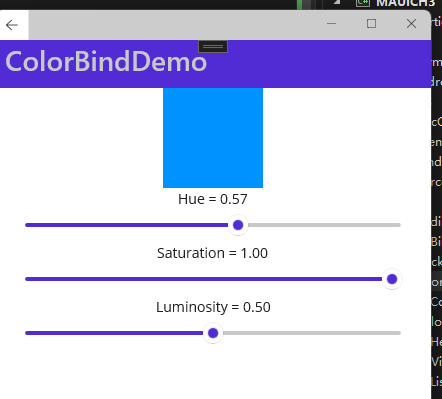
绑定集合
比如一个字符串集合,转颜色item的显示,后台添加个集合,MAUI 也使用 ObservableCollection
    ObservableCollection<string> alls;
    public ObservableCollection<string> Alls
    {
        get
        {
            return alls;
        }
        set
        {
            if (alls != value)
            {
                OnPropertyChanged("Alls");
            }
        }
    }

     public HslViewModel()
    {
        alls = new ObservableCollection<string>();
        alls.Add("Pale Green");
        alls.Add("Pink");
        alls.Add("Sky Blue");
    }
<?xml version="1.0" encoding="utf-8" ?>
<ContentPage xmlns="http://schemas.microsoft.com/dotnet/2021/maui"
             xmlns:x="http://schemas.microsoft.com/winfx/2009/xaml"
             x:Class="MAUICH3.Views.ColorBindDemo"
             xmlns:local="clr-namespace:MAUICH3.Views;assembly=MAUICH3"
             Title="ColorBindDemo">
    <ContentPage.BindingContext>
            <local:HslViewModel Color="Aqua" />
        </ContentPage.BindingContext>

    <StackLayout Padding="10, 0, 10, 30">
        <BoxView Color="{Binding Color}"
                 HeightRequest="100"
                 WidthRequest="100"
                 HorizontalOptions="Center" />
        <Label Text="{Binding Hue, StringFormat='Hue = {0:F2}'}"
               HorizontalOptions="Center" />
        <Slider Value="{Binding Hue}"
                Margin="20,0,20,0" />
        <Label Text="{Binding Saturation, StringFormat='Saturation = {0:F2}'}"
               HorizontalOptions="Center" />
        <Slider Value="{Binding Saturation}"
                Margin="20,0,20,0" />
        <Label Text="{Binding Luminosity, StringFormat='Luminosity = {0:F2}'}"
               HorizontalOptions="Center" />
        <Slider Value="{Binding Luminosity}"
                Margin="20,0,20,0" />


        <ListView ItemsSource="{Binding Alls}" Margin="0,10,0,0">
            <ListView.ItemTemplate>
                <DataTemplate>
                    <ViewCell>
                        <Label Text="{Binding}" />
                    </ViewCell>
                </DataTemplate>
            </ListView.ItemTemplate>
        </ListView>
    </StackLayout>
</ContentPage>
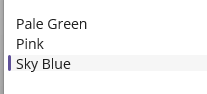
调整行高
<ListView ItemsSource="{Binding Alls}" Margin="0,10,0,0" RowHeight="40">
添加值转换器,和WPF一致
  public class FloatToIntConverter : IValueConverter
    {
        public object Convert(object value, Type targetType, object parameter, CultureInfo culture)
        {
            float multiplier;

            if (!float.TryParse(parameter as string, out multiplier))
                multiplier = 1;

            return (int)Math.Round(multiplier * (float)value);
        }

        public object ConvertBack(object value, Type targetType, object parameter, CultureInfo culture)
        {
            float divider;

            if (!float.TryParse(parameter as string, out divider))
                divider = 1;

            return ((float)(int)value) / divider;
        }
    }
值转换器和wpf一致,存在 IMultiValueConverter
单属性 多值绑定
        <Label    Margin="20,0,20,0">
            <Label.Text>
                <MultiBinding StringFormat="{}{0}  {1} {2}">
                    <Binding Path="Hue" />
                    <Binding Path="Saturation" />
                    <Binding Path="Luminosity" />
                </MultiBinding>
            </Label.Text>
        </Label>
命令
Button 的 Clicked 事件或 TapGestureRecognizer 的 Tapped 事件。跟wpf基本一致
Command 类型的 System.Windows.Input.ICommand
CommandParameter 类型的 Object
void Execute(object arg)
bool CanExecute(object arg)
event EventHandler CanExecuteChanged
可以使用 Command .NET MAUI 中包含的或 Command<T> 类来实现 ICommand 接口。 这两个 ChangeCanExecute 类定义了多个构造函数以及 viewmodel 可以调用的方法,以强制 Command 对象触发 CanExecuteChanged 事件。
viewmodel 可以定义类型的 ICommand属性
添加一个CommandDemo
vm
public class KeypadViewModel : INotifyPropertyChanged
{
    string inputString = "";
    string displayText = "";
    char[] specialChars = { '*', '#' };

    public event PropertyChangedEventHandler PropertyChanged;

    public ICommand AddCharCommand { get; private set; }
    public ICommand DeleteCharCommand { get; private set; }

    public string InputString
    {
        get { return inputString; }
        private set
        {
            if (inputString != value)
            {
                inputString = value;
                OnPropertyChanged("InputString");
                DisplayText = FormatText(inputString);

                // Perhaps the delete button must be enabled/disabled.
                ((Command)DeleteCharCommand).ChangeCanExecute();
            }
        }
    }

    public string DisplayText
    {
        get { return displayText; }
        private set
        {
            if (displayText != value)
            {
                displayText = value;
                OnPropertyChanged("DisplayText");
            }
        }
    }

    public KeypadViewModel()
    {
        AddCharCommand = new Command<string>((key) =>
        {
            // Add the key to the input string.
            InputString += key;
        });

        DeleteCharCommand = new Command(() =>
        {
            // Strip a character from the input string.
            InputString = InputString.Substring(0, InputString.Length - 1);
        },
        () =>
        {
                // Return true if there's something to delete.
            return InputString.Length > 0;
        });
    }

    string FormatText(string str)
    {
        bool hasNonNumbers = str.IndexOfAny(specialChars) != -1;
        string formatted = str;

        if (hasNonNumbers || str.Length < 4 || str.Length > 10)
        {
        }
        else if (str.Length < 8)
        {
            formatted = string.Format("{0}-{1}", str.Substring(0, 3), str.Substring(3));
        }
        else
        {
            formatted = string.Format("({0}) {1}-{2}", str.Substring(0, 3), str.Substring(3, 3), str.Substring(6));
        }
        return formatted;
    }

    protected void OnPropertyChanged(string propertyName)
    {
        PropertyChanged?.Invoke(this, new PropertyChangedEventArgs(propertyName));
    }
}
命令前端的使用和wpf一致
<?xml version="1.0" encoding="utf-8" ?>
<ContentPage xmlns="http://schemas.microsoft.com/dotnet/2021/maui"
xmlns:x="http://schemas.microsoft.com/winfx/2009/xaml"
xmlns:local="clr-namespace:MAUICH3.Views;assembly=MAUICH3"
x:Class="MAUICH3.Views.CommandDemo"
Title="CommandDemo">
<ContentPage.BindingContext>
<local:KeypadViewModel />
</ContentPage.BindingContext>
<Grid HorizontalOptions="Center"
VerticalOptions="Center">
<Grid.RowDefinitions>
<RowDefinition Height="Auto" />
<RowDefinition Height="Auto" />
<RowDefinition Height="Auto" />
<RowDefinition Height="Auto" />
<RowDefinition Height="Auto" />
</Grid.RowDefinitions>
<Grid.ColumnDefinitions>
<ColumnDefinition Width="80" />
<ColumnDefinition Width="80" />
<ColumnDefinition Width="80" />
</Grid.ColumnDefinitions>
<Label Text="{Binding DisplayText}"
Margin="0,0,10,0"
FontSize="32"
LineBreakMode="HeadTruncation"
VerticalTextAlignment="Center"
HorizontalTextAlignment="End"
Grid.ColumnSpan="2" />
<Button Text="⇦"
Command="{Binding DeleteCharCommand}"
Grid.Column="2"/>
<Button Text="1"
Command="{Binding AddCharCommand}"
CommandParameter="1"
Grid.Row="1" />
<Button Text="2"
Command="{Binding AddCharCommand}"
CommandParameter="2"
Grid.Row="1" Grid.Column="1" />
<Button Text="3"
Command="{Binding AddCharCommand}"
CommandParameter="3"
Grid.Row="1" Grid.Column="2" />
<Button Text="4"
Command="{Binding AddCharCommand}"
CommandParameter="4"
Grid.Row="2" />
<Button Text="5"
Command="{Binding AddCharCommand}"
CommandParameter="5"
Grid.Row="2" Grid.Column="1" />
<Button Text="6"
Command="{Binding AddCharCommand}"
CommandParameter="6"
Grid.Row="2" Grid.Column="2" />
<Button Text="7"
Command="{Binding AddCharCommand}"
CommandParameter="7"
Grid.Row="3" />
<Button Text="8"
Command="{Binding AddCharCommand}"
CommandParameter="8"
Grid.Row="3" Grid.Column="1" />
<Button Text="9"
Command="{Binding AddCharCommand}"
CommandParameter="9"
Grid.Row="3" Grid.Column="2" />
<Button Text="*"
Command="{Binding AddCharCommand}"
CommandParameter="*"
Grid.Row="4" />
<Button Text="0"
Command="{Binding AddCharCommand}"
CommandParameter="0"
Grid.Row="4" Grid.Column="1" />
<Button Text="#"
Command="{Binding AddCharCommand}"
CommandParameter="#"
Grid.Row="4" Grid.Column="2" />
</Grid>
</ContentPage>
唯一有个不同的地方,wpf用第三方的mvvm框架,也可以控件canexecute
在maui中,手动更新 canexecute
((Command)DeleteCharCommand).ChangeCanExecute();
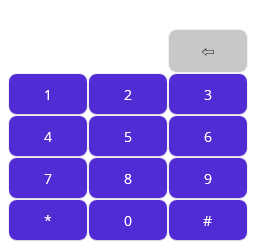
如上demo,没有文字,删除按钮不可用,有文字可以用
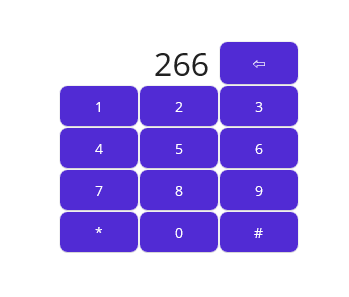
没文字
命令初始化,canexecute是第二个参数
    DeleteCharCommand = new Command(() =>
        {
            // Strip a character from the input string.
            InputString = InputString.Substring(0, InputString.Length - 1);
        },
        () =>
        {
                // Return true if there's something to delete.
            return InputString.Length > 0;
        });
命令的泛型参数类型,是xaml的 CommandParameter参数类型
整体来说,maui的命令偏MVVM了,wpf还可以以事件方式在xaml.cs写,还有CommandBinding一些。
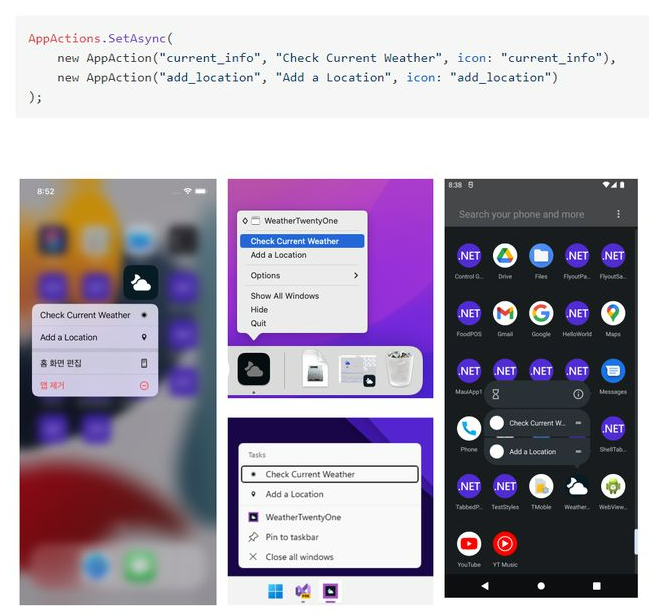
总结整理
常用属性记录
| 平台 | MAUI | WPF | |
| 字体颜色 | TextColor | Foreground | |
| 垂直对齐 | VerticalOptions | VerticalAlignment | |
| 字体加粗/斜体等 | FontWeight和FontStyle | FontAttributes | |
| 水平对齐 | HorizontalOptions | HorizontalAlignment | |
| 背景色 | BackgroundColor | Background | |
| Label的TextAlignment | HorizontalTextAlignment / VerticalTextAlignment | TextAlignment | |
| Button按钮边框厚度 | BorderWidth | BorderThickness | |
| 旋转 | 自带Rotation | 配合Transform | |
| 依赖属性 | BindableProperty | DependencyProperty | |
| 边框颜色 | BorderColor | BorderBrush | |
| 环境上下文 | BindingContext | DataContext |
新控件
BoxView是一个 指定颜色/圆角,一个矩形控件,类似wpf的Rectangle, BoxView 在进行初始操作时是图像或自定义元素的有用替代品

开源鸿蒙跨平台开发社区汇聚开发者与厂商,共建“一次开发,多端部署”的开源生态,致力于降低跨端开发门槛,推动万物智联创新。
更多推荐


 0
0 0
0- 0


 已为社区贡献2条内容

所有评论(0)