Flutter StatefluWidget与基础组件(1.2)
·

记忆是一首歌曲,忘了词却又能哼得出它的旋律。不要说我变了,我只不过学会了,别人怎样对我,我就该怎样去对别人。失去了缘分的人,即使在同一个城市里也不太容易碰到;一次转身就意味着一辈子。
StatefluWidget与基础组件
MaterialApp
只列举常用的属性
| MaterialApp常用参数 | 类型 | 说明 |
|---|---|---|
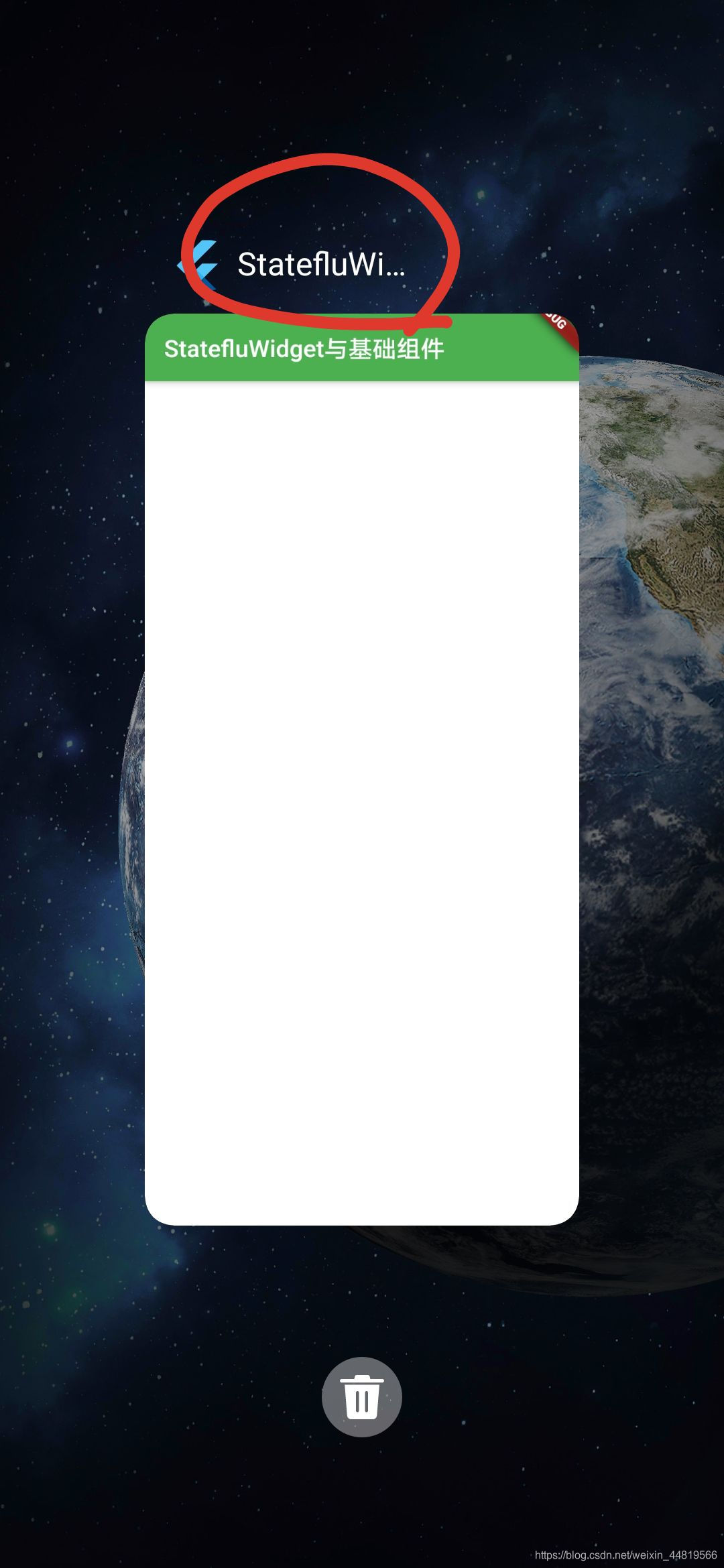
| title | String | 任务管理界面看到的title(下面我会带大家详细查看具体位置) |
| theme | ThemeData | 设置主题 |
| home | Widget | 主页面 |
| routes | Map<String, WidgetBuilder> | 设置路由(后面说跳转页面的时候会具体说) |
| supportedLocales | Iterable<Locale> | 支持多国语言默认<Locale>[Locale(‘en’, ‘US’)] |
| darkTheme | ThemeDate | 暗主题(我看不出有什么效果) |
import 'package:flutter/material.dart';

//StatefluWidget与基础组件
class Flutter_Demo5 extends StatefulWidget {
  @override
  _Flutter_Demo5State createState() => _Flutter_Demo5State();
}

class _Flutter_Demo5State extends State<Flutter_Demo5> {
  @override
  Widget build(BuildContext context) {
    return MaterialApp(
      title: "StatefluWidget与基础组件",
      //主题
      theme:
          ThemeData(primarySwatch: Colors.green, brightness: Brightness.light),

      //暗主题
      darkTheme:
          ThemeData(primarySwatch: Colors.yellow, brightness: Brightness.dark),
      home: Scaffold(
        appBar: AppBar(
          title: Text("StatefluWidget与基础组件"),
        ),
        body: Container(
          color: Colors.white,
        ),
      ),
      color: Colors.pink,
      routes: <String, WidgetBuilder>{
        //定义跳转路由
      },
      supportedLocales: <Locale>[
        const Locale('en', 'US'),
        const Locale('fi', 'FI'),
      ],
      debugShowCheckedModeBanner: false, //右上角DEBUG图标 默认为true
//      showPerformanceOverlay: true,//打开性能监控,覆盖在屏幕最上面,默认false
//        checkerboardOffscreenLayers:true,//打开渲染到屏幕外位图的图层的checkerboarding。,默认false
//    debugShowMaterialGrid: true,//显示网格,默认false
//        checkerboardRasterCacheImages:true,//打开光栅缓存图像的检查板,默认false
    );
  }
}
title使用切换到任务管理界面(我的是华为手机):
Scaffold与BottomNavigationBar
| Scaffold参数 | 类型 | 说明 |
|---|---|---|
| appBar | AppBar | 顶部显示文本 |
| body | Widgit | AppBar以下,显示内容 |
| persistentFooterButtons | List<Widget> | 位置如下图 |
| bottomsheet | Widget | 位置如下图 |
| draw | Widget | 位置如下图 |
| floatingActionButton | Widget(FloatingActionButton) | 位置如下图 |
| bottomNavigationBar | Widget(BottomNavigationBar) | 位置如下图 |
| primary | bool | 是否显示顶部状态栏,默认为true |
| endDraw | Widget | 后缀Draw |
BottomNavigationBar类型介绍:
BottomNavigationBar({
    Key key,
    @required this.items,//必须要实现的,最少要有两个子widgets
    this.onTap,//点击事件,知道当前点击的是哪一个widget
    this.currentIndex = 0,//当前显示的是哪一个widget
    this.elevation = 8.0,//阴影
    BottomNavigationBarType type,//设置items的布局
    Color fixedColor,//相当于selectedItemColor,但是不能跟selectedItemColor同时存在
    this.backgroundColor,//设置背景颜色
    this.iconSize = 24.0,//设置图标大小
    Color selectedItemColor,//设置选中时的颜色
    this.unselectedItemColor,//设置没选中时的颜色
    this.selectedIconTheme = const IconThemeData(),//设置选中时的icon的主题
    this.unselectedIconTheme = const IconThemeData(),//设置没选中时的icon的主题
    this.selectedFontSize = 14.0,//设置选中时文字大小
    this.unselectedFontSize = 12.0,//设置没选中时的文字大小
    this.selectedLabelStyle,//设置选中时的labe样式
    this.unselectedLabelStyle,//设置没选中时的labe样式
    this.showSelectedLabels = true,//设置选中时是否显示文字
    bool showUnselectedLabels,//设置没选中时是否显示文字
  })

 home: Scaffold(
        drawer: Container(
          color: Colors.white,
          width: 300,
          child: Column(
            children: <Widget>[
              Container(
                child: Text("drawer1"),
              ),
              Container(
                child: Text("drawer2"),
              ),
              Container(
                child: Text("drawer3"),
              )
            ],
          ),
        ),
        primary: false,
        floatingActionButton: FloatingActionButton(
          child: Text("点我"),
        ),
        bottomSheet: Text("bottomSheet"),
        endDrawer: Container(
          //右侧Drawer
          color: Colors.white,
          width: 300,
          height: 300,
          child: Text("endDrawer"),
        ),
        persistentFooterButtons: <Widget>[
          Container(
            child: Text("按钮一"),
          ),
          Container(
            child: Text("按钮二"),
          ),
        ],
        bottomNavigationBar: BottomNavigationBar(
          currentIndex: mIndex,
          onTap: (index) {
            setState(() {//每次点击按钮都会刷新整个StatefluWidget
              mIndex = index;
            });
          },
          items: [
            BottomNavigationBarItem(
              icon: Icon(Icons.cached), //默认状态
              activeIcon: Icon(
                //选中状态
                Icons.cached,
                color: Colors.green,
              ),
              title: Text("刷新"), //颜色跟随主题颜色变化
            ),
            BottomNavigationBarItem(
              icon: Icon(Icons.ac_unit),
              activeIcon: Icon(
                Icons.ac_unit,
                color: Colors.green,
              ),
              title: Text("雪花"),
            )
          ],
        ),
        appBar: AppBar(
          title: Text("StatefluWidget与基础组件"),
        ),
        body: mIndex == 0		//使用三目用算法显示当前显示页面
            ? Container(
                color: Colors.white,
              )
            : Container(
                width: 200,
                alignment: Alignment.center,
                height: 200,
                child: Text("雪花"),
                color: Colors.green,
              ),
      ),
AppBar
| AppBar参数 | 类型 | 说明 |
|---|---|---|
| leading | Widget | 最左边显示按钮一般为返回键(不能和draw按钮重复) |
| title | Widget | 显示文本 |
| actions | List<Widget> | 右边显示Widget(此按钮会和endDraw重复) |
| shape | ShapeBorder(RoundedRectangleBorder) | AppBar形状 |
| backgroundColor | Color | AppBar背景颜色 |
| brightness | Brightness | 状态栏颜色 Brightness.dark亮色 Brightness.light深色 |
| iconTheme | IconThemeData | AppBar中leading中的操作 |
| elevation | double | AppBar阴影 |
| toolbarOpacity | double | AppBar透明度 最大值1,最小值0 |
| bottomOpacity | double | AppBar中bottom透明度 最大值1,最小值0 |
| bottom | PreferredSizeWidget(TabBar) | 位置如下图 |
具体位置请看下图:
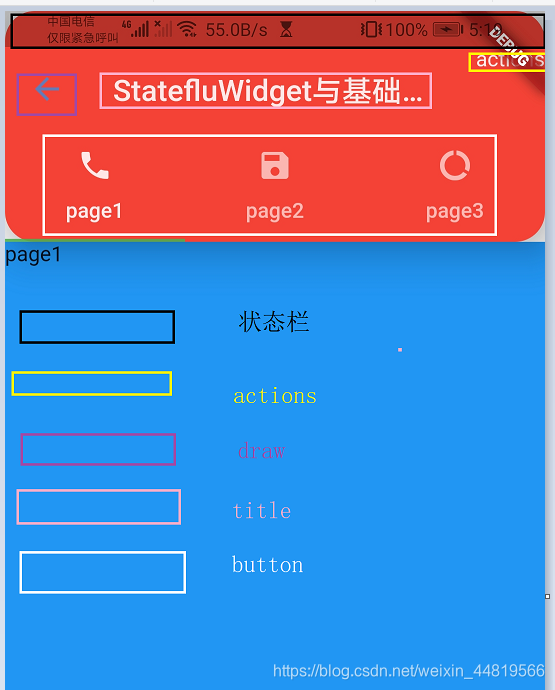
一般Button都是配合TabBar使用:
| TabBar参数 | 类型 | 说明 |
|---|---|---|
| tabs | List<Widget> | 子Tab |
| isScrollable | bool | 是否可以滚动 |
| indicatorColor | Color | 指示器颜色 |
| indicatorPadding | EdgeInsetsGeometry | 指示器内边距 |
| indicator | BoxDecoration | 选中颜色,(指示器和选中颜色只能选一个) |
| indicatorSize | TabBarIndicatorSize | 默认是:TabBarIndicatorSize.tab TabBarIndicatorSize.label跟文字等宽 |
| labelColor | Color | Tab颜色 |
| labelStyle | TextStyle | Tab样式 |
| labelPadding | EdgeInsetsGeometry | Tab内边距 |
| unselectedLabelStyle | TextStyle | Tab未选中样式 |
| unselectedLabelColor | Color | Tab未选中颜色 |
| onTap | ValueChanged<int> | 点击Tab响应事件 |
使用TabBar需要用DefaultTabController包裹,并且length需要设置为当前Tab的数量
 home: DefaultTabController(
        length: 3,
        child: Scaffold(
          drawer: Container(
            color: Colors.white,
            width: 300,
            child: Column(
              children: <Widget>[
                Container(
                  child: Text("drawer1"),
                ),
                Container(
                  child: Text("drawer2"),
                ),
                Container(
                  child: Text("drawer3"),
                )
              ],
            ),
          ),
          primary: true,
          //AppBar标题是否显示完整 默认是true
          floatingActionButton: FloatingActionButton(
            child: Text("点我"),
          ),
          bottomSheet: Text("bottomSheet"),
          endDrawer: Container(
            //右侧Drawer
            color: Colors.white,
            width: 300,
            height: 300,
            child: Text("endDrawer"),
          ),
          persistentFooterButtons: <Widget>[
            Container(
              child: Text("按钮一"),
            ),
            Container(
              child: Text("按钮二"),
            ),
          ],
          bottomNavigationBar: BottomNavigationBar(
            currentIndex: mIndex,
            onTap: (index) {
              setState(() {
                mIndex = index;
              });
            },
            items: [
              BottomNavigationBarItem(
                icon: Icon(Icons.cached), //默认状态
                activeIcon: Icon(
                  //选中状态
                  Icons.cached,
                  color: Colors.green,
                ),
                title: Text("刷新"), //颜色跟随主题颜色变化
              ),
              BottomNavigationBarItem(
                icon: Icon(Icons.ac_unit),
                activeIcon: Icon(
                  Icons.ac_unit,
                  color: Colors.green,
                ),
                title: Text("雪花"),
              )
            ],
          ),
          appBar: AppBar(
            leading: Icon(Icons.arrow_back),
            //此按钮会和draw按钮重复

            title: Text("StatefluWidget与基础组件"),
            //按钮显示文字
            actions: <Widget>[
              //右边显示//此按钮会和endDraw按钮重复
              Container(
                child: Text("actions"),
              ),
            ],
            shape: RoundedRectangleBorder(
                //AppBar形状
                borderRadius: BorderRadius.all(Radius.circular(20))),
            backgroundColor: Colors.red,
            //背景色 默认跟随主题色
            brightness: Brightness.light,
            //状态栏亮度
            iconTheme: IconThemeData(
                color: Colors.blue, //AppBar中leading的颜色
                opacity: 0.8 //AppBar中leading的透明度  1不透明
                ),

            //阴影
            elevation: 20,

            //AppBar透明度
            toolbarOpacity: 0.7,
            //botton透明度
            bottomOpacity: 0.7,

            bottom: mIndex != 0
                ? TabBar(
                    isScrollable: false,
                    //是否可滚动
                    tabs: <Widget>[
                      //TabBar子Tab
                      Tab(
                        text: "page1",
                        icon: Icon(Icons.call),
                      ),
                      Tab(
                        text: "page2",
                        icon: Icon(Icons.save),
                      ),
                      Tab(
                        text: "page3",
                        icon: Icon(Icons.data_usage),
                      ),
                    ],
                    indicatorColor: Colors.greenAccent,
                    //指示器选中颜色
                    indicatorPadding: EdgeInsets.zero,
                    //指示器内边距
//                indicator: BoxDecoration(//选中颜色(指示器与选中颜色只能选一个)
//                  color: Colors.deepOrange,
//                ),
                    indicatorSize: TabBarIndicatorSize.tab,
                    //tab指示器计算方式TabBarIndicatorSize.lable与文字等宽
                    labelColor: Colors.blue,
                    //Tab默认颜色
                    labelStyle: TextStyle(fontSize: 18),
                    //Tab样式
                    labelPadding: EdgeInsets.all(5),
                    //Tab内边距
                    unselectedLabelColor: Colors.yellow,
                    //Tab未选中颜色
                    unselectedLabelStyle: TextStyle(fontSize: 15),
                    //Tab为选中样式
                    onTap: (index) {
                      mIndex = index;
                      print('现在是第:${index}个');
                    },
                  )
                : null,
          ),
          body: mIndex == 0
              ? Container(
                  color: Colors.white,
                )
              : TabBarView(//使用TabBarView来响应
                  children: <Widget>[
                    initTabitem("page1", Colors.blue),
                    initTabitem("page2", Colors.red),
                    initTabitem("page3", Colors.yellow),
                  ],
                ),
        ),
      ),

 initTabitem(String s, Color color) {
    return Container(
      color: color,
      child: Text(s),
    );
  }
来看看效果图吧:
注:我的审美很好,这样写是为了让大家看到的效果更佳明显!!!

RefreshIndicator
刷新组件
| RefreshIndicator参数 | 类型 | 说明 |
|---|---|---|
| onRefresh | RefreshCallback | 下拉刷新回调 |
| color | Color | 指示器颜色 |
| backgroudColor | Color | 背景颜色 |
| displacement | double | 下拉显示距离 |
注:使用RefreshIndicator子Widget必须是可以滚动的!
 body: RefreshIndicator(
            child: ListView(
              children: <Widget>[
                Container(
                  color: Colors.white,
                )
              ],
            ),
            onRefresh:initRefresh ,//必写参数
            color: Colors.green,//指示器颜色
            backgroundColor: Colors.yellow,//背景颜色
            displacement: 20,//下拉距离
          )
 Future<Null> initRefresh() async {
    await Future.delayed(new Duration(milliseconds: 1000)); //刷新1s
    return null;
  }
回调方法中Future,async和await可以点击参考文档
来看看效果图吧:

Image
图片加载控件(只举例常用属性)
| Image参数 | 类型 | 说明 |
|---|---|---|
| src | String | Image显示图片路径 |
| width | double | 图片宽度 |
| height | double | 图片高度 |
| fit | BoxFit | BoxFit.fill完全填充,宽高比可能会变 BoxFit.contain等比拉伸,直到一边填充满 BoxFit.cover等比拉伸,直到2边都填充满,此时一边可能超出范围 BoxFit.fitWidth等比拉伸,宽填充满 BoxFit.fitHeight等比拉伸,高填充满 BoxFit.none不拉伸,超出范围截取 BoxFit.scaleDown只缩小,等比 |
加载网络图片
 Image.network(
             //添加网络图片
               "http://pic1.win4000.com/pic/c/cf/cdc983699c.jpg",
                width: 100,
                 height: 150,
                 fit: BoxFit.fill,
          ),
加载本地图片
1.先在本地创建images文件夹,将需要加载的图片放进去

2,在pubspec.yaml下声明图片(一定要写对,连一个空格都不能写错!!!)

在代码中使用asset加载本地图片:
Image.asset(
         "images/green.jpeg",
         width: 100,
         height: 150
        ),
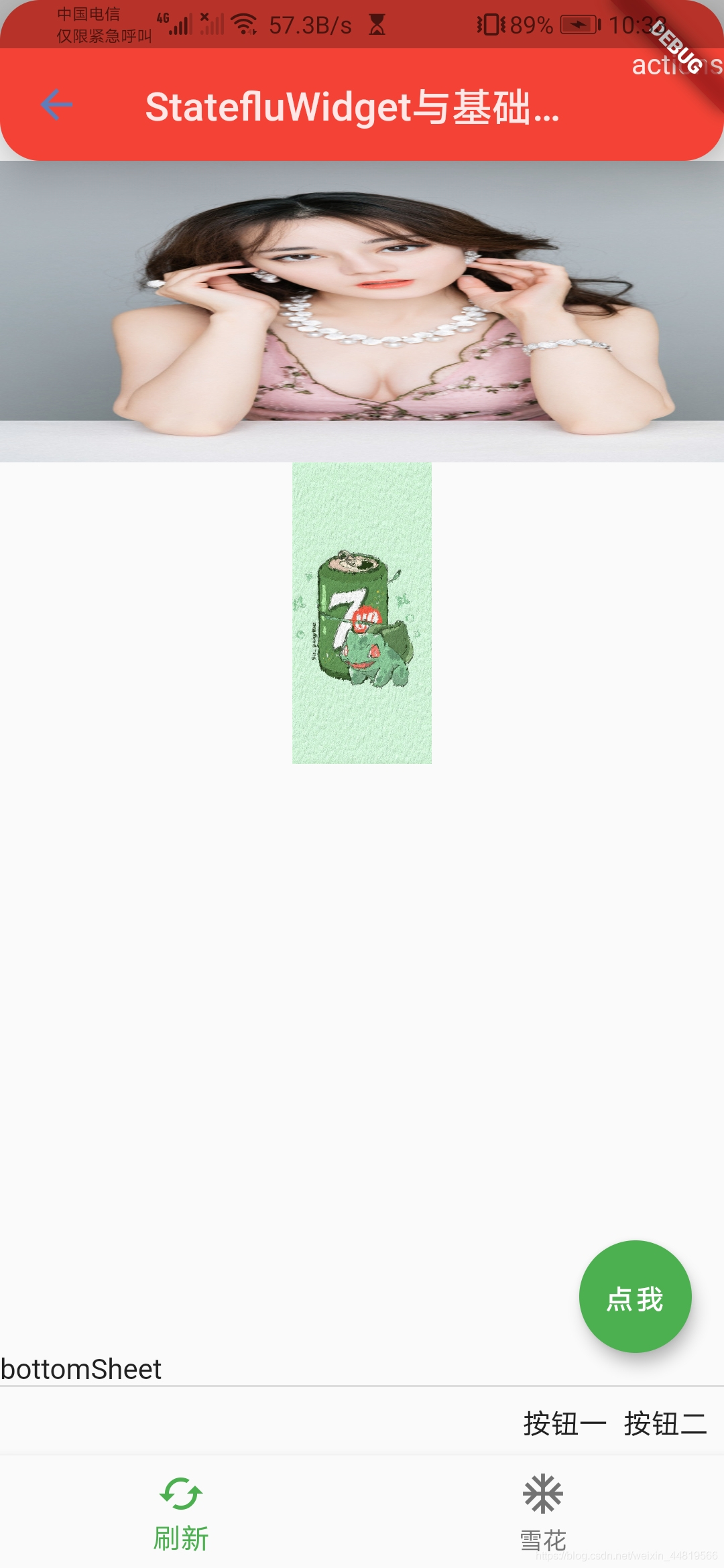
来看看加载的图片吧:
图一网络加载图片用到了BoxFit.fill完全填充,所以会占满整个宽度!
 # TextField > 文本输入组件
| TextField参数 | 类型 | 说明 |
|---|---|---|
| obscureText | bool | 隐藏文字 |
| keyboardType | TextInputType | 弹出键盘类型TextInputType.text TextInputType.multiline TextInputType.number TextInputType.phone TextInputType.datetime TextInputType.emailAddress TextInputType.url |
| textInputAction | TextInputAction | 弹出键盘右下角按钮 TextInputAction.none … TextInputAction.newline (按住ctrl可以点进来,注释写的很清楚我就不再重复说啦)  |
| textCapitalization | TextCapitalization | 大小写控制 TextCapitalization.words…  |
| cursorColor | Color | 光标颜色 |
| cursorWidth | double | 光标宽度 |
| cursorRadius | Radius | 光标圆角 |
| maxLines | int | 最大行数(要比最小行数大) |
| minLines | int | 最小行数(要比最大行数小) |
| maxLength | int | 最大输入字符个数(右下角会有当前输入角标) |
| controller | TextEditingController | 直接new TextEditingController()控制器配置(删除文本内容需要使用) |
| focusNode | FocusNode | 直接new FocusNode()关闭软键盘配置(关闭软键盘需要使用) |
| decoration | InputDecoration | 装饰器InputDecoration.collapsed(hintText: “无下划线”)无下划线装饰器(具体装饰器使用下面会介绍) |
| onChanged | ValueChanged<String> | 当前输入响应回调 |
InputDecoration只举例常用类型
| InputDecoration参数 | 类型 | 说明 |
|---|---|---|
| counter | Widget | 自定义技数 |
| icon | Widget | 左侧外图标 |
| prefixIcon | Widget | 左侧内图标 |
| suffixIcon | Widget | 右侧图标 |
| helperText | String | 帮助文字 |
| helperStyle | TextStyle | 帮助文字样式 |
| hintText | String | 提示文字 |
| labelText | String | 悬浮提示文字 |
| errorText | String | 错误提示 |
| border | InputBorder(OutlineInputBorder) | 边框设置 |

代码注释都标注了,来看看效果图吧~
TextField(
//                          obscureText:true,//隐藏文字
                  keyboardType: TextInputType.number,
                  //设置键盘弹出类型
                  textInputAction: TextInputAction.next,
                  //键盘按钮右下角按钮
                  textCapitalization: TextCapitalization.characters,
                  //大小写控制(我看不出效果!)
                  cursorColor: Colors.yellow,
                  //光标颜色
                  cursorWidth: 10,
                  //光标宽度
                  cursorRadius: Radius.circular(20),
                  //光标圆角
                  maxLines: 3,
                  //最大行数
                  minLines: 1,
                  //最小行数
                  maxLength: 8,
                  //最大输入字符
                  controller: mController = new TextEditingController(),
                  //初始化控制器controller
                  focusNode: focusNode = new FocusNode(),
                  //配置关闭软件按钮
//                        decoration: InputDecoration.collapsed(hintText: "无下划线"),//无下划线输入框

                  decoration: InputDecoration( //右下角最大输入样式
                      counter: Text("最大输入字符"),
                      icon: Icon(Icons.accessibility),
                      //左侧图标
                      prefixIcon: Icon(Icons.title),
                      //左侧内图标
                      suffixIcon: IconButton( //右侧图标
                        icon: Icon(Icons.delete),
                        onPressed: () {
                          print('SZJonPressed');
                          mController?.clear();//清除文字
                          focusNode?.unfocus();//关闭软键盘
                        },
                      ),

                      helperText: "请输入手机号",
                      //帮助提示
                      helperStyle: TextStyle(color: Colors.green),
                      hintText: "请输入",
                      //hint提示
                      labelText: "账号",
                      //悬浮提示 先显示lableText在显示hintText
                      errorText: "请正确输入手机号",
                      errorMaxLines: 5,
                      //错误提示
//                      errorBorder: OutlineInputBorder(),


                      border: OutlineInputBorder( //设置边框
                        borderRadius: BorderRadius.all(
                            Radius.circular(30)), //设置圆角
                      )

                  ),

                  onChanged: (value) { //响应回调
                    print('当前输入的是${value}');
                    mValue = value;
                  },


                )
效果图:

PageView
切换页面控件
| PageView参数 | 类型 | 说明 |
|---|---|---|
| scrollDirection | Axis | 设置滚动方向Axis.vertical垂直滚动 Axis.horizontal |
| controller | PageController | 控制器 |
| onPageChanged | ValueChanged<int> | 响应当前页数 |
| children | List<Widget> | 子Page的Widget |
| PageController参数 | 类型 | 说明 |
|---|---|---|
| viewportFraction | double | 设置每一个Page不占满屏幕,漏出上一个和下一个Page! |
| initialPage | int | 设置默认显示page |
| keepPage | bool | 是否保存当前page状态 |
Container(
                        height: 100,
                        margin: EdgeInsets.only(top: 30),
                        child: PageView(
                            scrollDirection: Axis.vertical,//设置滑动方向  默认是Axis.horizontal
                          controller: PageController(
                            viewportFraction: 0.9,//设置每一个Page不占满屏幕,漏出上一个和下一个Page!
                              initialPage: 0,//设置默认Page
                             keepPage: true//是否保存当前滚动page

                          ),
                          onPageChanged: (index){
                            print("SZJonPageChanged${index}\t\t");
                          },

                          children: <Widget>[
                            initPageViewItem("page1", Colors.green),
                            initPageViewItem("page2", Colors.yellow),
                            initPageViewItem("page3", Colors.red),
                            initPageViewItem("page4", Colors.blue),
                          ],
                        ),
                      )
 initPageViewItem(String s, Color color) {
    return Container(
      color: color,
      alignment: Alignment.center,
      child: Text(s),
    );
  }
来看看效果图吧:
查看完整代码.
上一章:Flutter StatelessWidget与基础组件(1.1)
下一章:Flutter 如何进行Flutter布局开发(1.3)
原创不易,您的点赞是对我最大的鼓励,留下您的点赞吧~

开源鸿蒙跨平台开发社区汇聚开发者与厂商,共建“一次开发,多端部署”的开源生态,致力于降低跨端开发门槛,推动万物智联创新。
更多推荐

 0
0 0
0- 0


 已为社区贡献21条内容

所有评论(0)