ReactNative开发一个简单的天气APP
1 序言本节主要说的是一个基于React-Native的天气APP,通过本案例的练习,可以初步的了解React Native的基本使用方法。2 系统架构图整体的软件构架如下图所示:3 实现3.1 修改项目入口文件 index.js修改后的项目入口文件如下:import {AppRegistry} from 'react-native';import {name as appName} from '
·
1 序言
本节主要说的是一个基于React-Native的天气APP,通过本案例的练习,可以初步的了解React Native的基本使用方法。
2 系统架构图
整体的软件构架如下图所示: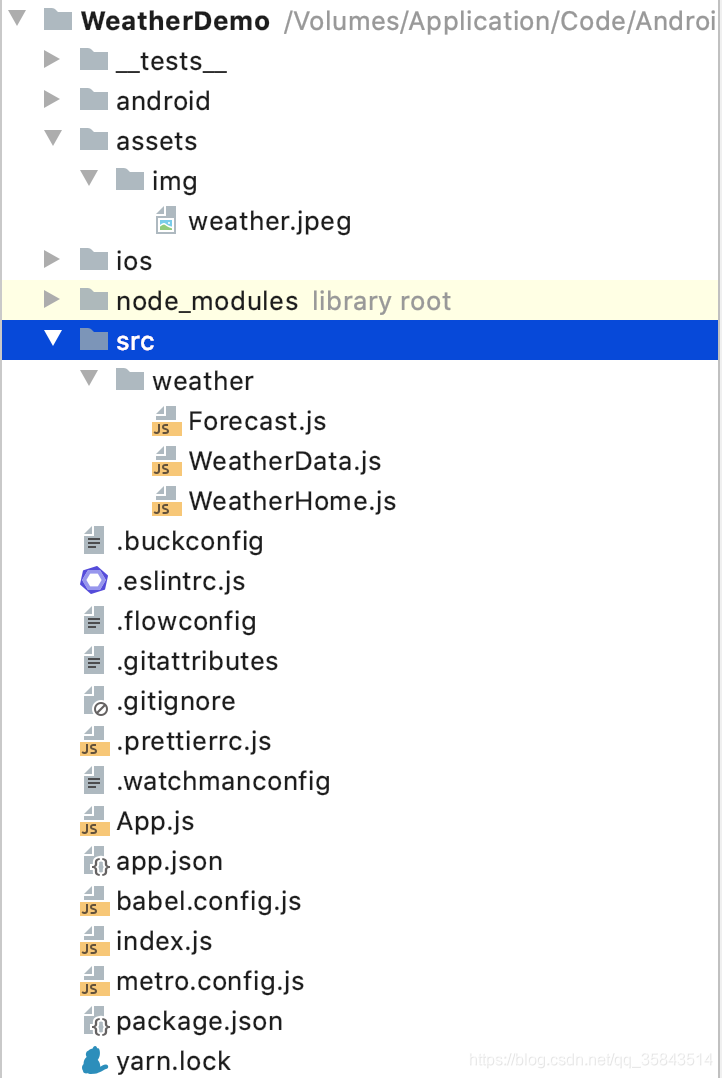
3 实现
3.1 修改项目入口文件 index.js
修改后的项目入口文件如下:
import {AppRegistry} from 'react-native';
import {name as appName} from './app.json';
import WeatherHome from "./src/weather/WeatherHome";

AppRegistry.registerComponent(appName, () => SimpleList);
3.2 天气主页面
新建天气主页面 WeatherHome.js 文件,文件主要内容如下:
import React, { Component } from 'react';
import {
    StyleSheet,
    View,
    Text,
    ImageBackground,
    TextInput,
    Dimensions,
} from 'react-native';
import Forecast from "./Forecast";
import WeatherData from "./WeatherData";

export default class WeatherHome extends Component {

    constructor(props) {
        super(props);
        this.state = {zip:"",forecast: null};
    }

    _handleTextChange  = event => {
        let zip = event.nativeEvent.text;
        console.log('邮政编码'+ zip);
        WeatherData.fetchForecast(zip).then(forecast =>{
            console.log(forecast);
            this.setState({forecast:forecast});
        });
    };

    render() {
        let content = null;
        if(this.state.forecast != null){
            content = (
                <Forecast
                    main = {this.state.forecast.main}
                    description = {this.state.forecast.description}
                    temp = {this.state.forecast.temp}
                />
            );
        }
        return (
            <View style = {styles.container}>
                <ImageBackground
                    source={require("./../../assets/img/weather.jpeg")}
                    resizeMode="cover"
                    style={styles.backdrop}
                >
                    <View style = {styles.weather_layout}>
                        <View style = {styles.city_info}>
                            <Text style={styles.welcome}>
                                城市:{this.state.zip}
                            </Text>
                            <TextInput
                                style = {styles.input}
                                onSubmitEditing={this._handleTextChange}
                                underlineColorAndroid="transparent"
                            >
                            </TextInput>
                        </View>
                        {content}
                    </View>
                </ImageBackground>
            </View>
        );
    }
}

const styles = StyleSheet.create({
    container: { flex: 1, alignItems: "center" },
    city_info:{
        flexDirection: 'row',
        width:Dimensions.get('window').width
    },
    weather_layout:{
        paddingTop: 5,
        backgroundColor: "#000000",
        opacity: 0.5,
        flexDirection: "column",
        alignItems: "center"
    },
    backdrop:{
        flex: 1,
        flexDirection: "column",
        width: Dimensions.get('window').width,
    },
    welcome:{
        fontSize:20,
        textAlign:"center",
        margin:10
    },
    input:{
        fontSize: 30,
        padding: 2,
        height: 50,
        textAlign: "center",
        color: "#ffffff"
    }
});
3.3 天气查询后显示页面
新建天气主页面 Forecast.js 文件,文件主要内容如下:
import React, {Component} from 'react'
import {
    StyleSheet,
    View,
    Text
} from 'react-native';

export default class Forecast extends Component{
    render() {
        return (
            <View style = {styles.container}>
                <Text style = {styles.bigText}>
                    {this.props.main}
                </Text>
                <Text style = {styles.mainText}>
                    此刻天气状态:{this.props.description}
                </Text>
                <Text style = {styles.bigText}>
                    温度:{this.props.temp} F
                </Text>
            </View>
        );
    }

}

const styles = StyleSheet.create({
    container:{
        height: 180
    },
    mainText:{
        flex: 1,
        fontSize: 20,
        textAlign: "center",
        color: "#FFFFFF"
    },
    bigText:{
        flex: 2,
        fontSize: 20,
        textAlign: "center",
        margin: 10,
        color: "#FFFFFF"
    }
});
3.4 天气数据获取
const WEATHER_API_KEY = "bbeb34ebf60ad50f7893e7440a1e2b0b";
const API_STEM = "http://api.openweathermap.org/data/2.5/weather?";

function zipUrl(zip) {
    return `${API_STEM}q=${zip}&units=imperial&APPID=${WEATHER_API_KEY}`;
}

function fetchForecast(zip) {
    return fetch(zipUrl(zip))
        .then(response => response.json())
        .then(responseJSON => {
            return {
                main: responseJSON.weather[0].main,
                description: responseJSON.weather[0].description,
                temp: responseJSON.main.temp
            };
        })
        .catch(error => {
            console.error(error);
        });
}

export default { fetchForecast: fetchForecast };
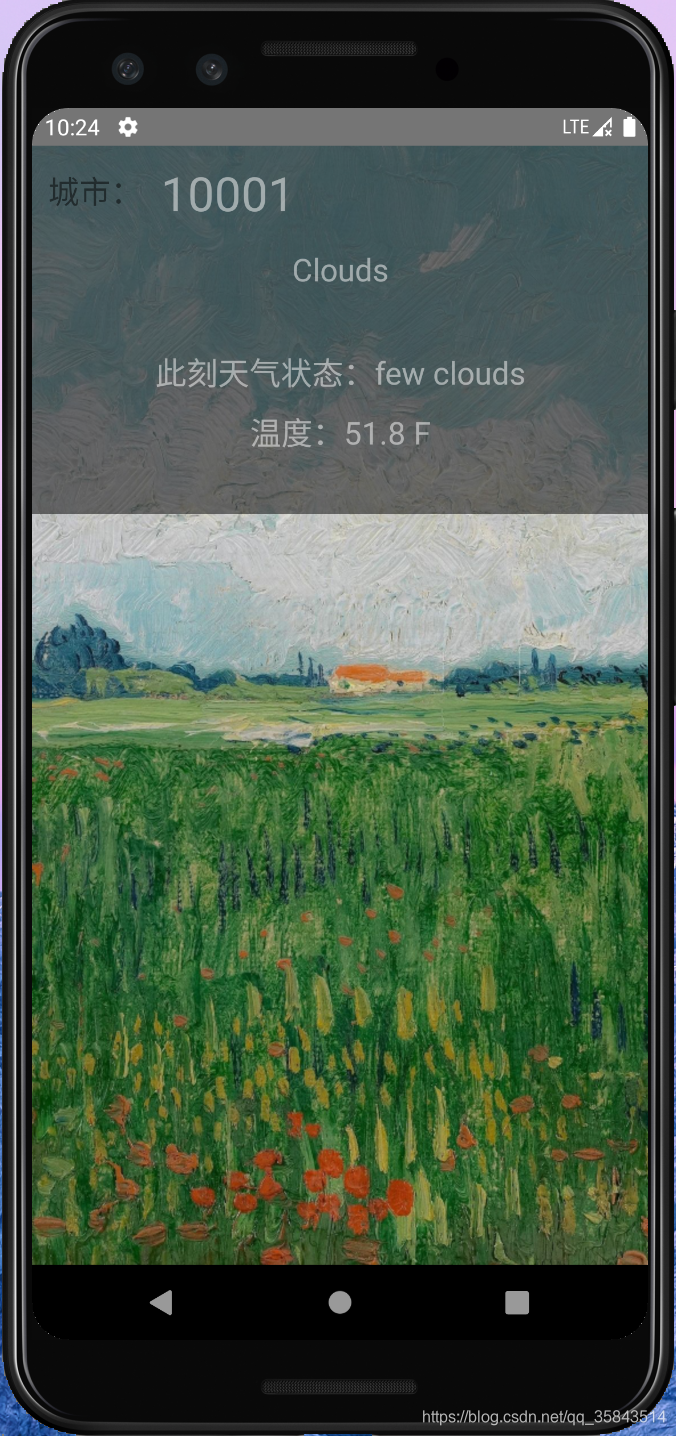
4 运行效果图
cd WeatherDemo
react-native start
react-native run-android
5 相关资源下载
关注微信公众号“AI Technology Space”,回复“WeatherDemo”下载源代码哦,感谢大家的支持!

开源鸿蒙跨平台开发社区汇聚开发者与厂商,共建“一次开发,多端部署”的开源生态,致力于降低跨端开发门槛,推动万物智联创新。
更多推荐
 0
0 0
0- 0


 已为社区贡献2条内容

所有评论(0)