Flutter TextField自定义
文章所有资料全部已经打包整理好,另外小编手头上整理了大量Android架构师全套学习资料,Android核心高级技术PDF文档+全套高级学习资料+视频+2021 BAT 大厂面试真题解析资料展示:《互联网大厂面试真题解析、进阶开发核心学习笔记、全套讲解视频、实战项目源码讲义》点击传送门即可获取![外链图片转存中…(img-g42rGc9g-1713308511630)][外链图片转存中…(img-
@override
_RestartWidgetState createState() => _RestartWidgetState();
}
class _RestartWidgetState extends State {
//定义一个controller
TextEditingController _unameController = TextEditingController();
@override
Widget build(BuildContext context) {
return Scaffold(
body: Container(
margin: EdgeInsets.only(left: 10.0, right: 10.0),
child: Row(
children: [
Expanded(
flex: 1,
child: Container(
child: TextField(
autofocus: true,
decoration: null,
onChanged: (v) {
print('编辑框的值:$v');
},
controller: _unameController, //设置controller
),
),
),
GestureDetector(
onTap: () {
_unameController.clear();
},
child: Container(
alignment: Alignment.center,
width: 40.0,
height: 40.0,
child: Image.asset(R.assetsImgIcDelete),
decoration: BoxDecoration(
color: Colors.white,
border: Border.all(color: Colors.purple, width: 2.0),
borderRadius: BorderRadius.all(Radius.circular(10.0))),
),
),
],
),
decoration: BoxDecoration(
color: Colors.blue,
border: Border.all(color: Colors.purple, width: 2.0),
borderRadius: BorderRadius.all(Radius.circular(10.0))),
),
appBar: AppBar(
backgroundColor: Color(0xffFFFFFF),
titleSpacing: 0.0,
title: Text(
'TextField',
style: TextStyle(color: Colors.blue),
),
elevation: 0.0,
centerTitle: true,
),
);
}
}
属性 decoration
TextField(
autofocus: true,
decoration: InputDecoration(
labelText: "密码",
hintText: "您的登录密码",
prefixIcon: Icon(Icons.lock),
border: InputBorder.none,
),
onChanged: (v) {
print('编辑框的值:$v');
},
controller: _unameController, //设置controller
),

prefixIcon: Image.asset(R.assetsImgIcPassword),
TextField( autofocus: true,
decoration: InputDecoration(
labelText: "密码",
hintText: "您的登录密码",
prefixIcon: Image.asset(R.assetsImgIcPassword),
border: InputBorder.none,
),
onChanged: (v) {
print('编辑框的值:$v');
自我介绍一下,小编13年上海交大毕业,曾经在小公司待过,也去过华为、OPPO等大厂,18年进入阿里一直到现在。
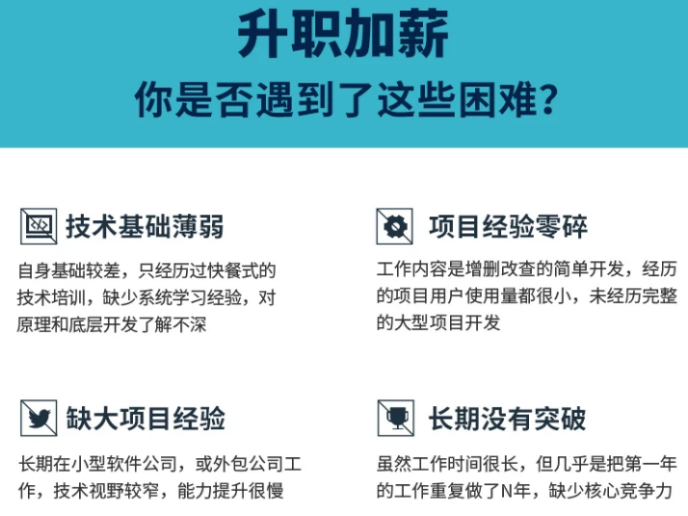
深知大多数初中级Android工程师,想要提升技能,往往是自己摸索成长或者是报班学习,但对于培训机构动则近万的学费,着实压力不小。自己不成体系的自学效果低效又漫长,而且极易碰到天花板技术停滞不前!
因此收集整理了一份《2024年Android移动开发全套学习资料》,初衷也很简单,就是希望能够帮助到想自学提升又不知道该从何学起的朋友,同时减轻大家的负担。
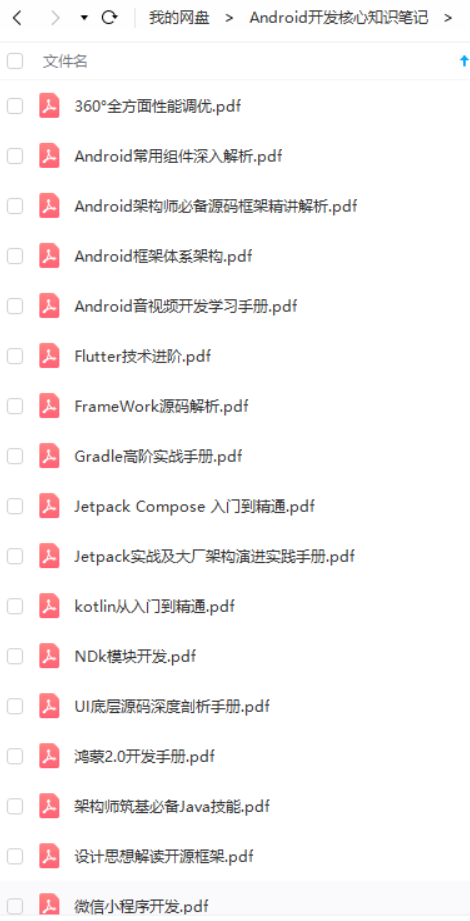
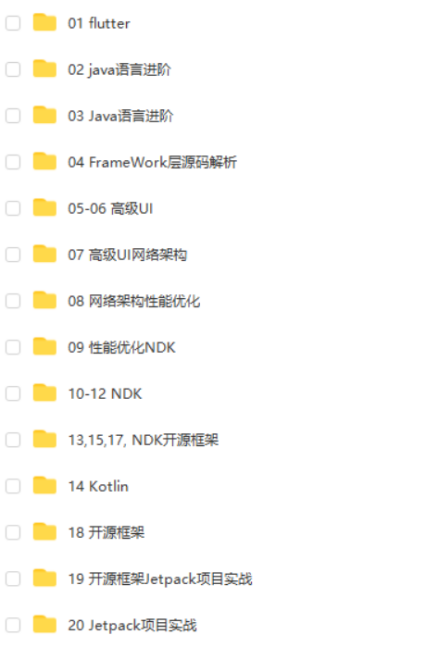
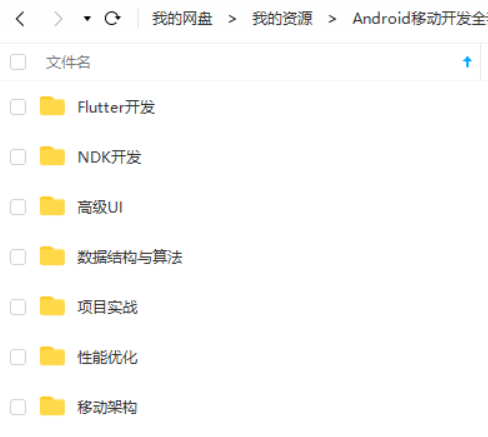
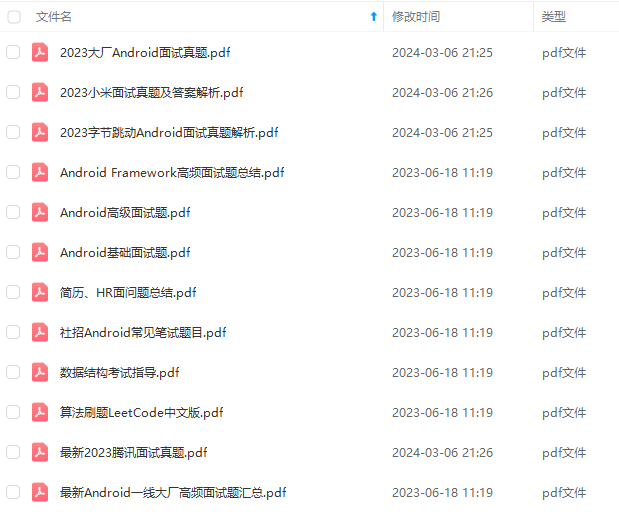
既有适合小白学习的零基础资料,也有适合3年以上经验的小伙伴深入学习提升的进阶课程,基本涵盖了95%以上Android开发知识点,真正体系化!
由于文件比较大,这里只是将部分目录截图出来,每个节点里面都包含大厂面经、学习笔记、源码讲义、实战项目、讲解视频,并且会持续更新!
如果你觉得这些内容对你有帮助,可以扫码获取!!(备注:Android)

最后
文章所有资料全部已经打包整理好,另外小编手头上整理了大量Android架构师全套学习资料,Android核心高级技术PDF文档+全套高级学习资料+视频+2021 BAT 大厂面试真题解析
资料展示:
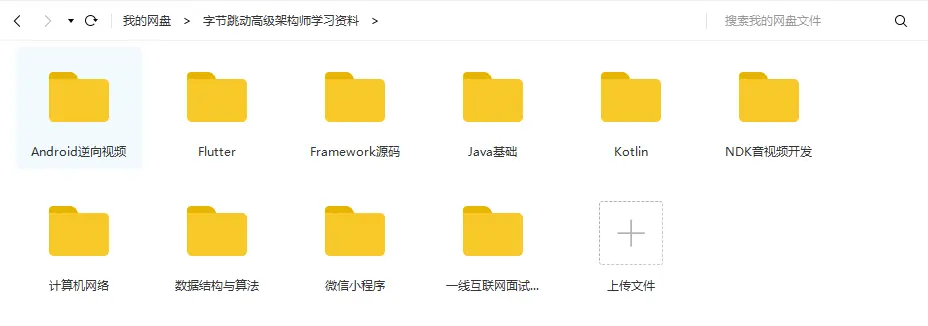
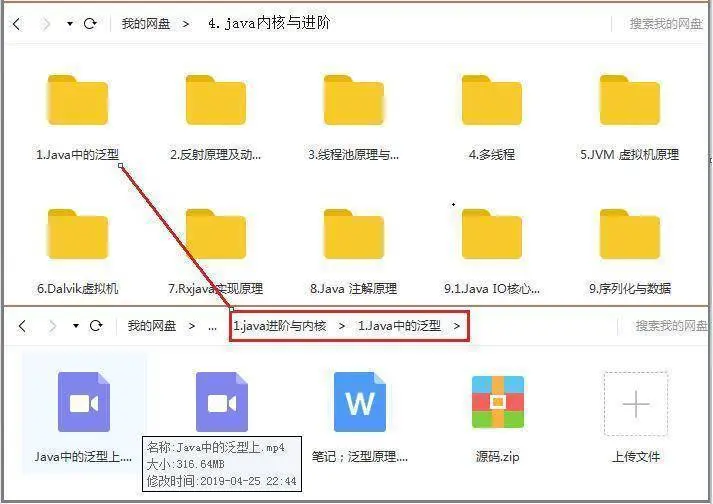
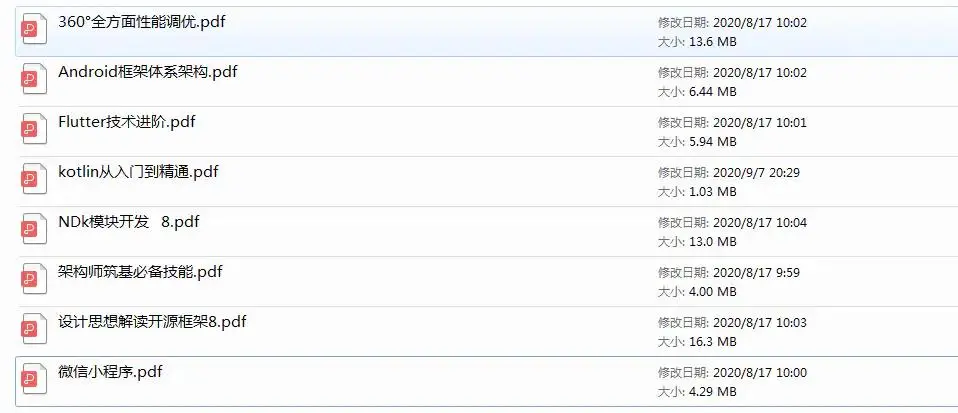
《互联网大厂面试真题解析、进阶开发核心学习笔记、全套讲解视频、实战项目源码讲义》点击传送门即可获取!
(img-ueCynD65-1713308511628)]
[外链图片转存中…(img-g42rGc9g-1713308511630)]
[外链图片转存中…(img-2r1zA8lP-1713308511631)]
《互联网大厂面试真题解析、进阶开发核心学习笔记、全套讲解视频、实战项目源码讲义》点击传送门即可获取!

开源鸿蒙跨平台开发社区汇聚开发者与厂商,共建“一次开发,多端部署”的开源生态,致力于降低跨端开发门槛,推动万物智联创新。
更多推荐
 20
20 0
0- 0


 已为社区贡献4条内容

所有评论(0)