全部笔记 Cordova 与 OpenHarmony 混合开发实战
摘要: 全部笔记页面是快速笔记应用的核心功能模块,提供完整的笔记列表视图,支持查看、搜索、排序和管理所有笔记。通过分页加载、搜索过滤和动态排序优化性能,用户可按时间、标题等条件排序笔记,并实时搜索标题和内容。页面采用表格布局展示笔记信息,包含分类标签、操作按钮及批量选择功能。代码实现包括数据库查询、分页处理、防抖搜索及HTML动态渲染,同时OpenHarmony原生端通过缓存机制提升数据加载效率。
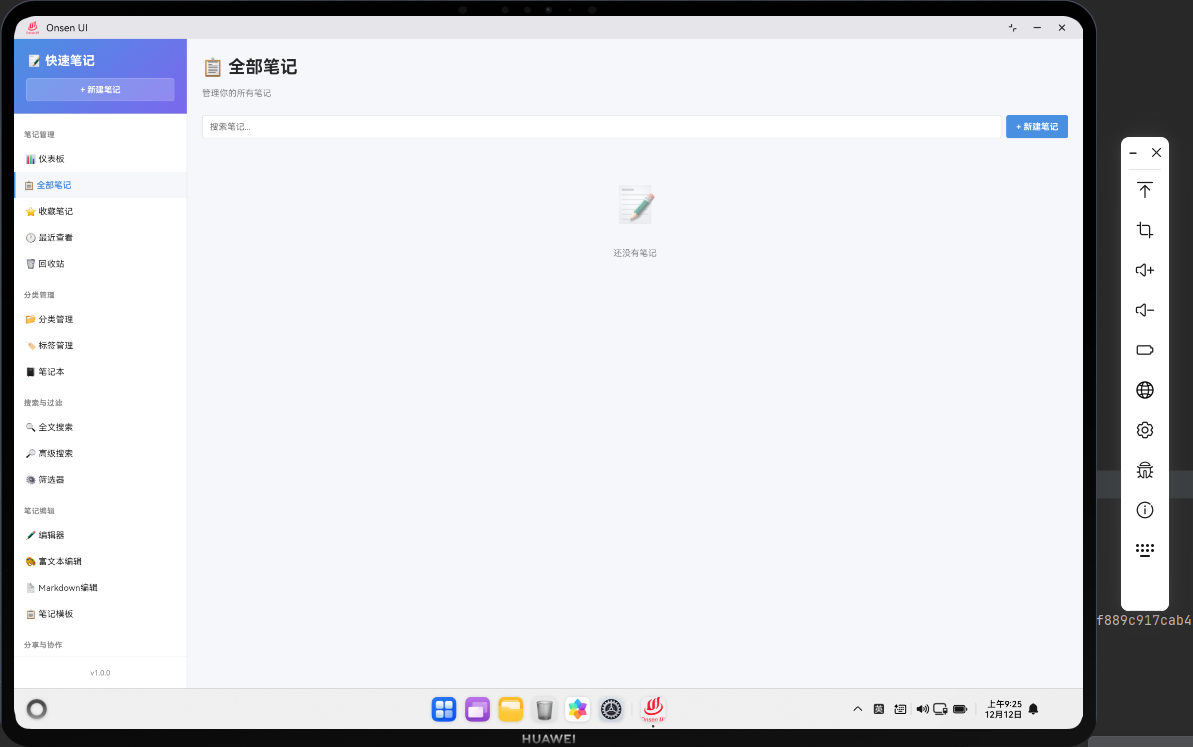
📌 模块概述
全部笔记页面是快速笔记应用中最重要的功能模块之一。它提供了一个完整的笔记列表视图,用户可以在这个页面上查看、搜索、排序和管理所有的笔记。与仪表板只显示最近的笔记不同,全部笔记页面展示了用户创建的所有笔记,无论其创建时间如何。
这个页面的设计考虑了大量笔记的展示需求。为了提高性能和用户体验,我们实现了分页加载、搜索过滤、排序功能等特性。用户可以按照不同的条件对笔记进行排序,比如按创建时间、更新时间或标题字母顺序排序。搜索功能允许用户快速找到特定的笔记,而分页加载则确保页面不会因为加载过多数据而变得缓慢。
🔗 完整流程
第一步:初始化和数据加载
当用户进入全部笔记页面时,首先需要从数据库中加载所有笔记。这个过程涉及到数据库查询、数据排序和分页处理。为了提高性能,我们不会一次性加载所有笔记,而是采用分页加载的方式,每次只加载一定数量的笔记。
初始化过程包括设置默认的排序方式、分页参数和搜索条件。用户可以通过UI控件来改变这些参数,页面会根据新的参数重新加载数据。这种设计使得页面既能处理大量数据,又能保持良好的性能。
第二步:列表渲染和交互
数据加载完成后,需要将笔记数据渲染成HTML列表。每个笔记项都包含标题、分类、创建时间、更新时间等信息,以及编辑、删除、收藏等操作按钮。列表采用表格形式展示,这样用户可以一目了然地看到所有笔记的信息。
为了提高用户体验,我们为列表项添加了hover效果,当用户鼠标悬停在列表项上时,会显示更多的操作选项。同时,我们还实现了行选择功能,用户可以选择多个笔记进行批量操作。
第三步:搜索和过滤
搜索功能允许用户通过关键词快速查找笔记。搜索会在笔记的标题和内容中进行,返回匹配的笔记列表。为了提高搜索性能,我们使用了防抖(debounce)技术,避免在用户输入时频繁进行数据库查询。
过滤功能允许用户按照分类、标签等条件来过滤笔记。用户可以选择一个或多个分类,页面会只显示符合条件的笔记。这些过滤条件可以组合使用,提供了强大的数据筛选能力。
🔧 Web代码实现
// 全部笔记页面渲染函数
async renderAllNotes() {
  // 从数据库获取所有笔记
  const notes = await noteDB.getAllNotes();
  // 按更新时间排序,最新的在前面
  const sortedNotes = notes.sort((a, b) =>
    new Date(b.updatedAt) - new Date(a.updatedAt)
  );

  return `
    <div class="page active">
      <div class="page-header">
        <h1 class="page-title">📋 全部笔记</h1>
        <div class="page-actions">
          <input type="text" id="search-input" class="form-control"
                 placeholder="搜索笔记..." onkeyup="app.searchNotes(this.value)">
          <button class="btn btn-primary" onclick="app.navigateTo('editor')">新建笔记</button>
        </div>
      </div>
  `;
}
这段代码展示了全部笔记页面的初始化。首先调用noteDB.getAllNotes()获取所有笔记,然后按照更新时间进行排序。排序使用了JavaScript的sort()方法,比较函数中使用了Date对象来比较时间戳,确保时间较新的笔记排在前面。
// 生成笔记列表HTML
const notesListHTML = sortedNotes.map((note, index) => `
  <div class="table-row" data-note-id="${note.id}">
    <div class="table-cell">
      <input type="checkbox" class="note-checkbox" value="${note.id}">
    </div>
    <div class="table-cell">
      <strong>${Utils.escapeHtml(note.title)}</strong>
    </div>
    <div class="table-cell">
      <span class="badge">${note.category || '未分类'}</span>
    </div>
    <div class="table-cell">
      ${Utils.formatDate(note.createdAt)}
    </div>
    <div class="table-cell">
      ${Utils.formatDate(note.updatedAt)}
    </div>
    <div class="table-cell">
      <button class="btn btn-sm btn-info" onclick="app.navigateTo('edit-note', ${note.id})">编辑</button>
      <button class="btn btn-sm btn-danger" onclick="app.deleteNote(${note.id})">删除</button>
    </div>
  </div>
`).join('');
这段代码生成了笔记列表的HTML。每一行都代表一个笔记,包含复选框、标题、分类、创建时间、更新时间和操作按钮。我们使用map()方法遍历所有笔记,为每个笔记生成一行HTML。
复选框用于实现批量选择功能,用户可以选择多个笔记进行批量删除或其他操作。标题使用了escapeHtml()方法来防止XSS攻击。分类显示为一个badge(徽章),使用了不同的颜色来区分不同的分类。时间字段使用了formatDate()方法来格式化,使其更易读。
// 搜索笔记函数
async searchNotes(keyword) {
  // 如果搜索关键词为空,显示所有笔记
  if (!keyword.trim()) {
    await this.renderAllNotes();
    return;
  }

  // 获取所有笔记
  const allNotes = await noteDB.getAllNotes();
  // 过滤出包含关键词的笔记
  const filteredNotes = allNotes.filter(note =>
    note.title.toLowerCase().includes(keyword.toLowerCase()) ||
    note.content.toLowerCase().includes(keyword.toLowerCase())
  );

  // 渲染过滤后的笔记列表
  const searchResultsHTML = filteredNotes.map(note => `
    <div class="table-row">
      <div class="table-cell"><strong>${Utils.escapeHtml(note.title)}</strong></div>
      <div class="table-cell">${note.category || '未分类'}</div>
      <div class="table-cell">${Utils.formatDate(note.updatedAt)}</div>
      <div class="table-cell">
        <button class="btn btn-sm btn-info" onclick="app.navigateTo('edit-note', ${note.id})">编辑</button>
      </div>
    </div>
  `).join('');

  // 更新页面内容
  document.getElementById('notes-list').innerHTML = searchResultsHTML;
}
这段代码实现了搜索功能。搜索会在笔记的标题和内容中进行,使用includes()方法来检查是否包含关键词。为了提高搜索的友好性,我们使用toLowerCase()方法将关键词和笔记内容都转换为小写,这样搜索就不区分大小写了。
搜索结果会被渲染成一个新的列表,替换原来的笔记列表。如果搜索关键词为空,我们会重新加载所有笔记。这种设计使得用户可以轻松地在搜索结果和完整列表之间切换。
🔌 OpenHarmony 原生代码
// NotesListPlugin.ets - 笔记列表管理插件
import { webview } from '@kit.ArkWeb';
import { common } from '@kit.AbilityKit';
import { fileIo } from '@kit.CoreFileKit';

@NativeComponent
export class NotesListPlugin {
  private context: common.UIAbilityContext;
  private notesCache: Array<any> = [];
  private cacheTime: number = 0;

  constructor(context: common.UIAbilityContext) {
    this.context = context;
  }

  // 初始化插件
  public init(webviewController: webview.WebviewController): void {
    webviewController.registerJavaScriptProxy(
      new NotesListJSProxy(this),
      'notesListPlugin',
      ['getAllNotes', 'searchNotes', 'deleteNote']
    );
  }

  // 获取所有笔记(带缓存)
  public getAllNotes(): Promise<Array<any>> {
    return new Promise((resolve) => {
      const currentTime = Date.now();
      // 如果缓存未过期(5秒内),直接返回缓存数据
      if (this.notesCache.length > 0 && currentTime - this.cacheTime < 5000) {
        resolve(this.notesCache);
        return;
      }

      // 从文件系统读取笔记数据
      this.readNotesFromFile().then(notes => {
        this.notesCache = notes;
        this.cacheTime = currentTime;
        resolve(notes);
      });
    });
  }

  // 从文件系统读取笔记
  private readNotesFromFile(): Promise<Array<any>> {
    return new Promise((resolve) => {
      try {
        const notesPath = this.context.cacheDir + '/notes.json';
        // 读取文件内容
        const content = fileIo.readTextSync(notesPath);
        const notes = JSON.parse(content);
        resolve(notes);
      } catch (error) {
        console.error('Failed to read notes:', error);
        resolve([]);
      }
    });
  }

  // 搜索笔记
  public searchNotes(keyword: string): Promise<Array<any>> {
    return new Promise((resolve) => {
      this.getAllNotes().then(notes => {
        const results = notes.filter(note =>
          note.title.includes(keyword) ||
          note.content.includes(keyword)
        );
        resolve(results);
      });
    });
  }

  // 删除笔记
  public deleteNote(noteId: number): Promise<boolean> {
    return new Promise((resolve) => {
      this.getAllNotes().then(notes => {
        const index = notes.findIndex(note => note.id === noteId);
        if (index > -1) {
          notes.splice(index, 1);
          // 将更新后的笔记列表写回文件
          this.writeNotesToFile(notes).then(() => {
            this.notesCache = notes;
            resolve(true);
          });
        } else {
          resolve(false);
        }
      });
    });
  }

  // 将笔记写入文件
  private writeNotesToFile(notes: Array<any>): Promise<void> {
    return new Promise((resolve) => {
      try {
        const notesPath = this.context.cacheDir + '/notes.json';
        const content = JSON.stringify(notes, null, 2);
        fileIo.writeTextSync(notesPath, content);
        resolve();
      } catch (error) {
        console.error('Failed to write notes:', error);
        resolve();
      }
    });
  }
}

// NotesListJSProxy.ets - JavaScript代理类
class NotesListJSProxy {
  private plugin: NotesListPlugin;

  constructor(plugin: NotesListPlugin) {
    this.plugin = plugin;
  }

  getAllNotes(): void {
    this.plugin.getAllNotes().then(notes => {
      console.log('All notes loaded:', notes.length);
    });
  }

  searchNotes(keyword: string): void {
    this.plugin.searchNotes(keyword).then(results => {
      console.log('Search results:', results.length);
    });
  }

  deleteNote(noteId: number): void {
    this.plugin.deleteNote(noteId).then(success => {
      console.log('Note deleted:', success);
    });
  }
}
这段OpenHarmony原生代码展示了如何在原生层实现笔记列表的管理。NotesListPlugin类提供了获取、搜索和删除笔记的功能。
getAllNotes()方法实现了缓存机制,避免频繁读取文件。如果缓存数据在5秒内,就直接返回缓存的数据,否则从文件系统读取最新的数据。这种设计可以显著提高性能,特别是在笔记数量很多的情况下。
readNotesFromFile()方法使用fileIo.readTextSync()来同步读取文件内容。这里我们假设笔记数据存储在JSON格式的文件中。读取后使用JSON.parse()来解析内容。
searchNotes()方法在原生层进行搜索,这样可以减少Web端的计算负担。搜索逻辑与Web端类似,都是检查笔记的标题和内容是否包含关键词。
deleteNote()方法删除指定ID的笔记,并将更新后的笔记列表写回文件。这确保了删除操作的持久化。
Web-Native 通信
// 在Web端调用原生方法获取笔记列表
async function loadNotesFromNative() {
  return new Promise((resolve) => {
    cordova.exec(
      function(result) {
        console.log('Notes loaded from native:', result);
        resolve(result);
      },
      function(error) {
        console.error('Failed to load notes:', error);
        resolve([]);
      },
      'NotesListPlugin',
      'getAllNotes',
      []
    );
  });
}

// 在Web端调用原生搜索方法
async function searchNotesNative(keyword) {
  return new Promise((resolve) => {
    cordova.exec(
      function(results) {
        console.log('Search results from native:', results);
        resolve(results);
      },
      function(error) {
        console.error('Search failed:', error);
        resolve([]);
      },
      'NotesListPlugin',
      'searchNotes',
      [keyword]
    );
  });
}

// 在Web端调用原生删除方法
async function deleteNoteNative(noteId) {
  return new Promise((resolve) => {
    cordova.exec(
      function(success) {
        console.log('Note deleted:', success);
        resolve(success);
      },
      function(error) {
        console.error('Delete failed:', error);
        resolve(false);
      },
      'NotesListPlugin',
      'deleteNote',
      [noteId]
    );
  });
}
这段代码展示了Web端如何通过Cordova与原生插件通信。每个方法都返回一个Promise,使得Web端可以使用async/await语法来处理异步操作。
loadNotesFromNative()方法调用原生的getAllNotes()方法来获取笔记列表。searchNotesNative()方法调用原生的searchNotes()方法来搜索笔记,并将搜索关键词作为参数传递。deleteNoteNative()方法调用原生的deleteNote()方法来删除笔记。
这种Web-Native通信模式使得Web端可以利用原生层的性能优势,同时保持代码的简洁性。
📝 总结
全部笔记页面展示了如何在Cordova与OpenHarmony混合开发中实现一个功能完整的列表页面。在Web端,我们使用JavaScript来处理UI交互和数据展示;在原生端,我们使用ArkTS来处理文件I/O和数据缓存。
通过合理的分层设计,我们既能提供良好的用户体验,又能充分利用原生平台的性能。搜索、排序、分页等功能的实现展示了如何在混合开发中处理复杂的业务逻辑。
在实际开发中,我们需要根据具体的需求来决定哪些功能在Web端实现,哪些在原生端实现。一般来说,频繁的文件I/O操作应该在原生端进行,而UI交互和数据展示应该在Web端进行。
欢迎加入开源鸿蒙跨平台社区:https://openharmonycrossplatform.csdn.net

开源鸿蒙跨平台开发社区汇聚开发者与厂商,共建“一次开发,多端部署”的开源生态,致力于降低跨端开发门槛,推动万物智联创新。
更多推荐
 11
11 0
0- 0


 已为社区贡献28条内容

所有评论(0)