React Native for OpenHarmony 实战:记忆游戏实现
本文介绍了使用React Native实现的记忆游戏开发过程。游戏核心功能包括:玩家需记忆并重复随机数字序列,难度逐级递增。文章详细讲解了状态设计(包含序列、用户输入、游戏状态等5种状态)、动画效果(格子缩放和状态框动画)、游戏流程(开始游戏生成随机序列、展示数字序列、处理用户输入)等关键实现细节。重点展示了如何使用React Native的Animated API实现交互反馈,以及如何通过Typ
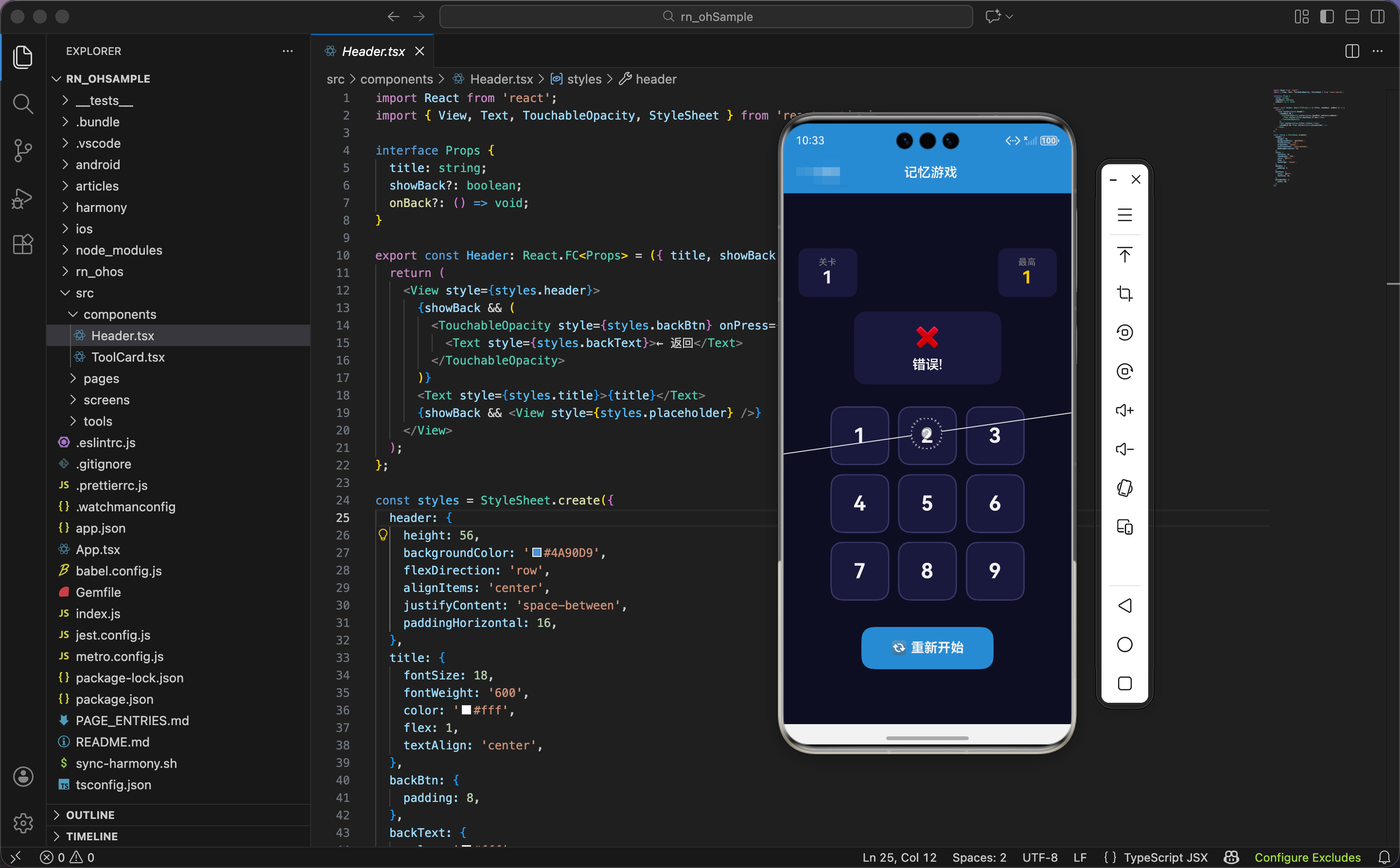
今天我们用 React Native 实现一个记忆游戏,玩家需要记住并重复数字序列,难度逐级递增。
状态设计
import React, { useState, useRef } from 'react';
import { View, Text, TouchableOpacity, StyleSheet, Animated } from 'react-native';

export const MemoryGame: React.FC = () => {
  const [sequence, setSequence] = useState<number[]>([]);
  const [userSequence, setUserSequence] = useState<number[]>([]);
  const [isShowing, setIsShowing] = useState(false);
  const [activeNum, setActiveNum] = useState<number | null>(null);
  const [gameState, setGameState] = useState<'idle' | 'showing' | 'input' | 'success' | 'fail'>('idle');
  const [level, setLevel] = useState(1);
  const [highScore, setHighScore] = useState(0);

  const cellAnims = useRef(Array(9).fill(0).map(() => new Animated.Value(1))).current;
  const statusAnim = useRef(new Animated.Value(1)).current;
  const buttonAnim = useRef(new Animated.Value(1)).current;
状态设计包含序列、用户输入、游戏状态、关卡、最高分。
序列状态:
sequence:目标序列,数组存储要记忆的数字userSequence:用户输入的序列,逐步添加用户点击的数字
显示状态:
isShowing:是否正在展示序列activeNum:当前高亮的数字,展示序列时依次高亮
游戏状态:gameState 有 5 种状态:
'idle':空闲,游戏未开始'showing':展示序列,玩家观看'input':等待输入,玩家点击'success':输入正确,进入下一关'fail':输入错误,游戏结束
关卡和分数:
level:当前关卡,从 1 开始highScore:最高关卡记录
三个动画值:
cellAnims:9 个格子的缩放动画数组statusAnim:状态框的缩放动画buttonAnim:按钮的缩放动画
为什么用字符串字面量类型定义游戏状态?因为 TypeScript 的字面量类型让代码更安全。gameState 只能是这 5 个值之一,不能是其他字符串。如果写错(比如 'inputing'),TypeScript 会报错。
格子动画
  const animateCell = (index: number) => {
    Animated.sequence([
      Animated.timing(cellAnims[index], { toValue: 1.15, duration: 100, useNativeDriver: true }),
      Animated.spring(cellAnims[index], { toValue: 1, friction: 3, useNativeDriver: true }),
    ]).start();
  };

  const animateStatus = () => {
    Animated.sequence([
      Animated.timing(statusAnim, { toValue: 1.1, duration: 150, useNativeDriver: true }),
      Animated.spring(statusAnim, { toValue: 1, friction: 4, useNativeDriver: true }),
    ]).start();
  };
两个动画函数:格子动画和状态框动画。
格子动画:序列动画,格子放大到 115%(100ms),再弹回到 100%。friction: 3 让弹簧有明显的回弹效果,格子像"弹出来"。
状态框动画:序列动画,状态框放大到 110%(150ms),再弹回到 100%。friction: 4 比格子的摩擦力大,弹性稍弱,动画更稳定。
为什么格子放大到 115%,状态框放大到 110%?因为格子是主要交互元素,需要更明显的反馈。状态框是辅助信息,动画幅度小一些,不会抢眼。
开始游戏
  const startGame = () => {
    Animated.sequence([
      Animated.timing(buttonAnim, { toValue: 0.9, duration: 100, useNativeDriver: true }),
      Animated.spring(buttonAnim, { toValue: 1, friction: 3, useNativeDriver: true }),
    ]).start();

    const newSequence = Array(3).fill(0).map(() => Math.floor(Math.random() * 9) + 1);
    setSequence(newSequence);
    setUserSequence([]);
    setLevel(1);
    showSequence(newSequence);
  };
开始游戏函数生成初始序列,启动展示。
按钮动画:序列动画,按钮缩小到 90%(100ms),再弹回到 100%。给用户"点击"的触感反馈。
生成序列:Array(3).fill(0).map(() => Math.floor(Math.random() * 9) + 1)
Array(3).fill(0):创建长度为 3 的数组,填充 0map(() => ...):遍历数组,每个元素替换成随机数Math.floor(Math.random() * 9) + 1:生成 1-9 的随机整数
为什么初始序列长度是 3?因为 3 个数字是合适的起点,不会太简单(1-2 个太容易),也不会太难(4-5 个太难)。玩家能轻松通过第一关,建立信心。
重置状态:
- 清空用户序列
- 关卡设为 1
- 调用
showSequence展示序列
展示序列
  const showSequence = async (seq: number[]) => {
    setGameState('showing');
    setIsShowing(true);
    animateStatus();

    for (let i = 0; i < seq.length; i++) {
      await new Promise(r => setTimeout(r, 500));
      setActiveNum(seq[i]);
      animateCell(seq[i] - 1);
      await new Promise(r => setTimeout(r, 500));
      setActiveNum(null);
    }
    setIsShowing(false);
    setGameState('input');
    animateStatus();
  };
展示序列函数依次高亮每个数字。
设置状态:游戏状态设为 'showing',标记正在展示。触发状态框动画。
异步循环:用 async/await 实现延迟循环。
展示流程:
- 等待 500ms(
await new Promise(r => setTimeout(r, 500))) - 设置当前高亮数字(
setActiveNum(seq[i])) - 触发格子动画(
animateCell(seq[i] - 1)) - 等待 500ms
- 清除高亮(
setActiveNum(null)) - 重复下一个数字
为什么用 seq[i] - 1 作为动画索引?因为数字是 1-9,数组索引是 0-8。数字 1 对应索引 0,数字 9 对应索引 8。减 1 转换成数组索引。
展示完成:清除展示状态,游戏状态设为 'input',触发状态框动画。
为什么每个数字展示 1 秒(500ms 高亮 + 500ms 间隔)?因为 1 秒刚好,既能让玩家看清数字,又不会太慢导致等待时间过长。如果太快(比如 0.5 秒),玩家来不及记忆;如果太慢(比如 2 秒),玩家会不耐烦。
处理输入
  const handlePress = (num: number) => {
    if (gameState !== 'input') return;

    animateCell(num - 1);
    const newUserSeq = [...userSequence, num];
    setUserSequence(newUserSeq);

    if (num !== sequence[newUserSeq.length - 1]) {
      setGameState('fail');
      animateStatus();
      if (level > highScore) setHighScore(level);
      return;
    }

    if (newUserSeq.length === sequence.length) {
      setGameState('success');
      animateStatus();
      setTimeout(() => {
        const newSeq = [...sequence, Math.floor(Math.random() * 9) + 1];
        setSequence(newSeq);
        setUserSequence([]);
        setLevel(level + 1);
        showSequence(newSeq);
      }, 1000);
    }
  };
处理输入函数检查用户点击,判断正确或错误。
状态检查:如果游戏状态不是 'input',直接返回。这防止玩家在展示序列时点击,或游戏结束后点击。
触发动画:点击格子时触发格子动画,给用户即时反馈。
更新用户序列:[...userSequence, num] 把点击的数字添加到用户序列末尾。
检查正确性:num !== sequence[newUserSeq.length - 1]
newUserSeq.length - 1:用户序列的最后一个索引sequence[...]:目标序列对应位置的数字- 如果不相等,说明输入错误
输入错误:
- 游戏状态设为
'fail' - 触发状态框动画
- 如果当前关卡大于最高分,更新最高分
- 返回,不继续检查
检查完成:如果用户序列长度等于目标序列长度,说明全部输入正确。
输入正确:
- 游戏状态设为
'success' - 触发状态框动画
- 1 秒后进入下一关
进入下一关:
- 在原序列末尾添加一个新的随机数字(
[...sequence, Math.floor(Math.random() * 9) + 1]) - 清空用户序列
- 关卡加 1
- 展示新序列
为什么每关只增加一个数字?因为每次增加一个数字,难度递增平滑。如果每次增加 2 个数字,难度跳跃太大,玩家容易失败。平滑的难度曲线让玩家有成就感,愿意继续挑战。
界面渲染:头部
  return (
    <View style={styles.container}>
      <View style={styles.header}>
        <View style={styles.levelBox}>
          <Text style={styles.levelLabel}>关卡</Text>
          <Text style={styles.levelValue}>{level}</Text>
        </View>
        <View style={styles.highScoreBox}>
          <Text style={styles.highScoreLabel}>最高</Text>
          <Text style={styles.highScoreValue}>{highScore}</Text>
        </View>
      </View>
头部显示当前关卡和最高分。
关卡框:
- 深蓝色背景,圆角 12
- 标签"关卡",灰色小字
- 关卡数字,白色大字(24),粗体
最高分框:
- 深蓝色背景,圆角 12
- 标签"最高",灰色小字
- 最高分数字,金色大字(24),粗体
为什么最高分用金色?因为金色代表"成就"、“荣誉”。最高分是玩家的最佳成绩,用金色突出显示,给玩家成就感。
状态框
      <Animated.View style={[styles.statusBox, { transform: [{ scale: statusAnim }] }]}>
        <Text style={styles.statusEmoji}>
          {gameState === 'idle' && '🎮'}
          {gameState === 'showing' && '👀'}
          {gameState === 'input' && '🤔'}
          {gameState === 'success' && '✅'}
          {gameState === 'fail' && '❌'}
        </Text>
        <Text style={styles.status}>
          {gameState === 'idle' && '点击开始游戏'}
          {gameState === 'showing' && '记住顺序...'}
          {gameState === 'input' && `输入 ${userSequence.length + 1}/${sequence.length}`}
          {gameState === 'success' && '正确!'}
          {gameState === 'fail' && '错误!'}
        </Text>
      </Animated.View>
状态框显示当前游戏状态和提示。
状态图标:根据游戏状态显示不同的 emoji:
- 空闲:🎮 游戏手柄
- 展示:👀 眼睛
- 输入:🤔 思考
- 成功:✅ 对勾
- 失败:❌ 叉号
状态文字:
- 空闲:提示"点击开始游戏"
- 展示:提示"记住顺序…"
- 输入:显示进度"输入 X/Y",X 是下一个要输入的位置,Y 是总长度
- 成功:显示"正确!"
- 失败:显示"错误!"
为什么用 emoji 图标?因为图标能快速传达信息。玩家看到图标就知道当前状态,不需要读文字。👀 眼睛表示"看",🤔 思考表示"想",✅ 对勾表示"对",❌ 叉号表示"错"。
数字网格
      <View style={styles.grid}>
        {[1, 2, 3, 4, 5, 6, 7, 8, 9].map((num, i) => (
          <Animated.View key={num} style={{ transform: [{ scale: cellAnims[i] }] }}>
            <TouchableOpacity
              style={[styles.cell, activeNum === num && styles.cellActive]}
              onPress={() => handlePress(num)}
              disabled={gameState !== 'input'}
              activeOpacity={0.7}
            >
              <Text style={[styles.cellText, activeNum === num && styles.cellTextActive]}>{num}</Text>
            </TouchableOpacity>
          </Animated.View>
        ))}
      </View>
数字网格包含 9 个格子,排列成 3×3。
遍历数字:[1, 2, 3, 4, 5, 6, 7, 8, 9].map 遍历 1-9,每个数字渲染一个格子。
动画包裹:每个格子用 Animated.View 包裹,应用对应的缩放动画。
格子样式:
- 默认深蓝色背景,灰色边框
- 如果是当前高亮数字(
activeNum === num),应用cellActive样式(蓝色背景和边框)
禁用状态:disabled={gameState !== 'input'} 只在输入状态时启用格子,其他状态禁用。
为什么用 3×3 网格?因为 9 个数字刚好排成 3×3,视觉上平衡。如果用 2×5 或 3×4,会有空位,不美观。3×3 是最自然的布局。
按钮
      {(gameState === 'idle' || gameState === 'fail') && (
        <Animated.View style={{ transform: [{ scale: buttonAnim }] }}>
          <TouchableOpacity style={styles.btn} onPress={startGame} activeOpacity={0.8}>
            <Text style={styles.btnText}>{gameState === 'fail' ? '🔄 重新开始' : '🎮 开始游戏'}</Text>
          </TouchableOpacity>
        </Animated.View>
      )}
    </View>
  );
};
按钮只在空闲或失败状态时显示。
条件渲染:gameState === 'idle' || gameState === 'fail' 只在这两种状态时渲染按钮。展示、输入、成功状态时不显示按钮。
按钮文字:
- 失败状态:🔄 重新开始
- 空闲状态:🎮 开始游戏
为什么成功状态不显示按钮?因为成功后会自动进入下一关,不需要用户点击按钮。1 秒后自动展示新序列,流程连贯。
鸿蒙 ArkTS 对比:游戏逻辑
@State sequence: number[] = []
@State userSequence: number[] = []
@State gameState: string = 'idle'
@State level: number = 1
@State highScore: number = 0

startGame() {
  const newSequence = Array(3).fill(0).map(() => Math.floor(Math.random() * 9) + 1)
  this.sequence = newSequence
  this.userSequence = []
  this.level = 1
  this.showSequence(newSequence)
}

async showSequence(seq: number[]) {
  this.gameState = 'showing'
  for (let i = 0; i < seq.length; i++) {
    await new Promise(r => setTimeout(r, 500))
    // 高亮数字
    await new Promise(r => setTimeout(r, 500))
    // 清除高亮
  }
  this.gameState = 'input'
}

handlePress(num: number) {
  if (this.gameState !== 'input') return
  const newUserSeq = [...this.userSequence, num]
  this.userSequence = newUserSeq

  if (num !== this.sequence[newUserSeq.length - 1]) {
    this.gameState = 'fail'
    if (this.level > this.highScore) this.highScore = this.level
    return
  }

  if (newUserSeq.length === this.sequence.length) {
    this.gameState = 'success'
    setTimeout(() => {
      const newSeq = [...this.sequence, Math.floor(Math.random() * 9) + 1]
      this.sequence = newSeq
      this.userSequence = []
      this.level += 1
      this.showSequence(newSeq)
    }, 1000)
  }
}
ArkTS 中的游戏逻辑完全一样,核心是序列生成、异步展示、输入检查。async/await、setTimeout、数组操作都是标准 JavaScript,跨平台通用。
样式定义
const styles = StyleSheet.create({
  container: { flex: 1, backgroundColor: '#0f0f23', padding: 20, alignItems: 'center', justifyContent: 'center' },
  header: { flexDirection: 'row', justifyContent: 'space-between', width: '100%', marginBottom: 20 },
  levelBox: { backgroundColor: '#1a1a3e', borderRadius: 12, padding: 12, alignItems: 'center', minWidth: 80 },
  levelLabel: { color: '#888', fontSize: 12 },
  levelValue: { color: '#fff', fontSize: 24, fontWeight: '700' },
  highScoreBox: { backgroundColor: '#1a1a3e', borderRadius: 12, padding: 12, alignItems: 'center', minWidth: 80 },
  highScoreLabel: { color: '#888', fontSize: 12 },
  highScoreValue: { color: '#ffd700', fontSize: 24, fontWeight: '700' },
  statusBox: { backgroundColor: '#1a1a3e', borderRadius: 16, padding: 16, marginBottom: 24, alignItems: 'center', minWidth: 200 },
  statusEmoji: { fontSize: 32, marginBottom: 8 },
  status: { color: '#fff', fontSize: 18, fontWeight: '600' },
  grid: { width: 280, flexDirection: 'row', flexWrap: 'wrap', justifyContent: 'center' },
  cell: { width: 80, height: 80, margin: 6, backgroundColor: '#1a1a3e', borderRadius: 16, justifyContent: 'center', alignItems: 'center', borderWidth: 2, borderColor: '#3a3a6a' },
  cellActive: { backgroundColor: '#4A90D9', borderColor: '#4A90D9' },
  cellText: { color: '#fff', fontSize: 28, fontWeight: '700' },
  cellTextActive: { color: '#fff' },
  btn: { backgroundColor: '#4A90D9', paddingVertical: 18, paddingHorizontal: 40, borderRadius: 16, marginTop: 30 },
  btnText: { color: '#fff', fontSize: 18, fontWeight: '700' },
});
容器用深蓝黑色背景,居中对齐。网格宽度 280,包含 9 个格子(80×80,间距 6),刚好排成 3×3。格子用深蓝色背景,圆角 16,边框。高亮格子用蓝色背景和边框。
小结
这个记忆游戏展示了异步流程和状态机的实现。用 async/await 实现序列展示的延迟循环,用状态机管理游戏的 5 种状态。难度逐级递增,每关增加一个数字,平滑的难度曲线让玩家有成就感。
欢迎加入开源鸿蒙跨平台社区:https://openharmonycrossplatform.csdn.net

开源鸿蒙跨平台开发社区汇聚开发者与厂商,共建“一次开发,多端部署”的开源生态,致力于降低跨端开发门槛,推动万物智联创新。
更多推荐

 12
12 0
0- 0


 已为社区贡献30条内容

所有评论(0)