OpenHarmony 与 Flutter 的完美融合财务管理应用:标签管理系统
OpenHarmony钱包应用v1.9.0版本新增标签管理功能,主要包括:1)灵活的标签模型,支持创建、编辑和删除自定义标签;2)标签管理服务,提供默认标签及分类样式管理;3)标签管理页面,包含分类统计展示和标签列表操作。更新后用户可通过AppBar访问标签管理界面,实现更灵活的交易分类管理。该版本增强了应用的个性化功能,提升了用户体验。
·
更新概述
v1.9.0 版本为 OpenHarmony 钱包应用增加了灵活的标签管理功能。用户现在可以创建、编辑和删除自定义标签,为交易分类提供更多灵活性。新增的标签管理页面可通过钱包页面的 AppBar 访问,显示分类统计和标签列表。
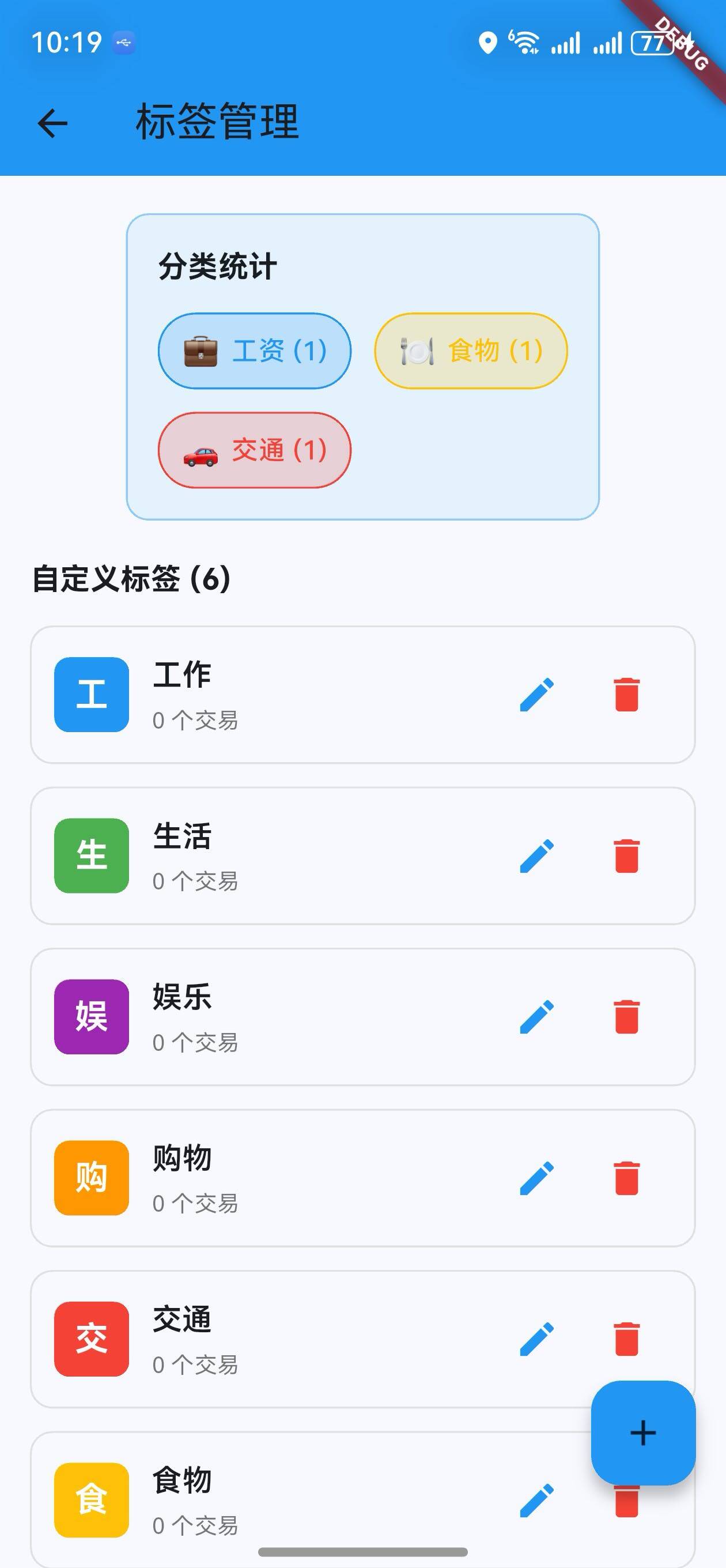
核心功能更新
1. 标签模型
Tag 类定义
/// 标签模型
class Tag {
  final String id;
  final String name;
  final Color color;
  int transactionCount;

  Tag({
    required this.id,
    required this.name,
    required this.color,
    this.transactionCount = 0,
  });

  Tag copyWith({
    String? id,
    String? name,
    Color? color,
    int? transactionCount,
  }) {
    return Tag(
      id: id ?? this.id,
      name: name ?? this.name,
      color: color ?? this.color,
      transactionCount: transactionCount ?? this.transactionCount,
    );
  }
}
说明:
- 每个标签有唯一 ID、名称、颜色
- 记录关联的交易数量
- 提供
copyWith方法便于更新
2. 标签管理服务
TagManager 类
/// 标签管理服务
class TagManager {
  static final List<Tag> _defaultTags = [
    Tag(id: '1', name: '工作', color: Colors.blue),
    Tag(id: '2', name: '生活', color: Colors.green),
    Tag(id: '3', name: '娱乐', color: Colors.purple),
    Tag(id: '4', name: '购物', color: Colors.orange),
    Tag(id: '5', name: '交通', color: Colors.red),
    Tag(id: '6', name: '食物', color: Colors.amber),
  ];

  static List<Tag> getDefaultTags() => List.from(_defaultTags);

  static Color getColorForCategory(String category) {
    final tagMap = {
      '工资': Colors.blue,
      '奖金': Colors.cyan,
      '食物': Colors.amber,
      '交通': Colors.red,
      '购物': Colors.orange,
      '娱乐': Colors.purple,
      '医疗': Colors.pink,
      '教育': Colors.indigo,
    };
    return tagMap[category] ?? Colors.grey;
  }

  static String getCategoryEmoji(String category) {
    final emojiMap = {
      '工资': '💼',
      '奖金': '🎁',
      '食物': '🍽️',
      '交通': '🚗',
      '购物': '🛍️',
      '娱乐': '🎮',
      '医疗': '⚕️',
      '教育': '📚',
    };
    return emojiMap[category] ?? '📌';
  }
}
说明:
- 提供默认标签列表
- 为分类返回对应颜色
- 为分类返回对应 emoji
- 便于统一管理分类样式
3. 标签管理页面
页面结构
/// 标签管理页面
class TagManagementPage extends StatefulWidget {
final List<wallet.Transaction> transactions;
const TagManagementPage({
Key? key,
required this.transactions,
}) : super(key: key);
State<TagManagementPage> createState() => _TagManagementPageState();
}
class _TagManagementPageState extends State<TagManagementPage> {
late List<Tag> _tags;
late Map<String, int> _categoryCount;
void initState() {
super.initState();
_tags = TagManager.getDefaultTags();
_calculateCategoryCount();
}
/// 计算各分类的交易数
void _calculateCategoryCount() {
_categoryCount = {};
for (var transaction in widget.transactions) {
_categoryCount[transaction.category] =
(_categoryCount[transaction.category] ?? 0) + 1;
}
}
}
说明:
- 管理标签列表
- 计算分类交易数
- 支持添加、编辑、删除标签
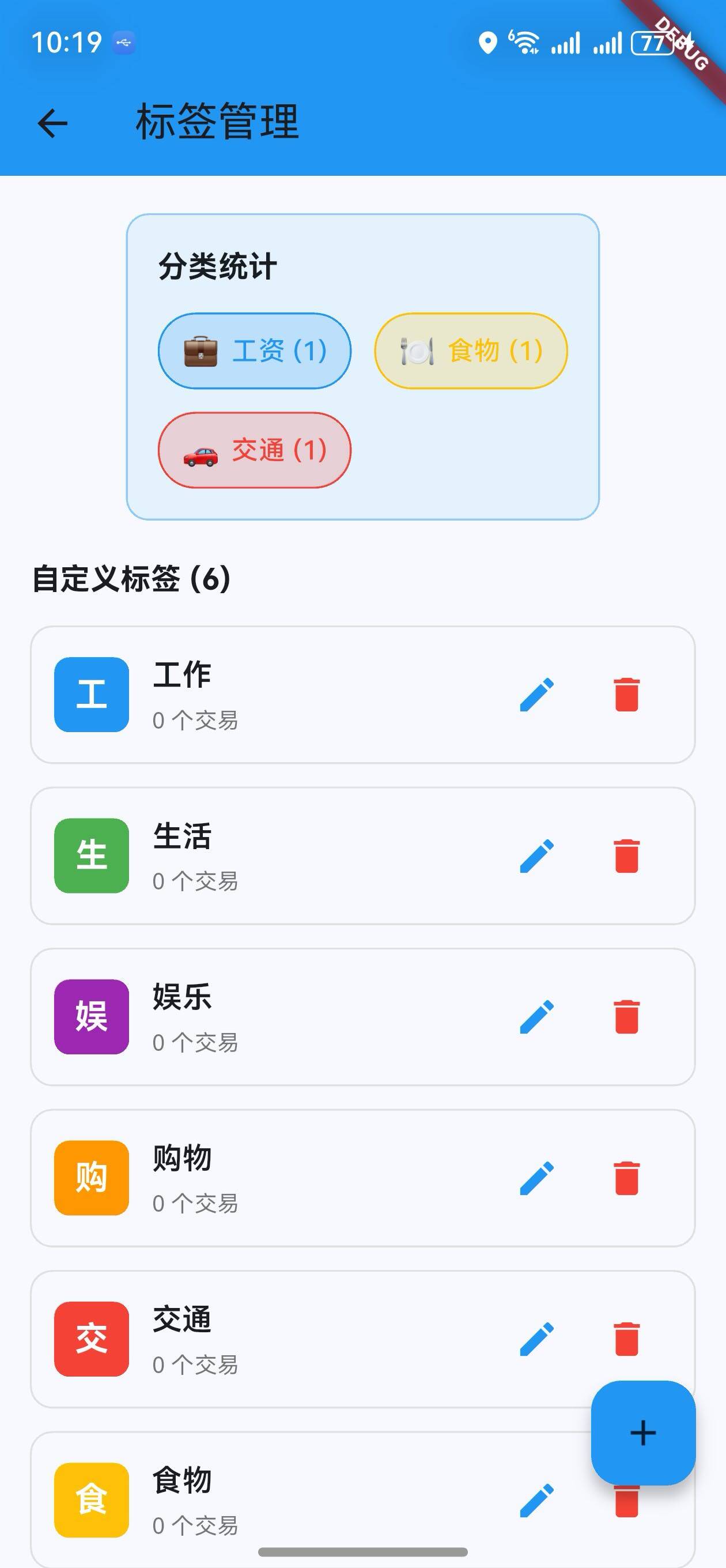
分类统计
/// 构建分类统计
Widget _buildCategoryStats() {
  return Padding(
    padding: const EdgeInsets.symmetric(horizontal: 16),
    child: Container(
      padding: const EdgeInsets.all(16),
      decoration: BoxDecoration(
        color: Colors.blue.shade50,
        borderRadius: BorderRadius.circular(12),
        border: Border.all(color: Colors.blue.shade200),
      ),
      child: Column(
        crossAxisAlignment: CrossAxisAlignment.start,
        children: [
          Text(
            '分类统计',
            style: Theme.of(context).textTheme.titleMedium?.copyWith(
                  fontWeight: FontWeight.bold,
                ),
          ),
          const SizedBox(height: 12),
          Wrap(
            spacing: 12,
            runSpacing: 12,
            children: _categoryCount.entries.map((entry) {
              final color = TagManager.getColorForCategory(entry.key);
              final emoji = TagManager.getCategoryEmoji(entry.key);
              return Container(
                padding: const EdgeInsets.symmetric(horizontal: 12, vertical: 8),
                decoration: BoxDecoration(
                  color: color.withOpacity(0.2),
                  border: Border.all(color: color),
                  borderRadius: BorderRadius.circular(20),
                ),
                child: Row(
                  mainAxisSize: MainAxisSize.min,
                  children: [
                    Text(emoji, style: const TextStyle(fontSize: 16)),
                    const SizedBox(width: 6),
                    Text(
                      '${entry.key} (${entry.value})',
                      style: TextStyle(
                        color: color,
                        fontWeight: FontWeight.w500,
                      ),
                    ),
                  ],
                ),
              );
            }).toList(),
          ),
        ],
      ),
    ),
  );
}
说明:
- 显示所有分类及其交易数
- 使用 emoji 和颜色区分
- 使用 Wrap 自动换行排列
标签列表
/// 构建标签列表
Widget _buildTagsList() {
  return Padding(
    padding: const EdgeInsets.symmetric(horizontal: 16),
    child: Column(
      crossAxisAlignment: CrossAxisAlignment.start,
      children: [
        Text(
          '自定义标签 (${_tags.length})',
          style: Theme.of(context).textTheme.titleMedium?.copyWith(
                fontWeight: FontWeight.bold,
              ),
        ),
        const SizedBox(height: 12),
        ...List.generate(_tags.length, (index) {
          final tag = _tags[index];
          return Padding(
            padding: const EdgeInsets.only(bottom: 12),
            child: Container(
              padding: const EdgeInsets.all(12),
              decoration: BoxDecoration(
                border: Border.all(color: Colors.grey.shade300),
                borderRadius: BorderRadius.circular(12),
              ),
              child: Row(
                children: [
                  Container(
                    width: 40,
                    height: 40,
                    decoration: BoxDecoration(
                      color: tag.color,
                      borderRadius: BorderRadius.circular(8),
                    ),
                    child: Center(
                      child: Text(
                        tag.name[0],
                        style: const TextStyle(
                          color: Colors.white,
                          fontWeight: FontWeight.bold,
                          fontSize: 18,
                        ),
                      ),
                    ),
                  ),
                  const SizedBox(width: 12),
                  Expanded(
                    child: Column(
                      crossAxisAlignment: CrossAxisAlignment.start,
                      children: [
                        Text(
                          tag.name,
                          style: const TextStyle(
                            fontWeight: FontWeight.w600,
                            fontSize: 16,
                          ),
                        ),
                        const SizedBox(height: 4),
                        Text(
                          '${tag.transactionCount} 个交易',
                          style: TextStyle(
                            fontSize: 12,
                            color: Colors.grey.shade600,
                          ),
                        ),
                      ],
                    ),
                  ),
                  IconButton(
                    icon: const Icon(Icons.edit),
                    onPressed: () => _editTag(index),
                    color: Colors.blue,
                  ),
                  IconButton(
                    icon: const Icon(Icons.delete),
                    onPressed: () => _deleteTag(index),
                    color: Colors.red,
                  ),
                ],
              ),
            ),
          );
        }).toList(),
      ],
    ),
  );
}
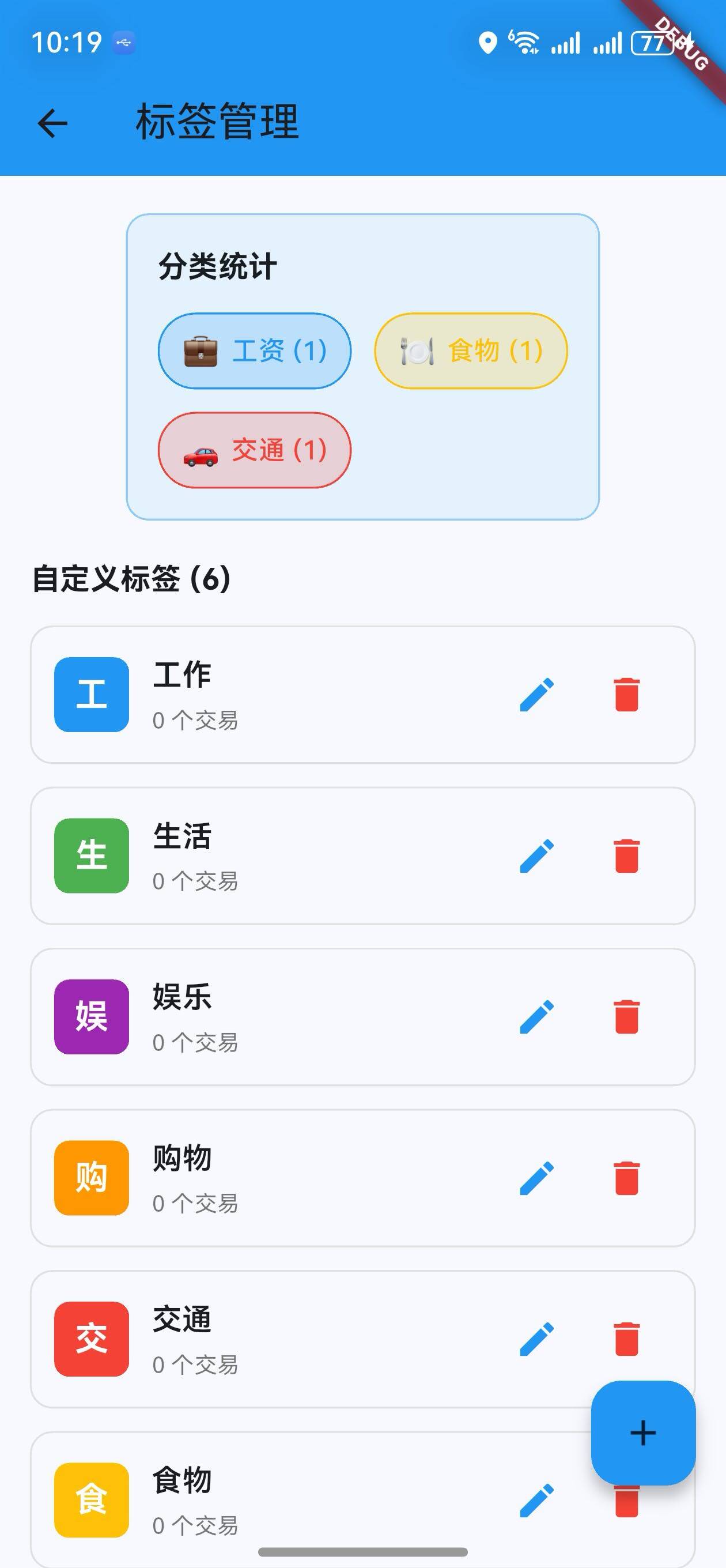
说明:
- 显示所有标签
- 每个标签卡片包含颜色块、名称、交易数
- 提供编辑和删除按钮
4. 标签操作
添加标签
/// 添加标签对话框
Widget _buildAddTagDialog() {
  String tagName = '';
  Color selectedColor = Colors.blue;

  return StatefulBuilder(
    builder: (context, setState) => AlertDialog(
      title: const Text('添加新标签'),
      content: Column(
        mainAxisSize: MainAxisSize.min,
        children: [
          TextField(
            onChanged: (value) => tagName = value,
            decoration: InputDecoration(
              hintText: '标签名称',
              border: OutlineInputBorder(
                borderRadius: BorderRadius.circular(8),
              ),
            ),
          ),
          const SizedBox(height: 16),
          Text(
            '选择颜色',
            style: Theme.of(context).textTheme.bodyMedium?.copyWith(
                  fontWeight: FontWeight.w600,
                ),
          ),
          const SizedBox(height: 8),
          Wrap(
            spacing: 8,
            children: [
              Colors.blue,
              Colors.green,
              Colors.purple,
              Colors.orange,
              Colors.red,
              Colors.amber,
              Colors.pink,
              Colors.indigo,
            ].map((color) {
              return GestureDetector(
                onTap: () => setState(() => selectedColor = color),
                child: Container(
                  width: 40,
                  height: 40,
                  decoration: BoxDecoration(
                    color: color,
                    borderRadius: BorderRadius.circular(8),
                    border: Border.all(
                      color: selectedColor == color ? Colors.black : Colors.transparent,
                      width: 2,
                    ),
                  ),
                ),
              );
            }).toList(),
          ),
        ],
      ),
      actions: [
        TextButton(
          onPressed: () => Navigator.pop(context),
          child: const Text('取消'),
        ),
        ElevatedButton(
          onPressed: () {
            if (tagName.isNotEmpty) {
              setState(() {
                _tags.add(Tag(
                  id: DateTime.now().toString(),
                  name: tagName,
                  color: selectedColor,
                ));
              });
              Navigator.pop(context);
              ScaffoldMessenger.of(context).showSnackBar(
                const SnackBar(content: Text('标签已添加')),
              );
            }
          },
          child: const Text('添加'),
        ),
      ],
    ),
  );
}
说明:
- 输入标签名称
- 选择标签颜色
- 8 种颜色可选
- 验证名称非空
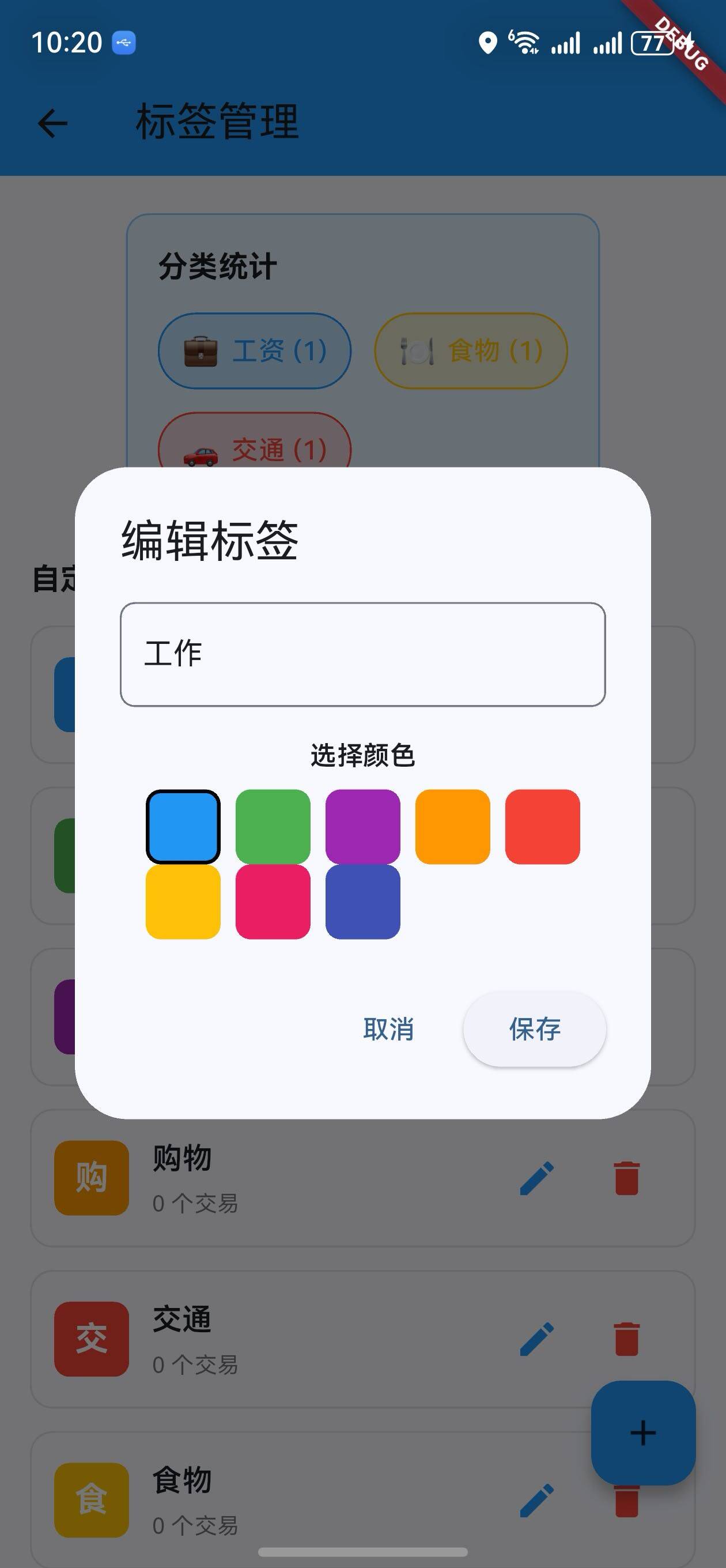
编辑标签
/// 编辑标签对话框
Widget _buildEditTagDialog(int index) {
  final tag = _tags[index];
  String tagName = tag.name;
  Color selectedColor = tag.color;

  return StatefulBuilder(
    builder: (context, setState) => AlertDialog(
      title: const Text('编辑标签'),
      content: Column(
        mainAxisSize: MainAxisSize.min,
        children: [
          TextField(
            onChanged: (value) => tagName = value,
            controller: TextEditingController(text: tag.name),
            decoration: InputDecoration(
              hintText: '标签名称',
              border: OutlineInputBorder(
                borderRadius: BorderRadius.circular(8),
              ),
            ),
          ),
          const SizedBox(height: 16),
          Text(
            '选择颜色',
            style: Theme.of(context).textTheme.bodyMedium?.copyWith(
                  fontWeight: FontWeight.w600,
                ),
          ),
          const SizedBox(height: 8),
          Wrap(
            spacing: 8,
            children: [
              Colors.blue,
              Colors.green,
              Colors.purple,
              Colors.orange,
              Colors.red,
              Colors.amber,
              Colors.pink,
              Colors.indigo,
            ].map((color) {
              return GestureDetector(
                onTap: () => setState(() => selectedColor = color),
                child: Container(
                  width: 40,
                  height: 40,
                  decoration: BoxDecoration(
                    color: color,
                    borderRadius: BorderRadius.circular(8),
                    border: Border.all(
                      color: selectedColor == color ? Colors.black : Colors.transparent,
                      width: 2,
                    ),
                  ),
                ),
              );
            }).toList(),
          ),
        ],
      ),
      actions: [
        TextButton(
          onPressed: () => Navigator.pop(context),
          child: const Text('取消'),
        ),
        ElevatedButton(
          onPressed: () {
            if (tagName.isNotEmpty) {
              setState(() {
                _tags[index] = tag.copyWith(
                  name: tagName,
                  color: selectedColor,
                );
              });
              Navigator.pop(context);
              ScaffoldMessenger.of(context).showSnackBar(
                const SnackBar(content: Text('标签已更新')),
              );
            }
          },
          child: const Text('保存'),
        ),
      ],
    ),
  );
}
说明:
- 修改标签名称和颜色
- 预填充当前标签信息
- 使用
copyWith更新标签
删除标签
/// 删除标签
void _deleteTag(int index) {
  setState(() {
    _tags.removeAt(index);
  });
  ScaffoldMessenger.of(context).showSnackBar(
    const SnackBar(content: Text('标签已删除')),
  );
}
说明:
- 直接删除标签
- 显示删除确认提示
UI 变化
钱包页面 AppBar 更新
- 新增标签管理按钮:AppBar 右侧添加标签图标按钮
- 导航功能:点击按钮进入标签管理页面
标签管理页面布局
┌─────────────────────────────────┐
│  标签管理                        │
├─────────────────────────────────┤
│  分类统计                        │
│  [💼工资(1)] [🍽️食物(1)]        │
│  [🚗交通(1)]                     │
├─────────────────────────────────┤
│  自定义标签 (6)                  │
│  ┌─────────────────────────┐   │
│  │ [🔵] 工作               │   │
│  │       0 个交易   [编][删]│   │
│  └─────────────────────────┘   │
│  ┌─────────────────────────┐   │
│  │ [🟢] 生活               │   │
│  │       0 个交易   [编][删]│   │
│  └─────────────────────────┘   │
│  ...                            │
│                          [+]    │
└─────────────────────────────────┘
版本对比
| 功能 | v1.8.0 | v1.9.0 |
|---|---|---|
| 数据导出服务 | ✅ | ✅ |
| CSV/JSON/报告导出 | ✅ | ✅ |
| 导出页面 | ✅ | ✅ |
| 标签模型 | ❌ | ✅ |
| 标签管理服务 | ❌ | ✅ |
| 标签管理页面 | ❌ | ✅ |
| 分类统计 | ❌ | ✅ |
| 自定义标签 | ❌ | ✅ |
| 标签编辑 | ❌ | ✅ |
| 标签删除 | ❌ | ✅ |
使用场景
场景 1:查看分类统计
- 进入钱包页面
- 点击 AppBar 的标签图标
- 查看分类统计卡片
- 了解各分类的交易数
场景 2:添加自定义标签
- 进入标签管理页面
- 点击右下角 + 按钮
- 输入标签名称
- 选择标签颜色
- 点击"添加"
场景 3:编辑标签
- 在标签列表中找到要编辑的标签
- 点击编辑按钮
- 修改名称或颜色
- 点击"保存"
场景 4:删除标签
- 在标签列表中找到要删除的标签
- 点击删除按钮
- 标签立即删除
下一步计划
v1.10.0 将继续增强功能,计划增加:
- 🔔 预算提醒通知
- 📱 数据同步功能
- 🌙 深色模式支持
- 📊 高级统计分析
感谢使用 OpenHarmony 钱包! 🎉
如有建议或问题,欢迎反馈。
欢迎加入开源鸿蒙跨平台社区:https://openharmonycrossplatform.csdn.net

开源鸿蒙跨平台开发社区汇聚开发者与厂商,共建“一次开发,多端部署”的开源生态,致力于降低跨端开发门槛,推动万物智联创新。
更多推荐
 11
11 0
0- 0


 已为社区贡献10条内容

所有评论(0)