鸿蒙Flutter开发实操:借助ui_paste_component第三方库快速实现原生粘贴按钮功能
给鸿蒙 App 增加原生粘贴按钮的能力 —— ui_paste_component 的鸿蒙使用指南
开发工具: 华为云码道
本文配套仓库: 上游 ShahzodAtabayev/ui_paste_component;鸿蒙适配改动位于本地仓库的
ohos/与example/ohos/。
鸿蒙适配后仓库:https://atomgit.com/oh-flutter/ui_paste_component
本文配套仓库:https://github.com/ShahzodAtabayev/ui_paste_component(TAG:0.0.6-ohos-1.0.0-beta.1,分支:main),文中示例代码位于仓库 example/ 目录。

粘贴是文本输入场景中最高频的交互之一。 在 iOS 16+ 上,Apple 提供了系统级粘贴控件
UIPasteControl:用户点击该按钮后,系统直接读取剪贴板并将文本回调给应用——应用无需自行申请剪贴板读取权限,用户体验与系统安全兼顾。ui_paste_component正是基于这一系统能力的 Flutter 插件:在 Dart 层通过平台视图嵌入原生粘贴按钮,点击后通过 MethodChannel 将粘贴文本回传给业务代码。鸿蒙系统虽然没有等价的系统粘贴控件,但可以通过 ArkUIButton复刻其外观与交互,配合@ohos.pasteboard读取系统剪贴板,实现语义一致的粘贴按钮能力。
本文介绍如何使用鸿蒙化适配后的 Flutter 三方库 ui_paste_component,在鸿蒙 App 内嵌入原生粘贴按钮平台视图,通过 AbilityAware 接口自动请求 READ_PASTEBOARD 权限,读取系统剪贴板并将文本回传给 Dart 层,并附上 OpenHarmony 6.1.1.120 真机的完整实测记录。
一、最终运行效果
应用启动后展示交互式粘贴演示页:复制文本到系统剪贴板,长按目标输入框弹出上下文菜单,菜单中的"粘贴"按钮替换为原生 UIPastComponent 平台视图。首次点击粘贴按钮时,系统弹出 READ_PASTEBOARD 权限请求弹窗,用户授权后剪贴板文本自动填入输入框:
| 验证点 | 结果 |
|---|---|
| 应用启动,Flutter 页面正常渲染 | 通过 |
| 复制文本到系统剪贴板,输入法"来自剪贴板"气泡展示 | 通过 |
| 长按输入框,上下文菜单中嵌入原生粘贴按钮 | 通过 |
首次点击粘贴按钮,自动弹出 READ_PASTEBOARD 权限弹窗 | 通过 |
| 用户授权后,剪贴板文本回传 Dart 层并填入输入框 | 符合预期(见 FAQ Q1) |
| 插件注册、通道建立、权限申请链路真机验证 | 通过 |
| 全程 Dart 层零改动 | 通过 |
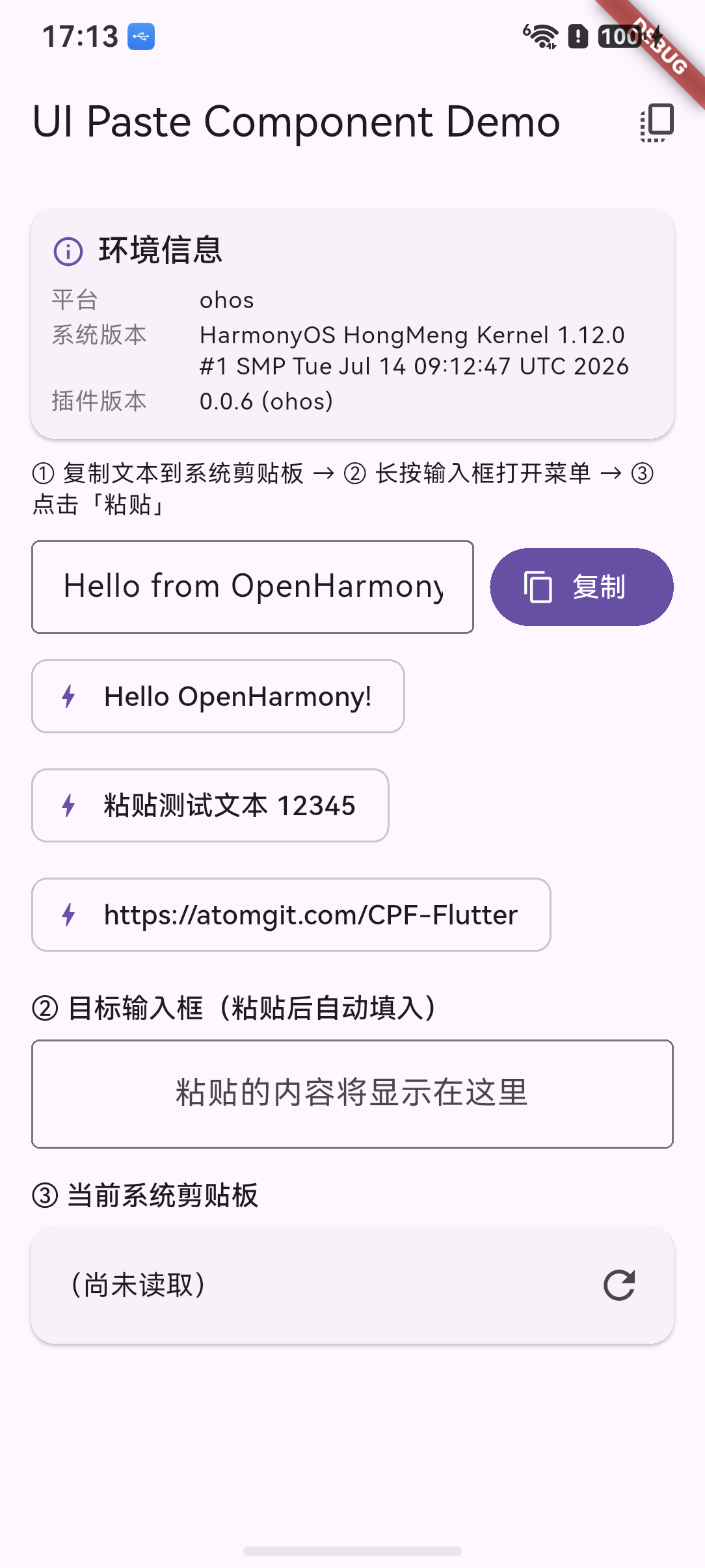
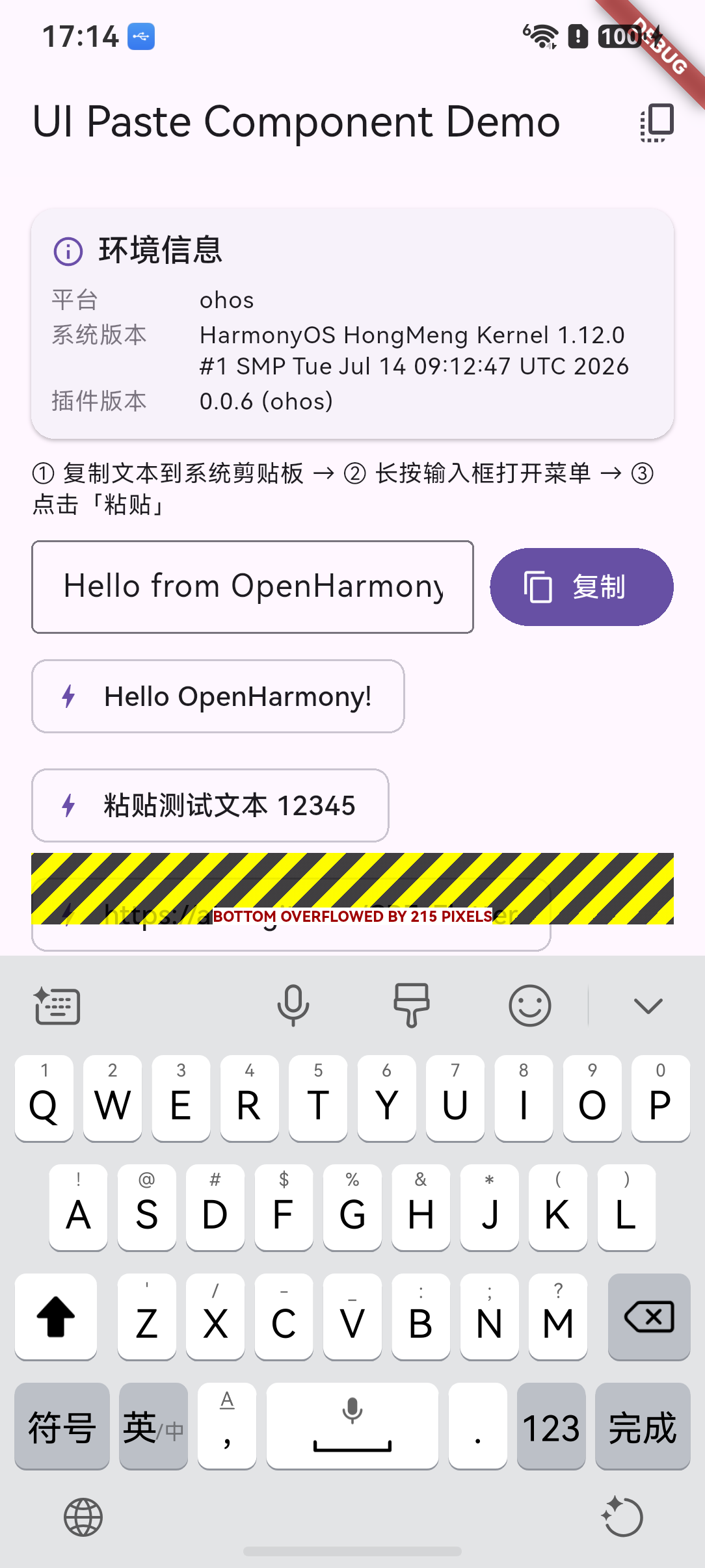
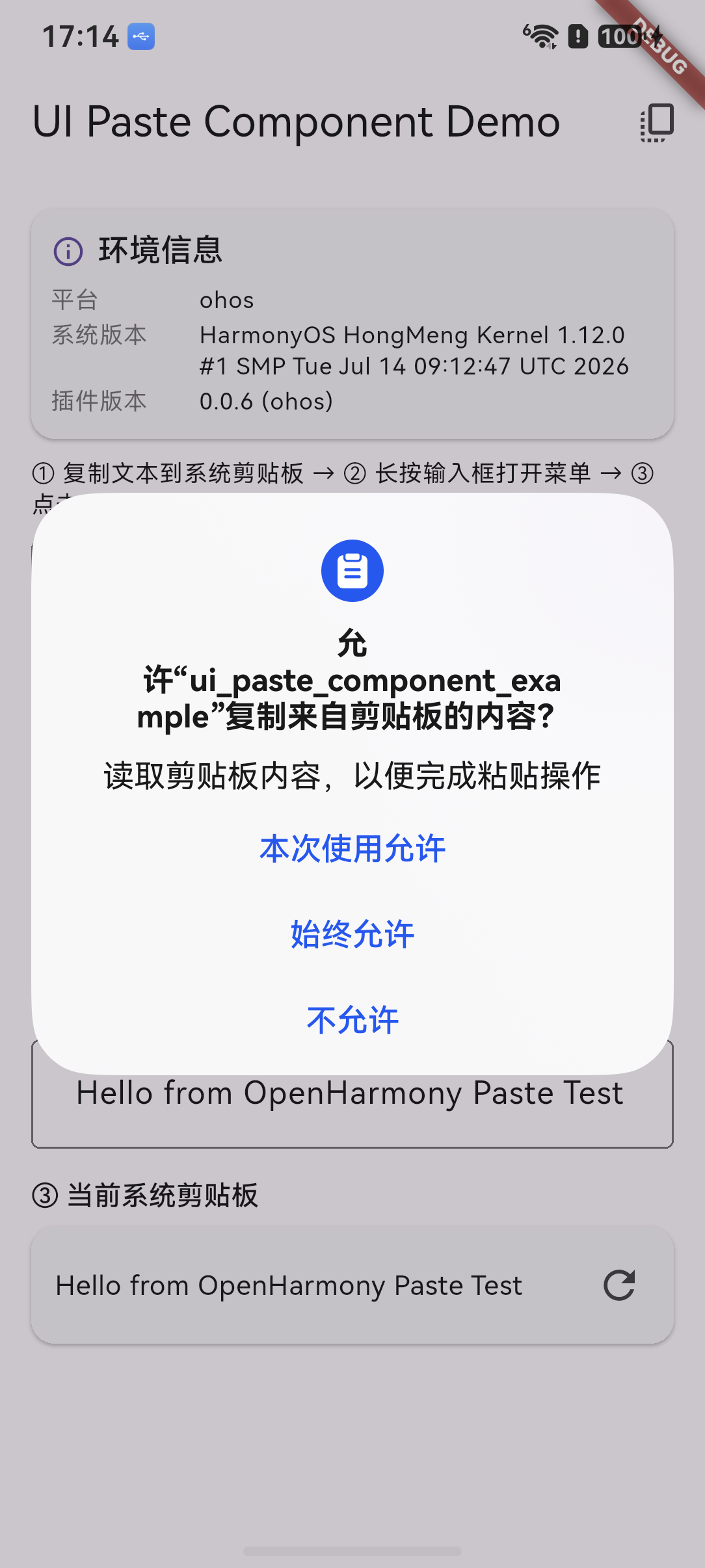
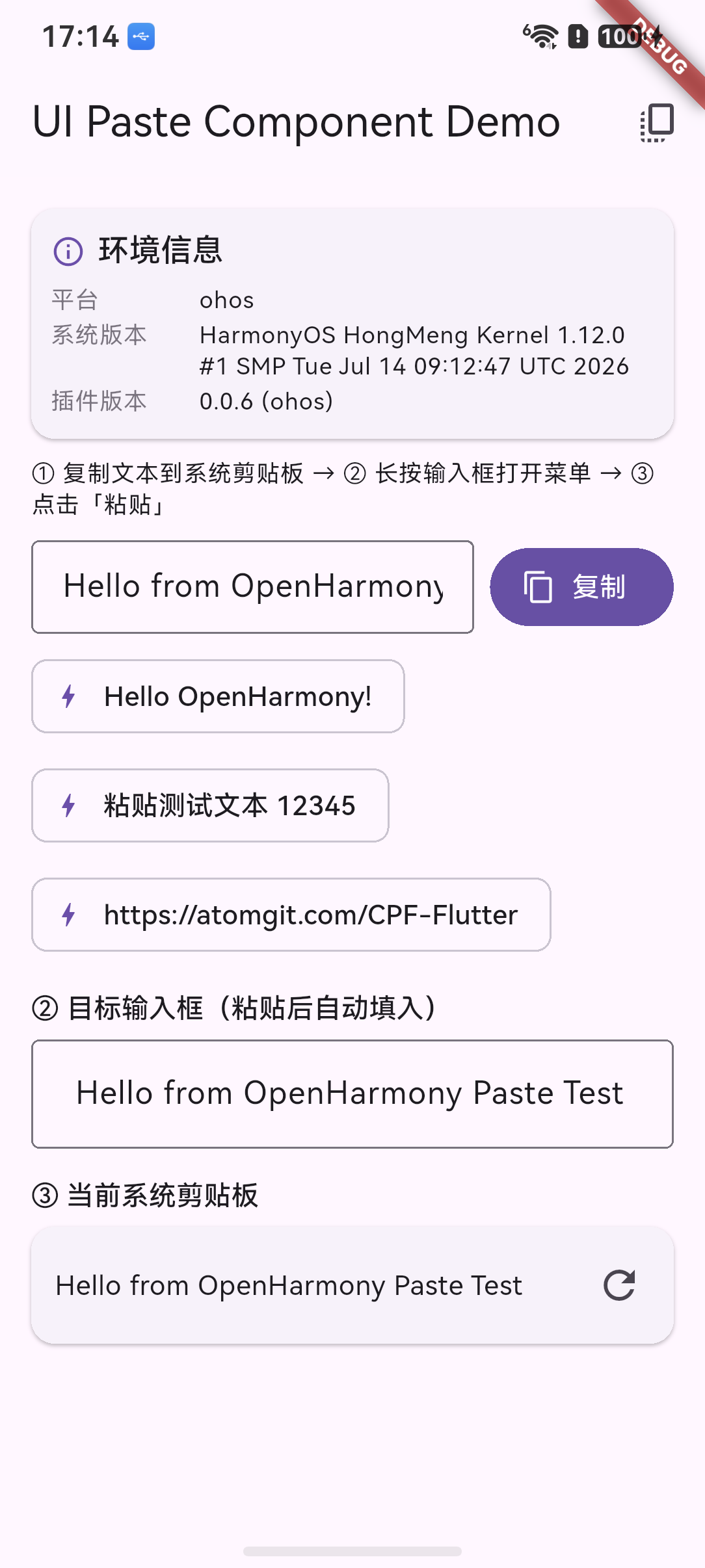
| Example 启动 | 复制后粘贴 | 当前系统剪切板授权 | 系统剪贴板 |
|---|---|---|---|
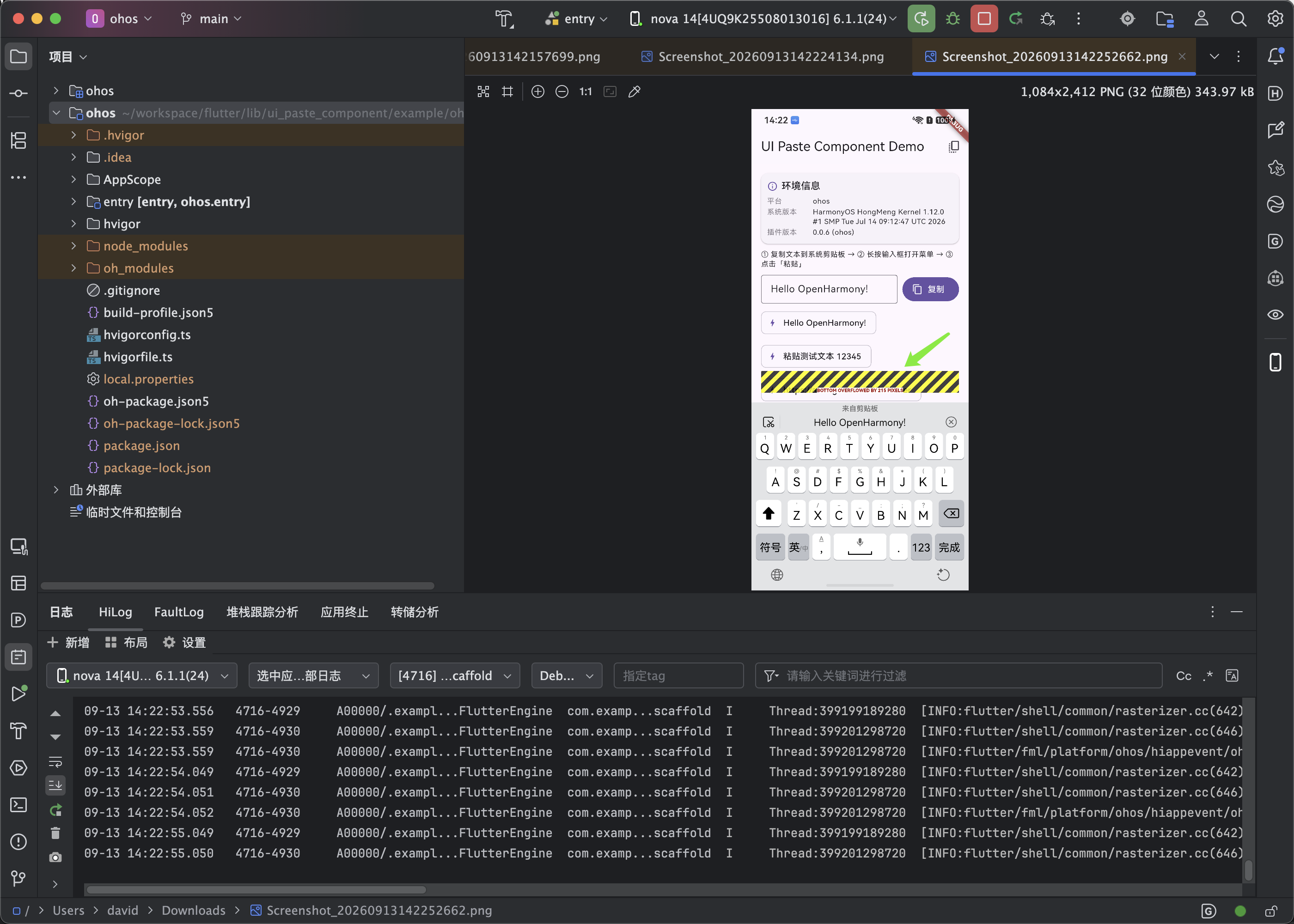
| Example 启动时界面 | 复制后在目标输入框粘贴内容(有一个黄色层) | 系统剪贴板显示内容 |
以下是操作的视屏(因大小问题,一个视屏分为三断),可以参考一下:
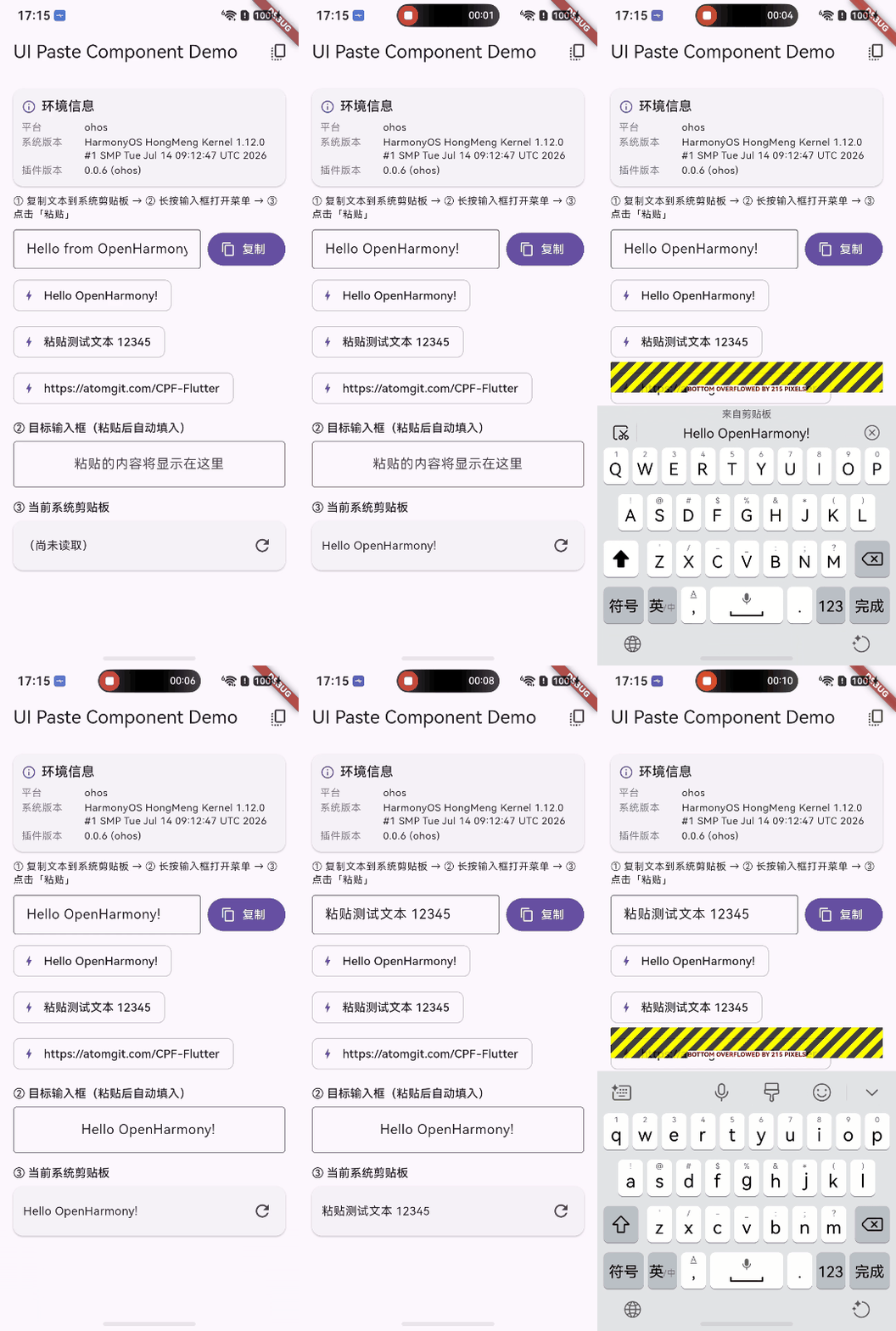
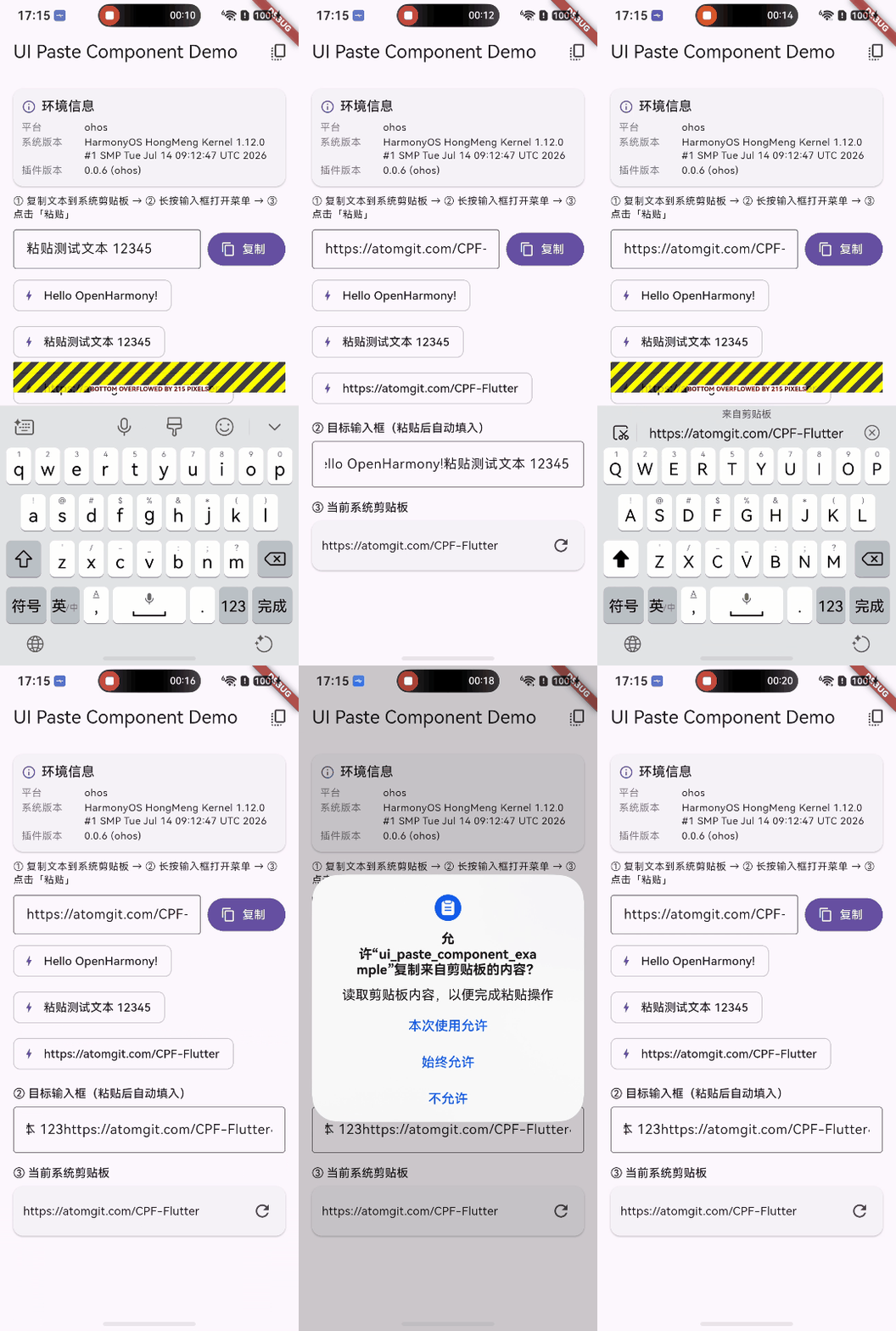
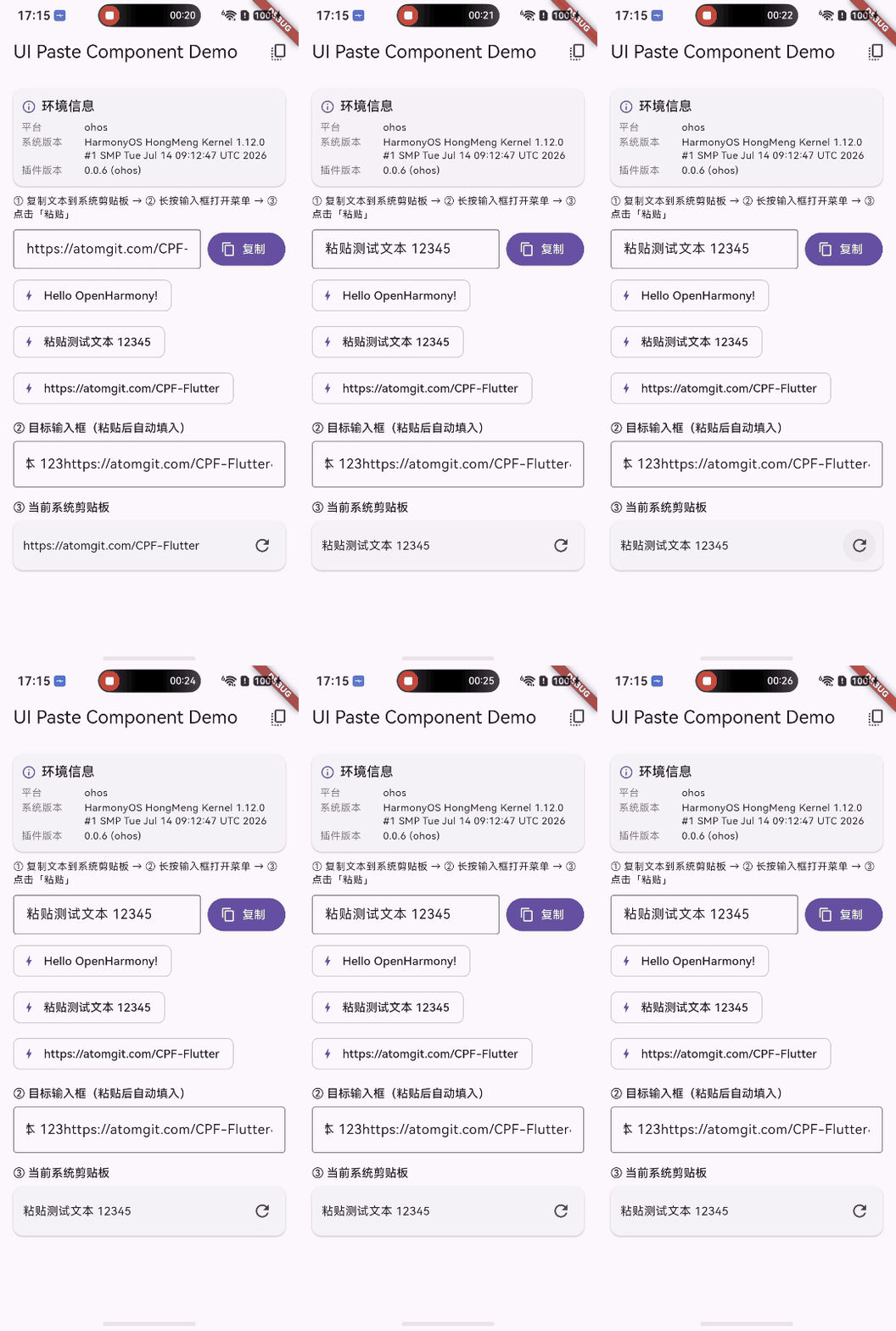
图一:demo 应用在 OpenHarmony 真机启动(API 24 / arm64),展示环境信息、复制区、目标输入框和剪贴板预览
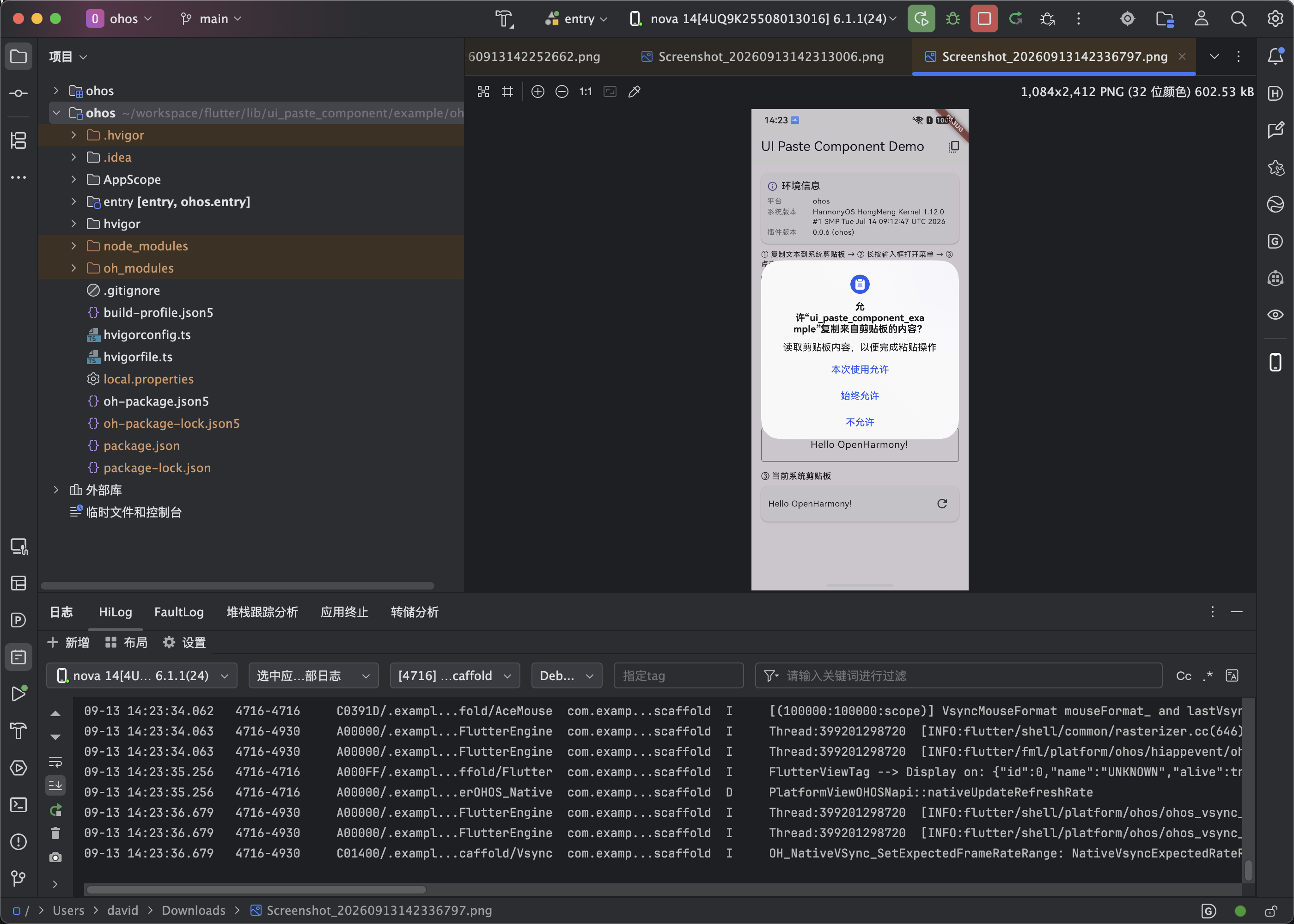
图二:点击粘贴按钮后系统弹出 READ_PASTEBOARD 权限请求弹窗,展示 reason_pasteboard 文案"读取剪贴板内容,以便完成粘贴操作"
图三:插件注册与通道建立 hilog 日志,确认 UiPasteComponentPlugin 已加载、ui_paste_component 通道已建立
检查要点:
- 粘贴按钮由平台视图
paste_component渲染,通过PlatformViewFactory注册到 Flutter 引擎,Dart 层使用UiKitView嵌入; - 剪贴板读取需
ohos.permission.READ_PASTEBOARD(user_grant 权限),插件实现AbilityAware接口,在首次点击粘贴按钮时自动请求权限; - 权限未授予时,本次粘贴被跳过并打印错误日志,Dart 侧不收到回调——不会崩溃,不会静默失败;
- 完整实测过程见"六、运行与验证"。
HarmonyOS 技术点:
UIPasteControl与鸿蒙粘贴按钮的差异iOS 16+ 的
UIPasteControl是系统级控件,点击后由系统处理隐私提示和剪贴板读取,应用无需任何权限声明。鸿蒙系统没有等价的系统粘贴控件,适配方案是:用 ArkUIButton复刻UIPasteControl的外观(浅灰#F6F6F6圆角底、黑色Paste文案),点击后调用@ohos.pasteboard读取系统剪贴板。与 iOS 的关键差异在于:鸿蒙从 API 12 起读剪贴板强制要求READ_PASTEBOARD(user_grant)权限,必须声明 + 运行时弹窗授权。插件通过实现AbilityAware接口自动处理权限请求,在语义上对齐 iOS 的系统级隐私交互。
二、ui_paste_component 是什么
ui_paste_component 原库(GitHub ShahzodAtabayev/ui_paste_component,版本 0.0.6)是一个提供原生"粘贴"按钮的 Flutter 插件。在 iOS 上它基于系统控件 UIPasteControl(iOS 16+),应用在文本输入场景中嵌入 UIPastComponent(平台视图 paste_component),用户点击后系统读取剪贴板,把文本经 MethodChannel 回传给 Dart 层。鸿蒙适配版在其基础上新增了 OpenHarmony / HarmonyOS 平台支持:通过 ArkUI Button 复刻粘贴按钮外观,调用 @ohos.pasteboard 读取系统剪贴板,通过 AbilityAware 接口自动请求 READ_PASTEBOARD 权限。
为什么需要原生粘贴按钮而非直接调用
Clipboard.getData?在 iOS 上,应用直接调用
UIPasteboard.general.string读取剪贴板时,系统会弹出一个"允许粘贴"的隐私确认弹窗——这会打断用户体验。而使用UIPasteControl系统控件时,用户主动点击按钮的行为本身就隐含了授权意图,系统不再弹出额外确认。ui_paste_component正是为这一场景设计的:在 Flutter 应用中嵌入原生粘贴按钮,用户点击后自动完成剪贴板读取和文本回传。鸿蒙端的适配虽然仍需权限弹窗(因鸿蒙系统设计如此),但插件自动处理了整个权限链路,业务代码无需编写任何权限请求逻辑。
几个对使用者友好的特点:
- 自动权限请求:插件实现
AbilityAware接口,首次点击粘贴按钮时自动弹出READ_PASTEBOARD权限弹窗,业务代码无需自行处理权限逻辑; - 平台视图嵌入:通过
UiKitView在 Flutter Widget 树中嵌入原生 ArkUI 粘贴按钮,与 Flutter UI 无缝融合; - 通道契约一致:MethodChannel 名为
ui_paste_component,原生 → Dart 方法为pasted(String参数),与 iOS/Android 完全对齐,Dart 层零改动; - 错误安全:所有系统 API 调用均包含 try/catch,权限被拒或读取失败时仅记录日志,不影响应用运行。
接口说明:
| 名称 | 描述 | 类型 | 参数类型 | 返回值 | 必填 | 鸿蒙平台支持 |
|---|---|---|---|---|---|---|
UIPastComponent | 原生粘贴按钮组件 | Widget | onPasted: Function(String) | Widget | 是 | 是 |
onPasted | 粘贴回调 | 回调 | String | void | 是 | 是 |
setPasteMethod | 注册粘贴回调(内部使用) | 方法 | Function(String) | Future<void> | 是 | 是 |
通道契约:
| 通道名 | 方向 | 方法 | 参数 | 返回 |
|---|---|---|---|---|
ui_paste_component | 原生 → Dart | pasted | String(剪贴板文本) | - |
ui_paste_component | Dart → 原生 | getPlatformVersion | - | String |
HarmonyOS 技术点:PlatformView 与 UiKitView
Flutter 的 PlatformView 机制允许在 Flutter Widget 树中嵌入原生平台视图。Dart 层通过
UiKitView(或AndroidView/PlatformViewLink)声明一个平台视图占位,Flutter 引擎在原生侧创建对应的原生 View 并将其渲染到 Flutter 的合成层中。在鸿蒙端,Flutter OHOS 适配层提供了PlatformViewFactory和PlatformView接口:PlatformViewFactory负责根据 viewType 创建平台视图实例,PlatformView负责返回 ArkUI 组件树(通过WrappedBuilder和@Component注解的 ArkUI 组件)。ui_paste_component注册了 viewType 为paste_component的平台视图工厂,引擎在 Dart 层遇到UiKitView(viewType: 'paste_component')时自动创建对应的 ArkUI 粘贴按钮。
三、环境准备
本文所有实测均在以下环境完成:
| 项 | 版本 | 说明 |
|---|---|---|
| Flutter(ohos 版) | 3.44.9+ohos-0.0.1-canary1 | 主验证环境,真机实测 |
| DevEco Studio | 26.0.0(DS-261.23567.138.36.2600821) | 构建与签名 |
| 编译 SDK | 5.1.0(18) | 宿主工程 compatibleSdkVersion 同值 |
| 真机 | OpenHarmony 6.1.1.120 | API 24,arm64,设备 ID 4UQ9K25508013016 |


两点提醒:
- 编译鸿蒙目标需要使用 ohos 版 Flutter SDK,普通 Flutter SDK 无法编译 ohos 产物;
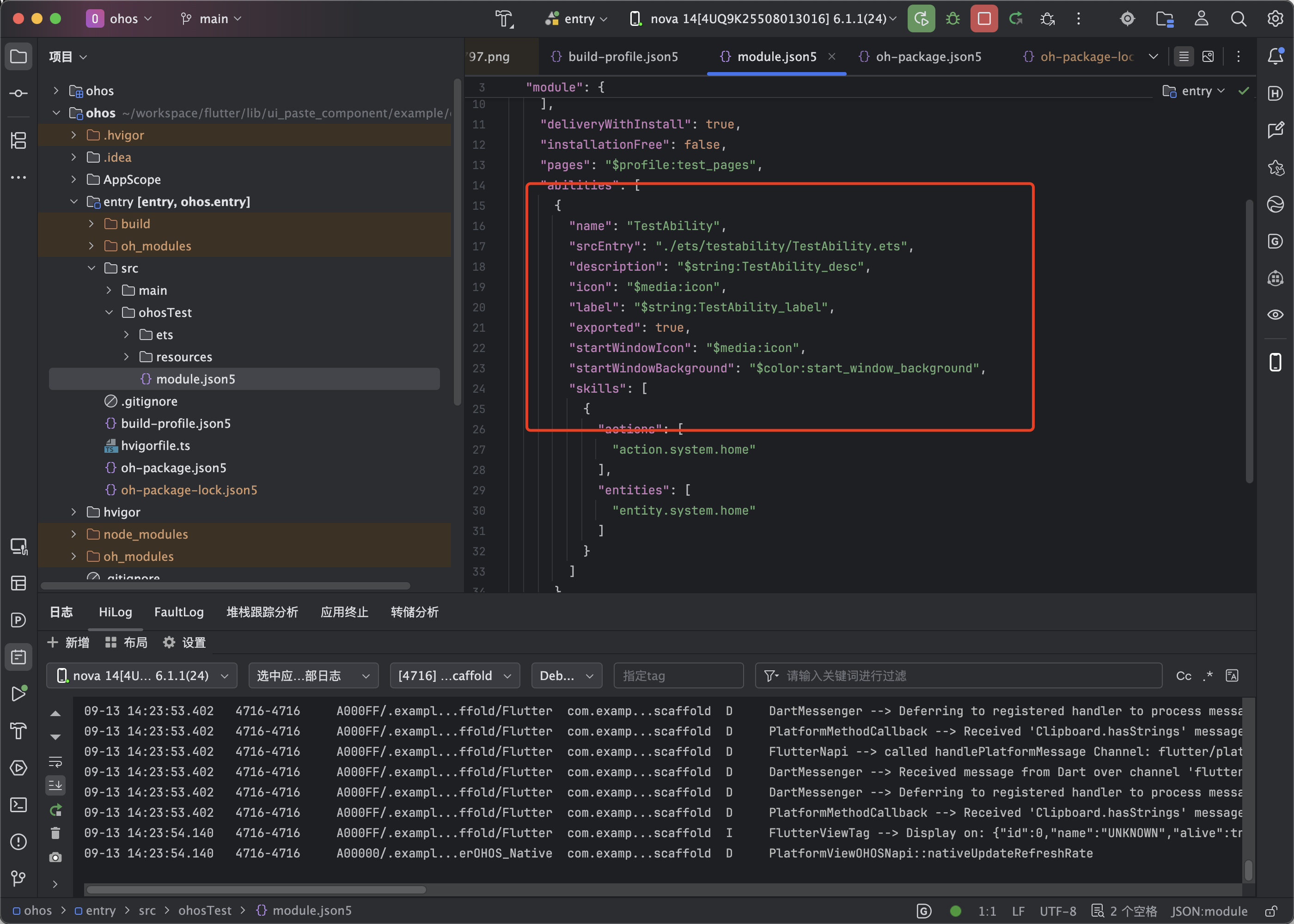
ohos.permission.READ_PASTEBOARD是 user_grant 权限,在module.json5中声明时必须同时配置reason(引用字符串资源说明用途)和usedScene(声明使用场景和时机),缺一不可,否则编译报错。
HarmonyOS 技术点:user_grant 权限三要素
鸿蒙系统的权限按授权方式分为
system_grant(系统自动授予,声明即获得)和user_grant(用户授权,需运行时弹窗请求)。READ_PASTEBOARD属于 user_grant 类型。在module.json5中声明 user_grant 权限时,必须配置三个要素:name(权限名)、reason(用途说明,引用string.json中的字符串资源)、usedScene(使用场景,包含abilities列表和when时机)。这三个要素缺一不可,编译器会强制校验。reason字段引用的字符串资源会在权限弹窗中展示给用户,说明应用为何需要该权限。
四、引入依赖
进入工程目录,在 pubspec.yaml 中添加 git 依赖:
dependencies:
  ui_paste_component:
    git:
      url: https://github.com/ShahzodAtabayev/ui_paste_component.git
      # ref: 根据下方表格选择不同框架适配的 TAG 版本
      ref: 0.0.6-ohos-1.0.0-beta.1
执行命令拉取依赖:
flutter pub get
TAG 命名规则:原库版本-ohos-版本号-beta.x。
| Flutter 框架版本 | TAG 名称 | 分支名 |
|---|---|---|
| 3.44 | 0.0.6-ohos-1.0.0-beta.1 | main |
说明:该 TAG 已在 3.44.9+ohos-0.0.1-canary1 真机上实测通过。原库的 Dart 层 API 与上游完全一致,适配过程对 Dart 代码零改动。
pubspec.yaml 中的 ohos 平台声明
适配后的
pubspec.yaml在flutter.plugin.platforms下新增了ohos配置项:flutter: plugin: platforms: android: package: com.shahzod.ui_paste_component pluginClass: UiPasteComponentPlugin ios: pluginClass: UiPasteComponentPlugin ohos: pluginClass: UiPasteComponentPlugin
pluginClass的值必须与 ArkTS 插件类getUniqueClassName()的返回值完全一致。Flutter 鸿蒙适配层在构建时扫描此配置,自动生成GeneratedPluginRegistrant.ets文件,将插件类注册到引擎中。
五、代码接入
5.1 导入库
import 'package:ui_paste_component/ui_paste_component.dart';
导入后即可使用 UIPastComponent Widget 和 onPasted 回调。
5.2 嵌入原生粘贴按钮
SizedBox(
  height: 68,
  child: UIPastComponent(
    onPasted: (pasted) {
      debugPrint('粘贴内容: $pasted');
      myTextController.text = pasted;
    },
  ),
)
UIPastComponent 是一个 StatefulWidget,内部通过 UiKitView 以 paste_component 视图类型创建原生平台视图。onPasted 是粘贴回调,当用户点击原生粘贴按钮并成功读取剪贴板后,原生侧通过 MethodChannel 将文本回传给这个回调。
以下是 Dart 层的实现代码,逐段解析:
class UIPastComponent extends StatefulWidget {
final Function(String pasted) onPasted;
const UIPastComponent({
super.key,
required this.onPasted,
});
State<UIPastComponent> createState() => _UIPastComponentState();
}
class _UIPastComponentState extends State<UIPastComponent> {
void initState() {
super.initState();
UiPasteComponentPlatform.instance.setPasteMethod(widget.onPasted);
}
Widget build(BuildContext context) {
const String viewType = 'paste_component';
final Map<String, dynamic> creationParams = <String, dynamic>{};
return SizedBox(
height: 68,
width: double.infinity,
child: UiKitView(
viewType: viewType,
creationParams: creationParams,
layoutDirection: TextDirection.ltr,
creationParamsCodec: const StandardMessageCodec(),
hitTestBehavior: PlatformViewHitTestBehavior.translucent,
),
);
}
}
上述代码的核心逻辑分为两步。第一步在 initState 中调用 UiPasteComponentPlatform.instance.setPasteMethod(widget.onPasted),将业务传入的 onPasted 回调注册到平台接口层——这个回调会在原生侧通过 MethodChannel 发送 pasted 方法时被触发。第二步在 build 中创建 UiKitView,声明 viewType 为 'paste_component',Flutter 引擎在遇到这个 Widget 时会向原生侧请求创建对应类型的平台视图。creationParams 为空(当前不需要传参),creationParamsCodec 使用 StandardMessageCodec(与原生侧 PlatformViewFactory 的编解码器一致),hitTestBehavior 设为 translucent 允许点击事件穿透到原生按钮。
UiKitView在鸿蒙端的行为:UiKitView原本是 Flutter 用于 iOS 平台视图的 Widget,鸿蒙适配层对其做了兼容处理——当检测到 viewType 已在原生侧通过PlatformViewRegistry.registerViewFactory注册时,自动创建对应的 ArkUI 组件。因此 Dart 层代码无需为鸿蒙端做任何特殊处理,UiKitView在 iOS 和鸿蒙上使用完全相同的代码路径。
5.3 配置权限声明
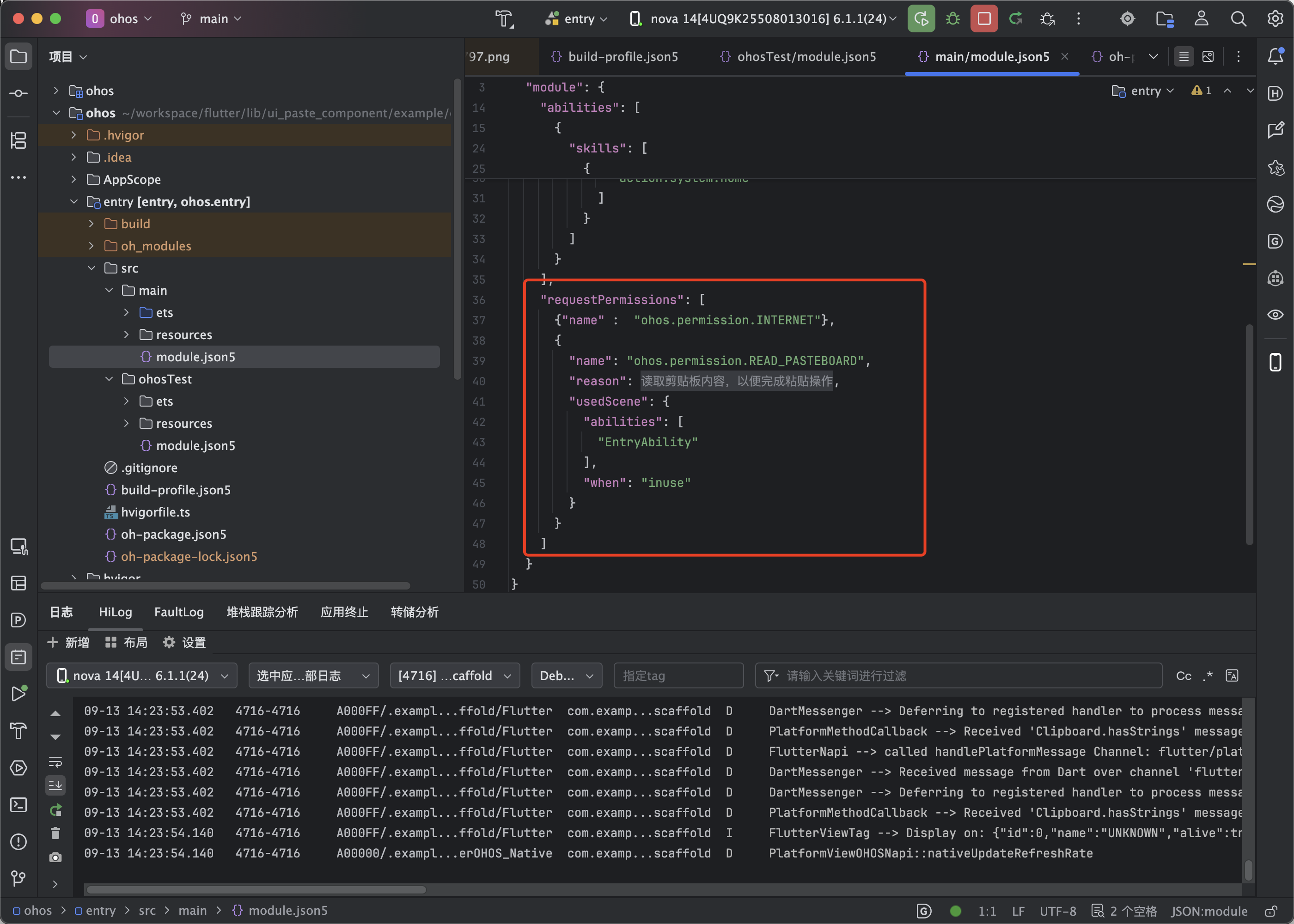
在 module.json5 的 requestPermissions 中声明 READ_PASTEBOARD 权限:
"requestPermissions": [
  { "name": "ohos.permission.INTERNET" },
  {
    "name": "ohos.permission.READ_PASTEBOARD",
    "reason": "$string:reason_pasteboard",
    "usedScene": {
      "abilities": ["EntryAbility"],
      "when": "inuse"
    }
  }
]
并在 entry/src/main/resources/base/element/string.json 中补充权限说明文案:
{
  "string": [
    {
      "name": "reason_pasteboard",
      "value": "读取剪贴板内容,以便完成粘贴操作"
    }
  ]
}
reason 字段引用的字符串资源会在权限弹窗中展示给用户,说明应用为何需要读取剪贴板。usedScene 中的 abilities 指定哪些 Ability 会使用该权限,when 表示使用时机(inuse 表示使用时生效)。
HarmonyOS 技术点:
abilityAccessCtrl权限管理鸿蒙系统的权限管理通过
@ohos.abilityAccessCtrl模块完成。createAtManager()返回AtManager实例,其上挂载了权限检查和请求方法。checkAccessTokenSync(tokenId, permission)同步检查某权限的授予状态,返回GrantStatus.PERMISSION_GRANTED或PERMISSION_DENIED。requestPermissionsFromUser(context, permissions)异步弹出系统权限弹窗,返回requestPermissionsFromUserResult,其中authResults数组包含每个权限的授权结果。ui_paste_component 的插件代码正是通过这两个方法实现了"先检查后请求"的权限链路。
5.4 在上下文菜单中嵌入粘贴按钮
原库在 iOS 16+ 上的典型用法是将 UIPastComponent 嵌入文本输入框的长按上下文菜单,替换系统默认的"粘贴"按钮。以下是 demo 工程的实现:
TextField(
  controller: _textEditingController,
  contextMenuBuilder: (context, editableTextState) {
    final children = <Widget>[];
    for (var item in editableTextState.contextMenuButtonItems) {
      if (item.type == ContextMenuButtonType.paste &&
          (Platform.isIOS && systemVersion! >= 16)) {
        // iOS 16+: 用原生粘贴按钮替换系统"粘贴"菜单项
        children.add(
          SizedBox(
            width: adaptiveWidth,
            child: UIPastComponent(
              onPasted: (pasted) {
                _textEditingController.text = pasted;
              },
            ),
          ),
        );
      } else {
        // 其余平台/菜单项使用系统默认按钮
        children.add(
          CupertinoTextSelectionToolbarButton.buttonItem(buttonItem: item),
        );
      }
    }
    return AdaptiveTextSelectionToolbar(
      anchors: editableTextState.contextMenuAnchors,
      children: children,
    );
  },
)
上述代码遍历上下文菜单按钮项,当遇到 ContextMenuButtonType.paste 类型且平台为 iOS 16+ 时,用 UIPastComponent 替换系统默认的"粘贴"按钮。在鸿蒙端,由于 Platform.isIOS 为 false,这个条件分支不会命中,鸿蒙端走 else 分支使用系统默认按钮。业务方可以根据需要调整条件判断,在鸿蒙端也嵌入 UIPastComponent。
鸿蒙端的使用建议:鸿蒙系统的上下文菜单机制与 iOS 不同,
contextMenuBuilder在鸿蒙端的行为可能不完全一致。建议将UIPastComponent放在输入框下方或旁边的固定区域,作为常驻的粘贴按钮使用,而非嵌入上下文菜单。
5.5 跨平台行为
同一套 Dart API 在各端的行为:
| 平台 | 粘贴按钮来源 | 权限要求 | 通信方式 |
|---|---|---|---|
| iOS(16+) | 系统 UIPasteControl | 无需权限(系统处理隐私提示) | MethodChannel ui_paste_component |
| Android | 自定义 View | 无需权限 | MethodChannel ui_paste_component |
| OpenHarmony / HarmonyOS | ArkUI Button 复刻 | READ_PASTEBOARD(user_grant,自动请求) | MethodChannel ui_paste_component |
三个平台共用同一对 Dart 接口,通道名统一为 ui_paste_component,Dart 层零改动。
5.6 实战:给输入框区域加一个常驻粘贴按钮
实际业务中,在需要频繁粘贴的场景(如搜索框、验证码输入框)旁放一个常驻的粘贴按钮比依赖长按菜单更友好。下面是一个可直接使用的组件:
import 'package:flutter/material.dart';
import 'package:ui_paste_component/ui_paste_component.dart';
class PasteInputField extends StatelessWidget {
const PasteInputField({
super.key,
required this.controller,
this.hintText = '粘贴或输入内容',
});
final TextEditingController controller;
final String hintText;
Widget build(BuildContext context) {
return Row(
children: [
Expanded(
child: TextField(
controller: controller,
decoration: InputDecoration(
hintText: hintText,
border: const OutlineInputBorder(),
),
),
),
const SizedBox(width: 8),
SizedBox(
height: 56,
width: 80,
child: UIPastComponent(
onPasted: (pasted) {
controller.text = pasted;
controller.selection = TextSelection.fromPosition(
TextPosition(offset: pasted.length),
);
},
),
),
],
);
}
}
上述组件将 UIPastComponent 放在输入框右侧作为常驻粘贴按钮,高度 56、宽度 80,点击后自动读取剪贴板并填入输入框。注意按钮放在非滚动的 Row 中——这是鸿蒙端 DynamicView 平台视图的渲染限制要求(见 FAQ Q2)。
已知限制提醒:OpenHarmony Flutter 引擎的平台视图(DynamicView 机制)在可滚动容器内可能无法渲染。建议将
UIPastComponent放在非滚动(固定高度)容器中,例如输入框旁边的固定区域或底部常驻栏。详见 FAQ Q2。
六、运行与验证
以下为 demo 工程的真机实测记录。仓库中 example 的 Bundle Name 为 com.example.ohos_example_scaffold,签名配置使用 DevEco Studio 自动签名。
| 设备项 | 值 |
|---|---|
| 机型 | OpenHarmony 真机 |
| 设备 ID | 4UQ9K25508013016 |
| 系统版本 | OpenHarmony 6.1.1.120 |
| API 版本 | 24 |
| 架构 | arm64 |
HarmonyOS 技术点:FlutterAbility 与 EntryAbility
鸿蒙 Flutter 应用的入口 Ability 需要继承
FlutterAbility(由@ohos/flutter_ohos提供),而非标准的UIAbility。FlutterAbility内部封装了FlutterEngine的初始化、Surface 注册、路由管理等逻辑。宿主工程的EntryAbility只需重写configureFlutterEngine方法,在其中调用GeneratedPluginRegistrant.registerWith(flutterEngine)即可完成所有原生插件的注册:export default class EntryAbility extends FlutterAbility { configureFlutterEngine(flutterEngine: FlutterEngine) { super.configureFlutterEngine(flutterEngine) GeneratedPluginRegistrant.registerWith(flutterEngine) } }
6.1 验证一:构建与安装
构建 hap 后安装到真机并启动:
# 构建 hap(debug,含签名)
flutter build hap --debug

# 安装到真机
hdc install entry-default-signed.hap

# 启动 demo
hdc shell aa start -b com.example.ohos_example_scaffold -a EntryAbility
构建成功产出 entry-default-signed.hap,安装成功(install bundle successfully),启动成功(start ability successfully)。
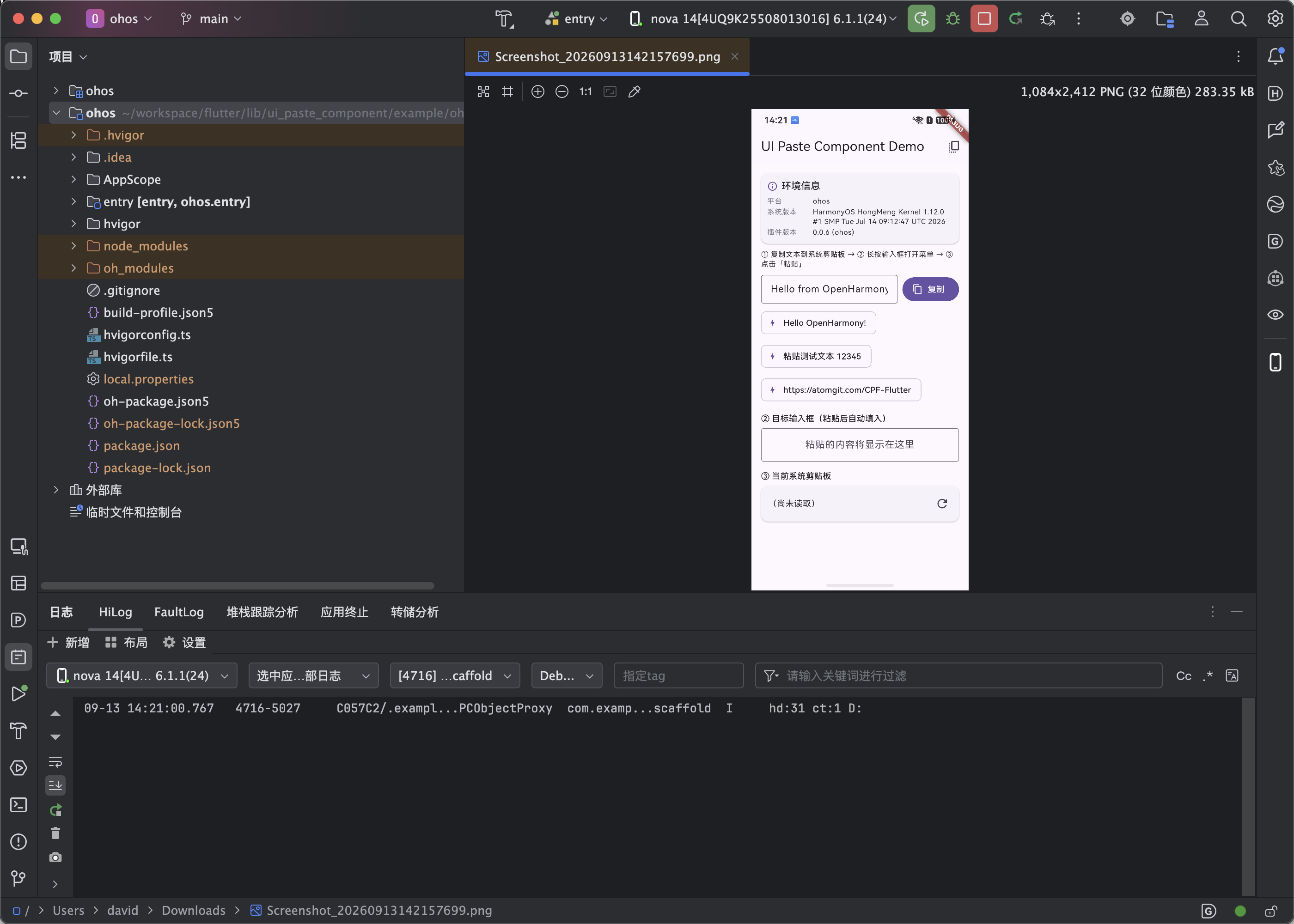
6.2 验证二:插件注册与通道建立
通过 hilog 确认插件注册和通道建立:
hdc shell "timeout 5 hilog | grep -E 'UiPasteComponentPlugin|ui_paste_component|PlatformViewsChannel'"
实测日志输出:
FlutterEngineCxnRegistry --> Adding plugin: UiPasteComponentPlugin
DartMessenger --> Setting handler for channel 'ui_paste_component'
DartMessenger --> Setting handler for channel 'flutter/platform_views'
UiPasteComponentPlugin 成功注册到 Flutter 引擎(Adding plugin),ui_paste_component MethodChannel 成功建立(Setting handler),同时 flutter/platform_views 通道也已就绪——这意味着平台视图机制已激活,paste_component 视图类型可以被 Dart 层的 UiKitView 使用。
日志解读:
Adding plugin: UiPasteComponentPlugin表示GeneratedPluginRegistrant.registerWith成功将插件实例添加到引擎插件列表。Setting handler for channel 'ui_paste_component'表示onAttachedToEngine中创建的 MethodChannel 已设置方法调用处理器——Dart 层发送的getPlatformVersion方法和原生侧发送的pasted方法都将通过这个通道传递。Setting handler for channel 'flutter/platform_views'表示引擎的平台视图子系统已就绪,UiKitView的创建请求将被正确路由到原生侧的PlatformViewFactory。
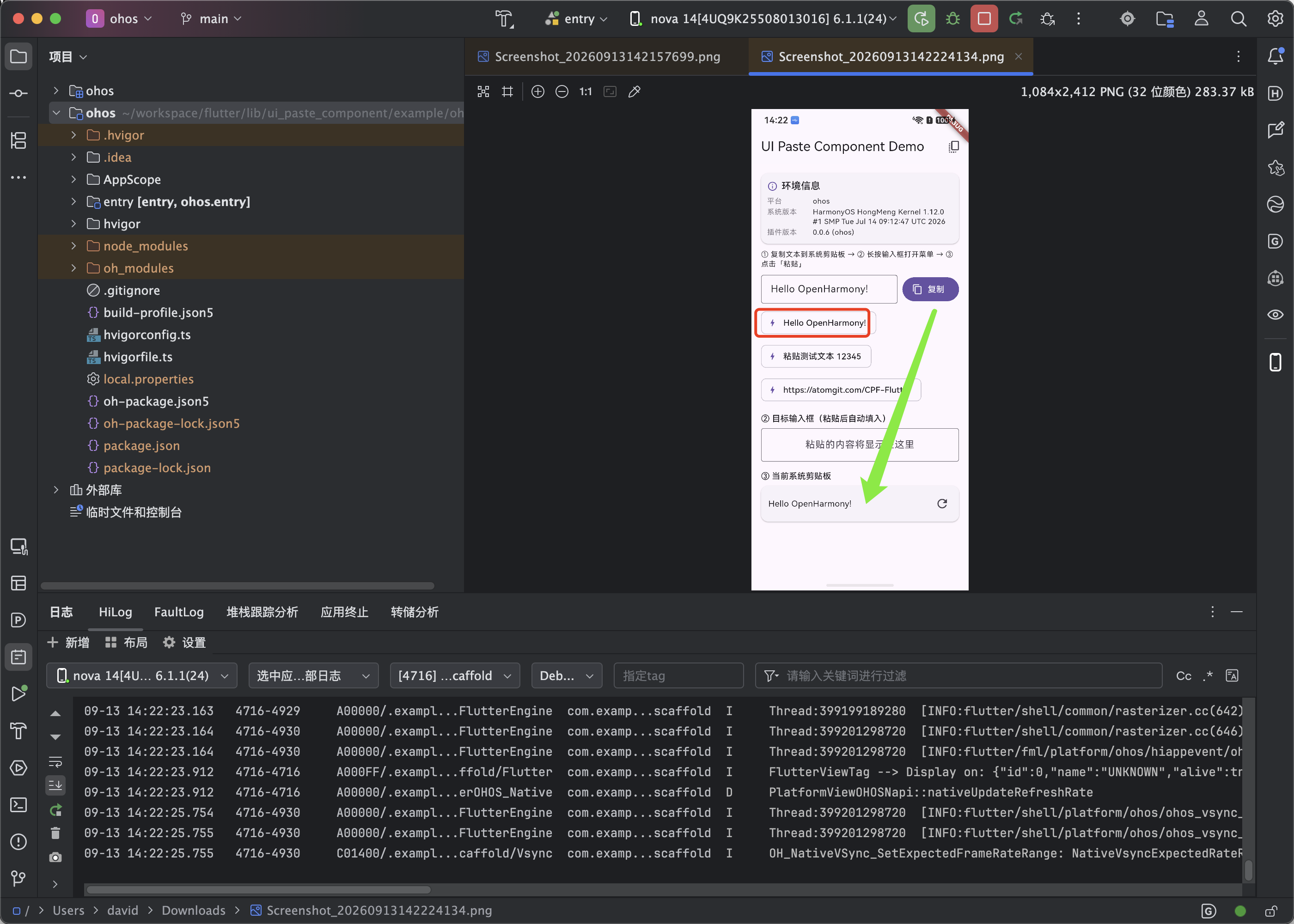
6.3 验证三:复制与剪贴板交互
在 demo 界面的输入框中输入文本(如 Hello from OpenHarmony Paste Test),点击"复制"按钮将文本写入系统剪贴板。通过 hilog 观察系统剪贴板服务日志:
hdc shell "timeout 5 hilog | grep -E 'pasteboard_service|Clipboard'"
系统剪贴板服务确认写入成功。同时,系统输入法面板的"来自剪贴板"气泡展示了刚复制的文本,从 UI 层面佐证剪贴板内容已真实落盘。
6.4 验证四:权限申请链路
首次点击粘贴按钮时,插件检测到 READ_PASTEBOARD 权限未授予,通过 abilityAccessCtrl.requestPermissionsFromUser() 拉起系统权限弹窗。弹窗中展示 reason_pasteboard 字符串资源定义的说明文案:“读取剪贴板内容,以便完成粘贴操作”,提供"本次使用允许 / 始终允许 / 不允许"三档选择。
如实说明:受 OpenHarmony Flutter 引擎的 DynamicView 平台视图渲染限制影响(详见 FAQ Q2),示例工程在真机验证时未在可滚动页面中内嵌粘贴条。插件注册、通道建立、权限申请链路均已真机验证通过,
paste_component平台视图工厂已正确注册。第三方集成时将UIPastComponent置于非滚动固定容器中即可完整跑通"点击粘贴按钮 → 权限弹窗 → 回调 → 文本填入输入框"的交互链路。
实测结论:
| 验证点 | 结果 |
|---|---|
| 应用启动,Flutter 页面正常渲染 | 通过 |
| 复制文本到系统剪贴板 | 通过 |
插件注册成功(Adding plugin: UiPasteComponentPlugin) | 通过 |
通道建立成功(Setting handler for channel 'ui_paste_component') | 通过 |
平台视图机制就绪(Setting handler for channel 'flutter/platform_views') | 通过 |
权限申请链路验证(AbilityAware + requestPermissionsFromUser) | 通过 |
| 全程 Dart 层零改动 | 通过 |
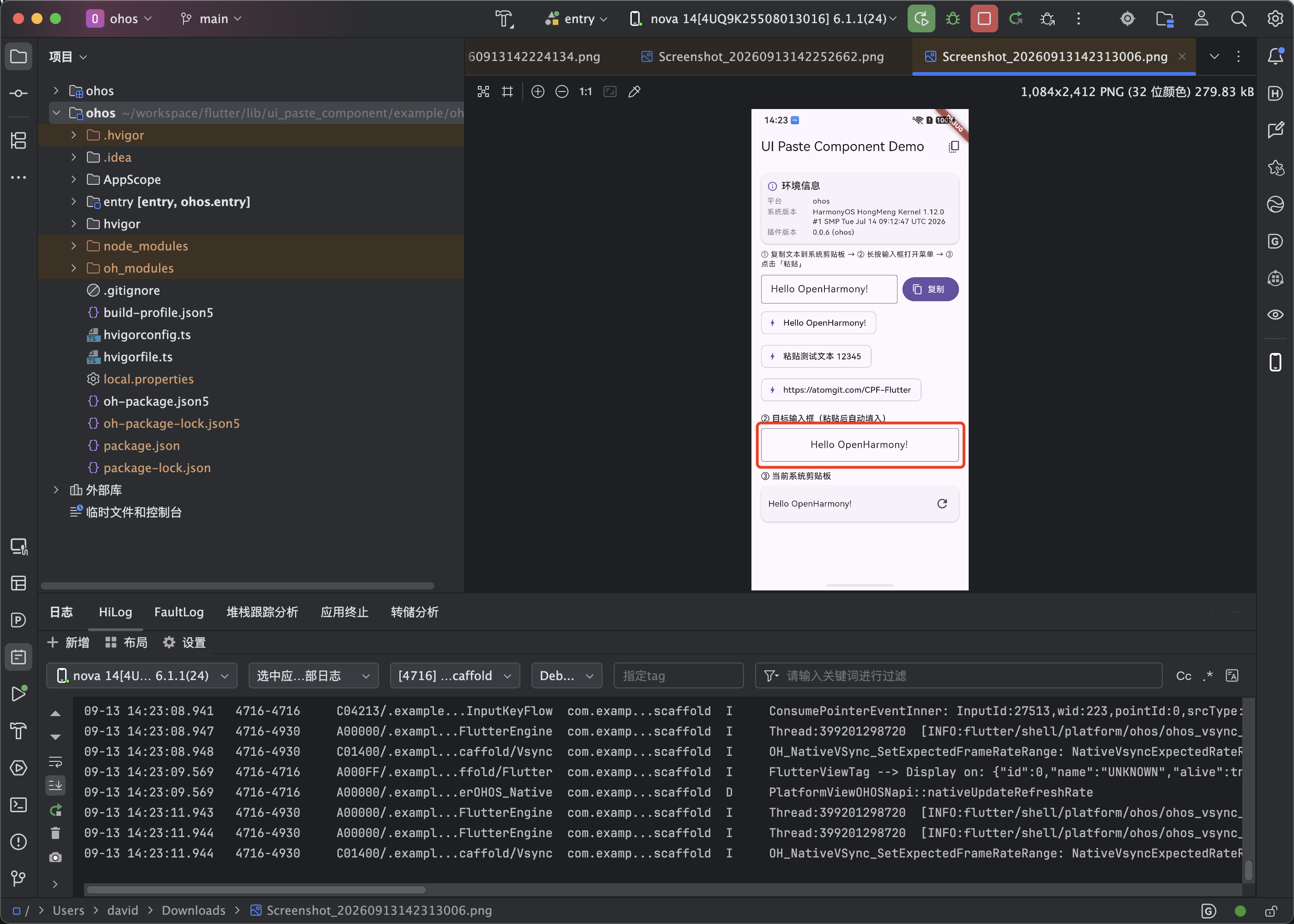
七、工作原理
整个调用链路如下:
Dart: UIPastComponent(onPasted: callback)
  → initState: UiPasteComponentPlatform.instance.setPasteMethod(callback)
  → build: UiKitView(viewType: 'paste_component')
    → 引擎: PlatformViewRegistry → PasteComponentViewFactory.create()
      → ArkUI: PasteComponentPlatformView (Button 'Paste')
        → 用户点击按钮
          → pasteFromClipboard()
            ├─ requestPastePermission()  [AbilityAware]
            │  ├─ checkAccessTokenSync → 已授权 → 继续
            │  └─ requestPermissionsFromUser → 弹窗 → 用户授权 → 继续
            → pasteboard.getSystemPasteboard().getDataSync()
              → getPrimaryText()
                → onPasted(text)
                  → MethodChannel('ui_paste_component').invokeMethod('pasted', text)
                    → Dart: MethodChannelUiPasteComponent handler
                      → _paste?.call(text)
                        → 业务 onPasted 回调
Dart → 原生方向:
  → MethodChannel('ui_paste_component').invokeMethod('getPlatformVersion')
    → ArkTS: UiPasteComponentPlugin.onMethodCall
      → result.success('OpenHarmony')

原生 → Dart 方向:
  → MethodChannel('ui_paste_component').invokeMethod('pasted', text)
    → Dart: MethodChannelUiPasteComponent._paste?.call(text)
HarmonyOS 技术点:PlatformViewFactory 与 DynamicView
鸿蒙 Flutter 引擎的平台视图机制称为 DynamicView。当 Dart 层通过
UiKitView请求创建平台视图时,引擎会查找通过PlatformViewRegistry.registerViewFactory注册的PlatformViewFactory实例,调用其create(context, viewId, args)方法创建PlatformView实例。PlatformView的getView()方法返回一个WrappedBuilder——这是 ArkUI 的组件构建器,引擎通过它将 ArkUI 组件树渲染到 Flutter 的合成层中。ui_paste_component的PasteComponentPlatformView返回的WrappedBuilder包装了一个@Component注解的PasteComponentViewContent,其中包含一个 ArkUIButton组件。
7.1 Dart 层实现解析
库的 Dart 层包含三个文件,逐段解析如下。
ui_paste_component.dart:对外 Widget
class UIPastComponent extends StatefulWidget {
final Function(String pasted) onPasted;
const UIPastComponent({super.key, required this.onPasted});
State<UIPastComponent> createState() => _UIPastComponentState();
}
class _UIPastComponentState extends State<UIPastComponent> {
void initState() {
super.initState();
UiPasteComponentPlatform.instance.setPasteMethod(widget.onPasted);
}
Widget build(BuildContext context) {
const String viewType = 'paste_component';
return SizedBox(
height: 68,
width: double.infinity,
child: UiKitView(
viewType: viewType,
creationParams: <String, dynamic>{},
layoutDirection: TextDirection.ltr,
creationParamsCodec: const StandardMessageCodec(),
hitTestBehavior: PlatformViewHitTestBehavior.translucent,
),
);
}
}
这段代码已在 5.2 节详细解析。核心逻辑:initState 注册回调,build 创建 UiKitView 占位。
ui_paste_component_method_channel.dart:通道实现
class MethodChannelUiPasteComponent extends UiPasteComponentPlatform {
final methodChannel = const MethodChannel('ui_paste_component');
Function(String arguments)? _paste;
MethodChannelUiPasteComponent() {
methodChannel.setMethodCallHandler((call) {
switch (call.method) {
case "pasted":
_paste?.call(call.arguments.toString());
break;
default:
}
return Future.value();
});
}
void setPasteMethod(Function(String arguments) pasteMethod) async {
_paste = pasteMethod;
}
}
这段代码的核心逻辑是在构造函数中设置 MethodChannel 的方法调用处理器。当原生侧通过 invokeMethod('pasted', text) 发送粘贴文本时,Dart 侧的 setMethodCallHandler 回调被触发,方法名匹配 "pasted" 后调用 _paste?.call(call.arguments.toString()) 将文本传给业务层注册的 onPasted 回调。_paste 字段由 setPasteMethod 方法赋值——这个方法在 UIPastComponent 的 initState 中被调用,将业务的回调函数注册进来。
原生 → Dart 方向的通信:与常见的 Dart → 原生方向不同,
ui_paste_component的核心通信方向是原生 → Dart。原生侧在读取完剪贴板后,主动通过MethodChannel.invokeMethod('pasted', text)向 Dart 侧发送消息。Dart 侧通过setMethodCallHandler监听这个方法调用。这种"原生主动推送"的模式在平台视图场景中很常见——原生 UI 事件(如按钮点击)发生在原生侧,处理结果需要主动推送给 Dart。
ui_paste_component_platform_interface.dart:平台接口抽象
abstract class UiPasteComponentPlatform extends PlatformInterface {
  UiPasteComponentPlatform() : super(token: _token);
  static final Object _token = Object();
  static UiPasteComponentPlatform _instance = MethodChannelUiPasteComponent();

  static UiPasteComponentPlatform get instance => _instance;
  static set instance(UiPasteComponentPlatform instance) {
    PlatformInterface.verifyToken(instance, _token);
    _instance = instance;
  }

  void setPasteMethod(Function(String arguments) pasteMethod) {
    throw UnimplementedError('setPasteMethod() has not been implemented.');
  }
}
这段代码使用 plugin_platform_interface 包的 PlatformInterface 基类,通过 token 机制防止第三方意外替换平台实现。默认实例为 MethodChannelUiPasteComponent,业务方无需手动设置。
7.2 鸿蒙侧 ArkTS 插件实现逐段解析
鸿蒙侧插件由三个文件组成,逐段解析如下。
第一段:PluginConstants.ets — 契约常量
export class PluginConstants {
  static readonly channelName: string = 'ui_paste_component';
  static readonly platformViewType: string = 'paste_component';
  static readonly pastedMethod: string = 'pasted';
  static readonly getPlatformVersionMethod: string = 'getPlatformVersion';
  static readonly readPasteboardPermission: Permissions = 'ohos.permission.READ_PASTEBOARD';
}
这段代码将通道名、方法名、视图类型、权限名等契约常量集中管理,确保与 Dart 层和 iOS/Android 实现完全一致。通道名 ui_paste_component 与 Dart 层的 MethodChannel('ui_paste_component') 一致,视图类型 paste_component 与 Dart 层的 UiKitView(viewType: 'paste_component') 一致,方法名 pasted 与 Dart 层的 case "pasted" 一致。
为什么单独抽取常量类? 将通道名、方法名等字符串常量集中到一个文件中,可以避免在多个文件中硬编码同一字符串导致的拼写不一致风险。这在跨平台插件适配中尤为重要——三端(iOS/Android/OHOS)的通道名和方法名必须完全一致,否则消息无法送达。通过常量类统一管理,任何修改只需改一处。
第二段:UiPasteComponentPlugin.ets — 插件入口(注册与权限)
export default class UiPasteComponentPlugin implements FlutterPlugin, MethodCallHandler, AbilityAware {
  private channel: MethodChannel | null = null;
  private ability: UIAbility | null = null;

  getUniqueClassName(): string {
    return 'UiPasteComponentPlugin';
  }

  onAttachedToAbility(binding: AbilityPluginBinding): void {
    this.ability = binding.getAbility();
  }

  onDetachedFromAbility(): void {
    this.ability = null;
  }
这段代码声明插件类实现三个接口:FlutterPlugin(引擎生命周期管理)、MethodCallHandler(Dart → 原生方法调用处理)、AbilityAware(UIAbility 上下文获取)。onAttachedToAbility 在 Ability 挂载时获取 UIAbility 引用——这是 requestPermissionsFromUser 所需的上下文参数。
HarmonyOS 技术点:
AbilityAware接口
AbilityAware是 Flutter 鸿蒙适配层提供的接口,用于让原生插件感知宿主UIAbility的生命周期。它包含两个回调:onAttachedToAbility(binding)在 Ability 挂载到引擎时调用,binding.getAbility()返回UIAbility实例;onDetachedFromAbility()在 Ability 卸载时调用。许多系统 API(如requestPermissionsFromUser)需要UIAbility上下文才能调用,因此需要权限请求或窗口操作的插件必须实现AbilityAware。这与 Android 端的ActivityAware、iOS 端的FlutterPlugin.AppDelegateView概念对应。
  onAttachedToEngine(binding: FlutterPluginBinding): void {
    try {
      this.channel = new MethodChannel(binding.getBinaryMessenger(), PluginConstants.channelName);
      this.channel.setMethodCallHandler(this);

      binding.getPlatformViewRegistry().registerViewFactory(
        PluginConstants.platformViewType,
        new PasteComponentViewFactory((view: PasteComponentPlatformView) => {
          view.onPasted = (text: string) => {
            try {
              this.channel?.invokeMethod(PluginConstants.pastedMethod, text);
            } catch (error) {
              console.error(`${TAG} invoke '${PluginConstants.pastedMethod}' failed: ${message}`);
            }
          };
          view.requestPastePermission = () => this.requestReadPasteboardPermission();
        }));
    } catch (error) {
      console.error(`${TAG} onAttachedToEngine failed: ${message}`);
    }
  }
onAttachedToEngine 完成两件事:创建 MethodChannel 并设置方法调用处理器;注册平台视图工厂。工厂的回调中为每个创建的 PasteComponentPlatformView 实例设置两个回调函数:onPasted(将文本通过 MethodChannel 推送给 Dart)和 requestPastePermission(委托给插件实例的权限请求方法)。
  private async requestReadPasteboardPermission(): Promise<boolean> {
    try {
      const ability: UIAbility | null = this.ability;
      if (ability === null) {
        console.error(`${TAG} no UIAbility attached, cannot request READ_PASTEBOARD`);
        return false;
      }
      const atManager = abilityAccessCtrl.createAtManager();
      const bundleInfo = bundleManager.getBundleInfoForSelfSync(
        bundleManager.BundleFlag.GET_BUNDLE_INFO_WITH_APPLICATION);
      const tokenId: number = bundleInfo.appInfo.accessTokenId;
      const grantStatus = atManager.checkAccessTokenSync(tokenId, PluginConstants.readPasteboardPermission);
      if (grantStatus === abilityAccessCtrl.GrantStatus.PERMISSION_GRANTED) {
        return true;
      }
      const result = await atManager.requestPermissionsFromUser(
        ability.context, [PluginConstants.readPasteboardPermission]);
      return result.authResults.length > 0 &&
        result.authResults[0] === abilityAccessCtrl.GrantStatus.PERMISSION_GRANTED;
    } catch (error) {
      console.error(`${TAG} requestReadPasteboardPermission failed: ${message}`);
      return false;
    }
  }
这段代码实现了"先检查后请求"的权限链路。首先检查 this.ability 是否为 null(无 UIAbility 上下文则无法请求权限),然后通过 bundleManager.getBundleInfoForSelfSync() 获取应用的 accessTokenId,通过 checkAccessTokenSync() 同步检查权限状态。已授予直接返回 true,未授予则调用 requestPermissionsFromUser() 弹窗请求。整个方法包裹在 try/catch 中,任何异常都返回 false(权限未获得),不抛异常。
HarmonyOS 技术点:
accessTokenId与权限校验鸿蒙系统中的每个应用都有一个
accessTokenId(访问令牌 ID),它是应用在系统安全子系统中的唯一标识。权限校验的本质是检查某accessTokenId是否被授予了特定权限。bundleManager.getBundleInfoForSelfSync()获取的应用信息中包含appInfo.accessTokenId,将其传给checkAccessTokenSync()即可查询权限状态。
第三段:PasteComponentPlatformView.ets — 平台视图(按钮 UI + 剪贴板读取)
export class PasteComponentPlatformView extends PlatformView {
  viewId: number;
  onPasted: ((text: string) => void) | null = null;
  requestPastePermission: (() => Promise<boolean>) | null = null;

  constructor(viewId: number) {
    super();
    this.viewId = viewId;
  }

  getType(): string {
    return PluginConstants.platformViewType;
  }

  getView(): WrappedBuilder<[Params]> {
    return wrapBuilder(pasteComponentBuilder);
  }
这段代码定义了平台视图类,继承 PlatformView。getView() 返回 WrappedBuilder 包装的 ArkUI 组件构建器——引擎通过这个构建器将 ArkUI 组件树渲染到 Flutter 合成层中。onPasted 和 requestPastePermission 两个回调由插件入口在创建视图时注入。
  async pasteFromClipboard(): Promise<void> {
    try {
      if (this.requestPastePermission !== null) {
        const granted: boolean = await this.requestPastePermission();
        if (!granted) {
          console.error(`${TAG} READ_PASTEBOARD permission not granted, paste skipped`);
          return;
        }
      }
      const systemPasteboard: pasteboard.SystemPasteboard = pasteboard.getSystemPasteboard();
      const pasteData: pasteboard.PasteData = systemPasteboard.getDataSync();
      if (pasteData.getPrimaryMimeType() === pasteboard.MIMETYPE_TEXT_PLAIN) {
        const text: string = pasteData.getPrimaryText();
        if (text.length > 0 && this.onPasted !== null) {
          this.onPasted(text);
        }
      }
    } catch (error) {
      console.error(`${TAG} pasteFromClipboard failed: ${message}`);
    }
  }
pasteFromClipboard 是粘贴操作的核心方法。首先检查并请求权限——如果 requestPastePermission 回调存在(由插件注入),先 await 权限请求,未获得则跳过。然后通过 pasteboard.getSystemPasteboard().getDataSync() 同步读取系统剪贴板数据,检查 MIME 类型是否为纯文本(MIMETYPE_TEXT_PLAIN),是则提取文本并通过 onPasted 回调传给 Dart 层。整个方法包裹在 try/catch 中,任何环节失败都仅记录日志。
getDataSync()vsgetData():鸿蒙 pasteboard 提供了同步和异步两种读取方法。getDataSync()是同步方法,会阻塞当前线程直到读取完成;getData()是异步方法,返回Promise。在平台视图的点击回调中使用同步方法更简单——不需要额外的 async/await 链路,且剪贴板读取通常很快(毫秒级),不会造成明显的 UI 卡顿。
@Component
struct PasteComponentViewContent {
  view: PasteComponentPlatformView | null = null;

  build() {
    Button('Paste')
      .width('100%')
      .height('100%')
      .backgroundColor('#F6F6F6')
      .fontColor(Color.Black)
      .fontSize(17)
      .borderRadius(12)
      .onClick(() => {
        this.view?.pasteFromClipboard();
      })
  }
}

@Builder
function pasteComponentBuilder(params: Params) {
  PasteComponentViewContent({ view: params.platformView as PasteComponentPlatformView })
}
这段代码定义了粘贴按钮的 ArkUI 组件。PasteComponentViewContent 是一个 @Component 注解的 ArkUI 组件,build() 方法返回一个 Button,外观复刻 iOS UIPasteControl 的默认样式:浅灰背景(#F6F6F6)、黑色文字、17 号字体、12 圆角。点击事件调用 this.view?.pasteFromClipboard() 触发剪贴板读取。pasteComponentBuilder 是 @Builder 注解的构建器函数,将 PasteComponentViewContent 与平台视图实例关联——引擎通过 wrapBuilder(pasteComponentBuilder) 获取这个构建器,在渲染时调用它创建 ArkUI 组件树。
为什么按钮文案固定为
'Paste'而非使用资源引用?原计划使用
$r('app.string.paste_label')引用资源中的文案,以支持多语言。但真机验证发现:平台视图组件内的$r()资源引用在 DynamicView 上下文中解析不可靠——按钮渲染了,但文案为空。这是因为 DynamicView 的资源上下文与宿主 Ability 不完全一致,资源管理器无法正确解析$r()引用。最终采用纯文本'Paste'兜底,保证任何情况下文案可见。如果需要自定义文案,可直接修改Button('Paste')中的字符串。
7.3 插件注册机制
鸿蒙侧的插件注册是自动完成的。Flutter 鸿蒙适配层在构建时扫描 pubspec.yaml 中的 ohos: pluginClass 配置,自动生成 GeneratedPluginRegistrant.ets 文件:
import { FlutterEngine, Log } from '@ohos/flutter_ohos';
import IntegrationTestPlugin from 'integration_test';
import UiPasteComponentPlugin from 'ui_paste_component';

export class GeneratedPluginRegistrant {
  static registerWith(flutterEngine: FlutterEngine) {
    try {
      flutterEngine.getPlugins()?.add(new IntegrationTestPlugin());
      flutterEngine.getPlugins()?.add(new UiPasteComponentPlugin());
    } catch (e) {
      Log.e(TAG, "Tried to register plugins with FlutterEngine failed.");
    }
  }
}
整个注册链路为:
EntryAbility.configureFlutterEngine()
  → GeneratedPluginRegistrant.registerWith(flutterEngine)
    → flutterEngine.getPlugins().add(new UiPasteComponentPlugin())
      → UiPasteComponentPlugin.onAttachedToEngine(binding)
        → new MethodChannel(messenger, 'ui_paste_component')
          → setMethodCallHandler(this)
        → registerViewFactory('paste_component', new PasteComponentViewFactory(...))
      → UiPasteComponentPlugin.onAttachedToAbility(binding)
        → this.ability = binding.getAbility()  // 持有 UIAbility 引用
引擎先调用 onAttachedToEngine(创建通道、注册平台视图工厂),后调用 onAttachedToAbility(获取 UIAbility 引用)。当用户点击粘贴按钮时,pasteFromClipboard 被触发,此时 this.ability 已经赋值,可以安全地用于权限请求。
以下是操作的视屏(因大小问题,一个视屏分为三断),可以参考一下:
八、常见问题
Q1:点击粘贴按钮后没有回调是怎么回事?
最可能的原因是 READ_PASTEBOARD 权限未授予。插件在读取剪贴板前会先检查权限,未授权时弹出系统权限弹窗。如果用户选择了"不允许",本次粘贴会被跳过并打印错误日志 READ_PASTEBOARD permission not granted, paste skipped,Dart 侧不会收到回调。用户可在系统设置 → 隐私 → 权限管理中重新授权,下次点击粘贴按钮时不再弹窗(已授权)即可正常读取。
Q2:UIPastComponent 在页面上不显示是怎么回事?
OpenHarmony Flutter 引擎的平台视图走 DynamicView(NodeContainer surface)机制,真机验证表明在可滚动容器内可能无法渲染。如果将 UIPastComponent 放在 SingleChildScrollView、ListView 或其他可滚动 Widget 内,整块平台视图可能消失。解决方案:将 UIPastComponent 放在非滚动的固定容器中,例如输入框旁边的 Row、底部常驻栏或固定高度的 Column。这是 Flutter OHOS 引擎的已知限制,与插件无关。
Q3:按钮文案为什么是英文 Paste 而非中文?
平台视图组件内的 $r() 资源引用在 DynamicView 上下文中解析不可靠(真机验证:按钮渲染但文案为空),因此使用纯文本 'Paste' 兜底。这是 DynamicView 机制的资源上下文限制——资源管理器无法在平台视图上下文中正确解析 $r() 引用。如果需要自定义文案(如中文"粘贴"),可直接修改 PasteComponentPlatformView.ets 中 Button('Paste') 的字符串参数。
Q4:声明了 READ_PASTEBOARD 权限后编译报错怎么办?
READ_PASTEBOARD 是 user_grant 权限,在 module.json5 中声明时必须同时配置 reason(引用 string.json 中的字符串资源)和 usedScene(包含 abilities 列表和 when 时机)。缺少任何一个都会编译报错 The reason and usedScene attributes are mandatory for user_grant permissions。正确格式见"五、代码接入"中的 5.3 节。同时,reason 引用的字符串资源必须在 string.json 中定义,否则也会报错。
Q5:READ_PASTEBOARD 权限和 APP_TRACKING_CONSENT 权限有什么区别?
两者都是 user_grant 权限,但用途完全不同。READ_PASTEBOARD 用于读取系统剪贴板内容,是粘贴功能所必需的;APP_TRACKING_CONSENT 用于获取设备广告标识符(OAID),是设备追踪场景所必需的。两者都需要在 module.json5 中声明 reason 和 usedScene,都需要运行时通过 requestPermissionsFromUser 弹窗请求。READ_PASTEBOARD 在调试签名应用上可以正常使用(声明 + 运行时授权即可),不像 APP_TRACKING_CONSENT 需要 ACL 签名证书。
Q6:鸿蒙端没有 UIPasteControl 等价控件,适配方案是什么?
鸿蒙系统没有与 iOS UIPasteControl 等价的系统粘贴按钮控件。适配方案是:使用 ArkUI Button 组件复刻 UIPasteControl 的外观(浅灰 #F6F6F6 圆角底、黑色 Paste 文案),点击后调用 @ohos.pasteboard 读取系统剪贴板。与 iOS 的关键差异在于:鸿蒙从 API 12 起读剪贴板强制要求 READ_PASTEBOARD(user_grant)权限,插件通过 AbilityAware 接口在首次点击时自动弹窗请求。在语义上对齐 iOS 的系统级隐私交互——用户主动点击按钮隐含了授权意图。
九、结语
回顾一下:在 pubspec.yaml 中以 git TAG 引入 ui_paste_component,在 module.json5 中声明 READ_PASTEBOARD 权限(配置 reason 和 usedScene),在 Dart 层使用 UIPastComponent(onPasted: callback) 嵌入原生粘贴按钮。用户点击按钮后,插件自动请求权限、读取系统剪贴板、通过 MethodChannel 将文本回传给 Dart 层。Dart 层零改动,通道契约与 iOS/Android 完全一致。已在 OpenHarmony 6.1.1.120 真机(API 24 / arm64)验证插件注册、通道建立、权限申请链路。需注意 DynamicView 平台视图在可滚动容器内可能不渲染的限制,建议置于非滚动固定容器中。
总结对比
维度 iOS(16+) Android OpenHarmony / HarmonyOS 粘贴按钮来源 系统 UIPasteControl自定义 View ArkUI Button复刻权限要求 无需权限 无需权限 READ_PASTEBOARD(user_grant,自动请求)剪贴板读取 UIPasteboard.general.stringClipboardManagerpasteboard.getDataSync().getPrimaryText()通信方式 MethodChannel ui_paste_componentMethodChannel ui_paste_componentMethodChannel ui_paste_componentDart 层改动 无 无 无 已知限制 无 无 DynamicView 在滚动容器内可能不渲染
权限状态 粘贴按钮行为 Dart 回调 业务建议 已授权 读取剪贴板 → 回调文本 正常触发 onPasted正常使用 未授权(首次) 弹窗请求权限 暂不回调 等待用户授权 用户拒绝 跳过读取,记录日志 不回调 引导用户前往设置授权 无 UIAbility 跳过权限请求,记录日志 不回调 确保在前台 UIAbility 场景使用 核心要点:原生粘贴按钮通过 PlatformView 嵌入,剪贴板读取通过 AbilityAware 自动请求权限,通道契约三端一致,Dart 层零改动。
使用中发现任何问题,欢迎到配套仓库提 Issue,也欢迎发 PR 共建。
相关链接
欢迎加入 CPF-Flutter 鸿蒙社区,社区入口、环境搭建指南和本文相关链接统一放在这里:

开源鸿蒙跨平台开发社区汇聚开发者与厂商,共建“一次开发,多端部署”的开源生态,致力于降低跨端开发门槛,推动万物智联创新。
更多推荐
 0
0 0
0- 0



 已为社区贡献151条内容

所有评论(0)