基于HarmonyOS API 24 Flutter for OpenHarmony 实战:决策轮盘
前言:跨生态开发的新机遇 {#前言跨生态开发的新机遇}
在移动开发领域,我们总是面临着选择与适配。今天,你的Flutter应用在Android和iOS上跑得正欢,明天可能就需要考虑一个新的平台:HarmonyOS(鸿蒙)。这不是一道选答题,而是很多团队正在面对的现实。
Flutter的优势很明确——写一套代码,就能在两个主要平台上运行,开发体验流畅。而鸿蒙代表的是下一个时代的互联生态,它不仅仅是手机系统,更着眼于未来全场景的体验。将现有的Flutter应用适配到鸿蒙,听起来像是一个“跨界”任务,但它本质上是一次有价值的技术拓展:让产品触达更多用户,也让技术栈覆盖更广。
不过,这条路走起来并不像听起来那么简单。Flutter和鸿蒙,从底层的架构到上层的工具链,都有着各自的设计逻辑。会遇到一些具体的问题:代码如何组织?原有的功能在鸿蒙上如何实现?那些平台特有的能力该怎么调用?更实际的是,从编译打包到上架部署,整个流程都需要重新摸索。
这篇文章想做的,就是把这些我们趟过的路、踩过的坑,清晰地摊开给你看。我们不会只停留在“怎么做”,还会聊到“为什么得这么做”,以及“如果出了问题该往哪想”。这更像是一份实战笔记,源自真实的项目经验,聚焦于那些真正卡住过我们的环节。
无论你是在为一个成熟产品寻找新的落地平台,还是从一开始就希望构建能面向多端的应用,这里的思路和解决方案都能提供直接的参考。理解了两套体系之间的异同,掌握了关键的衔接技术,不仅能完成这次迁移,更能积累起应对未来技术变化的能力。
混合工程结构深度解析 {#混合工程结构深度解析}
项目目录架构
当Flutter项目集成鸿蒙支持后,典型的项目结构会发生显著变化。以下是经过ohos_flutter插件初始化后的项目结构:
my_flutter_harmony_app/
├── lib/                          # Flutter业务代码(基本不变)
│   ├── main.dart                 # 应用入口
│   ├── home_page.dart           # 首页
│   └── utils/
│       └── platform_utils.dart  # 平台工具类
├── pubspec.yaml                  # Flutter依赖配置
├── ohos/                         # 鸿蒙原生层(核心适配区)
│   ├── entry/                    # 主模块
│   │   └── src/main/
│   │       ├── ets/              # ArkTS代码
│   │       │   ├── MainAbility/
│   │       │   │   ├── MainAbility.ts       # 主Ability
│   │       │   │   └── MainAbilityContext.ts
│   │       │   └── pages/
│   │       │       ├── Index.ets           # 主页面
│   │       │       └── Splash.ets          # 启动页
│   │       ├── resources/        # 鸿蒙资源文件
│   │       │   ├── base/
│   │       │   │   ├── element/  # 字符串等
│   │       │   │   ├── media/    # 图片资源
│   │       │   │   └── profile/  # 配置文件
│   │       │   └── en_US/        # 英文资源
│   │       └── config.json       # 应用核心配置
│   ├── ohos_test/               # 测试模块
│   ├── build-profile.json5      # 构建配置
│   └── oh-package.json5         # 鸿蒙依赖管理
└── README.md
展示效果图片 {#展示效果图片}
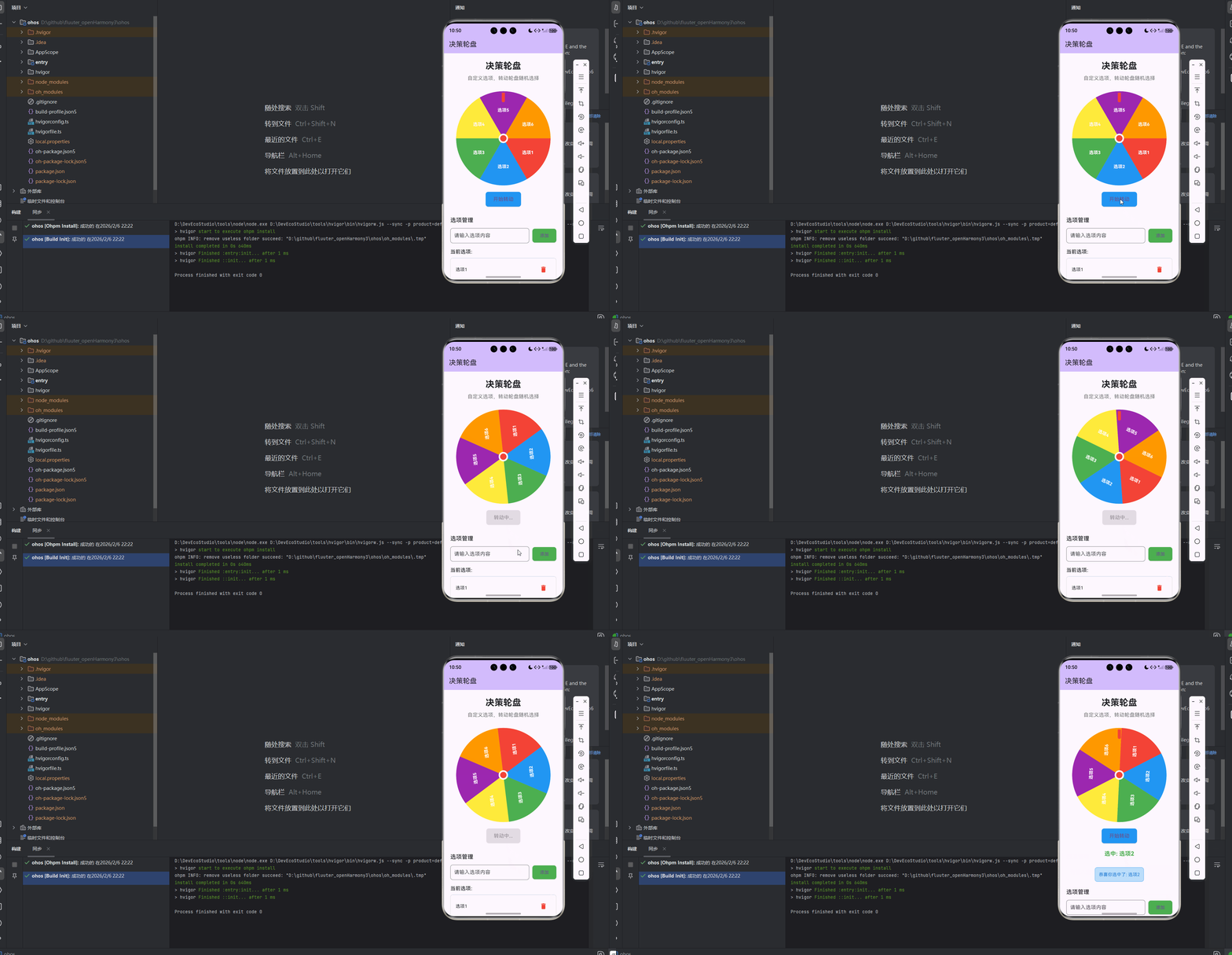
flutter 实时预览 效果展示
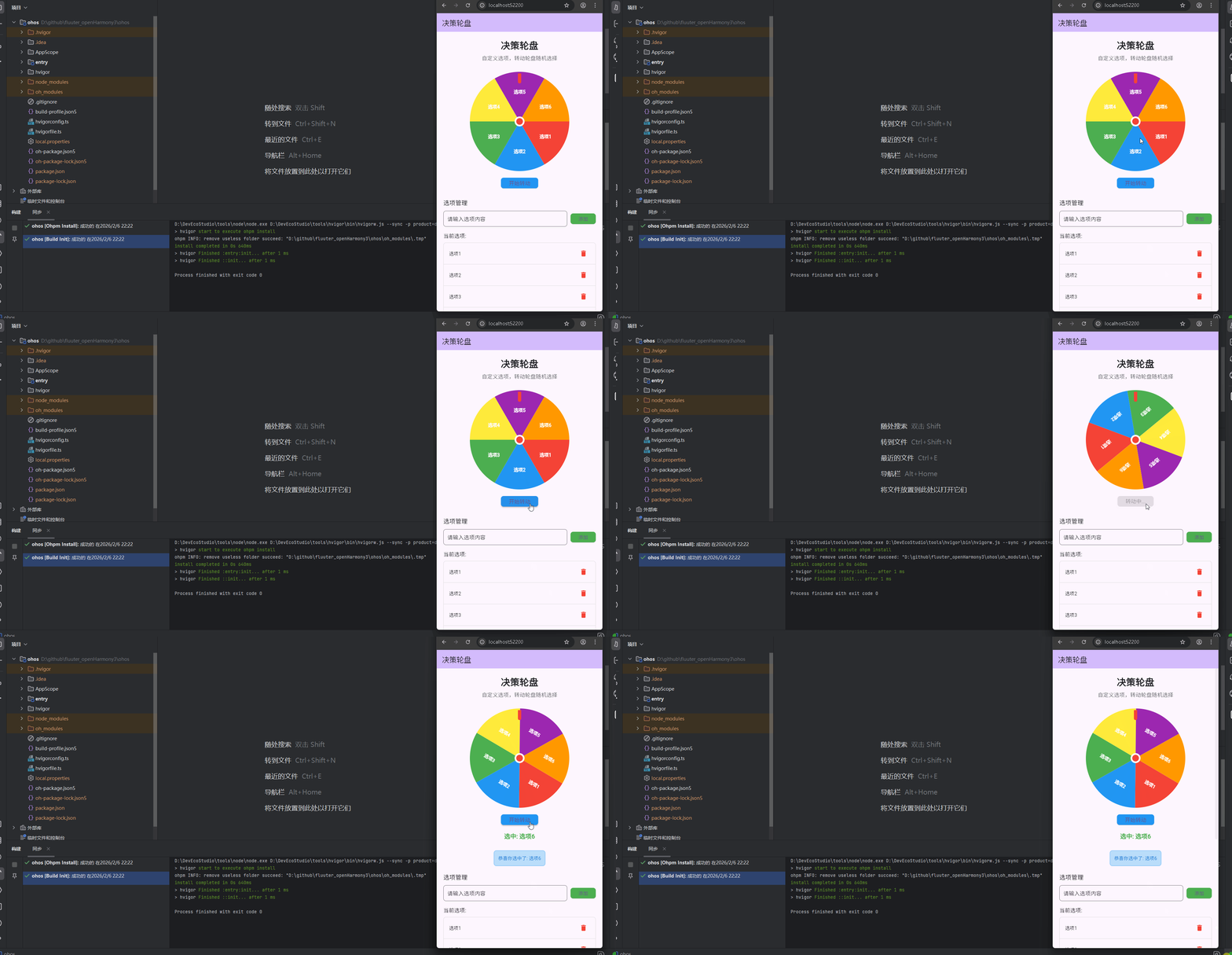
运行到鸿蒙虚拟设备中效果展示
目录
功能代码实现 {#功能代码实现}
核心轮盘组件 {#核心轮盘组件}
核心轮盘组件是决策轮盘的核心,负责实现轮盘的绘制和转动功能。
核心功能
- 绘制带有扇形区域的轮盘
- 支持自定义选项
- 实现轮盘的平滑转动动画
- 随机选择一个选项
- 支持点击轮盘开始转动
实现代码
import 'package:flutter/material.dart';
import 'dart:math';
import 'dart:async';
class RouletteWheel extends StatefulWidget {
final List<String> options;
final double size;
final Function(String)? onSelected;
const RouletteWheel({
Key? key,
required this.options,
this.size = 300.0,
this.onSelected,
}) : super(key: key);
_RouletteWheelState createState() => _RouletteWheelState();
}
class _RouletteWheelState extends State<RouletteWheel> with SingleTickerProviderStateMixin {
late AnimationController _controller;
late Animation<double> _animation;
double _rotation = 0.0;
bool _isSpinning = false;
String? _selectedOption;
void initState() {
super.initState();
_controller = AnimationController(
duration: const Duration(seconds: 3),
vsync: this,
);
}
void dispose() {
_controller.dispose();
super.dispose();
}
void spin() {
if (_isSpinning) return;
setState(() {
_isSpinning = true;
_selectedOption = null;
});
final random = Random();
final randomRotation = random.nextDouble() * 360 + 1080; // 至少转3圈
final finalRotation = _rotation + randomRotation;
_animation = Tween<double>(begin: _rotation, end: finalRotation).animate(
CurvedAnimation(parent: _controller, curve: Curves.decelerate),
)..addListener(() {
setState(() {
_rotation = _animation.value;
});
})
..addStatusListener((status) {
if (status == AnimationStatus.completed) {
_rotation = finalRotation % 360;
_determineSelectedOption();
setState(() {
_isSpinning = false;
});
}
});
_controller.reset();
_controller.forward();
}
void _determineSelectedOption() {
final normalizedRotation = _rotation % 360;
final anglePerOption = 360.0 / widget.options.length;
final selectedIndex = ((360 - normalizedRotation) / anglePerOption).floor() % widget.options.length;
_selectedOption = widget.options[selectedIndex];
if (widget.onSelected != null) {
widget.onSelected!(_selectedOption!);
}
}
Widget build(BuildContext context) {
return Column(
children: [
GestureDetector(
onTap: spin,
child: Container(
width: widget.size,
height: widget.size,
child: Stack(
alignment: Alignment.center,
children: [
Transform.rotate(
angle: _rotation * pi / 180,
child: CustomPaint(
size: Size(widget.size, widget.size),
painter: RoulettePainter(options: widget.options),
),
),
Container(
width: 20,
height: 20,
decoration: BoxDecoration(
color: Colors.red,
borderRadius: BorderRadius.circular(10),
),
),
Positioned(
top: 5,
child: Container(
width: 10,
height: 30,
decoration: BoxDecoration(
color: Colors.red,
borderRadius: BorderRadius.only(
bottomLeft: Radius.circular(5),
bottomRight: Radius.circular(5),
),
),
),
),
],
),
),
),
SizedBox(height: 20),
ElevatedButton(
onPressed: _isSpinning ? null : spin,
style: ElevatedButton.styleFrom(
backgroundColor: Colors.blue,
shape: RoundedRectangleBorder(
borderRadius: BorderRadius.circular(8),
),
padding: EdgeInsets.symmetric(vertical: 12, horizontal: 24),
),
child: Text(
_isSpinning ? '转动中...' : '开始转动',
style: TextStyle(fontSize: 16),
),
),
if (_selectedOption != null)
Padding(
padding: const EdgeInsets.only(top: 20),
child: Text(
'选中: $_selectedOption',
style: TextStyle(
fontSize: 18,
fontWeight: FontWeight.bold,
color: Colors.green,
),
),
),
],
);
}
}
class RoulettePainter extends CustomPainter {
final List<String> options;
RoulettePainter({required this.options});
void paint(Canvas canvas, Size size) {
final center = Offset(size.width / 2, size.height / 2);
final radius = size.width / 2;
final anglePerOption = 2 * pi / options.length;
final colors = [
Colors.red,
Colors.blue,
Colors.green,
Colors.yellow,
Colors.purple,
Colors.orange,
Colors.pink,
Colors.teal,
];
for (int i = 0; i < options.length; i++) {
final startAngle = i * anglePerOption;
final endAngle = (i + 1) * anglePerOption;
final paint = Paint()..color = colors[i % colors.length];
canvas.drawArc(
Rect.fromCircle(center: center, radius: radius),
startAngle,
endAngle - startAngle,
true,
paint,
);
final textPainter = TextPainter(
text: TextSpan(
text: options[i],
style: TextStyle(
color: Colors.white,
fontSize: 14,
fontWeight: FontWeight.bold,
),
),
textDirection: TextDirection.ltr,
textAlign: TextAlign.center,
)..layout(maxWidth: radius * 0.8);
final textAngle = startAngle + (endAngle - startAngle) / 2;
final textRadius = radius * 0.6;
final textOffset = Offset(
center.dx + cos(textAngle) * textRadius - textPainter.width / 2,
center.dy + sin(textAngle) * textRadius - textPainter.height / 2,
);
textPainter.paint(canvas, textOffset);
}
// 绘制中心圆
final centerPaint = Paint()..color = Colors.white;
canvas.drawCircle(center, radius * 0.1, centerPaint);
}
bool shouldRepaint(covariant CustomPainter oldDelegate) {
return false;
}
}
使用方法
RouletteWheel(
  options: ['选项1', '选项2', '选项3', '选项4', '选项5', '选项6'],
  size: 300.0,
  onSelected: (option) {
    print('选中了: $option');
  },
)
开发注意事项
- 自定义绘制:使用
CustomPaint和Canvas绘制轮盘的扇形区域和文本,需要计算每个扇形的角度和文本的位置 - 动画效果:使用
AnimationController和Tween实现轮盘的平滑转动动画,设置合适的动画曲线和时长 - 随机选择:使用
Random生成随机的转动角度,确保选择结果的随机性 - 状态管理:使用
StatefulWidget和setState管理轮盘的转动状态和选中结果 - 内存管理:在
dispose方法中释放AnimationController,避免内存泄漏 - 交互设计:实现轮盘的点击事件,支持通过点击轮盘开始转动
主页面集成 {#主页面集成}
主页面集成轮盘组件,实现选项管理功能,确保在首页直接显示决策轮盘的效果。
核心功能
- 集成轮盘组件
- 实现选项管理功能(添加、删除、清空)
- 提供消息提示,反馈用户操作结果
- 确保页面内容可以滚动
实现代码
import 'package:flutter/material.dart';
import 'roulette_wheel.dart';
class RouletteHome extends StatefulWidget {
const RouletteHome({Key? key}) : super(key: key);
_RouletteHomeState createState() => _RouletteHomeState();
}
class _RouletteHomeState extends State<RouletteHome> {
List<String> _options = [
'选项1',
'选项2',
'选项3',
'选项4',
'选项5',
'选项6',
];
final TextEditingController _optionController = TextEditingController();
String _message = '';
void _addOption() {
final option = _optionController.text.trim();
if (option.isNotEmpty) {
setState(() {
_options.add(option);
_optionController.clear();
_message = '已添加选项: $option';
});
_clearMessageAfterDelay();
}
}
void _removeOption(int index) {
setState(() {
final removedOption = _options.removeAt(index);
_message = '已移除选项: $removedOption';
});
_clearMessageAfterDelay();
}
void _clearAllOptions() {
setState(() {
_options.clear();
_message = '已清空所有选项';
});
_clearMessageAfterDelay();
}
void _clearMessageAfterDelay() {
Future.delayed(Duration(seconds: 2), () {
if (mounted) {
setState(() {
_message = '';
});
}
});
}
void _onOptionSelected(String option) {
setState(() {
_message = '恭喜你选中了: $option';
});
_clearMessageAfterDelay();
}
void dispose() {
_optionController.dispose();
super.dispose();
}
Widget build(BuildContext context) {
return Scaffold(
appBar: AppBar(
title: Text('决策轮盘'),
backgroundColor: Theme.of(context).colorScheme.inversePrimary,
),
body: SingleChildScrollView(
padding: const EdgeInsets.all(20.0),
child: Column(
crossAxisAlignment: CrossAxisAlignment.center,
children: [
// 标题部分
Container(
margin: const EdgeInsets.only(bottom: 30.0),
child: Column(
crossAxisAlignment: CrossAxisAlignment.center,
children: [
Text(
'决策轮盘',
style: TextStyle(
fontSize: 28,
fontWeight: FontWeight.bold,
),
),
SizedBox(height: 8),
Text(
'自定义选项,转动轮盘随机选择',
style: TextStyle(
fontSize: 16,
color: Colors.grey[600],
),
),
],
),
),
// 轮盘部分
Container(
margin: const EdgeInsets.only(bottom: 30.0),
child: _options.isEmpty
? Container(
width: 300,
height: 300,
decoration: BoxDecoration(
border: Border.all(color: Colors.grey, width: 2),
borderRadius: BorderRadius.circular(150),
),
child: Center(
child: Text(
'请添加选项',
style: TextStyle(
fontSize: 18,
color: Colors.grey,
),
),
),
)
: RouletteWheel(
options: _options,
size: 300.0,
onSelected: _onOptionSelected,
),
),
// 消息提示
if (_message.isNotEmpty)
Container(
margin: const EdgeInsets.only(bottom: 20.0),
padding: EdgeInsets.all(12),
decoration: BoxDecoration(
color: Colors.blue[100],
borderRadius: BorderRadius.circular(8),
border: Border.all(color: Colors.blue[300]!),
),
child: Text(
_message,
style: TextStyle(color: Colors.blue[700]),
),
),
// 选项管理部分
Container(
margin: const EdgeInsets.only(bottom: 30.0),
width: double.infinity,
child: Column(
crossAxisAlignment: CrossAxisAlignment.start,
children: [
Text(
'选项管理',
style: TextStyle(
fontSize: 18,
fontWeight: FontWeight.w500,
),
),
SizedBox(height: 12),
Row(
children: [
Expanded(
child: TextField(
controller: _optionController,
decoration: InputDecoration(
hintText: '请输入选项内容',
border: OutlineInputBorder(
borderRadius: BorderRadius.circular(8),
),
contentPadding: EdgeInsets.all(12),
),
),
),
SizedBox(width: 10),
ElevatedButton(
onPressed: _addOption,
style: ElevatedButton.styleFrom(
backgroundColor: Colors.green,
shape: RoundedRectangleBorder(
borderRadius: BorderRadius.circular(8),
),
padding: EdgeInsets.symmetric(vertical: 12, horizontal: 24),
),
child: Text('添加'),
),
],
),
SizedBox(height: 16),
if (_options.isNotEmpty)
Column(
crossAxisAlignment: CrossAxisAlignment.start,
children: [
Text(
'当前选项:',
style: TextStyle(
fontSize: 16,
fontWeight: FontWeight.w500,
),
),
SizedBox(height: 8),
Container(
decoration: BoxDecoration(
border: Border.all(color: Colors.grey[300]!),
borderRadius: BorderRadius.circular(8),
),
child: Column(
children: _options.asMap().entries.map((entry) {
int index = entry.key;
String option = entry.value;
return Container(
padding: const EdgeInsets.symmetric(horizontal: 16, vertical: 12),
decoration: BoxDecoration(
border: index < _options.length - 1
? Border(bottom: BorderSide(color: Colors.grey[300]!))
: null,
),
child: Row(
mainAxisAlignment: MainAxisAlignment.spaceBetween,
children: [
Text(option),
IconButton(
onPressed: () => _removeOption(index),
icon: Icon(Icons.delete, color: Colors.red),
tooltip: '删除选项',
),
],
),
);
}).toList(),
),
),
SizedBox(height: 12),
ElevatedButton(
onPressed: _clearAllOptions,
style: ElevatedButton.styleFrom(
backgroundColor: Colors.red,
shape: RoundedRectangleBorder(
borderRadius: BorderRadius.circular(8),
),
padding: EdgeInsets.symmetric(vertical: 12, horizontal: 24),
),
child: Text('清空所有选项'),
),
],
),
],
),
),
// 使用说明
Container(
padding: EdgeInsets.all(16),
decoration: BoxDecoration(
color: Colors.grey[100],
borderRadius: BorderRadius.circular(8),
),
child: Column(
crossAxisAlignment: CrossAxisAlignment.start,
children: [
Text(
'使用说明:',
style: TextStyle(
fontSize: 16,
fontWeight: FontWeight.w500,
),
),
SizedBox(height: 8),
Text('1. 在选项管理中添加你想要的选项'),
Text('2. 点击轮盘或"开始转动"按钮开始转动'),
Text('3. 轮盘停止后会显示选中的选项'),
Text('4. 你可以随时添加、删除或清空选项'),
],
),
),
],
),
),
);
}
}
开发注意事项
- 状态管理:使用
StatefulWidget和setState管理组件的状态变化,确保界面能够实时反映状态变化 - 选项管理:实现选项的添加、删除和清空功能,提供清晰的用户操作界面
- 消息提示:添加消息提示,反馈用户操作结果,提高用户体验
- 布局设计:使用
SingleChildScrollView包装页面内容,确保在小屏幕上也能完整显示 - 内存管理:在
dispose方法中释放TextEditingController,避免内存泄漏 - 错误处理:处理空选项的情况,避免轮盘组件因空选项而崩溃
- 样式设计:保持应用的整体样式统一,确保视觉效果协调
应用入口配置 {#应用入口配置}
应用入口文件负责配置应用的主页面,确保决策轮盘能够在首页直接显示。
核心功能
- 配置应用主题和标题
- 设置主页面为
RouletteHome - 确保应用能够正常启动和运行
实现代码
import 'package:flutter/material.dart';
import 'roulette/roulette_home.dart';
void main() {
runApp(const MyApp());
}
class MyApp extends StatelessWidget {
const MyApp({super.key});
Widget build(BuildContext context) {
return MaterialApp(
title: 'Flutter for openHarmony',
theme: ThemeData(
colorScheme: ColorScheme.fromSeed(seedColor: Colors.deepPurple),
useMaterial3: true,
),
debugShowCheckedModeBanner: false,
home: const MyHomePage(title: 'Flutter for openHarmony'),
);
}
}
class MyHomePage extends StatefulWidget {
const MyHomePage({super.key, required this.title});
final String title;
State<MyHomePage> createState() => _MyHomePageState();
}
class _MyHomePageState extends State<MyHomePage> {
Widget build(BuildContext context) {
return RouletteHome();
}
}
开发注意事项
- 导入路径:确保正确导入
RouletteHome组件 - 主题配置:合理配置应用主题,确保界面美观
- 页面设置:正确设置主页面,确保应用启动后能够直接显示决策轮盘的效果
- 调试模式:在发布版本中关闭
debugShowCheckedModeBanner,提高应用的专业感
开发中容易遇到的问题 {#开发中容易遇到的问题}
1. 自定义绘制问题
问题描述
在使用CustomPaint绘制轮盘时,可能会遇到绘制不准确、文本位置偏移等问题。
原因分析
可能的原因包括:
- 角度计算错误,导致扇形区域绘制不准确
- 文本位置计算错误,导致文本显示位置偏移
- 坐标系理解错误,导致绘制元素位置不正确
- 性能问题,导致绘制过程卡顿
解决方案
- 仔细计算每个扇形的角度,确保扇形区域绘制准确
- 正确计算文本的位置,确保文本显示在扇形的中心
- 理解Flutter的坐标系,确保绘制元素位置正确
- 优化绘制代码,避免不必要的计算和绘制操作
- 使用
shouldRepaint方法,避免不必要的重绘
2. 动画效果问题
问题描述
轮盘转动动画可能会出现不流畅、卡顿或转动角度不准确等问题。
原因分析
可能的原因包括:
- 动画时长设置不合理,导致动画效果不自然
- 动画曲线选择不当,导致动画加速度不符合预期
- 状态管理不当,导致动画状态与UI状态不同步
- 性能问题,导致动画执行过程卡顿
解决方案
- 设置合适的动画时长,确保动画效果自然流畅
- 选择合适的动画曲线,如
Curves.decelerate,模拟真实的物理效果 - 正确管理动画状态,确保动画状态与UI状态同步
- 优化动画代码,避免在动画过程中执行复杂的计算操作
- 使用
SingleTickerProviderStateMixin提供动画帧回调
3. 状态管理问题
问题描述
应用状态管理不当,可能会导致界面显示不正确、状态更新不及时等问题。
原因分析
可能的原因包括:
- 状态变量设计不合理,导致状态管理混乱
- 状态更新时机不当,导致界面显示滞后
- 状态更新范围过大,导致不必要的UI重建
- 内存泄漏,导致应用性能下降
解决方案
- 合理设计状态变量,避免状态管理混乱
- 在适当的时机调用
setState方法,确保界面及时更新 - 最小化状态更新范围,只更新必要的UI组件
- 在
dispose方法中释放资源,避免内存泄漏 - 考虑使用更高级的状态管理方案,如Provider、Bloc等
4. 布局设计问题
问题描述
应用布局可能会出现溢出、布局错乱或在不同屏幕尺寸下显示不一致等问题。
原因分析
可能的原因包括:
- 布局组件选择不当,导致布局效果不符合预期
- 布局约束设置不合理,导致组件尺寸计算错误
- 响应式设计考虑不足,导致在不同屏幕尺寸下显示不一致
- 嵌套层级过深,导致布局计算性能下降
解决方案
- 选择合适的布局组件,如
Column、Row、Stack等 - 合理设置布局约束,确保组件尺寸计算正确
- 考虑响应式设计,确保在不同屏幕尺寸下显示一致
- 优化布局结构,减少嵌套层级,提高布局计算性能
- 使用
SingleChildScrollView解决布局溢出问题
5. 选项管理问题
问题描述
选项管理功能可能会出现添加失败、删除错误或清空不彻底等问题。
原因分析
可能的原因包括:
- 输入验证不足,导致空选项或重复选项被添加
- 索引计算错误,导致删除了错误的选项
- 状态更新不及时,导致界面显示与实际选项不一致
- 错误处理不足,导致操作失败时没有给出明确的提示
解决方案
- 添加输入验证,确保只有有效的选项被添加
- 正确计算选项索引,确保删除了正确的选项
- 及时更新状态,确保界面显示与实际选项一致
- 添加错误处理,在操作失败时给出明确的提示
- 提供清晰的用户反馈,如消息提示,反馈操作结果
总结开发中用到的技术点 {#总结开发中用到的技术点}
1. 自定义绘制技术
技术原理:使用CustomPaint和Canvas类实现自定义图形的绘制,包括轮盘的扇形区域和文本。
应用场景:适用于需要绘制复杂自定义图形的场景,如轮盘、仪表盘、图表等。
实现要点:
- 使用
CustomPaint组件创建自定义绘制区域 - 实现
CustomPainter类,重写paint方法实现绘制逻辑 - 使用
Canvas类的绘制方法,如drawArc、drawCircle等 - 计算每个扇形的角度和位置,确保绘制准确
- 计算文本的位置,确保文本显示在正确的位置
- 优化绘制性能,避免不必要的计算和绘制操作
2. 动画技术
技术原理:使用AnimationController和Tween类实现平滑的动画效果,包括轮盘的转动动画。
应用场景:适用于需要实现平滑动画效果的场景,如轮盘转动、页面切换、组件显示/隐藏等。
实现要点:
- 使用
AnimationController控制动画的开始、停止和重置 - 使用
Tween定义动画的起始值和结束值 - 使用
CurvedAnimation添加动画曲线,使动画效果更自然 - 监听动画状态变化,在动画完成时执行相应的操作
- 使用
SingleTickerProviderStateMixin提供动画帧回调 - 优化动画性能,避免在动画过程中执行复杂的计算操作
3. 状态管理技术
技术原理:使用StatefulWidget和setState方法管理组件的状态变化,确保界面与数据同步。
应用场景:适用于需要根据用户交互或其他因素动态改变组件状态的场景,如表单输入、按钮状态、轮盘状态等。
实现要点:
- 使用
StatefulWidget创建有状态的组件 - 在
State类中定义状态变量,存储组件的状态 - 在状态变化时调用
setState方法,通知Flutter框架重建UI - 合理设计状态变量,避免状态管理混乱
- 在
dispose方法中释放资源,避免内存泄漏 - 最小化状态更新范围,只更新必要的UI组件
4. 布局技术
技术原理:使用Flutter的布局组件(如Column、Row、Stack、SingleChildScrollView等)构建灵活的用户界面。
应用场景:适用于构建各种复杂的用户界面,如表单、列表、详情页、轮盘界面等。
实现要点:
- 使用
Column和Row组件构建页面的整体布局结构 - 使用
Stack组件实现层叠布局,如轮盘和指针的布局 - 使用
SingleChildScrollView解决布局溢出问题 - 使用
Container组件设置组件的边距、内边距和装饰 - 合理设置组件的padding和margin,调整组件间距
- 考虑响应式设计,确保在不同屏幕尺寸下显示一致
5. 用户交互技术
技术原理:通过各种交互组件和手势检测,实现用户与应用的交互。
应用场景:适用于需要响应用户操作的场景,如按钮点击、轮盘点击、选项管理等。
实现要点:
- 使用
ElevatedButton组件实现按钮点击事件 - 使用
IconButton组件实现图标按钮点击事件 - 使用
TextField组件实现文本输入 - 使用
GestureDetector组件实现手势检测,如点击、双击、拖动等 - 使用
Switch组件实现开关功能 - 提供清晰的用户反馈,如消息提示、状态变化等
6. 组件化开发技术
技术原理:将UI拆分为独立的、可复用的组件,提高代码的可维护性和复用性。
应用场景:适用于构建复杂的用户界面,如将轮盘功能封装为独立组件。
实现要点:
- 设计清晰的组件接口,通过参数传递数据和回调函数
- 合理划分组件职责,提高代码的可读性
- 使用参数化设计,支持组件功能的自定义
- 将业务逻辑与UI界面分离,提高代码的可测试性
- 优化组件性能,避免不必要的重绘和重建
- 提供详细的组件文档和使用示例
通过以上技术点的应用,我们成功实现了一个功能完整、用户体验良好的决策轮盘应用,并在Flutter for OpenHarmony平台上正常运行。这些技术点不仅适用于本次开发,也是Flutter开发中的通用技术,掌握它们对于构建高质量的Flutter应用至关重要。

开源鸿蒙跨平台开发社区汇聚开发者与厂商,共建“一次开发,多端部署”的开源生态,致力于降低跨端开发门槛,推动万物智联创新。
更多推荐
 6
6 0
0- 0


 已为社区贡献53条内容

所有评论(0)