鸿蒙三方库 | harmony-utils之DialogUtil弹窗工具详解
·
前言
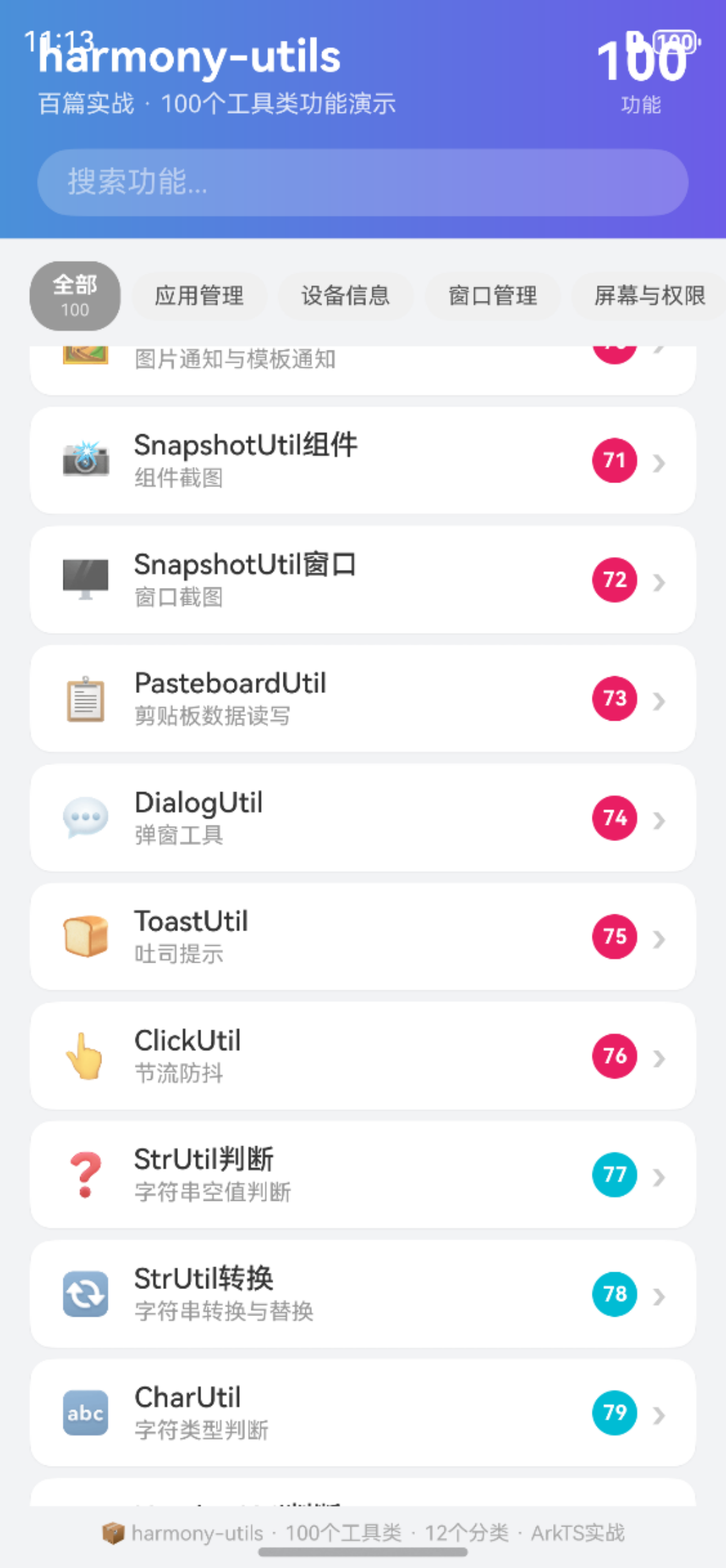
弹窗是应用与用户交互的重要方式,用于信息确认、操作提示、数据输入等。@pura/harmony-utils 的 DialogUtil 封装了常用弹窗方法,简化了弹窗的创建和显示。本文将从API说明、代码实战、进阶用法、常见问题等多个维度进行全面讲解,帮助开发者快速掌握并应用到实际项目中。
一、DialogUtil核心API
DialogUtil 提供了以下弹窗方法:
| 方法 | 说明 | 返回类型 | 使用场景 |
|---|---|---|---|
showAlert(title, message) |
显示提示弹窗 | void | 信息提示 |
showConfirm(title, message) |
显示确认弹窗 | boolean | 操作确认 |
showActionSheet(options) |
显示列表选择弹窗 | number | 选项选择 |
1.1 核心特性
- 简洁易用:封装复杂API为一行调用,降低使用门槛
- 类型安全:完整的TypeScript类型定义,编译期即可发现错误
- 异常处理:内置异常捕获机制,避免运行时崩溃
- 多种样式:支持提示、确认、列表选择三种弹窗
1.2 弹窗类型对照
| 类型 | 方法 | 按钮数 | 返回值 |
|---|---|---|---|
| 提示弹窗 | showAlert | 1个(确定) | void |
| 确认弹窗 | showConfirm | 2个(确认/取消) | boolean |
| 列表选择 | showActionSheet | 多个选项 | number |
二、完整使用步骤
2.1 安装依赖
ohpm install @pura/harmony-utils
2.2 提示弹窗
import { DialogUtil } from '@pura/harmony-utils';

Button('显示提示弹窗')
  .width('100%')
  .onClick(() => {
    try {
      DialogUtil.showAlert('提示', '操作已完成');
      this.result = '提示弹窗已显示 💬';
    } catch (e) {
      this.result = '异常: ' + e;
    }
  })
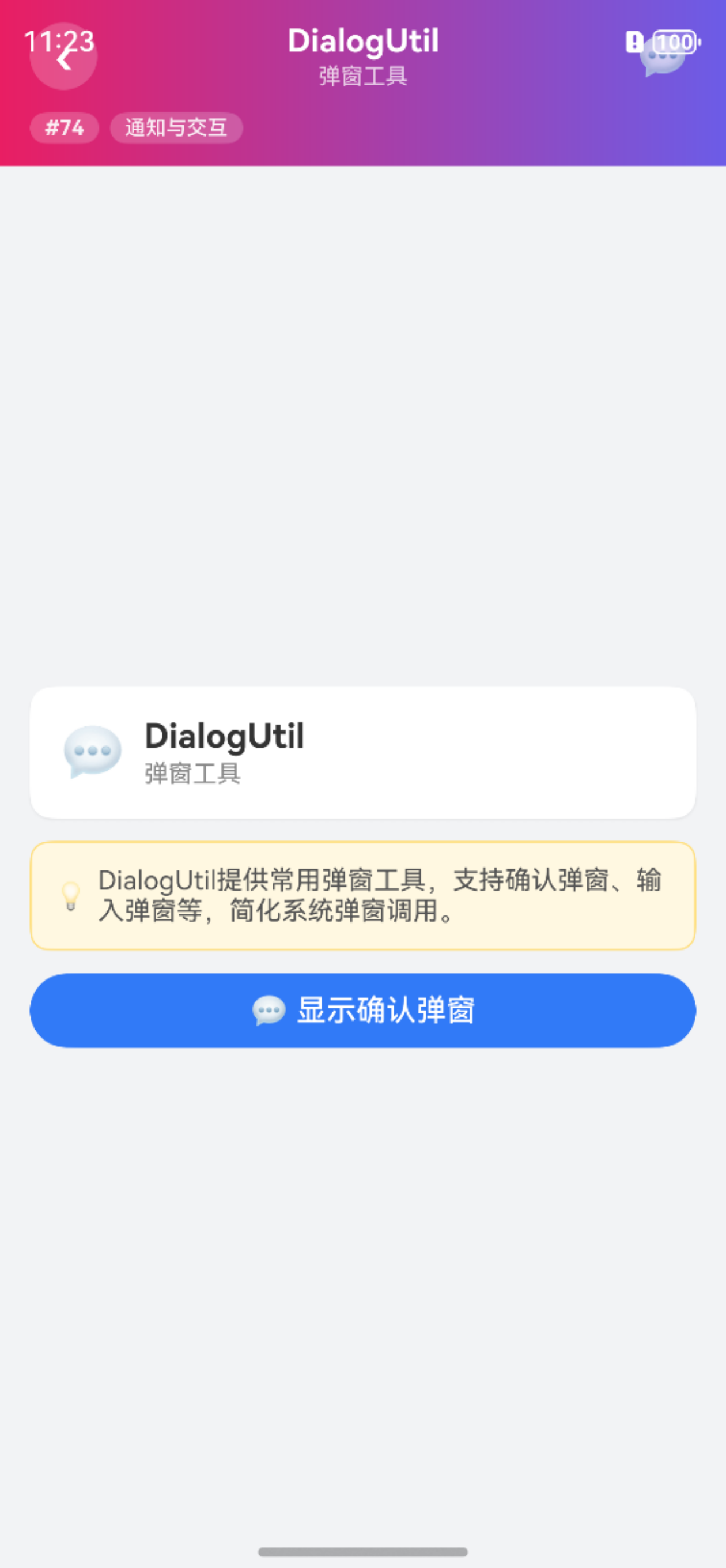
2.3 确认弹窗
Button('显示确认弹窗')
  .width('100%')
  .onClick(async () => {
    try {
      let confirmed = await DialogUtil.showConfirm('确认', '是否删除此文件?');
      this.result = `用户选择: ${confirmed ? '确认 ✅' : '取消 ❌'}`;
    } catch (e) {
      this.result = '异常: ' + e;
    }
  })
2.4 列表选择弹窗
Button('显示选择弹窗')
  .width('100%')
  .onClick(async () => {
    try {
      let index = await DialogUtil.showActionSheet(['拍照', '相册', '取消']);
      this.result = `选择了: 第${index}项`;
    } catch (e) {
      this.result = '异常: ' + e;
    }
  })
三、完整页面示例
import { DialogUtil } from '@pura/harmony-utils';

@Entry
@Component
struct DialogDemo {
  @State result: string = '';

  build() {
    Column({ space: 12 }) {
      Button('提示弹窗').width('100%').onClick(() => {
        DialogUtil.showAlert('提示', '操作成功');
      });
      Button('确认弹窗').width('100%').onClick(async () => {
        let ok = await DialogUtil.showConfirm('确认', '是否继续?');
        this.result = ok ? '确认' : '取消';
      });
      Button('选择弹窗').width('100%').onClick(async () => {
        let idx = await DialogUtil.showActionSheet(['选项1', '选项2']);
        this.result = `选择: ${idx}`;
      });
      Text(this.result).fontSize(14).fontColor('#333333')
    }
    .padding(16)
  }
}
四、进阶用法
4.1 删除确认
import { DialogUtil, ToastUtil } from '@pura/harmony-utils';

async function confirmDelete(filename: string): Promise<void> {
  let confirmed = await DialogUtil.showConfirm('删除确认', `确定删除 ${filename} 吗?此操作不可恢复。`);
  if (confirmed) {
    FileUtil.deleteFile(filename);
    ToastUtil.show('已删除');
  }
}
4.2 图片选择
async function selectImageSource(): Promise<string> {
  let index = await DialogUtil.showActionSheet(['拍照', '从相册选择', '取消']);
  if (index === 0) return 'camera';
  if (index === 1) return 'gallery';
  return 'cancel';
}
五、注意事项
- 异步等待:确认和选择弹窗需使用await等待结果
- UI线程:弹窗需在主线程显示
- 弹窗叠加:避免同时显示多个弹窗
- 初始化依赖:使用前需确保
AppUtil.init()已调用 - 文案规范:弹窗文案应简洁明了
六、常见问题
Q1: showConfirm()返回值一直是false?
确保使用await等待用户操作结果。
Q2: 弹窗显示后页面还能操作吗?
弹窗显示时页面被遮罩,无法操作,这是正常的模态行为。
Q3: 可以自定义弹窗样式吗?
DialogUtil提供标准样式,如需自定义请使用ArkUI的自定义弹窗。
Q4: showActionSheet()取消时返回什么?
取消时通常返回-1或最后一个索引,具体取决于实现。
总结
DialogUtil 的弹窗方法为用户交互提供了标准化支持。本文详细介绍了核心API、使用步骤、完整示例、进阶用法以及常见问题的解决方案。开发者可以根据场景选择提示、确认或列表选择弹窗。
本文基于
@pura/harmony-utils工具库,更多功能请参考官方文档与后续系列文章。

开源鸿蒙跨平台开发社区汇聚开发者与厂商,共建“一次开发,多端部署”的开源生态,致力于降低跨端开发门槛,推动万物智联创新。
更多推荐
 1
1 0
0- 0


 已为社区贡献42条内容

所有评论(0)