在React Native鸿蒙跨平台采用 React Native + TypeScript 的函数式组件模式,配合 FlatList 做大规模列表虚拟化渲染与下拉刷新、上拉加载更多
本文介绍了使用React Native和TypeScript实现的净水知识列表页,重点分析了其跨平台适配性,特别是对鸿蒙系统的支持。文章详细解析了代码结构,包括模块引入、图标处理、类型定义、列表项组件设计和页面状态管理。关键技术点包括:使用FlatList实现高性能虚拟化列表,TypeScript类型约束保证数据安全,emoji图标跨平台兼容性处理,以及分页加载和刷新状态管理。针对鸿蒙平台,强调需
React Native + 鸿蒙跨端技术解读:净水知识列表页
这段代码实现了一个以资讯内容为核心的列表页,采用 React Native + TypeScript 的函数式组件模式,配合 FlatList 做大规模列表虚拟化渲染与下拉刷新、上拉加载更多。在跨端角度,它遵循 RN 的标准组件栈,若目标平台包含鸿蒙(OpenHarmony),则需要依赖 RN 的鸿蒙适配层以将这些标准组件映射到 ArkUI/系统控件,本文将按代码结构逐段解析,并结合鸿蒙跨端的关注点给出工程化建议。
模块引入与整体结构
import React, { useState, useEffect } from 'react';
import { SafeAreaView, View, Text, StyleSheet, TouchableOpacity, FlatList, Dimensions, Alert, RefreshControl } from 'react-native';
页面以函数式组件组织,使用 useState 管理局部状态,useEffect 进行初始化数据加载。React Native 组件选择集中而克制:SafeAreaView 处理异形屏安全区,FlatList 提供高性能列表虚拟化,RefreshControl 绑定下拉刷新,Alert 用于轻量交互。跨端层面,这些组件在 iOS/Android 有成熟映射;在 OpenHarmony 上,需要通过适配层将其桥接到 ArkUI/系统能力,确保手势、滚动物理和安全区行为的一致性。
图标与尺寸
const ICONS = {
  water: '💧',
  article: '📄',
  like: '👍',
  comment: '💬',
  share: '📤',
  bookmark: '🔖',
  time: '⏱️',
  user: '👤',
};

const { width } = Dimensions.get('window');
图标使用 emoji,取代第三方矢量图标库以减少依赖。跨端实践中需留意字体与 emoji 的差异:在部分设备或鸿蒙定制字体环境下,emoji 的渲染风格与兼容性可能不一致。尺寸通过 Dimensions 获取窗口宽度,用于后续布局计算;若考虑横竖屏切换,建议改用 useWindowDimensions 并在维度变化时自动重渲染,以避免旋转时宽度不更新。
领域模型与类型约束
type Article = {
  id: number;
  title: string;
  excerpt: string;
  author: string;
  date: string;
  readTime: string;
  likes: number;
  comments: number;
  category: string;
  isBookmarked: boolean;
  image: string;
};
TypeScript 类型清晰约束了文章数据的结构,为组件间的输入契约与后续数据源接入打下基础。likes、comments、isBookmarked 这些字段支持本地交互乐观更新;image 字段用于封面图显示(当前 UI 未使用,后续可扩展)。
列表项组件:ArticleItem
const ArticleItem = ({
  article,
  onPress,
  onLike,
  onBookmark
}: {
  article: Article;
  onPress: () => void;
  onLike: (id: number) => void;
  onBookmark: (id: number) => void;
}) => {
  return (
    <TouchableOpacity style={styles.articleItem} onPress={onPress}>
      <View style={styles.articleContent}>
        <View style={styles.textContent}>
          <Text style={styles.category}>{article.category}</Text>
          <Text style={styles.title}>{article.title}</Text>
          <Text style={styles.excerpt}>{article.excerpt}</Text>

          <View style={styles.articleMeta}>
            <View style={styles.authorInfo}>
              <Text style={styles.authorIcon}>{ICONS.user}</Text>
              <Text style={styles.author}>{article.author}</Text>
            </View>
            <View style={styles.dateInfo}>
              <Text style={styles.dateIcon}>{ICONS.time}</Text>
              <Text style={styles.date}>{article.date}</Text>
            </View>
            <Text style={styles.readTime}>{article.readTime}</Text>
          </View>

          <View style={styles.articleStats}>
            <TouchableOpacity style={styles.statItem} onPress={() => onLike(article.id)}>
              <Text style={styles.statIcon}>{ICONS.like}</Text>
              <Text style={styles.statText}>{article.likes}</Text>
            </TouchableOpacity>
            <View style={styles.statItem}>
              <Text style={styles.statIcon}>{ICONS.comment}</Text>
              <Text style={styles.statText}>{article.comments}</Text>
            </View>
            <TouchableOpacity style={styles.statItem} onPress={() => onBookmark(article.id)}>
              <Text style={[styles.statIcon, article.isBookmarked && styles.bookmarkedIcon]}>
                {article.isBookmarked ? '📚' : ICONS.bookmark}
              </Text>
            </TouchableOpacity>
          </View>
        </View>
      </View>
    </TouchableOpacity>
  );
};
卡片以文本信息为主,结构化地呈现分类、标题、摘要与元信息,然后提供点赞、评论数量和收藏动作。TouchableOpacity 在各端都能提供点击响应;更多触觉反馈可使用 Pressable 并结合 android_ripple 或 ArkUI 的波纹效果适配。跨端注意点包括文本的行高与字体渲染差异,以及 emoji 在收藏切换姿态下的对齐与基线差异。
页面组件:WaterArticleList
const WaterArticleList: React.FC = () => {
  const [articles, setArticles] = useState<Article[]>([]);
  const [refreshing, setRefreshing] = useState(false);
  const [page, setPage] = useState(1);
  const [loadingMore, setLoadingMore] = useState(false);
  const [hasMore, setHasMore] = useState(true);
状态管理围绕列表数据与滚动交互:articles 存储当前页数据;refreshing 驱动下拉刷新控件;page/hasMore/loadingMore 用于增量加载的状态机。这样的状态切分利于明确控制 FlatList 的刷新与分页行为。
  const loadArticles = (pageNum: number, append = false) => {
    setTimeout(() => {
      const newArticles: Article[] = Array.from({ length: 10 }, (_, i) => ({
        id: (pageNum - 1) * 10 + i + 1,
        title: `净水知识科普:第${(pageNum - 1) * 10 + i + 1}篇`,
        excerpt: '了解净水器的工作原理,选择合适的滤芯组合,保障家庭饮用水安全。',
        author: `作者${(pageNum - 1) * 10 + i + 1 % 5 + 1}`,
        date: `${2023 - Math.floor(Math.random() * 3)}-${String(Math.floor(Math.random() * 12) + 1).padStart(2, '0')}-${String(Math.floor(Math.random() * 28) + 1).padStart(2, '0')}`,
        readTime: `${Math.floor(Math.random() * 10) + 3}分钟阅读`,
        likes: Math.floor(Math.random() * 100),
        comments: Math.floor(Math.random() * 50),
        category: ['净水知识', '健康生活', '设备维护', '水质检测'][Math.floor(Math.random() * 4)],
        isBookmarked: Math.random() > 0.7,
        image: `https://picsum.photos/300/200?random=${(pageNum - 1) * 10 + i + 1}`,
      }));

      if (append) {
        setArticles(prev => [...prev, ...newArticles]);
      } else {
        setArticles(newArticles);
      }

      if (pageNum >= 5) {
        setHasMore(false);
      }

      if (append) {
        setLoadingMore(false);
      } else {
        setRefreshing(false);
      }
    }, 800);
  };
模拟网络延迟并生成伪数据。注意模板字符串需要保持语法完整以避免打包编译错误;示例中对 image 字段做了规范化,便于后续接入封面图。跨端实践更建议替换为真实网络请求(fetch/axios),并在鸿蒙适配层下确保定时器与网络模块的 JSI/Bridge 行为稳定。分页策略中 pageNum >= 5 的终止条件清晰,避免无穷加载。
  useEffect(() => {
    loadArticles(1);
  }, []);
初始化加载首屏数据。对于长列表的首屏时间,跨端体验可以通过预取与骨架屏(占位卡片)提升感知速度。
  const onRefresh = () => {
    setRefreshing(true);
    loadArticles(1);
    setPage(1);
  };
下拉刷新触发首屏重载,配合 RefreshControl 控件。在不同平台上,刷新控件的视觉与手势反馈略有差异,鸿蒙适配时需保证动画与停止时机一致。
  const loadMore = () => {
    if (!hasMore || loadingMore) return;

    setLoadingMore(true);
    const nextPage = page + 1;
    setPage(nextPage);
    loadArticles(nextPage, true);
  };
上拉加载更多的状态机很简洁:避免并发触发;成功后将 loadingMore 复位。跨端注意 onEndReached 的触发时机与阈值差异,在不同平台滚动物理不同时可能出现过早/过迟触发,建议根据设备调参 onEndReachedThreshold。
  const handleArticlePress = (id: number) => {
    Alert.alert('阅读文章', `您选择了文章 ${id}`);
  };

  const handleLike = (id: number) => {
    setArticles(prev =>
      prev.map(article =>
        article.id === id
          ? { ...article, likes: article.likes + 1 }
          : article
      )
    );
  };

  const handleBookmark = (id: number) => {
    setArticles(prev =>
      prev.map(article =>
        article.id === id
          ? { ...article, isBookmarked: !article.isBookmarked }
          : article
      )
    );
  };
交互事件包含导航占位(Alert)、点赞乐观更新、收藏切换。对于收藏场景,跨端一致性关键在于本地状态与远端持久化的一致。建议配合防抖与错误回滚,尤其在弱网与不同端网络栈差异时。
  const renderItem = ({ item }: { item: Article }) => (
    <ArticleItem
      article={item}
      onPress={() => handleArticlePress(item.id)}
      onLike={handleLike}
      onBookmark={handleBookmark}
    />
  );

  const renderFooter = () => {
    if (!loadingMore) return null;
    return (
      <View style={styles.loadingFooter}>
        <Text style={styles.loadingText}>加载中...</Text>
      </View>
    );
  };
渲染 item 与加载更多的底部视图。工程上可将 renderItem、renderFooter 使用 useCallback 以减少不必要重渲染,ArticleItem 可用 React.memo 包裹配合 props 比较,提升虚拟化列表在低端设备上的性能,跨端尤其重要。
  return (
    <SafeAreaView style={styles.container}>
      <View style={styles.header}>
        <Text style={styles.title}>净水知识</Text>
        <TouchableOpacity style={styles.searchButton}>
          <Text style={styles.searchIcon}>{ICONS.article}</Text>
        </TouchableOpacity>
      </View>

      <FlatList
        data={articles}
        renderItem={renderItem}
        keyExtractor={(item) => item.id.toString()}
        contentContainerStyle={styles.listContent}
        refreshControl={
          <RefreshControl refreshing={refreshing} onRefresh={onRefresh} />
        }
        onEndReached={loadMore}
        onEndReachedThreshold={0.1}
        ListFooterComponent={renderFooter}
        showsVerticalScrollIndicator={false}
      />

      <View style={styles.bottomNav}>
        <TouchableOpacity style={styles.navItem}>
          <Text style={styles.navIcon}>{ICONS.water}</Text>
          <Text style={styles.navText}>首页</Text>
        </TouchableOpacity>
        <TouchableOpacity style={styles.navItem}>
          <Text style={styles.navIcon}>{ICONS.article}</Text>
          <Text style={styles.navText}>文章</Text>
        </TouchableOpacity>
        <TouchableOpacity style={styles.navItem}>
          <Text style={styles.navIcon}>{ICONS.bookmark}</Text>
          <Text style={styles.navText}>收藏</Text>
        </TouchableOpacity>
        <TouchableOpacity style={[styles.navItem, styles.activeNavItem]}>
          <Text style={styles.navIcon}>{ICONS.user}</Text>
          <Text style={styles.navText}>我的</Text>
        </TouchableOpacity>
      </View>
    </SafeAreaView>
  );
};
主体由头部、列表与底部导航构成。FlatList 自带的虚拟化确保长列表在移动端的可用性能;RefreshControl 提供下拉刷新体验;底部导航用视觉强调选中态,后续可接入跨端一致的导航系统(如 React Navigation 的鸿蒙适配)以实现真正的路由切换。
样式系统与视觉
const styles = StyleSheet.create({
  container: { flex: 1, backgroundColor: '#f8fafc' },
  header: { flexDirection: 'row', alignItems: 'center', justifyContent: 'space-between', padding: 20, backgroundColor: '#ffffff', borderBottomWidth: 1, borderBottomColor: '#e2e8f0' },
  title: { fontSize: 20, fontWeight: 'bold', color: '#1e293b' },

  listContent: { padding: 16 },
  articleItem: { backgroundColor: '#ffffff', borderRadius: 12, padding: 16, marginBottom: 16, elevation: 2, shadowColor: '#000', shadowOffset: { width: 0, height: 1 }, shadowOpacity: 0.1, shadowRadius: 2 },

  articleContent: { flexDirection: 'row' },
  textContent: { flex: 1 },

  category: { fontSize: 12, color: '#3b82f6', backgroundColor: '#dbeafe', paddingHorizontal: 8, paddingVertical: 4, borderRadius: 12, alignSelf: 'flex-start', marginBottom: 8 },
  excerpt: { fontSize: 14, color: '#64748b', lineHeight: 20, marginBottom: 12 },

  articleMeta: { flexDirection: 'row', justifyContent: 'space-between', marginBottom: 12, alignItems: 'center' },
  authorInfo: { flexDirection: 'row', alignItems: 'center' },
  authorIcon: { fontSize: 14, marginRight: 4, color: '#94a3b8' },
  author: { fontSize: 12, color: '#64748b' },
  dateInfo: { flexDirection: 'row', alignItems: 'center' },
  dateIcon: { fontSize: 14, marginRight: 4, color: '#94a3b8' },
  date: { fontSize: 12, color: '#64748b' },
  readTime: { fontSize: 12, color: '#64748b' },

  articleStats: { flexDirection: 'row', justifyContent: 'flex-start' },
  statItem: { flexDirection: 'row', alignItems: 'center', marginRight: 16 },
  statIcon: { fontSize: 14, color: '#94a3b8', marginRight: 4 },
  bookmarkedIcon: { color: '#f59e0b' },
  statText: { fontSize: 12, color: '#64748b' },

  loadingFooter: { paddingVertical: 20, alignItems: 'center' },
  loadingText: { fontSize: 14, color: '#64748b' },

  bottomNav: { flexDirection: 'row', justifyContent: 'space-around', backgroundColor: '#ffffff', borderTopWidth: 1, borderTopColor: '#e2e8f0', paddingVertical: 12 },
  navItem: { alignItems: 'center' },
  activeNavItem: { paddingBottom: 2, borderBottomWidth: 2, borderBottomColor: '#3b82f6' },
  navIcon: { fontSize: 20, color: '#94a3b8', marginBottom: 4 },
  activeNavIcon: { color: '#3b82f6' },
  navText: { fontSize: 12, color: '#94a3b8' },
  activeNavText: { color: '#3b82f6', fontWeight: '500' },
});
色板偏中性与语义色(蓝/灰),风格近似 Tailwind 的清爽基调。卡片阴影同时使用 iOS 的 shadowXxx 与 Android 的 elevation 做适配;在鸿蒙端,若适配层尚未原生支持阴影参数,建议以边框、背景层叠或平台选择方案兜底,确保视觉一致。文本的行高、字重在不同端可能有细微差异,工程中可借助 Platform.select 做微调。
性能与体验要点
- FlatList 虚拟化在跨端场景是性能关键。尽量使用稳定的 keyExtractor(当前使用 id),避免在 renderItem 中创建匿名函数导致额外重渲染,建议配合 useCallback 和 React.memo。
- 上拉加载更多在不同平台滚动物理下触发时机存在差异。通过调节 onEndReachedThreshold、控制 loadingMore 状态和防抖策略提高稳定性。
- Emoji 图标简洁但在不同端的渲染差异明显。生产环境更推荐统一图标集(例如基于 SVG 的跨端库或平台原生图标适配层)。
- 刷新与首屏体验可以加入骨架屏占位,结合 InteractionManager 或优先渲染关键区域,减少感知等待。
鸿蒙跨端适配关注点
- 组件桥接:SafeAreaView、FlatList、RefreshControl、TouchableOpacity 等需在鸿蒙端有对应 ArkUI/系统组件映射。使用 React Native 的鸿蒙适配层版本时应校验这些模块的支持程度与差异行为。
- 滚动与列表:鸿蒙端的滚动物理和回弹效果可能与 iOS/Android 不同,onEndReached 与惯性滚动的触发窗口需根据真实设备调参。
- 阴影与圆角:shadowXxx、elevation 在鸿蒙端的实现策略可能不同。必要时用 Platform.select 添加替代样式,保证卡片层次。
- 字体与 emoji:鸿蒙系统字体配置可能影响 emoji 的显示一致性。建议为关键图标提供备用方案。
- 安全区与导航:SafeArea 的边界与刘海/状态栏高度在鸿蒙设备上需要确认适配层的正确处理;底部导航若接入跨端路由,需验证手势与动画表现的一致性。
代码健壮性补充
当前伪数据中的 image 字段应确保模板字符串语法正确,以避免编译错误并为后续封面图扩展做好准备。示例的规范写法如前文所示。若计划在列表项中展示图片,建议在 ArticleItem 中加入 Image 组件并开启缓存策略,以适配跨端网络性能差异。
可演进方向
- 将列表项组件用 React.memo 包裹,renderItem、renderFooter 用 useCallback,降低重渲染成本。
- 将 Alert 行为替换为真正的导航流程,并在收藏/点赞中加入网络持久化与失败回滚。
- 使用 useWindowDimensions 响应横竖屏变化,统一跨端宽度计算。
- 抽取文案与色板为资源与主题系统,结合 Platform.select 或适配层的主题能力在各端保持一致。
- 为首屏加载加入骨架屏与占位图,提高跨端的感知性能。
总体来看,这段代码结构清晰、组件边界明确,适合快速跨端落地。通过对列表虚拟化、交互状态机和样式体系的稳健把控,再结合鸿蒙适配层对核心组件的桥接与差异化处理,就能在 iOS、Android 与鸿蒙设备上提供一致而流畅的资讯浏览体验。
完整相关的代码:
// app.tsx
import React, { useState, useEffect } from 'react';
import { SafeAreaView, View, Text, StyleSheet, TouchableOpacity, FlatList, Dimensions, Alert, RefreshControl } from 'react-native';

// 图标库
const ICONS = {
  water: '💧',
  article: '📄',
  like: '👍',
  comment: '💬',
  share: '📤',
  bookmark: '🔖',
  time: '⏱️',
  user: '👤',
};

const { width } = Dimensions.get('window');

// 文章类型
type Article = {
  id: number;
  title: string;
  excerpt: string;
  author: string;
  date: string;
  readTime: string;
  likes: number;
  comments: number;
  category: string;
  isBookmarked: boolean;
  image: string;
};

// 文章列表项组件
const ArticleItem = ({
  article,
  onPress,
  onLike,
  onBookmark
}: {
  article: Article;
  onPress: () => void;
  onLike: (id: number) => void;
  onBookmark: (id: number) => void;
}) => {
  return (
    <TouchableOpacity style={styles.articleItem} onPress={onPress}>
      <View style={styles.articleContent}>
        <View style={styles.textContent}>
          <Text style={styles.category}>{article.category}</Text>
          <Text style={styles.title}>{article.title}</Text>
          <Text style={styles.excerpt}>{article.excerpt}</Text>

          <View style={styles.articleMeta}>
            <View style={styles.authorInfo}>
              <Text style={styles.authorIcon}>{ICONS.user}</Text>
              <Text style={styles.author}>{article.author}</Text>
            </View>
            <View style={styles.dateInfo}>
              <Text style={styles.dateIcon}>{ICONS.time}</Text>
              <Text style={styles.date}>{article.date}</Text>
            </View>
            <Text style={styles.readTime}>{article.readTime}</Text>
          </View>

          <View style={styles.articleStats}>
            <TouchableOpacity style={styles.statItem} onPress={() => onLike(article.id)}>
              <Text style={styles.statIcon}>{ICONS.like}</Text>
              <Text style={styles.statText}>{article.likes}</Text>
            </TouchableOpacity>
            <View style={styles.statItem}>
              <Text style={styles.statIcon}>{ICONS.comment}</Text>
              <Text style={styles.statText}>{article.comments}</Text>
            </View>
            <TouchableOpacity style={styles.statItem} onPress={() => onBookmark(article.id)}>
              <Text style={[styles.statIcon, article.isBookmarked && styles.bookmarkedIcon]}>
                {article.isBookmarked ? '📚' : ICONS.bookmark}
              </Text>
            </TouchableOpacity>
          </View>
        </View>
      </View>
    </TouchableOpacity>
  );
};

// 主页面组件
const WaterArticleList: React.FC = () => {
  const [articles, setArticles] = useState<Article[]>([]);
  const [refreshing, setRefreshing] = useState(false);
  const [page, setPage] = useState(1);
  const [loadingMore, setLoadingMore] = useState(false);
  const [hasMore, setHasMore] = useState(true);

  // 模拟加载文章数据
  const loadArticles = (pageNum: number, append = false) => {
    // 模拟网络请求延迟
    setTimeout(() => {
      const newArticles: Article[] = Array.from({ length: 10 }, (_, i) => ({
        id: (pageNum - 1) * 10 + i + 1,
        title: `净水知识科普:第${(pageNum - 1) * 10 + i + 1}篇`,
        excerpt: '了解净水器的工作原理,选择合适的滤芯组合,保障家庭饮用水安全。',
        author: `作者${(pageNum - 1) * 10 + i + 1 % 5 + 1}`,
        date: `${2023 - Math.floor(Math.random() * 3)}-${String(Math.floor(Math.random() * 12) + 1).padStart(2, '0')}-${String(Math.floor(Math.random() * 28) + 1).padStart(2, '0')}`,
        readTime: `${Math.floor(Math.random() * 10) + 3}分钟阅读`,
        likes: Math.floor(Math.random() * 100),
        comments: Math.floor(Math.random() * 50),
        category: ['净水知识', '健康生活', '设备维护', '水质检测'][Math.floor(Math.random() * 4)],
        isBookmarked: Math.random() > 0.7,
        image: `https://picsum.photos/300/200?random=${(pageNum - 1) * 10 + i + 1}`,
      }));

      if (append) {
        setArticles(prev => [...prev, ...newArticles]);
      } else {
        setArticles(newArticles);
      }

      if (pageNum >= 5) {
        setHasMore(false);
      }

      if (append) {
        setLoadingMore(false);
      } else {
        setRefreshing(false);
      }
    }, 800);
  };

  // 初始化加载
  useEffect(() => {
    loadArticles(1);
  }, []);

  // 下拉刷新
  const onRefresh = () => {
    setRefreshing(true);
    loadArticles(1);
    setPage(1);
  };

  // 加载更多
  const loadMore = () => {
    if (!hasMore || loadingMore) return;

    setLoadingMore(true);
    const nextPage = page + 1;
    setPage(nextPage);
    loadArticles(nextPage, true);
  };

  // 处理文章点击
  const handleArticlePress = (id: number) => {
    Alert.alert('阅读文章', `您选择了文章 ${id}`);
  };

  // 处理点赞
  const handleLike = (id: number) => {
    setArticles(prev =>
      prev.map(article =>
        article.id === id
          ? { ...article, likes: article.likes + 1 }
          : article
      )
    );
  };

  // 处理收藏
  const handleBookmark = (id: number) => {
    setArticles(prev =>
      prev.map(article =>
        article.id === id
          ? { ...article, isBookmarked: !article.isBookmarked }
          : article
      )
    );
  };

  // 渲染列表项
  const renderItem = ({ item }: { item: Article }) => (
    <ArticleItem
      article={item}
      onPress={() => handleArticlePress(item.id)}
      onLike={handleLike}
      onBookmark={handleBookmark}
    />
  );

  // 渲染加载更多组件
  const renderFooter = () => {
    if (!loadingMore) return null;
    return (
      <View style={styles.loadingFooter}>
        <Text style={styles.loadingText}>加载中...</Text>
      </View>
    );
  };

  return (
    <SafeAreaView style={styles.container}>
      {/* 头部 */}
      <View style={styles.header}>
        <Text style={styles.title}>净水知识</Text>
        <TouchableOpacity style={styles.searchButton}>
          <Text style={styles.searchIcon}>{ICONS.article}</Text>
        </TouchableOpacity>
      </View>

      {/* 文章列表 */}
      <FlatList
        data={articles}
        renderItem={renderItem}
        keyExtractor={(item) => item.id.toString()}
        contentContainerStyle={styles.listContent}
        refreshControl={
          <RefreshControl refreshing={refreshing} onRefresh={onRefresh} />
        }
        onEndReached={loadMore}
        onEndReachedThreshold={0.1}
        ListFooterComponent={renderFooter}
        showsVerticalScrollIndicator={false}
      />

      {/* 底部导航 */}
      <View style={styles.bottomNav}>
        <TouchableOpacity style={styles.navItem}>
          <Text style={styles.navIcon}>{ICONS.water}</Text>
          <Text style={styles.navText}>首页</Text>
        </TouchableOpacity>
        <TouchableOpacity style={styles.navItem}>
          <Text style={styles.navIcon}>{ICONS.article}</Text>
          <Text style={styles.navText}>文章</Text>
        </TouchableOpacity>
        <TouchableOpacity style={styles.navItem}>
          <Text style={styles.navIcon}>{ICONS.bookmark}</Text>
          <Text style={styles.navText}>收藏</Text>
        </TouchableOpacity>
        <TouchableOpacity style={[styles.navItem, styles.activeNavItem]}>
          <Text style={styles.navIcon}>{ICONS.user}</Text>
          <Text style={styles.navText}>我的</Text>
        </TouchableOpacity>
      </View>
    </SafeAreaView>
  );
};

const styles = StyleSheet.create({
  container: {
    flex: 1,
    backgroundColor: '#f8fafc',
  },
  header: {
    flexDirection: 'row',
    alignItems: 'center',
    justifyContent: 'space-between',
    padding: 20,
    backgroundColor: '#ffffff',
    borderBottomWidth: 1,
    borderBottomColor: '#e2e8f0',
  },
  title: {
    fontSize: 20,
    fontWeight: 'bold',
    color: '#1e293b',
  },
  searchButton: {
    padding: 8,
  },
  searchIcon: {
    fontSize: 20,
    color: '#64748b',
  },
  listContent: {
    padding: 16,
  },
  articleItem: {
    backgroundColor: '#ffffff',
    borderRadius: 12,
    padding: 16,
    marginBottom: 16,
    elevation: 2,
    shadowColor: '#000',
    shadowOffset: { width: 0, height: 1 },
    shadowOpacity: 0.1,
    shadowRadius: 2,
  },
  articleContent: {
    flexDirection: 'row',
  },
  textContent: {
    flex: 1,
  },
  category: {
    fontSize: 12,
    color: '#3b82f6',
    backgroundColor: '#dbeafe',
    paddingHorizontal: 8,
    paddingVertical: 4,
    borderRadius: 12,
    alignSelf: 'flex-start',
    marginBottom: 8,
  },
  title: {
    fontSize: 16,
    fontWeight: 'bold',
    color: '#1e293b',
    marginBottom: 8,
    lineHeight: 22,
  },
  excerpt: {
    fontSize: 14,
    color: '#64748b',
    lineHeight: 20,
    marginBottom: 12,
  },
  articleMeta: {
    flexDirection: 'row',
    justifyContent: 'space-between',
    marginBottom: 12,
    alignItems: 'center',
  },
  authorInfo: {
    flexDirection: 'row',
    alignItems: 'center',
  },
  authorIcon: {
    fontSize: 14,
    marginRight: 4,
    color: '#94a3b8',
  },
  author: {
    fontSize: 12,
    color: '#64748b',
  },
  dateInfo: {
    flexDirection: 'row',
    alignItems: 'center',
  },
  dateIcon: {
    fontSize: 14,
    marginRight: 4,
    color: '#94a3b8',
  },
  date: {
    fontSize: 12,
    color: '#64748b',
  },
  readTime: {
    fontSize: 12,
    color: '#64748b',
  },
  articleStats: {
    flexDirection: 'row',
    justifyContent: 'flex-start',
  },
  statItem: {
    flexDirection: 'row',
    alignItems: 'center',
    marginRight: 16,
  },
  statIcon: {
    fontSize: 14,
    color: '#94a3b8',
    marginRight: 4,
  },
  bookmarkedIcon: {
    color: '#f59e0b',
  },
  statText: {
    fontSize: 12,
    color: '#64748b',
  },
  loadingFooter: {
    paddingVertical: 20,
    alignItems: 'center',
  },
  loadingText: {
    fontSize: 14,
    color: '#64748b',
  },
  bottomNav: {
    flexDirection: 'row',
    justifyContent: 'space-around',
    backgroundColor: '#ffffff',
    borderTopWidth: 1,
    borderTopColor: '#e2e8f0',
    paddingVertical: 12,
  },
  navItem: {
    alignItems: 'center',
  },
  activeNavItem: {
    paddingBottom: 2,
    borderBottomWidth: 2,
    borderBottomColor: '#3b82f6',
  },
  navIcon: {
    fontSize: 20,
    color: '#94a3b8',
    marginBottom: 4,
  },
  activeNavIcon: {
    color: '#3b82f6',
  },
  navText: {
    fontSize: 12,
    color: '#94a3b8',
  },
  activeNavText: {
    color: '#3b82f6',
    fontWeight: '500',
  },
});

export default WaterArticleList;
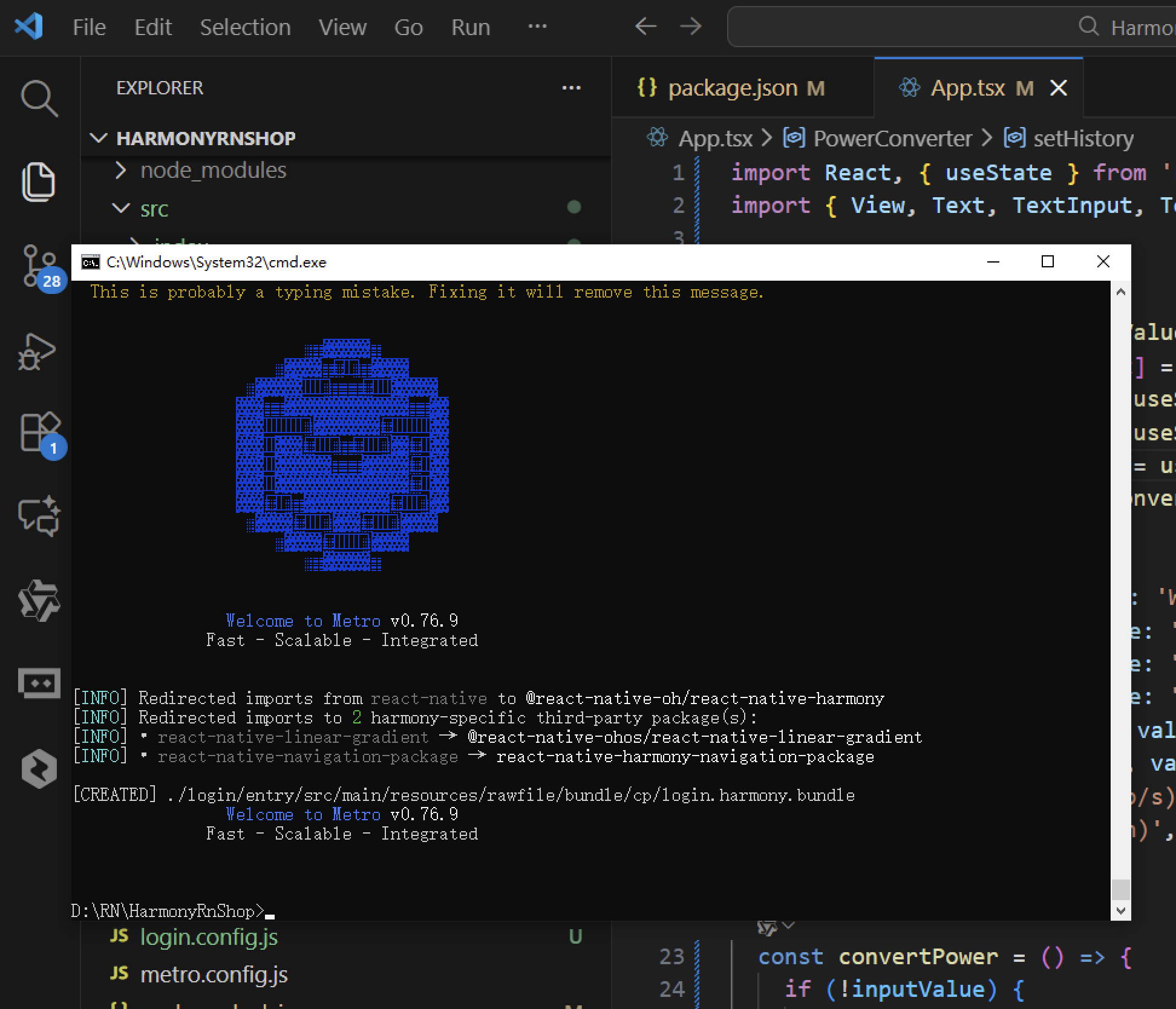
打包
接下来通过打包命令npn run harmony将reactNative的代码打包成为bundle,这样可以进行在开源鸿蒙OpenHarmony中进行使用。
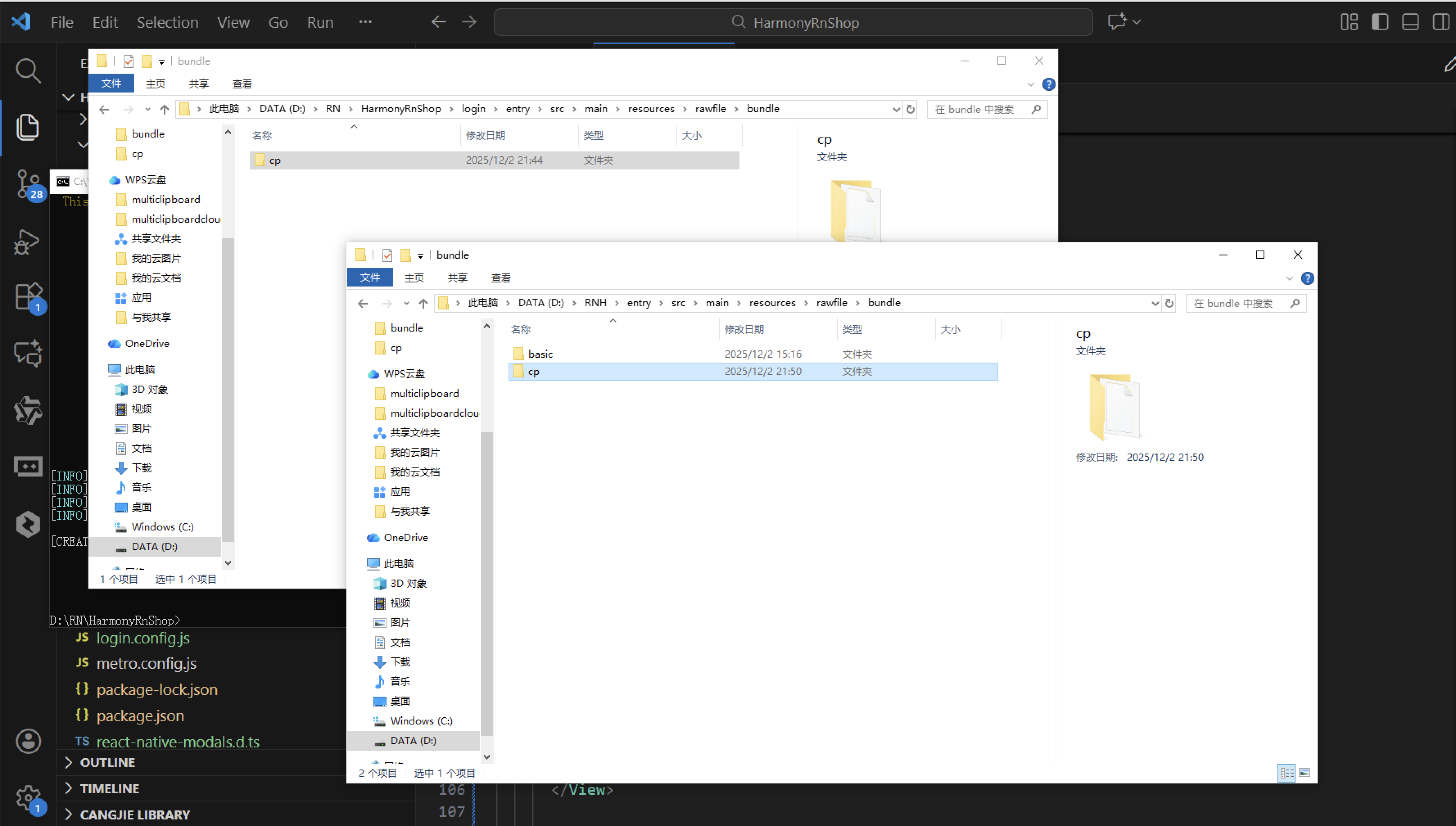
打包之后再将打包后的鸿蒙OpenHarmony文件拷贝到鸿蒙的DevEco-Studio工程目录去:
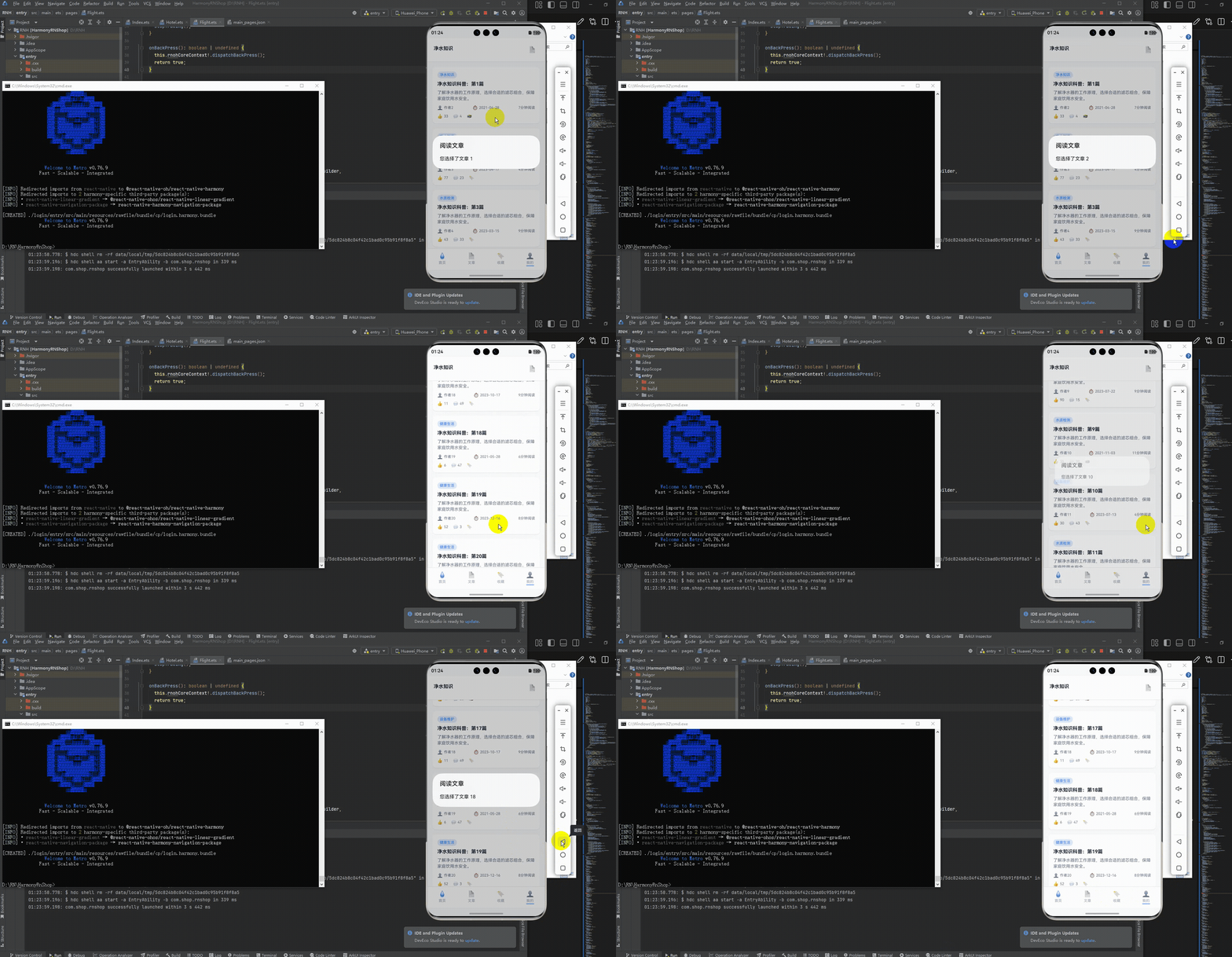
最后运行效果图如下显示:
欢迎大家加入开源鸿蒙跨平台开发者社区,一起共建开源鸿蒙跨平台生态。

开源鸿蒙跨平台开发社区汇聚开发者与厂商,共建“一次开发,多端部署”的开源生态,致力于降低跨端开发门槛,推动万物智联创新。
更多推荐
 17
17 0
0- 0


 已为社区贡献35条内容

所有评论(0)