以本地状态 activeTab 控制视图切换,接入跨端路由(React Navigation 的鸿蒙适配),React Native鸿蒙跨平台开发来实战
概述
本文分析的是一个基于React Native构建的个人预算管理系统,集成了预算监控、收支记录、数据统计等核心财务管理功能。该应用采用了复杂的数据模型设计、动态进度条展示和模态框交互,展现了个人财务管理类应用的典型技术架构。在鸿蒙OS的跨端适配场景中,这种涉及复杂数据计算和交互的应用具有重要的技术参考价值。
核心数据架构设计
多维度财务数据模型
type BudgetItem = {
  id: string;
  title: string;
  amount: number;
  spent: number;
  category: string;
  date: string;
  note?: string;
};

type Transaction = {
  id: string;
  title: string;
  amount: number;
  type: 'income' | 'expense';
  category: string;
  date: string;
  note?: string;
};
数据模型设计理念:
- 分离的预算和交易数据结构
- 明确的类型定义确保数据一致性
- 可选字段支持灵活的扩展需求
- 时间维度支持历史数据分析
鸿蒙数据模型适配:
// 鸿蒙ArkTS中的接口定义
interface BudgetItem {
  id: string;
  title: string;
  amount: number;
  spent: number;
  category: string;
  date: string;
  note?: string;
}

interface Transaction {
  id: string;
  title: string;
  amount: number;
  type: 'income' | 'expense';
  category: string;
  date: string;
  note?: string;
}
智能预算卡片组件
const BudgetCard = ({ budget, onDelete }: {
  budget: BudgetItem;
  onDelete: (id: string) => void
}) => {
  const percentage = Math.min(100, (budget.spent / budget.amount) * 100);

  return (
    <View style={styles.budgetCard}>
      <View style={styles.cardHeader}>
        <Text style={styles.budgetTitle}>{budget.title}</Text>
        <TouchableOpacity onPress={() => onDelete(budget.id)}>
          <Text style={styles.deleteIcon}>{ICONS.delete}</Text>
        </TouchableOpacity>
      </View>
      <Text style={styles.budgetCategory}>{budget.category}</Text>
      <Text style={styles.budgetAmount}>¥{budget.spent.toFixed(2)} / ¥{budget.amount.toFixed(2)}</Text>

      <View style={styles.progressBarContainer}>
        <View style={styles.progressBarBackground}>
          <View
            style={[
              styles.progressBarFill,
              {
                width: `${percentage}%`,
                backgroundColor: percentage > 90 ? '#ef4444' : percentage > 70 ? '#f59e0b' : '#10b981'
              }
            ]}
          />
        </View>
        <Text style={styles.progressText}>{percentage.toFixed(0)}%</Text>
      </View>
    </View>
  );
};
组件技术特点:
- 动态百分比计算实现进度可视化
- 条件颜色映射提供直观的状态反馈
- 精确的金额格式化展示
- 统一的删除操作接口
鸿蒙预算卡片实现:
@Component
struct BudgetCard {
  @Prop budget: BudgetItem;
  @Prop onDelete: (id: string) => void;

  get percentage(): number {
    return Math.min(100, (this.budget.spent / this.budget.amount) * 100);
  }

  get progressColor(): Color {
    if (this.percentage > 90) return Color.Red;
    if (this.percentage > 70) return Color.Orange;
    return Color.Green;
  }

  build() {
    Column() {
      Row() {
        Text(this.budget.title)
          .fontSize(16)
          .fontWeight(FontWeight.Bold)

        Button('', { type: ButtonType.Normal })
          .onClick(() => this.onDelete(this.budget.id))
      }

      Text(this.budget.category)
      Text(`¥${this.budget.spent.toFixed(2)} / ¥${this.budget.amount.toFixed(2)}`)

      // 进度条实现
      Stack() {
        Column()
          .width(`${this.percentage}%`)
          .height('100%')
          .backgroundColor(this.progressColor)
      }
      .height(8)
      .backgroundColor(Color.Gray)

      Text(`${this.percentage.toFixed(0)}%`)
    }
  }
}
状态管理与业务逻辑
复杂状态交互系统
const [budgets, setBudgets] = useState<BudgetItem[]>([]);
const [transactions, setTransactions] = useState<Transaction[]>([]);
const [showAddBudget, setShowAddBudget] = useState(false);
const [showAddTransaction, setShowAddTransaction] = useState(false);
const [activeTab, setActiveTab] = useState('budget');
状态设计策略:
- 分离的数据状态管理
- UI控制状态独立维护
- 明确的初始值设置
- 类型安全的状体定义
鸿蒙状态管理迁移:
@State budgets: BudgetItem[] = [];
@State transactions: Transaction[] = [];
@State showAddBudget: boolean = false;
@State showAddTransaction: boolean = false;
@State activeTab: string = 'budget';
财务计算引擎
// 计算总收入、总支出和余额
const totalIncome = transactions
  .filter(t => t.type === 'income')
  .reduce((sum, t) => sum + t.amount, 0);

const totalExpense = transactions
  .filter(t => t.type === 'expense')
  .reduce((sum, t) => sum + t.amount, 0);

const balance = totalIncome - totalExpense;
计算逻辑优势:
- 函数式编程实现简洁的聚合计算
- 类型过滤确保计算准确性
- 实时更新支持动态数据展示
- 清晰的业务语义表达
鸿蒙计算属性实现:
get totalIncome(): number {
  return this.transactions
    .filter(t => t.type === 'income')
    .reduce((sum, t) => sum + t.amount, 0);
}

get totalExpense(): number {
  return this.transactions
    .filter(t => t.type === 'expense')
    .reduce((sum, t) => sum + t.amount, 0);
}

get balance(): number {
  return this.totalIncome - this.totalExpense;
}
模态框与表单系统
可复用模态框组件
const AddBudgetModal = ({ visible, onClose, onSave }: {
  visible: boolean;
  onClose: () => void;
  onSave: (budget: Omit<BudgetItem, 'id' | 'spent' | 'date'>) => void
}) => {
  const [title, setTitle] = useState('');
  const [amount, setAmount] = useState('');
  const [category, setCategory] = useState('');

  const handleSave = () => {
    if (!title || !amount || !category) {
      Alert.alert('错误', '请填写所有必填字段');
      return;
    }

    onSave({ title, amount: parseFloat(amount), category, note: '' });
  };

  if (!visible) return null;

  return (
    <View style={styles.modalOverlay}>
      <View style={styles.modalContent}>
        {/* 表单内容 */}
      </View>
    </View>
  );
};
模态框设计特点:
- 可控的显示状态管理
- 完整的生命周期管理
- 严格的数据验证机制
- 清晰的回调接口设计
鸿蒙模态框实现:
@Component
struct AddBudgetModal {
  @Prop visible: boolean = false;
  @Prop onClose: () => void = () => {};
  @Prop onSave: (budget: any) => void = () => {};

  @State title: string = '';
  @State amount: string = '';
  @State category: string = '';

  handleSave() {
    if (!this.title || !this.amount || !this.category) {
      prompt.showToast({ message: '请填写所有必填字段' });
      return;
    }

    this.onSave({
      title: this.title,
      amount: parseFloat(this.amount),
      category: this.category,
      note: ''
    });
  }

  build() {
    if (!this.visible) return null;

    Column() {
      // 模态框内容
    }
  }
}
交互系统与用户体验
动态进度条可视化
<View style={styles.progressBarBackground}>
  <View
    style={[
      styles.progressBarFill,
      {
        width: `${percentage}%`,
        backgroundColor: percentage > 90 ? '#ef4444' : percentage > 70 ? '#f59e0b' : '#10b981'
      }
    ]}
  />
</View>
可视化技术优势:
- 动态宽度计算实现精确进度展示
- 条件颜色映射提供直观状态反馈
- 平滑的动画过渡效果
- 响应式的布局设计
鸿蒙进度条实现:
// 使用动画实现平滑过渡
@State currentWidth: number = 0;

aboutToAppear() {
  animateTo({ duration: 500 }, () => {
    this.currentWidth = this.percentage;
  });
}

build() {
  Column() {
    Stack() {
      Column()
        .width(`${this.currentWidth}%`)
        .height('100%')
        .backgroundColor(this.progressColor)
    }
    .height(8)
    .backgroundColor(Color.Gray)
  }
}
多标签导航系统
<View style={styles.tabContainer}>
  <TouchableOpacity
    style={[styles.tab, activeTab === 'budget' && styles.activeTab]}
    onPress={() => setActiveTab('budget')}
  >
    <Text style={[styles.tabText, activeTab === 'budget' && styles.activeTabText]}>预算</Text>
  </TouchableOpacity>
  <TouchableOpacity
    style={[styles.tab, activeTab === 'transactions' && styles.activeTab]}
    onPress={() => setActiveTab('transactions')}
  >
    <Text style={[styles.tabText, activeTab === 'transactions' && styles.activeTabText]}>收支记录</Text>
  </TouchableOpacity>
</View>
导航设计特点:
- 状态驱动的视觉反馈
- 一致的交互模式
- 清晰的选中状态指示
- 流畅的切换体验
鸿蒙导航实现:
// 使用Tabs组件或自定义实现
Tabs({ index: this.activeTab === 'budget' ? 0 : 1 }) {
  TabContent() {
    // 预算页面
  }
  TabContent() {
    // 交易页面
  }
}
.onChange((index: number) => {
  this.activeTab = index === 0 ? 'budget' : 'transactions';
})
跨端适配技术方案
组件映射策略
| React Native组件 | 鸿蒙ArkUI组件 | 关键适配点 |
|---|---|---|
TouchableOpacity | Button | 事件处理和样式需要调整 |
TextInput | TextInput | 属性和样式基本一致 |
Modal | 自定义模态框 | 需要重新实现模态框系统 |
ScrollView | Scroll | 滚动行为基本一致 |
样式系统转换
尺寸单位转换:
// React Native中使用绝对值
padding: 16,

// 鸿蒙中使用逻辑像素
.padding(16)
阴影效果适配:
// React Native阴影
elevation: 1,
shadowColor: '#000',
shadowOffset: { width: 0, height: 1 },
shadowOpacity: 0.1,
shadowRadius: 2,

// 鸿蒙阴影
.shadow({
  radius: 2,
  color: '#000000',
  offsetX: 0,
  offsetY: 1,
  opacity: 0.1
})
性能优化与最佳实践
渲染性能优化
- 组件记忆化:
const BudgetCard = React.memo(({ budget, onDelete }) => {
  return (
    <View style={styles.budgetCard}>
      {/* 组件内容 */}
    </View>
  );
});
概览
这段 React Native + TypeScript 代码实现了一个“预算管理系统”页面:以状态驱动的卡片组件呈现预算与收支列表,提供添加预算/交易的模态表单,并在顶部展示总览(收入、支出、余额)。在 iOS/Android 属于标准 RN 组件栈;面向鸿蒙(OpenHarmony),核心在于通过 RN 的鸿蒙适配层将容器、滚动、输入与系统交互桥接到 ArkUI/系统能力。文中围绕关键实现与跨端注意点解读,不涉及样式细节。
[app.tsx](file:///Users/david/workspace/demo/book/app.tsx)
类型建模
- 预算与交易以显式类型封装,约束字段与取值,保证组件输入契约清晰,便于后续接入服务端与校验。
type BudgetItem = {
  id: string;
  title: string;
  amount: number;
  spent: number;
  category: string;
  date: string;
  note?: string;
};

type Transaction = {
  id: string;
  title: string;
  amount: number;
  type: 'income' | 'expense';
  category: string;
  date: string;
  note?: string;
};
- 模态 Save 回调使用 Omit 去除由前端生成的字段(id、date、spent),形成清晰的前后端责任边界。
预算卡片:派生数据与状态更新
- 通过 spent/amount 推导进度百分比与语义色(安全/预警/危险),UI 完全由数据驱动;建议在生产场景以纯函数封装进度与色彩派生,便于单测与一致性。
const BudgetCard = ({ budget, onDelete }: { budget: BudgetItem; onDelete: (id: string) => void }) => {
  const percentage = Math.min(100, (budget.spent / budget.amount) * 100);
  return (
    <View>
      <View>
        <Text>{budget.title}</Text>
        <TouchableOpacity onPress={() => onDelete(budget.id)}>
          <Text>🗑️</Text>
        </TouchableOpacity>
      </View>
      <Text>{budget.category}</Text>
      <Text>¥{budget.spent.toFixed(2)} / ¥{budget.amount.toFixed(2)}</Text>
      <View>
        <View>
          <View style={{ width: `${percentage}%` }} />
        </View>
        <Text>{percentage.toFixed(0)}%</Text>
      </View>
      <Text>{budget.date}</Text>
    </View>
  );
};
- 删除交互以 Alert 桥接系统对话框;三端的外观与行为不同,鸿蒙端需确保对话框规范映射一致。统一视觉建议改用 RN Modal。
交易项:双向类型与金额格式
- 根据 type 选择收入/支出图标与符号,金额使用 toFixed(2) 确保货币精度;建议将货币格式统一封装为工具函数,避免不同 locale 导致的分隔符/符号差异。
const TransactionItem = ({ transaction }: { transaction: Transaction }) => {
  return (
    <View>
      <View>
        <Text>{transaction.type === 'income' ? '📥' : '📤'}</Text>
        <View>
          <Text>{transaction.title}</Text>
          <Text>{transaction.category}</Text>
        </View>
      </View>
      <Text>{transaction.type === 'income' ? '+' : '-'}¥{transaction.amount.toFixed(2)}</Text>
    </View>
  );
};
- 添加交易后更新相关预算的 spent(按 category 匹配),保持不可变更新,保证 React 渲染语义与性能。
添加预算/交易模态:输入法与表单校验
- 模态实现为条件渲染的覆盖层 View(非 RN Modal);鸿蒙端需关注层级与遮罩交互的一致性,复杂场景建议切换 RN Modal 以获得更稳定的系统整合。
const AddBudgetModal = ({ visible, onClose, onSave }: { visible: boolean; onClose: () => void; onSave: (budget: Omit<BudgetItem, 'id' | 'spent' | 'date'>) => void }) => {
  const [title, setTitle] = useState('');
  const [amount, setAmount] = useState('');
  const [category, setCategory] = useState('');

  const handleSave = () => {
    if (!title || !amount || !category) { Alert.alert('错误', '请填写所有必填字段'); return; }
    onSave({ title, amount: parseFloat(amount), category, note: '' });
    onClose();
  };

  if (!visible) return null;

  return (
    <View>
      <View>
        <Text>添加预算</Text>
        <TextInput placeholder="预算名称" value={title} onChangeText={setTitle} />
        <TextInput placeholder="预算金额" keyboardType="numeric" value={amount} onChangeText={setAmount} />
        <TextInput placeholder="类别" value={category} onChangeText={setCategory} />
        {/* 取消/保存 */}
      </View>
    </View>
  );
};
-
keyboardType=“numeric” 在三端的键盘布局与小数点行为不同;建议增加输入规范化(仅允许 0-9 和一个小数点),或使用专门的货币输入组件。鸿蒙端需确保输入法候选与 composition 事件映射正确,避免多次回调或光标异常。
-
交易模态的 type 切换按钮采用本地状态,存储为 ‘income’/‘expense’ 字面量,减少逻辑分支错误。
页面状态与总览计算
- 以 useState 管理 budgets 与 transactions,添加与删除操作保持不可变更新;总收入/总支出/余额使用 reduce 即时计算,不缓存,数据流清晰。
const totalIncome = transactions.filter(t => t.type === 'income').reduce((sum, t) => sum + t.amount, 0);
const totalExpense = transactions.filter(t => t.type === 'expense').reduce((sum, t) => sum + t.amount, 0);
const balance = totalIncome - totalExpense;
- 日期保存为 ISO 字符串的日期部分(split(‘T’)[0]),简洁直接;生产环境下请注意时区影响,建议统一使用 UTC 存储 + 本地化渲染库(dayjs/date-fns),鸿蒙端验证 locale 与时区映射一致。
导航与滚动容器
-
SafeAreaView 包裹顶层,避免内容与系统 UI 冲突;滚动使用 ScrollView,数据增多建议替换 FlatList 获得虚拟化性能与更稳定的滚动事件。
-
选项卡以本地状态 activeTab 控制视图切换;接入跨端路由(React Navigation 的鸿蒙适配)后,验证返回手势、转场动画与状态恢复一致。
系统交互与图标集
-
表单提示与删除确认使用 Alert,占位交互简单直接;如需统一视觉与行为,建议采用自定义弹窗(RN Modal),并在三端提供一致的动效与按钮布局。
-
图标主要使用 emoji,开发阶段便捷;生产建议统一为矢量图标或字体图标栈,避免不同系统字体导致渲染与对齐差异。鸿蒙端通过 ArkUI 图形能力桥接,保持像素级一致。
鸿蒙跨端适配要点
-
输入法与 TextInput:中文输入法的候选、合成、粘贴与光标移动在三端存在差异;鸿蒙端适配需要正确处理 composition 事件,避免多次触发 onChangeText 或选区错位。
-
弹窗与模态:系统 Alert 在鸿蒙端外观与交互规范不同;如用自定义模态,注意层级遮罩、返回键行为与无障碍焦点迁移的统一。
-
时间与本地化:toISOString + split 在跨时区场景可能出现日期偏移;鸿蒙端确保 locale 与时区获取一致,推荐使用统一的日期格式化库
完整代码:
// app.tsx
import React, { useState, useEffect } from 'react';
import { SafeAreaView, View, Text, StyleSheet, TouchableOpacity, ScrollView, Dimensions, Alert, TextInput } from 'react-native';

// 图标库
const ICONS = {
  wallet: '💰',
  income: '📥',
  expense: '📤',
  budget: '📊',
  category: '🏷️',
  edit: '✏️',
  delete: '🗑️',
  plus: '➕',
};

const { width } = Dimensions.get('window');

// 预算类型
type BudgetItem = {
  id: string;
  title: string;
  amount: number;
  spent: number;
  category: string;
  date: string;
  note?: string;
};

// 收支记录类型
type Transaction = {
  id: string;
  title: string;
  amount: number;
  type: 'income' | 'expense';
  category: string;
  date: string;
  note?: string;
};

// 预算卡片组件
const BudgetCard = ({
  budget,
  onDelete
}: {
  budget: BudgetItem;
  onDelete: (id: string) => void
}) => {
  const percentage = Math.min(100, (budget.spent / budget.amount) * 100);

  return (
    <View style={styles.budgetCard}>
      <View style={styles.cardHeader}>
        <Text style={styles.budgetTitle}>{budget.title}</Text>
        <TouchableOpacity onPress={() => onDelete(budget.id)}>
          <Text style={styles.deleteIcon}>{ICONS.delete}</Text>
        </TouchableOpacity>
      </View>
      <Text style={styles.budgetCategory}>{budget.category}</Text>
      <Text style={styles.budgetAmount}>¥{budget.spent.toFixed(2)} / ¥{budget.amount.toFixed(2)}</Text>

      <View style={styles.progressBarContainer}>
        <View style={styles.progressBarBackground}>
          <View
            style={[
              styles.progressBarFill,
              {
                width: `${percentage}%`,
                backgroundColor: percentage > 90 ? '#ef4444' : percentage > 70 ? '#f59e0b' : '#10b981'
              }
            ]}
          />
        </View>
        <Text style={styles.progressText}>{percentage.toFixed(0)}%</Text>
      </View>

      <Text style={styles.budgetDate}>{budget.date}</Text>
    </View>
  );
};

// 交易记录组件
const TransactionItem = ({ transaction }: { transaction: Transaction }) => {
  return (
    <View style={styles.transactionItem}>
      <View style={styles.transactionLeft}>
        <Text style={styles.transactionIcon}>
          {transaction.type === 'income' ? ICONS.income : ICONS.expense}
        </Text>
        <View>
          <Text style={styles.transactionTitle}>{transaction.title}</Text>
          <Text style={styles.transactionCategory}>{transaction.category}</Text>
        </View>
      </View>
      <Text style={[
        styles.transactionAmount,
        transaction.type === 'income' ? styles.incomeText : styles.expenseText
      ]}>
        {transaction.type === 'income' ? '+' : '-'}¥{transaction.amount.toFixed(2)}
      </Text>
    </View>
  );
};

// 添加预算模态框组件
const AddBudgetModal = ({
  visible,
  onClose,
  onSave
}: {
  visible: boolean;
  onClose: () => void;
  onSave: (budget: Omit<BudgetItem, 'id' | 'spent' | 'date'>) => void
}) => {
  const [title, setTitle] = useState('');
  const [amount, setAmount] = useState('');
  const [category, setCategory] = useState('');

  const handleSave = () => {
    if (!title || !amount || !category) {
      Alert.alert('错误', '请填写所有必填字段');
      return;
    }

    onSave({
      title,
      amount: parseFloat(amount),
      category,
      note: '',
    });

    setTitle('');
    setAmount('');
    setCategory('');
    onClose();
  };

  if (!visible) return null;

  return (
    <View style={styles.modalOverlay}>
      <View style={styles.modalContent}>
        <Text style={styles.modalTitle}>添加预算</Text>

        <TextInput
          style={styles.input}
          placeholder="预算名称"
          value={title}
          onChangeText={setTitle}
        />

        <TextInput
          style={styles.input}
          placeholder="预算金额"
          keyboardType="numeric"
          value={amount}
          onChangeText={setAmount}
        />

        <TextInput
          style={styles.input}
          placeholder="类别"
          value={category}
          onChangeText={setCategory}
        />

        <View style={styles.modalButtons}>
          <TouchableOpacity style={styles.cancelButton} onPress={onClose}>
            <Text style={styles.cancelButtonText}>取消</Text>
          </TouchableOpacity>
          <TouchableOpacity style={styles.saveButton} onPress={handleSave}>
            <Text style={styles.saveButtonText}>保存</Text>
          </TouchableOpacity>
        </View>
      </View>
    </View>
  );
};

// 添加交易模态框组件
const AddTransactionModal = ({
  visible,
  onClose,
  onSave
}: {
  visible: boolean;
  onClose: () => void;
  onSave: (transaction: Omit<Transaction, 'id' | 'date'>) => void
}) => {
  const [title, setTitle] = useState('');
  const [amount, setAmount] = useState('');
  const [type, setType] = useState<'income' | 'expense'>('expense');
  const [category, setCategory] = useState('');

  const handleSave = () => {
    if (!title || !amount || !category) {
      Alert.alert('错误', '请填写所有必填字段');
      return;
    }

    onSave({
      title,
      amount: parseFloat(amount),
      type,
      category,
      note: '',
    });

    setTitle('');
    setAmount('');
    setCategory('');
    onClose();
  };

  if (!visible) return null;

  return (
    <View style={styles.modalOverlay}>
      <View style={styles.modalContent}>
        <Text style={styles.modalTitle}>添加收支记录</Text>

        <TextInput
          style={styles.input}
          placeholder="标题"
          value={title}
          onChangeText={setTitle}
        />

        <TextInput
          style={styles.input}
          placeholder="金额"
          keyboardType="numeric"
          value={amount}
          onChangeText={setAmount}
        />

        <View style={styles.typeSelector}>
          <TouchableOpacity
            style={[styles.typeButton, type === 'expense' && styles.activeTypeButton]}
            onPress={() => setType('expense')}
          >
            <Text style={[styles.typeButtonText, type === 'expense' && styles.activeTypeButtonText]}>支出</Text>
          </TouchableOpacity>
          <TouchableOpacity
            style={[styles.typeButton, type === 'income' && styles.activeTypeButton]}
            onPress={() => setType('income')}
          >
            <Text style={[styles.typeButtonText, type === 'income' && styles.activeTypeButtonText]}>收入</Text>
          </TouchableOpacity>
        </View>

        <TextInput
          style={styles.input}
          placeholder="类别"
          value={category}
          onChangeText={setCategory}
        />

        <View style={styles.modalButtons}>
          <TouchableOpacity style={styles.cancelButton} onPress={onClose}>
            <Text style={styles.cancelButtonText}>取消</Text>
          </TouchableOpacity>
          <TouchableOpacity style={styles.saveButton} onPress={handleSave}>
            <Text style={styles.saveButtonText}>保存</Text>
          </TouchableOpacity>
        </View>
      </View>
    </View>
  );
};

// 主页面组件
const SocialBudgetApp: React.FC = () => {
  const [budgets, setBudgets] = useState<BudgetItem[]>([
    { id: '1', title: '餐饮预算', amount: 2000, spent: 1200, category: '食物', date: '2023-06-01' },
    { id: '2', title: '交通预算', amount: 1000, spent: 450, category: '出行', date: '2023-06-01' },
    { id: '3', title: '购物预算', amount: 3000, spent: 2800, category: '购物', date: '2023-06-01' },
  ]);

  const [transactions, setTransactions] = useState<Transaction[]>([
    { id: '1', title: '工资收入', amount: 8000, type: 'income', category: '工资', date: '2023-06-05' },
    { id: '2', title: '午餐', amount: 45, type: 'expense', category: '餐饮', date: '2023-06-05' },
    { id: '3', title: '地铁费', amount: 8, type: 'expense', category: '交通', date: '2023-06-06' },
    { id: '4', title: '咖啡', amount: 35, type: 'expense', category: '餐饮', date: '2023-06-06' },
    { id: '5', title: '购物', amount: 560, type: 'expense', category: '购物', date: '2023-06-07' },
  ]);

  const [showAddBudget, setShowAddBudget] = useState(false);
  const [showAddTransaction, setShowAddTransaction] = useState(false);
  const [activeTab, setActiveTab] = useState('budget');

  const handleAddBudget = (budget: Omit<BudgetItem, 'id' | 'spent' | 'date'>) => {
    const newBudget: BudgetItem = {
      ...budget,
      id: Date.now().toString(),
      spent: 0,
      date: new Date().toISOString().split('T')[0],
    };
    setBudgets([...budgets, newBudget]);
  };

  const handleAddTransaction = (transaction: Omit<Transaction, 'id' | 'date'>) => {
    const newTransaction: Transaction = {
      ...transaction,
      id: Date.now().toString(),
      date: new Date().toISOString().split('T')[0],
    };

    setTransactions([newTransaction, ...transactions]);

    // 更新相关预算的支出
    if (transaction.type === 'expense') {
      setBudgets(budgets.map(budget => {
        if (budget.category === transaction.category) {
          return { ...budget, spent: budget.spent + transaction.amount };
        }
        return budget;
      }));
    }
  };

  const handleDeleteBudget = (id: string) => {
    Alert.alert(
      '删除预算',
      '确定要删除这个预算吗?',
      [
        { text: '取消', style: 'cancel' },
        {
          text: '删除',
          style: 'destructive',
          onPress: () => setBudgets(budgets.filter(b => b.id !== id))
        }
      ]
    );
  };

  // 计算总收入、总支出和余额
  const totalIncome = transactions
    .filter(t => t.type === 'income')
    .reduce((sum, t) => sum + t.amount, 0);

  const totalExpense = transactions
    .filter(t => t.type === 'expense')
    .reduce((sum, t) => sum + t.amount, 0);

  const balance = totalIncome - totalExpense;

  return (
    <SafeAreaView style={styles.container}>
      {/* 头部 */}
      <View style={styles.header}>
        <Text style={styles.title}>预算管理系统</Text>
        <TouchableOpacity style={styles.walletIcon}>
          <Text style={styles.walletText}>{ICONS.wallet}</Text>
        </TouchableOpacity>
      </View>

      {/* 总览卡片 */}
      <View style={styles.overviewCard}>
        <View style={styles.overviewItem}>
          <Text style={styles.overviewLabel}>总收入</Text>
          <Text style={styles.incomeText}>¥{totalIncome.toFixed(2)}</Text>
        </View>
        <View style={styles.divider}></View>
        <View style={styles.overviewItem}>
          <Text style={styles.overviewLabel}>总支出</Text>
          <Text style={styles.expenseText}>¥{totalExpense.toFixed(2)}</Text>
        </View>
        <View style={styles.divider}></View>
        <View style={styles.overviewItem}>
          <Text style={styles.overviewLabel}>余额</Text>
          <Text style={styles.balanceText}>¥{balance.toFixed(2)}</Text>
        </View>
      </View>

      {/* 导航选项卡 */}
      <View style={styles.tabContainer}>
        <TouchableOpacity
          style={[styles.tab, activeTab === 'budget' && styles.activeTab]}
          onPress={() => setActiveTab('budget')}
        >
          <Text style={[styles.tabText, activeTab === 'budget' && styles.activeTabText]}>预算</Text>
        </TouchableOpacity>
        <TouchableOpacity
          style={[styles.tab, activeTab === 'transactions' && styles.activeTab]}
          onPress={() => setActiveTab('transactions')}
        >
          <Text style={[styles.tabText, activeTab === 'transactions' && styles.activeTabText]}>收支记录</Text>
        </TouchableOpacity>
      </View>

      {/* 主内容 */}
      <ScrollView style={styles.content}>
        {activeTab === 'budget' ? (
          <View>
            <View style={styles.sectionHeader}>
              <Text style={styles.sectionTitle}>我的预算</Text>
              <TouchableOpacity
                style={styles.addButton}
                onPress={() => setShowAddBudget(true)}
              >
                <Text style={styles.addButtonText}>{ICONS.plus} 添加预算</Text>
              </TouchableOpacity>
            </View>

            {budgets.length === 0 ? (
              <View style={styles.emptyState}>
                <Text style={styles.emptyIcon}>{ICONS.budget}</Text>
                <Text style={styles.emptyTitle}>暂无预算</Text>
                <Text style={styles.emptyDescription}>点击下方按钮创建第一个预算</Text>
              </View>
            ) : (
              budgets.map(budget => (
                <BudgetCard
                  key={budget.id}
                  budget={budget}
                  onDelete={handleDeleteBudget}
                />
              ))
            )}
          </View>
        ) : (
          <View>
            <View style={styles.sectionHeader}>
              <Text style={styles.sectionTitle}>收支记录</Text>
              <TouchableOpacity
                style={styles.addButton}
                onPress={() => setShowAddTransaction(true)}
              >
                <Text style={styles.addButtonText}>{ICONS.plus} 添加记录</Text>
              </TouchableOpacity>
            </View>

            {transactions.length === 0 ? (
              <View style={styles.emptyState}>
                <Text style={styles.emptyIcon}>{ICONS.income}</Text>
                <Text style={styles.emptyTitle}>暂无记录</Text>
                <Text style={styles.emptyDescription}>点击下方按钮添加第一笔收支记录</Text>
              </View>
            ) : (
              transactions.map(transaction => (
                <TransactionItem key={transaction.id} transaction={transaction} />
              ))
            )}
          </View>
        )}

        {/* 统计信息 */}
        <Text style={styles.sectionTitle}>统计信息</Text>
        <View style={styles.statsCard}>
          <View style={styles.statItem}>
            <Text style={styles.statIcon}>{ICONS.category}</Text>
            <Text style={styles.statText}>主要支出类别: 餐饮</Text>
          </View>
          <View style={styles.statItem}>
            <Text style={styles.statIcon}>{ICONS.expense}</Text>
            <Text style={styles.statText}>本月最高支出: ¥560 (购物)</Text>
          </View>
          <View style={styles.statItem}>
            <Text style={styles.statIcon}>{ICONS.income}</Text>
            <Text style={styles.statText}>月平均收入: ¥8000</Text>
          </View>
        </View>

        {/* 帮助提示 */}
        <Text style={styles.sectionTitle}>使用提示</Text>
        <View style={styles.helpCard}>
          <Text style={styles.helpText}>• 合理规划每月预算,避免超支</Text>
          <Text style={styles.helpText}>• 记录每一笔收支,掌握资金流向</Text>
          <Text style={styles.helpText}>• 定期查看预算执行情况</Text>
          <Text style={styles.helpText}>• 根据实际支出调整预算计划</Text>
        </View>
      </ScrollView>

      {/* 底部导航 */}
      <View style={styles.bottomNav}>
        <TouchableOpacity style={styles.navItem}>
          <Text style={styles.navIcon}>🏠</Text>
          <Text style={styles.navText}>首页</Text>
        </TouchableOpacity>
        <TouchableOpacity style={styles.navItem}>
          <Text style={styles.navIcon}>{ICONS.wallet}</Text>
          <Text style={styles.navText}>预算</Text>
        </TouchableOpacity>
        <TouchableOpacity style={[styles.navItem, styles.activeNavItem]}>
          <Text style={styles.navIcon}>{ICONS.budget}</Text>
          <Text style={styles.navText}>财务</Text>
        </TouchableOpacity>
        <TouchableOpacity style={styles.navItem}>
          <Text style={styles.navIcon}>👤</Text>
          <Text style={styles.navText}>我的</Text>
        </TouchableOpacity>
      </View>

      {/* 模态框 */}
      <AddBudgetModal
        visible={showAddBudget}
        onClose={() => setShowAddBudget(false)}
        onSave={handleAddBudget}
      />

      <AddTransactionModal
        visible={showAddTransaction}
        onClose={() => setShowAddTransaction(false)}
        onSave={handleAddTransaction}
      />
    </SafeAreaView>
  );
};

const styles = StyleSheet.create({
  container: {
    flex: 1,
    backgroundColor: '#f8fafc',
  },
  header: {
    flexDirection: 'row',
    alignItems: 'center',
    justifyContent: 'space-between',
    padding: 20,
    backgroundColor: '#ffffff',
    borderBottomWidth: 1,
    borderBottomColor: '#e2e8f0',
  },
  title: {
    fontSize: 20,
    fontWeight: 'bold',
    color: '#1e293b',
  },
  walletIcon: {
    padding: 8,
  },
  walletText: {
    fontSize: 20,
    color: '#64748b',
  },
  overviewCard: {
    backgroundColor: '#ffffff',
    borderRadius: 12,
    padding: 16,
    margin: 16,
    flexDirection: 'row',
    justifyContent: 'space-between',
    elevation: 1,
    shadowColor: '#000',
    shadowOffset: { width: 0, height: 1 },
    shadowOpacity: 0.1,
    shadowRadius: 2,
  },
  overviewItem: {
    alignItems: 'center',
    flex: 1,
  },
  overviewLabel: {
    fontSize: 12,
    color: '#64748b',
    marginBottom: 4,
  },
  incomeText: {
    fontSize: 16,
    fontWeight: 'bold',
    color: '#10b981',
  },
  expenseText: {
    fontSize: 16,
    fontWeight: 'bold',
    color: '#ef4444',
  },
  balanceText: {
    fontSize: 16,
    fontWeight: 'bold',
    color: '#3b82f6',
  },
  divider: {
    height: '100%',
    width: 1,
    backgroundColor: '#e2e8f0',
  },
  tabContainer: {
    flexDirection: 'row',
    backgroundColor: '#e2e8f0',
    borderRadius: 20,
    padding: 4,
    marginHorizontal: 16,
    marginBottom: 16,
  },
  tab: {
    flex: 1,
    padding: 12,
    alignItems: 'center',
    borderRadius: 16,
  },
  activeTab: {
    backgroundColor: '#ffffff',
    elevation: 2,
    shadowColor: '#000',
    shadowOffset: { width: 0, height: 1 },
    shadowOpacity: 0.1,
    shadowRadius: 2,
  },
  tabText: {
    fontSize: 14,
    color: '#64748b',
  },
  activeTabText: {
    color: '#3b82f6',
    fontWeight: '500',
  },
  content: {
    flex: 1,
    padding: 16,
  },
  sectionHeader: {
    flexDirection: 'row',
    justifyContent: 'space-between',
    alignItems: 'center',
    marginBottom: 12,
  },
  sectionTitle: {
    fontSize: 18,
    fontWeight: 'bold',
    color: '#1e293b',
  },
  addButton: {
    backgroundColor: '#3b82f6',
    paddingHorizontal: 12,
    paddingVertical: 6,
    borderRadius: 20,
  },
  addButtonText: {
    color: '#ffffff',
    fontSize: 12,
    fontWeight: '500',
  },
  budgetCard: {
    backgroundColor: '#ffffff',
    borderRadius: 12,
    padding: 16,
    marginBottom: 12,
    elevation: 1,
    shadowColor: '#000',
    shadowOffset: { width: 0, height: 1 },
    shadowOpacity: 0.1,
    shadowRadius: 2,
  },
  cardHeader: {
    flexDirection: 'row',
    justifyContent: 'space-between',
    alignItems: 'center',
    marginBottom: 8,
  },
  budgetTitle: {
    fontSize: 16,
    fontWeight: 'bold',
    color: '#1e293b',
  },
  deleteIcon: {
    fontSize: 18,
    color: '#94a3b8',
  },
  budgetCategory: {
    fontSize: 14,
    color: '#64748b',
    marginBottom: 8,
  },
  budgetAmount: {
    fontSize: 18,
    fontWeight: 'bold',
    color: '#1e293b',
    marginBottom: 8,
  },
  progressBarContainer: {
    flexDirection: 'row',
    alignItems: 'center',
    marginBottom: 8,
  },
  progressBarBackground: {
    flex: 1,
    height: 8,
    backgroundColor: '#e2e8f0',
    borderRadius: 4,
    overflow: 'hidden',
    marginRight: 8,
  },
  progressBarFill: {
    height: '100%',
  },
  progressText: {
    fontSize: 12,
    color: '#64748b',
    width: 30,
  },
  budgetDate: {
    fontSize: 12,
    color: '#94a3b8',
  },
  transactionItem: {
    backgroundColor: '#ffffff',
    borderRadius: 12,
    padding: 16,
    marginBottom: 12,
    flexDirection: 'row',
    justifyContent: 'space-between',
    alignItems: 'center',
    elevation: 1,
    shadowColor: '#000',
    shadowOffset: { width: 0, height: 1 },
    shadowOpacity: 0.1,
    shadowRadius: 2,
  },
  transactionLeft: {
    flexDirection: 'row',
    alignItems: 'center',
  },
  transactionIcon: {
    fontSize: 20,
    marginRight: 12,
  },
  transactionTitle: {
    fontSize: 16,
    fontWeight: 'bold',
    color: '#1e293b',
  },
  transactionCategory: {
    fontSize: 12,
    color: '#64748b',
  },
  transactionAmount: {
    fontSize: 16,
    fontWeight: 'bold',
  },
  emptyState: {
    alignItems: 'center',
    padding: 40,
  },
  emptyIcon: {
    fontSize: 48,
    marginBottom: 16,
  },
  emptyTitle: {
    fontSize: 16,
    fontWeight: 'bold',
    color: '#1e293b',
    marginBottom: 8,
  },
  emptyDescription: {
    fontSize: 14,
    color: '#64748b',
    textAlign: 'center',
  },
  statsCard: {
    backgroundColor: '#ffffff',
    borderRadius: 12,
    padding: 16,
    marginBottom: 16,
  },
  statItem: {
    flexDirection: 'row',
    alignItems: 'center',
    marginBottom: 12,
  },
  statIcon: {
    fontSize: 18,
    marginRight: 12,
    color: '#3b82f6',
  },
  statText: {
    fontSize: 14,
    color: '#1e293b',
    flex: 1,
  },
  helpCard: {
    backgroundColor: '#ffffff',
    borderRadius: 12,
    padding: 16,
  },
  helpText: {
    fontSize: 14,
    color: '#64748b',
    lineHeight: 22,
    marginBottom: 8,
  },
  modalOverlay: {
    position: 'absolute',
    top: 0,
    left: 0,
    right: 0,
    bottom: 0,
    backgroundColor: 'rgba(0,0,0,0.5)',
    justifyContent: 'center',
    alignItems: 'center',
    zIndex: 100,
  },
  modalContent: {
    backgroundColor: '#ffffff',
    borderRadius: 12,
    padding: 20,
    width: width * 0.8,
  },
  modalTitle: {
    fontSize: 18,
    fontWeight: 'bold',
    color: '#1e293b',
    marginBottom: 16,
    textAlign: 'center',
  },
  input: {
    borderWidth: 1,
    borderColor: '#cbd5e1',
    borderRadius: 8,
    padding: 12,
    fontSize: 14,
    marginBottom: 12,
    backgroundColor: '#f8fafc',
  },
  typeSelector: {
    flexDirection: 'row',
    marginBottom: 12,
  },
  typeButton: {
    flex: 1,
    padding: 10,
    borderWidth: 1,
    borderColor: '#cbd5e1',
    alignItems: 'center',
    borderRadius: 8,
    marginRight: 8,
  },
  activeTypeButton: {
    backgroundColor: '#dbeafe',
    borderColor: '#3b82f6',
  },
  typeButtonText: {
    color: '#64748b',
    fontSize: 14,
  },
  activeTypeButtonText: {
    color: '#3b82f6',
    fontWeight: '500',
  },
  modalButtons: {
    flexDirection: 'row',
    justifyContent: 'space-between',
  },
  cancelButton: {
    flex: 1,
    padding: 12,
    borderWidth: 1,
    borderColor: '#cbd5e1',
    borderRadius: 8,
    alignItems: 'center',
    marginRight: 8,
  },
  cancelButtonText: {
    color: '#64748b',
    fontWeight: '500',
  },
  saveButton: {
    flex: 1,
    padding: 12,
    backgroundColor: '#3b82f6',
    borderRadius: 8,
    alignItems: 'center',
    marginLeft: 8,
  },
  saveButtonText: {
    color: '#ffffff',
    fontWeight: '500',
  },
  bottomNav: {
    flexDirection: 'row',
    justifyContent: 'space-around',
    backgroundColor: '#ffffff',
    borderTopWidth: 1,
    borderTopColor: '#e2e8f0',
    paddingVertical: 12,
  },
  navItem: {
    alignItems: 'center',
    flex: 1,
  },
  activeNavItem: {
    paddingBottom: 2,
    borderBottomWidth: 2,
    borderBottomColor: '#3b82f6',
  },
  navIcon: {
    fontSize: 20,
    color: '#94a3b8',
    marginBottom: 4,
  },
  activeNavIcon: {
    color: '#3b82f6',
  },
  navText: {
    fontSize: 12,
    color: '#94a3b8',
  },
  activeNavText: {
    color: '#3b82f6',
    fontWeight: '500',
  },
});

export default SocialBudgetApp;
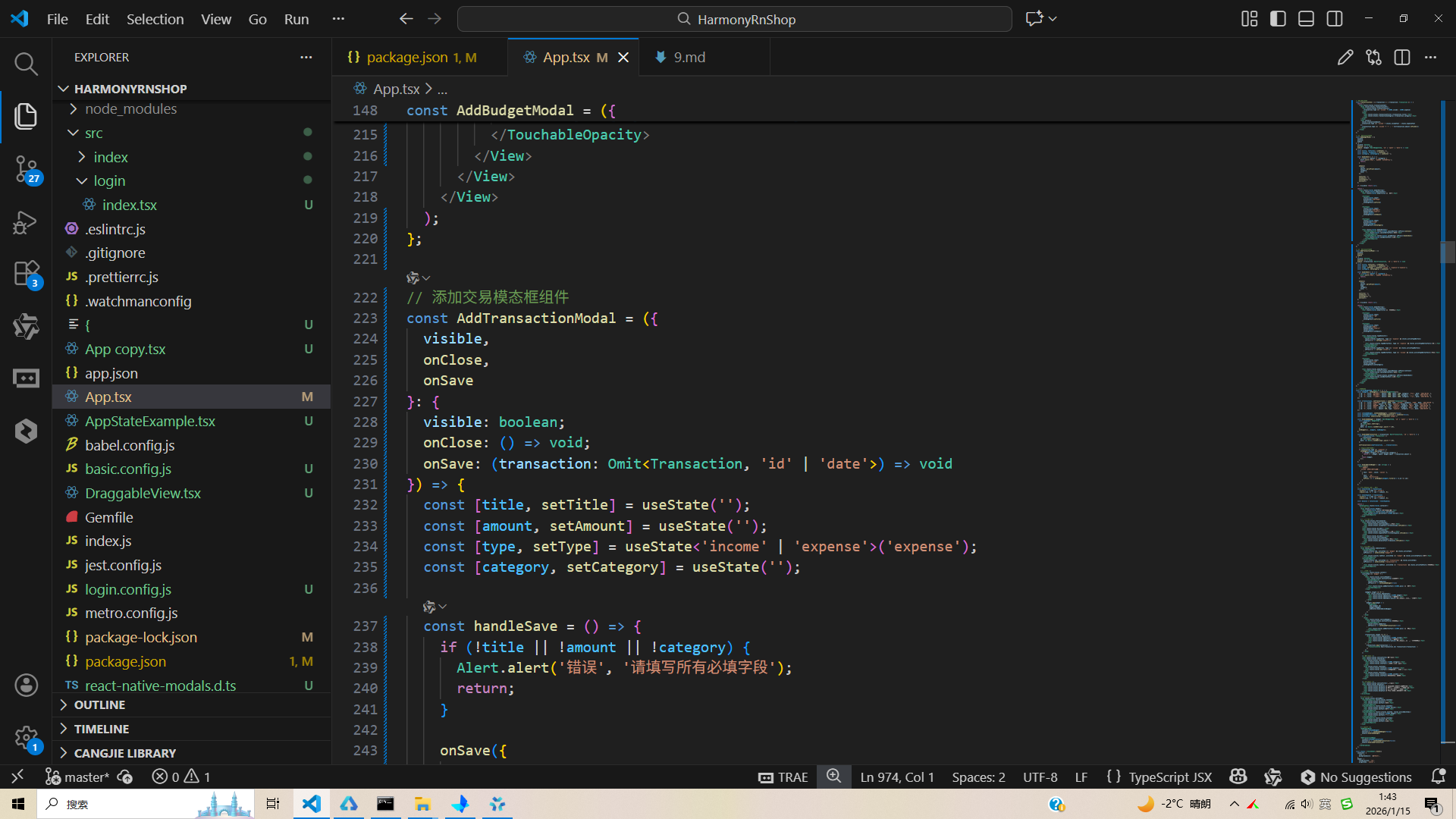
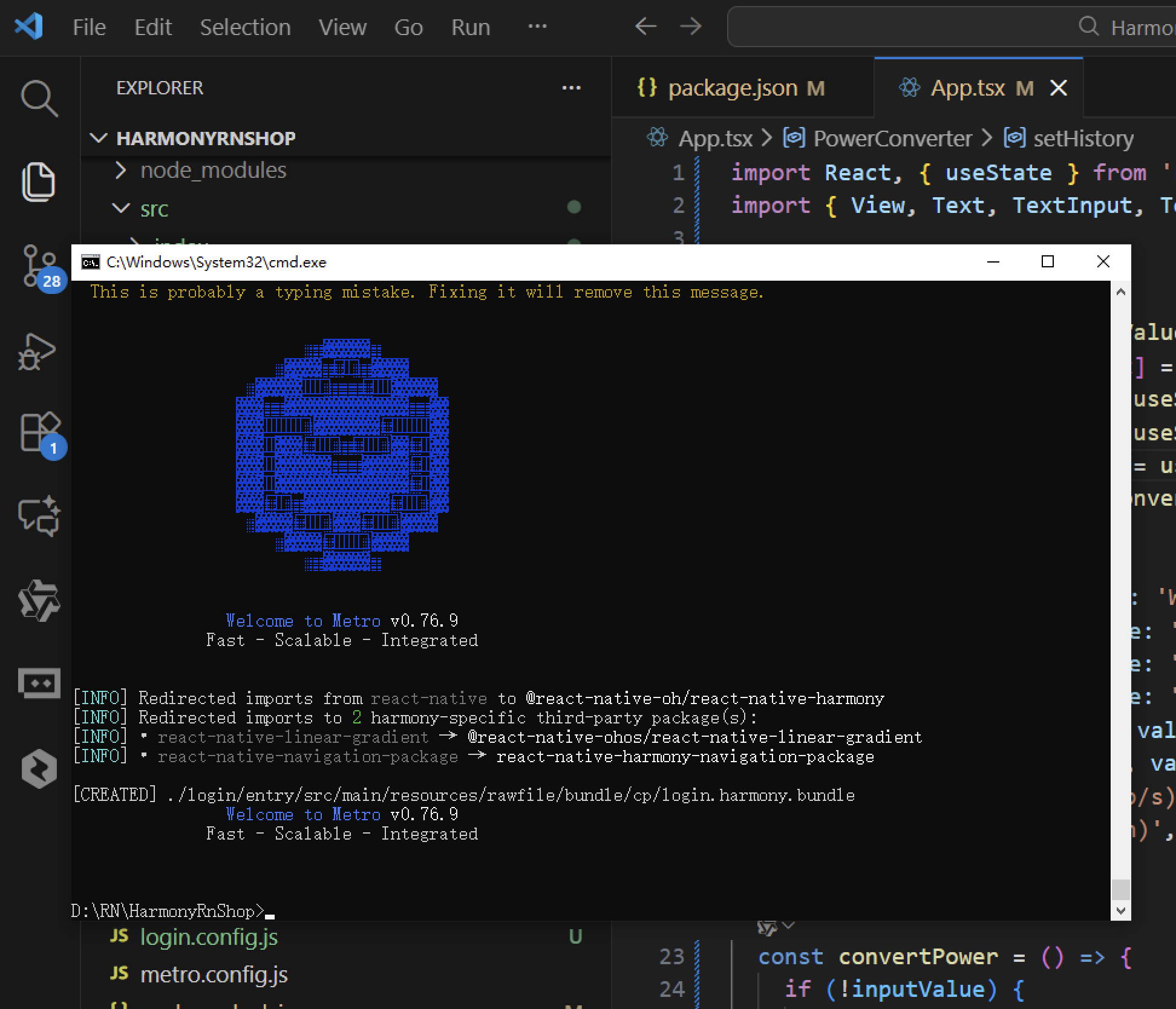
打包
接下来通过打包命令npn run harmony将reactNative的代码打包成为bundle,这样可以进行在开源鸿蒙OpenHarmony中进行使用。
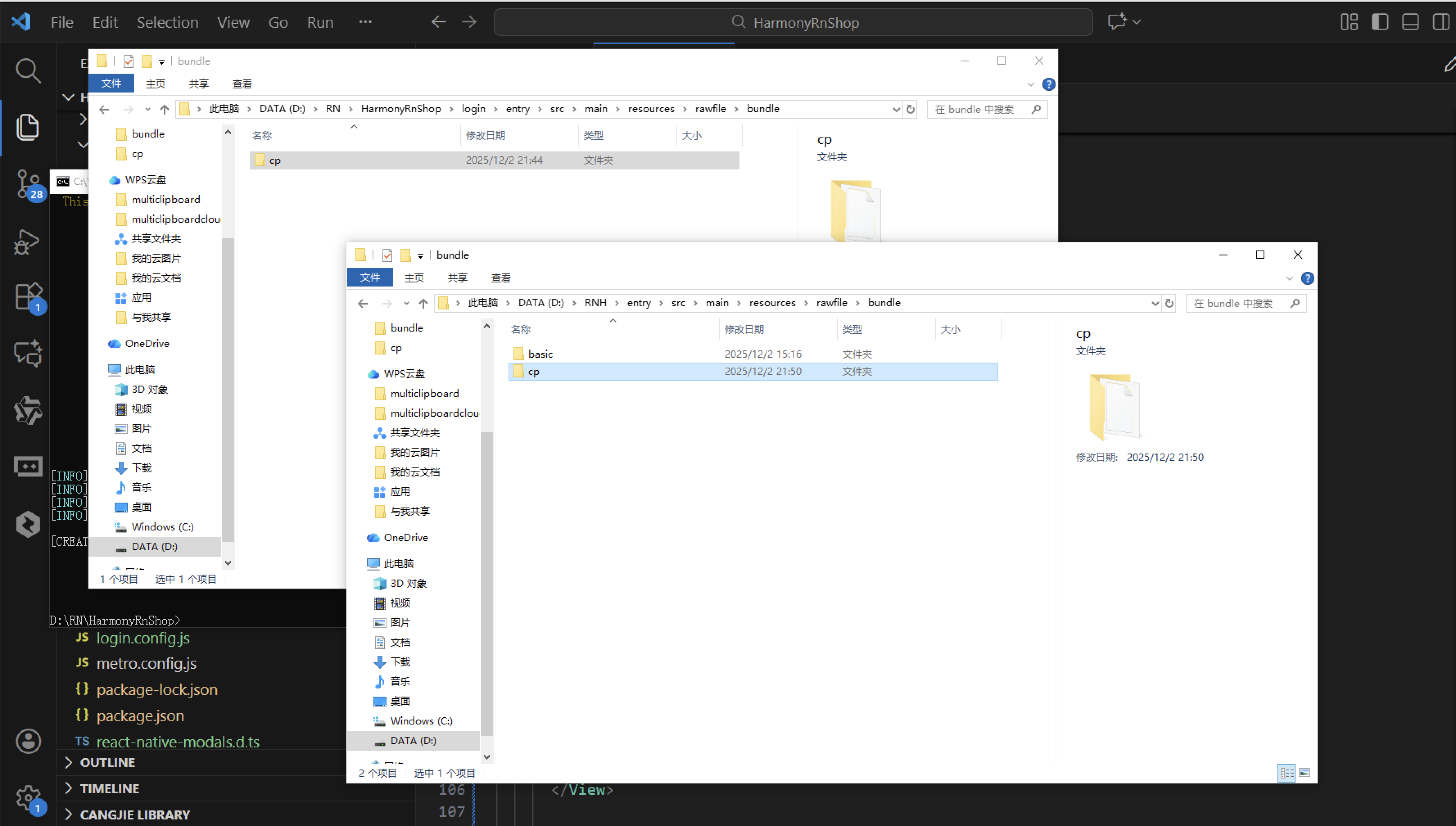
打包之后再将打包后的鸿蒙OpenHarmony文件拷贝到鸿蒙的DevEco-Studio工程目录去:
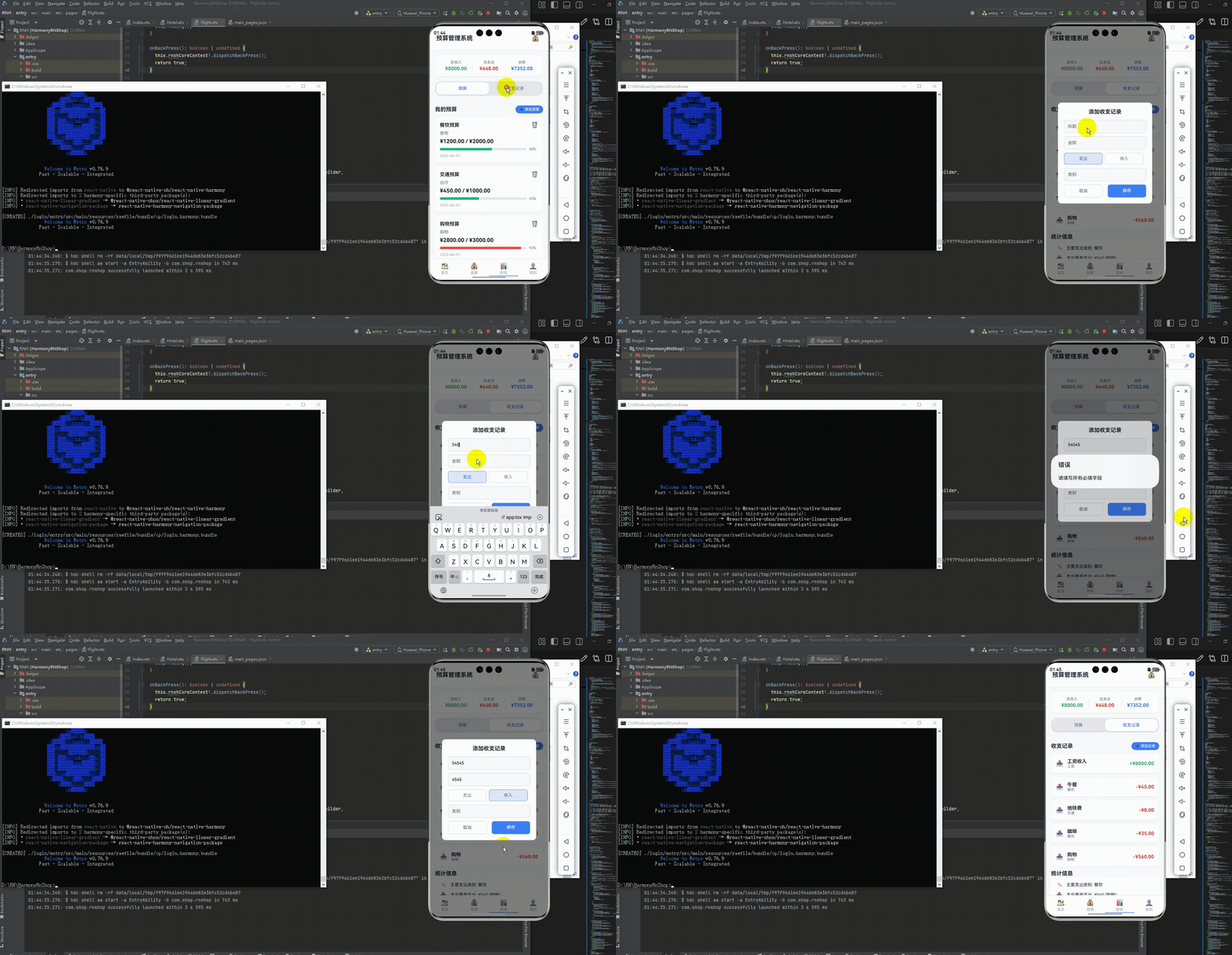
最后运行效果图如下显示:
欢迎大家加入开源鸿蒙跨平台开发者社区,一起共建开源鸿蒙跨平台生态。

开源鸿蒙跨平台开发社区汇聚开发者与厂商,共建“一次开发,多端部署”的开源生态,致力于降低跨端开发门槛,推动万物智联创新。
更多推荐
 18
18 0
0- 0


 已为社区贡献29条内容

所有评论(0)