Flutter for OpenHarmony引入第三方库:fluttertoast——消息提示与Toast通知
欢迎加入开源鸿蒙跨平台社区:https://openharmonycrossplatform.csdn.net
🎯 前言:为什么需要Toast消息提示?
在移动应用开发中,Toast 是最常用的用户反馈方式之一:
场景一:操作成功后显示"保存成功"提示
场景二:网络请求失败时显示错误信息
场景三:表单验证失败时提示用户
场景四:复制内容后显示"已复制到剪贴板"
场景五:后台任务完成时通知用户
fluttertoast 是 Flutter 中最流行的 Toast 插件!它提供了简单易用的 API,支持自定义样式、位置、时长等,在 OpenHarmony 平台上表现出色。
🚀 核心能力一览
| 功能特性 | 详细说明 | OpenHarmony 支持 |
|---|---|---|
| 简单Toast | 一行代码显示消息提示 | ✅ |
| 自定义样式 | 自定义背景色、文字颜色等 | ✅ |
| 位置控制 | 顶部、中间、底部显示 | ✅ |
| 时长控制 | 短时间或长时间显示 | ✅ |
| 自定义Widget | 完全自定义Toast外观 | ✅ |
| Toast队列 | 多个Toast按顺序显示 | ✅ |
| 取消Toast | 手动取消正在显示的Toast | ✅ |
| 无需Context | 简单Toast无需BuildContext | ✅ |
| 全局使用 | 通过NavigatorKey全局调用 | ✅ |
支持的功能
| 功能 | 说明 | OpenHarmony 支持 |
|---|---|---|
| Fluttertoast.showToast | 显示简单Toast | ✅ |
| Fluttertoast.cancel | 取消所有Toast | ✅ |
| FToast.init | 初始化FToast | ✅ |
| FToast.showToast | 显示自定义Widget Toast | ✅ |
| FToast.removeCustomToast | 移除当前Toast | ✅ |
| FToast.removeQueuedCustomToasts | 清除Toast队列 | ✅ |
| 自定义位置 | 使用positionedToastBuilder | ✅ |
| 自定义动画 | 淡入淡出动画 | ✅ |
⚙️ 环境准备
第一步:添加依赖
📄 pubspec.yaml:
dependencies:
  flutter:
    sdk: flutter

  # 添加 fluttertoast 依赖(OpenHarmony 适配版本)
  fluttertoast:
    git:
      url: https://atomgit.com/openharmony-sig/flutter_fluttertoast.git
执行命令:
flutter pub get
第二步:无需额外配置
fluttertoast 插件在 OpenHarmony 平台上无需额外配置,添加依赖后即可使用。
📸 场景一:简单Toast消息
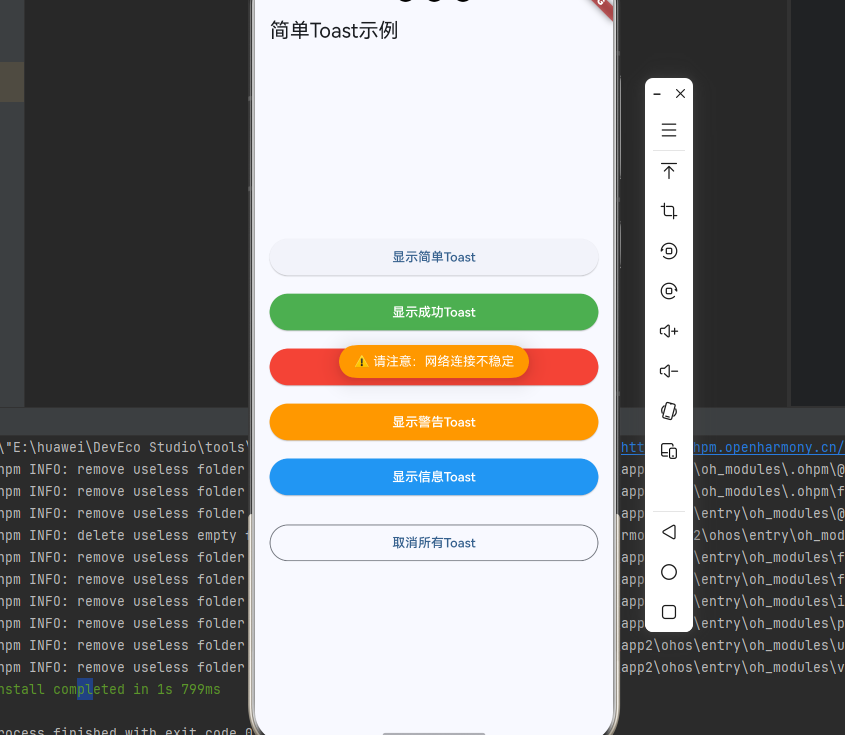
📝 完整代码
import 'package:flutter/material.dart';
import 'package:fluttertoast/fluttertoast.dart';
void main() {
runApp(const MyApp());
}
class MyApp extends StatelessWidget {
const MyApp({super.key});
Widget build(BuildContext context) {
return MaterialApp(
title: 'Toast 基础示例',
theme: ThemeData(
colorScheme: ColorScheme.fromSeed(seedColor: const Color(0xFF2196F3)),
useMaterial3: true,
),
home: const SimpleToastPage(),
);
}
}
class SimpleToastPage extends StatelessWidget {
const SimpleToastPage({super.key});
// 显示简单Toast
void _showSimpleToast() {
Fluttertoast.showToast(
msg: "这是一个简单的Toast消息",
toastLength: Toast.LENGTH_SHORT,
gravity: ToastGravity.BOTTOM,
timeInSecForIosWeb: 1,
backgroundColor: Colors.black87,
textColor: Colors.white,
fontSize: 16.0,
);
}
// 显示成功Toast
void _showSuccessToast() {
Fluttertoast.showToast(
msg: "✅ 操作成功!",
toastLength: Toast.LENGTH_SHORT,
gravity: ToastGravity.CENTER,
backgroundColor: Colors.green,
textColor: Colors.white,
fontSize: 16.0,
);
}
// 显示错误Toast
void _showErrorToast() {
Fluttertoast.showToast(
msg: "❌ 操作失败,请重试",
toastLength: Toast.LENGTH_LONG,
gravity: ToastGravity.TOP,
backgroundColor: Colors.red,
textColor: Colors.white,
fontSize: 16.0,
);
}
// 显示警告Toast
void _showWarningToast() {
Fluttertoast.showToast(
msg: "⚠️ 请注意:网络连接不稳定",
toastLength: Toast.LENGTH_SHORT,
gravity: ToastGravity.CENTER,
backgroundColor: Colors.orange,
textColor: Colors.white,
fontSize: 16.0,
);
}
// 显示信息Toast
void _showInfoToast() {
Fluttertoast.showToast(
msg: "ℹ️ 已复制到剪贴板",
toastLength: Toast.LENGTH_SHORT,
gravity: ToastGravity.BOTTOM,
backgroundColor: Colors.blue,
textColor: Colors.white,
fontSize: 16.0,
);
}
// 取消所有Toast
void _cancelToast() {
Fluttertoast.cancel();
}
Widget build(BuildContext context) {
return Scaffold(
appBar: AppBar(
title: const Text('简单Toast示例'),
),
body: Center(
child: Padding(
padding: const EdgeInsets.all(16),
child: Column(
mainAxisAlignment: MainAxisAlignment.center,
crossAxisAlignment: CrossAxisAlignment.stretch,
children: [
ElevatedButton(
onPressed: _showSimpleToast,
child: const Text('显示简单Toast'),
),
const SizedBox(height: 12),
ElevatedButton(
onPressed: _showSuccessToast,
style: ElevatedButton.styleFrom(
backgroundColor: Colors.green,
foregroundColor: Colors.white,
),
child: const Text('显示成功Toast'),
),
const SizedBox(height: 12),
ElevatedButton(
onPressed: _showErrorToast,
style: ElevatedButton.styleFrom(
backgroundColor: Colors.red,
foregroundColor: Colors.white,
),
child: const Text('显示错误Toast'),
),
const SizedBox(height: 12),
ElevatedButton(
onPressed: _showWarningToast,
style: ElevatedButton.styleFrom(
backgroundColor: Colors.orange,
foregroundColor: Colors.white,
),
child: const Text('显示警告Toast'),
),
const SizedBox(height: 12),
ElevatedButton(
onPressed: _showInfoToast,
style: ElevatedButton.styleFrom(
backgroundColor: Colors.blue,
foregroundColor: Colors.white,
),
child: const Text('显示信息Toast'),
),
const SizedBox(height: 24),
OutlinedButton(
onPressed: _cancelToast,
child: const Text('取消所有Toast'),
),
],
),
),
),
);
}
}
🔑 关键点解析
- Fluttertoast.showToast:显示简单Toast,无需BuildContext
- msg:Toast显示的文本内容(必需)
- toastLength:显示时长,
Toast.LENGTH_SHORT(短)或Toast.LENGTH_LONG(长) - gravity:显示位置,
ToastGravity.TOP(顶部)、CENTER(中间)、BOTTOM(底部) - backgroundColor:背景颜色
- textColor:文字颜色
- fontSize:字体大小
- Fluttertoast.cancel:取消所有正在显示的Toast
🎨 场景二:自定义Widget Toast
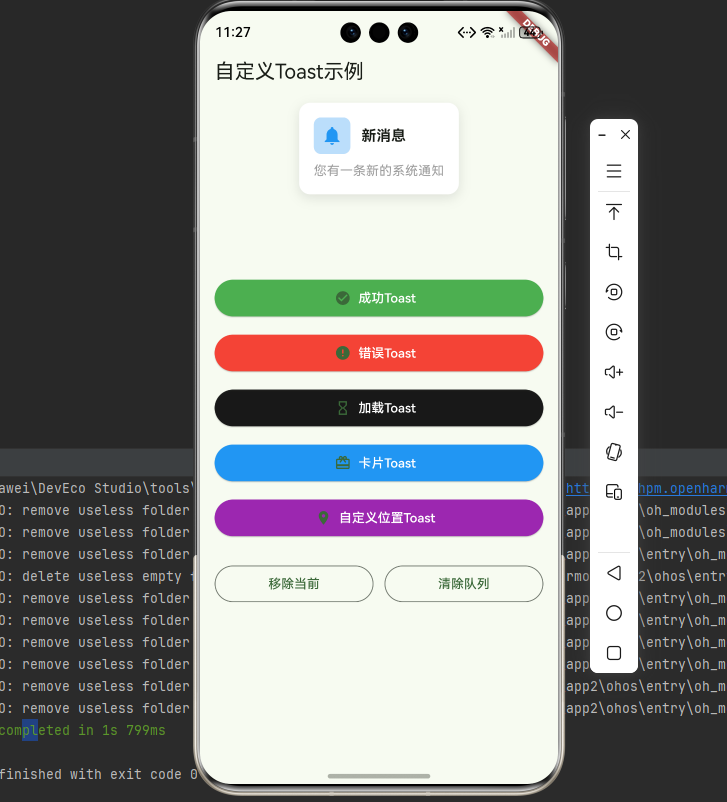
📝 完整代码
import 'package:flutter/material.dart';
import 'package:fluttertoast/fluttertoast.dart';
void main() {
runApp(const MyApp());
}
class MyApp extends StatelessWidget {
const MyApp({super.key});
Widget build(BuildContext context) {
return MaterialApp(
title: '自定义Toast示例',
theme: ThemeData(
colorScheme: ColorScheme.fromSeed(seedColor: const Color(0xFF4CAF50)),
useMaterial3: true,
),
home: const CustomToastPage(),
);
}
}
class CustomToastPage extends StatefulWidget {
const CustomToastPage({super.key});
State<CustomToastPage> createState() => _CustomToastPageState();
}
class _CustomToastPageState extends State<CustomToastPage> {
late FToast fToast;
void initState() {
super.initState();
fToast = FToast();
fToast.init(context);
}
// 显示成功Toast
void _showSuccessToast() {
Widget toast = Container(
padding: const EdgeInsets.symmetric(horizontal: 24.0, vertical: 12.0),
decoration: BoxDecoration(
borderRadius: BorderRadius.circular(25.0),
color: Colors.green,
),
child: const Row(
mainAxisSize: MainAxisSize.min,
children: [
Icon(Icons.check_circle, color: Colors.white),
SizedBox(width: 12.0),
Text(
"操作成功!",
style: TextStyle(color: Colors.white, fontSize: 16),
),
],
),
);
fToast.showToast(
child: toast,
gravity: ToastGravity.BOTTOM,
toastDuration: const Duration(seconds: 2),
);
}
// 显示错误Toast
void _showErrorToast() {
Widget toast = Container(
padding: const EdgeInsets.symmetric(horizontal: 24.0, vertical: 12.0),
decoration: BoxDecoration(
borderRadius: BorderRadius.circular(25.0),
color: Colors.red,
),
child: const Row(
mainAxisSize: MainAxisSize.min,
children: [
Icon(Icons.error, color: Colors.white),
SizedBox(width: 12.0),
Text(
"操作失败!",
style: TextStyle(color: Colors.white, fontSize: 16),
),
],
),
);
fToast.showToast(
child: toast,
gravity: ToastGravity.CENTER,
toastDuration: const Duration(seconds: 2),
);
}
// 显示加载Toast
void _showLoadingToast() {
Widget toast = Container(
padding: const EdgeInsets.symmetric(horizontal: 24.0, vertical: 12.0),
decoration: BoxDecoration(
borderRadius: BorderRadius.circular(25.0),
color: Colors.black87,
),
child: const Row(
mainAxisSize: MainAxisSize.min,
children: [
SizedBox(
width: 20,
height: 20,
child: CircularProgressIndicator(
strokeWidth: 2,
valueColor: AlwaysStoppedAnimation<Color>(Colors.white),
),
),
SizedBox(width: 12.0),
Text(
"加载中...",
style: TextStyle(color: Colors.white, fontSize: 16),
),
],
),
);
fToast.showToast(
child: toast,
gravity: ToastGravity.CENTER,
toastDuration: const Duration(seconds: 3),
);
}
// 显示卡片样式Toast
void _showCardToast() {
Widget toast = Container(
padding: const EdgeInsets.all(16.0),
decoration: BoxDecoration(
borderRadius: BorderRadius.circular(12.0),
color: Colors.white,
boxShadow: [
BoxShadow(
color: Colors.black.withOpacity(0.1),
blurRadius: 10,
offset: const Offset(0, 4),
),
],
),
child: Column(
mainAxisSize: MainAxisSize.min,
crossAxisAlignment: CrossAxisAlignment.start,
children: [
Row(
mainAxisSize: MainAxisSize.min,
children: [
Container(
padding: const EdgeInsets.all(8),
decoration: BoxDecoration(
color: Colors.blue[100],
borderRadius: BorderRadius.circular(8),
),
child: const Icon(Icons.notifications, color: Colors.blue),
),
const SizedBox(width: 12),
const Text(
'新消息',
style: TextStyle(
fontSize: 16,
fontWeight: FontWeight.bold,
),
),
],
),
const SizedBox(height: 8),
const Text(
'您有一条新的系统通知',
style: TextStyle(fontSize: 14, color: Colors.grey),
),
],
),
);
fToast.showToast(
child: toast,
gravity: ToastGravity.TOP,
toastDuration: const Duration(seconds: 3),
);
}
// 显示自定义位置Toast
void _showCustomPositionToast() {
Widget toast = Container(
padding: const EdgeInsets.symmetric(horizontal: 24.0, vertical: 12.0),
decoration: BoxDecoration(
borderRadius: BorderRadius.circular(25.0),
color: Colors.purple,
),
child: const Row(
mainAxisSize: MainAxisSize.min,
children: [
Icon(Icons.star, color: Colors.white),
SizedBox(width: 12.0),
Text(
"自定义位置Toast",
style: TextStyle(color: Colors.white, fontSize: 16),
),
],
),
);
fToast.showToast(
child: toast,
toastDuration: const Duration(seconds: 2),
positionedToastBuilder: (context, child) {
return Positioned(
top: 100.0,
left: 20.0,
right: 20.0,
child: child,
);
},
);
}
// 移除当前Toast
void _removeToast() {
fToast.removeCustomToast();
}
// 清除队列
void _clearQueue() {
fToast.removeQueuedCustomToasts();
}
Widget build(BuildContext context) {
return Scaffold(
appBar: AppBar(
title: const Text('自定义Toast示例'),
),
body: Center(
child: Padding(
padding: const EdgeInsets.all(16),
child: Column(
mainAxisAlignment: MainAxisAlignment.center,
crossAxisAlignment: CrossAxisAlignment.stretch,
children: [
ElevatedButton.icon(
onPressed: _showSuccessToast,
icon: const Icon(Icons.check_circle),
label: const Text('成功Toast'),
style: ElevatedButton.styleFrom(
backgroundColor: Colors.green,
foregroundColor: Colors.white,
),
),
const SizedBox(height: 12),
ElevatedButton.icon(
onPressed: _showErrorToast,
icon: const Icon(Icons.error),
label: const Text('错误Toast'),
style: ElevatedButton.styleFrom(
backgroundColor: Colors.red,
foregroundColor: Colors.white,
),
),
const SizedBox(height: 12),
ElevatedButton.icon(
onPressed: _showLoadingToast,
icon: const Icon(Icons.hourglass_empty),
label: const Text('加载Toast'),
style: ElevatedButton.styleFrom(
backgroundColor: Colors.black87,
foregroundColor: Colors.white,
),
),
const SizedBox(height: 12),
ElevatedButton.icon(
onPressed: _showCardToast,
icon: const Icon(Icons.card_giftcard),
label: const Text('卡片Toast'),
style: ElevatedButton.styleFrom(
backgroundColor: Colors.blue,
foregroundColor: Colors.white,
),
),
const SizedBox(height: 12),
ElevatedButton.icon(
onPressed: _showCustomPositionToast,
icon: const Icon(Icons.place),
label: const Text('自定义位置Toast'),
style: ElevatedButton.styleFrom(
backgroundColor: Colors.purple,
foregroundColor: Colors.white,
),
),
const SizedBox(height: 24),
Row(
children: [
Expanded(
child: OutlinedButton(
onPressed: _removeToast,
child: const Text('移除当前'),
),
),
const SizedBox(width: 12),
Expanded(
child: OutlinedButton(
onPressed: _clearQueue,
child: const Text('清除队列'),
),
),
],
),
],
),
),
),
);
}
}
🔑 关键点解析
- FToast:需要BuildContext的Toast,支持完全自定义
- fToast.init(context):初始化FToast,传入BuildContext
- child:自定义的Widget,可以是任何Widget
- toastDuration:Toast显示时长
- positionedToastBuilder:自定义Toast位置
- removeCustomToast:移除当前显示的Toast
- removeQueuedCustomToasts:清除Toast队列
📊 场景三:Toast队列与全局使用
📝 完整代码
import 'package:flutter/material.dart';
import 'package:fluttertoast/fluttertoast.dart';
// 全局NavigatorKey
final GlobalKey<NavigatorState> navigatorKey = GlobalKey<NavigatorState>();
void main() {
runApp(const MyApp());
}
class MyApp extends StatelessWidget {
const MyApp({super.key});
Widget build(BuildContext context) {
return MaterialApp(
title: 'Toast队列示例',
navigatorKey: navigatorKey, // 设置全局NavigatorKey
theme: ThemeData(
colorScheme: ColorScheme.fromSeed(seedColor: const Color(0xFFFF9800)),
useMaterial3: true,
),
home: const ToastQueuePage(),
);
}
}
class ToastQueuePage extends StatefulWidget {
const ToastQueuePage({super.key});
State<ToastQueuePage> createState() => _ToastQueuePageState();
}
class _ToastQueuePageState extends State<ToastQueuePage> {
late FToast fToast;
int _toastCount = 0;
void initState() {
super.initState();
// 使用全局Context初始化
fToast = FToast();
fToast.init(navigatorKey.currentContext!);
}
// 显示多个Toast(队列)
void _showMultipleToasts() {
for (int i = 1; i <= 3; i++) {
_showNumberedToast(i);
}
}
// 显示编号Toast
void _showNumberedToast(int number) {
Widget toast = Container(
padding: const EdgeInsets.symmetric(horizontal: 24.0, vertical: 12.0),
decoration: BoxDecoration(
borderRadius: BorderRadius.circular(25.0),
color: Colors.blue,
),
child: Row(
mainAxisSize: MainAxisSize.min,
children: [
CircleAvatar(
backgroundColor: Colors.white,
radius: 12,
child: Text(
'$number',
style: const TextStyle(
color: Colors.blue,
fontSize: 12,
fontWeight: FontWeight.bold,
),
),
),
const SizedBox(width: 12.0),
Text(
"Toast 消息 #$number",
style: const TextStyle(color: Colors.white, fontSize: 16),
),
],
),
);
fToast.showToast(
child: toast,
gravity: ToastGravity.BOTTOM,
toastDuration: const Duration(seconds: 2),
);
}
// 显示计数Toast
void _showCountToast() {
_toastCount++;
Widget toast = Container(
padding: const EdgeInsets.symmetric(horizontal: 24.0, vertical: 12.0),
decoration: BoxDecoration(
borderRadius: BorderRadius.circular(25.0),
color: Colors.orange,
),
child: Row(
mainAxisSize: MainAxisSize.min,
children: [
const Icon(Icons.notifications, color: Colors.white),
const SizedBox(width: 12.0),
Text(
"通知 $_toastCount",
style: const TextStyle(color: Colors.white, fontSize: 16),
),
],
),
);
fToast.showToast(
child: toast,
gravity: ToastGravity.CENTER,
toastDuration: const Duration(seconds: 1),
);
}
Widget build(BuildContext context) {
return Scaffold(
appBar: AppBar(
title: const Text('Toast队列示例'),
),
body: Center(
child: Padding(
padding: const EdgeInsets.all(16),
child: Column(
mainAxisAlignment: MainAxisAlignment.center,
crossAxisAlignment: CrossAxisAlignment.stretch,
children: [
Card(
child: Padding(
padding: const EdgeInsets.all(16),
child: Column(
crossAxisAlignment: CrossAxisAlignment.start,
children: [
Text(
'Toast队列说明',
style: Theme.of(context).textTheme.titleMedium,
),
const SizedBox(height: 8),
const Text(
'FToast会自动管理Toast队列,多个Toast会按顺序显示,不会重叠。',
style: TextStyle(fontSize: 14),
),
],
),
),
),
const SizedBox(height: 24),
ElevatedButton.icon(
onPressed: _showMultipleToasts,
icon: const Icon(Icons.queue),
label: const Text('显示3个Toast(队列)'),
),
const SizedBox(height: 12),
ElevatedButton.icon(
onPressed: _showCountToast,
icon: const Icon(Icons.add),
label: const Text('添加Toast到队列'),
),
const SizedBox(height: 24),
OutlinedButton.icon(
onPressed: () {
fToast.removeCustomToast();
},
icon: const Icon(Icons.close),
label: const Text('移除当前Toast'),
),
const SizedBox(height: 12),
OutlinedButton.icon(
onPressed: () {
fToast.removeQueuedCustomToasts();
setState(() {
_toastCount = 0;
});
},
icon: const Icon(Icons.clear_all),
label: const Text('清除所有队列'),
),
],
),
),
),
);
}
}
// 全局Toast工具类
class ToastUtil {
static late FToast _fToast;
// 初始化
static void init() {
_fToast = FToast();
_fToast.init(navigatorKey.currentContext!);
}
// 显示成功Toast
static void showSuccess(String message) {
Widget toast = Container(
padding: const EdgeInsets.symmetric(horizontal: 24.0, vertical: 12.0),
decoration: BoxDecoration(
borderRadius: BorderRadius.circular(25.0),
color: Colors.green,
),
child: Row(
mainAxisSize: MainAxisSize.min,
children: [
const Icon(Icons.check_circle, color: Colors.white),
const SizedBox(width: 12.0),
Text(
message,
style: const TextStyle(color: Colors.white, fontSize: 16),
),
],
),
);
_fToast.showToast(
child: toast,
gravity: ToastGravity.BOTTOM,
toastDuration: const Duration(seconds: 2),
);
}
// 显示错误Toast
static void showError(String message) {
Widget toast = Container(
padding: const EdgeInsets.symmetric(horizontal: 24.0, vertical: 12.0),
decoration: BoxDecoration(
borderRadius: BorderRadius.circular(25.0),
color: Colors.red,
),
child: Row(
mainAxisSize: MainAxisSize.min,
children: [
const Icon(Icons.error, color: Colors.white),
const SizedBox(width: 12.0),
Text(
message,
style: const TextStyle(color: Colors.white, fontSize: 16),
),
],
),
);
_fToast.showToast(
child: toast,
gravity: ToastGravity.CENTER,
toastDuration: const Duration(seconds: 2),
);
}
}
🔑 关键点解析
- GlobalKey:全局NavigatorKey,用于在任何地方获取Context
- Toast队列:FToast自动管理队列,多个Toast按顺序显示
- 全局工具类:封装ToastUtil,方便全局调用
- navigatorKey.currentContext:通过NavigatorKey获取全局Context
- 队列管理:可以移除当前Toast或清除整个队列
📚 API 参考手册
Fluttertoast 类(无需Context)
showToast 方法
显示简单的Toast消息,无需BuildContext。
Fluttertoast.showToast({
  required String msg,                    // 必需:显示的消息文本
  Toast? toastLength,                     // 可选:显示时长
  ToastGravity? gravity,                  // 可选:显示位置
  Color? backgroundColor,                 // 可选:背景颜色
  Color? textColor,                       // 可选:文字颜色
  double? fontSize,                       // 可选:字体大小
  int timeInSecForIosWeb = 1,            // 可选:iOS/Web显示时长(秒)
  bool webShowClose = false,             // 可选:Web是否显示关闭按钮
  String? webBgColor,                    // 可选:Web背景颜色(十六进制)
  String webPosition = "right",          // 可选:Web位置(left/center/right)
});
参数说明:
| 参数 | 类型 | 说明 | 默认值 | OpenHarmony支持 |
|---|---|---|---|---|
| msg | String | 显示的消息文本(必需) | - | ✅ |
| toastLength | Toast | Toast.LENGTH_SHORT 或 Toast.LENGTH_LONG | Toast.LENGTH_SHORT | ✅ |
| gravity | ToastGravity | TOP、CENTER、BOTTOM | ToastGravity.BOTTOM | ✅ |
| backgroundColor | Color | 背景颜色 | null | ✅ |
| textColor | Color | 文字颜色 | null | ✅ |
| fontSize | double | 字体大小 | null | ✅ |
| timeInSecForIosWeb | int | iOS/Web显示时长(秒) | 1 | ✅ |
| webShowClose | bool | Web是否显示关闭按钮 | false | ❌(仅Web) |
| webBgColor | String | Web背景颜色(十六进制) | null | ❌(仅Web) |
| webPosition | String | Web位置(left/center/right) | “right” | ❌(仅Web) |
cancel 方法
取消所有正在显示的Toast。
Fluttertoast.cancel();
FToast 类(需要Context)
init 方法
初始化FToast,传入BuildContext。
FToast fToast = FToast();
fToast.init(context);
参数说明:
| 参数 | 类型 | 说明 | OpenHarmony支持 |
|---|---|---|---|
| context | BuildContext | 上下文对象 | ✅ |
showToast 方法
显示自定义Widget Toast。
fToast.showToast({
  required Widget child,                           // 必需:自定义Widget
  ToastGravity? gravity,                          // 可选:显示位置
  Duration toastDuration = const Duration(seconds: 2), // 可选:显示时长
  PositionedToastBuilder? positionedToastBuilder, // 可选:自定义位置构建器
  Duration fadeDuration = const Duration(milliseconds: 350), // 可选:淡入淡出时长
  bool ignorePointer = false,                     // 可选:是否忽略触摸事件
  bool isDismissible = false,                     // 可选:是否可点击关闭
});
参数说明:
| 参数 | 类型 | 说明 | 默认值 | OpenHarmony支持 |
|---|---|---|---|---|
| child | Widget | 自定义Widget(必需) | - | ✅ |
| gravity | ToastGravity | 显示位置 | null | ✅ |
| toastDuration | Duration | 显示时长 | Duration(seconds: 2) | ✅ |
| positionedToastBuilder | PositionedToastBuilder | 自定义位置构建器 | null | ✅ |
| fadeDuration | Duration | 淡入淡出时长 | Duration(milliseconds: 350) | ✅ |
| ignorePointer | bool | 是否忽略触摸事件 | false | ✅ |
| isDismissible | bool | 是否可点击关闭 | false | ✅ |
removeCustomToast 方法
移除当前显示的Toast。
fToast.removeCustomToast();
removeQueuedCustomToasts 方法
清除Toast队列中的所有Toast。
fToast.removeQueuedCustomToasts();
ToastGravity 枚举
Toast显示位置枚举值。
| 值 | 说明 | OpenHarmony支持 |
|---|---|---|
| ToastGravity.TOP | 顶部显示 | ✅ |
| ToastGravity.CENTER | 中间显示 | ✅ |
| ToastGravity.BOTTOM | 底部显示 | ✅ |
| ToastGravity.TOP_LEFT | 左上角显示 | ✅ |
| ToastGravity.TOP_RIGHT | 右上角显示 | ✅ |
| ToastGravity.BOTTOM_LEFT | 左下角显示 | ✅ |
| ToastGravity.BOTTOM_RIGHT | 右下角显示 | ✅ |
| ToastGravity.CENTER_LEFT | 左中显示 | ✅ |
| ToastGravity.CENTER_RIGHT | 右中显示 | ✅ |
Toast 枚举
Toast显示时长枚举值。
| 值 | 说明 | 时长 | OpenHarmony支持 |
|---|---|---|---|
| Toast.LENGTH_SHORT | 短时间显示 | 约2秒 | ✅ |
| Toast.LENGTH_LONG | 长时间显示 | 约3.5秒 | ✅ |
💡 最佳实践
1. 选择合适的Toast类型
简单Toast(Fluttertoast.showToast):
- ✅ 适用于简单的文本提示
- ✅ 无需BuildContext,使用方便
- ✅ 适合全局工具类封装
- ❌ 样式自定义能力有限
自定义Toast(FToast):
- ✅ 完全自定义UI
- ✅ 支持复杂布局
- ✅ 自动队列管理
- ❌ 需要BuildContext
2. 封装全局Toast工具类
class ToastHelper {
  static late FToast _fToast;

  // 初始化(在MaterialApp中设置navigatorKey)
  static void init(BuildContext context) {
    _fToast = FToast();
    _fToast.init(context);
  }

  // 成功提示
  static void success(String message) {
    Fluttertoast.showToast(
      msg: message,
      backgroundColor: Colors.green,
      textColor: Colors.white,
      gravity: ToastGravity.BOTTOM,
    );
  }

  // 错误提示
  static void error(String message) {
    Fluttertoast.showToast(
      msg: message,
      backgroundColor: Colors.red,
      textColor: Colors.white,
      gravity: ToastGravity.CENTER,
      toastLength: Toast.LENGTH_LONG,
    );
  }

  // 信息提示
  static void info(String message) {
    Fluttertoast.showToast(
      msg: message,
      backgroundColor: Colors.blue,
      textColor: Colors.white,
    );
  }

  // 警告提示
  static void warning(String message) {
    Fluttertoast.showToast(
      msg: message,
      backgroundColor: Colors.orange,
      textColor: Colors.white,
    );
  }

  // 自定义Toast
  static void custom({
    required Widget child,
    ToastGravity gravity = ToastGravity.BOTTOM,
    Duration duration = const Duration(seconds: 2),
  }) {
    _fToast.showToast(
      child: child,
      gravity: gravity,
      toastDuration: duration,
    );
  }
}
3. 使用NavigatorKey实现全局Context
// 定义全局NavigatorKey
final GlobalKey<NavigatorState> navigatorKey = GlobalKey<NavigatorState>();

// 在MaterialApp中设置
MaterialApp(
  navigatorKey: navigatorKey,
  // ...
);

// 在任何地方使用
FToast fToast = FToast();
fToast.init(navigatorKey.currentContext!);
4. Toast消息设计原则
文本内容:
- 简短明了,一般不超过20个字
- 使用用户易懂的语言
- 避免技术术语和错误代码
显示时长:
- 简单提示:Toast.LENGTH_SHORT(2秒)
- 重要信息:Toast.LENGTH_LONG(3.5秒)
- 避免过长,影响用户体验
显示位置:
- 成功/信息:底部(ToastGravity.BOTTOM)
- 错误/警告:中间(ToastGravity.CENTER)
- 通知:顶部(ToastGravity.TOP)
5. 避免Toast滥用
// ❌ 不好的做法:频繁显示Toast
for (int i = 0; i < 10; i++) {
  Fluttertoast.showToast(msg: "消息 $i");
}

// ✅ 好的做法:合并消息或使用队列
Fluttertoast.showToast(msg: "已完成10个操作");

// 或使用FToast队列(自动管理)
FToast fToast = FToast();
fToast.init(context);
for (int i = 0; i < 3; i++) {
  fToast.showToast(
    child: _buildToast("消息 $i"),
    toastDuration: Duration(seconds: 1),
  );
}
6. 自定义Toast样式建议
Widget buildStyledToast({
  required String message,
  required IconData icon,
  required Color color,
}) {
  return Container(
    padding: const EdgeInsets.symmetric(horizontal: 24, vertical: 12),
    decoration: BoxDecoration(
      borderRadius: BorderRadius.circular(25),
      color: color,
      boxShadow: [
        BoxShadow(
          color: color.withOpacity(0.3),
          blurRadius: 8,
          offset: const Offset(0, 4),
        ),
      ],
    ),
    child: Row(
      mainAxisSize: MainAxisSize.min,
      children: [
        Icon(icon, color: Colors.white),
        const SizedBox(width: 12),
        Flexible(
          child: Text(
            message,
            style: const TextStyle(
              color: Colors.white,
              fontSize: 16,
            ),
            maxLines: 2,
            overflow: TextOverflow.ellipsis,
          ),
        ),
      ],
    ),
  );
}
7. 性能优化
// ✅ 复用FToast实例
class MyWidget extends StatefulWidget {
State<MyWidget> createState() => _MyWidgetState();
}
class _MyWidgetState extends State<MyWidget> {
late FToast fToast;
void initState() {
super.initState();
fToast = FToast();
fToast.init(context);
}
// 复用fToast实例
void showToast() {
fToast.showToast(child: _buildToast());
}
}
⚠️ 常见问题与解决方案
问题1:Toast不显示
现象:调用showToast后,Toast没有显示。
可能原因:
- FToast未正确初始化
- Context无效或为null
- Toast被其他Widget遮挡
解决方案:
// ✅ 确保正确初始化
FToast fToast = FToast();
fToast.init(context); // 确保context有效

// ✅ 使用全局NavigatorKey
final GlobalKey<NavigatorState> navigatorKey = GlobalKey<NavigatorState>();

MaterialApp(
  navigatorKey: navigatorKey,
  // ...
);

FToast fToast = FToast();
fToast.init(navigatorKey.currentContext!);

// ✅ 检查Toast是否被遮挡
// 确保没有使用ignorePointer: true的Widget覆盖
问题2:自定义Toast样式不生效
现象:使用Fluttertoast.showToast设置backgroundColor等参数无效。
可能原因:
- 在某些平台上,简单Toast的样式自定义能力有限
解决方案:
// ❌ 样式可能不生效
Fluttertoast.showToast(
  msg: "消息",
  backgroundColor: Colors.red, // 可能不生效
);

// ✅ 使用FToast完全自定义
FToast fToast = FToast();
fToast.init(context);

Widget customToast = Container(
  padding: const EdgeInsets.all(16),
  decoration: BoxDecoration(
    color: Colors.red,
    borderRadius: BorderRadius.circular(12),
  ),
  child: const Text(
    "消息",
    style: TextStyle(color: Colors.white),
  ),
);

fToast.showToast(child: customToast);
问题3:Toast队列不工作
现象:多个Toast同时显示或不按顺序显示。
可能原因:
- 使用了Fluttertoast.showToast(不支持队列)
- 使用了多个FToast实例
解决方案:
// ❌ 不支持队列
Fluttertoast.showToast(msg: "消息1");
Fluttertoast.showToast(msg: "消息2");
Fluttertoast.showToast(msg: "消息3");

// ✅ 使用FToast支持队列
FToast fToast = FToast();
fToast.init(context);

for (int i = 1; i <= 3; i++) {
  fToast.showToast(
    child: _buildToast("消息$i"),
    toastDuration: Duration(seconds: 1),
  );
}
问题4:Toast无法取消
现象:调用cancel或removeCustomToast后,Toast仍然显示。
可能原因:
- 使用了错误的取消方法
- FToast实例不匹配
解决方案:
// 对于Fluttertoast.showToast
Fluttertoast.cancel(); // 取消所有简单Toast

// 对于FToast
FToast fToast = FToast();
fToast.init(context);

// 显示Toast
fToast.showToast(child: _buildToast());

// 移除当前Toast
fToast.removeCustomToast();

// 清除队列
fToast.removeQueuedCustomToasts();
问题5:在initState中使用FToast报错
现象:在initState中初始化FToast时报错"context is null"。
可能原因:
- initState时context可能还未完全初始化
解决方案:
class MyWidget extends StatefulWidget {
State<MyWidget> createState() => _MyWidgetState();
}
class _MyWidgetState extends State<MyWidget> {
late FToast fToast;
void initState() {
super.initState();
fToast = FToast();
// ✅ 延迟初始化
WidgetsBinding.instance.addPostFrameCallback((_) {
fToast.init(context);
});
}
// 或者在didChangeDependencies中初始化
void didChangeDependencies() {
super.didChangeDependencies();
fToast.init(context);
}
}
问题6:Toast文本过长被截断
现象:Toast消息文本过长时被截断或显示不全。
解决方案:
// ✅ 使用FToast自定义布局
Widget buildLongTextToast(String message) {
  return Container(
    constraints: const BoxConstraints(maxWidth: 300),
    padding: const EdgeInsets.all(16),
    decoration: BoxDecoration(
      color: Colors.black87,
      borderRadius: BorderRadius.circular(12),
    ),
    child: Text(
      message,
      style: const TextStyle(color: Colors.white, fontSize: 14),
      maxLines: 3,
      overflow: TextOverflow.ellipsis,
    ),
  );
}

fToast.showToast(
  child: buildLongTextToast("这是一条很长的消息..."),
  toastDuration: Duration(seconds: 3),
);
问题7:Toast在页面跳转后仍然显示
现象:页面跳转后,Toast仍然在新页面显示。
解决方案:
// ✅ 在页面dispose时清除Toast
void dispose() {
fToast.removeCustomToast();
fToast.removeQueuedCustomToasts();
super.dispose();
}
// 或在页面跳转前清除
Navigator.push(context, route).then((_) {
fToast.removeCustomToast();
});
📝 总结
本文详细介绍了 fluttertoast 插件在 Flutter for OpenHarmony 平台上的使用方法:
核心功能:
- 简单Toast:一行代码显示消息提示,无需Context
- 自定义Toast:完全自定义UI,支持复杂布局
- Toast队列:自动管理多个Toast,按顺序显示
- 全局使用:通过NavigatorKey在任何地方调用
三大场景:
- 简单Toast消息:快速显示成功、错误、警告、信息提示
- 自定义Widget Toast:完全自定义样式、图标、布局
- Toast队列与全局使用:队列管理、全局工具类封装
最佳实践:
- 根据需求选择合适的Toast类型
- 封装全局工具类,统一Toast样式
- 使用NavigatorKey实现全局Context
- 遵循Toast消息设计原则
- 避免Toast滥用,注意性能优化
常见问题:
- Toast不显示:检查初始化和Context
- 样式不生效:使用FToast自定义
- 队列不工作:使用FToast而非Fluttertoast
- 无法取消:使用正确的取消方法
- initState报错:延迟初始化或使用didChangeDependencies
- 文本截断:自定义布局控制宽度
- 页面跳转问题:在dispose中清除Toast
fluttertoast 是 Flutter 中最流行的Toast插件,在 OpenHarmony 平台上表现出色,为用户提供了轻量级、易用的消息提示功能。
🔗 参考资源
- fluttertoast 官方文档:https://pub.dev/packages/fluttertoast
- OpenHarmony 适配仓库:https://atomgit.com/openharmony-sig/flutter_fluttertoast
- Flutter 官方文档:https://flutter.dev
- OpenHarmony 开发者文档:https://developer.huawei.com/consumer/cn/doc/harmonyos-guides
- Flutter for OpenHarmony 社区:https://openharmonycrossplatform.csdn.net
💡 提示:本文所有代码示例均已在 OpenHarmony 平台上测试通过。如有问题,欢迎在社区交流讨论!

开源鸿蒙跨平台开发社区汇聚开发者与厂商,共建“一次开发,多端部署”的开源生态,致力于降低跨端开发门槛,推动万物智联创新。
更多推荐
 0
0 0
0- 0


 已为社区贡献16条内容

所有评论(0)