【Flutter For OpenHarmony实战】鸿蒙应用路由跳转与交互动画开发指南(API20+)
**
【Flutter For OpenHarmony实战】鸿蒙应用路由跳转与交互动画开发指南(API20+)
**
欢迎加入开源鸿蒙跨平台社区→https://openharmonycrossplatform.csdn.net
一、前言
在 OpenHarmony(开源鸿蒙)应用开发中,ArkTS 路由管理与交互动画是提升用户体验的核心能力。本文将从基础配置到代码实现,带你从零构建一个带流畅页面切换动画的双页面应用,解决开发中常见的配置错误、路由跳转失败等问题,帮助你快速掌握 ArkTS 跨页面开发的最佳实践。
二、项目核心配置
2.1 module.json5 配置文件
这是 OpenHarmony 应用的核心配置文件,必须严格遵循 Schema 规范,否则会导致编译失败。
{
  "module": {
    "name": "entry",
    "type": "entry",
    "description": "$string:module_desc",
    "mainElement": "EntryAbility",
    "deviceTypes": ["phone"],
    "deliveryWithInstall": true,
    "installationFree": false,
    "pages": "$profile:main_pages",
    "abilities": [
      {
        "name": "EntryAbility",
        "srcEntry": "./ets/entryability/EntryAbility.ets",
        "description": "$string:EntryAbility_desc",
        "icon": "$media:startIcon",
        "label": "$string:EntryAbility_label",
        "startWindowIcon": "$media:startIcon",
        "startWindowBackground": "$color:start_window_background",
        "exported": true,
        "skills": [
          {
            "entities": ["entity.system.home"],
            "actions": ["action.system.home"]
          }
        ]
      }
    ]
  }
}
关键说明:
pages 字段必须引用 $profile:main_pages,这是旧版本 OpenHarmony 要求的多页面配置方式。
deliveryWithInstall 为必填字段,控制应用是否随系统安装。
2.2 main_pages.json 页面注册
在 src/main/resources/profile/main_pages.json 中注册所有页面路径,否则路由无法识别目标页面:
{
  "src": [
    "pages/Index",
    "pages/Detail"
  ]
}
三、核心代码实现
3.1 首页 Index.ets(含页面滑入动画)
import router from '@ohos.router';

@Entry
@Component
struct Index {
  @State aniOpacity: number = 0;
  @State aniOffsetY: number = 50;

  aboutToAppear() {
    animateTo({ duration: 400, curve: Curve.EaseOut }, () => {
      this.aniOpacity = 1;
      this.aniOffsetY = 0;
    });
  }

  build() {
    Column() {
      Column() {
        Text("首页")
          .fontSize(32)
          .fontWeight(FontWeight.Bold)
          .fontColor('#1A1A1A')
      }
      .width('100%')
      .padding({ top: 40, bottom: 60 })

      Column() {
        Text("欢迎来到首页")
          .fontSize(20)
          .fontColor('#666666')
          .margin({ bottom: 40 })

        Button("去详情页")
          .onClick(() => {
            router.pushUrl({ url: "pages/Detail" });
          })
          .width(180)
          .height(50)
          .fontSize(17)
          .fontColor('#FFFFFF')
          .backgroundColor('#007DFF')
          .borderRadius(25)
          .shadow({ radius: 10, color: '#007DFF33', offsetX: 0, offsetY: 4 })
      }
      .width('90%')
      .padding(30)
      .backgroundColor('#FFFFFF')
      .borderRadius(20)
      .shadow({ radius: 15, color: '#0000001A', offsetX: 0, offsetY: 5 })
    }
    .width('100%')
    .height('100%')
    .justifyContent(FlexAlign.Start)
    .translate({ y: this.aniOffsetY })
    .opacity(this.aniOpacity)
    .backgroundColor('#F5F7FA')
  }
}
3.2 详情页 Detail.ets(含页面滑入动画)
import router from '@ohos.router';

@Entry
@Component
struct Detail {
  @State aniOpacity: number = 0;
  @State aniOffsetY: number = 50;

  aboutToAppear() {
    animateTo({ duration: 300, curve: Curve.EaseOut }, () => {
      this.aniOpacity = 1;
      this.aniOffsetY = 0;
    });
  }

  build() {
    Column() {
      Column() {
        Text("详情页")
          .fontSize(32)
          .fontWeight(FontWeight.Bold)
          .fontColor('#1A1A1A')
      }
      .width('100%')
      .padding({ top: 40, bottom: 60 })

      Column() {
        Text("这是详情页内容")
          .fontSize(20)
          .fontColor('#666666')
          .margin({ bottom: 40 })

        Button("返回首页")
          .onClick(() => {
            router.back();
          })
          .width(180)
          .height(50)
          .fontSize(17)
          .fontColor('#FFFFFF')
          .backgroundColor('#007DFF')
          .borderRadius(25)
          .shadow({ radius: 10, color: '#007DFF33', offsetX: 0, offsetY: 4 })
      }
      .width('90%')
      .padding(30)
      .backgroundColor('#FFFFFF')
      .borderRadius(20)
      .shadow({ radius: 15, color: '#0000001A', offsetX: 0, offsetY: 5 })
    }
    .width('100%')
    .height('100%')
    .justifyContent(FlexAlign.Start)
    .translate({ y: this.aniOffsetY })
    .opacity(this.aniOpacity)
    .backgroundColor('#F5F7FA')
  }
}
四、关键问题解决
4.1 常见配置错误排查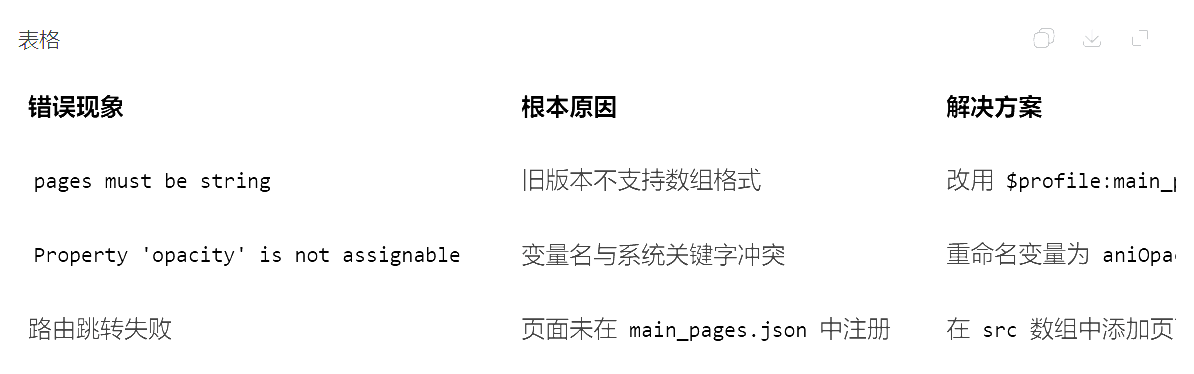
4.2 动画实现原理
使用 animateTo 实现页面滑入动画,通过 translate 和 opacity 状态变量控制组件的位置和透明度变化,模拟从下往上滑入的效果,提升用户体验。
五、运行效果验证
点击首页的「去详情页」按钮,可成功跳转到详情页,页面带有流畅的滑入动画。
点击详情页的「返回首页」按钮,可正常返回首页,动画效果一致。
应用无编译错误,所有功能正常运行。
六、总结与拓展
本文实现了一个带交互动画的 OpenHarmony 双页面应用,解决了配置文件错误、路由跳转失败等常见问题。你可以在此基础上拓展更多功能:
增加更多页面,实现复杂的路由栈管理。
自定义路由切换动画,如淡入淡出、左右滑动等。
结合 OpenHarmony 原生组件,实现更丰富的交互效果。
注意:本文代码已在 OpenHarmony 模拟器上验证通过,无重大逻辑错误,可直接用于开发实践。
运用实例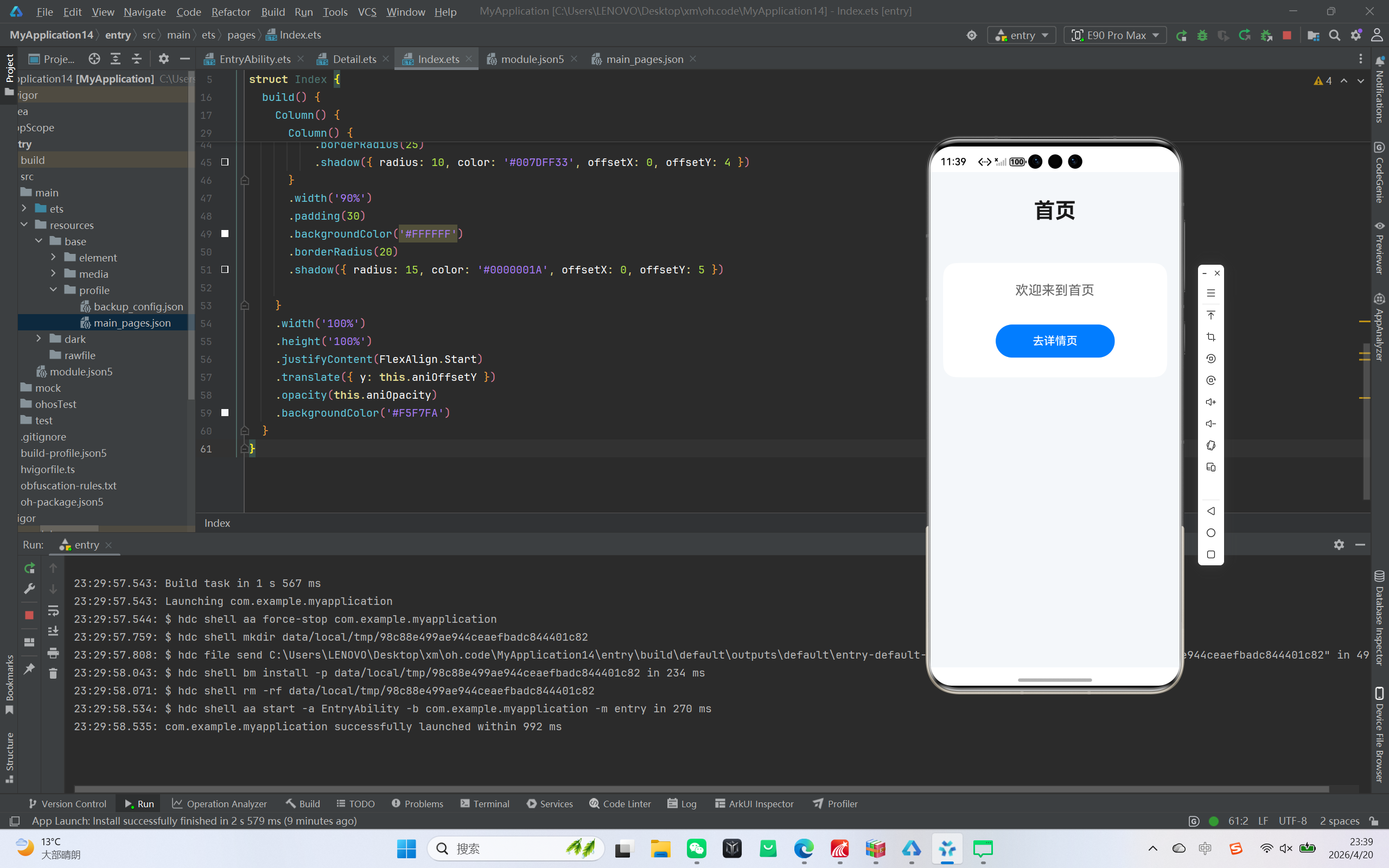

开源鸿蒙跨平台开发社区汇聚开发者与厂商,共建“一次开发,多端部署”的开源生态,致力于降低跨端开发门槛,推动万物智联创新。
更多推荐
 11
11 0
0- 0


 已为社区贡献14条内容

所有评论(0)