【flutter for open harmony】第三方库Flutter 鸿蒙版 网络状态检测 实战指南(适配 1.0.0)✨
·
【flutter for open harmony】第三方库Flutter 鸿蒙版 网络状态检测 实战指南(适配 1.0.0)✨
Flutter 三方库 cached_network_image 的鸿蒙化适配与实战指南
欢迎加入开源鸿蒙跨平台社区: https://openharmonycrossplatform.csdn.net
本文详细介绍如何在Flutter鸿蒙应用中实现网络状态检测功能,检测网络连接状态和类型。
一、前言
网络状态检测是移动应用的基础功能,用于判断网络可用性和连接类型。本文将带领大家使用Flutter开发一个网络状态检测应用。
二、效果展示
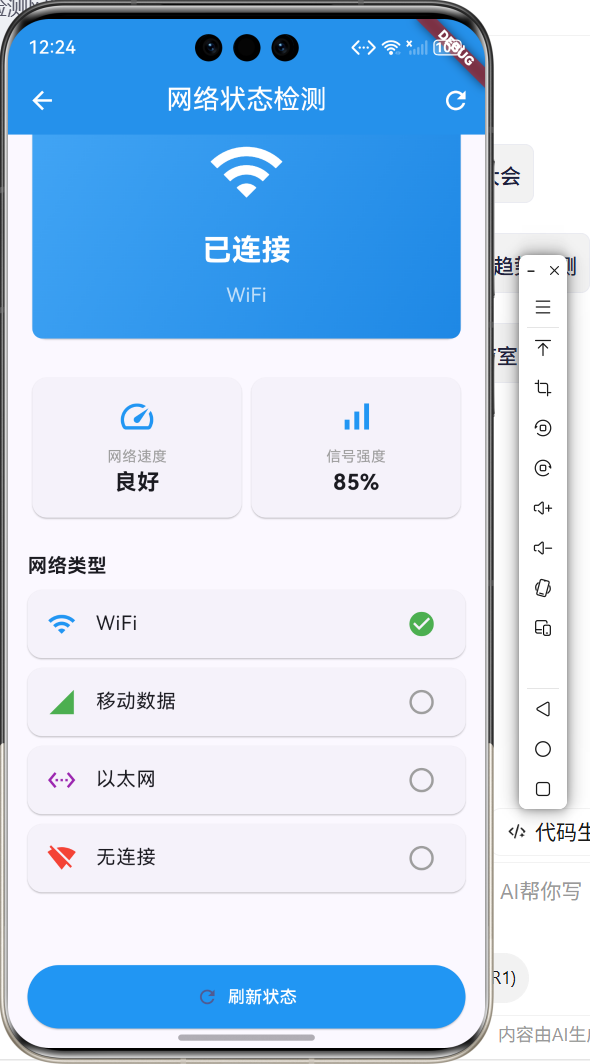
2.1 功能特性
| 功能 | 描述 |
|---|---|
| 连接状态 | 检测是否连接网络 |
| 网络类型 | 识别WiFi/移动数据等 |
| 信号强度 | 显示信号强度 |
| 实时刷新 | 支持手动刷新状态 |
三、项目背景与目标
3.1 项目背景
在网络请求、数据同步等场景中,需要检测网络状态。
3.2 项目目标
- 实现网络状态检测
- 识别网络类型
- 提供实时刷新功能
四、技术架构设计
4.1 核心技术
- connectivity_plus: 网络状态检测
- StreamBuilder: 状态监听
- NetworkInfo: 网络信息获取
4.2 实现原理
通过网络状态API获取当前连接类型,监听网络变化事件。
五、详细实现
5.1 Flutter端实现
import 'package:flutter/material.dart';
class NetworkStatusPage extends StatefulWidget {
const NetworkStatusPage({super.key});
State<NetworkStatusPage> createState() => _NetworkStatusPageState();
}
class _NetworkStatusPageState extends State<NetworkStatusPage> {
String _connectionType = 'WiFi';
bool _isConnected = true;
String _connectionSpeed = '良好';
int _signalStrength = 85;
final List<Map<String, dynamic>> _networkTypes = [
{'type': 'WiFi', 'icon': Icons.wifi, 'color': Colors.blue},
{'type': '移动数据', 'icon': Icons.signal_cellular_4_bar, 'color': Colors.green},
{'type': '以太网', 'icon': Icons.settings_ethernet, 'color': Colors.purple},
{'type': '无连接', 'icon': Icons.signal_wifi_off, 'color': Colors.red},
];
Widget build(BuildContext context) {
return Scaffold(
appBar: AppBar(
title: const Text('网络状态检测'),
centerTitle: true,
backgroundColor: Colors.blue,
foregroundColor: Colors.white,
),
body: Padding(
padding: const EdgeInsets.all(16),
child: Column(
children: [
Card(
child: Container(
width: double.infinity,
padding: const EdgeInsets.all(24),
decoration: BoxDecoration(
gradient: LinearGradient(
colors: _isConnected
? [Colors.blue[400]!, Colors.blue[600]!]
: [Colors.grey[400]!, Colors.grey[600]!],
),
borderRadius: BorderRadius.circular(8),
),
child: Column(
children: [
Icon(
_isConnected ? Icons.wifi : Icons.wifi_off,
size: 64,
color: Colors.white,
),
const SizedBox(height: 16),
Text(
_isConnected ? '已连接' : '未连接',
style: const TextStyle(fontSize: 24, fontWeight: FontWeight.bold, color: Colors.white),
),
Text(_connectionType, style: const TextStyle(color: Colors.white70)),
],
),
),
),
const SizedBox(height: 24),
Row(
children: [
Expanded(
child: Card(
child: Padding(
padding: const EdgeInsets.all(16),
child: Column(
children: [
const Icon(Icons.speed, size: 32, color: Colors.blue),
const SizedBox(height: 8),
const Text('网络速度', style: TextStyle(fontSize: 12)),
Text(_connectionSpeed, style: const TextStyle(fontSize: 18, fontWeight: FontWeight.bold)),
],
),
),
),
),
Expanded(
child: Card(
child: Padding(
padding: const EdgeInsets.all(16),
child: Column(
children: [
const Icon(Icons.signal_cellular_alt, size: 32, color: Colors.blue),
const SizedBox(height: 8),
const Text('信号强度', style: TextStyle(fontSize: 12)),
Text('$_signalStrength%', style: const TextStyle(fontSize: 18, fontWeight: FontWeight.bold)),
],
),
),
),
),
],
),
],
),
),
);
}
}
5.2 UI界面实现
UI采用Material Design 3风格,顶部显示连接状态卡片,下方显示网络详情。
六、核心功能解析
6.1 网络类型检测
获取当前网络类型:
final connectivityResult = await Connectivity().checkConnectivity();
if (connectivityResult == ConnectivityResult.wifi) {
  _connectionType = 'WiFi';
} else if (connectivityResult == ConnectivityResult.mobile) {
  _connectionType = '移动数据';
}
6.2 状态监听
监听网络状态变化:
StreamBuilder<ConnectivityResult>(
  stream: Connectivity().onConnectivityChanged,
  builder: (context, snapshot) {
    // 更新UI
  },
)
七、实际应用场景
- 网络请求:请求前检测网络状态
- 离线模式:无网络时切换离线模式
- 数据同步:网络恢复后自动同步
八、优化建议
- 网速测试:添加实际网速测试功能
- 网络诊断:提供网络诊断工具
- 自动重连:网络断开后自动重连
九、常见问题与解决方案
9.1 权限问题
问题:网络状态获取失败
解决方案:在AndroidManifest.xml中添加网络权限
9.2 状态延迟
问题:网络状态更新延迟
解决方案:使用StreamBuilder实时监听
十、总结
本文详细介绍了Flutter鸿蒙网络状态检测的实现,包括状态检测、类型识别等核心技术。通过本实例,掌握了connectivity_plus插件的使用方法。
十一、参考资料

开源鸿蒙跨平台开发社区汇聚开发者与厂商,共建“一次开发,多端部署”的开源生态,致力于降低跨端开发门槛,推动万物智联创新。
更多推荐

 3
3 0
0- 0


 已为社区贡献22条内容

所有评论(0)