Flutter 实战进阶:从零实现一个待办事项应用
·
Flutter 三方库 cached_network_image 的鸿蒙化适配与实战指南
欢迎加入开源鸿蒙跨平台社区:https://openharmonycrossplatform.csdn.net
前言
在上一篇《Flutter 实战入门:5分钟实现一个计数器应用》中,我们学习了 Flutter 的基础语法和状态管理。今天我们将更进一步,实现一个功能完整的待办事项应用,涵盖列表操作、本地持久化存储、复选框交互等核心知识点。
一、功能需求
本次待办事项应用需要实现以下功能:
| 功能 | 说明 |
|---|---|
| 添加待办 | 输入内容后点击添加按钮 |
| 显示列表 | 以列表形式展示所有待办事项 |
| 标记完成 | 点击复选框切换完成状态 |
| 删除待办 | 点击删除按钮移除待办事项 |
| 数据持久化 | 应用关闭后数据不丢失 |
| 统计信息 | 显示总数和已完成数量 |
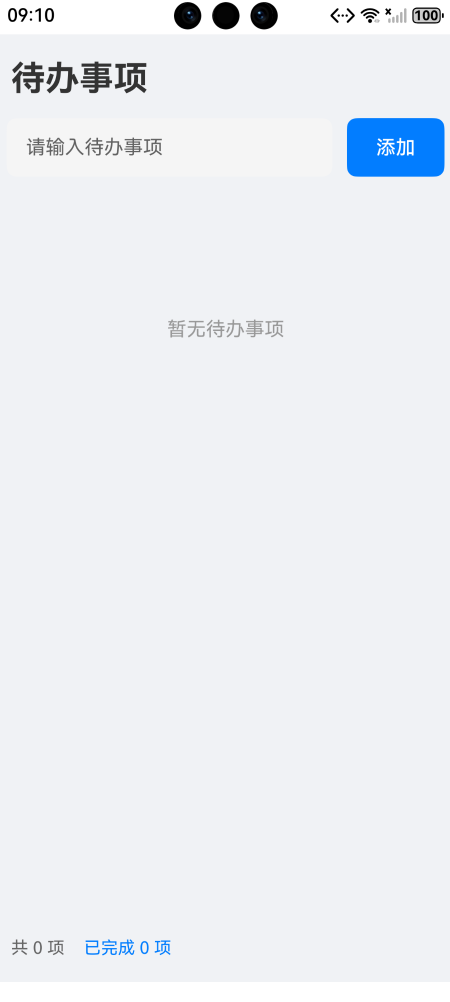
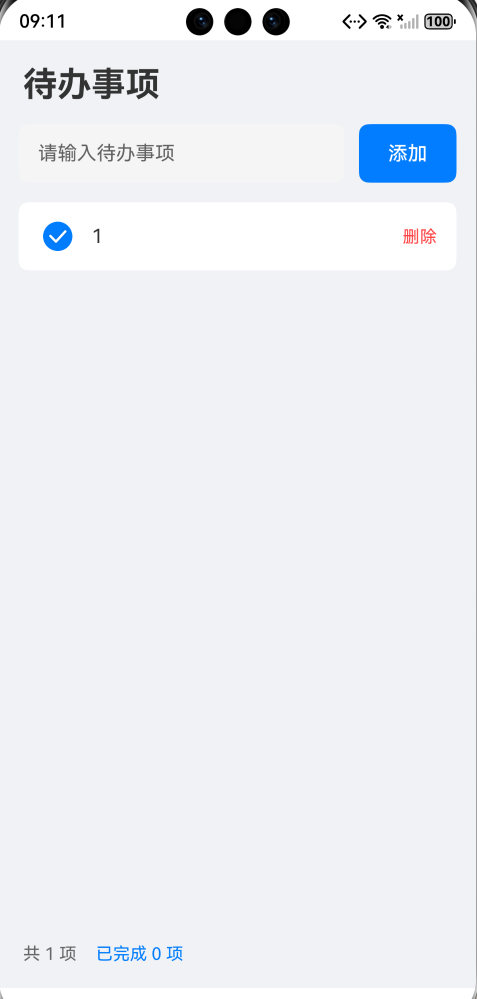
二、实现效果
- 顶部标题栏
- 输入框 + 添加按钮
- 待办列表(支持滚动)
- 底部统计信息
- 空状态提示
三、项目配置
3.1 pubspec.yaml
name: flutter_todo_app
description: A Flutter Todo application.
publish_to: 'none'
version: 1.0.0+1

environment:
  sdk: '>=3.0.0 <4.0.0'

dependencies:
  flutter:
    sdk: flutter
  shared_preferences: ^2.2.2

dev_dependencies:
  flutter_test:
    sdk: flutter
  flutter_lints: ^3.0.0

flutter:
  uses-material-design: true
3.2 安装依赖
flutter pub get
四、完整代码实现
import 'package:flutter/material.dart';
import 'dart:convert';
import 'package:shared_preferences/shared_preferences.dart';
void main() {
runApp(const MyApp());
}
class MyApp extends StatelessWidget {
const MyApp({super.key});
Widget build(BuildContext context) {
return MaterialApp(
title: '待办事项',
debugShowCheckedModeBanner: false,
theme: ThemeData(
colorScheme: ColorScheme.fromSeed(seedColor: const Color(0xFF007DFF)),
useMaterial3: true,
),
home: const TodoPage(),
);
}
}
class TodoItem {
final String id;
final String title;
bool isCompleted;
TodoItem({
required this.id,
required this.title,
this.isCompleted = false,
});
Map<String, dynamic> toJson() => {
'id': id,
'title': title,
'isCompleted': isCompleted,
};
factory TodoItem.fromJson(Map<String, dynamic> json) => TodoItem(
id: json['id'],
title: json['title'],
isCompleted: json['isCompleted'] ?? false,
);
}
class TodoPage extends StatefulWidget {
const TodoPage({super.key});
State<TodoPage> createState() => _TodoPageState();
}
class _TodoPageState extends State<TodoPage> {
final List<TodoItem> _todoList = [];
final TextEditingController _textController = TextEditingController();
void initState() {
super.initState();
_loadTodos();
}
Future<void> _loadTodos() async {
final prefs = await SharedPreferences.getInstance();
final String? todoString = prefs.getString('todoList');
if (todoString != null) {
final List<dynamic> decoded = jsonDecode(todoString);
setState(() {
_todoList.clear();
_todoList.addAll(decoded.map((e) => TodoItem.fromJson(e)).toList());
});
}
}
Future<void> _saveTodos() async {
final prefs = await SharedPreferences.getInstance();
final String encoded = jsonEncode(_todoList.map((e) => e.toJson()).toList());
await prefs.setString('todoList', encoded);
}
void _addTodo() {
final text = _textController.text.trim();
if (text.isEmpty) return;
setState(() {
_todoList.insert(
0,
TodoItem(
id: DateTime.now().millisecondsSinceEpoch.toString(),
title: text,
),
);
});
_textController.clear();
_saveTodos();
}
void _toggleTodo(String id) {
setState(() {
final index = _todoList.indexWhere((item) => item.id == id);
if (index != -1) {
_todoList[index].isCompleted = !_todoList[index].isCompleted;
}
});
_saveTodos();
}
void _deleteTodo(String id) {
setState(() {
_todoList.removeWhere((item) => item.id == id);
});
_saveTodos();
}
Widget build(BuildContext context) {
return Scaffold(
backgroundColor: const Color(0xFFF0F2F5),
appBar: AppBar(
title: const Text(
'待办事项',
style: TextStyle(
fontSize: 22,
fontWeight: FontWeight.bold,
),
),
backgroundColor: Colors.white,
foregroundColor: const Color(0xFF333333),
elevation: 0,
),
body: Column(
children: [
Container(
color: Colors.white,
padding: const EdgeInsets.all(16),
child: Row(
children: [
Expanded(
child: TextField(
controller: _textController,
decoration: InputDecoration(
hintText: '请输入待办事项',
filled: true,
fillColor: const Color(0xFFF5F5F5),
border: OutlineInputBorder(
borderRadius: BorderRadius.circular(8),
borderSide: BorderSide.none,
),
contentPadding: const EdgeInsets.symmetric(
horizontal: 16,
vertical: 14,
),
),
onSubmitted: (_) => _addTodo(),
),
),
const SizedBox(width: 12),
SizedBox(
width: 80,
height: 48,
child: ElevatedButton(
onPressed: _addTodo,
style: ElevatedButton.styleFrom(
backgroundColor: const Color(0xFF007DFF),
foregroundColor: Colors.white,
shape: RoundedRectangleBorder(
borderRadius: BorderRadius.circular(8),
),
),
child: const Text(
'添加',
style: TextStyle(fontSize: 16),
),
),
),
],
),
),
Expanded(
child: _todoList.isEmpty
? const Center(
child: Text(
'暂无待办事项',
style: TextStyle(
fontSize: 16,
color: Color(0xFF999999),
),
),
)
: ListView.builder(
padding: const EdgeInsets.all(16),
itemCount: _todoList.length,
itemBuilder: (context, index) {
final item = _todoList[index];
return _buildTodoItem(item);
},
),
),
Container(
width: double.infinity,
color: Colors.white,
padding: const EdgeInsets.symmetric(horizontal: 20, vertical: 16),
child: Row(
children: [
Text(
'共 ${_todoList.length} 项',
style: const TextStyle(
fontSize: 14,
color: Color(0xFF666666),
),
),
const SizedBox(width: 16),
Text(
'已完成 ${_todoList.where((e) => e.isCompleted).length} 项',
style: const TextStyle(
fontSize: 14,
color: Color(0xFF007DFF),
),
),
],
),
),
],
),
);
}
Widget _buildTodoItem(TodoItem item) {
return Container(
margin: const EdgeInsets.only(bottom: 8),
decoration: BoxDecoration(
color: Colors.white,
borderRadius: BorderRadius.circular(8),
),
child: ListTile(
contentPadding: const EdgeInsets.symmetric(horizontal: 16, vertical: 4),
leading: Checkbox(
value: item.isCompleted,
activeColor: const Color(0xFF007DFF),
onChanged: (_) => _toggleTodo(item.id),
),
title: Text(
item.title,
style: TextStyle(
fontSize: 16,
color: item.isCompleted ? const Color(0xFF999999) : const Color(0xFF333333),
decoration: item.isCompleted ? TextDecoration.lineThrough : TextDecoration.none,
),
maxLines: 2,
overflow: TextOverflow.ellipsis,
),
trailing: TextButton(
onPressed: () => _deleteTodo(item.id),
child: const Text(
'删除',
style: TextStyle(
fontSize: 14,
color: Color(0xFFFF4444),
),
),
),
),
);
}
void dispose() {
_textController.dispose();
super.dispose();
}
}
五、核心知识点详解
5.1 数据模型定义
使用 Dart 类定义待办事项的数据结构,并实现 JSON 序列化:
class TodoItem {
  final String id;
  final String title;
  bool isCompleted;

  TodoItem({
    required this.id,
    required this.title,
    this.isCompleted = false,
  });

  // 转换为 JSON
  Map<String, dynamic> toJson() => {
        'id': id,
        'title': title,
        'isCompleted': isCompleted,
      };

  // 从 JSON 解析
  factory TodoItem.fromJson(Map<String, dynamic> json) => TodoItem(
        id: json['id'],
        title: json['title'],
        isCompleted: json['isCompleted'] ?? false,
      );
}
5.2 本地持久化存储
使用 shared_preferences 包实现轻量级数据存储:
// 加载数据
Future<void> _loadTodos() async {
  final prefs = await SharedPreferences.getInstance();
  final String? todoString = prefs.getString('todoList');
  if (todoString != null) {
    final List<dynamic> decoded = jsonDecode(todoString);
    setState(() {
      _todoList.addAll(decoded.map((e) => TodoItem.fromJson(e)).toList());
    });
  }
}

// 保存数据
Future<void> _saveTodos() async {
  final prefs = await SharedPreferences.getInstance();
  final String encoded = jsonEncode(_todoList.map((e) => e.toJson()).toList());
  await prefs.setString('todoList', encoded);
}
SharedPreferences 常用方法:
| 方法 | 说明 |
|---|---|
getString() |
读取字符串 |
setString() |
写入字符串 |
getInt() |
读取整数 |
setInt() |
写入整数 |
getBool() |
读取布尔值 |
setBool() |
写入布尔值 |
remove() |
删除指定 key |
clear() |
清除所有数据 |
5.3 列表渲染
使用 ListView.builder 实现高效列表渲染:
ListView.builder(
  padding: const EdgeInsets.all(16),
  itemCount: _todoList.length,
  itemBuilder: (context, index) {
    final item = _todoList[index];
    return _buildTodoItem(item);
  },
)
5.4 复选框交互
Checkbox(
  value: item.isCompleted,           // 绑定选中状态
  activeColor: const Color(0xFF007DFF),  // 选中颜色
  onChanged: (_) => _toggleTodo(item.id), // 状态变化回调
)
5.5 条件渲染
根据列表是否为空显示不同内容:
_todoList.isEmpty
    ? const Center(
        child: Text('暂无待办事项'),
      )
    : ListView.builder(
        // 列表内容
      )
5.6 文本样式动态变化
根据完成状态动态改变文本样式:
Text(
  item.title,
  style: TextStyle(
    color: item.isCompleted
        ? const Color(0xFF999999)
        : const Color(0xFF333333),
    decoration: item.isCompleted
        ? TextDecoration.lineThrough
        : TextDecoration.none,
  ),
)
5.7 生命周期函数
void initState() {
super.initState();
_loadTodos(); // 页面初始化时加载数据
}
void dispose() {
_textController.dispose(); // 页面销毁时释放资源
super.dispose();
}
六、布局结构图
Scaffold
├── AppBar (标题栏)
│   └── Text (待办事项)
├── Column (主体内容)
│   ├── Container (输入区域)
│   │   └── Row
│   │       ├── TextField (输入框)
│   │       └── ElevatedButton (添加按钮)
│   ├── Expanded (列表区域)
│   │   └── ListView.builder
│   │       └── Container (待办项卡片)
│   │           └── ListTile
│   │               ├── Checkbox (复选框)
│   │               ├── Text (待办内容)
│   │               └── TextButton (删除按钮)
│   └── Container (底部统计)
│       └── Row
│           ├── Text (总数)
│           └── Text (已完成数)
七、运行步骤
7.1 创建项目
flutter create flutter_todo_app
cd flutter_todo_app
7.2 添加依赖
编辑 pubspec.yaml,添加 shared_preferences 依赖后执行:
flutter pub get
7.3 运行应用
# 查看可用设备
flutter devices

# 运行应用
flutter run
八、运行效果
应用运行后,你可以:
- 输入待办内容,点击"添加"按钮添加新待办
- 点击复选框标记待办为已完成(文字变灰并添加删除线)
- 点击"删除"按钮移除待办事项
- 关闭应用后重新打开,数据依然存在
九、总结
通过这个待办事项应用,我们学习了:
| 知识点 | 说明 |
|---|---|
| 数据模型 | 定义类并实现 JSON 序列化 |
| 本地存储 | SharedPreferences 实现数据持久化 |
| 列表渲染 | ListView.builder 高效渲染 |
| 复选框 | Checkbox 组件的使用 |
| 条件渲染 | 三元运算符控制显示内容 |
| 动态样式 | 根据状态改变 UI 样式 |
| 生命周期 | initState 和 dispose |
| 文本输入 | TextEditingController 的使用 |
十、进阶方向
完成本应用后,可以继续探索:
- 分类功能:为待办事项添加分类标签
- 优先级:设置待办的优先级(高/中/低)
- 截止日期:添加截止日期并支持提醒
- 搜索过滤:支持按关键词搜索待办
- 主题切换:支持深色/浅色主题切换
- 状态管理:使用 Provider/Riverpod 重构
如果觉得有帮助,欢迎点赞收藏! 👍

开源鸿蒙跨平台开发社区汇聚开发者与厂商,共建“一次开发,多端部署”的开源生态,致力于降低跨端开发门槛,推动万物智联创新。
更多推荐
 9
9 0
0- 0


 已为社区贡献22条内容

所有评论(0)