Flutter鸿蒙开发:噪音记录实战教程 - OpenHarmony跨平台指南
·
Flutter鸿蒙开发:噪音记录实战教程 - OpenHarmony跨平台指南
Flutter 三方库 cached_network_image 的鸿蒙化适配与实战指南
欢迎加入开源鸿蒙跨平台社区: https://openharmonycrossplatform.csdn.net
本文详细介绍如何在Flutter鸿蒙应用中实现噪音记录功能,包含分贝检测、数据记录、统计分析等功能。
一、前言
环境噪音监测对于健康生活很重要,通过记录环境噪音可以帮助用户了解周围环境的噪音水平。本文将介绍如何使用Flutter开发噪音记录应用。
二、效果展示
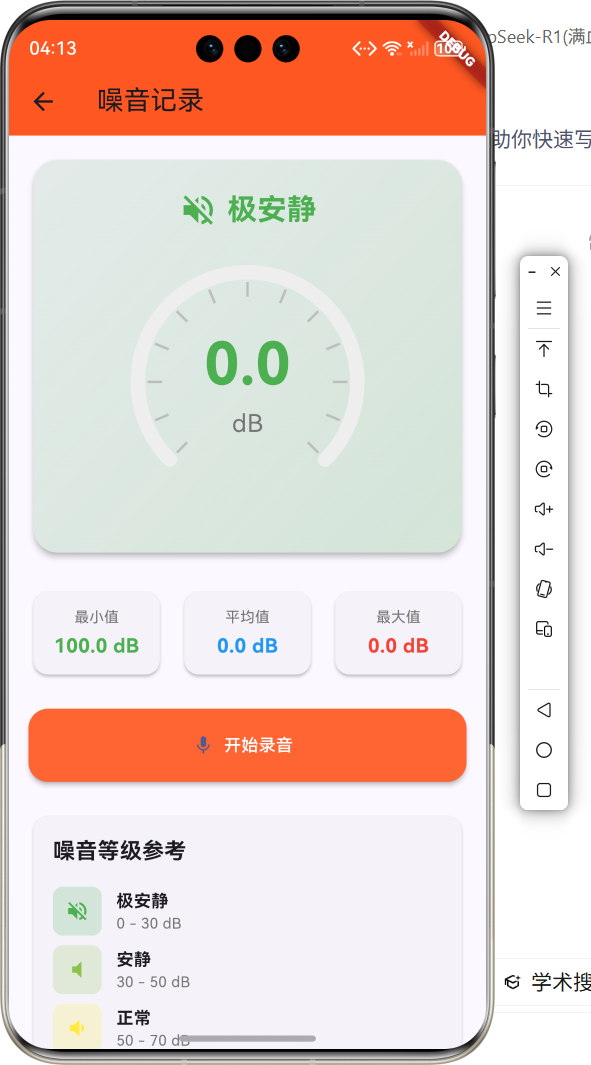
2.1 功能特性
| 功能 | 描述 |
|---|---|
| 分贝检测 | 实时检测环境噪音分贝 |
| 数据记录 | 记录噪音数据 |
| 统计分析 | 显示最大、最小、平均值 |
| 等级提示 | 显示噪音等级和影响 |
| 历史记录 | 查看历史记录数据 |
三、项目背景与目标
3.1 项目背景
噪音污染是城市环境的重要问题,长期暴露在高噪音环境中会影响健康。噪音记录应用可以帮助用户监测环境噪音。
3.2 项目目标
- 提供实时噪音检测功能
- 实现数据记录和统计
- 显示噪音等级提示
- 提供历史记录查询
四、技术架构设计
4.1 架构概述
应用使用Flutter框架开发,通过模拟分贝数据展示噪音检测功能,使用CustomPaint绘制仪表盘。
4.2 技术原理
- 使用Timer模拟实时数据
- 通过CustomPaint绘制仪表盘
- 使用List存储历史记录
- 通过状态管理更新界面
五、详细实现
5.1 Flutter端实现
class NoiseRecordPage extends StatefulWidget {
const NoiseRecordPage({super.key});
State<NoiseRecordPage> createState() => _NoiseRecordPageState();
}
class _NoiseRecordPageState extends State<NoiseRecordPage> {
double _currentDecibel = 0;
bool _isRecording = false;
Timer? _timer;
final List<NoiseRecord> _records = [];
double _maxDecibel = 0;
double _minDecibel = 100;
double _avgDecibel = 0;
int _recordDuration = 0;
final List<NoiseLevel> _noiseLevels = [
NoiseLevel(min: 0, max: 30, name: '极安静', color: Colors.green),
NoiseLevel(min: 30, max: 50, name: '安静', color: Colors.lightGreen),
NoiseLevel(min: 50, max: 70, name: '正常', color: Colors.yellow),
NoiseLevel(min: 70, max: 90, name: '较吵', color: Colors.orange),
NoiseLevel(min: 90, max: 120, name: '很吵', color: Colors.red),
];
void _startRecording() {
setState(() {
_isRecording = true;
_currentDecibel = 0;
_maxDecibel = 0;
_minDecibel = 100;
});
_timer = Timer.periodic(const Duration(milliseconds: 200), (timer) {
setState(() {
_currentDecibel = _generateDecibel();
if (_currentDecibel > _maxDecibel) _maxDecibel = _currentDecibel;
if (_currentDecibel < _minDecibel) _minDecibel = _currentDecibel;
});
});
}
double _generateDecibel() {
final base = 40 + Random().nextDouble() * 30;
final noise = (Random().nextDouble() - 0.5) * 20;
return (base + noise).clamp(0, 120);
}
Widget build(BuildContext context) {
final noiseLevel = _getNoiseLevel(_currentDecibel);
return Scaffold(
appBar: AppBar(title: const Text('噪音记录')),
body: Column(
children: [
_buildDecibelMeter(noiseLevel),
_buildStatsCards(),
_buildControlButton(),
_buildNoiseLevelGuide(),
_buildRecordsList(),
],
),
);
}
}
5.2 核心功能解析
仪表盘绘制
class DecibelMeterPainter extends CustomPainter {
final double decibel;
final Color color;
void paint(Canvas canvas, Size size) {
final center = Offset(size.width / 2, size.height / 2);
final radius = size.width / 2 - 10;
final bgPaint = Paint()
..color = Colors.grey.shade200
..style = PaintingStyle.stroke
..strokeWidth = 12
..strokeCap = StrokeCap.round;
canvas.drawArc(
Rect.fromCircle(center: center, radius: radius),
3.14159 * 0.75,
3.14159 * 1.5,
false,
bgPaint,
);
final progress = (decibel / 120).clamp(0.0, 1.0);
final progressPaint = Paint()
..color = color
..style = PaintingStyle.stroke
..strokeWidth = 12
..strokeCap = StrokeCap.round;
canvas.drawArc(
Rect.fromCircle(center: center, radius: radius),
3.14159 * 0.75,
3.14159 * 1.5 * progress,
false,
progressPaint,
);
}
}
噪音等级判断
NoiseLevel _getNoiseLevel(double decibel) {
  return _noiseLevels.firstWhere(
    (level) => decibel >= level.min && decibel < level.max,
    orElse: () => _noiseLevels.last,
  );
}
六、实际应用场景
6.1 环境监测
监测家庭、办公室等环境的噪音水平。
6.2 健康管理
帮助用户了解噪音暴露情况,保护听力健康。
七、优化建议
7.1 真实检测
接入麦克风权限,实现真实的噪音检测功能。
7.2 数据导出
添加数据导出功能,支持导出噪音记录数据。
八、常见问题与解决方案
8.1 权限问题
问题: 无法获取麦克风权限
解决方案: 添加权限请求和说明
8.2 数据不准确
问题: 检测数据波动大
解决方案: 添加数据平滑处理
九、总结
本文介绍了如何使用Flutter开发噪音记录应用,实现了分贝检测、数据记录、统计分析等核心功能。通过本项目的学习,读者可以掌握Flutter自定义绘制、定时器使用等技术。
十、参考资料
- Flutter官方文档:https://flutter.dev
- 噪音标准:https://www.mee.gov.cn
- Flutter中国社区:https://flutter-io.cn

开源鸿蒙跨平台开发社区汇聚开发者与厂商,共建“一次开发,多端部署”的开源生态,致力于降低跨端开发门槛,推动万物智联创新。
更多推荐
 6
6 0
0- 0


 已为社区贡献20条内容

所有评论(0)