【Flutter for OpenHarmony第三方库】Flutter for OpenHarmony 开发实践:用户反馈功能的实现与适配
suggestion('功能建议', Icons.lightbulb_outline, Color(0xFF007AFF)),bug('问题反馈', Icons.bug_report_outlined, Color(0xFFFF3B30)),other('其他', Icons.more_horiz, Color(0xFF8E8E93));contact;appVersion;});
Flutter for OpenHarmony 用户反馈功能实现:从设计到落地的完整指南
欢迎加入开源鸿蒙跨平台社区:https://openharmonycrossplatform.csdn.net
一、引言
1.1 技术背景
随着开源鸿蒙(OpenHarmony)生态的快速发展,跨平台开发技术成为降低开发成本、提升开发效率的重要手段。Flutter for OpenHarmony作为一种新兴的跨平台解决方案,允许开发者利用Flutter框架的成熟生态,同时适配鸿蒙原生平台特性,实现"一次开发,多端部署"的目标。
1.2 用户反馈功能的重要性
用户反馈功能是移动应用中不可或缺的基础模块。它为用户提供了一个直接向开发者表达意见、报告问题、提出建议的渠道。对于应用开发者而言,用户反馈数据是产品迭代优化的重要依据,能够帮助开发团队及时发现和修复问题,提升用户体验。
1.3 本文目标
本文将以实际项目为例,详细阐述如何在Flutter for OpenHarmony开发模式下,使用Dart语言实现一个完整的用户反馈功能模块。内容涵盖功能设计、界面实现、状态管理、表单验证、平台适配等关键技术环节,旨在为开发者提供可参考的实践指南。
二、技术架构分析
2.1 Flutter for OpenHarmony 开发模式
Flutter for OpenHarmony采用跨平台开发架构,允许Flutter应用直接运行在鸿蒙设备上。这种架构的核心优势在于:
- 复用Flutter生态:开发者可以继续使用Flutter丰富的第三方库和组件
- 原生能力扩展:通过Platform Channel可以调用鸿蒙原生API和系统能力
- 统一的开发体验:使用熟悉的Dart语言和Flutter框架进行开发
2.2 核心组件协作机制
在Flutter项目中,main.dart作为应用入口,负责初始化Flutter应用并加载主页面。通过BottomNavigationBar组件实现多页面切换。
入口配置:
import 'package:flutter/material.dart';
import 'package:flutter/services.dart';
void main() {
WidgetsFlutterBinding.ensureInitialized();
SystemChrome.setSystemUIOverlayStyle(
const SystemUiOverlayStyle(
statusBarColor: Colors.transparent,
statusBarIconBrightness: Brightness.dark,
),
);
runApp(const MyApp());
}
class MyApp extends StatelessWidget {
const MyApp({super.key});
Widget build(BuildContext context) {
return MaterialApp(
title: '用户反馈',
debugShowCheckedModeBanner: false,
theme: ThemeData(
colorScheme: ColorScheme.fromSeed(seedColor: const Color(0xFF007AFF)),
useMaterial3: true,
),
home: const MainPage(),
);
}
}
2.3 页面路由设计
项目采用BottomNavigationBar组件作为主页面容器,实现首页与反馈页的切换:
class MainPage extends StatefulWidget {
const MainPage({super.key});
State<MainPage> createState() => _MainPageState();
}
class _MainPageState extends State<MainPage> {
int _currentIndex = 0;
final List<Widget> _pages = const [
HomePage(),
FeedbackPage(),
];
Widget build(BuildContext context) {
return Scaffold(
body: IndexedStack(
index: _currentIndex,
children: _pages,
),
bottomNavigationBar: BottomNavigationBar(
currentIndex: _currentIndex,
onTap: (index) => setState(() => _currentIndex = index),
items: const [
BottomNavigationBarItem(
icon: Icon(Icons.home_outlined),
activeIcon: Icon(Icons.home),
label: '首页',
),
BottomNavigationBarItem(
icon: Icon(Icons.feedback_outlined),
activeIcon: Icon(Icons.feedback),
label: '反馈',
),
],
),
);
}
}
class HomePage extends StatelessWidget {
const HomePage({super.key});
Widget build(BuildContext context) {
return Scaffold(
appBar: AppBar(title: const Text('首页')),
body: const Center(
child: Text('欢迎使用Flutter for OpenHarmony', style: TextStyle(fontSize: 18)),
),
);
}
}
这种设计使得首页和反馈页可以在同一个应用中无缝切换,用户通过底部导航栏即可在两个页面之间跳转。
三、用户反馈功能设计与实现
3.1 需求分析与功能设计
在设计用户反馈功能时,需要考虑以下几个核心需求:
| 功能项 | 说明 |
|---|---|
| 反馈类型选择 | 提供功能建议、问题反馈、其他三种类型 |
| 内容输入 | 支持多行文本输入,限制字数上限 |
| 联系方式 | 可选填写,便于后续沟通 |
| 提交验证 | 校验内容完整性和合法性 |
| 状态反馈 | 提交过程和结果的用户提示 |
3.2 数据模型定义
首先定义反馈数据的结构模型,明确需要收集的信息字段:
enum FeedbackType {
suggestion('功能建议', Icons.lightbulb_outline, Color(0xFF007AFF)),
bug('问题反馈', Icons.bug_report_outlined, Color(0xFFFF3B30)),
other('其他', Icons.more_horiz, Color(0xFF8E8E93));
final String label;
final IconData icon;
final Color color;
const FeedbackType(this.label, this.icon, this.color);
}
class FeedbackData {
final FeedbackType type;
final String content;
final String? contact;
final DateTime timestamp;
final String deviceInfo;
final String? appVersion;
FeedbackData({
required this.type,
required this.content,
this.contact,
required this.timestamp,
required this.deviceInfo,
this.appVersion,
});
Map<String, dynamic> toJson() => {
'type': type.name,
'content': content,
'contact': contact,
'timestamp': timestamp.toIso8601String(),
'deviceInfo': deviceInfo,
'appVersion': appVersion,
};
String toString() => 'FeedbackData(${toJson()})';
}
该模型定义了六项核心数据:反馈类型标识、用户填写的具体内容、可选的联系方式、提交时间戳、设备型号信息以及应用版本号。这些数据为后续的问题分析和用户回访提供了基础。
3.3 UI界面设计与实现
3.3.1 页面整体布局
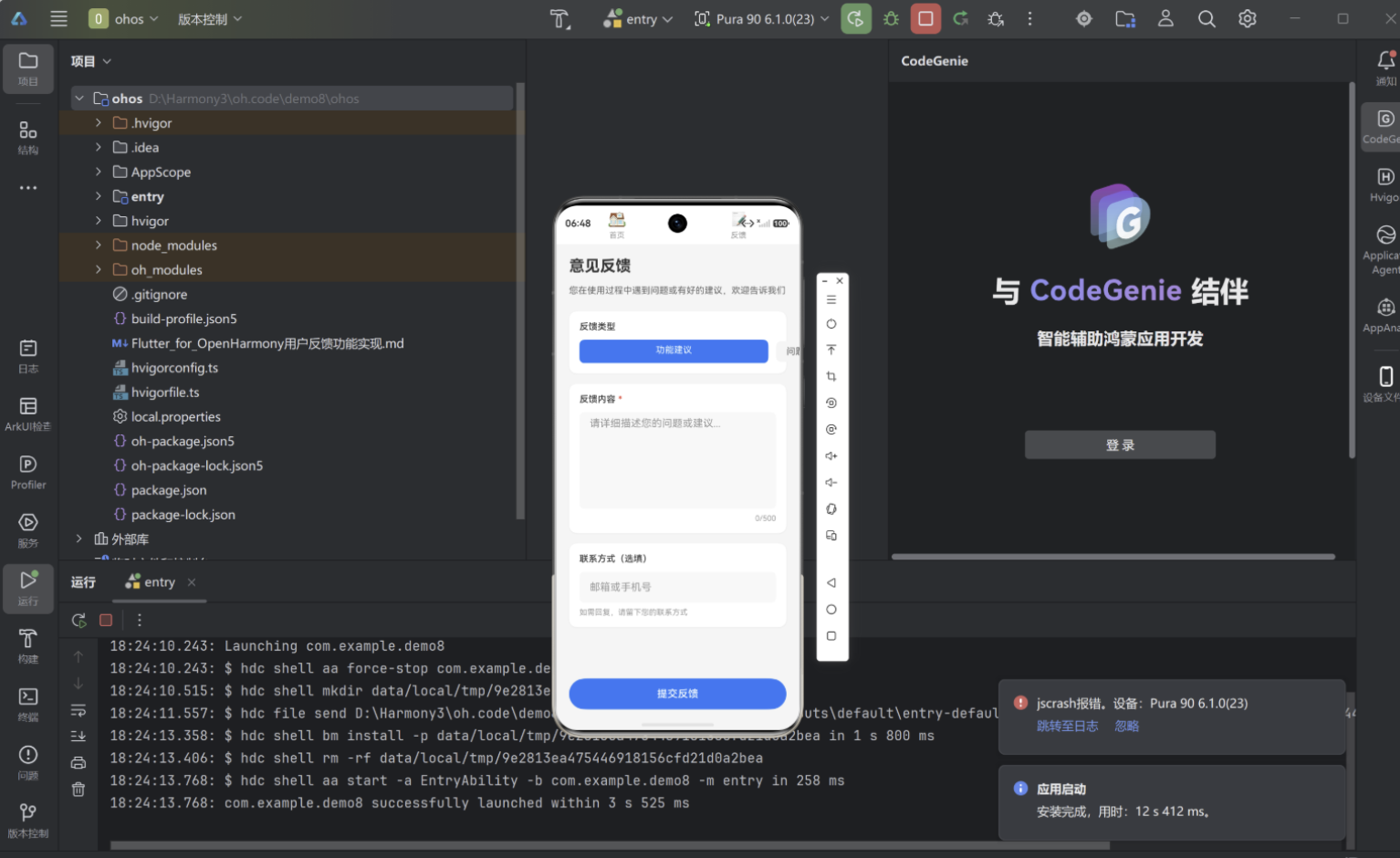
反馈页面采用垂直线性布局,从上到下依次为:标题区域、类型选择区域、内容输入区域、联系方式输入区域、提交按钮。整体使用SingleChildScrollView组件包裹,确保在小屏幕设备上可以滚动查看。
class FeedbackPage extends StatefulWidget {
const FeedbackPage({super.key});
State<FeedbackPage> createState() => _FeedbackPageState();
}
class _FeedbackPageState extends State<FeedbackPage> {
final _formKey = GlobalKey<FormState>();
final _contentController = TextEditingController();
final _contactController = TextEditingController();
FeedbackType _selectedType = FeedbackType.suggestion;
bool _isSubmitting = false;
int _charCount = 0;
static const int _maxChars = 500;
static const int _minChars = 10;
void initState() {
super.initState();
_contentController.addListener(_updateCharCount);
}
void _updateCharCount() {
setState(() => _charCount = _contentController.text.length);
}
void dispose() {
_contentController.dispose();
_contactController.dispose();
super.dispose();
}
Widget build(BuildContext context) {
return Scaffold(
backgroundColor: const Color(0xFFF5F5F5),
appBar: AppBar(
title: const Text('意见反馈'),
centerTitle: true,
elevation: 0,
backgroundColor: Colors.white,
),
body: Stack(
children: [
SingleChildScrollView(
padding: const EdgeInsets.all(20),
child: Form(
key: _formKey,
child: Column(
crossAxisAlignment: CrossAxisAlignment.start,
children: [
_buildTypeSelector(),
const SizedBox(height: 24),
_buildContentInput(),
const SizedBox(height: 24),
_buildContactInput(),
const SizedBox(height: 32),
_buildSubmitButton(),
const SizedBox(height: 16),
if (_isSubmitting) _buildLoadingIndicator(),
],
),
),
),
_buildToastOverlay(),
],
),
);
}
}
3.3.2 反馈类型选择组件
类型选择采用横向排列的可点击卡片形式,当前选中项以蓝色背景高亮显示:
Widget _buildTypeSelector() {
  return Column(
    crossAxisAlignment: CrossAxisAlignment.start,
    children: [
      const Text(
        '反馈类型',
        style: TextStyle(
          fontSize: 16,
          fontWeight: FontWeight.w600,
          color: Color(0xFF333333),
        ),
      ),
      const SizedBox(height: 12),
      Row(
        children: FeedbackType.values.map((type) {
          final isSelected = _selectedType == type;
          return Expanded(
            child: GestureDetector(
              onTap: () => setState(() => _selectedType = type),
              child: AnimatedContainer(
                duration: const Duration(milliseconds: 200),
                margin: EdgeInsets.only(
                  right: type == FeedbackType.other ? 0 : 12,
                ),
                padding: const EdgeInsets.symmetric(vertical: 12),
                decoration: BoxDecoration(
                  color: isSelected ? type.color : Colors.white,
                  borderRadius: BorderRadius.circular(12),
                  border: Border.all(
                    color: isSelected ? type.color : const Color(0xFFE0E0E0),
                    width: 1.5,
                  ),
                  boxShadow: isSelected
                      ? [
                          BoxShadow(
                            color: type.color.withOpacity(0.3),
                            blurRadius: 8,
                            offset: const Offset(0, 2),
                          ),
                        ]
                      : null,
                ),
                child: Column(
                  children: [
                    Icon(
                      type.icon,
                      color: isSelected ? Colors.white : type.color,
                      size: 28,
                    ),
                    const SizedBox(height: 8),
                    Text(
                      type.label,
                      style: TextStyle(
                        fontSize: 13,
                        fontWeight: FontWeight.w500,
                        color: isSelected ? Colors.white : const Color(0xFF666666),
                      ),
                    ),
                  ],
                ),
              ),
            ),
          );
        }).toList(),
      ),
    ],
  );
}
通过map方法遍历渲染类型列表,使用AnimatedContainer实现选中状态的平滑过渡动画。点击事件触发时更新_selectedType状态变量,界面自动刷新。
3.3.3 内容输入与字数统计
内容输入区域使用TextField组件,支持多行文本输入,同时实时显示已输入字数:
Widget _buildContentInput() {
  return Column(
    crossAxisAlignment: CrossAxisAlignment.start,
    children: [
      Row(
        children: [
          const Text(
            '反馈内容',
            style: TextStyle(
              fontSize: 16,
              fontWeight: FontWeight.w600,
              color: Color(0xFF333333),
            ),
          ),
          const SizedBox(width: 4),
          const Text(
            '*',
            style: TextStyle(
              fontSize: 16,
              color: Color(0xFFFF3B30),
            ),
          ),
        ],
      ),
      const SizedBox(height: 12),
      Container(
        decoration: BoxDecoration(
          color: Colors.white,
          borderRadius: BorderRadius.circular(12),
          border: Border.all(
            color: _charCount > _maxChars
                ? const Color(0xFFFF3B30)
                : const Color(0xFFE0E0E0),
          ),
        ),
        child: Column(
          children: [
            TextField(
              controller: _contentController,
              maxLines: 6,
              maxLength: _maxChars,
              style: const TextStyle(
                fontSize: 15,
                color: Color(0xFF333333),
              ),
              decoration: const InputDecoration(
                hintText: '请详细描述您的问题或建议...',
                hintStyle: TextStyle(
                  color: Color(0xFF999999),
                  fontSize: 15,
                ),
                border: InputBorder.none,
                contentPadding: EdgeInsets.all(16),
                counterText: '',
              ),
            ),
            Container(
              padding: const EdgeInsets.only(right: 16, bottom: 12),
              alignment: Alignment.centerRight,
              child: Text(
                '$_charCount/$_maxChars',
                style: TextStyle(
                  fontSize: 12,
                  color: _charCount > _maxChars
                      ? const Color(0xFFFF3B30)
                      : const Color(0xFF999999),
                ),
              ),
            ),
          ],
        ),
      ),
      if (_charCount > _maxChars)
        Padding(
          padding: const EdgeInsets.only(top: 8),
          child: Row(
            children: [
              Icon(Icons.warning_amber_rounded,
                  size: 14, color: Colors.red.shade400),
              const SizedBox(width: 4),
              Text(
                '内容已超过字数限制',
                style: TextStyle(fontSize: 12, color: Colors.red.shade400),
              ),
            ],
          ),
        ),
    ],
  );
}
TextField的onChanged回调在每次输入变化时触发,更新反馈内容和字数统计状态。当字数超过限制时,边框和字数显示变为红色警示。
3.3.4 联系方式输入
联系方式为选填项,使用TextField组件实现单行文本输入:
Widget _buildContactInput() {
  return Column(
    crossAxisAlignment: CrossAxisAlignment.start,
    children: [
      const Text(
        '联系方式(选填)',
        style: TextStyle(
          fontSize: 16,
          fontWeight: FontWeight.w600,
          color: Color(0xFF333333),
        ),
      ),
      const SizedBox(height: 12),
      Container(
        decoration: BoxDecoration(
          color: Colors.white,
          borderRadius: BorderRadius.circular(12),
          border: Border.all(color: const Color(0xFFE0E0E0)),
        ),
        child: TextField(
          controller: _contactController,
          keyboardType: TextInputType.emailAddress,
          style: const TextStyle(
            fontSize: 15,
            color: Color(0xFF333333),
          ),
          decoration: const InputDecoration(
            hintText: '邮箱或手机号',
            hintStyle: TextStyle(
              color: Color(0xFF999999),
              fontSize: 15,
            ),
            border: InputBorder.none,
            contentPadding: EdgeInsets.all(16),
            prefixIcon: Icon(Icons.person_outline, color: Color(0xFF999999)),
          ),
        ),
      ),
      const SizedBox(height: 8),
      Text(
        '如需回复,请留下您的联系方式',
        style: TextStyle(
          fontSize: 12,
          color: Colors.grey.shade500,
        ),
      ),
    ],
  );
}
3.4 提交逻辑与状态管理
3.4.1 状态变量定义
页面使用多个状态变量管理数据和交互状态:
class _FeedbackPageState extends State<FeedbackPage> {
  final _formKey = GlobalKey<FormState>();
  final _contentController = TextEditingController();
  final _contactController = TextEditingController();

  FeedbackType _selectedType = FeedbackType.suggestion;
  bool _isSubmitting = false;
  int _charCount = 0;

  bool _showToast = false;
  String _toastMessage = '';
  bool _toastSuccess = true;

  static const int _maxChars = 500;
  static const int _minChars = 10;
}
在Flutter中,State类中的成员变量就是状态变量。当调用setState方法时,依赖该状态的Widget会自动重新渲染。
3.4.2 表单验证逻辑
提交前需要对用户输入进行校验,确保数据有效性:
Future<void> _submitFeedback() async {
  final content = _contentController.text.trim();

  if (content.isEmpty) {
    _showToastMessage('请输入反馈内容', isSuccess: false);
    return;
  }

  if (content.length < _minChars) {
    _showToastMessage('反馈内容至少$_minChars个字', isSuccess: false);
    return;
  }

  if (content.length > _maxChars) {
    _showToastMessage('反馈内容已超过字数限制', isSuccess: false);
    return;
  }

  setState(() => _isSubmitting = true);

  try {
    await Future.delayed(const Duration(seconds: 1));

    final deviceInfo = await _getDeviceInfo();
    final appVersion = await _getAppVersion();

    final feedbackData = FeedbackData(
      type: _selectedType,
      content: content,
      contact: _contactController.text.trim().isNotEmpty
          ? _contactController.text.trim()
          : null,
      timestamp: DateTime.now(),
      deviceInfo: deviceInfo,
      appVersion: appVersion,
    );

    debugPrint('[Feedback] Submitting: ${feedbackData.toJson()}');

    _showToastMessage('反馈提交成功,感谢您的反馈!', isSuccess: true);

    _contentController.clear();
    _contactController.clear();
    setState(() => _charCount = 0);
  } catch (error) {
    debugPrint('[Feedback] Submit error: $error');
    _showToastMessage('提交失败,请重试', isSuccess: false);
  } finally {
    setState(() => _isSubmitting = false);
  }
}

Future<String> _getDeviceInfo() async {
  return 'OpenHarmony Device';
}

Future<String> _getAppVersion() async {
  return '1.0.0';
}
验证逻辑包括三个层级:首先检查内容是否为空,其次检查内容长度是否满足最小要求,最后检查是否超过最大限制。验证通过后进入提交流程,使用try-catch结构处理可能的异常情况。
3.4.3 提交按钮状态控制
提交按钮需要根据提交状态动态调整样式和可用性:
Widget _buildSubmitButton() {
  return SizedBox(
    width: double.infinity,
    height: 50,
    child: ElevatedButton(
      onPressed: _isSubmitting ? null : _submitFeedback,
      style: ElevatedButton.styleFrom(
        backgroundColor: const Color(0xFF007AFF),
        disabledBackgroundColor: const Color(0xFFCCCCCC),
        shape: RoundedRectangleBorder(
          borderRadius: BorderRadius.circular(25),
        ),
        elevation: 0,
      ),
      child: const Text(
        '提交反馈',
        style: TextStyle(
          fontSize: 16,
          fontWeight: FontWeight.w600,
          color: Colors.white,
        ),
      ),
    ),
  );
}

Widget _buildLoadingIndicator() {
  return Container(
    padding: const EdgeInsets.all(16),
    decoration: BoxDecoration(
      color: const Color(0xFF007AFF).withOpacity(0.1),
      borderRadius: BorderRadius.circular(12),
    ),
    child: const Row(
      mainAxisAlignment: MainAxisAlignment.center,
      children: [
        SizedBox(
          width: 20,
          height: 20,
          child: CircularProgressIndicator(
            strokeWidth: 2,
            valueColor: AlwaysStoppedAnimation<Color>(Color(0xFF007AFF)),
          ),
        ),
        SizedBox(width: 12),
        Text(
          '提交中...',
          style: TextStyle(
            fontSize: 14,
            color: Color(0xFF007AFF),
            fontWeight: FontWeight.w500,
          ),
        ),
      ],
    ),
  );
}
当_isSubmitting为true时,按钮变为灰色且不可点击,同时显示加载进度指示器。
3.5 Toast提示组件实现
Toast提示用于向用户反馈操作结果,采用底部浮层形式展示:
void _showToastMessage(String message, {required bool isSuccess}) {
  setState(() {
    _toastMessage = message;
    _toastSuccess = isSuccess;
    _showToast = true;
  });

  Future.delayed(const Duration(seconds: 2), () {
    if (mounted) {
      setState(() => _showToast = false);
    }
  });
}

Widget _buildToastOverlay() {
  if (!_showToast) return const SizedBox.shrink();

  return Positioned(
    bottom: 100,
    left: 20,
    right: 20,
    child: AnimatedOpacity(
      opacity: _showToast ? 1.0 : 0.0,
      duration: const Duration(milliseconds: 300),
      child: Material(
        color: Colors.transparent,
        child: Container(
          padding: const EdgeInsets.symmetric(horizontal: 24, vertical: 16),
          decoration: BoxDecoration(
            color: _toastSuccess ? const Color(0xFF4CAF50) : const Color(0xFFF44336),
            borderRadius: BorderRadius.circular(12),
            boxShadow: [
              BoxShadow(
                color: Colors.black.withOpacity(0.2),
                blurRadius: 20,
                offset: const Offset(0, 4),
              ),
            ],
          ),
          child: Row(
            mainAxisAlignment: MainAxisAlignment.center,
            children: [
              Icon(
                _toastSuccess ? Icons.check_circle_outline : Icons.error_outline,
                color: Colors.white,
                size: 20,
              ),
              const SizedBox(width: 8),
              Flexible(
                child: Text(
                  _toastMessage,
                  style: const TextStyle(
                    color: Colors.white,
                    fontSize: 15,
                    fontWeight: FontWeight.w500,
                  ),
                  textAlign: TextAlign.center,
                ),
              ),
            ],
          ),
        ),
      ),
    ),
  );
}
成功提示使用绿色背景,失败提示使用红色背景,通过_toastSuccess状态变量控制。Future.delayed设置2秒后自动隐藏。
四、完整代码实现
以下是用户反馈功能的完整代码实现:
import 'package:flutter/material.dart';
import 'package:flutter/services.dart';
void main() {
WidgetsFlutterBinding.ensureInitialized();
SystemChrome.setSystemUIOverlayStyle(
const SystemUiOverlayStyle(
statusBarColor: Colors.transparent,
statusBarIconBrightness: Brightness.dark,
),
);
runApp(const FeedbackApp());
}
class FeedbackApp extends StatelessWidget {
const FeedbackApp({super.key});
Widget build(BuildContext context) {
return MaterialApp(
title: '用户反馈',
debugShowCheckedModeBanner: false,
theme: ThemeData(
colorScheme: ColorScheme.fromSeed(seedColor: const Color(0xFF007AFF)),
useMaterial3: true,
),
home: const FeedbackPage(),
);
}
}
enum FeedbackType {
suggestion('功能建议', Icons.lightbulb_outline, Color(0xFF007AFF)),
bug('问题反馈', Icons.bug_report_outlined, Color(0xFFFF3B30)),
other('其他', Icons.more_horiz, Color(0xFF8E8E93));
final String label;
final IconData icon;
final Color color;
const FeedbackType(this.label, this.icon, this.color);
}
class FeedbackData {
final FeedbackType type;
final String content;
final String? contact;
final DateTime timestamp;
final String deviceInfo;
final String? appVersion;
FeedbackData({
required this.type,
required this.content,
this.contact,
required this.timestamp,
required this.deviceInfo,
this.appVersion,
});
Map<String, dynamic> toJson() => {
'type': type.name,
'content': content,
'contact': contact,
'timestamp': timestamp.toIso8601String(),
'deviceInfo': deviceInfo,
'appVersion': appVersion,
};
}
class FeedbackPage extends StatefulWidget {
const FeedbackPage({super.key});
State<FeedbackPage> createState() => _FeedbackPageState();
}
class _FeedbackPageState extends State<FeedbackPage> {
final _contentController = TextEditingController();
final _contactController = TextEditingController();
FeedbackType _selectedType = FeedbackType.suggestion;
bool _isSubmitting = false;
int _charCount = 0;
bool _showToast = false;
String _toastMessage = '';
bool _toastSuccess = true;
static const int _maxChars = 500;
static const int _minChars = 10;
void initState() {
super.initState();
_contentController.addListener(() {
setState(() => _charCount = _contentController.text.length);
});
}
void dispose() {
_contentController.dispose();
_contactController.dispose();
super.dispose();
}
Widget build(BuildContext context) {
return Scaffold(
backgroundColor: const Color(0xFFF5F5F5),
appBar: AppBar(
title: const Text('意见反馈'),
centerTitle: true,
elevation: 0,
backgroundColor: Colors.white,
),
body: Stack(
children: [
SingleChildScrollView(
padding: const EdgeInsets.all(20),
child: Column(
crossAxisAlignment: CrossAxisAlignment.start,
children: [
_buildTypeSelector(),
const SizedBox(height: 24),
_buildContentInput(),
const SizedBox(height: 24),
_buildContactInput(),
const SizedBox(height: 32),
_buildSubmitButton(),
if (_isSubmitting) ...[
const SizedBox(height: 16),
_buildLoadingIndicator(),
],
],
),
),
_buildToastOverlay(),
],
),
);
}
Widget _buildTypeSelector() {
return Column(
crossAxisAlignment: CrossAxisAlignment.start,
children: [
const Text(
'反馈类型',
style: TextStyle(
fontSize: 16,
fontWeight: FontWeight.w600,
color: Color(0xFF333333),
),
),
const SizedBox(height: 12),
Row(
children: FeedbackType.values.map((type) {
final isSelected = _selectedType == type;
return Expanded(
child: GestureDetector(
onTap: () => setState(() => _selectedType = type),
child: AnimatedContainer(
duration: const Duration(milliseconds: 200),
margin: EdgeInsets.only(
right: type == FeedbackType.other ? 0 : 12,
),
padding: const EdgeInsets.symmetric(vertical: 12),
decoration: BoxDecoration(
color: isSelected ? type.color : Colors.white,
borderRadius: BorderRadius.circular(12),
border: Border.all(
color: isSelected ? type.color : const Color(0xFFE0E0E0),
width: 1.5,
),
),
child: Column(
children: [
Icon(
type.icon,
color: isSelected ? Colors.white : type.color,
size: 28,
),
const SizedBox(height: 8),
Text(
type.label,
style: TextStyle(
fontSize: 13,
fontWeight: FontWeight.w500,
color: isSelected ? Colors.white : const Color(0xFF666666),
),
),
],
),
),
),
);
}).toList(),
),
],
);
}
Widget _buildContentInput() {
return Column(
crossAxisAlignment: CrossAxisAlignment.start,
children: [
Row(
children: [
const Text(
'反馈内容',
style: TextStyle(
fontSize: 16,
fontWeight: FontWeight.w600,
color: Color(0xFF333333),
),
),
const SizedBox(width: 4),
const Text(
'*',
style: TextStyle(fontSize: 16, color: Color(0xFFFF3B30)),
),
],
),
const SizedBox(height: 12),
Container(
decoration: BoxDecoration(
color: Colors.white,
borderRadius: BorderRadius.circular(12),
border: Border.all(
color: _charCount > _maxChars
? const Color(0xFFFF3B30)
: const Color(0xFFE0E0E0),
),
),
child: Column(
children: [
TextField(
controller: _contentController,
maxLines: 6,
maxLength: _maxChars,
style: const TextStyle(fontSize: 15, color: Color(0xFF333333)),
decoration: const InputDecoration(
hintText: '请详细描述您的问题或建议...',
hintStyle: TextStyle(color: Color(0xFF999999), fontSize: 15),
border: InputBorder.none,
contentPadding: EdgeInsets.all(16),
counterText: '',
),
),
Container(
padding: const EdgeInsets.only(right: 16, bottom: 12),
alignment: Alignment.centerRight,
child: Text(
'$_charCount/$_maxChars',
style: TextStyle(
fontSize: 12,
color: _charCount > _maxChars
? const Color(0xFFFF3B30)
: const Color(0xFF999999),
),
),
),
],
),
),
],
);
}
Widget _buildContactInput() {
return Column(
crossAxisAlignment: CrossAxisAlignment.start,
children: [
const Text(
'联系方式(选填)',
style: TextStyle(
fontSize: 16,
fontWeight: FontWeight.w600,
color: Color(0xFF333333),
),
),
const SizedBox(height: 12),
Container(
decoration: BoxDecoration(
color: Colors.white,
borderRadius: BorderRadius.circular(12),
border: Border.all(color: const Color(0xFFE0E0E0)),
),
child: TextField(
controller: _contactController,
keyboardType: TextInputType.emailAddress,
style: const TextStyle(fontSize: 15, color: Color(0xFF333333)),
decoration: const InputDecoration(
hintText: '邮箱或手机号',
hintStyle: TextStyle(color: Color(0xFF999999), fontSize: 15),
border: InputBorder.none,
contentPadding: EdgeInsets.all(16),
prefixIcon: Icon(Icons.person_outline, color: Color(0xFF999999)),
),
),
),
const SizedBox(height: 8),
Text(
'如需回复,请留下您的联系方式',
style: TextStyle(fontSize: 12, color: Colors.grey.shade500),
),
],
);
}
Widget _buildSubmitButton() {
return SizedBox(
width: double.infinity,
height: 50,
child: ElevatedButton(
onPressed: _isSubmitting ? null : _submitFeedback,
style: ElevatedButton.styleFrom(
backgroundColor: const Color(0xFF007AFF),
disabledBackgroundColor: const Color(0xFFCCCCCC),
shape: RoundedRectangleBorder(borderRadius: BorderRadius.circular(25)),
elevation: 0,
),
child: const Text(
'提交反馈',
style: TextStyle(
fontSize: 16,
fontWeight: FontWeight.w600,
color: Colors.white,
),
),
),
);
}
Widget _buildLoadingIndicator() {
return Container(
padding: const EdgeInsets.all(16),
decoration: BoxDecoration(
color: const Color(0xFF007AFF).withOpacity(0.1),
borderRadius: BorderRadius.circular(12),
),
child: const Row(
mainAxisAlignment: MainAxisAlignment.center,
children: [
SizedBox(
width: 20,
height: 20,
child: CircularProgressIndicator(
strokeWidth: 2,
valueColor: AlwaysStoppedAnimation<Color>(Color(0xFF007AFF)),
),
),
SizedBox(width: 12),
Text(
'提交中...',
style: TextStyle(
fontSize: 14,
color: Color(0xFF007AFF),
fontWeight: FontWeight.w500,
),
),
],
),
);
}
Widget _buildToastOverlay() {
if (!_showToast) return const SizedBox.shrink();
return Positioned(
bottom: 100,
left: 20,
right: 20,
child: AnimatedOpacity(
opacity: _showToast ? 1.0 : 0.0,
duration: const Duration(milliseconds: 300),
child: Material(
color: Colors.transparent,
child: Container(
padding: const EdgeInsets.symmetric(horizontal: 24, vertical: 16),
decoration: BoxDecoration(
color: _toastSuccess ? const Color(0xFF4CAF50) : const Color(0xFFF44336),
borderRadius: BorderRadius.circular(12),
boxShadow: [
BoxShadow(
color: Colors.black.withOpacity(0.2),
blurRadius: 20,
offset: const Offset(0, 4),
),
],
),
child: Row(
mainAxisAlignment: MainAxisAlignment.center,
children: [
Icon(
_toastSuccess ? Icons.check_circle_outline : Icons.error_outline,
color: Colors.white,
size: 20,
),
const SizedBox(width: 8),
Flexible(
child: Text(
_toastMessage,
style: const TextStyle(
color: Colors.white,
fontSize: 15,
fontWeight: FontWeight.w500,
),
textAlign: TextAlign.center,
),
),
],
),
),
),
),
);
}
Future<void> _submitFeedback() async {
final content = _contentController.text.trim();
if (content.isEmpty) {
_showToastMessage('请输入反馈内容', isSuccess: false);
return;
}
if (content.length < _minChars) {
_showToastMessage('反馈内容至少$_minChars个字', isSuccess: false);
return;
}
if (content.length > _maxChars) {
_showToastMessage('反馈内容已超过字数限制', isSuccess: false);
return;
}
setState(() => _isSubmitting = true);
try {
await Future.delayed(const Duration(seconds: 1));
final feedbackData = FeedbackData(
type: _selectedType,
content: content,
contact: _contactController.text.trim().isNotEmpty
? _contactController.text.trim()
: null,
timestamp: DateTime.now(),
deviceInfo: 'OpenHarmony Device',
appVersion: '1.0.0',
);
debugPrint('[Feedback] Submitted: ${feedbackData.toJson()}');
_showToastMessage('反馈提交成功,感谢您的反馈!', isSuccess: true);
_contentController.clear();
_contactController.clear();
setState(() => _charCount = 0);
} catch (error) {
debugPrint('[Feedback] Error: $error');
_showToastMessage('提交失败,请重试', isSuccess: false);
} finally {
setState(() => _isSubmitting = false);
}
}
void _showToastMessage(String message, {required bool isSuccess}) {
setState(() {
_toastMessage = message;
_toastSuccess = isSuccess;
_showToast = true;
});
Future.delayed(const Duration(seconds: 2), () {
if (mounted) setState(() => _showToast = false);
});
}
}
五、关键技术要点解析
5.1 状态管理机制
Flutter提供了多种状态管理方式:
| 方式 | 用途 | 特点 |
|---|---|---|
| StatefulWidget | 组件内部状态 | setState触发重建 |
| InheritedWidget | 父子组件传递 | 子组件自动更新 |
| Provider | 跨组件状态共享 | 响应式更新 |
| Riverpod | 现代状态管理 | 编译时安全 |
本项目中主要使用StatefulWidget管理页面内部状态,通过setState方法触发界面更新。
5.2 异步处理
提交反馈涉及网络请求等异步操作,使用async/await语法处理:
Future<void> _submitFeedback() async {
  setState(() => _isSubmitting = true);

  try {
    await Future.delayed(const Duration(seconds: 1));
    // 处理成功逻辑
  } catch (error) {
    // 处理错误
  } finally {
    setState(() => _isSubmitting = false);
  }
}
Future和async/await是Dart标准的异步处理方式,使得异步代码更加清晰易读。
5.3 动画效果
Flutter提供了丰富的动画支持,本项目中使用了AnimatedContainer和AnimatedOpacity:
AnimatedContainer(
  duration: const Duration(milliseconds: 200),
  decoration: BoxDecoration(
    color: isSelected ? type.color : Colors.white,
  ),
)
这些隐式动画组件让界面过渡更加流畅自然。
5.4 样式与布局
Flutter采用声明式UI语法,通过Widget嵌套构建界面:
Container(
  padding: const EdgeInsets.all(16),
  decoration: BoxDecoration(
    color: Colors.white,
    borderRadius: BorderRadius.circular(12),
    border: Border.all(color: Colors.grey.shade300),
  ),
  child: const Text('意见反馈'),
)
这种写法结构清晰,易于理解和维护。
六、鸿蒙平台适配要点
6.1 权限配置
如果反馈功能需要网络提交,需要在module.json5中声明网络权限:
{
  "module": {
    "requestPermissions": [
      {"name": "ohos.permission.INTERNET"}
    ]
  }
}
6.2 设备信息获取
通过Platform Channel获取鸿蒙设备信息:
import 'package:flutter/services.dart';

class DeviceInfoService {
  static const _channel = MethodChannel('device_info');

  static Future<String> getDeviceModel() async {
    try {
      return await _channel.invokeMethod('getDeviceModel');
    } catch (e) {
      return 'Unknown Device';
    }
  }
}
6.3 多语言支持
通过ARB文件实现国际化:
l10n.yaml
arb-dir: lib/l10n
template-arb-file: app_zh.arb
output-localization-class-file: app_localizations.dart
{
  "@@locale": "zh",
  "feedbackTitle": "意见反馈",
  "feedbackSubmit": "提交反馈"
}
七、测试与验证
7.1 功能测试要点
| 测试项 | 预期结果 |
|---|---|
| 空内容提交 | 显示"请输入反馈内容"提示 |
| 内容少于10字 | 显示"反馈内容至少10个字"提示 |
| 正常提交 | 显示成功提示,清空表单 |
| 类型切换 | 选中状态正确切换 |
| 字数统计 | 实时更新,超限时变红 |
7.2 鸿蒙设备运行验证
在鸿蒙设备上运行时,请确保:
- 已正确配置Flutter for OpenHarmony环境
- 已添加必要的权限声明
- 已配置应用签名
八、总结与展望
本文详细介绍了在Flutter for OpenHarmony开发模式下实现用户反馈功能的完整过程。通过Flutter Widget构建UI界面,利用状态管理机制实现交互逻辑,最终在鸿蒙设备上验证了功能的可用性。
技术要点回顾:
- ✅ 使用
enum定义反馈类型,提高代码可读性 - ✅ 使用
StatefulWidget管理页面状态 - ✅ 使用
TextField实现多行文本输入和字数统计 - ✅ 使用
AnimatedContainer实现平滑的状态切换动画 - ✅ 使用
Future/async-await处理异步操作 - ✅ 实现自定义Toast提示组件
扩展方向:
- 📷 添加图片上传功能
- 🎤 支持语音输入
- 📋 查看历史反馈记录
- 🔔 添加反馈状态追踪
Flutter for OpenHarmony为开发者提供了一种高效的跨平台开发选择,既能复用Flutter生态资源,又能充分利用鸿蒙原生能力。随着鸿蒙生态的不断完善,这种开发模式将在更多场景中发挥价值。
作者寄语:愿每一个用户的声音都能被听到,每一次反馈都能带来进步~ 💙

开源鸿蒙跨平台开发社区汇聚开发者与厂商,共建“一次开发,多端部署”的开源生态,致力于降低跨端开发门槛,推动万物智联创新。
更多推荐
 5
5 0
0- 0


 已为社区贡献60条内容

所有评论(0)