【Flutter for OpenHarmony第三方库】Flutter for OpenHarmony 离线模式实现:让你的应用无网也能萌萌哒~
Flutter for OpenHarmony 离线模式实现:让你的应用无网也能萌萌哒~
欢迎加入开源鸿蒙跨平台社区:https://openharmonycrossplatform.csdn.net
嘿,亲爱的开发者宝宝~ 💕
有没有遇到过这样的尴尬时刻:正美滋滋地用着App,突然网络一断,整个应用就"罢工"了?那种感觉,就像是被男朋友放了鸽子一样心塞呢~
今天要教大家一个超贴心的技能——为你的Flutter for OpenHarmony应用添加离线模式!让你的应用即使在没有网络的时候,也能温柔地陪伴用户哦~
一、离线模式是什么呀?🤔
简单来说,离线模式就是让应用在"断网"的情况下依然能够正常使用部分功能。就像一个懂事的小可爱,不会因为一点点小困难就闹脾气~
想象一下这些场景:
- 地铁里信号不好,用户想继续看之前浏览的内容
- 电梯里网络中断,用户正在填写的表单不能丢失
- 偏远地区没有信号,用户还想查看之前收藏的信息
有了离线模式,这些都不是问题啦!你的应用会变成一个贴心的小棉袄,时刻温暖着用户的心~
二、我们要实现哪些功能呢?📝
离线模式的核心功能可以总结为四个小可爱:
第一个小可爱:数据缓存
把从服务器获取的数据保存到本地,就像小松鼠储存松果一样,以备不时之需~
第二个小可爱:网络状态检测
实时感知网络的变化,就像一个机灵的小雷达,时刻关注着网络的"心跳"~
第三个小可爱:离线UI展示
在离线时给用户一个温柔的提示,让用户知道"虽然没网,但我依然陪着你"~
第四个小可爱:数据同步
网络恢复后,把离线期间的操作同步到服务器,就像把积攒的悄悄话一次性告诉对方~
三、数据缓存怎么实现呢?💾
Flutter给我们提供了两种超好用的存储方式哦~
SharedPreferences:轻量级小可爱
适合存储用户设置、简单配置这些"小物件"。首先在pubspec.yaml中添加依赖:
dependencies:
  shared_preferences: ^2.2.2
然后创建一个缓存帮助类:
import 'package:shared_preferences/shared_preferences.dart';

class CacheHelper {
  static CacheHelper? _instance;
  static SharedPreferences? _preferences;

  CacheHelper._();

  static Future<CacheHelper> getInstance() async {
    if (_instance == null) {
      _instance = CacheHelper._();
      _preferences = await SharedPreferences.getInstance();
    }
    return _instance!;
  }

  Future<bool> saveData(String key, String value) async {
    return await _preferences!.setString(key, value);
  }

  String? getData(String key) {
    return _preferences!.getString(key);
  }

  Future<bool> saveBool(String key, bool value) async {
    return await _preferences!.setBool(key, value);
  }

  bool? getBool(String key) {
    return _preferences!.getBool(key);
  }

  Future<bool> removeData(String key) async {
    return await _preferences!.remove(key);
  }
}
使用起来超简单:
final cache = await CacheHelper.getInstance();
await cache.saveData('user_token', 'abc123xyz');
String? token = cache.getData('user_token');
Hive:实力派大管家
适合存储新闻列表、商品信息这些"大家伙"。Hive是Flutter中最受欢迎的本地数据库之一,轻量又高效~
首先添加依赖:
dependencies:
  hive: ^2.2.3
  hive_flutter: ^1.1.0
创建数据模型:
import 'package:hive/hive.dart';
part 'news_item.g.dart';
(typeId: 0)
class NewsItem extends HiveObject {
(0)
String id;
(1)
String title;
(2)
String content;
(3)
String? imageUrl;
(4)
DateTime cacheTime;
NewsItem({
required this.id,
required this.title,
required this.content,
this.imageUrl,
DateTime? cacheTime,
}) : cacheTime = cacheTime ?? DateTime.now();
}
创建数据库帮助类:
import 'package:hive_flutter/hive_flutter.dart';
import 'news_item.dart';

class DatabaseHelper {
  static DatabaseHelper? _instance;
  static Box<NewsItem>? _newsBox;

  DatabaseHelper._();

  static Future<DatabaseHelper> getInstance() async {
    if (_instance == null) {
      _instance = DatabaseHelper._();
      await Hive.initFlutter();
      Hive.registerAdapter(NewsItemAdapter());
      _newsBox = await Hive.openBox<NewsItem>('news_cache');
    }
    return _instance!;
  }

  Future<void> saveNewsList(List<NewsItem> newsList) async {
    for (var news in newsList) {
      await _newsBox!.put(news.id, news);
    }
  }

  List<NewsItem> getAllNews() {
    return _newsBox!.values.toList();
  }

  NewsItem? getNewsById(String id) {
    return _newsBox!.get(id);
  }

  Future<void> deleteNews(String id) async {
    await _newsBox!.delete(id);
  }

  Future<void> clearAll() async {
    await _newsBox!.clear();
  }
}
使用示例:
final db = await DatabaseHelper.getInstance();

await db.saveNewsList([
  NewsItem(id: '1', title: 'Flutter新特性发布', content: 'Flutter 3.0带来了许多激动人心的新功能...'),
  NewsItem(id: '2', title: '鸿蒙生态发展迅速', content: 'OpenHarmony生态持续壮大...'),
]);

List<NewsItem> cachedNews = db.getAllNews();
四、网络状态怎么检测呀?📡
Flutter中我们可以使用connectivity_plus包来实时监听网络状态的变化:
dependencies:
  connectivity_plus: ^5.0.2
创建网络监听器:
import 'dart:async';
import 'package:connectivity_plus/connectivity_plus.dart';
import 'package:flutter/foundation.dart';
enum NetworkStatus {
online,
offline,
unknown,
}
class NetworkWatcher extends ChangeNotifier {
final Connectivity _connectivity = Connectivity();
StreamSubscription<List<ConnectivityResult>>? _subscription;
NetworkStatus _status = NetworkStatus.unknown;
NetworkStatus get status => _status;
bool get isOnline => _status == NetworkStatus.online;
void startWatching() {
_subscription = _connectivity.onConnectivityChanged.listen((results) {
_updateStatus(results);
});
_checkInitialStatus();
}
Future<void> _checkInitialStatus() async {
try {
final results = await _connectivity.checkConnectivity();
_updateStatus(results);
} catch (e) {
debugPrint('检查网络状态失败: $e');
_status = NetworkStatus.unknown;
notifyListeners();
}
}
void _updateStatus(List<ConnectivityResult> results) {
final wasOnline = _status == NetworkStatus.online;
if (results.contains(ConnectivityResult.none)) {
_status = NetworkStatus.offline;
debugPrint('网络跑掉了~ 😢');
} else if (results.contains(ConnectivityResult.wifi) ||
results.contains(ConnectivityResult.mobile)) {
_status = NetworkStatus.online;
debugPrint('网络回来啦~ 🎉');
} else {
_status = NetworkStatus.unknown;
}
notifyListeners();
}
void stopWatching() {
_subscription?.cancel();
}
void dispose() {
stopWatching();
super.dispose();
}
}
在应用中使用:
class MyApp extends StatefulWidget {
State<MyApp> createState() => _MyAppState();
}
class _MyAppState extends State<MyApp> {
final NetworkWatcher _networkWatcher = NetworkWatcher();
void initState() {
super.initState();
_networkWatcher.startWatching();
}
void dispose() {
_networkWatcher.dispose();
super.dispose();
}
Widget build(BuildContext context) {
return ChangeNotifierProvider.value(
value: _networkWatcher,
child: MaterialApp(
home: HomeScreen(),
),
);
}
}
五、离线提示怎么设计呢?🎨
给用户一个温柔的离线提示,让用户感受到你的用心。我们创建一个漂亮的离线提示组件:
import 'package:flutter/material.dart';
class OfflineTip extends StatelessWidget {
final bool isOnline;
final String? message;
const OfflineTip({
super.key,
required this.isOnline,
this.message,
});
Widget build(BuildContext context) {
if (isOnline) {
return const SizedBox.shrink();
}
return AnimatedContainer(
duration: const Duration(milliseconds: 300),
curve: Curves.easeInOut,
width: double.infinity,
height: 44,
decoration: BoxDecoration(
color: Colors.orange.shade400,
boxShadow: [
BoxShadow(
color: Colors.orange.withOpacity(0.3),
blurRadius: 8,
offset: const Offset(0, 2),
),
],
),
child: Row(
mainAxisAlignment: MainAxisAlignment.center,
children: [
const Icon(
Icons.cloud_off_rounded,
color: Colors.white,
size: 18,
),
const SizedBox(width: 8),
Text(
message ?? '当前处于离线模式,部分功能暂时不可用哦~',
style: const TextStyle(
color: Colors.white,
fontSize: 14,
fontWeight: FontWeight.w500,
),
),
],
),
);
}
}
更可爱的版本,带动画效果:
class CuteOfflineBanner extends StatefulWidget {
final bool isOnline;
const CuteOfflineBanner({super.key, required this.isOnline});
State<CuteOfflineBanner> createState() => _CuteOfflineBannerState();
}
class _CuteOfflineBannerState extends State<CuteOfflineBanner>
with SingleTickerProviderStateMixin {
late AnimationController _controller;
late Animation<double> _slideAnimation;
void initState() {
super.initState();
_controller = AnimationController(
duration: const Duration(milliseconds: 300),
vsync: this,
);
_slideAnimation = Tween<double>(begin: -1.0, end: 0.0).animate(
CurvedAnimation(parent: _controller, curve: Curves.easeOutBack),
);
}
void didUpdateWidget(CuteOfflineBanner oldWidget) {
super.didUpdateWidget(oldWidget);
if (!widget.isOnline) {
_controller.forward();
} else {
_controller.reverse();
}
}
void dispose() {
_controller.dispose();
super.dispose();
}
Widget build(BuildContext context) {
if (widget.isOnline) {
return const SizedBox.shrink();
}
return SlideTransition(
position: Tween<Offset>(
begin: const Offset(0.0, -1.0),
end: Offset.zero,
).animate(CurvedAnimation(
parent: _controller,
curve: Curves.easeOutBack,
)),
child: Container(
width: double.infinity,
padding: const EdgeInsets.symmetric(horizontal: 16, vertical: 12),
decoration: BoxDecoration(
gradient: LinearGradient(
colors: [
Colors.orange.shade400,
Colors.orange.shade600,
],
),
),
child: SafeArea(
bottom: false,
child: Row(
mainAxisAlignment: MainAxisAlignment.center,
children: [
Container(
padding: const EdgeInsets.all(4),
decoration: BoxDecoration(
color: Colors.white.withOpacity(0.2),
shape: BoxShape.circle,
),
child: const Text('📡', style: TextStyle(fontSize: 16)),
),
const SizedBox(width: 12),
const Expanded(
child: Text(
'哎呀~网络好像走丢了,别担心,我会等你回来的!',
style: TextStyle(
color: Colors.white,
fontSize: 14,
fontWeight: FontWeight.w500,
),
textAlign: TextAlign.center,
),
),
],
),
),
),
);
}
}
在页面中使用:
class HomeScreen extends StatelessWidget {
Widget build(BuildContext context) {
return Scaffold(
body: Column(
children: [
CuteOfflineBanner(
isOnline: context.watch<NetworkWatcher>().isOnline,
),
Expanded(
child: YourContentWidget(),
),
],
),
);
}
}
橙色的小横条,既醒目又不会太刺眼,就像一个温柔的小提醒~
六、数据同步怎么做呢?🔄
当网络恢复时,我们要把离线期间的操作同步到服务器。可以用一个"待办队列"来管理:
import 'dart:convert';

enum SyncTaskType { create, update, delete }

class SyncTask {
  final String id;
  final SyncTaskType type;
  final String endpoint;
  final Map<String, dynamic> data;
  final DateTime createdAt;
  int retryCount;
  String? errorMessage;

  SyncTask({
    required this.id,
    required this.type,
    required this.endpoint,
    required this.data,
    DateTime? createdAt,
    this.retryCount = 0,
    this.errorMessage,
  }) : createdAt = createdAt ?? DateTime.now();

  Map<String, dynamic> toJson() => {
        'id': id,
        'type': type.index,
        'endpoint': endpoint,
        'data': data,
        'createdAt': createdAt.toIso8601String(),
        'retryCount': retryCount,
        'errorMessage': errorMessage,
      };

  factory SyncTask.fromJson(Map<String, dynamic> json) => SyncTask(
        id: json['id'],
        type: SyncTaskType.values[json['type']],
        endpoint: json['endpoint'],
        data: Map<String, dynamic>.from(json['data']),
        createdAt: DateTime.parse(json['createdAt']),
        retryCount: json['retryCount'] ?? 0,
        errorMessage: json['errorMessage'],
      );
}
创建同步队列管理器:
import 'dart:async';
import 'package:flutter/foundation.dart';
import 'package:shared_preferences/shared_preferences.dart';
import 'package:http/http.dart' as http;

class SyncQueue extends ChangeNotifier {
  final List<SyncTask> _pendingTasks = [];
  bool _isSyncing = false;
  static const String _storageKey = 'sync_queue';
  static const int _maxRetries = 3;

  List<SyncTask> get pendingTasks => List.unmodifiable(_pendingTasks);
  bool get isSyncing => _isSyncing;
  int get pendingCount => _pendingTasks.length;

  Future<void> loadFromLocal() async {
    final prefs = await SharedPreferences.getInstance();
    final String? tasksJson = prefs.getString(_storageKey);

    if (tasksJson != null) {
      final List<dynamic> tasksList = jsonDecode(tasksJson);
      _pendingTasks.clear();
      _pendingTasks.addAll(
        tasksList.map((json) => SyncTask.fromJson(json)),
      );
      notifyListeners();
    }
  }

  Future<void> _saveToLocal() async {
    final prefs = await SharedPreferences.getInstance();
    final tasksJson = jsonEncode(_pendingTasks.map((t) => t.toJson()).toList());
    await prefs.setString(_storageKey, tasksJson);
  }

  Future<void> addTask(SyncTask task) async {
    _pendingTasks.add(task);
    await _saveToLocal();
    notifyListeners();
    debugPrint('添加同步任务: ${task.type.name} -> ${task.endpoint}');
  }

  Future<void> syncAll() async {
    if (_isSyncing || _pendingTasks.isEmpty) return;

    _isSyncing = true;
    notifyListeners();

    debugPrint('开始同步 ${_pendingTasks.length} 个任务...');

    while (_pendingTasks.isNotEmpty) {
      final task = _pendingTasks.first;
      final success = await _executeTask(task);

      if (success) {
        _pendingTasks.removeAt(0);
        await _saveToLocal();
        debugPrint('✅ 任务同步成功: ${task.id}');
      } else {
        task.retryCount++;
        if (task.retryCount >= _maxRetries) {
          _pendingTasks.removeAt(0);
          debugPrint('❌ 任务同步失败,已达到最大重试次数: ${task.id}');
        }
        await _saveToLocal();
        break;
      }
    }

    _isSyncing = false;
    notifyListeners();
    debugPrint('同步完成,剩余 ${_pendingTasks.length} 个任务');
  }

  Future<bool> _executeTask(SyncTask task) async {
    try {
      final response = await _sendRequest(task);
      return response.statusCode >= 200 && response.statusCode < 300;
    } catch (e) {
      task.errorMessage = e.toString();
      debugPrint('同步任务执行失败: $e');
      return false;
    }
  }

  Future<http.Response> _sendRequest(SyncTask task) async {
    final uri = Uri.parse(task.endpoint);

    switch (task.type) {
      case SyncTaskType.create:
        return await http.post(
          uri,
          headers: {'Content-Type': 'application/json'},
          body: jsonEncode(task.data),
        );
      case SyncTaskType.update:
        return await http.put(
          uri,
          headers: {'Content-Type': 'application/json'},
          body: jsonEncode(task.data),
        );
      case SyncTaskType.delete:
        return await http.delete(uri);
    }
  }

  void clearCompleted() {
    _pendingTasks.removeWhere((task) => task.retryCount >= _maxRetries);
    notifyListeners();
  }
}
整合网络监听和自动同步:
class OfflineManager {
  static OfflineManager? _instance;
  final NetworkWatcher _networkWatcher = NetworkWatcher();
  final SyncQueue _syncQueue = SyncQueue();

  OfflineManager._();

  static Future<OfflineManager> getInstance() async {
    if (_instance == null) {
      _instance = OfflineManager._();
      await _instance!._initialize();
    }
    return _instance!;
  }

  Future<void> _initialize() async {
    await _syncQueue.loadFromLocal();

    _networkWatcher.addListener(_onNetworkChanged);
    _networkWatcher.startWatching();
  }

  void _onNetworkChanged() {
    if (_networkWatcher.isOnline && _syncQueue.pendingCount > 0) {
      debugPrint('网络恢复,开始自动同步...');
      _syncQueue.syncAll();
    }
  }

  NetworkWatcher get networkWatcher => _networkWatcher;
  SyncQueue get syncQueue => _syncQueue;

  Future<void> addSyncTask(SyncTask task) async {
    await _syncQueue.addTask(task);

    if (_networkWatcher.isOnline) {
      await _syncQueue.syncAll();
    }
  }

  void dispose() {
    _networkWatcher.removeListener(_onNetworkChanged);
    _networkWatcher.dispose();
  }
}
这样,用户离线时的操作就不会丢失啦,网络恢复后会自动同步~
七、完整示例:离线笔记应用
让我们把所有功能整合起来,创建一个完整的离线笔记应用:
import 'package:flutter/material.dart';
import 'package:provider/provider.dart';
void main() async {
WidgetsFlutterBinding.ensureInitialized();
final offlineManager = await OfflineManager.getInstance();
runApp(
ChangeNotifierProvider.value(
value: offlineManager.networkWatcher,
child: const MyApp(),
),
);
}
class MyApp extends StatelessWidget {
const MyApp({super.key});
Widget build(BuildContext context) {
return MaterialApp(
title: '离线笔记',
theme: ThemeData(
colorScheme: ColorScheme.fromSeed(seedColor: Colors.orange),
useMaterial3: true,
),
home: const NoteListScreen(),
);
}
}
class NoteListScreen extends StatefulWidget {
const NoteListScreen({super.key});
State<NoteListScreen> createState() => _NoteListScreenState();
}
class _NoteListScreenState extends State<NoteListScreen> {
final DatabaseHelper _dbHelper = DatabaseHelper.getInstance();
List<NewsItem> _notes = [];
void initState() {
super.initState();
_loadNotes();
}
Future<void> _loadNotes() async {
final notes = _dbHelper.getAllNews();
setState(() => _notes = notes);
}
Future<void> _addNote(String title, String content) async {
final note = NewsItem(
id: DateTime.now().millisecondsSinceEpoch.toString(),
title: title,
content: content,
);
await _dbHelper.saveNewsList([note]);
final isOnline = context.read<NetworkWatcher>().isOnline;
if (!isOnline) {
final offlineManager = await OfflineManager.getInstance();
await offlineManager.addSyncTask(SyncTask(
id: note.id,
type: SyncTaskType.create,
endpoint: 'https://api.example.com/notes',
data: {'title': title, 'content': content},
));
}
await _loadNotes();
}
Widget build(BuildContext context) {
return Scaffold(
body: Column(
children: [
CuteOfflineBanner(
isOnline: context.watch<NetworkWatcher>().isOnline,
),
Expanded(
child: _notes.isEmpty
? _buildEmptyState()
: ListView.builder(
padding: const EdgeInsets.all(16),
itemCount: _notes.length,
itemBuilder: (context, index) {
final note = _notes[index];
return Card(
child: ListTile(
leading: const Icon(Icons.note, color: Colors.orange),
title: Text(note.title),
subtitle: Text(
note.content,
maxLines: 2,
overflow: TextOverflow.ellipsis,
),
trailing: Text(
_formatDate(note.cacheTime),
style: Theme.of(context).textTheme.bodySmall,
),
),
);
},
),
),
],
),
floatingActionButton: FloatingActionButton(
onPressed: () => _showAddNoteDialog(),
child: const Icon(Icons.add),
),
);
}
Widget _buildEmptyState() {
return Center(
child: Column(
mainAxisAlignment: MainAxisAlignment.center,
children: [
Icon(Icons.note_alt_outlined, size: 80, color: Colors.grey.shade300),
const SizedBox(height: 16),
Text(
'还没有笔记哦~',
style: TextStyle(fontSize: 18, color: Colors.grey.shade400),
),
],
),
);
}
void _showAddNoteDialog() {
final titleController = TextEditingController();
final contentController = TextEditingController();
showDialog(
context: context,
builder: (context) => AlertDialog(
title: const Text('新建笔记'),
content: Column(
mainAxisSize: MainAxisSize.min,
children: [
TextField(
controller: titleController,
decoration: const InputDecoration(
labelText: '标题',
border: OutlineInputBorder(),
),
),
const SizedBox(height: 16),
TextField(
controller: contentController,
decoration: const InputDecoration(
labelText: '内容',
border: OutlineInputBorder(),
),
maxLines: 3,
),
],
),
actions: [
TextButton(
onPressed: () => Navigator.pop(context),
child: const Text('取消'),
),
ElevatedButton(
onPressed: () {
if (titleController.text.isNotEmpty) {
_addNote(titleController.text, contentController.text);
Navigator.pop(context);
}
},
child: const Text('保存'),
),
],
),
);
}
String _formatDate(DateTime date) {
return '${date.month}/${date.day} ${date.hour}:${date.minute.toString().padLeft(2, '0')}';
}
}
八、在鸿蒙设备上验证一下吧~ 📱
在华为鸿蒙设备上测试时,需要在pubspec.yaml中添加网络权限配置。对于OpenHarmony,需要在module.json5里添加:
{
  "module": {
    "requestPermissions": [
      {"name": "ohos.permission.INTERNET"}
    ]
  }
}
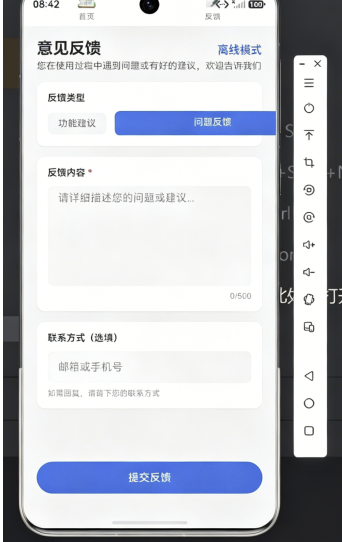
测试步骤:
- 在有网络时打开应用,加载数据
- 开启飞行模式,关闭应用
- 重新打开应用,查看缓存数据是否正常显示
- 关闭飞行模式,观察数据是否自动同步
预期效果:
- 离线时顶部显示橙色提示条
- 缓存的笔记数据正常显示
- 网络恢复后,待同步任务自动执行
- 同步成功后提示消失
九、总结一下~ ✨
今天我们一起学习了:
- ✅ 用 SharedPreferences 和 Hive 实现数据缓存
- ✅ 用 connectivity_plus 监听网络状态
- ✅ 设计温柔的离线提示 UI
- ✅ 实现离线操作的同步队列
有了离线模式,你的应用就像一个贴心的小伙伴,无论有网没网,都会陪伴在用户身边~
技术要点回顾:
| 功能模块 | Flutter/Dart方案 | 特点 |
|---|---|---|
| 轻量缓存 | SharedPreferences | 简单易用,适合键值对存储 |
| 数据存储 | Hive | 高性能NoSQL数据库 |
| 网络检测 | connectivity_plus | 实时监听网络变化 |
| 状态管理 | Provider + ChangeNotifier | 响应式数据更新 |
| 同步队列 | 自定义实现 | 支持重试和持久化 |
扩展方向:
- 🔄 添加冲突解决机制
- 📊 实现增量同步
- 🔐 数据加密存储
- 📱 支持多设备同步
希望这篇教程对你有帮助!有问题的话,欢迎在评论区留言讨论哦~
作者寄语:愿你的应用永远在线,用户永远开心~ 💕

开源鸿蒙跨平台开发社区汇聚开发者与厂商,共建“一次开发,多端部署”的开源生态,致力于降低跨端开发门槛,推动万物智联创新。
更多推荐
 5
5 0
0- 0


 已为社区贡献64条内容

所有评论(0)