Flutter OpenHarmony 三方库 imagecropper_ohos 图片裁剪适配详解
是功能说明图片裁剪支持自定义裁剪区域图片旋转支持旋转图片宽高比控制支持固定宽高比和自由比例图片采样支持图片缩放采样用于预览自定义 UI提供 Crop Widget 可自定义裁剪界面创建自定义的CropWidgetScaffold(Expanded(),Row(TextButton(onPressed: () => Navigator.pop(context), child: Text('取消'))
欢迎加入开源鸿蒙跨平台社区:https://openharmonycrossplatform.csdn.net
1. 引言
在 Flutter 应用开发中,图片裁剪是一个常见需求,广泛应用于用户头像设置、商品图片编辑、证件照处理等场景。imagecropper_ohos 是专为 OpenHarmony 平台适配的图片裁剪插件,提供了完整的图片裁剪能力。
本文将详细介绍 imagecropper_ohos 库在 OpenHarmony 环境下的使用方法,包括核心 API 讲解、完整的应用级示例代码,以及常见问题解答。
当前环境说明:
- Flutter 版本:3.27.5
- HarmonyOS 版本:6.0
- imagecropper_ohos 版本:1.0.0(OpenHarmony 适配版本)
源码仓库:
- OpenHarmony 适配版本:https://atomgit.com/openharmony-sig/fluttertpc_image_cropper.git
2. imagecropper_ohos 库概述
2.1 库简介
imagecropper_ohos 是 image_cropper 在 OpenHarmony 平台的适配版本,提供了以下核心功能:
| 功能 | 说明 |
|---|---|
| 图片裁剪 | 支持自定义裁剪区域 |
| 图片旋转 | 支持旋转图片 |
| 宽高比控制 | 支持固定宽高比和自由比例 |
| 图片采样 | 支持图片缩放采样用于预览 |
| 自定义 UI | 提供 Crop Widget 可自定义裁剪界面 |
2.2 支持平台对比
| 平台 | 支持情况 | 底层实现 |
|---|---|---|
| Android | ✅ 完全支持 | uCrop |
| iOS | ✅ 完全支持 | TOCropViewController |
| Web | ✅ 完全支持 | Cropper.js |
| OpenHarmony | ✅ 完全支持 | imagecropper_ohos |
2.3 引入方式
在 pubspec.yaml 文件中添加以下依赖配置:
dependencies:
  image_cropper:
    git:
      url: https://atomgit.com/openharmony-sig/fluttertpc_image_cropper.git
      path: ./image_cropper
      ref: master
  imagecropper_ohos:
    git:
      url: https://atomgit.com/openharmony-sig/fluttertpc_image_cropper.git
      path: ./image_cropper/ohos
      ref: master
然后执行以下命令获取依赖:
flutter pub get
2.4 配合 image_picker 使用
图片裁剪通常需要配合图片选择器使用,推荐搭配 image_picker:
dependencies:
  image_picker:
    git:
      url: https://atomgit.com/openharmony-tpc/flutter_packages.git
      path: packages/image_picker/image_picker
      ref: master
3. 核心 API 讲解
3.1 ImagecropperOhos 类
ImagecropperOhos 是插件的核心类,提供图片裁剪和采样功能。
import 'package:imagecropper_ohos/imagecropper_ohos.dart';

final ImagecropperOhos imageCropper = ImagecropperOhos();
3.2 sampleImage 方法
对图片进行采样,返回采样后的文件,用于裁剪预览。
Future<File?> sampleImage({
  required String path,
  required int maximumSize,
})
参数说明:
| 参数 | 类型 | 必填 | 说明 |
|---|---|---|---|
path |
String |
是 | 原图片的绝对路径 |
maximumSize |
int |
是 | 采样后的最大尺寸(像素) |
返回值: File? - 采样后的文件对象。
3.3 cropImage 方法
根据裁剪区域和参数执行图片裁剪。
Future<File> cropImage({
  required File file,
  required Rect area,
  double? scale,
  double? angle,
  double? cx,
  double? cy,
})
参数说明:
| 参数 | 类型 | 必填 | 说明 |
|---|---|---|---|
file |
File |
是 | 要裁剪的图片文件 |
area |
Rect |
是 | 裁剪区域(left, top, width, height) |
scale |
double? |
否 | 缩放比例 |
angle |
double? |
否 | 旋转角度 |
cx |
double? |
否 | 裁剪中心点 X 坐标 |
cy |
double? |
否 | 裁剪中心点 Y 坐标 |
返回值: File - 裁剪后的文件对象。
3.4 recoverImage 方法
恢复图片到原始状态。
Future<String?> recoverImage()
返回值: String? - 恢复后的图片路径。
3.5 Crop Widget
Crop 是一个 Flutter Widget,用于显示可交互的裁剪界面。
import 'package:imagecropper_ohos/page/crop.dart';

Crop.file(
  sampleFile,
  key: cropKey,
  aspectRatio: 1.0,
)
参数说明:
| 参数 | 类型 | 默认值 | 说明 |
|---|---|---|---|
file |
File |
必填 | 采样后的图片文件 |
key |
GlobalKey<CropState> |
必填 | 用于获取裁剪状态 |
aspectRatio |
double? |
null |
固定宽高比,null 表示自由比例 |
maximumScale |
double |
2.0 |
最大缩放比例 |
alwaysShowGrid |
bool |
true |
是否始终显示裁剪网格 |
3.6 CropState 类
通过 CropState 可以获取当前的裁剪状态。
final cropKey = GlobalKey<CropState>();

final scale = cropKey.currentState?.scale;
final area = cropKey.currentState?.area;
final angle = cropKey.currentState?.angle;
final cx = cropKey.currentState?.cx ?? 0;
final cy = cropKey.currentState?.cy ?? 0;
属性说明:
| 属性 | 类型 | 说明 |
|---|---|---|
scale |
double |
当前缩放比例 |
area |
Rect? |
当前裁剪区域 |
angle |
double |
当前旋转角度 |
cx |
double |
裁剪中心点 X 坐标 |
cy |
double |
裁剪中心点 Y 坐标 |
4. 完整应用示例
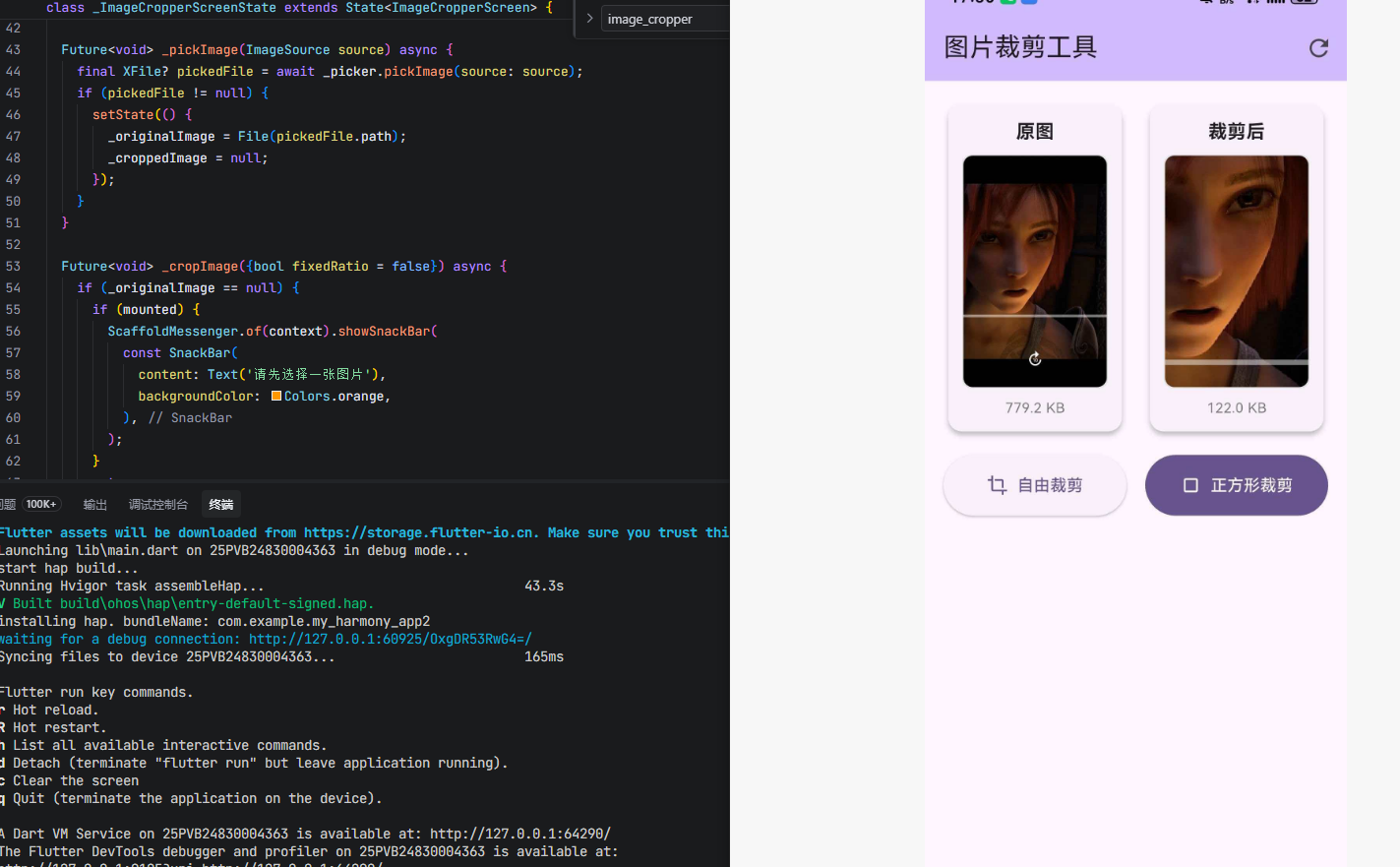
下面是一个完整的应用级示例,展示 imagecropper_ohos 库的所有核心功能。这个示例是一个图片裁剪应用,包含:
- 图片选择:从相册选择图片
- 自由裁剪:支持自定义裁剪区域
- 正方形裁剪:固定 1:1 宽高比裁剪
- 裁剪预览:显示原图和裁剪后的图片
- 图片保存:保存裁剪结果
import 'dart:io';
import 'package:flutter/material.dart';
import 'package:image_picker/image_picker.dart';
import 'package:imagecropper_ohos/imagecropper_ohos.dart';
import 'package:imagecropper_ohos/page/crop.dart';
void main() {
runApp(const MyApp());
}
class MyApp extends StatelessWidget {
const MyApp({super.key});
Widget build(BuildContext context) {
return MaterialApp(
title: '图片裁剪工具',
debugShowCheckedModeBanner: false,
theme: ThemeData(
colorScheme: ColorScheme.fromSeed(seedColor: Colors.deepPurple),
useMaterial3: true,
),
home: const ImageCropperScreen(),
);
}
}
class ImageCropperScreen extends StatefulWidget {
const ImageCropperScreen({super.key});
State<ImageCropperScreen> createState() => _ImageCropperScreenState();
}
class _ImageCropperScreenState extends State<ImageCropperScreen> {
File? _originalImage;
File? _croppedImage;
final ImagePicker _picker = ImagePicker();
final ImagecropperOhos _imageCropper = ImagecropperOhos();
Future<void> _pickImage(ImageSource source) async {
final XFile? pickedFile = await _picker.pickImage(source: source);
if (pickedFile != null) {
setState(() {
_originalImage = File(pickedFile.path);
_croppedImage = null;
});
}
}
Future<void> _cropImage({bool fixedRatio = false}) async {
if (_originalImage == null) {
if (mounted) {
ScaffoldMessenger.of(context).showSnackBar(
const SnackBar(
content: Text('请先选择一张图片'),
backgroundColor: Colors.orange,
),
);
}
return;
}
try {
final croppedPath = await Navigator.push<String?>(
context,
MaterialPageRoute(
builder: (context) => CropWidget(
filePath: _originalImage!.path,
fixedRatio: fixedRatio,
),
),
);
if (croppedPath != null) {
setState(() {
_croppedImage = File(croppedPath);
});
if (mounted) {
ScaffoldMessenger.of(context).showSnackBar(
const SnackBar(
content: Text('裁剪成功'),
backgroundColor: Colors.green,
),
);
}
}
} catch (e) {
if (mounted) {
ScaffoldMessenger.of(context).showSnackBar(
SnackBar(
content: Text('裁剪失败: $e'),
backgroundColor: Colors.red,
),
);
}
}
}
void _resetImage() {
setState(() {
_originalImage = null;
_croppedImage = null;
});
}
void _showImageSourceDialog() {
showModalBottomSheet(
context: context,
builder: (context) => SafeArea(
child: Wrap(
children: [
ListTile(
leading: const Icon(Icons.photo_library),
title: const Text('从相册选择'),
onTap: () {
Navigator.pop(context);
_pickImage(ImageSource.gallery);
},
),
ListTile(
leading: const Icon(Icons.camera_alt),
title: const Text('拍照'),
onTap: () {
Navigator.pop(context);
_pickImage(ImageSource.camera);
},
),
],
),
),
);
}
Widget build(BuildContext context) {
return Scaffold(
appBar: AppBar(
title: const Text('图片裁剪工具'),
backgroundColor: Theme.of(context).colorScheme.inversePrimary,
actions: [
if (_originalImage != null)
IconButton(
icon: const Icon(Icons.refresh),
tooltip: '重置',
onPressed: _resetImage,
),
],
),
body: _originalImage == null
? _buildEmptyState()
: _buildImageContent(),
);
}
Widget _buildEmptyState() {
return Center(
child: Column(
mainAxisAlignment: MainAxisAlignment.center,
children: [
Icon(
Icons.image_outlined,
size: 100,
color: Colors.grey.shade400,
),
const SizedBox(height: 24),
Text(
'选择图片开始裁剪',
style: TextStyle(
fontSize: 18,
color: Colors.grey.shade600,
),
),
const SizedBox(height: 32),
ElevatedButton.icon(
onPressed: _showImageSourceDialog,
icon: const Icon(Icons.add_photo_alternate),
label: const Text('选择图片'),
style: ElevatedButton.styleFrom(
padding: const EdgeInsets.symmetric(
horizontal: 32,
vertical: 16,
),
),
),
],
),
);
}
Widget _buildImageContent() {
return SingleChildScrollView(
padding: const EdgeInsets.all(16),
child: Column(
children: [
Row(
children: [
Expanded(
child: _buildImageCard(
title: '原图',
image: _originalImage,
),
),
const SizedBox(width: 16),
Expanded(
child: _buildImageCard(
title: '裁剪后',
image: _croppedImage,
),
),
],
),
const SizedBox(height: 16),
_buildActionButtons(),
],
),
);
}
Widget _buildImageCard({required String title, File? image}) {
return Card(
elevation: 3,
child: Padding(
padding: const EdgeInsets.all(12),
child: Column(
children: [
Text(
title,
style: const TextStyle(
fontSize: 16,
fontWeight: FontWeight.bold,
),
),
const SizedBox(height: 8),
Container(
height: 200,
width: double.infinity,
decoration: BoxDecoration(
color: Colors.grey.shade100,
borderRadius: BorderRadius.circular(8),
border: Border.all(color: Colors.grey.shade300),
),
child: image != null
? ClipRRect(
borderRadius: BorderRadius.circular(8),
child: Image.file(
image,
fit: BoxFit.cover,
),
)
: Center(
child: Icon(
Icons.image_not_supported,
size: 48,
color: Colors.grey.shade400,
),
),
),
if (image != null) ...[
const SizedBox(height: 8),
Text(
'${(image.lengthSync() / 1024).toStringAsFixed(1)} KB',
style: TextStyle(
fontSize: 12,
color: Colors.grey.shade600,
),
),
],
],
),
),
);
}
Widget _buildActionButtons() {
return Row(
children: [
Expanded(
child: ElevatedButton.icon(
onPressed: () => _cropImage(fixedRatio: false),
icon: const Icon(Icons.crop),
label: const Text('自由裁剪'),
style: ElevatedButton.styleFrom(
padding: const EdgeInsets.symmetric(vertical: 16),
),
),
),
const SizedBox(width: 16),
Expanded(
child: FilledButton.icon(
onPressed: () => _cropImage(fixedRatio: true),
icon: const Icon(Icons.crop_square),
label: const Text('正方形裁剪'),
style: FilledButton.styleFrom(
padding: const EdgeInsets.symmetric(vertical: 16),
),
),
),
],
);
}
}
class CropWidget extends StatefulWidget {
final String filePath;
final bool fixedRatio;
const CropWidget({
super.key,
required this.filePath,
this.fixedRatio = false,
});
State<CropWidget> createState() => _CropWidgetState();
}
class _CropWidgetState extends State<CropWidget> {
final imageCropper = ImagecropperOhos();
final cropKey = GlobalKey<CropState>();
File? _file;
File? _sample;
void initState() {
super.initState();
WidgetsBinding.instance.addPostFrameCallback((timeStamp) {
imageCropper
.sampleImage(
path: widget.filePath,
maximumSize: context.size!.longestSide.ceil(),
)
.then((value) {
setState(() {
_sample = value!;
_file = File(widget.filePath);
});
});
});
}
void dispose() {
super.dispose();
_sample?.delete();
}
Widget build(BuildContext context) {
return Scaffold(
backgroundColor: Colors.black,
body: SafeArea(
child: Column(
children: [
Expanded(
child: _sample == null
? const Center(child: CircularProgressIndicator())
: Crop.file(
_sample!,
key: cropKey,
aspectRatio: widget.fixedRatio ? 1.0 : null,
),
),
Container(
padding: const EdgeInsets.symmetric(vertical: 20),
child: Row(
mainAxisAlignment: MainAxisAlignment.spaceAround,
children: [
TextButton(
onPressed: () => Navigator.pop(context),
child: const Text(
'取消',
style: TextStyle(color: Colors.white),
),
),
TextButton(
onPressed: _sample != null ? _cropImage : null,
child: const Text(
'确认',
style: TextStyle(color: Colors.white),
),
),
],
),
),
],
),
),
);
}
Future<void> _cropImage() async {
final scale = cropKey.currentState?.scale;
final area = cropKey.currentState?.area;
final angle = cropKey.currentState?.angle;
final cx = cropKey.currentState?.cx ?? 0;
final cy = cropKey.currentState?.cy ?? 0;
if (area == null || _file == null) {
return;
}
try {
final sample = await imageCropper.sampleImage(
path: _file!.path,
maximumSize: (2000 / scale!).round(),
);
final file = await imageCropper.cropImage(
file: sample!,
area: area,
angle: angle,
cx: cx,
cy: cy,
);
sample.delete();
Navigator.pop(context, file.path);
} catch (e) {
if (mounted) {
ScaffoldMessenger.of(context).showSnackBar(
SnackBar(
content: Text('裁剪失败: $e'),
backgroundColor: Colors.red,
),
);
}
}
}
}
4.5 代码详解
4.5.1 图片选择与裁剪流程
Future<void> _pickImage(ImageSource source) async {
  final XFile? pickedFile = await _picker.pickImage(source: source);
  if (pickedFile != null) {
    setState(() {
      _originalImage = File(pickedFile.path);
      _croppedImage = null;
    });
  }
}

Future<void> _cropImage({bool fixedRatio = false}) async {
  final croppedPath = await Navigator.push<String?>(
    context,
    MaterialPageRoute(
      builder: (context) => CropWidget(
        filePath: _originalImage!.path,
        fixedRatio: fixedRatio,
      ),
    ),
  );

  if (croppedPath != null) {
    setState(() {
      _croppedImage = File(croppedPath);
    });
  }
}
完整的流程是:选择图片获取路径 → 打开裁剪页面 → 用户调整裁剪区域 → 点击确认 → 执行裁剪 → 返回结果文件路径。
4.5.2 图片采样
final sample = await imageCropper.sampleImage(
  path: _file!.path,
  maximumSize: context.size!.longestSide.ceil(),
);
sampleImage 方法对原图进行采样,返回一个较小尺寸的图片用于预览,避免加载大图导致内存问题。
4.5.3 固定宽高比裁剪
Crop.file(
  _sample!,
  key: cropKey,
  aspectRatio: widget.fixedRatio ? 1.0 : null,
)
通过设置 aspectRatio: 1.0 实现 1:1 正方形裁剪,设置为 null 则允许自由比例裁剪。
4.5.4 执行裁剪
final scale = cropKey.currentState?.scale;
final area = cropKey.currentState?.area;
final angle = cropKey.currentState?.angle;
final cx = cropKey.currentState?.cx ?? 0;
final cy = cropKey.currentState?.cy ?? 0;

final sample = await imageCropper.sampleImage(
  path: _file!.path,
  maximumSize: (2000 / scale!).round(),
);

final file = await imageCropper.cropImage(
  file: sample!,
  area: area,
  angle: angle,
  cx: cx,
  cy: cy,
);
从 CropState 获取裁剪参数,然后调用 cropImage 执行裁剪。裁剪前需要对原图进行采样,采样尺寸根据缩放比例动态调整。
5. 常见问题解答
Q1: 如何从相册选择图片并裁剪?
解决方案: 配合 image_picker 使用:
final pickedFile = await ImagePicker().pickImage(source: ImageSource.gallery);
if (pickedFile != null) {
  final croppedPath = await Navigator.push<String?>(
    context,
    MaterialPageRoute(
      builder: (context) => CropWidget(filePath: pickedFile.path),
    ),
  );
}
Q2: 如何设置固定宽高比?
解决方案: 使用 Crop.file 的 aspectRatio 参数:
Crop.file(
  sampleFile,
  key: cropKey,
  aspectRatio: 1.0,
)
Q3: 如何实现正方形裁剪(头像裁剪)?
解决方案: 设置 aspectRatio: 1.0:
Crop.file(
  sampleFile,
  key: cropKey,
  aspectRatio: 1.0,
)
Q4: 如何获取当前裁剪区域?
解决方案: 通过 CropState 获取:
final cropKey = GlobalKey<CropState>();
final area = cropKey.currentState?.area;
Q5: 如何自定义裁剪界面的 UI?
解决方案: 创建自定义的 CropWidget,在底部添加自己的按钮和控件:
Scaffold(
  body: Column(
    children: [
      Expanded(
        child: Crop.file(sampleFile, key: cropKey),
      ),
      Row(
        children: [
          TextButton(onPressed: () => Navigator.pop(context), child: Text('取消')),
          TextButton(onPressed: _cropImage, child: Text('确认')),
        ],
      ),
    ],
  ),
)
Q6: 用户取消裁剪时如何处理?
解决方案: 检查返回值是否为 null:
final croppedPath = await Navigator.push<String?>(...);
if (croppedPath == null) {
  print('用户取消了裁剪');
} else {
  print('裁剪成功: $croppedPath');
}
Q7: 裁剪后的文件保存在哪里?
解决方案: 裁剪结果保存在临时目录,需要及时保存:
final dir = await getApplicationDocumentsDirectory();
final savedFile = File('${dir.path}/cropped_${DateTime.now().millisecondsSinceEpoch}.jpg');
await File(croppedPath).copy(savedFile.path);
Q8: 如何控制输出图片的质量?
解决方案: 通过调整采样尺寸来间接控制输出质量:
final sample = await imageCropper.sampleImage(
  path: _file!.path,
  maximumSize: (2000 / scale!).round(),
);
maximumSize 越大,输出图片质量越高但文件越大。
Q9: 为什么需要先采样再裁剪?
解决方案: 采样是为了性能优化。直接加载大图会导致内存问题,采样后的小图用于预览和交互,裁剪时再根据需要对原图进行采样处理。
Q10: imagecropper_ohos 在 OpenHarmony 上有哪些注意事项?
- 依赖配置:需要同时引入
image_cropper和imagecropper_ohos - 临时文件:裁剪结果保存在临时目录,应用重启后可能丢失
- 权限要求:需要图片读取权限,由
image_picker自动处理 - 内存管理:使用
sampleImage进行图片采样,避免加载大图 - 文件清理:裁剪完成后需要删除采样文件,避免占用存储空间
6. 注意事项
- 临时文件:裁剪结果保存在临时目录,需要及时复制到永久存储位置
- 内存管理:使用
sampleImage进行图片采样,避免直接加载大图 - 依赖配置:OpenHarmony 需要同时引入
image_cropper和imagecropper_ohos - 用户取消:用户取消裁剪时返回
null,需要做好空值处理 - 文件清理:裁剪完成后需要删除采样文件(
_sample?.delete()) - 固定宽高比:通过
Crop.file的aspectRatio参数控制
7. 总结
imagecropper_ohos 是一个专为 OpenHarmony 平台适配的图片裁剪插件,提供了完整的图片裁剪能力。
优点
- OpenHarmony 原生支持:专为 OpenHarmony 平台适配
- 自定义 UI:提供 Crop Widget 可自定义裁剪界面
- 性能优化:使用图片采样避免内存问题
- 灵活控制:支持自由裁剪和固定宽高比裁剪
适用场景
- 用户头像设置
- 商品图片编辑
- 证件照处理
- 朋友圈图片裁剪
- 图片上传前预处理
最佳实践
- 裁剪后及时保存文件到永久目录
- 使用 sampleImage 进行图片采样
- 裁剪完成后删除采样文件
- 做好用户取消的空值处理
注意事项
- 裁剪结果保存在临时目录
- 需要手动管理采样文件的生命周期
- 用户取消时返回 null
8. 参考资料

开源鸿蒙跨平台开发社区汇聚开发者与厂商,共建“一次开发,多端部署”的开源生态,致力于降低跨端开发门槛,推动万物智联创新。
更多推荐
 6
6 0
0- 0


 已为社区贡献55条内容

所有评论(0)