centos7.9 Docker安装dify
两种安装方式,使用包管理器yum或者手动安装,若手动安装不会自动更新。本文使用包管理器yum安装Docker Compose。验证仓库配置 •检查仓库文件是否存在语法错误: Bash 复制。添加Docker 仓库,这里使用阿里云镜像源,加速下载。两行命令二选其一,第二行命令设置Docker开机自启动。如果官方源不可用,切换至国内镜像(如阿里云、清华源)2\添加Docker 仓库(阿里云镜像源)二、
验证仓库配置 • 检查仓库文件是否存在语法错误: Bash 复制
yum repolist all  # 查看仓库状态
cat /etc/yum.repos.d/CentOS-Base.repo   # 检查基础仓库配置
• 若文件损坏,从备份恢复或重新下载:
mv /etc/yum.repos.d/CentOS-Base.repo  /etc/yum.repos.d/CentOS-Base.repo.backup
curl -o /etc/yum.repos.d/CentOS-Base.repo  https://mirrors.aliyun.com/repo/Centos-7.repo   # 使用阿里云镜像
刷新DNS缓存:
systemctl restart network
使用替代镜像源
如果官方源不可用,切换至国内镜像(如阿里云、清华源)
sed -e 's|^mirrorlist=|#mirrorlist=|g' \
    -e 's|^#baseurl=http://mirror.centos.org |baseurl=https://mirrors.aliyun.com |g' \
    -i.bak  /etc/yum.repos.d/CentOS-*.repo
yum clean all && yum makecache
安装Docker
- 安装依赖包
在Linux系统上安装Docker,首先需要根据具体的发行版选择对应的包管理器。Ubuntu / Mint / Kali 使用apt,CentOS / RHEL使用yum。安装Docker 提供了使用apt-get 安装Docker的教程,本文使用yum进行安装。
安装yum中的依赖包:
sudo yum install -y yum-utils
[root@o2oa ~]# sudo yum install -y yum-utils
Loaded plugins: fastestmirror, langpacks
Loading mirror speeds from cached hostfile
 * base: mirrors.aliyun.com
 * extras: mirrors.aliyun.com
 * updates: mirrors.aliyun.com
Package yum-utils-1.1.31-54.el7_8.noarch already installed and latest version
Nothing to do
2\添加Docker 仓库(阿里云镜像源)
添加Docker 仓库,这里使用阿里云镜像源,加速下载
yum-config-manager --add-repo http://mirrors.aliyun.com/docker-ce/linux/centos/docker-ce.repo
[root@o2oa ~]# yum-config-manager --add-repo http://mirrors.aliyun.com/docker-ce/linux/centos/docker-ce.repo
Loaded plugins: fastestmirror, langpacks
adding repo from: http://mirrors.aliyun.com/docker-ce/linux/centos/docker-ce.repo
grabbing file http://mirrors.aliyun.com/docker-ce/linux/centos/docker-ce.repo to /etc/yum.repos.d/docker-ce.repo
repo saved to /etc/yum.repos.d/docker-ce.repo
3\安装Docker
使用yum安装Docker
sudo yum -y install docker-ce docker-ce-cli containerd.io
[root@o2oa ~]# sudo yum -y install docker-ce docker-ce-cli containerd.io
Loaded plugins: fastestmirror, langpacks
Loading mirror speeds from cached hostfile
 * base: mirrors.aliyun.com
 * extras: mirrors.aliyun.com
 * updates: mirrors.aliyun.com
docker-ce-stable                                         | 3.5 kB     00:00
(1/2): docker-ce-stable/7/x86_64/updateinfo                |   55 B   00:00
(2/2): docker-ce-stable/7/x86_64/primary_db                | 152 kB   00:00
Resolving Dependencies
--> Running transaction check
---> Package containerd.io.x86_64 0:1.6.33-3.1.el7 will be installed
--> Processing Dependency: container-selinux >= 2:2.74 for package: containerd.io-1.6.33-3.1.el7.x86_64
---> Package docker-ce.x86_64 3:26.1.4-1.el7 will be installed
--> Processing Dependency: docker-ce-rootless-extras for package: 3:docker-ce-26.1.4-1.el7.x86_64
---> Package docker-ce-cli.x86_64 1:26.1.4-1.el7 will be installed
--> Processing Dependency: docker-buildx-plugin for package: 1:docker-ce-cli-26.1.4-1.el7.x86_64
--> Processing Dependency: docker-compose-plugin for package: 1:docker-ce-cli-26.1.4-1.el7.x86_64
--> Running transaction check
---> Package container-selinux.noarch 2:2.119.2-1.911c772.el7_8 will be installed
---> Package docker-buildx-plugin.x86_64 0:0.14.1-1.el7 will be installed
---> Package docker-ce-rootless-extras.x86_64 0:26.1.4-1.el7 will be installed
--> Processing Dependency: fuse-overlayfs >= 0.7 for package: docker-ce-rootless-extras-26.1.4-1.el7.x86_64
--> Processing Dependency: slirp4netns >= 0.4 for package: docker-ce-rootless-extras-26.1.4-1.el7.x86_64
---> Package docker-compose-plugin.x86_64 0:2.27.1-1.el7 will be installed
--> Running transaction check
---> Package fuse-overlayfs.x86_64 0:0.7.2-6.el7_8 will be installed
--> Processing Dependency: libfuse3.so.3(FUSE_3.2)(64bit) for package: fuse-overlayfs-0.7.2-6.el7_8.x86_64
--> Processing Dependency: libfuse3.so.3(FUSE_3.0)(64bit) for package: fuse-overlayfs-0.7.2-6.el7_8.x86_64
--> Processing Dependency: libfuse3.so.3()(64bit) for package: fuse-overlayfs-0.7.2-6.el7_8.x86_64
---> Package slirp4netns.x86_64 0:0.4.3-4.el7_8 will be installed
--> Running transaction check
---> Package fuse3-libs.x86_64 0:3.6.1-4.el7 will be installed
--> Finished Dependency Resolution

Dependencies Resolved

================================================================================
 Package                Arch   Version                   Repository        Size
================================================================================
Installing:
 containerd.io          x86_64 1.6.33-3.1.el7            docker-ce-stable  35 M
 docker-ce              x86_64 3:26.1.4-1.el7            docker-ce-stable  27 M
 docker-ce-cli          x86_64 1:26.1.4-1.el7            docker-ce-stable  15 M
Installing for dependencies:
 container-selinux      noarch 2:2.119.2-1.911c772.el7_8 extras            40 k
 docker-buildx-plugin   x86_64 0.14.1-1.el7              docker-ce-stable  14 M
 docker-ce-rootless-extras
                        x86_64 26.1.4-1.el7              docker-ce-stable 9.4 M
 docker-compose-plugin  x86_64 2.27.1-1.el7              docker-ce-stable  13 M
 fuse-overlayfs         x86_64 0.7.2-6.el7_8             extras            54 k
 fuse3-libs             x86_64 3.6.1-4.el7               extras            82 k
 slirp4netns            x86_64 0.4.3-4.el7_8             extras            81 k

Transaction Summary
================================================================================
Install  3 Packages (+7 Dependent packages)

Total download size: 114 M
Installed size: 401 M
Downloading packages:
(1/10): container-selinux-2.119.2-1.911c772.el7_8.noarch.r |  40 kB   00:00
warning: /var/cache/yum/x86_64/7/docker-ce-stable/packages/docker-buildx-plugin-0.14.1-1.el7.x86_64.rpm: Header V4 RSA/SHA512 Signature, key ID 621e9f35: NOKEY
Public key for docker-buildx-plugin-0.14.1-1.el7.x86_64.rpm is not installed
(2/10): docker-buildx-plugin-0.14.1-1.el7.x86_64.rpm       |  14 MB   00:03
(3/10): containerd.io-1.6.33-3.1.el7.x86_64.rpm            |  35 MB   00:09
(4/10): docker-ce-26.1.4-1.el7.x86_64.rpm                  |  27 MB   00:06
(5/10): docker-ce-rootless-extras-26.1.4-1.el7.x86_64.rpm  | 9.4 MB   00:02
(6/10): fuse-overlayfs-0.7.2-6.el7_8.x86_64.rpm            |  54 kB   00:00
(7/10): fuse3-libs-3.6.1-4.el7.x86_64.rpm                  |  82 kB   00:00
(8/10): slirp4netns-0.4.3-4.el7_8.x86_64.rpm               |  81 kB   00:00
(9/10): docker-ce-cli-26.1.4-1.el7.x86_64.rpm              |  15 MB   00:03
(10/10): docker-compose-plugin-2.27.1-1.el7.x86_64.rpm     |  13 MB   00:03
--------------------------------------------------------------------------------
Total                                              7.5 MB/s | 114 MB  00:15
Retrieving key from https://mirrors.aliyun.com/docker-ce/linux/centos/gpg
Importing GPG key 0x621E9F35:
 Userid     : "Docker Release (CE rpm) <docker@docker.com>"
 Fingerprint: 060a 61c5 1b55 8a7f 742b 77aa c52f eb6b 621e 9f35
 From       : https://mirrors.aliyun.com/docker-ce/linux/centos/gpg
Running transaction check
Running transaction test
Transaction test succeeded
Running transaction
  Installing : 2:container-selinux-2.119.2-1.911c772.el7_8.noarch          1/10
  Installing : containerd.io-1.6.33-3.1.el7.x86_64                         2/10
  Installing : docker-buildx-plugin-0.14.1-1.el7.x86_64                    3/10
  Installing : slirp4netns-0.4.3-4.el7_8.x86_64                            4/10
  Installing : fuse3-libs-3.6.1-4.el7.x86_64                               5/10
  Installing : fuse-overlayfs-0.7.2-6.el7_8.x86_64                         6/10
  Installing : docker-compose-plugin-2.27.1-1.el7.x86_64                   7/10
  Installing : 1:docker-ce-cli-26.1.4-1.el7.x86_64                         8/10
  Installing : docker-ce-rootless-extras-26.1.4-1.el7.x86_64               9/10
  Installing : 3:docker-ce-26.1.4-1.el7.x86_64                            10/10
  Verifying  : docker-compose-plugin-2.27.1-1.el7.x86_64                   1/10
  Verifying  : fuse3-libs-3.6.1-4.el7.x86_64                               2/10
  Verifying  : fuse-overlayfs-0.7.2-6.el7_8.x86_64                         3/10
  Verifying  : slirp4netns-0.4.3-4.el7_8.x86_64                            4/10
  Verifying  : 2:container-selinux-2.119.2-1.911c772.el7_8.noarch          5/10
  Verifying  : containerd.io-1.6.33-3.1.el7.x86_64                         6/10
  Verifying  : 3:docker-ce-26.1.4-1.el7.x86_64                             7/10
  Verifying  : 1:docker-ce-cli-26.1.4-1.el7.x86_64                         8/10
  Verifying  : docker-ce-rootless-extras-26.1.4-1.el7.x86_64               9/10
  Verifying  : docker-buildx-plugin-0.14.1-1.el7.x86_64                   10/10

Installed:
  containerd.io.x86_64 0:1.6.33-3.1.el7     docker-ce.x86_64 3:26.1.4-1.el7
  docker-ce-cli.x86_64 1:26.1.4-1.el7

Dependency Installed:
  container-selinux.noarch 2:2.119.2-1.911c772.el7_8
  docker-buildx-plugin.x86_64 0:0.14.1-1.el7
  docker-ce-rootless-extras.x86_64 0:26.1.4-1.el7
  docker-compose-plugin.x86_64 0:2.27.1-1.el7
  fuse-overlayfs.x86_64 0:0.7.2-6.el7_8
  fuse3-libs.x86_64 0:3.6.1-4.el7
  slirp4netns.x86_64 0:0.4.3-4.el7_8

Complete!
[root@o2oa ~]#
- 验证Docker是否成功
首先启动Docker:
sudo systemctl start docker
sudo systemctl enable docker
两行命令二选其一,第二行命令设置Docker开机自启动
然后查看Docker状态,检查Docker是否安装成功:
sudo systemctl status docker


[root@o2oa ~]# sudo systemctl status docker
● docker.service - Docker Application Container Engine
   Loaded: loaded (/usr/lib/systemd/system/docker.service; disabled; vendor preset: disabled)
   Active: active (running) since Sat 2025-10-18 08:46:00 EDT; 10s ago
     Docs: https://docs.docker.com
 Main PID: 5485 (dockerd)
    Tasks: 10
   Memory: 33.1M
   CGroup: /system.slice/docker.service
           └─5485 /usr/bin/dockerd -H fd:// --containerd=/run/containerd/cont...

Oct 18 08:45:59 o2oa.xgpolice.com systemd[1]: Starting Docker Application Co....
Oct 18 08:45:59 o2oa.xgpolice.com dockerd[5485]: time="2025-10-18T08:45:59.5..."
Oct 18 08:45:59 o2oa.xgpolice.com dockerd[5485]: time="2025-10-18T08:45:59.6..."
Oct 18 08:46:00 o2oa.xgpolice.com dockerd[5485]: time="2025-10-18T08:46:00.1..."
Oct 18 08:46:00 o2oa.xgpolice.com dockerd[5485]: time="2025-10-18T08:46:00.2..."
Oct 18 08:46:00 o2oa.xgpolice.com dockerd[5485]: time="2025-10-18T08:46:00.2...4
Oct 18 08:46:00 o2oa.xgpolice.com dockerd[5485]: time="2025-10-18T08:46:00.2..."
Oct 18 08:46:00 o2oa.xgpolice.com dockerd[5485]: time="2025-10-18T08:46:00.2..."
Oct 18 08:46:00 o2oa.xgpolice.com systemd[1]: Started Docker Application Con....
Hint: Some lines were ellipsized, use -l to show in full.
[root@o2oa ~]#
二、 安装Docker Compose
两种安装方式,使用包管理器yum或者手动安装,若手动安装不会自动更新。本文使用包管理器yum安装Docker Compose。
- 更新yum并安装最新版本的Docker Compose 插件
sudo yum update
sudo yum install docker-compose-plugin


[root@o2oa ~]# sudo yum update
Loaded plugins: fastestmirror, langpacks
Loading mirror speeds from cached hostfile
 * base: mirrors.aliyun.com
 * extras: mirrors.aliyun.com
 * updates: mirrors.aliyun.com
No packages marked for update
[root@o2oa ~]# sudo yum install docker-compose-plugin
Loaded plugins: fastestmirror, langpacks
Loading mirror speeds from cached hostfile
 * base: mirrors.aliyun.com
 * extras: mirrors.aliyun.com
 * updates: mirrors.aliyun.com
Package docker-compose-plugin-2.27.1-1.el7.x86_64 already installed and latest version
Nothing to do
- 验证Docker Compose是否成功
通过检查版本来验证 Docker Compose 是否安装成功:
docker compose version

[root@o2oa ~]# docker compose version
Docker Compose version v2.27.1
三、 安装Dify
首先通过yum下载git:
sudo yum install git
[root@o2oa ~]# sudo yum install git
Loaded plugins: fastestmirror, langpacks
Loading mirror speeds from cached hostfile
 * base: mirrors.aliyun.com
 * extras: mirrors.aliyun.com
 * updates: mirrors.aliyun.com
Package git-1.8.3.1-25.el7_9.x86_64 already installed and latest version
Nothing to do
检查git版本:
 git --version

[root@o2oa ~]#  git --version
git version 1.8.3.1
- 安装Dify
克隆 Dify 源代码至本地环境:
git clone https://github.com/langgenius/dify.git
四、 启动Dify 1. 进入dify的Docker目录:
cd dify/docker
- 复制docker目录下环境配置文件:
cp .env.example .env
- 启动Docker容器:
根据docker compose version查看Docker Compose的版本,若为V2则启动命令为docker compose up -d,若为V1则启动命令为:docker-compose up -d
ps:运行时出现问题:Error response from daemon: driver failed programming external connectivity on endpoint docker-nginx-1
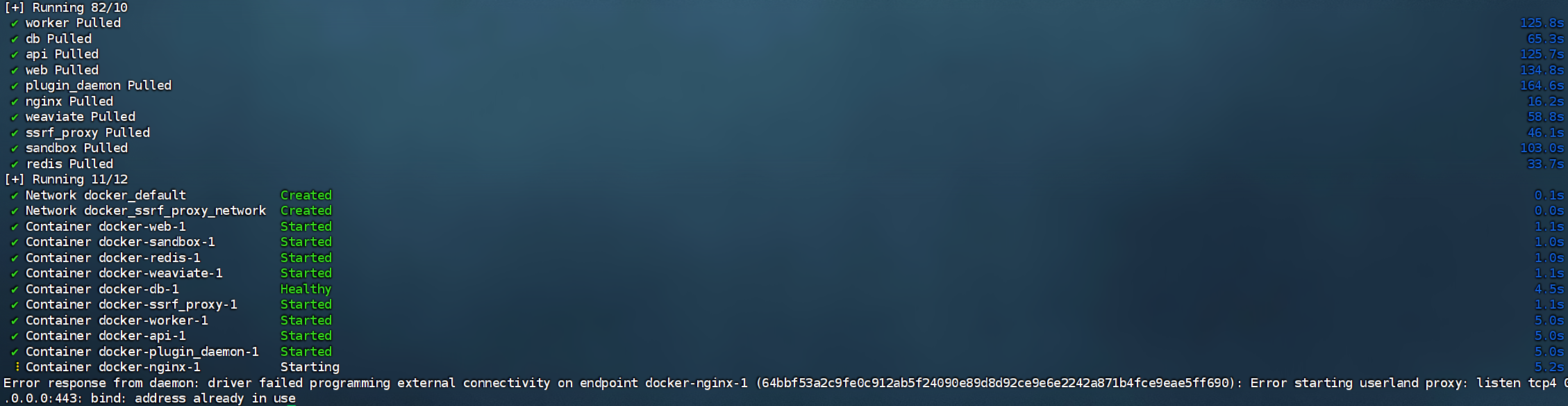
该问题是nginx端口冲突导致的,通过vim .env打开.env,在.env中找到:
EXPOSE_NGINX是nginx暴露给外部的窗口,更改为其他端口,例如8000、8443,随后再次运行docker compose up -d:
docker compose up -d:报错
Error response from daemon: Get “https://registry-1.docker.io/v2/”: read tcp 192.168.1.160:54830->10
[root@o2oa docker]# docker compose up -d
[+] Running 11/11
 ✘ weaviate Error      Get "https://registry-1.docker.i...                15.0s
 ✘ db Error            context canceled                                   15.0s
 ✘ worker_beat Error   context canceled                                   15.0s
 ✘ worker Error        context canceled                                   15.0s
 ✘ plugin_daemon Error context canceled                                   15.0s
 ✘ ssrf_proxy Error    context canceled                                   15.0s
 ✘ web Error           context canceled                                   15.0s
 ✘ redis Error         context canceled                                   15.0s
 ✘ sandbox Error       context canceled                                   15.0s
 ✘ nginx Error         context canceled                                   15.0s
 ✘ api Error           context canceled                                   15.0s
Error response from daemon: Get "https://registry-1.docker.io/v2/": context deadline exceeded (Client.Timeout exceeded while awaiting headers)
解决步骤 1、创建一个daemon.json文件,这个文件可以理解为属于docker的一个配置文件,有关docker服务的配置,可以通过这个文件进行修改生效。docker安装后默认没有daemon.json这个配置文件,需要进行手动创建。配置文件的默认路径:/etc/docker/daemon.json
{
  "registry-mirrors": [
    "http://docker.m.daocloud.io",
    "http://mirror.ccs.tencentyun.com",
    "http://docker.rainbond.cc"
  ]
}
[root@o2oa docker]# ls
certbot                         elasticsearch            ssrf_proxy
couchbase-server                generate_docker_compose  startupscripts
docker-compose.middleware.yaml  middleware.env.example   tidb
docker-compose.png              nginx                    volumes
docker-compose-template.yaml    pgvector
docker-compose.yaml             README.md
[root@o2oa docker]# vi daemon.json

[root@o2oa docker]# vi daemon.json
[root@o2oa docker]# // An highlighted block
-bash: //: Is a directory
[root@o2oa docker]# vi /etc/docker/daemon.json
[root@o2oa docker]# sudo systemctl daemon-reload
[root@o2oa docker]# sudo systemctl restart docker
[root@o2oa docker]# cat /etc/docker/daemon.json
{
  "registry-mirrors": [
    "http://docker.m.daocloud.io",
    "http://mirror.ccs.tencentyun.com",
    "http://docker.rainbond.cc"
  ]
}
[root@o2oa docker]#

[root@o2oa docker]# #systemctl daemon-reload
[root@o2oa docker]# #systemctl restart docker
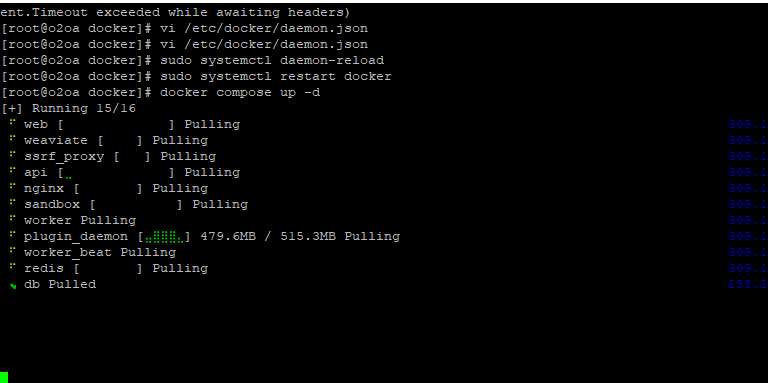
最后检查是否所有容器都正常运行:
docker compose ps

开源鸿蒙跨平台开发社区汇聚开发者与厂商,共建“一次开发,多端部署”的开源生态,致力于降低跨端开发门槛,推动万物智联创新。
更多推荐


 24
24 0
0- 0


 已为社区贡献1条内容

所有评论(0)