Flutter for OpenHarmony三方库适配实战:palette_generator 图片调色板提取
图片调色板提取是现代移动应用开发中的重要功能,应用需要根据图片内容动态生成匹配的 UI 配色方案。在 Flutter for OpenHarmony 应用开发中,是一个功能强大的图片调色板提取插件,提供了智能的颜色提取和配色能力。// 创建自定义目标image,palette_generator 是一个强大的图片调色板提取工具,为 OpenHarmony 应用提供了智能配色能力。
欢迎加入开源鸿蒙跨平台社区:https://openharmonycrossplatform.csdn.net
本文基于flutter3.27.5开发
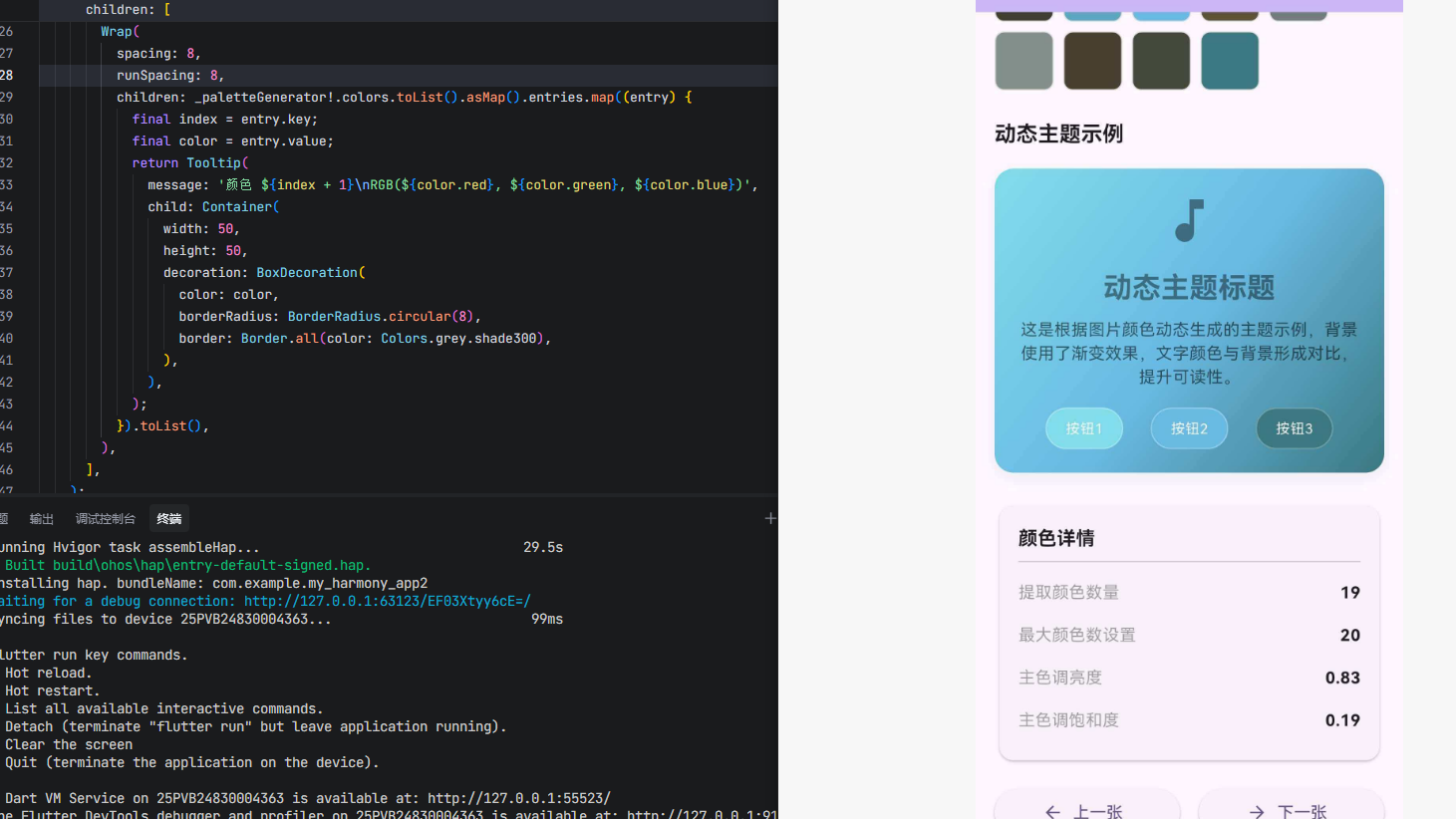
一、palette_generator 库概述 🎨
图片调色板提取是现代移动应用开发中的重要功能,应用需要根据图片内容动态生成匹配的 UI 配色方案。在 Flutter for OpenHarmony 应用开发中,palette_generator 是一个功能强大的图片调色板提取插件,提供了智能的颜色提取和配色能力。
palette_generator 库特点
palette_generator 库基于 Flutter 平台接口实现,提供了以下核心特性:
智能颜色提取:使用优化的 Median-cut 算法,从图片中提取多种风格的主色调,包括鲜艳色、柔和色、深色、浅色等。
多种配色方案:提供 7 种预设配色方案(dominant、vibrant、darkVibrant、lightVibrant、muted、darkMuted、lightMuted),满足不同场景需求。
区域选择:支持从图片的特定区域提取颜色,实现精准的颜色提取。
纯 Dart 实现:无需平台特定代码,跨平台兼容,性能优异。
自定义目标:支持自定义颜色提取目标,满足特殊配色需求。
功能支持对比
| 功能 | Android | iOS | OpenHarmony |
|---|---|---|---|
| 提取主色调 | ✅ | ✅ | ✅ |
| 提取鲜艳色 | ✅ | ✅ | ✅ |
| 提取柔和色 | ✅ | ✅ | ✅ |
| 区域颜色提取 | ✅ | ✅ | ✅ |
| 自定义目标 | ✅ | ✅ | ✅ |
| 网络图片支持 | ✅ | ✅ | ✅ |
注意:palette_generator 是纯 Dart 实现,所有平台功能完全一致。
使用场景:音乐播放器动态主题、图片浏览器背景色适配、个性化主题定制、UI 设计辅助工具等。
二、安装与配置 📦
2.1 添加依赖
在项目的 pubspec.yaml 文件中添加 palette_generator 依赖:
dependencies:
  palette_generator:
    git:
      url: https://atomgit.com/openharmony-tpc/flutter_packages.git
      path: packages/palette_generator
然后执行以下命令获取依赖:
flutter pub get
2.2 兼容性信息
| 项目 | 版本要求 |
|---|---|
| Flutter SDK | 3.7.12-ohos-1.0.6 |
| OpenHarmony SDK | 5.0.0 (API 12) |
| DevEco Studio | 5.0.13.200 |
| ROM | 5.1.0.120 SP3 |
2.3 权限配置
palette_generator 是纯 Dart 实现,不需要任何平台权限配置。
注意:如果需要从网络图片提取颜色,需要配置网络权限:
{
  "module": {
    "requestPermissions": [
      {
        "name": "ohos.permission.INTERNET"
      }
    ]
  }
}
三、API 详解 📚
3.1 PaletteGenerator 类
PaletteGenerator 是主要的调色板生成器类,提供以下核心属性:
class PaletteGenerator {
  // 主色调(最受欢迎的颜色)
  final PaletteColor? dominantColor;

  // 鲜艳色
  final PaletteColor? vibrantColor;

  // 深色鲜艳色
  final PaletteColor? darkVibrantColor;

  // 浅色鲜艳色
  final PaletteColor? lightVibrantColor;

  // 柔和色
  final PaletteColor? mutedColor;

  // 深色柔和色
  final PaletteColor? darkMutedColor;

  // 浅色柔和色
  final PaletteColor? lightMutedColor;

  // 所有提取的颜色(按受欢迎程度排序)
  final List<Color> colors;

  // 所有调色板颜色(包含标题和正文颜色)
  final List<PaletteColor> paletteColors;
}
3.2 创建 PaletteGenerator
从 ImageProvider 创建
static Future<PaletteGenerator> fromImageProvider(
  ImageProvider imageProvider, {
  Size? size,
  Rect? region,
  int maximumColorCount = 20,
  List<PaletteTarget> targets = const [],
})
参数说明:
imageProvider:图片提供者(AssetImage、NetworkImage 等)size:图片尺寸(可选,用于优化性能)region:提取颜色的区域(可选,默认整个图片)maximumColorCount:最大颜色数量,默认 20targets:自定义目标颜色类型
从 Image 对象创建
static Future<PaletteGenerator> fromImage(
  ui.Image image, {
  Rect? region,
  int maximumColorCount = 20,
  List<PaletteTarget> targets = const [],
})
3.3 PaletteColor 类
PaletteColor 包含颜色的元数据:
class PaletteColor {
  // 颜色值
  final Color color;

  // 该颜色在图片中的像素数量
  final int population;

  // 适合作为标题的颜色(与主色形成对比)
  final Color titleTextColor;

  // 适合作为正文的颜色
  final Color bodyTextColor;
}
3.4 PaletteTarget 类
PaletteTarget 用于自定义目标颜色类型:
class PaletteTarget {
  // 最小亮度
  final double? minimumLightness;

  // 目标亮度
  final double targetLightness;

  // 最大亮度
  final double? maximumLightness;

  // 最小饱和度
  final double? minimumSaturation;

  // 目标饱和度
  final double targetSaturation;

  // 最大饱和度
  final double? maximumSaturation;

  // 权重
  final double weight;
}
四、实现原理 🔬
4.1 颜色量化算法
palette_generator 使用基于 Median-cut 算法的颜色量化器:
步骤1:颜色空间表示
- 将 RGB 颜色空间表示为三维立方体
- 每个维度代表一个颜色通道(R、G、B)
步骤2:递归分割
- 根据颜色体积(而非像素数量)递归分割立方体
- 选择体积最大的立方体进行分割
- 重复直到达到目标颜色数量
步骤3:颜色提取
- 从每个分割后的立方体中计算平均颜色
- 统计每个颜色的像素数量
步骤4:颜色评分
- 根据饱和度、亮度等指标对颜色进行评分
- 选择最符合目标特征的颜色
4.2 与传统 Median-cut 的区别
| 特性 | 传统 Median-cut | palette_generator |
|---|---|---|
| 分割依据 | 像素数量 | 颜色体积 |
| 结果特征 | 代表性颜色 | 区分性颜色 |
| 适用场景 | 图片压缩 | 配色提取 |
| 颜色多样性 | 较低 | 较高 |
4.3 目标颜色选择
根据预设的目标(如鲜艳、柔和、深色、浅色),从提取的颜色中选择最匹配的颜色:
选择算法:
- 计算每个颜色与目标的"距离"
- 距离计算考虑饱和度、亮度等因素
- 选择距离最小的颜色作为目标颜色
距离计算公式:
double calculateDistance(Color color, PaletteTarget target) {
  final hslColor = HSLColor.fromColor(color);
  final saturationDistance = (hslColor.saturation - target.targetSaturation).abs();
  final lightnessDistance = (hslColor.lightness - target.targetLightness).abs();
  return saturationDistance + lightnessDistance;
}
五、实战案例 💡
5.1 基础用法:提取图片主色调
Future<void> _extractColors() async {
  final PaletteGenerator paletteGenerator =
      await PaletteGenerator.fromImageProvider(
    AssetImage('assets/landscape.png'),
    maximumColorCount: 20,
  );

  setState(() {
    _dominantColor = paletteGenerator.dominantColor?.color;
    _vibrantColor = paletteGenerator.vibrantColor?.color;
    _mutedColor = paletteGenerator.mutedColor?.color;
  });
}
5.2 从网络图片提取颜色
Future<void> _extractFromNetworkImage(String url) async {
  final PaletteGenerator paletteGenerator =
      await PaletteGenerator.fromImageProvider(
    NetworkImage(url),
    size: const Size(300, 200),
    maximumColorCount: 20,
  );

  print('主色调: ${paletteGenerator.dominantColor?.color}');
  print('鲜艳色: ${paletteGenerator.vibrantColor?.color}');
}
5.3 从图片区域提取颜色
Future<void> _extractFromRegion() async {
  // 只从图片的左上角区域提取颜色
  final region = Rect.fromLTWH(0, 0, 100, 100);

  final PaletteGenerator paletteGenerator =
      await PaletteGenerator.fromImageProvider(
    AssetImage('assets/landscape.png'),
    region: region,
    maximumColorCount: 20,
  );

  setState(() {
    _regionColor = paletteGenerator.dominantColor?.color;
  });
}
5.4 动态主题切换
class DynamicThemePage extends StatefulWidget {
final String imageUrl;
const DynamicThemePage({super.key, required this.imageUrl});
State<DynamicThemePage> createState() => _DynamicThemePageState();
}
class _DynamicThemePageState extends State<DynamicThemePage> {
PaletteGenerator? _paletteGenerator;
void initState() {
super.initState();
WidgetsBinding.instance.addPostFrameCallback((_) {
_extractColors();
});
}
Future<void> _extractColors() async {
_paletteGenerator = await PaletteGenerator.fromImageProvider(
NetworkImage(widget.imageUrl),
maximumColorCount: 20,
);
setState(() {});
}
Widget build(BuildContext context) {
final backgroundColor = _paletteGenerator?.dominantColor?.color ??
Colors.grey;
final textColor = _paletteGenerator?.dominantColor?.bodyTextColor ??
Colors.black;
return Scaffold(
backgroundColor: backgroundColor,
body: Center(
child: Text(
'动态主题',
style: TextStyle(color: textColor, fontSize: 24),
),
),
);
}
}
5.5 音乐播放器界面
class MusicPlayerPage extends StatefulWidget {
final String albumCoverUrl;
const MusicPlayerPage({super.key, required this.albumCoverUrl});
State<MusicPlayerPage> createState() => _MusicPlayerPageState();
}
class _MusicPlayerPageState extends State<MusicPlayerPage> {
PaletteGenerator? _paletteGenerator;
void initState() {
super.initState();
WidgetsBinding.instance.addPostFrameCallback((_) {
_extractColors();
});
}
Future<void> _extractColors() async {
_paletteGenerator = await PaletteGenerator.fromImageProvider(
NetworkImage(widget.albumCoverUrl),
maximumColorCount: 20,
);
setState(() {});
}
Widget build(BuildContext context) {
final gradientColors = [
_paletteGenerator?.dominantColor?.color ?? Colors.blue,
_paletteGenerator?.darkVibrantColor?.color ?? Colors.black,
];
return Scaffold(
body: Container(
decoration: BoxDecoration(
gradient: LinearGradient(
begin: Alignment.topCenter,
end: Alignment.bottomCenter,
colors: gradientColors,
),
),
child: Column(
children: [
Image.network(widget.albumCoverUrl, width: 200, height: 200),
const SizedBox(height: 20),
Text(
'歌曲名称',
style: TextStyle(
color: _paletteGenerator?.lightVibrantColor?.color,
fontSize: 24,
fontWeight: FontWeight.bold,
),
),
],
),
),
);
}
}
六、最佳实践 ⚡
6.1 性能优化
1. 限制颜色数量:
// 对于简单场景,减少颜色数量
PaletteGenerator.fromImageProvider(
  image,
  maximumColorCount: 10,  // 默认 20,可适当减少
);
2. 缩小图片尺寸:
// 指定较小的尺寸,加快处理速度
PaletteGenerator.fromImageProvider(
  NetworkImage(url),
  size: const Size(200, 200),  // 缩小尺寸
);
3. 异步处理:
// 在后台线程处理,避免阻塞 UI
Future(() async {
  final palette = await PaletteGenerator.fromImageProvider(image);
  // 更新 UI
});
6.2 颜色选择策略
1. 优先使用鲜艳色:
Color getBestColor(PaletteGenerator palette) {
  // 优先级:鲜艳色 > 主色调 > 柔和色
  return palette.vibrantColor?.color ??
         palette.dominantColor?.color ??
         palette.mutedColor?.color ??
         Colors.grey;
}
2. 考虑对比度:
Widget build(BuildContext context) {
  final bgColor = _paletteGenerator?.dominantColor?.color ?? Colors.white;
  final textColor = _paletteGenerator?.dominantColor?.bodyTextColor ??
                    Colors.black;

  return Container(
    color: bgColor,
    child: Text('文本', style: TextStyle(color: textColor)),
  );
}
3. 使用渐变效果:
List<Color> buildGradientColors(PaletteGenerator palette) {
  return [
    palette.lightVibrantColor?.color ?? Colors.lightBlue,
    palette.vibrantColor?.color ?? Colors.blue,
    palette.darkVibrantColor?.color ?? Colors.darkBlue,
  ];
}
6.3 错误处理
Future<void> _extractColors() async {
  try {
    final paletteGenerator = await PaletteGenerator.fromImageProvider(
      NetworkImage(url),
      maximumColorCount: 20,
    );

    if (paletteGenerator.colors.isEmpty) {
      // 图片没有提取到颜色
      setState(() {
        _dominantColor = Colors.grey;
      });
      return;
    }

    setState(() {
      _dominantColor = paletteGenerator.dominantColor?.color;
    });
  } catch (e) {
    // 处理网络错误或图片加载失败
    debugPrint('提取颜色失败: $e');
    setState(() {
      _dominantColor = Colors.grey;
    });
  }
}
6.4 缓存策略
class ColorExtractor {
  static final Map<String, PaletteGenerator> _cache = {};

  static Future<PaletteGenerator?> extract(String url) async {
    if (_cache.containsKey(url)) {
      return _cache[url];
    }

    try {
      final palette = await PaletteGenerator.fromImageProvider(
        NetworkImage(url),
        maximumColorCount: 20,
      );
      _cache[url] = palette;
      return palette;
    } catch (e) {
      return null;
    }
  }
}
七、常见问题 ❓
7.1 为什么提取不到颜色?
原因:
- 图片未加载完成
- 图片格式不支持
- 图片尺寸为 0
解决方案:
// 确保图片加载完成
final imageProvider = NetworkImage(url);
final imageStream = imageProvider.resolve(ImageConfiguration.empty);
imageStream.addListener(ImageStreamListener(
  (ImageInfo info, bool synchronousCall) {
    // 图片加载完成,开始提取颜色
    _extractColors();
  },
));
7.2 如何自定义目标颜色?
// 创建自定义目标
final customTarget = PaletteTarget(
  minimumLightness: 0.3,
  targetLightness: 0.5,
  maximumLightness: 0.7,
  minimumSaturation: 0.5,
  targetSaturation: 0.7,
  maximumSaturation: 1.0,
  weight: 1.0,
);

final palette = await PaletteGenerator.fromImageProvider(
  image,
  targets: [customTarget],
);
7.3 如何处理透明图片?
// 透明图片可能提取到透明色,需要过滤
final palette = await PaletteGenerator.fromImageProvider(image);
final colors = palette.colors.where((color) => color.opacity > 0.5).toList();
7.4 OpenHarmony 上的注意事项
palette_generator 是纯 Dart 实现,可以直接在 OpenHarmony 上使用。但需要注意:
- 图片加载:确保图片路径正确(assets 或网络)
- 性能优化:大图片处理较慢,建议缩小尺寸
- 内存管理:及时释放不再使用的 PaletteGenerator 对象
八、总结 📝
palette_generator 是一个强大的图片调色板提取工具,为 OpenHarmony 应用提供了智能配色能力。
优点
- 纯 Dart 实现:无需平台适配,跨平台兼容
- 智能配色:自动提取多种风格的主色调
- 易于使用:API 简洁,集成方便
- 性能优化:支持限制颜色数量和缩小图片尺寸
适用场景
- 音乐播放器动态主题
- 图片浏览器背景色适配
- 个性化主题定制
- UI 设计辅助工具
最佳实践
- 限制颜色数量以提升性能
- 缩小图片尺寸加快处理速度
- 使用缓存避免重复提取
- 考虑颜色对比度确保可读性
九、完整代码示例 🚀
以下是一个完整的可运行示例,展示了 palette_generator 库的核心功能:
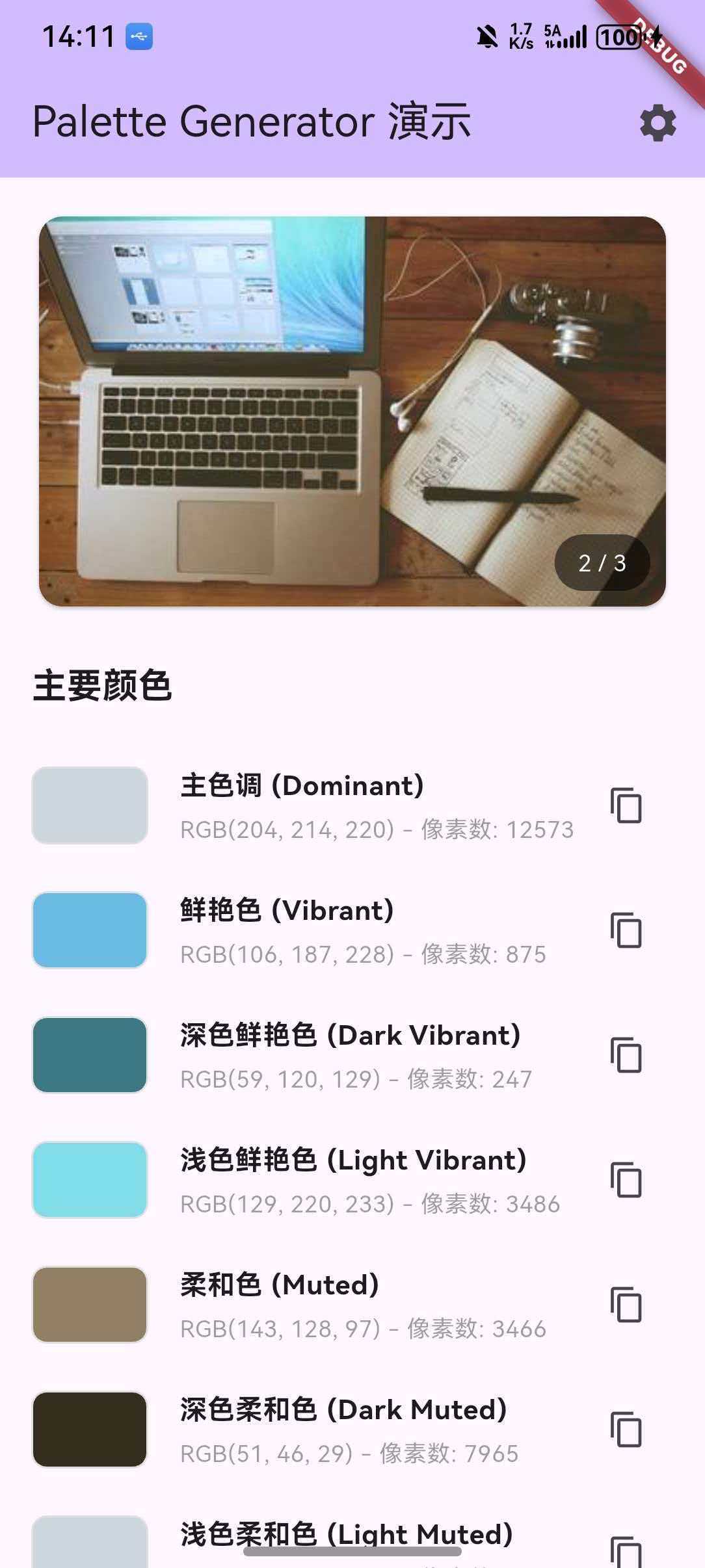
main.dart
import 'package:flutter/material.dart';
import 'package:palette_generator/palette_generator.dart';
void main() {
runApp(const MyApp());
}
class MyApp extends StatelessWidget {
const MyApp({super.key});
Widget build(BuildContext context) {
return MaterialApp(
title: 'Palette Generator Demo',
theme: ThemeData(
colorScheme: ColorScheme.fromSeed(seedColor: Colors.deepPurple),
useMaterial3: true,
),
home: const HomePage(),
);
}
}
class HomePage extends StatefulWidget {
const HomePage({super.key});
State<HomePage> createState() => _HomePageState();
}
class _HomePageState extends State<HomePage> {
final List<String> _imageUrls = [
'https://picsum.photos/400/300?random=1',
'https://picsum.photos/400/300?random=2',
'https://picsum.photos/400/300?random=3',
];
int _currentIndex = 0;
PaletteGenerator? _paletteGenerator;
bool _isLoading = false;
String? _errorMessage;
int _maxColorCount = 20;
bool _showAllColors = true;
Future<void> _extractColors() async {
setState(() {
_isLoading = true;
_errorMessage = null;
});
try {
_paletteGenerator = await PaletteGenerator.fromImageProvider(
NetworkImage(_imageUrls[_currentIndex]),
size: const Size(400, 300),
maximumColorCount: _maxColorCount,
);
if (_paletteGenerator!.colors.isEmpty) {
_errorMessage = '未能从图片中提取到颜色';
}
} catch (e) {
_errorMessage = '提取颜色失败: $e';
debugPrint(_errorMessage);
} finally {
setState(() {
_isLoading = false;
});
}
}
void _nextImage() {
setState(() {
_currentIndex = (_currentIndex + 1) % _imageUrls.length;
_paletteGenerator = null;
});
_extractColors();
}
void _previousImage() {
setState(() {
_currentIndex = (_currentIndex - 1 + _imageUrls.length) % _imageUrls.length;
_paletteGenerator = null;
});
_extractColors();
}
void initState() {
super.initState();
WidgetsBinding.instance.addPostFrameCallback((_) {
_extractColors();
});
}
Widget build(BuildContext context) {
return Scaffold(
appBar: AppBar(
title: const Text('Palette Generator 演示'),
backgroundColor: Theme.of(context).colorScheme.inversePrimary,
actions: [
IconButton(
icon: const Icon(Icons.settings),
onPressed: _showSettingsDialog,
),
],
),
body: SingleChildScrollView(
padding: const EdgeInsets.all(16),
child: Column(
crossAxisAlignment: CrossAxisAlignment.stretch,
children: [
_buildImageCard(),
const SizedBox(height: 24),
if (_errorMessage != null)
Card(
color: Colors.red.shade50,
child: Padding(
padding: const EdgeInsets.all(16),
child: Row(
children: [
const Icon(Icons.error, color: Colors.red),
const SizedBox(width: 8),
Expanded(
child: Text(
_errorMessage!,
style: const TextStyle(color: Colors.red),
),
),
],
),
),
)
else if (_paletteGenerator != null) ...[
_buildMainColorsSection(),
const SizedBox(height: 24),
if (_showAllColors) ...[
_buildAllColorsSection(),
const SizedBox(height: 24),
],
_buildDynamicThemeDemo(),
const SizedBox(height: 24),
_buildColorDetailsSection(),
],
const SizedBox(height: 16),
Row(
children: [
Expanded(
child: ElevatedButton.icon(
onPressed: _isLoading ? null : _previousImage,
icon: const Icon(Icons.arrow_back),
label: const Text('上一张'),
),
),
const SizedBox(width: 16),
Expanded(
child: ElevatedButton.icon(
onPressed: _isLoading ? null : _nextImage,
icon: const Icon(Icons.arrow_forward),
label: const Text('下一张'),
),
),
],
),
],
),
),
);
}
Widget _buildImageCard() {
return Card(
clipBehavior: Clip.antiAlias,
child: Stack(
children: [
Image.network(
_imageUrls[_currentIndex],
width: double.infinity,
height: 200,
fit: BoxFit.cover,
loadingBuilder: (context, child, loadingProgress) {
if (loadingProgress == null) return child;
return Container(
height: 200,
color: Colors.grey.shade200,
child: const Center(
child: CircularProgressIndicator(),
),
);
},
errorBuilder: (context, error, stackTrace) {
return Container(
height: 200,
color: Colors.grey.shade200,
child: const Center(
child: Icon(Icons.error, size: 48, color: Colors.grey),
),
);
},
),
if (_isLoading)
Positioned.fill(
child: Container(
color: Colors.black26,
child: const Center(
child: CircularProgressIndicator(color: Colors.white),
),
),
),
Positioned(
bottom: 8,
right: 8,
child: Container(
padding: const EdgeInsets.symmetric(horizontal: 12, vertical: 6),
decoration: BoxDecoration(
color: Colors.black54,
borderRadius: BorderRadius.circular(16),
),
child: Text(
'${_currentIndex + 1} / ${_imageUrls.length}',
style: const TextStyle(color: Colors.white, fontSize: 12),
),
),
),
],
),
);
}
Widget _buildMainColorsSection() {
return Column(
crossAxisAlignment: CrossAxisAlignment.start,
children: [
const Text(
'主要颜色',
style: TextStyle(fontSize: 18, fontWeight: FontWeight.bold),
),
const SizedBox(height: 16),
_buildColorItem('主色调 (Dominant)', _paletteGenerator!.dominantColor),
_buildColorItem('鲜艳色 (Vibrant)', _paletteGenerator!.vibrantColor),
_buildColorItem('深色鲜艳色 (Dark Vibrant)', _paletteGenerator!.darkVibrantColor),
_buildColorItem('浅色鲜艳色 (Light Vibrant)', _paletteGenerator!.lightVibrantColor),
_buildColorItem('柔和色 (Muted)', _paletteGenerator!.mutedColor),
_buildColorItem('深色柔和色 (Dark Muted)', _paletteGenerator!.darkMutedColor),
_buildColorItem('浅色柔和色 (Light Muted)', _paletteGenerator!.lightMutedColor),
],
);
}
Widget _buildColorItem(String label, PaletteColor? paletteColor) {
return Padding(
padding: const EdgeInsets.symmetric(vertical: 8),
child: Row(
children: [
Container(
width: 60,
height: 40,
decoration: BoxDecoration(
color: paletteColor?.color ?? Colors.grey,
borderRadius: BorderRadius.circular(8),
border: Border.all(color: Colors.grey.shade300),
),
),
const SizedBox(width: 16),
Expanded(
child: Column(
crossAxisAlignment: CrossAxisAlignment.start,
children: [
Text(
label,
style: const TextStyle(
fontSize: 14,
fontWeight: FontWeight.bold,
),
),
if (paletteColor != null) ...[
const SizedBox(height: 4),
Text(
'RGB(${paletteColor.color.red}, ${paletteColor.color.green}, ${paletteColor.color.blue}) - 像素数: ${paletteColor.population}',
style: const TextStyle(fontSize: 12, color: Colors.grey),
),
],
],
),
),
if (paletteColor != null)
IconButton(
icon: const Icon(Icons.copy, size: 20),
onPressed: () {
// 复制颜色值到剪贴板
final colorValue = '#${paletteColor.color.value.toRadixString(16).substring(2).toUpperCase()}';
// 这里可以添加复制功能
ScaffoldMessenger.of(context).showSnackBar(
SnackBar(content: Text('颜色值: $colorValue')),
);
},
),
],
),
);
}
Widget _buildAllColorsSection() {
return Column(
crossAxisAlignment: CrossAxisAlignment.start,
children: [
Row(
mainAxisAlignment: MainAxisAlignment.spaceBetween,
children: [
Text(
'所有提取的颜色 (${_paletteGenerator!.colors.length})',
style: const TextStyle(fontSize: 18, fontWeight: FontWeight.bold),
),
],
),
const SizedBox(height: 16),
Wrap(
spacing: 8,
runSpacing: 8,
children: _paletteGenerator!.colors.toList().asMap().entries.map((entry) {
final index = entry.key;
final color = entry.value;
return Tooltip(
message: '颜色 ${index + 1}\nRGB(${color.red}, ${color.green}, ${color.blue})',
child: Container(
width: 50,
height: 50,
decoration: BoxDecoration(
color: color,
borderRadius: BorderRadius.circular(8),
border: Border.all(color: Colors.grey.shade300),
),
),
);
}).toList(),
),
],
);
}
Widget _buildDynamicThemeDemo() {
return Column(
crossAxisAlignment: CrossAxisAlignment.start,
children: [
const Text(
'动态主题示例',
style: TextStyle(fontSize: 18, fontWeight: FontWeight.bold),
),
const SizedBox(height: 16),
Container(
padding: const EdgeInsets.all(20),
decoration: BoxDecoration(
gradient: LinearGradient(
begin: Alignment.topLeft,
end: Alignment.bottomRight,
colors: [
_paletteGenerator!.lightVibrantColor?.color ?? Colors.blue.shade200,
_paletteGenerator!.vibrantColor?.color ?? Colors.blue,
_paletteGenerator!.darkVibrantColor?.color ?? Colors.blue.shade800,
],
),
borderRadius: BorderRadius.circular(16),
boxShadow: [
BoxShadow(
color: (_paletteGenerator!.dominantColor?.color ?? Colors.black).withOpacity(0.3),
blurRadius: 10,
offset: const Offset(0, 4),
),
],
),
child: Column(
children: [
Icon(
Icons.music_note,
size: 48,
color: _paletteGenerator!.dominantColor?.titleTextColor ?? Colors.white,
),
const SizedBox(height: 16),
Text(
'动态主题标题',
style: TextStyle(
color: _paletteGenerator!.dominantColor?.titleTextColor ?? Colors.white,
fontSize: 24,
fontWeight: FontWeight.bold,
),
),
const SizedBox(height: 8),
Text(
'这是根据图片颜色动态生成的主题示例,背景使用了渐变效果,文字颜色与背景形成对比,提升可读性。',
style: TextStyle(
color: _paletteGenerator!.dominantColor?.bodyTextColor ?? Colors.white70,
fontSize: 14,
),
textAlign: TextAlign.center,
),
const SizedBox(height: 16),
Row(
mainAxisAlignment: MainAxisAlignment.spaceEvenly,
children: [
_buildThemeButton('按钮1', _paletteGenerator!.lightVibrantColor?.color),
_buildThemeButton('按钮2', _paletteGenerator!.vibrantColor?.color),
_buildThemeButton('按钮3', _paletteGenerator!.darkVibrantColor?.color),
],
),
],
),
),
],
);
}
Widget _buildThemeButton(String label, Color? color) {
return Container(
padding: const EdgeInsets.symmetric(horizontal: 16, vertical: 8),
decoration: BoxDecoration(
color: color ?? Colors.blue,
borderRadius: BorderRadius.circular(20),
border: Border.all(
color: Colors.white.withOpacity(0.3),
),
),
child: Text(
label,
style: const TextStyle(color: Colors.white, fontSize: 12),
),
);
}
Widget _buildColorDetailsSection() {
return Card(
child: Padding(
padding: const EdgeInsets.all(16),
child: Column(
crossAxisAlignment: CrossAxisAlignment.start,
children: [
const Text(
'颜色详情',
style: TextStyle(fontSize: 16, fontWeight: FontWeight.bold),
),
const Divider(),
_buildInfoRow('提取颜色数量', '${_paletteGenerator!.colors.length}'),
_buildInfoRow('最大颜色数设置', '$_maxColorCount'),
_buildInfoRow(
'主色调亮度',
_paletteGenerator!.dominantColor != null
? HSLColor.fromColor(_paletteGenerator!.dominantColor!.color).lightness.toStringAsFixed(2)
: 'N/A',
),
_buildInfoRow(
'主色调饱和度',
_paletteGenerator!.dominantColor != null
? HSLColor.fromColor(_paletteGenerator!.dominantColor!.color).saturation.toStringAsFixed(2)
: 'N/A',
),
],
),
),
);
}
Widget _buildInfoRow(String label, String value) {
return Padding(
padding: const EdgeInsets.symmetric(vertical: 8),
child: Row(
mainAxisAlignment: MainAxisAlignment.spaceBetween,
children: [
Text(label, style: const TextStyle(color: Colors.grey)),
Text(value, style: const TextStyle(fontWeight: FontWeight.bold)),
],
),
);
}
void _showSettingsDialog() {
showDialog(
context: context,
builder: (context) {
return StatefulBuilder(
builder: (context, setState) {
return AlertDialog(
title: const Text('设置'),
content: Column(
mainAxisSize: MainAxisSize.min,
children: [
Row(
children: [
const Text('最大颜色数: '),
Expanded(
child: Slider(
value: _maxColorCount.toDouble(),
min: 5,
max: 50,
divisions: 9,
label: _maxColorCount.toString(),
onChanged: (value) {
setState(() {
_maxColorCount = value.toInt();
});
},
),
),
Text(_maxColorCount.toString()),
],
),
const SizedBox(height: 16),
SwitchListTile(
title: const Text('显示所有颜色'),
value: _showAllColors,
onChanged: (value) {
setState(() {
_showAllColors = value;
});
},
),
],
),
actions: [
TextButton(
onPressed: () => Navigator.pop(context),
child: const Text('取消'),
),
ElevatedButton(
onPressed: () {
Navigator.pop(context);
_extractColors();
},
child: const Text('应用'),
),
],
);
},
);
},
);
}
}
十、参考资源

开源鸿蒙跨平台开发社区汇聚开发者与厂商,共建“一次开发,多端部署”的开源生态,致力于降低跨端开发门槛,推动万物智联创新。
更多推荐
 2
2 0
0- 0


 已为社区贡献100条内容

所有评论(0)