Flutter for OpenHarmony三方库适配实战:image_picker 图片视频选择
图片和视频选择是移动应用中最常见的功能之一,无论是用户头像上传、朋友圈分享、还是视频录制,都需要用到图片视频选择功能。在 Flutter for OpenHarmony 应用开发中,是一个功能强大的图片视频选择插件,提供了完整的媒体资源选择和管理功能。image_picker 库为 Flutter for OpenHarmony 开发提供了完整的图片视频选择功能。通过统一的 API 接口,开发者可
欢迎加入开源鸿蒙跨平台社区:https://openharmonycrossplatform.csdn.net
本文基于flutter3.27.5开发
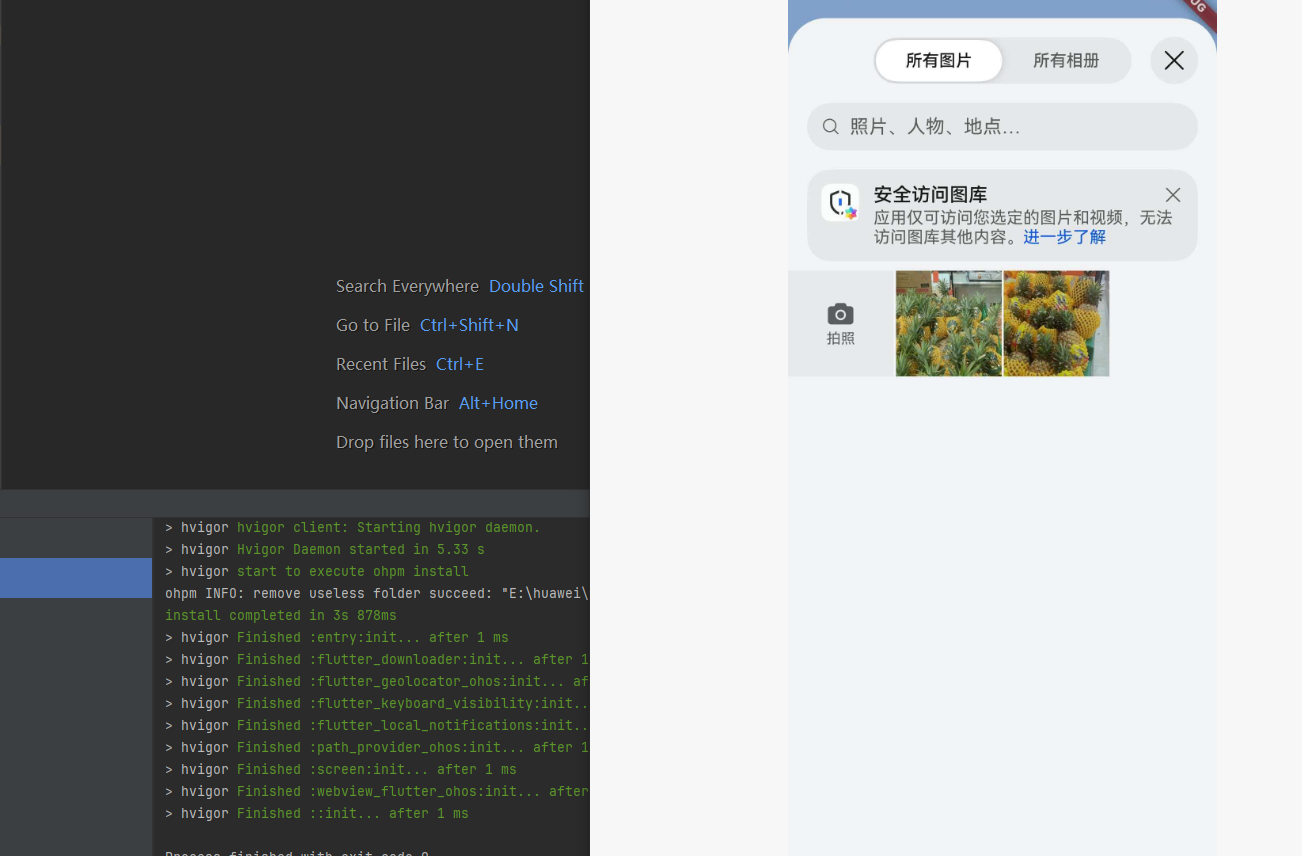
一、image_picker 库概述
图片和视频选择是移动应用中最常见的功能之一,无论是用户头像上传、朋友圈分享、还是视频录制,都需要用到图片视频选择功能。在 Flutter for OpenHarmony 应用开发中,image_picker 是一个功能强大的图片视频选择插件,提供了完整的媒体资源选择和管理功能。
📋 image_picker 库特点
image_picker 库基于 Flutter 平台接口实现,提供了以下核心特性:
多来源选择:支持从相册选择图片/视频,也支持直接调用相机拍照/录像。用户可以根据实际需求灵活选择媒体资源的获取方式。
图片压缩:支持设置最大宽高和压缩质量,在保证用户体验的同时减少内存占用和网络传输开销。压缩参数可针对不同场景灵活配置。
多选支持:支持一次选择多张图片,满足批量上传、多图分享等场景需求。多选模式下返回图片列表,方便批量处理。
媒体类型支持:支持选择图片、视频或混合媒体类型,满足不同业务场景的需求。通过统一的 API 接口,简化开发流程。
相机设备选择:支持指定使用前置或后置摄像头,满足自拍、证件照等不同场景需求。
支持平台对比
| 平台 | 支持情况 | 说明 |
|---|---|---|
| Android | ✅ 完全支持 | 支持 Android SDK 19+ |
| iOS | ✅ 完全支持 | 支持 iOS 11+ |
| Web | ✅ 完全支持 | 支持文件选择 |
| Windows | ✅ 完全支持 | 支持文件选择 |
| macOS | ✅ 完全支持 | 支持文件选择 |
| Linux | ✅ 完全支持 | 支持文件选择 |
| OpenHarmony | ✅ 完全支持 | 专门适配,支持 API 12+ |
功能支持对比
| 功能 | Android | iOS | Web | OpenHarmony |
|---|---|---|---|---|
| 从相册选择图片 | ✅ | ✅ | ✅ | ✅ |
| 从相机拍照 | ✅ | ✅ | ❌ | ✅ |
| 从相册选择视频 | ✅ | ✅ | ✅ | ✅ |
| 从相机录像 | ✅ | ✅ | ❌ | ✅ |
| 多选图片 | ✅ | ✅ | ✅ | ✅ |
| 图片压缩 | ✅ | ✅ | ❌ | ✅ |
| 选择前置/后置相机 | ✅ | ✅ | ❌ | ✅ |
| 混合选择图片和视频 | ✅ | ✅ | ✅ | ✅ |
💡 使用场景:用户头像上传、朋友圈图片分享、商品图片上传、视频录制、证件照拍摄等。
二、安装与配置
2.1 添加依赖
在项目的 pubspec.yaml 文件中添加 image_picker 依赖:
dependencies:
  image_picker:
    git:
      url: https://atomgit.com/openharmony-tpc/flutter_packages.git
      path: packages/image_picker/image_picker
然后执行以下命令获取依赖:
flutter pub get
2.2 兼容性信息
| 项目 | 版本要求 |
|---|---|
| Flutter SDK | 3.7.12-ohos-1.0.6 |
| OpenHarmony SDK | 5.0.0 (API 12) |
| DevEco Studio | 5.0.13.200 |
| ROM | 5.1.0.120 SP3 |
2.3 权限配置
image_picker 在 OpenHarmony 平台上使用系统原生的图片选择器(PhotoViewPicker)和相机,这些功能会自动处理权限请求,因此不需要额外配置权限。
如果应用需要访问网络资源(例如上传图片到服务器),则需要配置网络权限:
在 entry 目录下的 module.json5 中添加权限
打开 ohos/entry/src/main/module.json5,在 requestPermissions 数组中添加:
"requestPermissions": [
  {
    "name": "ohos.permission.INTERNET",
    "reason": "$string:network_reason",
    "usedScene": {
      "abilities": [
        "EntryAbility"
      ],
      "when": "inuse"
    }
  }
]
在 entry 目录下添加申请权限的原因
打开 ohos/entry/src/main/resources/base/element/string.json,在 string 数组中添加:
{
  "string": [
    {
      "name": "network_reason",
      "value": "使用网络上传图片"
    }
  ]
}
三、核心 API 详解
3.1 ImagePicker 类
ImagePicker 是 image_picker 库的核心类,提供了所有图片视频选择相关的方法。该类是一个单例,通过静态方法访问。
获取实例
import 'package:image_picker/image_picker.dart';

final ImagePicker _picker = ImagePicker();
3.2 pickImage - 选择单张图片
pickImage 方法用于选择单张图片,支持从相册选择或相机拍照。
方法签名
Future<XFile?> pickImage({
  required ImageSource source,
  double? maxWidth,
  double? maxHeight,
  int? imageQuality,
  CameraDevice preferredCameraDevice = CameraDevice.rear,
  bool requestFullMetadata = true,
})
参数详解
source 是必填参数,指定图片来源。可选值为 ImageSource.gallery(从相册选择)或 ImageSource.camera(使用相机拍照)。
maxWidth 是可选参数,指定图片的最大宽度。如果设置了此参数,图片会被缩放到不超过此宽度。通常用于减少内存占用和网络传输开销。
maxHeight 是可选参数,指定图片的最大高度。如果设置了此参数,图片会被缩放到不超过此高度。可以与 maxWidth 配合使用,保持图片宽高比。
imageQuality 是可选参数,指定图片压缩质量,取值范围为 0-100,其中 100 表示最高质量(无压缩)。仅对 JPEG、PNG、WebP 等支持压缩的格式有效。
preferredCameraDevice 是可选参数,指定优先使用的摄像头。可选值为 CameraDevice.rear(后置摄像头,默认)或 CameraDevice.front(前置摄像头)。仅在 source 为 ImageSource.camera 时有效。
requestFullMetadata 是可选参数,默认为 true。设置为 true 时,插件会尝试获取图片的完整元数据,可能需要额外的权限请求。
返回值
返回 Future<XFile?>,其中 XFile 是跨平台文件抽象类。如果用户取消选择,返回 null。
基本用法示例
class ImagePickerDemo extends StatefulWidget {
_ImagePickerDemoState createState() => _ImagePickerDemoState();
}
class _ImagePickerDemoState extends State<ImagePickerDemo> {
final ImagePicker _picker = ImagePicker();
XFile? _imageFile;
Future<void> _pickImageFromGallery() async {
final XFile? image = await _picker.pickImage(
source: ImageSource.gallery,
maxWidth: 1024,
maxHeight: 1024,
imageQuality: 85,
);
if (image != null) {
setState(() {
_imageFile = image;
});
}
}
Future<void> _takePhoto() async {
final XFile? image = await _picker.pickImage(
source: ImageSource.camera,
preferredCameraDevice: CameraDevice.rear,
maxWidth: 1024,
imageQuality: 90,
);
if (image != null) {
setState(() {
_imageFile = image;
});
}
}
Widget build(BuildContext context) {
return Scaffold(
appBar: AppBar(title: Text('图片选择')),
body: Center(
child: Column(
mainAxisAlignment: MainAxisAlignment.center,
children: [
if (_imageFile != null)
Image.file(
File(_imageFile!.path),
width: 200,
height: 200,
fit: BoxFit.cover,
)
else
Container(
width: 200,
height: 200,
color: Colors.grey[300],
child: Icon(Icons.image, size: 50),
),
SizedBox(height: 20),
Row(
mainAxisAlignment: MainAxisAlignment.center,
children: [
ElevatedButton.icon(
onPressed: _pickImageFromGallery,
icon: Icon(Icons.photo_library),
label: Text('从相册选择'),
),
SizedBox(width: 20),
ElevatedButton.icon(
onPressed: _takePhoto,
icon: Icon(Icons.camera_alt),
label: Text('拍照'),
),
],
),
],
),
),
);
}
}
3.3 pickMultiImage - 选择多张图片
pickMultiImage 方法用于一次选择多张图片,仅支持从相册选择。
方法签名
Future<List<XFile>> pickMultiImage({
  double? maxWidth,
  double? maxHeight,
  int? imageQuality,
  bool requestFullMetadata = true,
})
参数详解
参数与 pickImage 方法类似,但没有 source 参数(固定从相册选择)和 preferredCameraDevice 参数。
返回值
返回 Future<List<XFile>>,包含用户选择的所有图片。如果用户取消选择,返回空列表。
使用示例
class MultiImagePickerDemo extends StatefulWidget {
_MultiImagePickerDemoState createState() => _MultiImagePickerDemoState();
}
class _MultiImagePickerDemoState extends State<MultiImagePickerDemo> {
final ImagePicker _picker = ImagePicker();
List<XFile> _imageFiles = [];
Future<void> _pickMultipleImages() async {
final List<XFile> images = await _picker.pickMultiImage(
maxWidth: 1024,
maxHeight: 1024,
imageQuality: 85,
);
if (images.isNotEmpty) {
setState(() {
_imageFiles = images;
});
}
}
Widget build(BuildContext context) {
return Scaffold(
appBar: AppBar(title: Text('多图选择')),
body: Column(
children: [
Expanded(
child: GridView.builder(
padding: EdgeInsets.all(8),
gridDelegate: SliverGridDelegateWithFixedCrossAxisCount(
crossAxisCount: 3,
crossAxisSpacing: 8,
mainAxisSpacing: 8,
),
itemCount: _imageFiles.length,
itemBuilder: (context, index) {
return Image.file(
File(_imageFiles[index].path),
fit: BoxFit.cover,
);
},
),
),
Padding(
padding: EdgeInsets.all(16),
child: ElevatedButton.icon(
onPressed: _pickMultipleImages,
icon: Icon(Icons.photo_library),
label: Text('选择多张图片 (${_imageFiles.length})'),
),
),
],
),
);
}
}
3.4 pickVideo - 选择视频
pickVideo 方法用于选择视频,支持从相册选择或相机录像。
方法签名
Future<XFile?> pickVideo({
  required ImageSource source,
  CameraDevice preferredCameraDevice = CameraDevice.rear,
  Duration? maxDuration,
})
参数详解
source 是必填参数,指定视频来源。可选值为 ImageSource.gallery(从相册选择)或 ImageSource.camera(使用相机录像)。
preferredCameraDevice 是可选参数,指定优先使用的摄像头。仅在 source 为 ImageSource.camera 时有效。
maxDuration 是可选参数,指定录像的最大时长。仅在 source 为 ImageSource.camera 时有效。
返回值
返回 Future<XFile?>,包含选择的视频文件。如果用户取消选择,返回 null。
使用示例
class VideoPickerDemo extends StatefulWidget {
_VideoPickerDemoState createState() => _VideoPickerDemoState();
}
class _VideoPickerDemoState extends State<VideoPickerDemo> {
final ImagePicker _picker = ImagePicker();
XFile? _videoFile;
Future<void> _pickVideoFromGallery() async {
final XFile? video = await _picker.pickVideo(
source: ImageSource.gallery,
);
if (video != null) {
setState(() {
_videoFile = video;
});
}
}
Future<void> _recordVideo() async {
final XFile? video = await _picker.pickVideo(
source: ImageSource.camera,
maxDuration: Duration(minutes: 1),
);
if (video != null) {
setState(() {
_videoFile = video;
});
}
}
Widget build(BuildContext context) {
return Scaffold(
appBar: AppBar(title: Text('视频选择')),
body: Center(
child: Column(
mainAxisAlignment: MainAxisAlignment.center,
children: [
if (_videoFile != null)
Text('已选择视频: ${_videoFile!.path}')
else
Text('未选择视频'),
SizedBox(height: 20),
Row(
mainAxisAlignment: MainAxisAlignment.center,
children: [
ElevatedButton.icon(
onPressed: _pickVideoFromGallery,
icon: Icon(Icons.video_library),
label: Text('从相册选择'),
),
SizedBox(width: 20),
ElevatedButton.icon(
onPressed: _recordVideo,
icon: Icon(Icons.videocam),
label: Text('录像'),
),
],
),
],
),
),
);
}
}
3.5 pickMedia - 选择单个媒体文件
pickMedia 方法用于选择单个媒体文件(图片或视频),仅支持从相册选择。
方法签名
Future<XFile?> pickMedia({
  double? maxWidth,
  double? maxHeight,
  int? imageQuality,
  bool requestFullMetadata = true,
})
使用示例
Future<void> _pickMedia() async {
  final XFile? media = await _picker.pickMedia(
    maxWidth: 1024,
    maxHeight: 1024,
    imageQuality: 85,
  );
  if (media != null) {
    final String extension = path.extension(media.path).toLowerCase();
    if (['.jpg', '.jpeg', '.png', '.gif', '.webp'].contains(extension)) {
      print('选择了图片: ${media.path}');
    } else if (['.mp4', '.mov', '.avi', '.mkv'].contains(extension)) {
      print('选择了视频: ${media.path}');
    }
  }
}
3.6 pickMultipleMedia - 选择多个媒体文件
pickMultipleMedia 方法用于一次选择多个媒体文件(图片和视频混合),仅支持从相册选择。
方法签名
Future<List<XFile>> pickMultipleMedia({
  double? maxWidth,
  double? maxHeight,
  int? imageQuality,
  bool requestFullMetadata = true,
})
使用示例
Future<void> _pickMultipleMedia() async {
  final List<XFile> medias = await _picker.pickMultipleMedia(
    maxWidth: 1024,
    maxHeight: 1024,
    imageQuality: 85,
  );
  for (XFile media in medias) {
    print('选择了媒体文件: ${media.path}');
  }
}
3.7 ImageSource 枚举
ImageSource 枚举定义了媒体资源的来源类型。
| 枚举值 | 说明 | OpenHarmony 支持 |
|---|---|---|
ImageSource.gallery |
从相册选择 | ✅ |
ImageSource.camera |
使用相机拍照/录像 | ✅ |
3.8 CameraDevice 枚举
CameraDevice 枚举定义了摄像头设备类型。
| 枚举值 | 说明 | OpenHarmony 支持 |
|---|---|---|
CameraDevice.rear |
后置摄像头 | ✅ |
CameraDevice.front |
前置摄像头 | ✅ |
3.9 XFile 类
XFile 是跨平台文件抽象类,提供了文件的基本信息和操作方法。
常用属性
path 属性返回文件的绝对路径,类型为 String。
name 属性返回文件名(包含扩展名),类型为 String。
length 方法返回文件大小(字节),返回 Future<int>。
readAsBytes 方法将文件内容读取为字节数组,返回 Future<Uint8List>。
readAsString 方法将文件内容读取为字符串,返回 Future<String>。
使用示例
Future<void> _analyzeImage(XFile image) async {
  final int size = await image.length();
  final String fileName = image.name;
  final String filePath = image.path;

  print('文件名: $fileName');
  print('文件路径: $filePath');
  print('文件大小: ${(size / 1024).toStringAsFixed(2)} KB');
}
四、实战案例
4.1 完整的图片选择器组件
class ImagePickerWidget extends StatefulWidget {
final Function(List<XFile> images) onImagesSelected;
final int maxImages;
final double maxWidth;
final double maxHeight;
final int imageQuality;
const ImagePickerWidget({
required this.onImagesSelected,
this.maxImages = 9,
this.maxWidth = 1024,
this.maxHeight = 1024,
this.imageQuality = 85,
Key? key,
}) : super(key: key);
_ImagePickerWidgetState createState() => _ImagePickerWidgetState();
}
class _ImagePickerWidgetState extends State<ImagePickerWidget> {
final ImagePicker _picker = ImagePicker();
List<XFile> _selectedImages = [];
Future<void> _pickImages() async {
if (_selectedImages.length >= widget.maxImages) {
ScaffoldMessenger.of(context).showSnackBar(
SnackBar(content: Text('最多只能选择 ${widget.maxImages} 张图片')),
);
return;
}
final List<XFile> images = await _picker.pickMultiImage(
maxWidth: widget.maxWidth,
maxHeight: widget.maxHeight,
imageQuality: widget.imageQuality,
);
if (images.isNotEmpty) {
setState(() {
_selectedImages.addAll(images);
if (_selectedImages.length > widget.maxImages) {
_selectedImages = _selectedImages.sublist(0, widget.maxImages);
}
});
widget.onImagesSelected(_selectedImages);
}
}
Future<void> _takePhoto() async {
if (_selectedImages.length >= widget.maxImages) {
ScaffoldMessenger.of(context).showSnackBar(
SnackBar(content: Text('最多只能选择 ${widget.maxImages} 张图片')),
);
return;
}
final XFile? image = await _picker.pickImage(
source: ImageSource.camera,
maxWidth: widget.maxWidth,
maxHeight: widget.maxHeight,
imageQuality: widget.imageQuality,
);
if (image != null) {
setState(() {
_selectedImages.add(image);
});
widget.onImagesSelected(_selectedImages);
}
}
void _removeImage(int index) {
setState(() {
_selectedImages.removeAt(index);
});
widget.onImagesSelected(_selectedImages);
}
Widget build(BuildContext context) {
return Column(
children: [
GridView.builder(
shrinkWrap: true,
physics: NeverScrollableScrollPhysics(),
padding: EdgeInsets.all(8),
gridDelegate: SliverGridDelegateWithFixedCrossAxisCount(
crossAxisCount: 4,
crossAxisSpacing: 8,
mainAxisSpacing: 8,
),
itemCount: _selectedImages.length + 1,
itemBuilder: (context, index) {
if (index == _selectedImages.length) {
return _buildAddButton();
}
return _buildImageItem(index);
},
),
],
);
}
Widget _buildAddButton() {
return InkWell(
onTap: () {
showModalBottomSheet(
context: context,
builder: (context) => SafeArea(
child: Column(
mainAxisSize: MainAxisSize.min,
children: [
ListTile(
leading: Icon(Icons.photo_library),
title: Text('从相册选择'),
onTap: () {
Navigator.pop(context);
_pickImages();
},
),
ListTile(
leading: Icon(Icons.camera_alt),
title: Text('拍照'),
onTap: () {
Navigator.pop(context);
_takePhoto();
},
),
],
),
),
);
},
child: Container(
decoration: BoxDecoration(
border: Border.all(color: Colors.grey),
borderRadius: BorderRadius.circular(8),
),
child: Icon(Icons.add, size: 32, color: Colors.grey),
),
);
}
Widget _buildImageItem(int index) {
return Stack(
children: [
Positioned.fill(
child: Image.file(
File(_selectedImages[index].path),
fit: BoxFit.cover,
),
),
Positioned(
top: 4,
right: 4,
child: GestureDetector(
onTap: () => _removeImage(index),
child: Container(
padding: EdgeInsets.all(2),
decoration: BoxDecoration(
color: Colors.black54,
shape: BoxShape.circle,
),
child: Icon(Icons.close, size: 16, color: Colors.white),
),
),
),
],
);
}
}
4.2 头像选择器
class AvatarPicker extends StatefulWidget {
final Function(XFile? image) onImageSelected;
final double size;
const AvatarPicker({
required this.onImageSelected,
this.size = 100,
Key? key,
}) : super(key: key);
_AvatarPickerState createState() => _AvatarPickerState();
}
class _AvatarPickerState extends State<AvatarPicker> {
final ImagePicker _picker = ImagePicker();
XFile? _avatarFile;
Future<void> _pickAvatar() async {
await showModalBottomSheet(
context: context,
builder: (context) => SafeArea(
child: Column(
mainAxisSize: MainAxisSize.min,
children: [
ListTile(
leading: Icon(Icons.photo_library),
title: Text('从相册选择'),
onTap: () async {
Navigator.pop(context);
final XFile? image = await _picker.pickImage(
source: ImageSource.gallery,
maxWidth: 512,
maxHeight: 512,
imageQuality: 90,
);
if (image != null) {
setState(() => _avatarFile = image);
widget.onImageSelected(image);
}
},
),
ListTile(
leading: Icon(Icons.camera_alt),
title: Text('拍照'),
onTap: () async {
Navigator.pop(context);
final XFile? image = await _picker.pickImage(
source: ImageSource.camera,
preferredCameraDevice: CameraDevice.front,
maxWidth: 512,
maxHeight: 512,
imageQuality: 90,
);
if (image != null) {
setState(() => _avatarFile = image);
widget.onImageSelected(image);
}
},
),
if (_avatarFile != null)
ListTile(
leading: Icon(Icons.delete, color: Colors.red),
title: Text('删除头像', style: TextStyle(color: Colors.red)),
onTap: () {
Navigator.pop(context);
setState(() => _avatarFile = null);
widget.onImageSelected(null);
},
),
],
),
),
);
}
Widget build(BuildContext context) {
return GestureDetector(
onTap: _pickAvatar,
child: Stack(
children: [
Container(
width: widget.size,
height: widget.size,
decoration: BoxDecoration(
shape: BoxShape.circle,
color: Colors.grey[300],
image: _avatarFile != null
? DecorationImage(
image: FileImage(File(_avatarFile!.path)),
fit: BoxFit.cover,
)
: null,
),
child: _avatarFile == null
? Icon(Icons.person, size: widget.size * 0.5, color: Colors.grey)
: null,
),
Positioned(
bottom: 0,
right: 0,
child: Container(
padding: EdgeInsets.all(4),
decoration: BoxDecoration(
color: Theme.of(context).primaryColor,
shape: BoxShape.circle,
),
child: Icon(Icons.camera_alt, size: 16, color: Colors.white),
),
),
],
),
);
}
}
五、最佳实践
5.1 图片压缩策略
根据实际业务需求设置合适的压缩参数:
Future<XFile?> pickOptimizedImage() async {
  return await _picker.pickImage(
    source: ImageSource.gallery,
    maxWidth: 1024,  // 限制宽度
    maxHeight: 1024, // 限制高度
    imageQuality: 85, // 压缩质量
  );
}
对于头像等小图片,建议使用较小的尺寸:
Future<XFile?> pickAvatar() async {
  return await _picker.pickImage(
    source: ImageSource.gallery,
    maxWidth: 256,
    maxHeight: 256,
    imageQuality: 90,
  );
}
5.2 错误处理
建议对所有选择操作进行错误处理:
Future<void> _pickImageWithErrorHandling() async {
  try {
    final XFile? image = await _picker.pickImage(
      source: ImageSource.gallery,
    );
    if (image != null) {
      setState(() {
        _imageFile = image;
      });
    }
  } on PlatformException catch (e) {
    ScaffoldMessenger.of(context).showSnackBar(
      SnackBar(content: Text('选择图片失败: ${e.message}')),
    );
  } catch (e) {
    ScaffoldMessenger.of(context).showSnackBar(
      SnackBar(content: Text('发生未知错误: $e')),
    );
  }
}
5.3 内存管理
对于大量图片,建议使用缓存和延迟加载:
Image.file(
  File(image.path),
  cacheWidth: 200, // 限制解码后的图片宽度
  cacheHeight: 200, // 限制解码后的图片高度
  fit: BoxFit.cover,
)
六、常见问题
Q1:选择图片后如何获取图片的宽高?
使用 Image 组件加载图片后获取:
final Image image = Image.file(File(imageFile.path));
image.image.resolve(ImageConfiguration()).addListener(
  ImageStreamListener((ImageInfo info, bool _) {
    print('图片宽度: ${info.image.width}');
    print('图片高度: ${info.image.height}');
  }),
);
Q2:如何判断选择的文件是图片还是视频?
通过文件扩展名判断:
bool isImage(XFile file) {
  final ext = path.extension(file.path).toLowerCase();
  return ['.jpg', '.jpeg', '.png', '.gif', '.webp'].contains(ext);
}

bool isVideo(XFile file) {
  final ext = path.extension(file.path).toLowerCase();
  return ['.mp4', '.mov', '.avi', '.mkv'].contains(ext);
}
Q3:如何上传选中的图片到服务器?
使用 http 包上传:
Future<void> uploadImage(XFile imageFile) async {
  final uri = Uri.parse('https://your-server.com/upload');
  final request = http.MultipartRequest('POST', uri);

  final bytes = await imageFile.readAsBytes();
  final multipartFile = http.MultipartFile.fromBytes(
    'image',
    bytes,
    filename: imageFile.name,
  );

  request.files.add(multipartFile);
  final response = await request.send();

  if (response.statusCode == 200) {
    print('上传成功');
  }
}
Q4:OpenHarmony 平台上 retrieveLostData 方法不可用?
retrieveLostData 方法仅用于 Android 平台,用于在 Activity 被销毁后恢复数据。OpenHarmony 平台不需要此方法,因为鸿蒙平台的 Activity 生命周期管理与 Android 不同。
七、总结
image_picker 库为 Flutter for OpenHarmony 开发提供了完整的图片视频选择功能。通过统一的 API 接口,开发者可以轻松实现从相册选择、相机拍照、多图选择、视频录制等功能。该库在鸿蒙平台上已经完成了完整的适配,支持所有核心功能,开发者可以放心使用。
八、完整代码示例
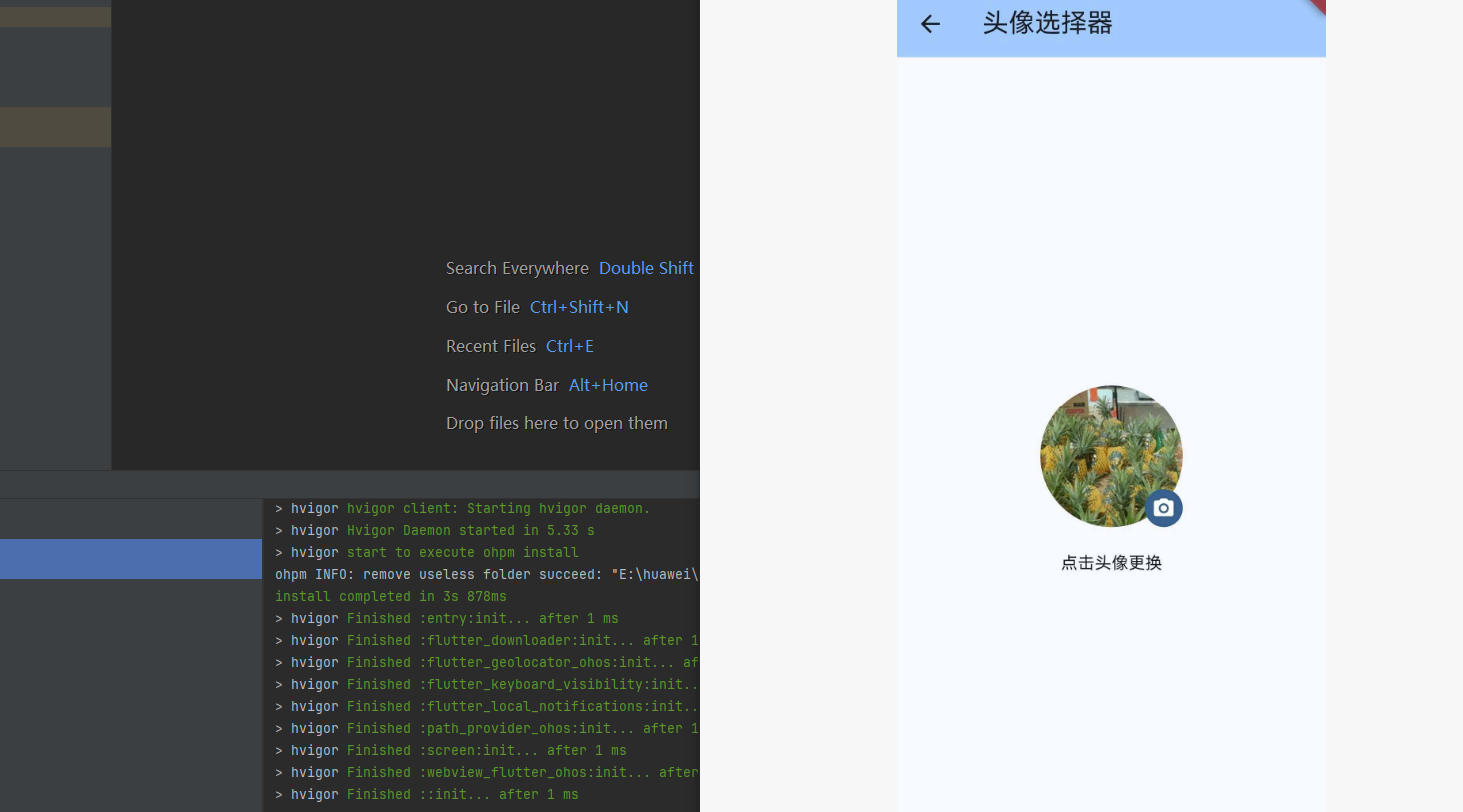
以下是一个完整的可运行示例,展示了 image_picker 库的所有核心功能:
pubspec.yaml
name: image_picker_demo
description: Flutter for OpenHarmony image_picker 演示项目
publish_to: 'none'
version: 1.0.0+1

environment:
  sdk: '>=3.0.0 <4.0.0'

dependencies:
  flutter:
    sdk: flutter
  image_picker:
    git:
      url: https://atomgit.com/openharmony-tpc/flutter_packages.git
      path: packages/image_picker/image_picker
flutter:
  uses-material-design: true
main.dart
import 'dart:io';
import 'package:flutter/material.dart';
import 'package:image_picker/image_picker.dart';
void main() {
runApp(const MyApp());
}
class MyApp extends StatelessWidget {
const MyApp({super.key});
Widget build(BuildContext context) {
return MaterialApp(
title: 'Image Picker Demo',
theme: ThemeData(
colorScheme: ColorScheme.fromSeed(seedColor: Colors.blue),
useMaterial3: true,
),
home: const HomePage(),
);
}
}
class HomePage extends StatelessWidget {
const HomePage({super.key});
Widget build(BuildContext context) {
return Scaffold(
appBar: AppBar(
title: const Text('Image Picker 图片选择演示'),
backgroundColor: Theme.of(context).colorScheme.inversePrimary,
),
body: ListView(
children: [
_buildMenuItem(
context,
'单图选择',
'从相册选择或拍照获取单张图片',
Icons.image,
() => Navigator.push(
context,
MaterialPageRoute(builder: (_) => const SingleImageDemo()),
),
),
_buildMenuItem(
context,
'多图选择',
'一次选择多张图片',
Icons.photo_library,
() => Navigator.push(
context,
MaterialPageRoute(builder: (_) => const MultiImageDemo()),
),
),
_buildMenuItem(
context,
'视频选择',
'从相册选择或录制视频',
Icons.videocam,
() => Navigator.push(
context,
MaterialPageRoute(builder: (_) => const VideoPickerDemo()),
),
),
_buildMenuItem(
context,
'头像选择器',
'圆形头像选择和裁剪',
Icons.account_circle,
() => Navigator.push(
context,
MaterialPageRoute(builder: (_) => const AvatarPickerDemo()),
),
),
],
),
);
}
Widget _buildMenuItem(
BuildContext context,
String title,
String subtitle,
IconData icon,
VoidCallback onTap,
) {
return Card(
margin: const EdgeInsets.symmetric(horizontal: 16, vertical: 8),
child: ListTile(
leading: Icon(icon, size: 32, color: Theme.of(context).primaryColor),
title: Text(title, style: const TextStyle(fontWeight: FontWeight.bold)),
subtitle: Text(subtitle),
trailing: const Icon(Icons.arrow_forward_ios),
onTap: onTap,
),
);
}
}
class SingleImageDemo extends StatefulWidget {
const SingleImageDemo({super.key});
State<SingleImageDemo> createState() => _SingleImageDemoState();
}
class _SingleImageDemoState extends State<SingleImageDemo> {
final ImagePicker _picker = ImagePicker();
XFile? _imageFile;
Future<void> _pickFromGallery() async {
final XFile? image = await _picker.pickImage(
source: ImageSource.gallery,
maxWidth: 1024,
maxHeight: 1024,
imageQuality: 85,
);
if (image != null) {
setState(() => _imageFile = image);
}
}
Future<void> _takePhoto() async {
final XFile? image = await _picker.pickImage(
source: ImageSource.camera,
maxWidth: 1024,
maxHeight: 1024,
imageQuality: 85,
);
if (image != null) {
setState(() => _imageFile = image);
}
}
Widget build(BuildContext context) {
return Scaffold(
appBar: AppBar(
title: const Text('单图选择'),
backgroundColor: Theme.of(context).colorScheme.inversePrimary,
),
body: Center(
child: Column(
mainAxisAlignment: MainAxisAlignment.center,
children: [
if (_imageFile != null)
ClipRRect(
borderRadius: BorderRadius.circular(12),
child: Image.file(
File(_imageFile!.path),
width: 200,
height: 200,
fit: BoxFit.cover,
),
)
else
Container(
width: 200,
height: 200,
decoration: BoxDecoration(
color: Colors.grey[300],
borderRadius: BorderRadius.circular(12),
),
child: const Icon(Icons.image, size: 50, color: Colors.grey),
),
const SizedBox(height: 20),
if (_imageFile != null)
Padding(
padding: const EdgeInsets.symmetric(horizontal: 32),
child: Text(
'文件名: ${_imageFile!.name}',
textAlign: TextAlign.center,
),
),
const SizedBox(height: 30),
Row(
mainAxisAlignment: MainAxisAlignment.center,
children: [
ElevatedButton.icon(
onPressed: _pickFromGallery,
icon: const Icon(Icons.photo_library),
label: const Text('从相册选择'),
),
const SizedBox(width: 20),
ElevatedButton.icon(
onPressed: _takePhoto,
icon: const Icon(Icons.camera_alt),
label: const Text('拍照'),
),
],
),
],
),
),
);
}
}
class MultiImageDemo extends StatefulWidget {
const MultiImageDemo({super.key});
State<MultiImageDemo> createState() => _MultiImageDemoState();
}
class _MultiImageDemoState extends State<MultiImageDemo> {
final ImagePicker _picker = ImagePicker();
List<XFile> _imageFiles = [];
Future<void> _pickMultipleImages() async {
final List<XFile> images = await _picker.pickMultiImage(
maxWidth: 1024,
maxHeight: 1024,
imageQuality: 85,
);
if (images.isNotEmpty) {
setState(() => _imageFiles = images);
}
}
void _removeImage(int index) {
setState(() {
_imageFiles.removeAt(index);
});
}
Widget build(BuildContext context) {
return Scaffold(
appBar: AppBar(
title: const Text('多图选择'),
backgroundColor: Theme.of(context).colorScheme.inversePrimary,
),
body: Column(
children: [
Expanded(
child: _imageFiles.isEmpty
? const Center(child: Text('未选择图片'))
: GridView.builder(
padding: const EdgeInsets.all(8),
gridDelegate: const SliverGridDelegateWithFixedCrossAxisCount(
crossAxisCount: 3,
crossAxisSpacing: 8,
mainAxisSpacing: 8,
),
itemCount: _imageFiles.length,
itemBuilder: (context, index) {
return Stack(
children: [
Positioned.fill(
child: Image.file(
File(_imageFiles[index].path),
fit: BoxFit.cover,
),
),
Positioned(
top: 4,
right: 4,
child: GestureDetector(
onTap: () => _removeImage(index),
child: Container(
padding: const EdgeInsets.all(2),
decoration: const BoxDecoration(
color: Colors.black54,
shape: BoxShape.circle,
),
child: const Icon(Icons.close, size: 16, color: Colors.white),
),
),
),
],
);
},
),
),
Padding(
padding: const EdgeInsets.all(16),
child: ElevatedButton.icon(
onPressed: _pickMultipleImages,
icon: const Icon(Icons.photo_library),
label: Text('选择多张图片 (${_imageFiles.length})'),
),
),
],
),
);
}
}
class VideoPickerDemo extends StatefulWidget {
const VideoPickerDemo({super.key});
State<VideoPickerDemo> createState() => _VideoPickerDemoState();
}
class _VideoPickerDemoState extends State<VideoPickerDemo> {
final ImagePicker _picker = ImagePicker();
XFile? _videoFile;
Future<void> _pickVideoFromGallery() async {
final XFile? video = await _picker.pickVideo(source: ImageSource.gallery);
if (video != null) {
setState(() => _videoFile = video);
}
}
Future<void> _recordVideo() async {
final XFile? video = await _picker.pickVideo(
source: ImageSource.camera,
maxDuration: const Duration(minutes: 1),
);
if (video != null) {
setState(() => _videoFile = video);
}
}
Widget build(BuildContext context) {
return Scaffold(
appBar: AppBar(
title: const Text('视频选择'),
backgroundColor: Theme.of(context).colorScheme.inversePrimary,
),
body: Center(
child: Column(
mainAxisAlignment: MainAxisAlignment.center,
children: [
Container(
width: 200,
height: 150,
decoration: BoxDecoration(
color: Colors.grey[300],
borderRadius: BorderRadius.circular(12),
),
child: _videoFile != null
? Column(
mainAxisAlignment: MainAxisAlignment.center,
children: [
const Icon(Icons.videocam, size: 50, color: Colors.blue),
const SizedBox(height: 8),
Padding(
padding: const EdgeInsets.symmetric(horizontal: 16),
child: Text(
_videoFile!.name,
textAlign: TextAlign.center,
maxLines: 2,
overflow: TextOverflow.ellipsis,
),
),
],
)
: const Icon(Icons.videocam, size: 50, color: Colors.grey),
),
const SizedBox(height: 30),
Row(
mainAxisAlignment: MainAxisAlignment.center,
children: [
ElevatedButton.icon(
onPressed: _pickVideoFromGallery,
icon: const Icon(Icons.video_library),
label: const Text('从相册选择'),
),
const SizedBox(width: 20),
ElevatedButton.icon(
onPressed: _recordVideo,
icon: const Icon(Icons.videocam),
label: const Text('录像'),
),
],
),
],
),
),
);
}
}
class AvatarPickerDemo extends StatefulWidget {
const AvatarPickerDemo({super.key});
State<AvatarPickerDemo> createState() => _AvatarPickerDemoState();
}
class _AvatarPickerDemoState extends State<AvatarPickerDemo> {
final ImagePicker _picker = ImagePicker();
XFile? _avatarFile;
Future<void> _pickAvatar() async {
await showModalBottomSheet(
context: context,
builder: (context) => SafeArea(
child: Column(
mainAxisSize: MainAxisSize.min,
children: [
ListTile(
leading: const Icon(Icons.photo_library),
title: const Text('从相册选择'),
onTap: () async {
Navigator.pop(context);
final XFile? image = await _picker.pickImage(
source: ImageSource.gallery,
maxWidth: 512,
maxHeight: 512,
imageQuality: 90,
);
if (image != null) {
setState(() => _avatarFile = image);
}
},
),
ListTile(
leading: const Icon(Icons.camera_alt),
title: const Text('拍照'),
onTap: () async {
Navigator.pop(context);
final XFile? image = await _picker.pickImage(
source: ImageSource.camera,
preferredCameraDevice: CameraDevice.front,
maxWidth: 512,
maxHeight: 512,
imageQuality: 90,
);
if (image != null) {
setState(() => _avatarFile = image);
}
},
),
if (_avatarFile != null)
ListTile(
leading: const Icon(Icons.delete, color: Colors.red),
title: const Text('删除头像', style: TextStyle(color: Colors.red)),
onTap: () {
Navigator.pop(context);
setState(() => _avatarFile = null);
},
),
],
),
),
);
}
Widget build(BuildContext context) {
return Scaffold(
appBar: AppBar(
title: const Text('头像选择器'),
backgroundColor: Theme.of(context).colorScheme.inversePrimary,
),
body: Center(
child: Column(
mainAxisAlignment: MainAxisAlignment.center,
children: [
GestureDetector(
onTap: _pickAvatar,
child: Stack(
children: [
Container(
width: 120,
height: 120,
decoration: BoxDecoration(
shape: BoxShape.circle,
color: Colors.grey[300],
image: _avatarFile != null
? DecorationImage(
image: FileImage(File(_avatarFile!.path)),
fit: BoxFit.cover,
)
: null,
),
child: _avatarFile == null
? const Icon(Icons.person, size: 60, color: Colors.grey)
: null,
),
Positioned(
bottom: 0,
right: 0,
child: Container(
padding: const EdgeInsets.all(6),
decoration: BoxDecoration(
color: Theme.of(context).primaryColor,
shape: BoxShape.circle,
),
child: const Icon(Icons.camera_alt, size: 20, color: Colors.white),
),
),
],
),
),
const SizedBox(height: 20),
const Text('点击头像更换'),
],
),
),
);
}
}
九、参考资源

开源鸿蒙跨平台开发社区汇聚开发者与厂商,共建“一次开发,多端部署”的开源生态,致力于降低跨端开发门槛,推动万物智联创新。
更多推荐
 2
2 0
0- 0


 已为社区贡献56条内容

所有评论(0)