React Native for OpenHarmony 实战:密码生成实现
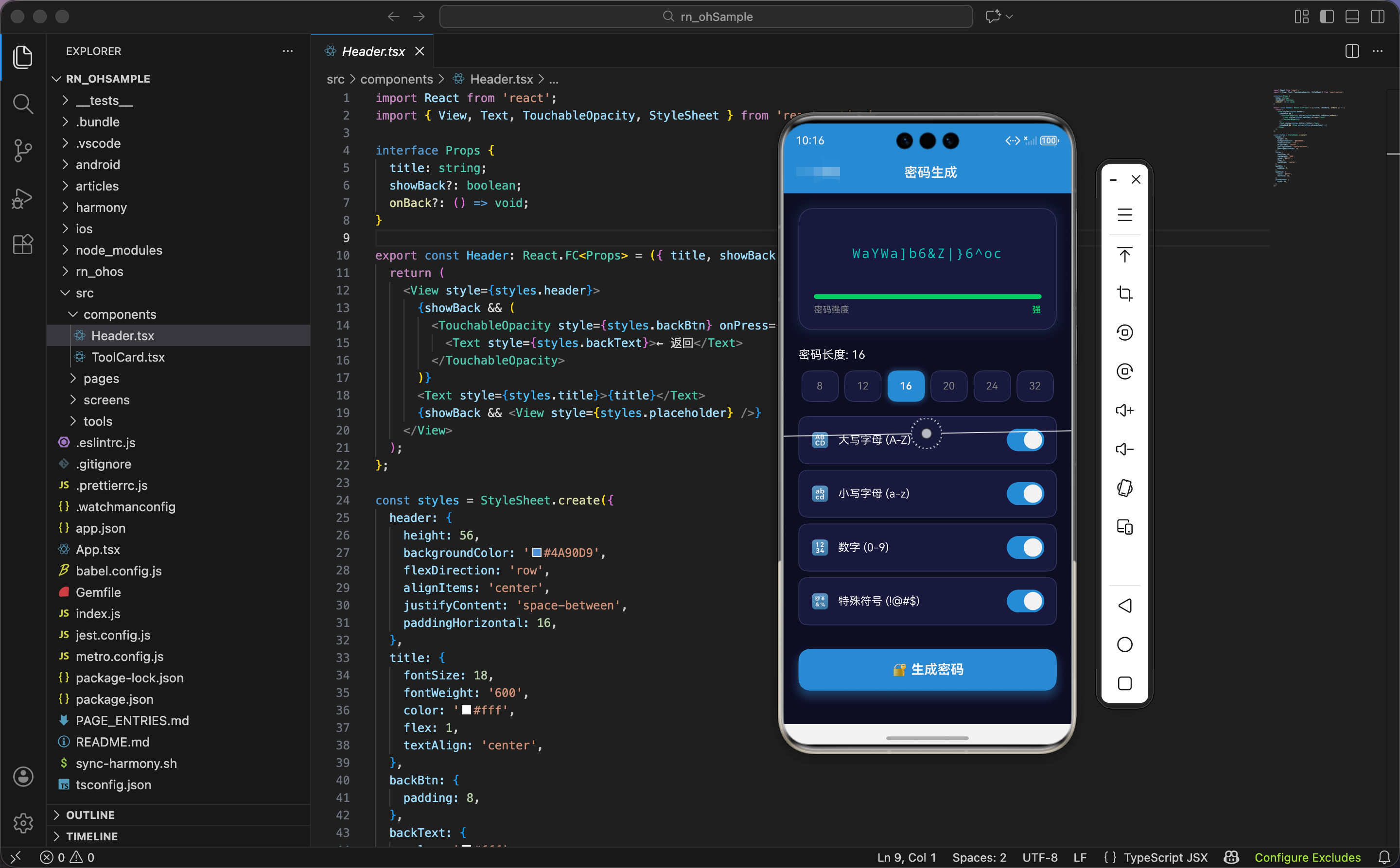
在这个数字时代,我们需要为各种账号设置密码。一个好的密码应该足够长、包含多种字符类型、而且不容易被猜到。今天我们用 React Native 实现一个密码生成器,可以自定义密码长度和字符类型,还能实时显示密码强度。
什么是强密码
在开始写代码之前,先了解一下密码安全的基本知识:
- 长度:密码越长越安全,建议至少 12 位,16 位以上更好
- 复杂度:包含大写字母、小写字母、数字、特殊符号四种类型
- 随机性:不要使用有规律的字符,如 123456、qwerty 等
我们的密码生成器会根据这些因素计算密码强度,帮助用户生成安全的密码。
状态设计
import React, { useState, useRef } from 'react';
import { View, Text, TouchableOpacity, StyleSheet, Switch, Animated } from 'react-native';

export const PasswordGenerator: React.FC = () => {
  const [length, setLength] = useState(16);
  const [uppercase, setUppercase] = useState(true);
  const [lowercase, setLowercase] = useState(true);
  const [numbers, setNumbers] = useState(true);
  const [symbols, setSymbols] = useState(true);
  const [password, setPassword] = useState('');
  const shakeAnim = useRef(new Animated.Value(0)).current;
  const glowAnim = useRef(new Animated.Value(0)).current;
  const charAnims = useRef<Animated.Value[]>([]).current;
状态变量的设计考虑了密码生成的各个方面:
密码长度 length:默认 16 位,这是一个比较安全的长度。太短容易被暴力破解,太长又不方便输入。
字符类型开关:四个布尔值分别控制是否包含大写字母、小写字母、数字、特殊符号。默认全部开启,生成最安全的密码。
生成的密码 password:存储生成结果,初始为空字符串。
动画值:
shakeAnim:生成时的摇晃效果,让用户感觉"正在生成"glowAnim:发光效果,生成完成时闪一下charAnims:预留的字符动画数组,可以实现每个字符依次出现的效果
为什么用四个独立的布尔值而不是一个对象?因为每个开关都需要独立控制,用独立状态更直观,也方便和 Switch 组件绑定。
鸿蒙 ArkTS 对比:状态定义
@Entry
@Component
struct PasswordGenerator {
  @State length: number = 16
  @State uppercase: boolean = true
  @State lowercase: boolean = true
  @State numbers: boolean = true
  @State symbols: boolean = true
  @State password: string = ''
  @State shakeOffset: number = 0
ArkTS 中的状态定义类似,用 @State 装饰器声明响应式状态。动画值直接用数字类型,配合 animateTo 函数实现动画效果。
两种框架的状态管理思路是一样的,只是语法不同。
核心生成逻辑
  const generate = () => {
    let chars = '';
    if (uppercase) chars += 'ABCDEFGHIJKLMNOPQRSTUVWXYZ';
    if (lowercase) chars += 'abcdefghijklmnopqrstuvwxyz';
    if (numbers) chars += '0123456789';
    if (symbols) chars += '!@#$%^&*()_+-=[]{}|;:,.<>?';
    if (!chars) chars = 'abcdefghijklmnopqrstuvwxyz';

    let result = '';
    for (let i = 0; i < length; i++) {
      result += chars.charAt(Math.floor(Math.random() * chars.length));
    }
密码生成的核心逻辑分为两步:
第一步:构建字符池
根据用户选择的选项,把对应的字符添加到 chars 字符串中。这种方式很灵活:
- 如果只选了大写字母,
chars就只有 26 个大写字母 - 如果全选,
chars就有 26 + 26 + 10 + 26 = 88 个字符
最后的 if (!chars) 是一个保护措施:如果用户把所有选项都关掉了,默认使用小写字母,避免生成空密码。
第二步:随机选取字符
用 for 循环生成指定长度的密码。每次循环:
Math.random()生成 0 到 1 之间的随机数- 乘以
chars.length得到 0 到字符池长度之间的数 Math.floor()向下取整得到有效的索引chars.charAt(index)获取对应位置的字符
这种方法保证了每个字符被选中的概率相等,生成的密码是真正随机的。
鸿蒙 ArkTS 对比:生成逻辑
generate() {
  let chars = ''
  if (this.uppercase) chars += 'ABCDEFGHIJKLMNOPQRSTUVWXYZ'
  if (this.lowercase) chars += 'abcdefghijklmnopqrstuvwxyz'
  if (this.numbers) chars += '0123456789'
  if (this.symbols) chars += '!@#$%^&*()_+-=[]{}|;:,.<>?'
  if (!chars) chars = 'abcdefghijklmnopqrstuvwxyz'

  let result = ''
  for (let i = 0; i < this.length; i++) {
    result += chars.charAt(Math.floor(Math.random() * chars.length))
  }

  this.password = result
  this.playShakeAnimation()
}
生成逻辑完全一样,Math.random() 和字符串操作是 JavaScript 标准方法,在 ArkTS 中同样可用。这就是跨平台开发的优势——核心业务逻辑可以直接复用。
生成动画
    // 动画效果
    Animated.sequence([
      Animated.timing(shakeAnim, { toValue: 1, duration: 100, useNativeDriver: true }),
      Animated.timing(shakeAnim, { toValue: -1, duration: 100, useNativeDriver: true }),
      Animated.timing(shakeAnim, { toValue: 0, duration: 100, useNativeDriver: true }),
    ]).start();

    Animated.sequence([
      Animated.timing(glowAnim, { toValue: 1, duration: 200, useNativeDriver: false }),
      Animated.timing(glowAnim, { toValue: 0, duration: 500, useNativeDriver: false }),
    ]).start();

    setPassword(result);
  };
生成密码时触发两个动画:
摇晃动画:密码框左右摇晃三次(右 → 左 → 中),总共 300 毫秒。这个动画模拟"摇骰子"的感觉,让用户感觉密码是随机生成的。
发光动画:密码框快速亮起(200ms)然后慢慢暗下去(500ms),像是"生成完成"的闪光效果。
两个动画同时启动,互不干扰。Animated.sequence 让动画按顺序执行,Animated.parallel 可以让多个动画同时执行,这里我们分别调用 start(),效果和 parallel 一样。
密码强度计算
  const getStrength = () => {
    let score = 0;
    if (uppercase) score++;
    if (lowercase) score++;
    if (numbers) score++;
    if (symbols) score++;
    if (length >= 12) score++;
    if (length >= 16) score++;
    if (score <= 2) return { text: '弱', color: '#ff4757', width: '33%' };
    if (score <= 4) return { text: '中', color: '#ffa502', width: '66%' };
    return { text: '强', color: '#2ed573', width: '100%' };
  };
密码强度的计算基于六个因素:
字符类型(4 分):每启用一种字符类型加 1 分。全部启用得 4 分。
密码长度(2 分):
- 长度 >= 12:加 1 分
- 长度 >= 16:再加 1 分
这样总分最高 6 分。根据得分返回不同的强度等级:
- 0-2 分:弱(红色,进度条 33%)
- 3-4 分:中(橙色,进度条 66%)
- 5-6 分:强(绿色,进度条 100%)
返回值是一个对象,包含文字、颜色和进度条宽度,方便在界面上使用。
这个算法比较简单,实际的密码强度评估会更复杂,比如检查是否包含常见单词、是否有重复字符等。但对于一个小工具来说,这个算法已经足够了。
动画插值
  const strength = getStrength();
  const shake = shakeAnim.interpolate({
    inputRange: [-1, 0, 1],
    outputRange: [-10, 0, 10],
  });
interpolate 把动画值映射成实际的位移:
- 动画值 -1 → 位移 -10(向左 10 像素)
- 动画值 0 → 位移 0(原位)
- 动画值 1 → 位移 10(向右 10 像素)
这样摇晃动画就变成了:向右移动 10px → 向左移动 10px → 回到原位。
界面渲染:密码显示区域
  return (
    <View style={styles.container}>
      <Animated.View style={[styles.passwordBox, { transform: [{ translateX: shake }] }]}>
        <View style={styles.passwordInner}>
          <Text style={styles.password} selectable numberOfLines={2}>
            {password || '点击生成密码'}
          </Text>
        </View>
        <View style={styles.strengthBar}>
          <Animated.View style={[styles.strengthFill, { width: strength.width as any, backgroundColor: strength.color }]} />
        </View>
        <View style={styles.strengthRow}>
          <Text style={styles.strengthLabel}>密码强度</Text>
          <Text style={[styles.strengthValue, { color: strength.color }]}>{strength.text}</Text>
        </View>
      </Animated.View>
密码显示区域包含三部分:
密码文本:
selectable属性让用户可以长按选择复制密码,这是一个很重要的功能numberOfLines={2}限制最多显示两行,避免超长密码撑破布局- 如果还没生成密码,显示提示文字"点击生成密码"
强度进度条:
- 外层是灰色背景条
- 内层是彩色填充条,宽度和颜色根据强度动态变化
强度文字:
- 左边显示"密码强度"标签
- 右边显示强度等级(弱/中/强),颜色和进度条一致
整个密码框用 Animated.View 包裹,应用摇晃动画。
鸿蒙 ArkTS 对比:密码显示
Column() {
  Text(this.password || '点击生成密码')
    .fontSize(18)
    .fontColor('#4ecdc4')
    .fontFamily('monospace')
    .textAlign(TextAlign.Center)
    .copyOption(CopyOptions.LocalDevice)  // 允许复制

  // 强度进度条
  Stack() {
    Row()
      .width('100%')
      .height(6)
      .backgroundColor('#252550')
      .borderRadius(3)

    Row()
      .width(this.strength.width)
      .height(6)
      .backgroundColor(this.strength.color)
      .borderRadius(3)
  }
  .width('100%')
  .margin({ top: 16 })

  // 强度文字
  Row() {
    Text('密码强度')
      .fontSize(12)
      .fontColor('#888888')
    Text(this.strength.text)
      .fontSize(12)
      .fontWeight(FontWeight.Bold)
      .fontColor(this.strength.color)
  }
  .width('100%')
  .justifyContent(FlexAlign.SpaceBetween)
  .margin({ top: 8 })
}
.padding(20)
.backgroundColor('#1a1a3e')
.borderRadius(20)
ArkTS 中用 Stack 组件实现进度条的叠加效果,copyOption 属性允许用户复制文本。布局结构和 React Native 类似,只是语法不同。
密码长度选择
      <View style={styles.lengthSection}>
        <Text style={styles.lengthLabel}>密码长度: {length}</Text>
        <View style={styles.lengthBtns}>
          {[8, 12, 16, 20, 24, 32].map(l => (
            <TouchableOpacity
              key={l}
              style={[styles.lengthBtn, length === l && styles.lengthBtnActive]}
              onPress={() => setLength(l)}
            >
              <Text style={[styles.lengthText, length === l && styles.lengthTextActive]}>{l}</Text>
            </TouchableOpacity>
          ))}
        </View>
      </View>
密码长度用按钮组选择,提供了 6 个常用长度:8、12、16、20、24、32。
为什么不用滑块(Slider)?因为密码长度通常是固定的几个值,用按钮选择更快捷。而且按钮可以显示具体数字,用户一眼就能看到所有选项。
标签显示当前选中的长度 密码长度: 16,让用户随时知道当前设置。
选中的按钮用蓝色背景和阴影高亮显示,和其他按钮形成明显对比。
字符类型开关
      <View style={styles.options}>
        <View style={styles.option}>
          <View style={styles.optionLeft}>
            <Text style={styles.optionIcon}>🔠</Text>
            <Text style={styles.optionLabel}>大写字母 (A-Z)</Text>
          </View>
          <Switch
            value={uppercase}
            onValueChange={setUppercase}
            trackColor={{ false: '#3a3a5a', true: '#4A90D9' }}
            thumbColor={uppercase ? '#fff' : '#888'}
          />
        </View>
        <View style={styles.option}>
          <View style={styles.optionLeft}>
            <Text style={styles.optionIcon}>🔡</Text>
            <Text style={styles.optionLabel}>小写字母 (a-z)</Text>
          </View>
          <Switch
            value={lowercase}
            onValueChange={setLowercase}
            trackColor={{ false: '#3a3a5a', true: '#4A90D9' }}
            thumbColor={lowercase ? '#fff' : '#888'}
          />
        </View>
        <View style={styles.option}>
          <View style={styles.optionLeft}>
            <Text style={styles.optionIcon}>🔢</Text>
            <Text style={styles.optionLabel}>数字 (0-9)</Text>
          </View>
          <Switch
            value={numbers}
            onValueChange={setNumbers}
            trackColor={{ false: '#3a3a5a', true: '#4A90D9' }}
            thumbColor={numbers ? '#fff' : '#888'}
          />
        </View>
        <View style={styles.option}>
          <View style={styles.optionLeft}>
            <Text style={styles.optionIcon}>🔣</Text>
            <Text style={styles.optionLabel}>特殊符号 (!@#$)</Text>
          </View>
          <Switch
            value={symbols}
            onValueChange={setSymbols}
            trackColor={{ false: '#3a3a5a', true: '#4A90D9' }}
            thumbColor={symbols ? '#fff' : '#888'}
          />
        </View>
      </View>
四个字符类型选项用 Switch 组件控制。每个选项包含:
左侧:emoji 图标 + 文字说明。图标让选项更直观:
- 🔠 大写字母
- 🔡 小写字母
- 🔢 数字
- 🔣 特殊符号
右侧:开关组件。Switch 的样式自定义:
trackColor:轨道颜色,关闭时灰色,开启时蓝色thumbColor:滑块颜色,关闭时灰色,开启时白色
onValueChange 直接传入 setter 函数,这是 React 的简写方式。setUppercase 本身就是一个接收布尔值的函数,正好符合 onValueChange 的签名。
鸿蒙 ArkTS 对比:开关组件
Row() {
  Row() {
    Text('🔠')
      .fontSize(20)
      .margin({ right: 12 })
    Text('大写字母 (A-Z)')
      .fontSize(15)
      .fontColor(Color.White)
  }

  Toggle({ type: ToggleType.Switch, isOn: this.uppercase })
    .selectedColor('#4A90D9')
    .onChange((isOn: boolean) => {
      this.uppercase = isOn
    })
}
.width('100%')
.justifyContent(FlexAlign.SpaceBetween)
.padding(16)
.backgroundColor('#1a1a3e')
.borderRadius(12)
ArkTS 中用 Toggle 组件实现开关,selectedColor 设置选中时的颜色。布局用 Row 组件,justifyContent(FlexAlign.SpaceBetween) 让左右两边分开。
生成按钮
      <TouchableOpacity style={styles.btn} onPress={generate} activeOpacity={0.8}>
        <View style={styles.btnInner}>
          <Text style={styles.btnText}>🔐 生成密码</Text>
        </View>
      </TouchableOpacity>
    </View>
  );
};
生成按钮是页面的主要操作入口,用蓝色背景和阴影突出显示。🔐 图标表示"安全"的概念,和密码生成的功能相符。
activeOpacity={0.8} 让按钮按下时稍微变暗,给用户触摸反馈。
样式定义:密码框
const styles = StyleSheet.create({
  container: { flex: 1, backgroundColor: '#0f0f23', padding: 20 },
  passwordBox: {
    backgroundColor: '#1a1a3e',
    borderRadius: 20,
    padding: 20,
    marginBottom: 24,
    borderWidth: 1,
    borderColor: '#3a3a6a',
    shadowColor: '#4A90D9',
    shadowOffset: { width: 0, height: 0 },
    shadowOpacity: 0.2,
    shadowRadius: 20,
  },
  passwordInner: { minHeight: 80, justifyContent: 'center' },
  password: {
    fontSize: 18,
    fontFamily: 'monospace',
    color: '#4ecdc4',
    textAlign: 'center',
    letterSpacing: 2,
  },
密码文本用等宽字体 fontFamily: 'monospace',这对显示密码很重要,让每个字符占据相同宽度,看起来更整齐。
letterSpacing: 2 增加字符间距,让密码更易读。密码通常包含各种字符,间距大一点可以避免字符粘在一起。
颜色用青绿色 #4ecdc4,在深色背景上很醒目,也给人"科技感"的感觉。
样式定义:强度条和长度选择
  strengthBar: {
    height: 6,
    backgroundColor: '#252550',
    borderRadius: 3,
    marginTop: 16,
    overflow: 'hidden',
  },
  strengthFill: { height: '100%', borderRadius: 3 },
  strengthRow: { flexDirection: 'row', justifyContent: 'space-between', marginTop: 8 },
  strengthLabel: { color: '#888', fontSize: 12 },
  strengthValue: { fontSize: 12, fontWeight: '600' },
  lengthSection: { marginBottom: 20 },
  lengthLabel: { color: '#fff', fontSize: 16, marginBottom: 12 },
  lengthBtns: { flexDirection: 'row', justifyContent: 'space-between' },
  lengthBtn: {
    flex: 1,
    paddingVertical: 12,
    marginHorizontal: 4,
    backgroundColor: '#1a1a3e',
    borderRadius: 12,
    alignItems: 'center',
    borderWidth: 1,
    borderColor: '#3a3a6a',
  },
  lengthBtnActive: {
    backgroundColor: '#4A90D9',
    borderColor: '#4A90D9',
    shadowColor: '#4A90D9',
    shadowOffset: { width: 0, height: 0 },
    shadowOpacity: 0.5,
    shadowRadius: 10,
  },
  lengthText: { color: '#888', fontSize: 14 },
  lengthTextActive: { color: '#fff', fontWeight: '600' },
强度条高度 6 像素,用 overflow: 'hidden' 确保填充部分不会超出圆角。
长度按钮用 flex: 1 平均分配宽度,marginHorizontal: 4 留出间距。选中状态加蓝色阴影,形成"发光"效果。
样式定义:选项和按钮
  options: { marginBottom: 24 },
  option: {
    flexDirection: 'row',
    justifyContent: 'space-between',
    alignItems: 'center',
    backgroundColor: '#1a1a3e',
    padding: 16,
    borderRadius: 12,
    marginBottom: 8,
    borderWidth: 1,
    borderColor: '#3a3a6a',
  },
  optionLeft: { flexDirection: 'row', alignItems: 'center' },
  optionIcon: { fontSize: 20, marginRight: 12 },
  optionLabel: { color: '#fff', fontSize: 15 },
  btn: {
    backgroundColor: '#4A90D9',
    borderRadius: 16,
    shadowColor: '#4A90D9',
    shadowOffset: { width: 0, height: 8 },
    shadowOpacity: 0.4,
    shadowRadius: 15,
    elevation: 10,
  },
  btnInner: { paddingVertical: 18, alignItems: 'center' },
  btnText: { color: '#fff', fontSize: 18, fontWeight: '700' },
});
选项卡片用 justifyContent: 'space-between' 让左右两边分开,开关自动靠右。每个选项之间有 8 像素的间距。
生成按钮用蓝色背景和蓝色阴影,是页面的视觉焦点。elevation: 10 是 Android 上的阴影属性,在 OpenHarmony 上也能正常工作。
小结
这个密码生成器展示了 React Native 中表单控件和状态管理的常见模式。通过 Switch 组件控制选项,通过按钮组选择长度,通过动画增强用户体验。密码强度的计算虽然简单,但足以帮助用户了解密码的安全程度。
在 OpenHarmony 平台上,这些功能都能正常工作。Math.random() 生成的随机数在各平台上行为一致,Switch 组件会被映射到鸿蒙原生的开关控件。
欢迎加入开源鸿蒙跨平台社区:https://openharmonycrossplatform.csdn.net

开源鸿蒙跨平台开发社区汇聚开发者与厂商,共建“一次开发,多端部署”的开源生态,致力于降低跨端开发门槛,推动万物智联创新。
更多推荐

 3
3 0
0- 0


 已为社区贡献16条内容

所有评论(0)