React Native跨平台鸿蒙开发实战系列(十三):React Nativa工程初始化工作
·
认识React Native:
React Native 是由 Facebook 开发的一个开源框架,用于构建原生移动应用。它结合了 React 的声明式编程范式和 JavaScript 的灵活性,允许开发者使用相同的代码库为 iOS 和 Android 平台创建高性能、美观且用户体验良好的应用。
总之,React Native 是一个强大的跨平台移动应用开发框架,适合各种规模和类型的项目。如果你想快速开发高性能的移动应用,React Native 是一个不错的选择。
项目结构:
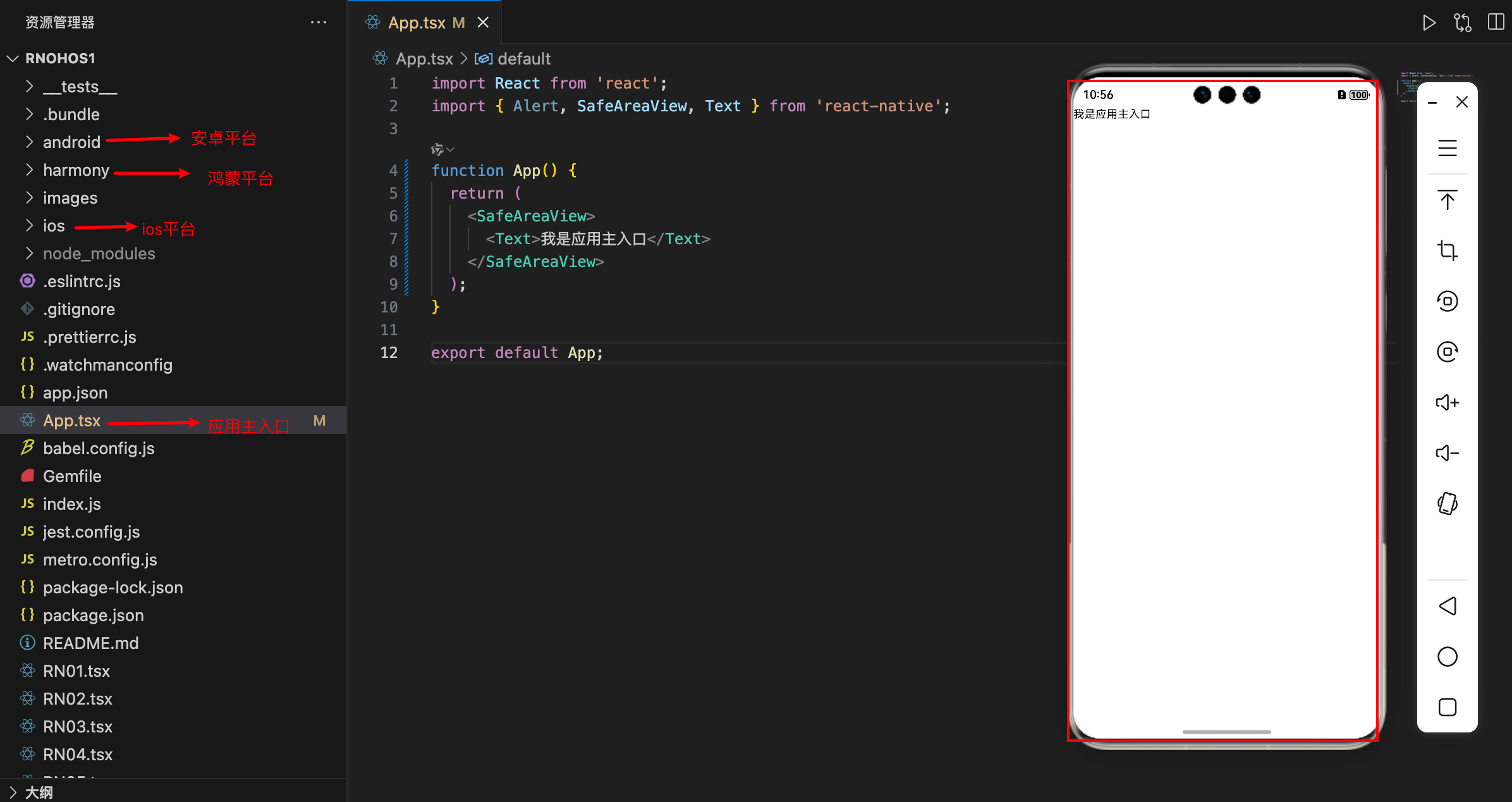
找到App.js文件,在里面写入如下代码:
import React from 'react';
import type {PropsWithChildren} from 'react';
import {
  SafeAreaView,
  ScrollView,
  StatusBar,
  StyleSheet,
  Text,
  useColorScheme,
  View,
} from 'react-native';

import {
  Colors,
  DebugInstructions,
  Header,
  LearnMoreLinks,
  ReloadInstructions,
} from 'react-native/Libraries/NewAppScreen';

type SectionProps = PropsWithChildren<{
  title: string;
}>;

function Section({children, title}: SectionProps): JSX.Element {
  const isDarkMode = useColorScheme() === 'dark';
  return (
    <View style={styles.sectionContainer}>
      <Text
        style={[
          styles.sectionTitle,
          {
            color: isDarkMode ? Colors.white : Colors.black,
          },
        ]}>
        {title}
      </Text>
      <Text
        style={[
          styles.sectionDescription,
          {
            color: isDarkMode ? Colors.light : Colors.dark,
          },
        ]}>
        {children}
      </Text>
    </View>
  );
}

function App(): JSX.Element {
  const isDarkMode = useColorScheme() === 'dark';

  const backgroundStyle = {
    backgroundColor: isDarkMode ? Colors.darker : Colors.lighter,
  };

  return (
    <SafeAreaView style={backgroundStyle}>
      <StatusBar
        barStyle={isDarkMode ? 'light-content' : 'dark-content'}
        backgroundColor={backgroundStyle.backgroundColor}
      />
      <ScrollView
        contentInsetAdjustmentBehavior="automatic"
        style={backgroundStyle}>
        <Header />
        <View
          style={{
            backgroundColor: isDarkMode ? Colors.black : Colors.white,
          }}>
          <Section title="Step One">
            Edit <Text style={styles.highlight}>App.tsx</Text> to change this
            screen and then come back to see your edits.
          </Section>
          <Section title="See Your Changes">
            <ReloadInstructions />
          </Section>
          <Section title="Debug">
            <DebugInstructions />
          </Section>
          <Section title="Learn More">
            Read the docs to discover what to do next:
          </Section>
          <LearnMoreLinks />
        </View>
      </ScrollView>
    </SafeAreaView>
  );
}

const styles = StyleSheet.create({
  sectionContainer: {
    marginTop: 32,
    paddingHorizontal: 24,
  },
  sectionTitle: {
    fontSize: 24,
    fontWeight: '600',
  },
  sectionDescription: {
    marginTop: 8,
    fontSize: 18,
    fontWeight: '400',
  },
  highlight: {
    fontWeight: '700',
  },
});

export default App;
这是一个标准的React Native App组件,主要功能包括:
- 基础结构:创建了一个React Native应用的基本框架
- 主题适配:使用 useColorScheme 来检测系统暗黑/亮色模式
- 界面布局:包含安全区域视图、状态栏、滚动视图和多个内容区块
- 示例内容:展示了几个教学区块,指导开发者如何开始开发
核心组件分析:
- App组件是应用入口,管理整体布局和主题
- Section是可复用子组件,用于显示内容区块
- 使用React Native核心组件:SafeAreaView, ScrollView, StatusBar等
具体组件功能:
- SafeAreaView: 确保内容在安全区域内显示
- StatusBar: 控制状态栏样式
- ScrollView: 提供可滚动的内容区域
- Section: 可重用的内容区块组件
const isDarkMode = useColorScheme() === 'dark';
- 使用useColorScheme钩子检测系统主题模式
- 自动适配系统暗黑/亮色模式
- 所有颜色通过Colors对象动态切换
- 状态栏样式(barStyle)也随主题变化
const styles = StyleSheet.create({
  sectionContainer: {
    marginTop: 32,
    paddingHorizontal: 24
  }
  // ...其他样式
});
- 使用StyleSheet创建优化后的样式表
- 包含间距、字体大小、字重等设计规范
- ReloadInstructions: 指导如何重新加载应用
- DebugInstructions: 提供调试指引
- LearnMoreLinks: 包含学习资源链接
type SectionProps = PropsWithChildren<{
  title: string;
}>;
使用TypeScript类型定义,PropsWithChildren是React提供的泛型类型,这里是原始模板的一些内容,我们需要做的是将这些内容替换为我们自己的内容,清空做为一个原始的模板项目,然后在里面写入自己的内容。
替换内容:
import React from 'react';
import {
  SafeAreaView,
  Text,
  useColorScheme,
} from 'react-native';

import {
  Colors,
} from 'react-native/Libraries/NewAppScreen';


function App(): JSX.Element {
  const isDarkMode = useColorScheme() === 'dark';

  const backgroundStyle = {
    backgroundColor: isDarkMode ? Colors.darker : Colors.lighter,
  };

  return (
    <SafeAreaView style={backgroundStyle}>
      <Text>我是主入口</Text>
    </SafeAreaView>
  );
}

export default App;
这里代码也比较简单,主要是创建一个基础的React Native应用框架,在里面放置了一个简单的文本,把原始模板的代码替换为这个代码,然后在里面写入自己的内容,接下来就可以开始开发自己的React Native应用了。
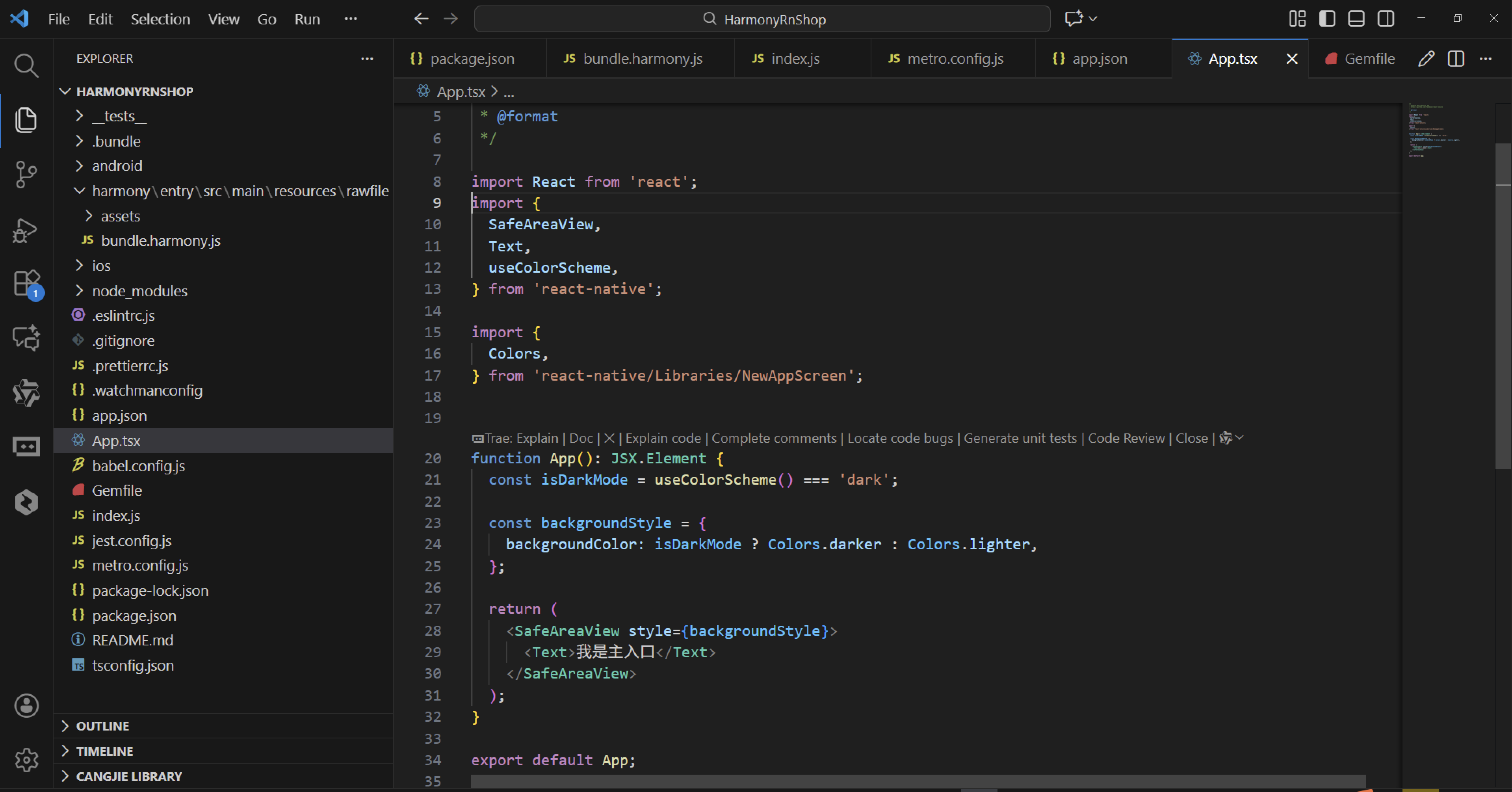
运行项目:
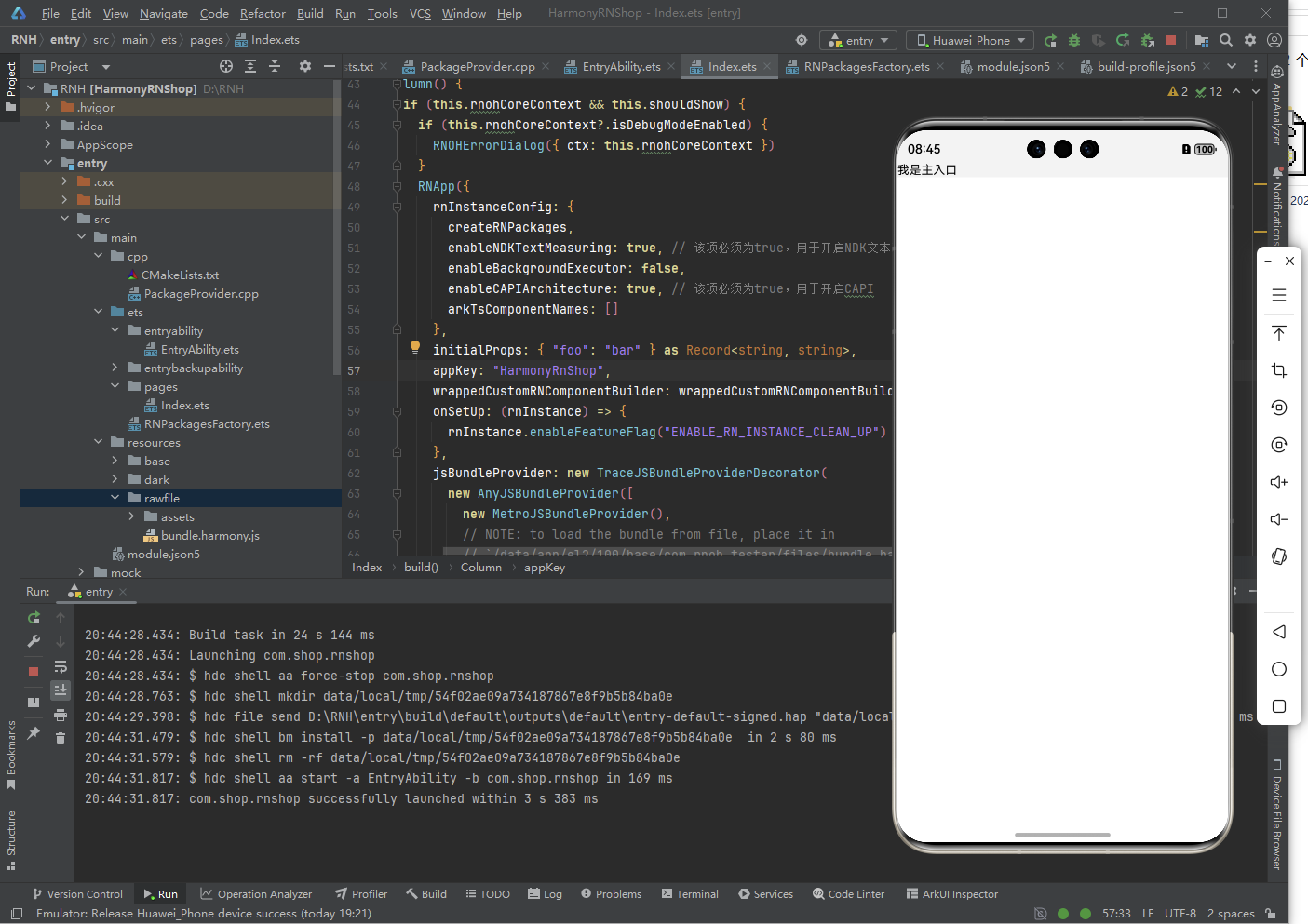
在react-native-app文件夹下,运行如下命令:
npm run harmony
将在harmony文件夹下生成的文件,全部复制到到鸿蒙的项目中,运行即可:
欢迎大家加入开源鸿蒙跨平台开发者社区,一起共建开源鸿蒙跨平台生态。

开源鸿蒙跨平台开发社区汇聚开发者与厂商,共建“一次开发,多端部署”的开源生态,致力于降低跨端开发门槛,推动万物智联创新。
更多推荐
 5
5 0
0- 0



 已为社区贡献143条内容

所有评论(0)