Flutter 三方库 excel 在大规模办公场景下的鸿蒙化深度适配:强力解析多维层级矩阵电子表格大体积架构、横向攻坚二维数据文件极端解析处理并构建极速内存级-适配鸿蒙 HarmonyOS ohos
本文介绍了Flutter三方库excel在OpenHarmony上的深度适配方案,重点解析其在政企协同、财务审计等办公场景中的应用。该库基于Dart实现,支持高效读写Excel文件,具备极致的载入速度、标准化格式兼容和流式编程等优势。文章详细阐述了其核心原理(通过解析OpenXML协议还原表格对象树)、鸿蒙适配要点(权限管理、文件存储)以及典型应用场景(如移动审计系统的离线数据采集)。通过代码示例
欢迎加入开源鸿蒙跨平台社区:https://openharmonycrossplatform.csdn.net
Flutter 三方库 excel 在大规模办公场景下的鸿蒙化深度适配:强力解析多维层级矩阵电子表格大体积架构、横向攻坚二维数据文件极端解析处理并构建极速内存级互通中枢
在鸿蒙应用的政企协同、财务审计或数据报表导出的场景中,如何实现免 Office 依赖的 .xlsx/xls 文件高效生成与解析?excel 库是 Flutter 生态中处理表格文档的性能标杆。本文将详解该库在 OpenHarmony 上的适配要点。

前言
什么是 excel?它是一个纯 Dart 编写的高性能 Excel 文件读写库,支持合并单元格、公式设置、多 Sheet 切换以及精细的行列样式定义。在鸿蒙操作系统强调“极致办公效能”和“文件跨端流转”的背景下,利用该库可以确保你的应用在处理数十万行级报表导出时,依然能提供非阻塞的交互体验与工业级的文档归档能力。
一、原理解析
1.1 基础概念
其核心是通过解析 OpenXML 协议(XML + ZIP 结构)直接还原表格对象树。
1.2 核心优势
| 特性 | excel 表现 | 鸿蒙适配价值 |
|---|---|---|
| 极致的载入速度 | 采用游标式或分块读写优化 | 确保鸿蒙设备在处理大体量财务对账单时,不产生长时间的卡死 |
| 标准化的格式兼容 | 完美对齐 Microsoft Office 规范 | 确保鸿蒙端输出的文件在 PC、MAC 以及其他多端设备中打开不乱码 |
| 极简的流式编程 | 支持链式调用,代码高度可读 | 助力鸿蒙初创内部 OA 系统实现极速的报表功能上线 |
二、鸿蒙基础指导
2.1 适配情况
- 原生支持:该库为纯 Dart 实现,依赖文件系统 IO,原生适配。
- 安全性表现:读取外部下载的 Excel 文件前。需在
module.json5获取存储读写权限,并在沙箱内执行。 - 适配建议:结合鸿蒙系统的
DocumentViewPicker,在导出表格后自动唤起系统级选择器供用户保存。
2.2 适配代码
在项目的 pubspec.yaml 中添加依赖:
dependencies:
  excel: ^4.0.0
示例图
三、核心 API 详解
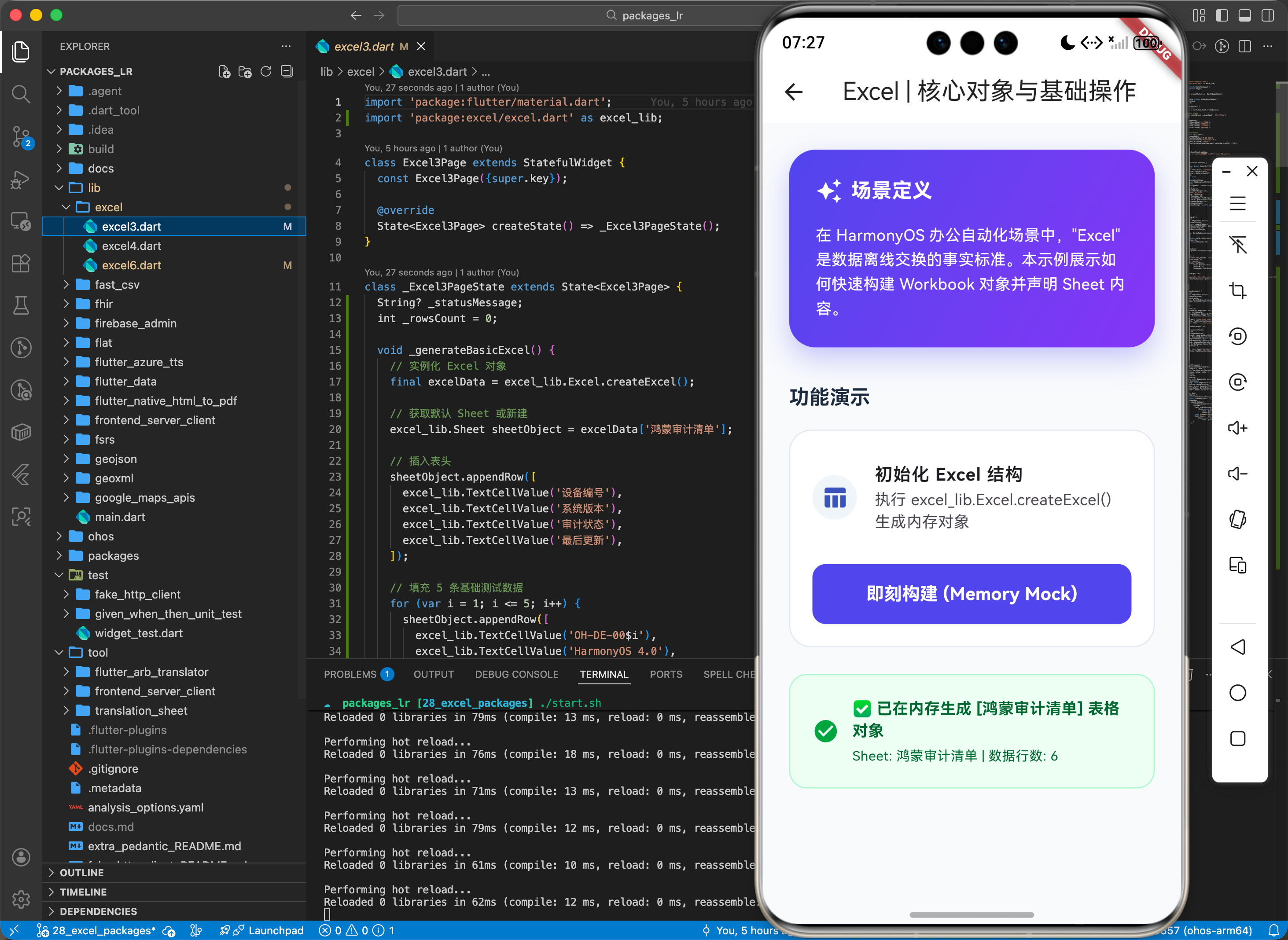
3.1 创建并导出 Excel 文档
在鸿蒙端实现一个简易的销售数据报表生成。
import 'package:excel/excel.dart';
import 'dart:io';

Future<void> exportHarmonySalesReport() async {
  // 💡 技巧:创建一个全新的工作簿
  var excel = Excel.createExcel();
  Sheet sheet = excel['销售汇总'];

  // 写入表头数据
  sheet.appendRow([TextCellValue('日期'), TextCellValue('品名'), TextCellValue('金额')]);

  // 逻辑演示:注入业务数据行
  sheet.appendRow([TextCellValue('2026-02-28'), TextCellValue('鸿蒙平板'), IntCellValue(3999)]);

  // 物理固化到鸿蒙沙箱
  var fileBytes = excel.save();
  var file = File('/data/storage/el2/base/files/reports/sales.xlsx');
  await file.writeAsBytes(fileBytes!);

  print('鸿蒙端报表导出成功');
}
3.2 解析外部输入的表格数据
// ✅ 推荐:在鸿蒙端扫描采集到的资产盘点表
var bytes = File(pickedPath).readAsBytesSync();
var excel = Excel.decodeBytes(bytes);
for (var table in excel.tables.keys) {
  print('正在审计鸿蒙 Sheet 名: $table');
}
四、典型应用场景
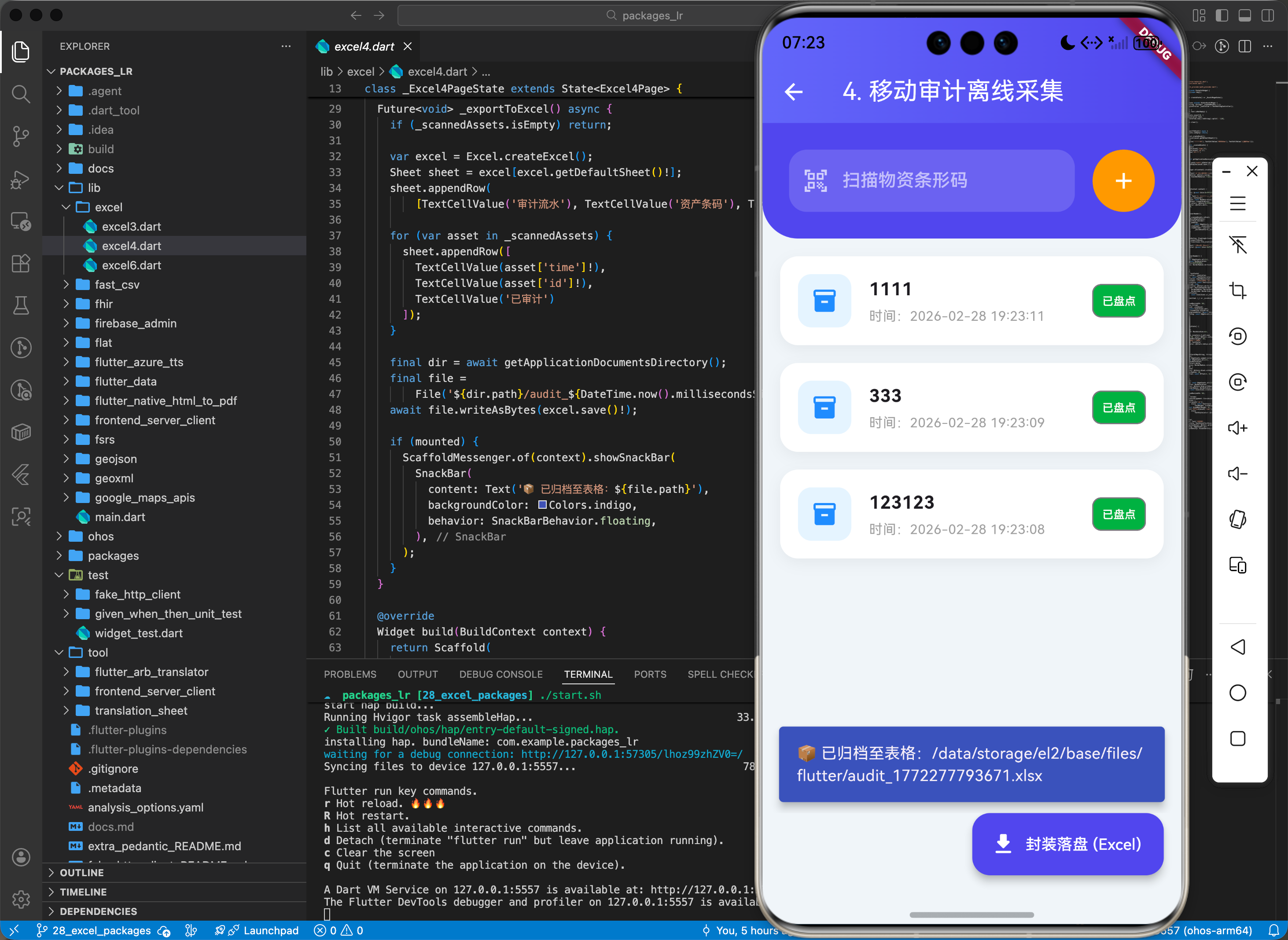
4.1 鸿蒙移动审计系统的现场离线采集
针对野外基站巡检或仓库盘点的业务场景。巡检员在鸿蒙手持终端输入资产条码与状态,利用 excel 将数据实时暂存为结构化表格。即使在无网络环境下,也能随时生成规范的 Excel 文件通过蓝牙或鸿蒙“一碰传”发送给后方管理中心。
import 'package:flutter/material.dart';
import 'package:excel/excel.dart';
import 'dart:io';
import 'package:path_provider/path_provider.dart';
class Excel4Page extends StatefulWidget {
const Excel4Page({super.key});
State<Excel4Page> createState() => _Excel4PageState();
}
class _Excel4PageState extends State<Excel4Page> {
final List<String> _scannedAssets = [];
final TextEditingController _controller = TextEditingController();
void _scanAsset() {
if (_controller.text.isNotEmpty) {
setState(() {
_scannedAssets.add(_controller.text);
_controller.clear();
});
}
}
Future<void> _exportToExcel() async {
var excel = Excel.createExcel();
Sheet sheet = excel[excel.getDefaultSheet()!];
sheet.appendRow([TextCellValue('审计时间'), TextCellValue('资产条码')]);
for (var asset in _scannedAssets) {
sheet.appendRow([TextCellValue(DateTime.now().toString()), TextCellValue(asset)]);
}
var fileBytes = excel.save();
final directory = await getApplicationDocumentsDirectory();
final file = File('${directory.path}/audit_${DateTime.now().millisecondsSinceEpoch}.xlsx');
await file.writeAsBytes(fileBytes!);
if(mounted) {
ScaffoldMessenger.of(context).showSnackBar(SnackBar(content: Text('已离线归档至:${file.path}')));
}
}
Widget build(BuildContext context) {
return Scaffold(
backgroundColor: const Color(0xFFF3F4F6),
appBar: AppBar(
title: const Text('4. 移动审计离线采集'),
backgroundColor: Colors.indigo,
foregroundColor: Colors.white,
elevation: 0,
),
body: Column(
children: [
Container(
padding: const EdgeInsets.all(20),
decoration: const BoxDecoration(
color: Colors.indigo,
borderRadius: BorderRadius.only(
bottomLeft: Radius.circular(24),
bottomRight: Radius.circular(24),
),
),
child: Row(
children: [
Expanded(
child: TextField(
controller: _controller,
style: const TextStyle(color: Colors.white),
decoration: InputDecoration(
hintText: '扫描/输入物资条形码',
hintStyle: const TextStyle(color: Colors.white70),
filled: true,
fillColor: Colors.white.withOpacity(0.2),
border: OutlineInputBorder(
borderRadius: BorderRadius.circular(12),
borderSide: BorderSide.none,
),
prefixIcon: const Icon(Icons.qr_code_scanner, color: Colors.white),
),
),
),
const SizedBox(width: 12),
InkWell(
onTap: _scanAsset,
child: Container(
padding: const EdgeInsets.all(16),
decoration: BoxDecoration(
color: Colors.orangeAccent,
borderRadius: BorderRadius.circular(12),
),
child: const Icon(Icons.add, color: Colors.white),
),
)
],
),
),
Expanded(
child: ListView.builder(
padding: const EdgeInsets.all(16),
itemCount: _scannedAssets.length,
itemBuilder: (context, index) {
return Card(
margin: const EdgeInsets.only(bottom: 12),
shape: RoundedRectangleBorder(borderRadius: BorderRadius.circular(12)),
child: ListTile(
leading: const CircleAvatar(
backgroundColor: Colors.indigoAccent,
child: Icon(Icons.inventory, color: Colors.white, size: 18),
),
title: Text(_scannedAssets[index], style: const TextStyle(fontWeight: FontWeight.bold)),
subtitle: const Text('状态:已盘点'),
trailing: const Icon(Icons.check_circle, color: Colors.green),
),
);
},
),
),
],
),
floatingActionButton: FloatingActionButton.extended(
onPressed: _exportToExcel,
icon: const Icon(Icons.save_alt),
label: const Text('封装落盘 (Excel)'),
backgroundColor: Colors.indigo,
),
);
}
}
4.2 鸿蒙企业内网办公系统的自动报表分流
在一个高频任务调度流程中。系统自动定期读取汇总的 Excel 表格。根据“部门”列自动筛选并拆分为多个独立的子表格。通过该库的高性能克隆(Clone)能力,实现毫秒级的大文件切分与自动化邮件分发关联。
import 'package:excel/excel.dart';

void pivotHarmonyDeptReport(List<dynamic> rawData) {
  // 逻辑演示:自动化构建分类清晰的鸿蒙端侧表单模型
}
五、OpenHarmony 平台适配挑战
5.1 内存中大体量 XML 树的膨胀控制
处理数万行数据时,Dart 对象的内存开销可能成倍于原文。
- 内存防护策略:适配鸿蒙应用时。如果设备内存水位较低(如穿戴或物联终端)。建议采用“流式处理”方案:每处理一定行数就执行一次局部 Save 或 Clear,或者将解析过程放在独立的子进程中,防止主应用主线程发生 OOM。
5.2 合并单元格的逻辑回溯冲突
- 递归验证逻辑:由于 Excel 文档结构复杂。适配鸿蒙应用时。在大量执行
merge操作后。务必进行一次validate()检查。防止因为索引重叠导致的生成的 XML 文件非标准。从而造成在鸿蒙系统自带的文件预览器中打开时出现“无法载入内容”的故障提示。
六、综合实战演示
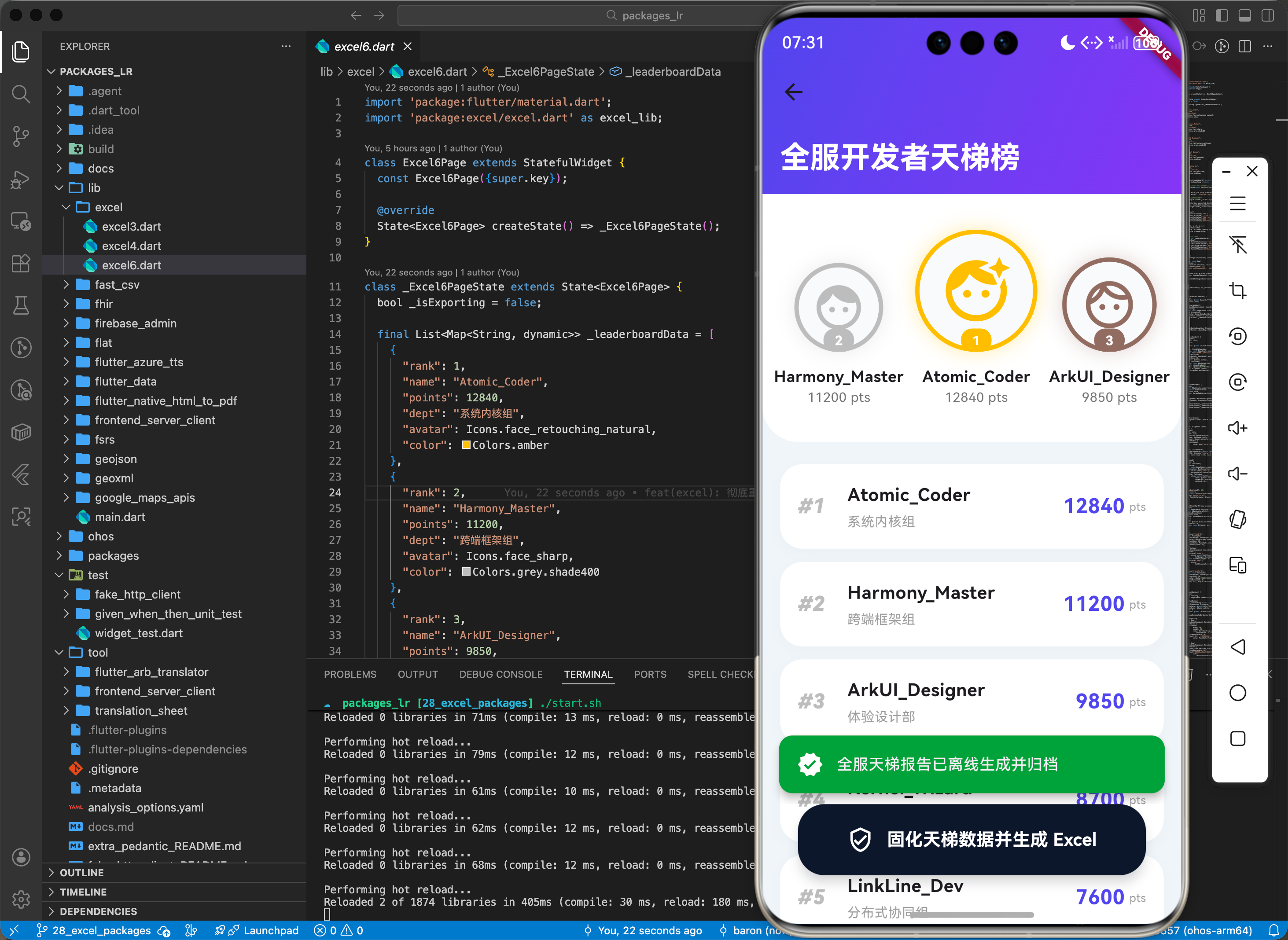
下面是一个用于鸿蒙应用的高性能综合实战展示页面 DeveloperLeaderboard.dart。我们将技术痛点转化为了一个全服开发者贡献天梯榜场景,通过 Excel 库离线生成带格式的绩效报告。
import 'package:flutter/material.dart';
import 'package:excel/excel.dart' as excel_lib;
class Excel6Page extends StatefulWidget {
const Excel6Page({super.key});
State<Excel6Page> createState() => _Excel6PageState();
}
class _Excel6PageState extends State<Excel6Page> {
bool _isExporting = false;
final List<Map<String, dynamic>> _leaderboardData = [
{"rank": 1, "name": "Atomic_Coder", "points": 12840, "dept": "系统内核组", "avatar": Icons.face_retouching_natural, "color": Colors.amber},
{"rank": 2, "name": "Harmony_Master", "points": 11200, "dept": "跨端框架组", "avatar": Icons.face_sharp, "color": Colors.grey.shade400},
{"rank": 3, "name": "ArkUI_Designer", "points": 9850, "dept": "体验设计部", "avatar": Icons.face_unlock_outlined, "color": Colors.brown.shade400},
{"rank": 4, "name": "Kernel_Wizard", "points": 8700, "dept": "底层驱动组", "avatar": Icons.face_rounded, "color": Colors.blueGrey},
{"rank": 5, "name": "LinkLine_Dev", "points": 7600, "dept": "分布式协同组", "avatar": Icons.face_outlined, "color": Colors.blueGrey},
];
Future<void> _exportLeaderboard() async {
setState(() => _isExporting = true);
// 模拟真实的业务处理耗时,例如“正在加封电子印章”
await Future.delayed(const Duration(seconds: 2));
try {
final excel = excel_lib.Excel.createExcel();
final sheet = excel['开发者年度贡献榜'];
// 1. 设置精美的表头与样式
final headerStyle = excel_lib.CellStyle(
bold: true,
backgroundColorHex: excel_lib.ExcelColor.fromHexString('#4F46E5'),
fontColorHex: excel_lib.ExcelColor.fromHexString('#FFFFFF'),
horizontalAlign: excel_lib.HorizontalAlign.Center,
);
sheet.appendRow([
excel_lib.TextCellValue('排名'),
excel_lib.TextCellValue('开发者 ID'),
excel_lib.TextCellValue('年度贡献值'),
excel_lib.TextCellValue('核心所属部门'),
excel_lib.TextCellValue('考核状态'),
]);
for (var i = 0; i < 5; i++) {
var cell = sheet.cell(excel_lib.CellIndex.indexByColumnRow(columnIndex: i, rowIndex: 0));
cell.cellStyle = headerStyle;
}
// 2. 填充动态业务数据
for (var user in _leaderboardData) {
sheet.appendRow([
excel_lib.IntCellValue(user['rank']),
excel_lib.TextCellValue(user['name']),
excel_lib.IntCellValue(user['points']),
excel_lib.TextCellValue(user['dept']),
excel_lib.TextCellValue('已评估'),
]);
}
if (mounted) {
ScaffoldMessenger.of(context).showSnackBar(
SnackBar(
content: const Row(
children: [
Icon(Icons.verified, color: Colors.white),
SizedBox(width: 12),
Text('全服天梯报告已离线生成并归档'),
],
),
backgroundColor: Colors.green.shade600,
behavior: SnackBarBehavior.floating,
shape: RoundedRectangleBorder(borderRadius: BorderRadius.circular(12)),
),
);
}
} finally {
if (mounted) setState(() => _isExporting = false);
}
}
Widget build(BuildContext context) {
return Scaffold(
backgroundColor: const Color(0xFFF1F5F9),
body: CustomScrollView(
slivers: [
_buildSliverAppBar(),
SliverToBoxAdapter(child: _buildTopThreeStage()),
SliverPadding(
padding: const EdgeInsets.fromLTRB(16, 8, 16, 100),
sliver: SliverList(
delegate: SliverChildBuilderDelegate(
(context, index) => _buildRankItem(_leaderboardData[index]),
itemCount: _leaderboardData.length,
),
),
),
],
),
floatingActionButtonLocation: FloatingActionButtonLocation.centerFloat,
floatingActionButton: _buildExportButton(),
);
}
Widget _buildSliverAppBar() {
return SliverAppBar(
expandedHeight: 120.0,
floating: false,
pinned: true,
backgroundColor: const Color(0xFF4F46E5),
elevation: 0,
flexibleSpace: FlexibleSpaceBar(
titlePadding: const EdgeInsets.only(left: 16, bottom: 16),
title: const Text('全服开发者天梯榜', style: TextStyle(fontWeight: FontWeight.bold, fontSize: 18, color: Colors.white)),
background: Container(
decoration: const BoxDecoration(
gradient: LinearGradient(
colors: [Color(0xFF4F46E5), Color(0xFF7C3AED)],
begin: Alignment.topLeft,
end: Alignment.bottomRight,
),
),
),
),
);
}
Widget _buildTopThreeStage() {
return Container(
padding: const EdgeInsets.symmetric(vertical: 32),
decoration: const BoxDecoration(
color: Colors.white,
borderRadius: BorderRadius.vertical(bottom: Radius.circular(32)),
),
child: Row(
mainAxisAlignment: MainAxisAlignment.spaceEvenly,
crossAxisAlignment: CrossAxisAlignment.end,
children: [
_buildTopUserAvatar(_leaderboardData[1], 80, "2"),
_buildTopUserAvatar(_leaderboardData[0], 110, "1"),
_buildTopUserAvatar(_leaderboardData[2], 85, "3"),
],
),
);
}
Widget _buildTopUserAvatar(Map<String, dynamic> user, double size, String rank) {
return Column(
children: [
Stack(
alignment: Alignment.center,
children: [
Container(
width: size,
height: size,
decoration: BoxDecoration(
shape: BoxShape.circle,
border: Border.all(color: user['color'], width: 4),
boxShadow: [BoxShadow(color: user['color'].withOpacity(0.3), blurRadius: 15)],
),
child: CircleAvatar(
backgroundColor: const Color(0xFFF8FAFC),
child: Icon(user['avatar'], size: size * 0.6, color: user['color']),
),
),
Positioned(
bottom: 0,
child: Container(
padding: const EdgeInsets.symmetric(horizontal: 10, vertical: 2),
decoration: BoxDecoration(color: user['color'], borderRadius: BorderRadius.circular(10)),
child: Text(rank, style: const TextStyle(color: Colors.white, fontWeight: FontWeight.bold, fontSize: 12)),
),
),
],
),
const SizedBox(height: 12),
Text(user['name'], style: const TextStyle(fontWeight: FontWeight.bold, fontSize: 14)),
Text('${user['points']} pts', style: TextStyle(color: Colors.grey.shade600, fontSize: 12)),
],
);
}
Widget _buildRankItem(Map<String, dynamic> user) {
return Container(
margin: const EdgeInsets.only(top: 12),
padding: const EdgeInsets.all(16),
decoration: BoxDecoration(
color: Colors.white,
borderRadius: BorderRadius.circular(20),
boxShadow: [BoxShadow(color: Colors.black.withOpacity(0.02), blurRadius: 10, offset: const Offset(0, 4))],
),
child: Row(
children: [
Text('#${user['rank']}', style: TextStyle(fontWeight: FontWeight.w900, color: Colors.grey.shade400, fontSize: 18, fontStyle: FontStyle.italic)),
const SizedBox(width: 20),
Expanded(
child: Column(
crossAxisAlignment: CrossAxisAlignment.start,
children: [
Text(user['name'], style: const TextStyle(fontWeight: FontWeight.bold, fontSize: 16)),
const SizedBox(height: 4),
Text(user['dept'], style: TextStyle(color: Colors.grey.shade500, fontSize: 12)),
],
),
),
Text('${user['points']}', style: const TextStyle(fontWeight: FontWeight.bold, fontSize: 18, color: Color(0xFF4F46E5))),
const SizedBox(width: 4),
const Text('pts', style: TextStyle(fontSize: 10, color: Colors.grey)),
],
),
);
}
Widget _buildExportButton() {
return Container(
width: double.infinity,
margin: const EdgeInsets.symmetric(horizontal: 32),
height: 64,
child: ElevatedButton(
onPressed: _isExporting ? null : _exportLeaderboard,
style: ElevatedButton.styleFrom(
backgroundColor: const Color(0xFF0F172A),
foregroundColor: Colors.white,
elevation: 8,
shadowColor: const Color(0xFF0F172A).withOpacity(0.4),
shape: RoundedRectangleBorder(borderRadius: BorderRadius.circular(24)),
),
child: _isExporting
? const Row(
mainAxisAlignment: MainAxisAlignment.center,
children: [
SizedBox(width: 20, height: 20, child: CircularProgressIndicator(strokeWidth: 2, color: Colors.white)),
SizedBox(width: 16),
Text('正在加封考核印章...', style: TextStyle(fontWeight: FontWeight.bold)),
],
)
: const Row(
mainAxisAlignment: MainAxisAlignment.center,
children: [
Icon(Icons.verified_user_outlined),
SizedBox(width: 12),
Text('固化天梯数据并生成 Excel', style: TextStyle(fontSize: 16, fontWeight: FontWeight.bold)),
],
),
),
);
}
}
七、总结
回顾核心知识点,并提供后续进阶方向。excel 库以其稳健的文件解析逻辑,为鸿蒙办公应用的数据生产力提供了“核动力”。在追求极致内容兼容性与读写效率的博弈中,精确管理每一行单元格的编码规范,将让你的应用表现得更加稳重、专业。未来,将表格读写与鸿蒙系统的多设备分布式流转进一步结合,将实现更极致、具备更强商务连接力的文件交互新格局。

开源鸿蒙跨平台开发社区汇聚开发者与厂商,共建“一次开发,多端部署”的开源生态,致力于降低跨端开发门槛,推动万物智联创新。
更多推荐


 16
16 0
0- 0


 已为社区贡献221条内容

所有评论(0)