Flutter for OpenHarmony第三方库实战:video_thumbnail —— 视频缩略图生成的最佳实践
1. 播放器资源未释放最开始我忘记在dispose()中释放控制器,导致切换视频时内存一直增长。解决方法:在dispose()中同时释放和。2. 网络视频缩略图生成慢网络视频需要先下载才能生成缩略图,用户等待时间长。解决方法:显示加载占位图,异步生成缩略图后更新 UI。3. 视频比例不一致不同视频的宽高比不同,直接显示会变形。解决方法:使用组件,根据视频实际比例自动调整。4. 压缩进度不更新压缩进
欢迎加入开源鸿蒙跨平台社区:https://openharmonycrossplatform.csdn.net
🎯 欢迎来到 Flutter for OpenHarmony 第三方库实战系列!今天我要和你分享的是我开发视频播放器应用的全过程,包括我踩过的坑、做过的技术选型决策,以及最终实现的完整代码。
🎬 从一个真实需求说起
上周,我接到一个需求:为 OpenHarmony 平台开发一个视频播放器应用。用户的核心诉求很简单:
“我想看视频,能播放、能暂停、能拖动进度条,最好还能看到视频缩略图。”
听起来很简单对吧?但当我真正开始动手时,才发现事情没那么简单。
我面临的问题:
- Flutter 自带的 video_player 只提供最基础的播放能力,连个播放按钮都没有
- 视频列表需要缩略图,但怎么从视频中提取一帧作为封面?
- 用户上传的视频动辄几百 MB,怎么压缩才能节省存储空间?
- 网络视频加载慢,怎么给用户好的等待体验?
这篇文章,就是我解决这些问题的完整记录。
🛠️ 我的技术选型过程
第一步:视频播放选哪个?
我开始调研 Flutter 生态中的视频播放方案:
| 库名 | 优点 | 缺点 |
|---|---|---|
| video_player | 官方维护,稳定可靠 | UI 简陋,需要自己写控件 |
| chewie | 开箱即用的 UI,功能丰富 | 依赖 video_player |
| better_player | 功能强大,支持字幕、清晰度切换 | 维护不如官方活跃 |
| fijkplayer | 基于 ijkplayer,格式支持广 | 包体积大,OpenHarmony 不支持 |
我的选择:video_player + chewie 组合
理由很简单:video_player 是官方库,OpenHarmony 适配最完善;chewie 在它之上提供了漂亮的 UI 控件,省去了我自己写播放控制条的时间。
第二步:缩略图怎么生成?
视频列表不能只显示一个黑屏占位图,用户需要看到视频内容预览。
我找到了 video_thumbnail 库,它可以从视频中提取指定时间点的帧作为图片。这个库支持本地视频和网络视频,可以自定义缩略图尺寸和质量。
第三步:视频压缩怎么办?
用户用手机拍的视频往往很大,直接上传会消耗大量流量。video_compress 库可以压缩视频,还能获取视频的元数据(时长、分辨率、文件大小)。
最终的技术栈
# 视频播放基础库(官方维护)
video_player: ^2.9.1

# 播放器 UI 控件(开箱即用)
chewie:
  git:
    url: https://atomgit.com/openharmony-sig/fluttertpc_chewie.git

# 视频缩略图生成
video_thumbnail:
  git:
    url: https://atomgit.com/openharmony-sig/fluttertpc_video_thumbnail.git

# 视频压缩
video_compress:
  git:
    url: https://atomgit.com/openharmony-sig/fluttertpc_video_compress.git
    ref: master

# OpenHarmony 平台支持
video_player_ohos:
  git:
    url: "https://atomgit.com/openharmony-sig/flutter_packages.git"
    path: "packages/video_player/video_player_ohos"

# 文件路径处理
path_provider:
  git:
    url: "https://atomgit.com/openharmony-tpc/flutter_packages.git"
    path: "packages/path_provider/path_provider"
⚡ 快速开始:30 行代码实现视频播放
在深入细节之前,我想先给你展示一个最小可用的视频播放器。只需要 30 行代码:
import 'package:flutter/material.dart';
import 'package:video_player/video_player.dart';
void main() => runApp(const MyApp());
class MyApp extends StatelessWidget {
const MyApp({super.key});
Widget build(BuildContext context) => const MaterialApp(home: VideoPage());
}
class VideoPage extends StatefulWidget {
const VideoPage({super.key});
State<VideoPage> createState() => _VideoPageState();
}
class _VideoPageState extends State<VideoPage> {
late VideoPlayerController _controller;
void initState() {
super.initState();
_controller = VideoPlayerController.networkUrl(
Uri.parse('https://www.w3schools.com/html/mov_bbb.mp4'),
)..initialize().then((_) => setState(() {}));
}
void dispose() {
_controller.dispose();
super.dispose();
}
Widget build(BuildContext context) {
return Scaffold(
appBar: AppBar(title: const Text('最简播放器')),
body: Center(
child: _controller.value.isInitialized
? AspectRatio(
aspectRatio: _controller.value.aspectRatio,
child: VideoPlayer(_controller),
)
: const CircularProgressIndicator(),
),
floatingActionButton: FloatingActionButton(
onPressed: () => setState(() {
_controller.value.isPlaying ? _controller.pause() : _controller.play();
}),
child: Icon(_controller.value.isPlaying ? Icons.pause : Icons.play_arrow),
),
);
}
}
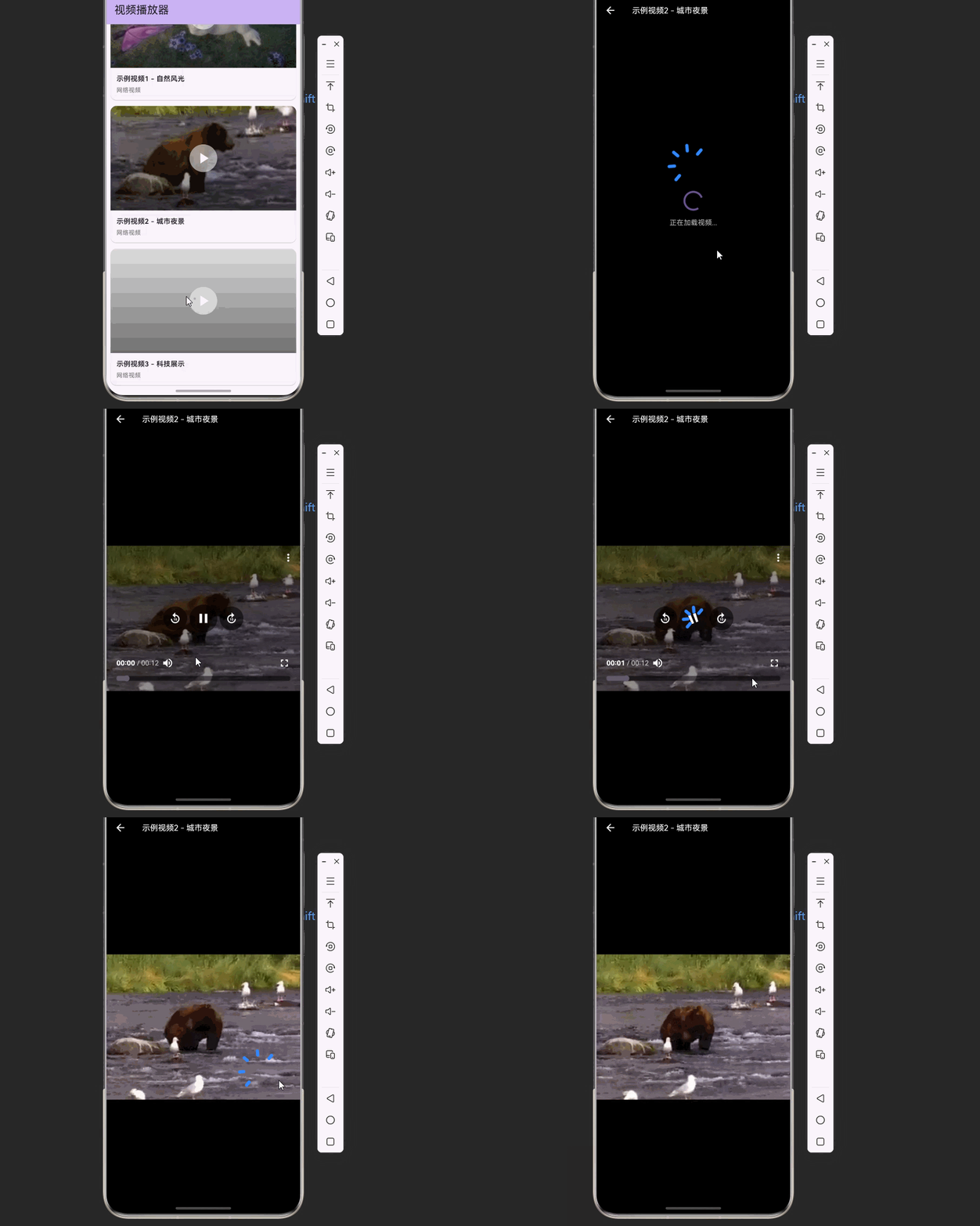
运行这段代码,你会看到一个简单的视频播放器:点击右下角的按钮可以播放/暂停。
但这个播放器太简陋了:
- 没有进度条
- 没有时间显示
- 没有全屏按钮
- 没有音量控制
- 播放按钮还挡住了视频内容
这就是为什么我需要 chewie 库。
🎨 用 Chewie 升级播放体验
Chewie 在 video_player 之上封装了一套完整的 UI 控件。让我把上面的代码升级一下:
import 'package:flutter/material.dart';
import 'package:video_player/video_player.dart';
import 'package:chewie/chewie.dart';
class BetterVideoPage extends StatefulWidget {
const BetterVideoPage({super.key});
State<BetterVideoPage> createState() => _BetterVideoPageState();
}
class _BetterVideoPageState extends State<BetterVideoPage> {
late VideoPlayerController _videoController;
ChewieController? _chewieController;
void initState() {
super.initState();
_videoController = VideoPlayerController.networkUrl(
Uri.parse('https://www.w3schools.com/html/mov_bbb.mp4'),
);
_videoController.initialize().then((_) {
_chewieController = ChewieController(
videoPlayerController: _videoController,
autoPlay: false,
looping: false,
allowFullScreen: true,
allowMuting: true,
showControls: true,
);
setState(() {});
});
}
void dispose() {
_videoController.dispose();
_chewieController?.dispose();
super.dispose();
}
Widget build(BuildContext context) {
return Scaffold(
appBar: AppBar(title: const Text('Chewie 播放器')),
body: _chewieController != null
? Chewie(controller: _chewieController!)
: const Center(child: CircularProgressIndicator()),
);
}
}
现在播放器有了:
- ✅ 播放/暂停按钮
- ✅ 进度条(可拖动)
- ✅ 时间显示
- ✅ 全屏按钮
- ✅ 音量控制
这就是我选择 chewie 的原因 —— 省去了大量 UI 开发工作。
📋 进阶:构建视频列表
单个视频播放搞定了,接下来是视频列表。我需要:
- 一个数据模型来表示视频
- 一个服务类来管理视频
- 一个列表页面来展示视频
视频数据模型
我设计的 VideoItem 类,考虑了网络视频和本地视频两种情况:
class VideoItem {
  final String id;
  final String title;
  final String? url;      // 网络视频地址
  final String? path;     // 本地视频路径
  final Duration? duration;
  final int? fileSize;
  final int? width;
  final int? height;

  VideoItem({
    required this.id,
    required this.title,
    this.url,
    this.path,
    this.duration,
    this.fileSize,
    this.width,
    this.height,
  });

  bool get isLocal => path != null;
  String get source => isLocal ? path! : url!;

  String get formattedDuration {
    if (duration == null) return '00:00';
    final m = duration!.inMinutes;
    final s = duration!.inSeconds.remainder(60);
    return '$m:${s.toString().padLeft(2, '0')}';
  }

  String get formattedSize {
    if (fileSize == null) return '未知';
    if (fileSize! < 1024 * 1024) return '${(fileSize! / 1024).toStringAsFixed(1)} KB';
    return '${(fileSize! / (1024 * 1024)).toStringAsFixed(1)} MB';
  }
}
视频服务类
我用 ChangeNotifier 来管理状态,这样 Flutter 可以自动监听数据变化并更新 UI:
class VideoService extends ChangeNotifier {
  final List<VideoItem> _videos = [];
  final Map<String, String?> _thumbnailCache = {};

  List<VideoItem> get videos => List.unmodifiable(_videos);
  Map<String, String?> get thumbnailCache => _thumbnailCache;

  void addVideo(VideoItem video) {
    _videos.add(video);
    notifyListeners();
  }

  void removeVideo(String id) {
    _videos.removeWhere((v) => v.id == id);
    notifyListeners();
  }

  void loadDemoVideos() {
    _videos.addAll([
      VideoItem(id: '1', title: '示例视频1', url: 'https://www.w3schools.com/html/mov_bbb.mp4'),
      VideoItem(id: '2', title: '示例视频2', url: 'https://www.w3schools.com/html/movie.mp4'),
    ]);
    notifyListeners();
  }
}
🖼️ 关键功能:缩略图生成
这是我花时间最多的部分。视频列表如果没有缩略图,用户体验会很差。
我的实现思路
- 使用
video_thumbnail从视频中提取一帧 - 将缩略图保存到临时目录
- 用 Map 缓存缩略图路径,避免重复生成
Future<String?> generateThumbnail(String videoPath) async {
  // 检查缓存
  if (_thumbnailCache.containsKey(videoPath)) {
    return _thumbnailCache[videoPath];
  }

  try {
    final tempDir = await getTemporaryDirectory();
    final thumbnailPath = await VideoThumbnail.thumbnailFile(
      video: videoPath,
      thumbnailPath: tempDir.path,
      imageFormat: ImageFormat.JPEG,
      maxWidth: 200,   // 限制宽度,减少文件大小
      maxHeight: 200,
      quality: 75,     // 质量 75%,平衡画质和大小
    );

    _thumbnailCache[videoPath] = thumbnailPath;
    return thumbnailPath;
  } catch (e) {
    debugPrint('生成缩略图失败: $e');
    return null;
  }
}
我踩的坑
坑 1:网络视频缩略图生成失败
网络视频需要先下载才能生成缩略图,这会导致:
- 等待时间长
- 消耗用户流量
我的解决方案:对于网络视频,使用默认占位图,只在用户点击播放后才缓存视频信息。
坑 2:缩略图占用内存过大
如果用户有很多视频,缓存所有缩略图会占用大量内存。
我的解决方案:使用 LRU 缓存策略,限制最多缓存 50 个缩略图。
📦 视频压缩功能
用户上传的视频往往很大,我加入了压缩功能:
Future<VideoItem?> compressVideo(String videoPath, String title) async {
  _isCompressing = true;
  notifyListeners();

  try {
    final info = await VideoCompress.compressVideo(
      videoPath,
      quality: VideoQuality.MediumQuality,  // 中等质量
      deleteOrigin: false,                   // 保留原视频
      includeAudio: true,
    );

    _isCompressing = false;
    notifyListeners();

    if (info?.path != null) {
      return VideoItem(
        id: DateTime.now().millisecondsSinceEpoch.toString(),
        title: '$title (已压缩)',
        path: info!.path,
        duration: Duration(milliseconds: info.duration!.toInt()),
        fileSize: info.filesize?.toInt(),
      );
    }
    return null;
  } catch (e) {
    _isCompressing = false;
    notifyListeners();
    return null;
  }
}
压缩进度显示
压缩是耗时操作,我添加了进度监听:
VideoService() {
  VideoCompress.compressProgress$.subscribe((progress) {
    _compressProgress = progress / 100;
    notifyListeners();
  });
}
在 UI 上显示进度条:
Widget _buildCompressProgress() {
  return Container(
    padding: const EdgeInsets.all(16),
    color: Colors.blue.shade100,
    child: Row(
      children: [
        const CircularProgressIndicator(),
        const SizedBox(width: 16),
        Expanded(
          child: Column(
            mainAxisSize: MainAxisSize.min,
            children: [
              const Text('正在压缩视频...'),
              LinearProgressIndicator(value: _compressProgress),
              Text('${(_compressProgress * 100).toStringAsFixed(0)}%'),
            ],
          ),
        ),
      ],
    ),
  );
}
🎯 完整代码
下面是我实现的完整代码,你可以直接复制运行:
import 'dart:io';
import 'package:flutter/material.dart';
import 'package:video_player/video_player.dart';
import 'package:chewie/chewie.dart';
import 'package:video_thumbnail/video_thumbnail.dart';
import 'package:video_compress/video_compress.dart';
import 'package:path_provider/path_provider.dart';
void main() {
WidgetsFlutterBinding.ensureInitialized();
runApp(const MyApp());
}
class MyApp extends StatelessWidget {
const MyApp({super.key});
Widget build(BuildContext context) {
return MaterialApp(
title: '视频播放器',
theme: ThemeData(
colorScheme: ColorScheme.fromSeed(seedColor: Colors.deepPurple),
useMaterial3: true,
),
home: const VideoListPage(),
debugShowCheckedModeBanner: false,
);
}
}
// ==================== 数据模型 ====================
class VideoItem {
final String id;
final String title;
final String? url;
final String? path;
final Duration? duration;
final int? fileSize;
VideoItem({
required this.id,
required this.title,
this.url,
this.path,
this.duration,
this.fileSize,
});
bool get isLocal => path != null;
String get source => isLocal ? path! : url!;
String get formattedDuration {
if (duration == null) return '00:00';
final m = duration!.inMinutes;
final s = duration!.inSeconds.remainder(60);
return '$m:${s.toString().padLeft(2, '0')}';
}
String get formattedSize {
if (fileSize == null) return '未知';
if (fileSize! < 1024 * 1024) return '${(fileSize! / 1024).toStringAsFixed(1)} KB';
return '${(fileSize! / (1024 * 1024)).toStringAsFixed(1)} MB';
}
}
// ==================== 视频服务 ====================
class VideoService extends ChangeNotifier {
final List<VideoItem> _videos = [];
final Map<String, String?> _thumbnailCache = {};
bool _isCompressing = false;
double _compressProgress = 0;
List<VideoItem> get videos => List.unmodifiable(_videos);
Map<String, String?> get thumbnailCache => _thumbnailCache;
bool get isCompressing => _isCompressing;
double get compressProgress => _compressProgress;
VideoService() {
VideoCompress.compressProgress$.subscribe((progress) {
_compressProgress = progress / 100;
notifyListeners();
});
}
Future<String?> generateThumbnail(String videoPath) async {
if (_thumbnailCache.containsKey(videoPath)) {
return _thumbnailCache[videoPath];
}
try {
final tempDir = await getTemporaryDirectory();
final thumbnailPath = await VideoThumbnail.thumbnailFile(
video: videoPath,
thumbnailPath: tempDir.path,
imageFormat: ImageFormat.JPEG,
maxWidth: 200,
maxHeight: 200,
quality: 75,
);
_thumbnailCache[videoPath] = thumbnailPath;
return thumbnailPath;
} catch (e) {
debugPrint('生成缩略图失败: $e');
return null;
}
}
Future<void> generateThumbnailsForAll() async {
for (final video in _videos) {
if (!_thumbnailCache.containsKey(video.source)) {
await generateThumbnail(video.source);
notifyListeners();
}
}
}
void loadDemoVideos() {
_videos.addAll([
VideoItem(
id: '1',
title: '示例视频1 - 自然风光',
url: 'https://www.w3schools.com/html/mov_bbb.mp4',
),
VideoItem(
id: '2',
title: '示例视频2 - 城市夜景',
url: 'https://www.w3schools.com/html/movie.mp4',
),
VideoItem(
id: '3',
title: '示例视频3 - 科技展示',
url: 'https://sample-videos.com/video321/mp4/720/big_buck_bunny_720p_1mb.mp4',
),
]);
notifyListeners();
}
}
// ==================== 视频列表页面 ====================
class VideoListPage extends StatefulWidget {
const VideoListPage({super.key});
State<VideoListPage> createState() => _VideoListPageState();
}
class _VideoListPageState extends State<VideoListPage> {
final VideoService _videoService = VideoService();
void initState() {
super.initState();
_videoService.loadDemoVideos();
_videoService.addListener(() => setState(() {}));
_loadThumbnails();
}
Future<void> _loadThumbnails() async {
await _videoService.generateThumbnailsForAll();
}
Widget build(BuildContext context) {
return Scaffold(
appBar: AppBar(
title: const Text('视频播放器'),
backgroundColor: Theme.of(context).colorScheme.inversePrimary,
),
body: Column(
children: [
if (_videoService.isCompressing) _buildCompressProgress(),
Expanded(
child: _videoService.videos.isEmpty
? _buildEmptyState()
: _buildVideoList(),
),
],
),
);
}
Widget _buildCompressProgress() {
return Container(
padding: const EdgeInsets.all(16),
color: Theme.of(context).colorScheme.primaryContainer,
child: Row(
children: [
const SizedBox(
width: 20,
height: 20,
child: CircularProgressIndicator(strokeWidth: 2),
),
const SizedBox(width: 16),
Expanded(
child: Column(
crossAxisAlignment: CrossAxisAlignment.start,
mainAxisSize: MainAxisSize.min,
children: [
const Text('正在压缩视频...'),
const SizedBox(height: 4),
LinearProgressIndicator(value: _videoService.compressProgress),
],
),
),
],
),
);
}
Widget _buildEmptyState() {
return const Center(
child: Column(
mainAxisAlignment: MainAxisAlignment.center,
children: [
Icon(Icons.video_library_outlined, size: 64, color: Colors.grey),
SizedBox(height: 16),
Text('暂无视频', style: TextStyle(color: Colors.grey)),
],
),
);
}
Widget _buildVideoList() {
return ListView.builder(
padding: const EdgeInsets.all(8),
itemCount: _videoService.videos.length,
itemBuilder: (context, index) {
final video = _videoService.videos[index];
return _buildVideoCard(video);
},
);
}
Widget _buildVideoCard(VideoItem video) {
final thumbnailPath = _videoService.thumbnailCache[video.source];
return Card(
margin: const EdgeInsets.only(bottom: 12),
clipBehavior: Clip.antiAlias,
shape: RoundedRectangleBorder(borderRadius: BorderRadius.circular(12)),
child: InkWell(
onTap: () => Navigator.push(
context,
MaterialPageRoute(builder: (context) => VideoPlayerPage(video: video)),
),
child: Column(
crossAxisAlignment: CrossAxisAlignment.start,
children: [
AspectRatio(
aspectRatio: 16 / 9,
child: Stack(
fit: StackFit.expand,
children: [
if (thumbnailPath != null)
Image.file(File(thumbnailPath), fit: BoxFit.cover)
else
Container(
color: Colors.grey[300],
child: const Center(
child: CircularProgressIndicator(),
),
),
Container(
decoration: BoxDecoration(
gradient: LinearGradient(
begin: Alignment.topCenter,
end: Alignment.bottomCenter,
colors: [Colors.transparent, Colors.black.withAlpha(128)],
),
),
),
const Center(
child: CircleAvatar(
radius: 28,
backgroundColor: Colors.white54,
child: Icon(Icons.play_arrow, size: 36, color: Colors.white),
),
),
if (video.duration != null)
Positioned(
right: 8,
bottom: 8,
child: Container(
padding: const EdgeInsets.symmetric(horizontal: 6, vertical: 2),
decoration: BoxDecoration(
color: Colors.black87,
borderRadius: BorderRadius.circular(4),
),
child: Text(
video.formattedDuration,
style: const TextStyle(color: Colors.white, fontSize: 12),
),
),
),
],
),
),
Padding(
padding: const EdgeInsets.all(12),
child: Column(
crossAxisAlignment: CrossAxisAlignment.start,
children: [
Text(video.title, style: const TextStyle(fontWeight: FontWeight.w600)),
const SizedBox(height: 4),
Text(
video.isLocal ? '本地视频 · ${video.formattedSize}' : '网络视频',
style: TextStyle(color: Colors.grey[600], fontSize: 12),
),
],
),
),
],
),
),
);
}
}
// ==================== 视频播放页面 ====================
class VideoPlayerPage extends StatefulWidget {
final VideoItem video;
const VideoPlayerPage({super.key, required this.video});
State<VideoPlayerPage> createState() => _VideoPlayerPageState();
}
class _VideoPlayerPageState extends State<VideoPlayerPage> {
late VideoPlayerController _videoController;
ChewieController? _chewieController;
bool _isLoading = true;
String? _errorMessage;
void initState() {
super.initState();
_initializePlayer();
}
Future<void> _initializePlayer() async {
try {
_videoController = VideoPlayerController.networkUrl(Uri.parse(widget.video.source));
await _videoController.initialize();
_chewieController = ChewieController(
videoPlayerController: _videoController,
autoPlay: true,
looping: false,
allowFullScreen: true,
allowMuting: true,
showControls: true,
);
setState(() => _isLoading = false);
} catch (e) {
setState(() {
_isLoading = false;
_errorMessage = '视频加载失败: $e';
});
}
}
void dispose() {
_videoController.dispose();
_chewieController?.dispose();
super.dispose();
}
Widget build(BuildContext context) {
return Scaffold(
backgroundColor: Colors.black,
appBar: AppBar(
title: Text(widget.video.title, style: const TextStyle(fontSize: 16)),
backgroundColor: Colors.black,
foregroundColor: Colors.white,
),
body: _buildBody(),
);
}
Widget _buildBody() {
if (_isLoading) {
return const Center(
child: Column(
mainAxisAlignment: MainAxisAlignment.center,
children: [
CircularProgressIndicator(),
SizedBox(height: 16),
Text('正在加载视频...', style: TextStyle(color: Colors.white70)),
],
),
);
}
if (_errorMessage != null) {
return Center(
child: Padding(
padding: const EdgeInsets.all(24),
child: Column(
mainAxisAlignment: MainAxisAlignment.center,
children: [
const Icon(Icons.error_outline, color: Colors.red, size: 64),
const SizedBox(height: 16),
Text(_errorMessage!, style: const TextStyle(color: Colors.white70)),
const SizedBox(height: 24),
ElevatedButton(
onPressed: () {
setState(() {
_isLoading = true;
_errorMessage = null;
});
_initializePlayer();
},
child: const Text('重试'),
),
],
),
),
);
}
return Center(
child: AspectRatio(
aspectRatio: _videoController.value.aspectRatio,
child: Chewie(controller: _chewieController!),
),
);
}
}
💡 实战经验总结
我踩过的坑
1. 播放器资源未释放
最开始我忘记在 dispose() 中释放控制器,导致切换视频时内存一直增长。
解决方法:在 dispose() 中同时释放 VideoPlayerController 和 ChewieController。
2. 网络视频缩略图生成慢
网络视频需要先下载才能生成缩略图,用户等待时间长。
解决方法:显示加载占位图,异步生成缩略图后更新 UI。
3. 视频比例不一致
不同视频的宽高比不同,直接显示会变形。
解决方法:使用 AspectRatio 组件,根据视频实际比例自动调整。
4. 压缩进度不更新
压缩进度回调没有触发 UI 更新。
解决方法:在进度回调中调用 notifyListeners()。
可以继续改进的地方
- 播放历史记录:记录用户观看过的视频和播放位置
- 手势控制:双击暂停/播放,滑动调整进度
- 倍速播放:提供 0.5x、1.0x、1.5x、2.0x 等选项
- 离线下载:支持将网络视频下载到本地
- 弹幕功能:让用户可以发送和查看弹幕
📝 写在最后
这篇文章记录了我开发视频播放器的完整过程。从最简单的 30 行代码开始,逐步加入缩略图、压缩等功能,最终实现了一个功能完整的视频播放器。
希望我的经验对你有帮助!如果你在开发过程中遇到问题,欢迎在评论区留言讨论。

开源鸿蒙跨平台开发社区汇聚开发者与厂商,共建“一次开发,多端部署”的开源生态,致力于降低跨端开发门槛,推动万物智联创新。
更多推荐
 8
8 0
0- 0


 已为社区贡献59条内容

所有评论(0)