Flutter for OpenHarmony 第三方库实战:本地数据存储 —— shared_preferences
本地数据存储是移动应用的基础功能,用于保存用户偏好设置、应用配置、登录状态等简单数据。提供了轻量级的键值对存储方案,支持多种数据类型,是 Flutter 应用中最常用的存储库之一。📝 多类型存储:支持字符串、整数、浮点数、布尔值和字符串列表五种数据类型。🔄 持久化保存:数据保存在设备本地,应用重启后数据仍然存在。⚡ 异步操作:所有读写操作都是异步的,不会阻塞 UI 线程。🧹 数据管理:支持单
欢迎加入开源鸿蒙跨平台社区:https://openharmonycrossplatform.csdn.net
🎯 欢迎来到 Flutter for OpenHarmony 第三方库实战系列!本文将带你实现本地数据存储功能,通过
shared_preferences库让应用能够持久化存储简单的键值对数据。
🚀 项目概述:我们要构建什么?
本地数据存储是移动应用的基础功能,用于保存用户偏好设置、应用配置、登录状态等简单数据。shared_preferences 提供了轻量级的键值对存储方案,支持多种数据类型,是 Flutter 应用中最常用的存储库之一。
本文将构建的应用具备以下核心特性:
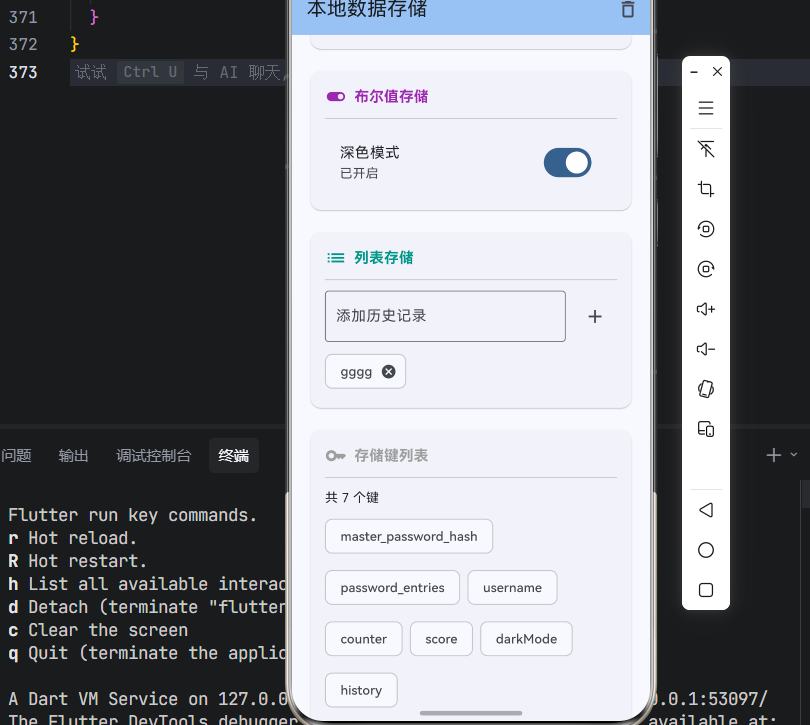
📝 多类型存储:支持字符串、整数、浮点数、布尔值和字符串列表五种数据类型。
🔄 持久化保存:数据保存在设备本地,应用重启后数据仍然存在。
⚡ 异步操作:所有读写操作都是异步的,不会阻塞 UI 线程。
🧹 数据管理:支持单个键删除、全部清除、重新加载等操作。
🎯 核心功能一览
| 功能模块 | 实现方法 | 核心能力 |
|---|---|---|
| 📝 字符串存储 | setString/getString | 存储和读取字符串 |
| 🔢 数值存储 | setInt/getInt, setDouble/getDouble | 存储和读取数值 |
| ✅ 布尔存储 | setBool/getBool | 存储和读取布尔值 |
| 📋 列表存储 | setStringList/getStringList | 存储和读取字符串列表 |
| 🗑️ 数据删除 | remove/clear | 删除单个或全部数据 |
💡 为什么选择 shared_preferences?
1️⃣ 简单易用
API 设计简洁直观,只需几行代码就能完成数据的存取操作。
2️⃣ 跨平台支持
支持 Android、iOS、Web、Windows、macOS、Linux 和 OpenHarmony 等多个平台,一套代码多端运行。
3️⃣ 轻量高效
不需要数据库的复杂配置,适合存储简单的配置信息和用户偏好。
4️⃣ OpenHarmony 原生适配
专门针对 OpenHarmony 平台进行了适配,使用系统的首选项存储能力。
📋 支持的数据类型
| 类型 | 说明 | 示例 |
|---|---|---|
| String | 字符串值 | 用户名、Token、主题设置 |
| int | 整数值 | 计数器、版本号、ID |
| double | 浮点数值 | 价格、坐标、比例 |
| bool | 布尔值 | 开关状态、登录状态、引导页 |
| List | 字符串列表 | 历史记录、收藏列表、标签 |
📦 第一步:环境配置
1.1 添加依赖
在开始编码之前,我们需要先配置项目的依赖。打开项目根目录下的 pubspec.yaml 文件,添加以下内容。
dependencies:
  flutter:
    sdk: flutter

  # 本地数据存储(OpenHarmony 适配版本)
  shared_preferences:
    git:
      url: "https://atomgit.com/openharmony-tpc/flutter_packages.git"
      path: "packages/shared_preferences/shared_preferences"
1.2 执行依赖安装
配置完成后,在项目根目录执行以下命令来下载并安装所有依赖包。
flutter pub get
📱 第二步:存储功能详解
2.1 核心 API 介绍
SharedPreferences 类
主接口类,提供键值对存储功能。
class SharedPreferences {
  // 获取 SharedPreferences 实例(单例模式)
  static Future<SharedPreferences> getInstance();

  // 获取所有键
  Set<String> getKeys();

  // 检查是否包含某个键
  bool containsKey(String key);

  // 读取方法
  String? getString(String key);
  int? getInt(String key);
  double? getDouble(String key);
  bool? getBool(String key);
  List<String>? getStringList(String key);

  // 写入方法
  Future<bool> setString(String key, String value);
  Future<bool> setInt(String key, int value);
  Future<bool> setDouble(String key, double value);
  Future<bool> setBool(String key, bool value);
  Future<bool> setStringList(String key, List<String> value);

  // 删除方法
  Future<bool> remove(String key);
  Future<bool> clear();

  // 重新加载
  Future<void> reload();
}
⚠️ 重要说明:
getInstance()是异步方法,需要在async函数中调用- 所有读取方法如果键不存在,返回
null - 所有写入方法返回
Future<bool>,表示操作是否成功
2.2 存储服务实现
下面的 StorageService 类封装了存储的逻辑。
import 'package:flutter/material.dart';
import 'package:shared_preferences/shared_preferences.dart';

class StorageService extends ChangeNotifier {
  SharedPreferences? _prefs;
  bool _isInitialized = false;
  String? _errorMessage;

  bool get isInitialized => _isInitialized;
  String? get errorMessage => _errorMessage;

  Future<void> initialize() async {
    try {
      _prefs = await SharedPreferences.getInstance();
      _isInitialized = true;
      notifyListeners();
    } catch (e) {
      _errorMessage = '初始化失败: $e';
      notifyListeners();
    }
  }

  // 字符串操作
  Future<bool> setString(String key, String value) async {
    if (_prefs == null) return false;
    final success = await _prefs!.setString(key, value);
    notifyListeners();
    return success;
  }

  String? getString(String key) {
    return _prefs?.getString(key);
  }

  // 整数操作
  Future<bool> setInt(String key, int value) async {
    if (_prefs == null) return false;
    final success = await _prefs!.setInt(key, value);
    notifyListeners();
    return success;
  }

  int? getInt(String key) {
    return _prefs?.getInt(key);
  }

  // 浮点数操作
  Future<bool> setDouble(String key, double value) async {
    if (_prefs == null) return false;
    final success = await _prefs!.setDouble(key, value);
    notifyListeners();
    return success;
  }

  double? getDouble(String key) {
    return _prefs?.getDouble(key);
  }

  // 布尔值操作
  Future<bool> setBool(String key, bool value) async {
    if (_prefs == null) return false;
    final success = await _prefs!.setBool(key, value);
    notifyListeners();
    return success;
  }

  bool? getBool(String key) {
    return _prefs?.getBool(key);
  }

  // 字符串列表操作
  Future<bool> setStringList(String key, List<String> value) async {
    if (_prefs == null) return false;
    final success = await _prefs!.setStringList(key, value);
    notifyListeners();
    return success;
  }

  List<String>? getStringList(String key) {
    return _prefs?.getStringList(key);
  }

  // 删除操作
  Future<bool> remove(String key) async {
    if (_prefs == null) return false;
    final success = await _prefs!.remove(key);
    notifyListeners();
    return success;
  }

  Future<bool> clear() async {
    if (_prefs == null) return false;
    final success = await _prefs!.clear();
    notifyListeners();
    return success;
  }

  // 工具方法
  bool containsKey(String key) {
    return _prefs?.containsKey(key) ?? false;
  }

  Set<String> getKeys() {
    return _prefs?.getKeys() ?? {};
  }

  Future<void> reload() async {
    await _prefs?.reload();
    notifyListeners();
  }
}
🎨 第三步:完整示例代码
下面是一个完整的本地存储演示应用,包含多种数据类型的存储和读取。
import 'package:flutter/material.dart';
import 'package:shared_preferences/shared_preferences.dart';
void main() {
runApp(const MyApp());
}
class MyApp extends StatelessWidget {
const MyApp({super.key});
Widget build(BuildContext context) {
return MaterialApp(
title: 'Storage Demo',
theme: ThemeData(
colorScheme: ColorScheme.fromSeed(seedColor: Colors.blue),
useMaterial3: true,
),
home: const StoragePage(),
debugShowCheckedModeBanner: false,
);
}
}
class StoragePage extends StatefulWidget {
const StoragePage({super.key});
State<StoragePage> createState() => _StoragePageState();
}
class _StoragePageState extends State<StoragePage> {
SharedPreferences? _prefs;
bool _isInitialized = false;
// 存储的数据
String _username = '';
int _counter = 0;
double _score = 0.0;
bool _darkMode = false;
List<String> _history = [];
void initState() {
super.initState();
_initPrefs();
}
Future<void> _initPrefs() async {
_prefs = await SharedPreferences.getInstance();
_loadData();
setState(() => _isInitialized = true);
}
void _loadData() {
setState(() {
_username = _prefs?.getString('username') ?? '';
_counter = _prefs?.getInt('counter') ?? 0;
_score = _prefs?.getDouble('score') ?? 0.0;
_darkMode = _prefs?.getBool('darkMode') ?? false;
_history = _prefs?.getStringList('history') ?? [];
});
}
Future<void> _saveUsername(String value) async {
await _prefs?.setString('username', value);
setState(() => _username = value);
}
Future<void> _incrementCounter() async {
final newCounter = _counter + 1;
await _prefs?.setInt('counter', newCounter);
setState(() => _counter = newCounter);
}
Future<void> _updateScore(double value) async {
await _prefs?.setDouble('score', value);
setState(() => _score = value);
}
Future<void> _toggleDarkMode() async {
final newValue = !_darkMode;
await _prefs?.setBool('darkMode', newValue);
setState(() => _darkMode = newValue);
}
Future<void> _addHistory(String item) async {
if (item.isEmpty) return;
final newHistory = [..._history, item];
await _prefs?.setStringList('history', newHistory);
setState(() => _history = newHistory);
}
Future<void> _removeHistory(int index) async {
final newHistory = [..._history]..removeAt(index);
await _prefs?.setStringList('history', newHistory);
setState(() => _history = newHistory);
}
Future<void> _clearAll() async {
await _prefs?.clear();
_loadData();
if (mounted) {
ScaffoldMessenger.of(context).showSnackBar(
const SnackBar(content: Text('已清除所有数据')),
);
}
}
Widget build(BuildContext context) {
if (!_isInitialized) {
return const Scaffold(
body: Center(child: CircularProgressIndicator()),
);
}
return Scaffold(
appBar: AppBar(
title: const Text('本地数据存储'),
backgroundColor: Theme.of(context).colorScheme.inversePrimary,
actions: [
IconButton(
icon: const Icon(Icons.delete_outline),
onPressed: _clearAll,
tooltip: '清除所有数据',
),
],
),
body: ListView(
padding: const EdgeInsets.all(16),
children: [
_buildStringSection(),
const SizedBox(height: 16),
_buildIntSection(),
const SizedBox(height: 16),
_buildDoubleSection(),
const SizedBox(height: 16),
_buildBoolSection(),
const SizedBox(height: 16),
_buildListSection(),
const SizedBox(height: 16),
_buildKeysSection(),
],
),
);
}
Widget _buildStringSection() {
return _buildSection(
title: '字符串存储',
icon: Icons.text_fields,
color: Colors.blue,
child: Column(
children: [
TextField(
decoration: const InputDecoration(
labelText: '用户名',
border: OutlineInputBorder(),
),
controller: TextEditingController(text: _username),
onChanged: _saveUsername,
),
const SizedBox(height: 8),
Text('当前值: $_username', style: const TextStyle(color: Colors.grey)),
],
),
);
}
Widget _buildIntSection() {
return _buildSection(
title: '整数存储',
icon: Icons.format_list_numbered,
color: Colors.green,
child: Column(
children: [
Row(
mainAxisAlignment: MainAxisAlignment.center,
children: [
IconButton(
icon: const Icon(Icons.remove),
onPressed: () {
_updateScore((_counter - 1).toDouble());
_prefs?.setInt('counter', _counter - 1).then((_) {
setState(() => _counter--);
});
},
),
Container(
width: 80,
height: 80,
decoration: BoxDecoration(
color: Colors.green.shade100,
borderRadius: BorderRadius.circular(16),
),
child: Center(
child: Text(
'$_counter',
style: const TextStyle(
fontSize: 32,
fontWeight: FontWeight.bold,
color: Colors.green,
),
),
),
),
IconButton(
icon: const Icon(Icons.add),
onPressed: _incrementCounter,
),
],
),
const Text('计数器(应用重启后保持)'),
],
),
);
}
Widget _buildDoubleSection() {
return _buildSection(
title: '浮点数存储',
icon: Icons.straighten,
color: Colors.orange,
child: Column(
children: [
Slider(
value: _score,
min: 0,
max: 100,
divisions: 100,
label: _score.toStringAsFixed(1),
onChanged: _updateScore,
),
Text('当前分数: ${_score.toStringAsFixed(1)}'),
],
),
);
}
Widget _buildBoolSection() {
return _buildSection(
title: '布尔值存储',
icon: Icons.toggle_on,
color: Colors.purple,
child: SwitchListTile(
title: const Text('深色模式'),
subtitle: Text(_darkMode ? '已开启' : '已关闭'),
value: _darkMode,
onChanged: (_) => _toggleDarkMode(),
),
);
}
Widget _buildListSection() {
final controller = TextEditingController();
return _buildSection(
title: '列表存储',
icon: Icons.list,
color: Colors.teal,
child: Column(
crossAxisAlignment: CrossAxisAlignment.start,
children: [
Row(
children: [
Expanded(
child: TextField(
controller: controller,
decoration: const InputDecoration(
labelText: '添加历史记录',
border: OutlineInputBorder(),
),
),
),
const SizedBox(width: 8),
IconButton(
icon: const Icon(Icons.add),
onPressed: () {
_addHistory(controller.text);
controller.clear();
},
),
],
),
const SizedBox(height: 8),
if (_history.isEmpty)
const Center(
child: Padding(
padding: EdgeInsets.all(16),
child: Text('暂无历史记录', style: TextStyle(color: Colors.grey)),
),
)
else
Wrap(
spacing: 8,
runSpacing: 8,
children: _history.asMap().entries.map((entry) {
return Chip(
label: Text(entry.value),
onDeleted: () => _removeHistory(entry.key),
);
}).toList(),
),
],
),
);
}
Widget _buildKeysSection() {
final keys = _prefs?.getKeys() ?? {};
return _buildSection(
title: '存储键列表',
icon: Icons.key,
color: Colors.grey,
child: keys.isEmpty
? const Center(
child: Padding(
padding: EdgeInsets.all(16),
child: Text('暂无存储数据', style: TextStyle(color: Colors.grey)),
),
)
: Column(
crossAxisAlignment: CrossAxisAlignment.start,
children: [
Text('共 ${keys.length} 个键'),
const SizedBox(height: 8),
Wrap(
spacing: 8,
runSpacing: 8,
children: keys.map((key) => Chip(label: Text(key))).toList(),
),
],
),
);
}
Widget _buildSection({
required String title,
required IconData icon,
required Color color,
required Widget child,
}) {
return Card(
child: Padding(
padding: const EdgeInsets.all(16),
child: Column(
crossAxisAlignment: CrossAxisAlignment.start,
children: [
Row(
children: [
Icon(icon, color: color),
const SizedBox(width: 8),
Text(
title,
style: TextStyle(
fontSize: 16,
fontWeight: FontWeight.bold,
color: color,
),
),
],
),
const Divider(height: 24),
child,
],
),
),
);
}
}
❓ 第四步:常见问题与解决方案
1. 数据读取返回 null
原因:键不存在或从未设置过值。
解决方案:
// 使用空值合并运算符提供默认值
final username = prefs.getString('username') ?? '默认用户';
final counter = prefs.getInt('counter') ?? 0;
final darkMode = prefs.getBool('darkMode') ?? false;
2. 数据没有持久化
原因:写入操作失败,或在写入完成前应用被关闭。
解决方案:
// 确保 await 写入操作完成
Future<void> saveData() async {
  final prefs = await SharedPreferences.getInstance();
  final success = await prefs.setString('key', 'value');
  if (success) {
    print('保存成功');
  } else {
    print('保存失败');
  }
}
3. 存储复杂数据对象
原因:shared_preferences 只支持基本数据类型。
解决方案:
import 'dart:convert';

// 将对象转为 JSON 字符串存储
class User {
  final String name;
  final int age;

  User({required this.name, required this.age});

  Map<String, dynamic> toJson() => {'name': name, 'age': age};
  factory User.fromJson(Map<String, dynamic> json) =>
      User(name: json['name'], age: json['age']);
}

// 存储
final user = User(name: '张三', age: 25);
final jsonStr = jsonEncode(user.toJson());
await prefs.setString('user', jsonStr);

// 读取
final jsonStr = prefs.getString('user');
if (jsonStr != null) {
  final user = User.fromJson(jsonDecode(jsonStr));
}
4. 数据量过大导致性能问题
原因:shared_preferences 不适合存储大量数据。
解决方案:
- 只存储简单的配置信息和用户偏好
- 大量数据请使用 SQLite、Hive 或文件存储
- 列表数据不要超过几百条
5. 键名冲突
原因:不同模块使用了相同的键名。
解决方案:
// 使用前缀区分不同模块
const String _prefix = 'app_settings_';

Future<void> setTheme(String theme) async {
  await prefs.setString('${_prefix}theme', theme);
}

String? getTheme() {
  return prefs.getString('${_prefix}theme');
}
6. 需要在应用启动时初始化
原因:SharedPreferences 是异步初始化的。
解决方案:
// 方式1: 在 main 函数中初始化
Future<void> main() async {
  WidgetsFlutterBinding.ensureInitialized();
  final prefs = await SharedPreferences.getInstance();
  runApp(MyApp(prefs: prefs));
}

// 方式2: 使用 FutureBuilder
FutureBuilder<SharedPreferences>(
  future: SharedPreferences.getInstance(),
  builder: (context, snapshot) {
    if (snapshot.hasData) {
      return MainScreen(prefs: snapshot.data!);
    }
    return const LoadingScreen();
  },
)
📚 API 参考
SharedPreferences 类
| 方法 | 参数 | 返回值 | 说明 |
|---|---|---|---|
getInstance() |
无 | Future<SharedPreferences> |
获取实例 |
getString() |
String key |
String? |
读取字符串 |
getInt() |
String key |
int? |
读取整数 |
getDouble() |
String key |
double? |
读取浮点数 |
getBool() |
String key |
bool? |
读取布尔值 |
getStringList() |
String key |
List<String>? |
读取字符串列表 |
setString() |
String key, String value |
Future<bool> |
存储字符串 |
setInt() |
String key, int value |
Future<bool> |
存储整数 |
setDouble() |
String key, double value |
Future<bool> |
存储浮点数 |
setBool() |
String key, bool value |
Future<bool> |
存储布尔值 |
setStringList() |
String key, List<String> value |
Future<bool> |
存储字符串列表 |
remove() |
String key |
Future<bool> |
删除指定键 |
clear() |
无 | Future<bool> |
清除所有数据 |
containsKey() |
String key |
bool |
检查键是否存在 |
getKeys() |
无 | Set<String> |
获取所有键 |
reload() |
无 | Future<void> |
重新加载数据 |
🎉 总结
本文详细介绍了 shared_preferences 库在 OpenHarmony 平台上的使用方法,包括:
- 环境配置:添加依赖配置
- API 使用:五种数据类型的存取方法
- 完整示例:包含字符串、整数、浮点数、布尔值、列表的完整应用
- 问题解决:常见问题的排查和解决方案
通过本地数据存储功能,开发者可以:
- 保存用户偏好设置
- 记录应用配置信息
- 实现简单的数据持久化
- 跨应用会话保持状态
shared_preferences 提供了简洁的 API,是 OpenHarmony 平台上实现轻量级数据存储的理想选择。对于复杂数据存储需求,建议使用 SQLite 或 Hive 等数据库方案。

开源鸿蒙跨平台开发社区汇聚开发者与厂商,共建“一次开发,多端部署”的开源生态,致力于降低跨端开发门槛,推动万物智联创新。
更多推荐
 10
10 0
0- 0


 已为社区贡献65条内容

所有评论(0)