Flutter for OpenHarmony第三方库实战:power_image + palette_generator高性能图片加载与色彩提取
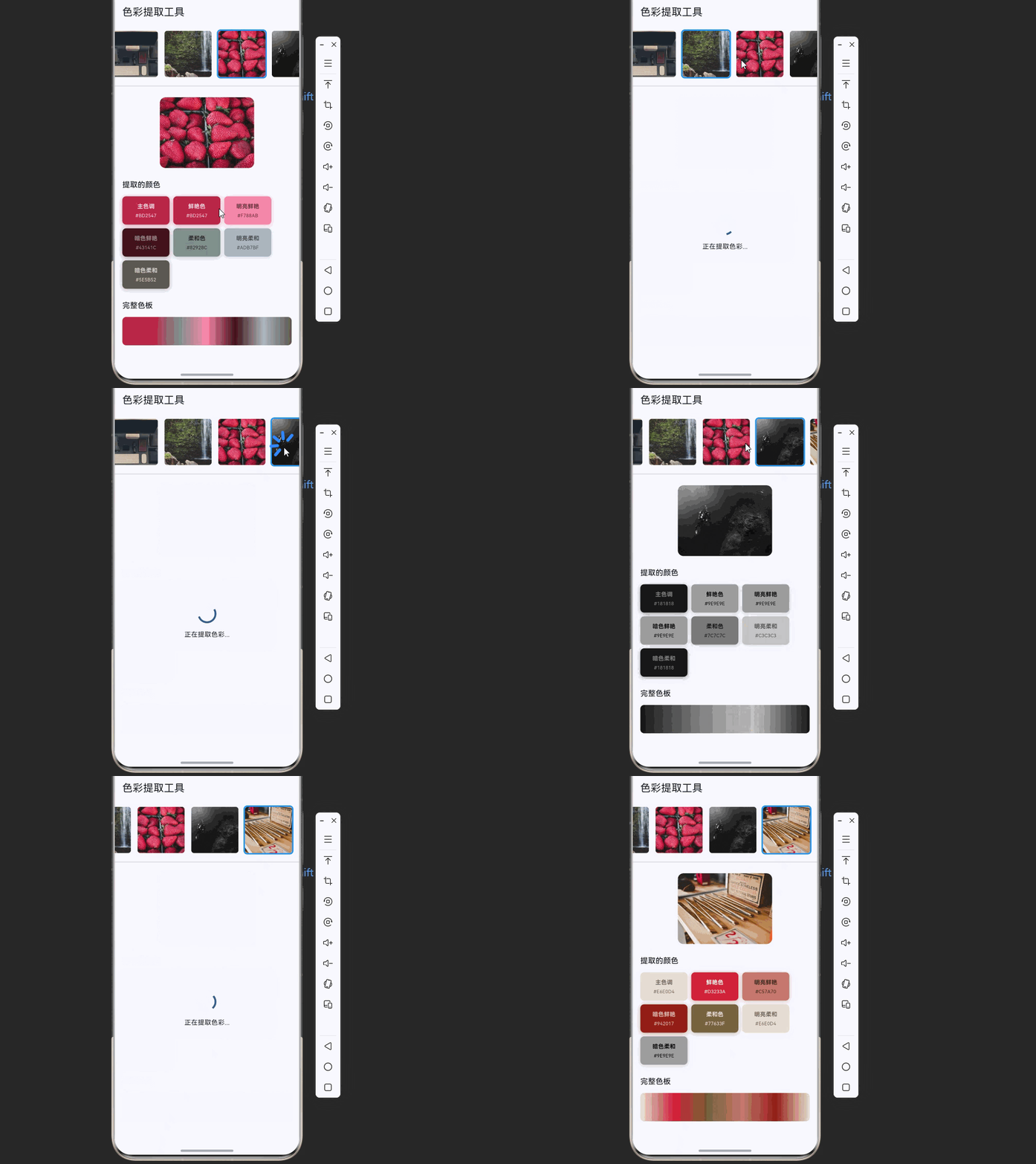
想象一下这样的场景:用户打开你的应用,浏览精美的图片列表,点击图片后自动提取主色调,界面根据图片颜色动态调整主题。这个流程涵盖了现代图片应用的核心体验。fill:#333;important;important;fill:none;color:#333;color:#333;important;fill:none;fill:#333;height:1em;图片列表加载高性能渲染选择图片色彩提取动态
欢迎加入开源鸿蒙跨平台社区:https://openharmonycrossplatform.csdn.net
🎯 欢迎来到 Flutter for OpenHarmony 第三方库实战系列!本文将带你构建一个完整的智能图片应用,通过组合
power_image和palette_generator两个库,实现高性能图片加载与智能色彩提取的完整方案。
🚀 项目概述:我们要构建什么?
想象一下这样的场景:用户打开你的应用,浏览精美的图片列表,点击图片后自动提取主色调,界面根据图片颜色动态调整主题。这个流程涵盖了现代图片应用的核心体验。
🎯 核心功能一览
| 功能模块 | 实现库 | 核心能力 |
|---|---|---|
| 🖼️ 图片加载 | power_image | 高性能Texture渲染、智能缓存 |
| 🎨 色彩提取 | palette_generator | 智能提取主色调、配色方案生成 |
💡 为什么选择这两个库?
1️⃣ power_image - 高性能图片加载引擎
- 使用 Texture 渲染,性能提升 3-5 倍
- 智能缓存机制,自动管理内存和磁盘
- 支持多种图片源(网络、本地、资源)
- 内存优化,避免 OOM 崩溃
2️⃣ palette_generator - 智能配色方案生成
- 自动从图片中提取突出颜色
- 提供多种预定义调色板类型
- 支持明暗主题自动适配
- API 简洁,几行代码即可生成配色
📦 第一步:环境配置
1.1 添加依赖
打开 pubspec.yaml,添加两个库的依赖:
dependencies:
  flutter:
    sdk: flutter

  # 高性能图片加载
  power_image:
    git:
      url: https://atomgit.com/openharmony-sig/flutter_power_image.git

  # 调色板生成
  palette_generator:
    git:
      url: "https://atomgit.com/openharmony-tpc/flutter_packages.git"
      path: "packages/palette_generator"

  # 网络请求(用于下载图片数据)
  http: ^1.0.0

  # 图片选择(用于演示)
  image_picker:
    git:
      url: https://atomgit.com/openharmony-tpc/flutter_packages.git
      path: packages/image_picker
1.2 权限配置
在 OpenHarmony 平台上,需要配置相关权限:
📄 ohos/entry/src/main/module.json5:
{
  "module": {
    "requestPermissions": [
      {
        "name": "ohos.permission.INTERNET",
        "reason": "$string:network_reason",
        "usedScene": {
          "abilities": ["EntryAbility"],
          "when": "inuse"
        }
      },
      {
        "name": "ohos.permission.READ_MEDIA",
        "reason": "$string:read_media_reason",
        "usedScene": {
          "abilities": ["EntryAbility"],
          "when": "inuse"
        }
      }
    ]
  }
}
📄 ohos/entry/src/main/resources/base/element/string.json:
{
  "string": [
    {
      "name": "network_reason",
      "value": "加载网络图片资源"
    },
    {
      "name": "read_media_reason",
      "value": "读取本地图片进行色彩分析"
    }
  ]
}
1.3 执行依赖安装
flutter pub get
🖼️ 第二步:PowerImage 高性能加载
2.1 理解 PowerImage 的核心概念
PowerImage 是一款高性能图片加载库,它的核心优势在于使用 Texture 渲染技术,将图片解码和渲染放在 GPU 层面处理,大幅提升性能。
// 传统 Image.network 的问题
Image.network('https://example.com/image.jpg')
// ❌ 图片解码阻塞 UI 线程
// ❌ 内存占用高
// ❌ 大量图片时卡顿

// PowerImage 的解决方案
PowerImage.network(
  'https://example.com/image.jpg',
  width: 200,
  height: 200,
)
// ✅ GPU 加速渲染
// ✅ 智能缓存管理
// ✅ 流畅滚动体验
2.2 初始化 PowerImage
在应用启动时进行初始化:
import 'package:flutter/material.dart';
import 'package:power_image/power_image.dart';

void main() {
  // 初始化 PowerImage 绑定
  PowerImageBinding();

  // 配置 PowerImage 选项
  PowerImageLoader.instance.setup(
    PowerImageSetupOptions(
      renderingTypeTexture,  // 使用 Texture 渲染(推荐)
      errorCallback: (PowerImageLoadException exception) {
        debugPrint('图片加载失败: ${exception.message}');
      },
    ),
  );

  runApp(const ColorPaletteApp());
}
初始化参数说明:
| 参数 | 说明 |
|---|---|
| renderingTypeTexture | 使用 Texture 渲染,性能最高(推荐) |
| renderingTypeExternal | 使用 External 渲染,兼容性好 |
| errorCallback | 全局错误回调,用于监控图片加载失败 |
2.3 加载不同来源的图片
// 网络图片
PowerImage.network(
  'https://picsum.photos/400/300',
  width: 200,
  height: 150,
  fit: BoxFit.cover,
  placeholderBuilder: (context) => Container(
    color: Colors.grey[200],
    child: const Center(child: CircularProgressIndicator()),
  ),
)

// 本地文件
PowerImage.file(
  File('/path/to/image.jpg'),
  width: 200,
  height: 150,
)

// Asset 资源
PowerImage.asset(
  'assets/images/sample.jpg',
  width: 200,
  height: 150,
)
2.4 图片预加载
对于图片列表场景,预加载可以提升用户体验:
class ImagePreloader {
  static Future<void> preloadImages(List<String> urls) async {
    for (final url in urls) {
      await PowerImageLoader.instance.preload(
        PowerImageLoadRequest(
          'network',
          uri: url,
          imageWidth: 200,
          imageHeight: 150,
        ),
      );
    }
  }
}

// 在列表显示前预加载
await ImagePreloader.preloadImages(imageUrls);
🎨 第三步:PaletteGenerator 色彩提取
3.1 理解 PaletteGenerator 的核心概念
PaletteGenerator 从图片中智能提取颜色,生成完整的配色方案。它基于 Android Palette 库实现,支持多种调色板类型。
支持的调色板类型:
| 调色板类型 | 说明 | 适用场景 |
|---|---|---|
| dominant | 主色调 | 背景色、主题色 |
| vibrant | 鲜艳色调 | 强调色、按钮色 |
| lightVibrant | 明亮鲜艳色调 | 高亮背景 |
| darkVibrant | 暗色鲜艳色调 | 深色主题 |
| muted | 柔和色调 | 次要元素 |
| lightMuted | 明亮柔和色调 | 卡片背景 |
| darkMuted | 暗色柔和色调 | 文字背景 |
3.2 从不同来源生成调色板
import 'dart:ui' as ui;
import 'dart:typed_data';
import 'package:flutter/services.dart' show rootBundle;
import 'package:http/http.dart' as http;

class PaletteService {
  // 从网络图片生成调色板
  static Future<PaletteGenerator> fromNetwork(String url) async {
    final response = await http.get(Uri.parse(url));
    final bytes = response.bodyBytes;
    return _generateFromBytes(bytes);
  }

  // 从 Asset 生成调色板
  static Future<PaletteGenerator> fromAsset(String assetPath) async {
    final data = await rootBundle.load(assetPath);
    final bytes = data.buffer.asUint8List();
    return _generateFromBytes(bytes);
  }

  // 从文件生成调色板
  static Future<PaletteGenerator> fromFile(String filePath) async {
    final file = File(filePath);
    final bytes = await file.readAsBytes();
    return _generateFromBytes(bytes);
  }

  // 核心方法:从字节数据生成调色板
  static Future<PaletteGenerator> _generateFromBytes(Uint8List bytes) async {
    final codec = await ui.instantiateImageCodec(bytes);
    final frame = await codec.getNextFrame();
    final image = frame.image;

    return await PaletteGenerator.fromImage(
      image,
      maximumColorCount: 16,  // 最大颜色数量
    );
  }
}
3.3 获取和使用调色板颜色
Future<ColorScheme> extractColorScheme(String imageUrl) async {
  final palette = await PaletteService.fromNetwork(imageUrl);

  // 获取主色调
  final dominantColor = palette.dominantColor?.color ?? Colors.blue;

  // 获取鲜艳色调(用于强调)
  final vibrantColor = palette.vibrantColor?.color ?? Colors.blueAccent;

  // 获取柔和色调(用于背景)
  final mutedColor = palette.mutedColor?.color ?? Colors.grey;

  // 获取文字颜色
  final textColor = palette.dominantColor?.bodyTextColor ?? Colors.white;

  return ColorScheme(
    primary: vibrantColor,
    secondary: mutedColor,
    surface: dominantColor,
    onPrimary: textColor,
    onSecondary: textColor,
    onSurface: textColor,
    brightness: _getBrightness(dominantColor),
  );
}

Brightness _getBrightness(Color color) {
  // 计算亮度
  final luminance = color.computeLuminance();
  return luminance > 0.5 ? Brightness.light : Brightness.dark;
}
🔧 第四步:完整实战应用
4.1 应用架构设计
// 主应用
class ColorPaletteApp extends StatelessWidget {
const ColorPaletteApp({super.key});
Widget build(BuildContext context) {
return MaterialApp(
title: '色彩提取工具',
theme: ThemeData(
colorSchemeSeed: Colors.blue,
useMaterial3: true,
),
home: const ImageColorPage(),
);
}
}
4.2 图片列表页面
class ImageColorPage extends StatefulWidget {
const ImageColorPage({super.key});
State<ImageColorPage> createState() => _ImageColorPageState();
}
class _ImageColorPageState extends State<ImageColorPage> {
final List<String> _imageUrls = [
'https://picsum.photos/seed/1/400/300',
'https://picsum.photos/seed/2/400/300',
'https://picsum.photos/seed/3/400/300',
'https://picsum.photos/seed/4/400/300',
'https://picsum.photos/seed/5/400/300',
'https://picsum.photos/seed/6/400/300',
];
String? _selectedImageUrl;
PaletteGenerator? _palette;
bool _isExtracting = false;
Widget build(BuildContext context) {
return Scaffold(
appBar: AppBar(
title: const Text('色彩提取工具'),
elevation: 0,
),
body: Column(
children: [
_buildImageList(),
const Divider(),
Expanded(child: _buildColorPanel()),
],
),
);
}
Widget _buildImageList() {
return SizedBox(
height: 120,
child: ListView.builder(
scrollDirection: Axis.horizontal,
padding: const EdgeInsets.all(8),
itemCount: _imageUrls.length,
itemBuilder: (context, index) {
final url = _imageUrls[index];
final isSelected = url == _selectedImageUrl;
return GestureDetector(
onTap: () => _selectImage(url),
child: Container(
margin: const EdgeInsets.symmetric(horizontal: 4),
decoration: BoxDecoration(
borderRadius: BorderRadius.circular(8),
border: Border.all(
color: isSelected ? Colors.blue : Colors.transparent,
width: 3,
),
),
child: ClipRRect(
borderRadius: BorderRadius.circular(6),
child: PowerImage.network(
url,
width: 100,
height: 100,
fit: BoxFit.cover,
),
),
),
);
},
),
);
}
Widget _buildColorPanel() {
if (_selectedImageUrl == null) {
return const Center(
child: Text('请选择一张图片'),
);
}
if (_isExtracting) {
return const Center(
child: Column(
mainAxisAlignment: MainAxisAlignment.center,
children: [
CircularProgressIndicator(),
SizedBox(height: 16),
Text('正在提取色彩...'),
],
),
);
}
if (_palette == null) {
return const Center(
child: Text('色彩提取失败'),
);
}
return SingleChildScrollView(
padding: const EdgeInsets.all(16),
child: Column(
crossAxisAlignment: CrossAxisAlignment.start,
children: [
_buildSelectedImage(),
const SizedBox(height: 24),
_buildPaletteColors(),
const SizedBox(height: 24),
_buildColorSwatches(),
],
),
);
}
Widget _buildSelectedImage() {
return Center(
child: ClipRRect(
borderRadius: BorderRadius.circular(12),
child: PowerImage.network(
_selectedImageUrl!,
width: 200,
height: 150,
fit: BoxFit.cover,
),
),
);
}
Widget _buildPaletteColors() {
final colors = [
('主色调', _palette!.dominantColor),
('鲜艳色', _palette!.vibrantColor),
('明亮鲜艳', _palette!.lightVibrantColor),
('暗色鲜艳', _palette!.darkVibrantColor),
('柔和色', _palette!.mutedColor),
('明亮柔和', _palette!.lightMutedColor),
('暗色柔和', _palette!.darkMutedColor),
];
return Column(
crossAxisAlignment: CrossAxisAlignment.start,
children: [
Text(
'提取的颜色',
style: Theme.of(context).textTheme.titleMedium,
),
const SizedBox(height: 12),
Wrap(
spacing: 8,
runSpacing: 8,
children: colors.map((item) {
final name = item.$1;
final color = item.$2;
return _buildColorChip(name, color);
}).toList(),
),
],
);
}
Widget _buildColorChip(String name, PaletteColor? paletteColor) {
final color = paletteColor?.color ?? Colors.grey;
final textColor = paletteColor?.bodyTextColor ?? Colors.black;
return Container(
width: 100,
height: 60,
decoration: BoxDecoration(
color: color,
borderRadius: BorderRadius.circular(8),
boxShadow: [
BoxShadow(
color: color.withOpacity(0.4),
blurRadius: 8,
offset: const Offset(0, 2),
),
],
),
child: Column(
mainAxisAlignment: MainAxisAlignment.center,
children: [
Text(
name,
style: TextStyle(
color: textColor,
fontSize: 12,
fontWeight: FontWeight.bold,
),
),
const SizedBox(height: 4),
Text(
'#${color.value.toRadixString(16).substring(2).toUpperCase()}',
style: TextStyle(
color: textColor,
fontSize: 10,
),
),
],
),
);
}
Widget _buildColorSwatches() {
return Column(
crossAxisAlignment: CrossAxisAlignment.start,
children: [
Text(
'完整色板',
style: Theme.of(context).textTheme.titleMedium,
),
const SizedBox(height: 12),
Container(
height: 60,
decoration: BoxDecoration(
borderRadius: BorderRadius.circular(8),
gradient: LinearGradient(
colors: _getGradientColors(),
),
),
),
],
);
}
List<Color> _getGradientColors() {
final colors = <Color>[];
final paletteColors = [
_palette!.dominantColor,
_palette!.vibrantColor,
_palette!.mutedColor,
_palette!.lightVibrantColor,
_palette!.darkVibrantColor,
_palette!.lightMutedColor,
_palette!.darkMutedColor,
];
for (final pc in paletteColors) {
if (pc != null) {
colors.add(pc.color);
}
}
return colors.isEmpty ? [Colors.grey] : colors;
}
Future<void> _selectImage(String url) async {
setState(() {
_selectedImageUrl = url;
_isExtracting = true;
_palette = null;
});
try {
final palette = await PaletteService.fromNetwork(url);
setState(() {
_palette = palette;
_isExtracting = false;
});
} catch (e) {
setState(() {
_isExtracting = false;
});
if (mounted) {
ScaffoldMessenger.of(context).showSnackBar(
SnackBar(content: Text('色彩提取失败: $e')),
);
}
}
}
}
4.3 动态主题应用
class DynamicThemePage extends StatefulWidget {
const DynamicThemePage({super.key});
State<DynamicThemePage> createState() => _DynamicThemePageState();
}
class _DynamicThemePageState extends State<DynamicThemePage> {
ColorScheme? _dynamicColorScheme;
String? _currentImageUrl;
Future<void> _updateThemeFromImage(String imageUrl) async {
final colorScheme = await extractColorScheme(imageUrl);
setState(() {
_dynamicColorScheme = colorScheme;
_currentImageUrl = imageUrl;
});
}
Widget build(BuildContext context) {
return Theme(
data: Theme.of(context).copyWith(
colorScheme: _dynamicColorScheme ?? Theme.of(context).colorScheme,
),
child: Scaffold(
appBar: AppBar(
title: const Text('动态主题'),
backgroundColor: _dynamicColorScheme?.primary,
foregroundColor: _dynamicColorScheme?.onPrimary,
),
body: Center(
child: Column(
mainAxisAlignment: MainAxisAlignment.center,
children: [
if (_currentImageUrl != null)
PowerImage.network(
_currentImageUrl!,
width: 200,
height: 150,
),
const SizedBox(height: 24),
ElevatedButton(
onPressed: () => _updateThemeFromImage(
'https://picsum.photos/seed/${DateTime.now().second}/400/300',
),
child: const Text('随机更换主题'),
),
],
),
),
),
);
}
}
📊 第五步:性能优化实践
5.1 图片加载优化
class OptimizedImageList extends StatelessWidget {
final List<String> imageUrls;
const OptimizedImageList({super.key, required this.imageUrls});
Widget build(BuildContext context) {
return ListView.builder(
itemCount: imageUrls.length,
cacheExtent: 500, // 预缓存区域
itemBuilder: (context, index) {
return PowerImage.network(
imageUrls[index],
width: double.infinity,
height: 200,
fit: BoxFit.cover,
imageWidth: MediaQuery.of(context).size.width.toInt(),
imageHeight: 200,
placeholderBuilder: (context) => Container(
color: Colors.grey[200],
child: const Center(child: CircularProgressIndicator()),
),
errorBuilder: (context, error) => Container(
color: Colors.grey[200],
child: const Icon(Icons.error),
),
);
},
);
}
}
5.2 色彩提取优化
class CachedPaletteService {
  static final _cache = <String, PaletteGenerator>{};

  static Future<PaletteGenerator> getPalette(String url) async {
    if (_cache.containsKey(url)) {
      return _cache[url]!;
    }

    final palette = await PaletteService.fromNetwork(url);
    _cache[url] = palette;
    return palette;
  }

  static void clearCache() {
    _cache.clear();
  }
}
5.3 内存管理
class ImageMemoryManager {
  static const maxCacheSize = 100 * 1024 * 1024;  // 100MB

  static void optimizeMemory() {
    // 清理 PowerImage 缓存
    PowerImageLoader.instance.clearMemoryCache();

    // 触发 GC
    WidgetsBinding.instance.handleMemoryPressure(() {
      PowerImageLoader.instance.clearMemoryCache();
    });
  }
}
🎯 第六步:高级应用场景
6.1 音乐播放器专辑封面
class AlbumCoverWithTheme extends StatefulWidget {
final String albumArtUrl;
final String title;
const AlbumCoverWithTheme({
super.key,
required this.albumArtUrl,
required this.title,
});
State<AlbumCoverWithTheme> createState() => _AlbumCoverWithThemeState();
}
class _AlbumCoverWithThemeState extends State<AlbumCoverWithTheme> {
PaletteGenerator? _palette;
void initState() {
super.initState();
_extractColors();
}
Future<void> _extractColors() async {
final palette = await PaletteService.fromNetwork(widget.albumArtUrl);
setState(() {
_palette = palette;
});
}
Widget build(BuildContext context) {
final backgroundColor = _palette?.darkMutedColor?.color ?? Colors.black;
final accentColor = _palette?.vibrantColor?.color ?? Colors.blue;
final textColor = _palette?.lightVibrantColor?.color ?? Colors.white;
return Container(
decoration: BoxDecoration(
gradient: LinearGradient(
begin: Alignment.topCenter,
end: Alignment.bottomCenter,
colors: [
backgroundColor,
backgroundColor.withOpacity(0.8),
Colors.black,
],
),
),
child: Column(
mainAxisAlignment: MainAxisAlignment.center,
children: [
Container(
width: 200,
height: 200,
decoration: BoxDecoration(
borderRadius: BorderRadius.circular(12),
boxShadow: [
BoxShadow(
color: accentColor.withOpacity(0.5),
blurRadius: 30,
spreadRadius: 5,
),
],
),
child: ClipRRect(
borderRadius: BorderRadius.circular(12),
child: PowerImage.network(
widget.albumArtUrl,
width: 200,
height: 200,
fit: BoxFit.cover,
),
),
),
const SizedBox(height: 24),
Text(
widget.title,
style: TextStyle(
color: textColor,
fontSize: 24,
fontWeight: FontWeight.bold,
),
),
const SizedBox(height: 16),
Container(
height: 4,
width: 200,
decoration: BoxDecoration(
color: Colors.grey[800],
borderRadius: BorderRadius.circular(2),
),
child: FractionallySizedBox(
alignment: Alignment.centerLeft,
widthFactor: 0.3,
child: Container(
decoration: BoxDecoration(
color: accentColor,
borderRadius: BorderRadius.circular(2),
),
),
),
),
],
),
);
}
}
6.2 图片浏览器
class ImageBrowser extends StatefulWidget {
final List<String> imageUrls;
final int initialIndex;
const ImageBrowser({
super.key,
required this.imageUrls,
this.initialIndex = 0,
});
State<ImageBrowser> createState() => _ImageBrowserState();
}
class _ImageBrowserState extends State<ImageBrowser> {
late PageController _pageController;
int _currentIndex = 0;
Color _backgroundColor = Colors.black;
void initState() {
super.initState();
_currentIndex = widget.initialIndex;
_pageController = PageController(initialPage: widget.initialIndex);
_updateBackgroundColor();
}
Future<void> _updateBackgroundColor() async {
final url = widget.imageUrls[_currentIndex];
try {
final palette = await PaletteService.fromNetwork(url);
setState(() {
_backgroundColor = palette.darkMutedColor?.color ?? Colors.black;
});
} catch (e) {
// 保持当前背景色
}
}
Widget build(BuildContext context) {
return AnimatedContainer(
duration: const Duration(milliseconds: 500),
color: _backgroundColor,
child: PageView.builder(
controller: _pageController,
itemCount: widget.imageUrls.length,
onPageChanged: (index) {
_currentIndex = index;
_updateBackgroundColor();
},
itemBuilder: (context, index) {
return InteractiveViewer(
child: Center(
child: PowerImage.network(
widget.imageUrls[index],
fit: BoxFit.contain,
),
),
);
},
),
);
}
void dispose() {
_pageController.dispose();
super.dispose();
}
}
🔍 常见问题与解决方案
7.1 图片加载失败
问题:图片显示不出来或加载很慢。
解决方案:
PowerImage.network(
  url,
  errorBuilder: (context, error) => Container(
    color: Colors.grey[200],
    child: Column(
      mainAxisAlignment: MainAxisAlignment.center,
      children: [
        const Icon(Icons.error_outline, color: Colors.red),
        const SizedBox(height: 8),
        Text('加载失败: $error'),
      ],
    ),
  ),
)
7.2 色彩提取不准确
问题:提取的颜色与图片不符。
解决方案:
// 增加颜色数量
final palette = await PaletteGenerator.fromImage(
  image,
  maximumColorCount: 32,  // 增加到32
);

// 使用 region 指定区域
final palette = await PaletteGenerator.fromImage(
  image,
  region: Rect.fromLTWH(0, 0, image.width / 2, image.height),
);
7.3 内存占用过高
问题:加载大量图片后内存飙升。
解决方案:
// 1. 设置合适的图片尺寸
PowerImage.network(
  url,
  imageWidth: 200,  // 限制解码尺寸
  imageHeight: 200,
)

// 2. 及时清理缓存
void onLowMemory() {
  PowerImageLoader.instance.clearMemoryCache();
}

// 3. 使用缓存策略
PowerImage.network(
  url,
  cacheWidth: 200,  // 缓存尺寸
)
📋 最佳实践总结
8.1 图片加载最佳实践
| 场景 | 推荐配置 |
|---|---|
| 列表缩略图 | imageWidth: 100, Texture渲染 |
| 全屏大图 | 预加载 + 渐进式加载 |
| 头像 | 圆形裁剪 + 占位图 |
| 背景图 | fit: BoxFit.cover + 模糊效果 |
8.2 色彩提取最佳实践
| 场景 | 推荐调色板 |
|---|---|
| 主题色 | dominantColor |
| 强调色/按钮 | vibrantColor |
| 背景色 | darkMutedColor |
| 文字色 | bodyTextColor |
| 卡片背景 | lightMutedColor |
🎉 总结
本文详细介绍了 power_image 和 palette_generator 两个库的组合应用,包括:
- ✅ PowerImage 高性能图片加载与渲染
- ✅ PaletteGenerator 智能色彩提取
- ✅ 动态主题实现方案
- ✅ 完整的实战示例代码
- ✅ 性能优化技巧
- ✅ 高级应用场景
- ✅ 常见问题解决方案
通过本文的学习,你应该能够在 Flutter for OpenHarmony 项目中实现高性能图片加载和智能色彩提取功能,打造出色的视觉体验应用。
📝 完整示例代码
以下是完整的 main.dart 示例代码,可以直接复制运行:
import 'dart:io';
import 'dart:ui' as ui;
import 'dart:typed_data';
import 'package:flutter/material.dart';
import 'package:flutter/services.dart' show rootBundle;
import 'package:palette_generator/palette_generator.dart';
import 'package:http/http.dart' as http;
void main() {
runApp(const ColorPaletteApp());
}
class ColorPaletteApp extends StatelessWidget {
const ColorPaletteApp({super.key});
Widget build(BuildContext context) {
return MaterialApp(
title: '色彩提取工具',
debugShowCheckedModeBanner: false,
theme: ThemeData(
colorSchemeSeed: Colors.blue,
useMaterial3: true,
),
home: const ImageColorPage(),
);
}
}
class PaletteService {
static Future<PaletteGenerator> fromNetwork(String url) async {
final response = await http.get(Uri.parse(url));
final bytes = response.bodyBytes;
return _generateFromBytes(bytes);
}
static Future<PaletteGenerator> fromAsset(String assetPath) async {
final data = await rootBundle.load(assetPath);
final bytes = data.buffer.asUint8List();
return _generateFromBytes(bytes);
}
static Future<PaletteGenerator> fromFile(String filePath) async {
final file = File(filePath);
final bytes = await file.readAsBytes();
return _generateFromBytes(bytes);
}
static Future<PaletteGenerator> _generateFromBytes(Uint8List bytes) async {
final codec = await ui.instantiateImageCodec(bytes);
final frame = await codec.getNextFrame();
final image = frame.image;
return await PaletteGenerator.fromImage(image, maximumColorCount: 16);
}
}
class ImageColorPage extends StatefulWidget {
const ImageColorPage({super.key});
State<ImageColorPage> createState() => _ImageColorPageState();
}
class _ImageColorPageState extends State<ImageColorPage> {
final List<String> _imageUrls = [
'https://picsum.photos/seed/1/400/300',
'https://picsum.photos/seed/2/400/300',
'https://picsum.photos/seed/3/400/300',
'https://picsum.photos/seed/4/400/300',
'https://picsum.photos/seed/5/400/300',
'https://picsum.photos/seed/6/400/300',
];
String? _selectedImageUrl;
PaletteGenerator? _palette;
bool _isExtracting = false;
Widget build(BuildContext context) {
return Scaffold(
appBar: AppBar(
title: const Text('色彩提取工具'),
elevation: 0,
),
body: Column(
children: [
_buildImageList(),
const Divider(),
Expanded(child: _buildColorPanel()),
],
),
);
}
Widget _buildImageList() {
return SizedBox(
height: 120,
child: ListView.builder(
scrollDirection: Axis.horizontal,
padding: const EdgeInsets.all(8),
itemCount: _imageUrls.length,
itemBuilder: (context, index) {
final url = _imageUrls[index];
final isSelected = url == _selectedImageUrl;
return GestureDetector(
onTap: () => _selectImage(url),
child: Container(
margin: const EdgeInsets.symmetric(horizontal: 4),
decoration: BoxDecoration(
borderRadius: BorderRadius.circular(8),
border: Border.all(
color: isSelected ? Colors.blue : Colors.transparent,
width: 3,
),
),
child: ClipRRect(
borderRadius: BorderRadius.circular(6),
child: Image.network(
url,
width: 100,
height: 100,
fit: BoxFit.cover,
loadingBuilder: (context, child, loadingProgress) {
if (loadingProgress == null) return child;
return Container(
color: Colors.grey[200],
child: const Center(child: CircularProgressIndicator()),
);
},
errorBuilder: (context, error, stackTrace) {
return Container(
color: Colors.grey[200],
child: const Icon(Icons.error),
);
},
),
),
),
);
},
),
);
}
Widget _buildColorPanel() {
if (_selectedImageUrl == null) {
return const Center(child: Text('请选择一张图片'));
}
if (_isExtracting) {
return const Center(
child: Column(
mainAxisAlignment: MainAxisAlignment.center,
children: [
CircularProgressIndicator(),
SizedBox(height: 16),
Text('正在提取色彩...'),
],
),
);
}
if (_palette == null) {
return const Center(child: Text('色彩提取失败'));
}
return SingleChildScrollView(
padding: const EdgeInsets.all(16),
child: Column(
crossAxisAlignment: CrossAxisAlignment.start,
children: [
_buildSelectedImage(),
const SizedBox(height: 24),
_buildPaletteColors(),
const SizedBox(height: 24),
_buildColorSwatches(),
],
),
);
}
Widget _buildSelectedImage() {
return Center(
child: ClipRRect(
borderRadius: BorderRadius.circular(12),
child: Image.network(
_selectedImageUrl!,
width: 200,
height: 150,
fit: BoxFit.cover,
),
),
);
}
Widget _buildPaletteColors() {
final colors = [
('主色调', _palette!.dominantColor),
('鲜艳色', _palette!.vibrantColor),
('明亮鲜艳', _palette!.lightVibrantColor),
('暗色鲜艳', _palette!.darkVibrantColor),
('柔和色', _palette!.mutedColor),
('明亮柔和', _palette!.lightMutedColor),
('暗色柔和', _palette!.darkMutedColor),
];
return Column(
crossAxisAlignment: CrossAxisAlignment.start,
children: [
Text('提取的颜色', style: Theme.of(context).textTheme.titleMedium),
const SizedBox(height: 12),
Wrap(
spacing: 8,
runSpacing: 8,
children: colors.map((item) => _buildColorChip(item.$1, item.$2)).toList(),
),
],
);
}
Widget _buildColorChip(String name, PaletteColor? paletteColor) {
final color = paletteColor?.color ?? Colors.grey;
final textColor = paletteColor?.bodyTextColor ?? Colors.black;
return Container(
width: 100,
height: 60,
decoration: BoxDecoration(
color: color,
borderRadius: BorderRadius.circular(8),
boxShadow: [
BoxShadow(color: color.withOpacity(0.4), blurRadius: 8, offset: const Offset(0, 2)),
],
),
child: Column(
mainAxisAlignment: MainAxisAlignment.center,
children: [
Text(name, style: TextStyle(color: textColor, fontSize: 12, fontWeight: FontWeight.bold)),
const SizedBox(height: 4),
Text(
'#${color.value.toRadixString(16).substring(2).toUpperCase()}',
style: TextStyle(color: textColor, fontSize: 10),
),
],
),
);
}
Widget _buildColorSwatches() {
return Column(
crossAxisAlignment: CrossAxisAlignment.start,
children: [
Text('完整色板', style: Theme.of(context).textTheme.titleMedium),
const SizedBox(height: 12),
Container(
height: 60,
decoration: BoxDecoration(
borderRadius: BorderRadius.circular(8),
gradient: LinearGradient(colors: _getGradientColors()),
),
),
],
);
}
List<Color> _getGradientColors() {
final colors = <Color>[];
final paletteColors = [
_palette!.dominantColor,
_palette!.vibrantColor,
_palette!.mutedColor,
_palette!.lightVibrantColor,
_palette!.darkVibrantColor,
_palette!.lightMutedColor,
_palette!.darkMutedColor,
];
for (final pc in paletteColors) {
if (pc != null) colors.add(pc.color);
}
return colors.isEmpty ? [Colors.grey] : colors;
}
Future<void> _selectImage(String url) async {
setState(() {
_selectedImageUrl = url;
_isExtracting = true;
_palette = null;
});
try {
final palette = await PaletteService.fromNetwork(url);
setState(() {
_palette = palette;
_isExtracting = false;
});
} catch (e) {
setState(() => _isExtracting = false);
if (mounted) {
ScaffoldMessenger.of(context).showSnackBar(SnackBar(content: Text('色彩提取失败: $e')));
}
}
}
}
📌 参考资源:

开源鸿蒙跨平台开发社区汇聚开发者与厂商,共建“一次开发,多端部署”的开源生态,致力于降低跨端开发门槛,推动万物智联创新。
更多推荐
 11
11 0
0- 0


 已为社区贡献55条内容

所有评论(0)