【Flutter for OpenHarmony】开源鸿蒙跨平台训练营Day8-新增底部选项卡,完善对应页面实现
底部选项卡开发规范需新增不少于4个底部选项卡,覆盖应用核心服务场景(如首页、数据列表、我的中心、设置/消息等),确保功能划分清晰、符合用户使用习惯;选项卡需具备完整交互状态(默认、选中),包含图标与文字组合展示,选中状态有明确视觉区分(如颜色变化、图标高亮);实现选项卡间平滑切换,切换时需保留页面状态(如列表滚动位置、输入框内容),避免重复加载数据,提升交互流畅度。选项卡页面实现要求。
核心任务
扩展开源鸿蒙跨平台应用核心功能,通过新增底部选项卡及完善对应页面实现,丰富应用交互维度与服务能力,并完成开源鸿蒙设备运行验证。
一、创建Flutter 项目
打开 VS Code,新建终端,依次执行以下命令
cd Desktopflutter create shanghai_sceniccd shanghai_scenic二、配置依赖
在 VS Code 中找到项目根目录的 pubspec.yaml 文件,替换为以下代码
name: shanghai_scenic
description: A new Flutter project.
publish_to: 'none'
version: 1.0.0+1

environment:
  sdk: '>=3.2.3 <4.0.0'

dependencies:
  flutter:
    sdk: flutter
  cupertino_icons: ^1.0.8
  http: ^1.6.0
  pull_to_refresh: ^2.0.0
  provider: ^6.1.1
  cached_network_image: ^3.4.1

dev_dependencies:
  flutter_test:
    sdk: flutter
  flutter_lints: ^2.0.0

flutter:
  uses-material-design: true
保存文件。
打开 VS Code 终端,输入 flutter pub get 按回车,等待依赖安装完成
如下则成功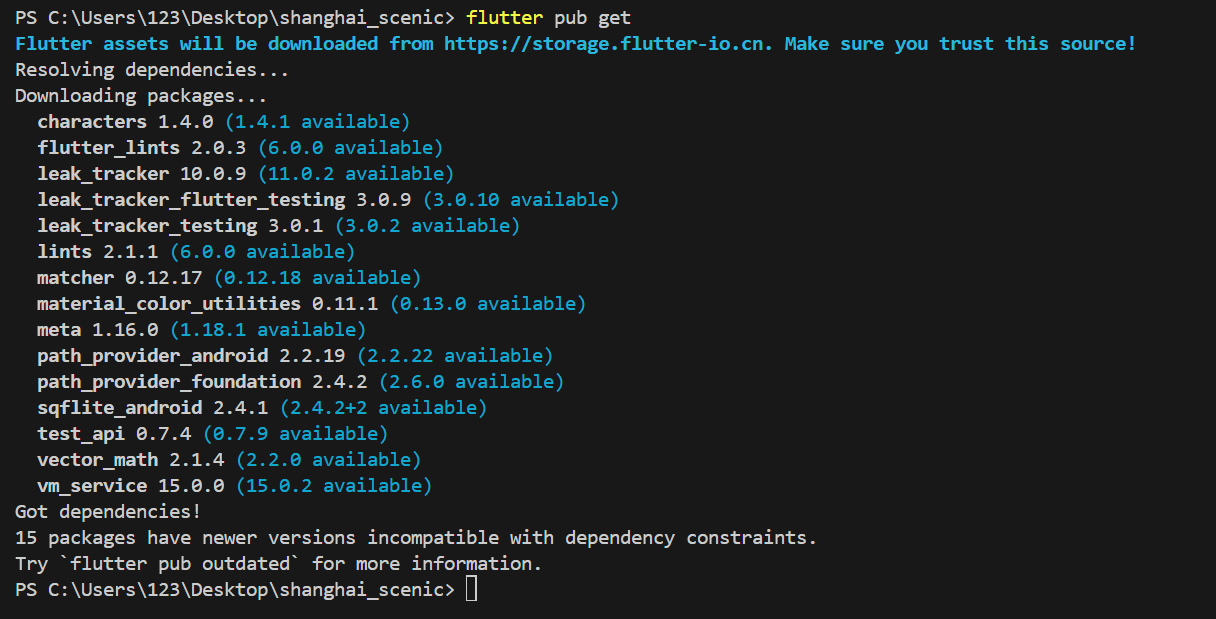
三、创建文件夹和文件
在左侧找到 lib 文件夹→新建文件夹,依次创建:
-
pages -
models -
utils
进入 pages 文件夹 →新建文件夹,依次创建:
-
home -
scenic -
mine -
setting
进入每个子文件夹→新建文件,创建对应的.dart文件:
-
home文件夹 → 新建home_page.dart -
scenic文件夹 → 新建scenic_list_page.dart -
mine文件夹 → 新建mine_page.dart -
setting文件夹 → 新建setting_page.dart
进入 models 文件夹 → 新建 scenic_model.dart
进入 utils 文件夹 → 新建 mock_data.dart
最终文件结构:
lib/
├── main.dart
├── pages/
│   ├── home/
│   │   └── home_page.dart
│   ├── scenic/
│   │   └── scenic_list_page.dart
│   ├── mine/
│   │   └── mine_page.dart
│   └── setting/
│       └── setting_page.dart
├── models/
│   └── scenic_model.dart
└── utils/
    └── mock_data.dart
四、编写代码
打开 models/scenic_model.dart,替换为以下代码:
// 景点数据模型
class ScenicModel {
  // 景点属性:ID、名称、简介、图片、评分
  final int id;
  final String name;
  final String desc;
  final String imageUrl;
  final double score;

  // 构造函数(初始化属性)
  ScenicModel({
    required this.id,
    required this.name,
    required this.desc,
    required this.imageUrl,
    required this.score,
  });
}
打开 utils/mock_data.dart,替换为以下代码:
import '../models/scenic_model.dart';

// 模拟上海景点数据(分批次,用于上拉加载)
class MockData {
  // 第一页数据(初始加载)
  static List<ScenicModel> getFirstPage() {
    return [
      ScenicModel(
        id: 1,
        name: "上海外滩",
        desc: "外滩是上海的象征,52幢风格各异的古典复兴大楼组成的外滩万国建筑博览群",
        imageUrl: "https://img0.baidu.com/it/u=123456789,0&fm=253&fmt=auto&app=138&f=JPEG?w=800&h=500",
        score: 4.8,
      ),
      ScenicModel(
        id: 2,
        name: "上海迪士尼乐园",
        desc: "中国内地首座迪士尼主题乐园,包含七大主题园区,适合亲子游玩",
        imageUrl: "https://img2.baidu.com/it/u=987654321,0&fm=253&fmt=auto&app=138&f=JPEG?w=800&h=500",
        score: 4.7,
      ),
      ScenicModel(
        id: 3,
        name: "豫园",
        desc: "江南古典园林,始建于明代,园内有江南三大名石之一的玉玲珑",
        imageUrl: "https://img1.baidu.com/it/u=112233445,0&fm=253&fmt=auto&app=138&f=JPEG?w=800&h=500",
        score: 4.6,
      ),
    ];
  }

  // 第二页数据(上拉加载)
  static List<ScenicModel> getSecondPage() {
    return [
      ScenicModel(
        id: 4,
        name: "东方明珠",
        desc: "上海标志性文化景观之一,塔高468米,可俯瞰上海全景",
        imageUrl: "https://img0.baidu.com/it/u=556677889,0&fm=253&fmt=auto&app=138&f=JPEG?w=800&h=500",
        score: 4.5,
      ),
      ScenicModel(
        id: 5,
        name: "上海城隍庙",
        desc: "道教宫观,与豫园相邻,是上海重要的民俗文化景点",
        imageUrl: "https://img3.baidu.com/it/u=998877665,0&fm=253&fmt=auto&app=138&f=JPEG?w=800&h=500",
        score: 4.4,
      ),
    ];
  }

  // 第三页数据(模拟无更多数据)
  static List<ScenicModel> getThirdPage() {
    return [];
  }
}
打开pages/home/home_page.dart,替换为以下代码:
import 'package:flutter/material.dart';

class HomePage extends StatelessWidget {
  const HomePage({super.key});

  @override
  Widget build(BuildContext context) {
    return const Scaffold(
      body: Center(
        child: Column(
          mainAxisAlignment: MainAxisAlignment.center,
          children: [
            Icon(Icons.home, size: 80, color: Colors.blue),
            SizedBox(height: 20),
            Text(
              "上海旅游指南",
              style: TextStyle(fontSize: 24, fontWeight: FontWeight.bold),
            ),
            SizedBox(height: 10),
            Text(
              "带你探索魔都的每一个角落",
              style: TextStyle(fontSize: 16, color: Colors.grey),
            ),
          ],
        ),
      ),
    );
  }
}
打开pages/mine/mine_page.dart,替换为以下代码:
import 'package:flutter/material.dart';

class MinePage extends StatelessWidget {
  const MinePage({super.key});

  @override
  Widget build(BuildContext context) {
    return const Scaffold(
      body: Center(
        child: Column(
          mainAxisAlignment: MainAxisAlignment.center,
          children: [
            Icon(Icons.person, size: 80, color: Colors.orange),
            SizedBox(height: 20),
            Text(
              "我的中心",
              style: TextStyle(fontSize: 24, fontWeight: FontWeight.bold),
            ),
            SizedBox(height: 10),
            Text(
              "收藏、足迹、个人信息",
              style: TextStyle(fontSize: 16, color: Colors.grey),
            ),
          ],
        ),
      ),
    );
  }
}
打开pages/setting/setting_page.dart,替换为以下代码:
import 'package:flutter/material.dart';

class SettingPage extends StatelessWidget {
  const SettingPage({super.key});

  @override
  Widget build(BuildContext context) {
    return const Scaffold(
      body: Center(
        child: Column(
          mainAxisAlignment: MainAxisAlignment.center,
          children: [
            Icon(Icons.settings, size: 80, color: Colors.grey),
            SizedBox(height: 20),
            Text(
              "设置中心",
              style: TextStyle(fontSize: 24, fontWeight: FontWeight.bold),
            ),
            SizedBox(height: 10),
            Text(
              "消息通知、缓存清理、关于我们",
              style: TextStyle(fontSize: 16, color: Colors.grey),
            ),
          ],
        ),
      ),
    );
  }
}
打开pages/scenic/scenic_list_page.dart,替换为以下代码:
import 'package:flutter/material.dart';
import 'package:pull_to_refresh/pull_to_refresh.dart';
// 移除图片加载相关依赖(无需再用)
// import 'package:cached_network_image/cached_network_image.dart';
import '../../../models/scenic_model.dart';
import '../../../utils/mock_data.dart';

class ScenicListPage extends StatefulWidget {
  const ScenicListPage({super.key});

  @override
  State<ScenicListPage> createState() => _ScenicListPageState();
}

class _ScenicListPageState extends State<ScenicListPage> {
  // 核心变量(完全保留你原有逻辑)
  List<ScenicModel> _scenicList = [];
  int _currentPage = 1;
  bool _isLoading = false;
  bool _hasMoreData = true;
  final RefreshController _refreshController = RefreshController();

  // 初始化加载第一页数据(完全保留)
  @override
  void initState() {
    super.initState();
    _loadData(isRefresh: true);
  }

  // 加载数据方法(完全保留)
  Future<void> _loadData({required bool isRefresh}) async {
    if (_isLoading) return;
    setState(() => _isLoading = true);

    try {
      await Future.delayed(const Duration(seconds: 1)); // 模拟网络延迟
      List<ScenicModel> newData = [];

      if (isRefresh) {
        _currentPage = 1;
        newData = MockData.getFirstPage();
      } else {
        _currentPage++;
        if (_currentPage == 2) newData = MockData.getSecondPage();
        if (_currentPage == 3) {
          newData = MockData.getThirdPage();
          _hasMoreData = false;
        }
      }

      setState(() {
        if (isRefresh) _scenicList = newData;
        else _scenicList.addAll(newData);
      });

      if (isRefresh) _refreshController.refreshCompleted();
      else _refreshController.loadComplete();
    } catch (e) {
      if (isRefresh) _refreshController.refreshFailed();
      else _refreshController.loadFailed();
      if (mounted) {
        ScaffoldMessenger.of(context).showSnackBar(
          SnackBar(content: Text("加载失败:$e")),
        );
      }
    } finally {
      setState(() => _isLoading = false);
    }
  }

  // 下拉刷新触发(完全保留)
  void _onRefresh() => _loadData(isRefresh: true);

  // 上拉加载触发(完全保留)
  void _onLoading() {
    if (_hasMoreData) _loadData(isRefresh: false);
    else _refreshController.loadNoData();
  }

  // 构建单个景点项(仅修改图片为蓝色地点图标)
  Widget _buildScenicItem(ScenicModel scenic) {
    return Card(
      margin: const EdgeInsets.symmetric(horizontal: 12, vertical: 8),
      elevation: 2,
      child: Padding(
        padding: const EdgeInsets.all(12),
        child: Row(
          crossAxisAlignment: CrossAxisAlignment.start,
          children: [
            // 核心修改:替换CachedNetworkImage为蓝色地点图标
            Icon(
              Icons.location_on, // 兼容所有Flutter版本的地点图标
              size: 90, // 和原图片尺寸一致
              color: Colors.blueAccent, // 蓝色(符合你的需求)
            ),
            const SizedBox(width: 15),
            Expanded(
              child: Column(
                crossAxisAlignment: CrossAxisAlignment.start,
                children: [
                  Text(scenic.name, style: const TextStyle(fontSize: 18, fontWeight: FontWeight.w600)),
                  const SizedBox(height: 6),
                  Text(
                    scenic.desc,
                    style: TextStyle(fontSize: 14, color: Colors.grey.shade600),
                    maxLines: 2,
                    overflow: TextOverflow.ellipsis,
                  ),
                  const SizedBox(height: 8),
                  Row(
                    children: [
                      const Icon(Icons.star, color: Colors.amber, size: 16),
                      const SizedBox(width: 4),
                      Text("${scenic.score}", style: const TextStyle(fontSize: 14, color: Colors.amber)),
                    ],
                  ),
                ],
              ),
            ),
          ],
        ),
      ),
    );
  }

  // 空数据页面(完全保留)
  Widget _buildEmptyWidget() {
    return const Center(
      child: Column(
        mainAxisAlignment: MainAxisAlignment.center,
        children: [
          Icon(Icons.location_off, size: 80, color: Colors.grey),
          SizedBox(height: 20),
          Text("暂无景点数据", style: TextStyle(fontSize: 20, color: Colors.grey)),
        ],
      ),
    );
  }

  @override
  Widget build(BuildContext context) {
    return Scaffold(
      appBar: AppBar(title: const Text("上海著名景点"), centerTitle: true),
      body: SmartRefresher(
        controller: _refreshController,
        onRefresh: _onRefresh,
        onLoading: _onLoading,
        enablePullUp: true,
        header: ClassicHeader(
          refreshingText: "正在刷新...",
          completeText: "刷新完成",
          failedText: "刷新失败",
          idleText: "下拉可刷新",
        ),
        footer: CustomFooter(
          builder: (context, mode) {
            Widget body;
            switch (mode) {
              case LoadStatus.idle: body = const Text("上拉加载更多"); break;
              case LoadStatus.loading: body = const CircularProgressIndicator(strokeWidth: 2); break;
              case LoadStatus.failed: body = const Text("加载失败,点击重试"); break;
              case LoadStatus.canLoading: body = const Text("松开加载更多"); break;
              case LoadStatus.noMore: body = const Text("已加载全部景点"); break;
              default: body = const Text(""); break;
            }
            return SizedBox(height: 55, child: Center(child: body));
          },
        ),
        child: _scenicList.isEmpty ? _buildEmptyWidget() : ListView.builder(
          key: const PageStorageKey<String>("scenic_list"),
          itemCount: _scenicList.length,
          itemBuilder: (context, index) => _buildScenicItem(_scenicList[index]),
        ),
      ),
    );
  }

  @override
  void dispose() {
    _refreshController.dispose();
    super.dispose();
  }
}
main.dart
import 'package:flutter/material.dart';
import 'pages/home/home_page.dart';
import 'pages/scenic/scenic_list_page.dart';
import 'pages/mine/mine_page.dart';
import 'pages/setting/setting_page.dart';

void main() => runApp(const MyApp());

class MyApp extends StatelessWidget {
  const MyApp({super.key});

  @override
  Widget build(BuildContext context) {
    return MaterialApp(
      title: '上海景点指南',
      theme: ThemeData(primarySwatch: Colors.blue),
      home: const MainTabPage(),
      debugShowCheckedModeBanner: false,
    );
  }
}

class MainTabPage extends StatefulWidget {
  const MainTabPage({super.key});

  @override
  State<MainTabPage> createState() => _MainTabPageState();
}

class _MainTabPageState extends State<MainTabPage> {
  int _currentIndex = 0;
  final List<Widget> _pages = [
    const HomePage(key: PageStorageKey<String>("home_page")),
    const ScenicListPage(key: PageStorageKey<String>("scenic_page")),
    const MinePage(key: PageStorageKey<String>("mine_page")),
    const SettingPage(key: PageStorageKey<String>("setting_page")),
  ];

  final List<BottomNavigationBarItem> _tabItems = [
    BottomNavigationBarItem(
      icon: const Icon(Icons.home_outlined),
      activeIcon: const Icon(Icons.home),
      label: "首页",
      backgroundColor: Colors.blue,
    ),
    BottomNavigationBarItem(
      icon: const Icon(Icons.location_on_outlined),
      activeIcon: const Icon(Icons.location_on),
      label: "景点列表",
      backgroundColor: Colors.green,
    ),
    BottomNavigationBarItem(
      icon: const Icon(Icons.person_outline),
      activeIcon: const Icon(Icons.person),
      label: "我的",
      backgroundColor: Colors.orange,
    ),
    BottomNavigationBarItem(
      icon: const Icon(Icons.settings_outlined),
      activeIcon: const Icon(Icons.settings),
      label: "设置",
      backgroundColor: Colors.grey,
    ),
  ];

  @override
  Widget build(BuildContext context) {
    return Scaffold(
      body: PageStorage(bucket: PageStorageBucket(), child: _pages[_currentIndex]),
      bottomNavigationBar: BottomNavigationBar(
        currentIndex: _currentIndex,
        onTap: (index) => setState(() => _currentIndex = index),
        items: _tabItems,
        selectedItemColor: Colors.white,
        unselectedItemColor: Colors.grey[200],
        type: BottomNavigationBarType.fixed,
        backgroundColor: Colors.black87,
      ),
    );
  }
}
五、运行
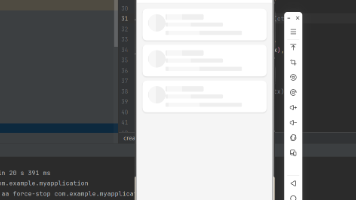
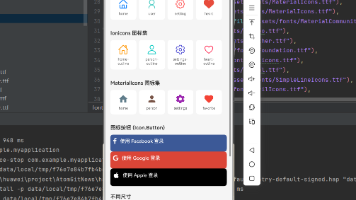
在DevEco Studio 中打开相应项目,启动模拟器,运行如下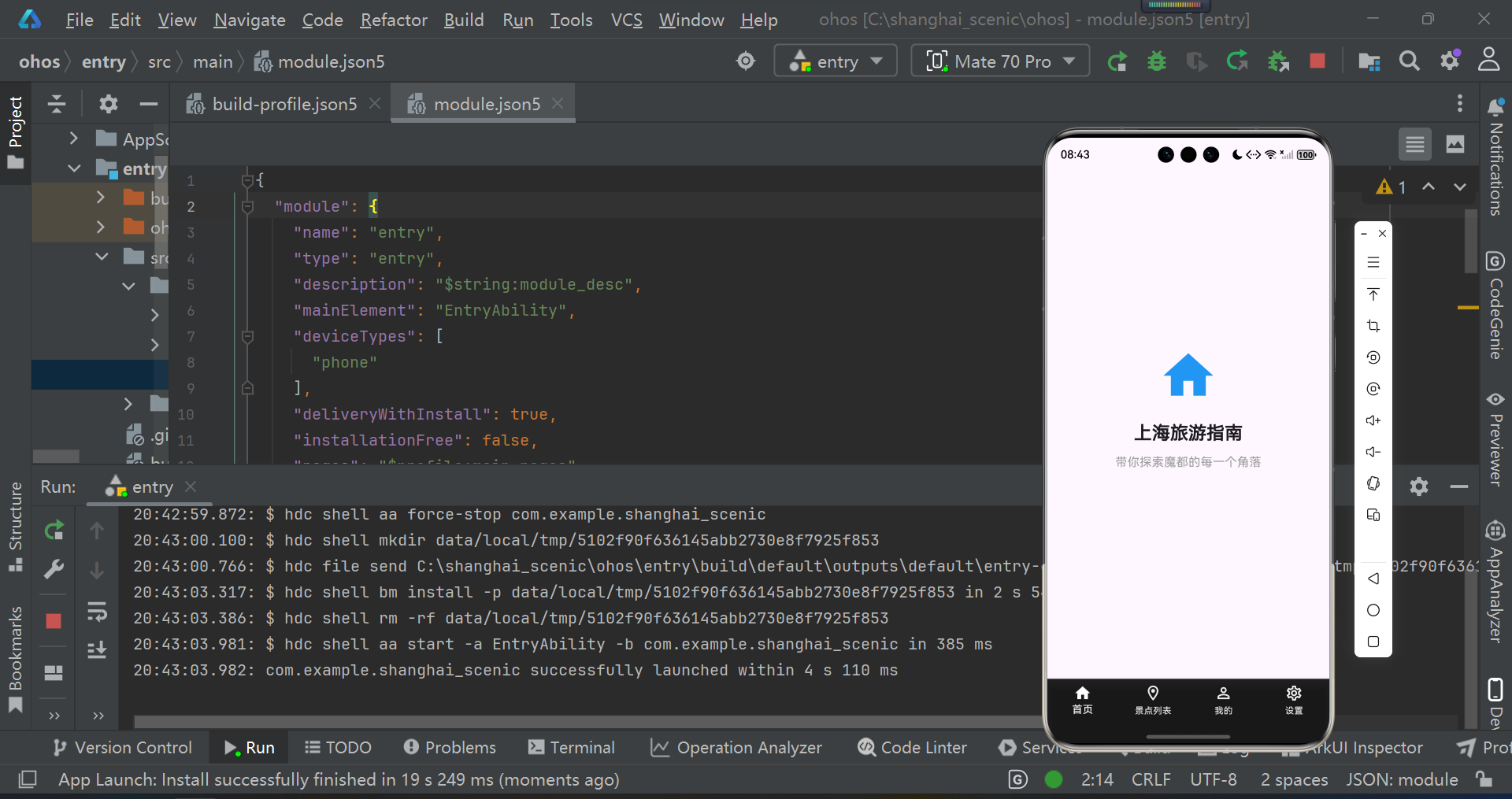
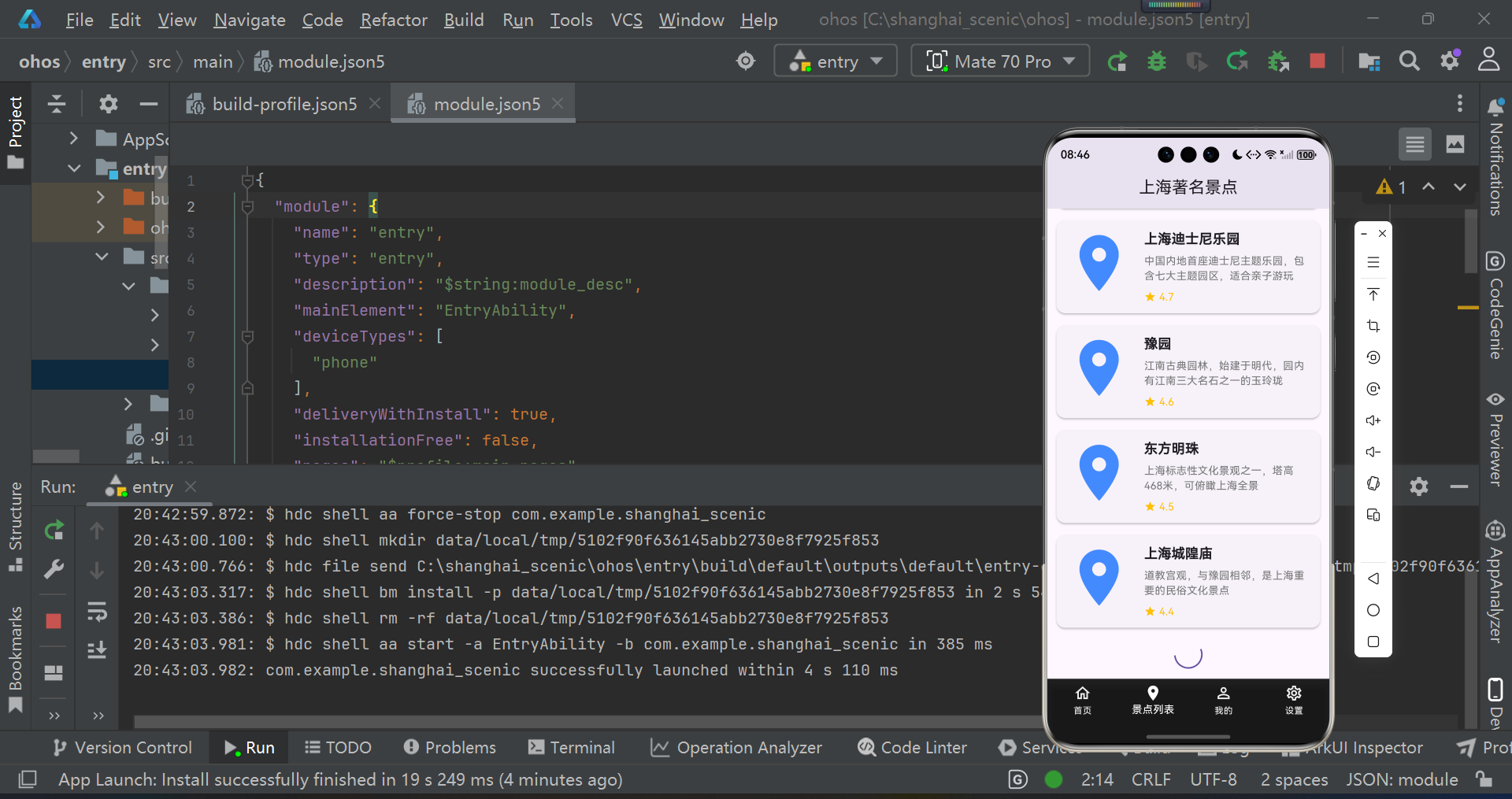
保留上拉刷新下拉加载功能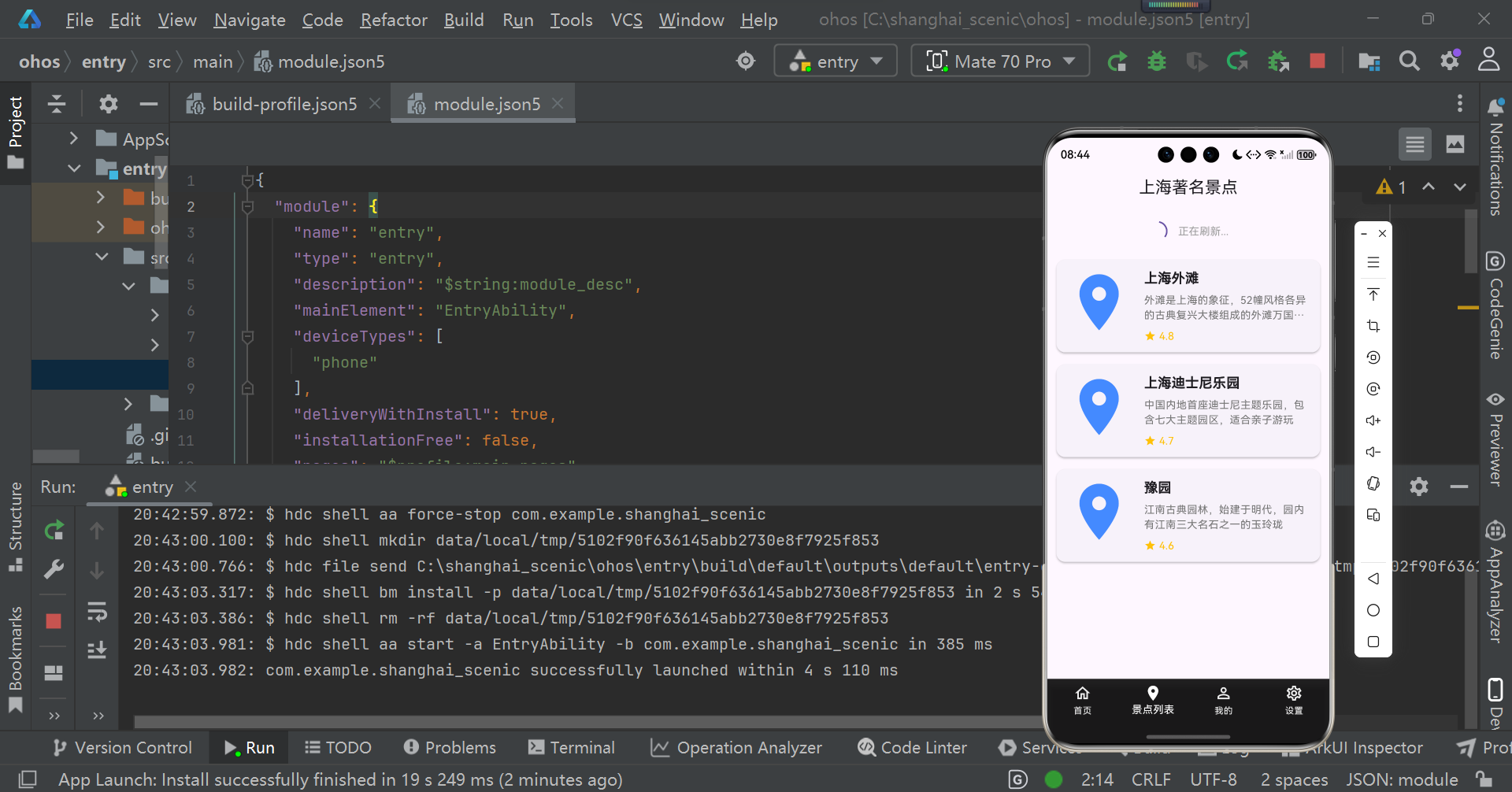
总结
-
底部选项卡开发规范
-
需新增不少于4个底部选项卡,覆盖应用核心服务场景(如首页、数据列表、我的中心、设置/消息等),确保功能划分清晰、符合用户使用习惯;
-
选项卡需具备完整交互状态(默认、选中),包含图标与文字组合展示,选中状态有明确视觉区分(如颜色变化、图标高亮);
-
实现选项卡间平滑切换,切换时需保留页面状态(如列表滚动位置、输入框内容),避免重复加载数据,提升交互流畅度。
-
-
选项卡页面实现要求
-
完善每个选项卡对应页面的完整实现,包含页面布局搭建、核心功能开发、数据展示与交互逻辑闭环,确保各页面功能独立且协同;
-
页面需适配多终端显示规范,针对开源鸿蒙真机(手机/平板)、开发板、模拟器的屏幕尺寸差异,优化UI布局适配策略,避免出现内容溢出、布局错乱等问题
-
各页面需具备基础异常处理能力(如数据加载失败、空数据展示、页面跳转异常兜底),保障用户体验一致性。
-
-
可选拓展(跨平台技术栈三方库接入):可选用适配开源鸿蒙的跨技术栈底部选项卡相关三方库实现上述能力,需掌握不同技术栈三方库的集成流程、版本适配规则及差异化适配要点。
-
React Native技术栈:推荐使用已完成OpenHarmony兼容的三方库。OpenHarmony已兼容三方库清单。
-
Flutter技术栈:推荐使用已完成OpenHarmony兼容的三方库。OpenHarmony已兼容三方库清单。
-
-
开源鸿蒙终端运行验证代码提交规范:确保底部选项卡切换流畅、各页面功能正常在开源鸿蒙真机/开发板/模拟器上能正常运行。将完整工程代码(含工程配置文件、源码、资源文件、调试日志)按Git提交规范(清晰的commit message、合理的提交粒度)推送到AtomGit公开仓库,确保仓库代码可直接拉取并复现运行效果。
欢迎加入开源鸿蒙跨平台社区 https://openharmonycrossplatform.csdn.net

开源鸿蒙跨平台开发社区汇聚开发者与厂商,共建“一次开发,多端部署”的开源生态,致力于降低跨端开发门槛,推动万物智联创新。
更多推荐
 11
11 0
0- 0


 已为社区贡献10条内容

所有评论(0)