【开源鸿蒙跨平台开发训练营】Flutter框架鸿蒙应用的字体大小控制实战
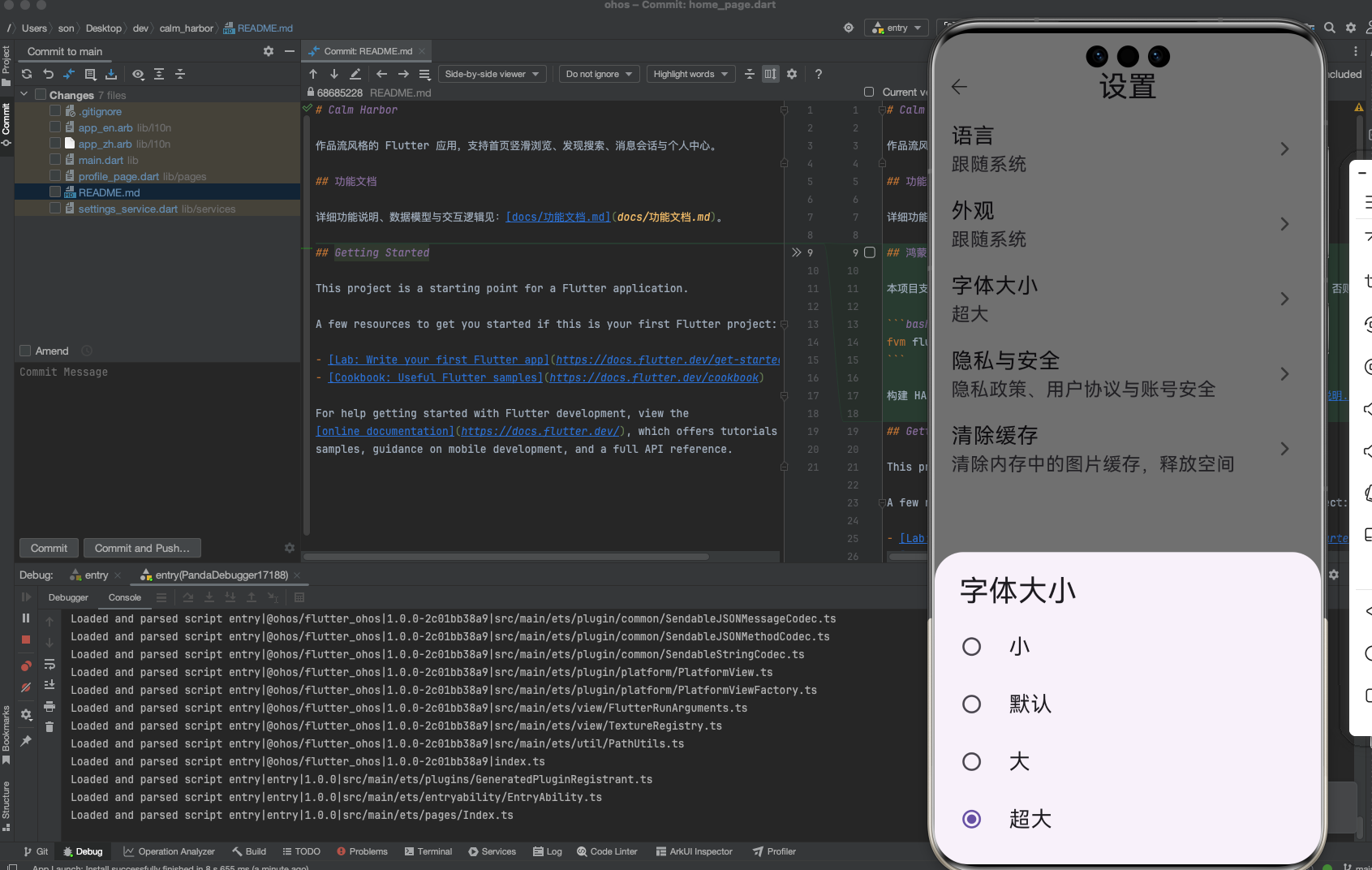
鸿蒙手机应用新增字体大小调整功能,支持小/默认/大/超大四档设置。通过全局ValueNotifier保存缩放比例,利用MediaQuery.textScaler统一调整文字大小,设置项持久化存储在shared_preferences中。用户在设置页可通过底部弹层选择不同档位,选择后即时生效并保留至下次启动。该方案无需修改现有TextStyle,能适配所有页面,特别适合老年用户群体使用。
·
鸿蒙手机有一大部分使用者年龄较大,这次想到要给应用添加个字体大小调整的功能。
欢迎加入开源鸿蒙跨平台社区:https://openharmonycrossplatform.csdn.net
文章目录
功能实现 - 字体大小调整
一、想做的!
- 目标:为全应用提供「字体大小」设置(小 / 默认 / 大 / 超大),支持即时预览,并在下次启动时保持用户选择。
- 方案:
- 在
SettingsService中增加字体缩放比例的持久化读写。 - 在
main.dart中新增全局ValueNotifier<double>保存当前字体缩放比例,并通过MaterialApp.builder + MediaQuery.textScaler统一放大/缩小文字。 - 在「我的 - 设置」页新增「字体大小」入口,使用底部弹层 + 单选列表选择不同档位。
- 在
二、依赖与全局状态
- 依赖:沿用现有
shared_preferences,未新增第三方依赖。 - 新增全局 Notifier(
lib/main.dart):late final ValueNotifier<double> appFontScaleNotifier;- 在
main()中从SettingsService().getFontScale()读取初始值(默认1.0),并赋给appFontScaleNotifier。
三、设置服务:字体缩放持久化
文件:lib/services/settings_service.dart
- 新增存储键与预设常量:
static const String _keyFontScale = 'settings_font_scale';

/// 支持的字体缩放比例
static const double fontScaleSmall = 0.85;
static const double fontScaleDefault = 1.0;
static const double fontScaleLarge = 1.15;
static const double fontScaleExtraLarge = 1.3;
- 新增读写方法:
Future<double> getFontScale() async {
  final prefs = await _store;
  final value = prefs.getDouble(_keyFontScale);
  if (value == null || value <= 0) return fontScaleDefault;
  if (value < fontScaleSmall) return fontScaleSmall;
  if (value > fontScaleExtraLarge) return fontScaleExtraLarge;
  return value;
}

Future<void> setFontScale(double value) async {
  final prefs = await _store;
  await prefs.setDouble(_keyFontScale, value);
}
四、应用入口:通过 MediaQuery 统一缩放文字
文件:lib/main.dart
- 在
main()中初始化字体缩放:
ThemeMode initialThemeMode = ThemeMode.system;
Locale? initialLocale;
double initialFontScale = SettingsService.fontScaleDefault;
try {
  initialThemeMode = await SettingsService().getThemeMode();
  initialLocale = await SettingsService().getLocale();
  initialFontScale = await SettingsService().getFontScale();
} catch (_) {}

appThemeModeNotifier = ValueNotifier<ThemeMode>(initialThemeMode);
appLocaleNotifier = ValueNotifier<Locale?>(initialLocale);
appFontScaleNotifier = ValueNotifier<double>(initialFontScale);
- 在
build中监听appFontScaleNotifier,并通过MaterialApp.builder注入:
return ValueListenableBuilder<double>(
  valueListenable: appFontScaleNotifier,
  builder: (context, fontScale, ___) {
    return MaterialApp(
      // ...
      builder: (context, child) {
        return MediaQuery(
          data: MediaQuery.of(context).copyWith(
            textScaler: TextScaler.linear(fontScale),
          ),
          child: child!,
        );
      },
      // ...
    );
  },
);
说明:使用
TextScaler.linear可以在不修改各处TextStyle的前提下,统一放大/缩小应用中的文字,适配所有现有页面。
五、设置页:字体大小入口与选择交互
文件:lib/pages/profile_page.dart
- 在设置页 List 中增加「字体大小」项(位于「外观」之后):
ValueListenableBuilder<double>(
  valueListenable: appFontScaleNotifier,
  builder: (context, fontScale, __) {
    return ListView(
      children: [
        // 语言、外观...
        ListTile(
          title: Text(l10n.fontSize),
          subtitle: Text(_fontSizeLabel(l10n, fontScale)),
          trailing: appChevronRightIcon(size: 22, interactive: false),
          onTap: () => _showFontSizePicker(settingsContext),
        ),
        // 隐私、安全、清缓存...
      ],
    );
  },
);
- 文案映射:根据当前缩放值展示对应档位:
String _fontSizeLabel(AppLocalizations l10n, double scale) {
  if (scale <= SettingsService.fontScaleSmall + 1e-3) {
    return l10n.fontSizeSmall;
  }
  if ((scale - SettingsService.fontScaleDefault).abs() < 1e-3) {
    return l10n.fontSizeDefault;
  }
  if ((scale - SettingsService.fontScaleLarge).abs() < 1e-3) {
    return l10n.fontSizeLarge;
  }
  return l10n.fontSizeExtraLarge;
}
- 弹出底部选择面板:
Future<void> _showFontSizePicker(BuildContext context) async {
  final l10n = AppLocalizations.of(context)!;
  final chosen = await showModalBottomSheet<double>(
    context: context,
    builder: (ctx) {
      return ValueListenableBuilder<double>(
        valueListenable: appFontScaleNotifier,
        builder: (_, current, __) {
          return SafeArea(
            child: Column(
              mainAxisSize: MainAxisSize.min,
              crossAxisAlignment: CrossAxisAlignment.stretch,
              children: [
                Padding(
                  padding: const EdgeInsets.fromLTRB(24, 20, 24, 8),
                  child: Text(
                    l10n.fontSize,
                    style: Theme.of(ctx).textTheme.titleLarge,
                  ),
                ),
                RadioListTile<double>(
                  title: Text(l10n.fontSizeSmall),
                  value: SettingsService.fontScaleSmall,
                  groupValue: current,
                  onChanged: (v) => Navigator.of(ctx).pop(v),
                ),
                RadioListTile<double>(
                  title: Text(l10n.fontSizeDefault),
                  value: SettingsService.fontScaleDefault,
                  groupValue: current,
                  onChanged: (v) => Navigator.of(ctx).pop(v),
                ),
                RadioListTile<double>(
                  title: Text(l10n.fontSizeLarge),
                  value: SettingsService.fontScaleLarge,
                  groupValue: current,
                  onChanged: (v) => Navigator.of(ctx).pop(v),
                ),
                RadioListTile<double>(
                  title: Text(l10n.fontSizeExtraLarge),
                  value: SettingsService.fontScaleExtraLarge,
                  groupValue: current,
                  onChanged: (v) => Navigator.of(ctx).pop(v),
                ),
                const SizedBox(height: 16),
              ],
            ),
          );
        },
      );
    },
  );
  if (chosen != null) {
    appFontScaleNotifier.value = chosen;
    await SettingsService().setFontScale(chosen);
  }
}
选择后,设置页和其他页面的文字会立即随之放大/缩小,并写入本地配置,保证重启应用后继续生效。
六、使用说明
- 进入应用底部 Tab 「我的」 → 点击右上角齿轮进入 「设置」。
- 点击 「字体大小」:
- 「小」:适合屏幕较小、希望看到更多内容的用户;
- 「默认」:推荐值,与设计稿一致;
- 「大 / 超大」:适老化/弱视用户更易阅读。
- 选择任意一档后,界面文字会立即缩放,并在下次启动时保持当前选择。
结束语
感谢阅读本帖,如对贴中内容有意见和建议的,欢迎与我联系交流,也欢迎加入开源鸿蒙跨平台社区:
https://openharmonycrossplatform.csdn.net

开源鸿蒙跨平台开发社区汇聚开发者与厂商,共建“一次开发,多端部署”的开源生态,致力于降低跨端开发门槛,推动万物智联创新。
更多推荐
 9
9 0
0- 0


 已为社区贡献19条内容

所有评论(0)