React Native鸿蒙跨平台通过FurniturePurchase和ExpenseReport类型定义确保数据完整性
鸿蒙跨端家具支出管理应用架构解析 本应用采用React Native构建家具采购支出管理系统,完美适配鸿蒙生态。核心特点包括: 类型安全架构:通过FurniturePurchase和ExpenseReport类型定义确保数据完整性,符合鸿蒙严格的类型检查要求 响应式布局:使用Dimensions获取屏幕尺寸,结合SafeAreaView适配鸿蒙多样设备形态 高效状态管理:useState管理页面状
鸿蒙跨端家具支出管理应用架构解析
本应用采用React Native构建家具采购支出管理系统,完美适配鸿蒙生态。核心特点包括:
-
类型安全架构:通过FurniturePurchase和ExpenseReport类型定义确保数据完整性,符合鸿蒙严格的类型检查要求
-
响应式布局:使用Dimensions获取屏幕尺寸,结合SafeAreaView适配鸿蒙多样设备形态
-
高效状态管理:useState管理页面状态,轻量级方案在鸿蒙平台表现优异
-
性能优化:FlatList虚拟化渲染处理大量数据,为鸿蒙设备提供流畅体验
-
交互一致性:Alert自动映射鸿蒙原生弹窗,TouchableOpacity提供标准交互反馈
该架构充分考虑了鸿蒙平台特性,在数据模型、UI适配、性能表现等方面都做了针对性优化,是React Native跨鸿蒙开发的典范实现。
这段 React Native 代码实现了一个家具购买支出管理应用的核心界面结构,充分体现了鸿蒙跨端开发的技术特性与最佳实践。应用采用 TypeScript 强类型系统,通过自定义类型 FurniturePurchase 和 ExpenseReport 确保了数据流的类型安全,这在鸿蒙生态中尤为重要,因为其支持的 JS/TS 运行时对类型检查有更严格的要求。
在 UI 组件设计上,代码利用 React Native 的核心组件构建了响应式布局,其中 Dimensions.get(‘window’) 获取屏幕尺寸信息,为鸿蒙设备多样化的屏幕密度和尺寸提供了适配基础。SafeAreaView 组件的使用确保了内容在鸿蒙设备(如 HarmonyOS NEXT)的异形屏上正确显示,避免了与系统状态栏或导航栏的冲突。
状态管理模式上,应用通过 useState Hook 管理页面级状态(如 selectedReport 和 activeTab),这种轻量级的状态管理方案在鸿蒙平台上具有良好的性能表现。底部导航栏的 activeTab 状态控制展示了如何在不同功能模块间进行切换,这种设计模式符合鸿蒙应用的导航规范。
数据持久化方面,虽然当前代码使用静态数据模拟,但其结构设计为后续接入鸿蒙分布式数据服务(如 ArkTS 开发的本地数据库)提供了清晰的接口规范。FlatList 组件的使用优化了长列表渲染性能,特别适合鸿蒙设备上大量购买记录的展示场景。
交互设计层面,TouchableOpacity 组件结合 Alert API 实现了用户操作反馈,这种 Alert 在鸿蒙平台上会被自动映射为其原生弹窗控件,确保了一致的用户体验。代码中的图标常量定义为后续替换为鸿蒙推荐的矢量图标库(如 HarmonyOS Icons)提供了扩展点,有助于提升应用在鸿蒙设备上的视觉一致性。
React Native × 鸿蒙跨端实践:家具费用管理页面的技术解读
把这段家具费用管理页面放进“React Native 在鸿蒙(HarmonyOS / OpenHarmony)”的语境里,真正的价值不是“能否运行”,而是“在三端如何稳、准、一致”。代码用最小依赖的 RN 核心组件搭建完整业务:状态驱动的视图切换、虚拟化列表承载数据、纯视图进度条表达、原生弹窗完成轻交互。这种组合在 ArkUI 的映射层表现稳定,可作为跨端落地的标准范式。
视图组织与“状态即路由”
组件以 useState 管理两类核心状态:activeTab 控制底部导航的当前页,selectedReport 决定是否进入报告详情。这是一种“伪路由”的组织方式——不引入导航库,而在一个组件里用条件渲染承载多个子视图。对跨端非常友好:减少导航栈、转场动画与手势的适配成本,同时把切换逻辑留在 JS 层,ArkUI 侧只应用虚拟 DOM 的变更。要让这类模式稳健,复杂子视图(列表项、详情卡片)应拆成 memo 化组件,以稳定的 props 传递,降低 diff 范围与桥接压力。
RN 核心组件在鸿蒙的映射与约束
这段代码严格依赖基础组件:SafeAreaView / View / Text / ScrollView / FlatList / TouchableOpacity / TextInput / Alert。它们通过 RN-OH(或同类移植方案)映射到 ArkUI 原生视图与交互,兼容性良好。跨端一致性靠工程约束撑起:
- 顶部用
SafeAreaView处理状态栏与异形屏安全区域;鸿蒙设备形态丰富(圆角、打孔、折叠屏),建议在 header 额外留出冗余内边距,或接入react-native-safe-area-context统一 inset。 FlatList提供虚拟化渲染,ArkUI 侧表现稳定。随着数据量增大,initialNumToRender / windowSize / removeClippedSubviews是面向鸿蒙设备的调优抓手,能显著影响滚动流畅度。TouchableOpacity映射点击与透明度反馈。如需更一致的压感或涟漪动画,可用Pressable + Animated自定义动效,先验证在鸿蒙桥接下的性能与事件频次。Alert走系统弹窗,样式受主题影响大。为了品牌一致性与更可控的行为,通常抽象统一Modal层:鸿蒙映射 ArkUI Dialog,iOS/Android 映射 RN Modal。
数据建模与派生状态
页面以两类模型承载业务:家具购买(FurniturePurchase)与费用报告(ExpenseReport)。列表展示用 FlatList,详情则通过 selectedReport 切换到 ScrollView 卡片。工程上应尽量采用“派生优先”的策略——percentage 这类百分比推荐由原始数值派生(例如 cat.amount / report.totalSpent),在渲染前做边界限制(clamp 到 0–100),降低状态不一致风险。金额展示采用 toLocaleString() 跟随设备语言环境;若希望统一格式(如 ¥12,345),可以在渲染层做轻量格式化。
进度条与色板:纯视图实现更稳健
分类支出条采用“容器 + 百分比宽度”的纯视图实现,不依赖平台特性,ArkUI 渲染稳定。色板由 getCategoryColor(index) 提供,简单可控。工程上要注意把百分比做边界限制,避免数据越界导致填充条溢出;文本与条形布局分离,防止在高 DPI 或大字号环境下发生换行挤压。
输入法添加记录页
添加记录页使用 TextInput 处理名称、类别、品牌、价格、数量与备注;数字字段启用 keyboardType="numeric"。中文输入法在鸿蒙设备上的组合键入与联想确认与 iOS 有细微差异,尤其在多行输入与光标定位上。受控组件 + 轻度节流能显著降低 JS→UI 的桥接压力;数字输入建议做合法性清洗(去除非数字字符),保证三端一致。
纯 RN 语义是跨端稳定的底线
纯 RN 语义是跨端稳定的底线。需要及时修正的两个问题:
- JSX 中大量使用了
</div>关闭标签(例如在renderPurchaseItem与renderReportItem的 header/body 结构)。React Native 不支持 HTML 标签,div必须全部替换为View,否则直接运行时报错。 - 添加记录页使用了
TextInput,但文件顶部导入并未包含它。需要补充import { TextInput } from 'react-native',否则编译失败。
此外,建议把阴影样式在 iOS/鸿蒙统一:iOS 用 shadow* 属性,安卓/鸿蒙建议补充 elevation,避免出现“某端有阴影、某端无阴影”的视觉割裂。
性能与一致性:从首屏到滚动
跨端体验的稳定,落在首屏与滚动两个关键指标上。鸿蒙设备的优化路径包括:
- 控制
FlatList首屏渲染项数(例如 8–12),结合设备内存与刷新率调整windowSize。 - 列表项与卡片减少深层嵌套与复杂阴影,圆角与浅色分隔就能形成清晰层次。
- 详情页与列表项做 memo 化,只有 props 真实变化时才重绘。
- 把金额计算、百分比派生等放到
useMemo,对输入变化做轻度节流,降低桥接负担。
复合业务实体设计
家具费用管理应用展示了企业级数据模型的类型系统设计:
type FurniturePurchase = {
  id: string;
  name: string;
  category: string;
  brand: string;
  price: number;
  quantity: number;
  purchaseDate: string;
  store: string;
  warranty: number; // 保修月数
  status: 'ordered' | 'delivered' | 'installed' | 'warranty';
  totalCost: number;
  notes: string;
};

type ExpenseReport = {
  id: string;
  period: string;
  totalSpent: number;
  categories: {
    name: string;
    amount: number;
    percentage: number;
  }[];
  averageMonthly: number;
  comparisonToPrev: number; // 与上个月比较的百分比
  recommendations: string[];
};
这种类型定义方式在企业级费用管理应用中具有重要的架构意义。通过将购买记录、费用报告等核心业务实体进行严格的类型约束,确保了财务数据的结构完整性和计算准确性。在鸿蒙平台上,这种模型可以与鸿蒙的企业数据服务结合,实现多设备间的费用数据同步和报表生成。特别是费用报告中的趋势分析和建议功能,为企业决策提供了智能支持。
状态驱动的费用管理
应用实现了复杂的费用状态管理:
const [selectedReport, setSelectedReport] = useState<ExpenseReport | null>(null);
const [activeTab, setActiveTab] = useState<'home' | 'reports' | 'purchases' | 'add' | 'profile'>('home');
这种状态设计在企业应用中体现了清晰的业务分层。当前选中的报表和活跃标签页的状态分离,既保证了界面导航的灵活性,又确保了核心财务数据的独立管理。在鸿蒙的分布式场景中,这种设计可以支持更精细的数据同步策略,例如报表数据可以实时同步,而界面状态可能只在当前设备有效。
组件化财务界面架构
复合报表组件设计
应用采用了多层次的报表组件架构:
const ReportItem = ({ report, onPress }) => {
  return (
    <View style={styles.reportItem}>
      <View style={styles.reportHeader}>
        <Text style={styles.reportPeriod}>{report.period}</Text>
        <Text style={styles.reportTotal}>总计: ¥{report.totalSpent.toLocaleString()}</Text>
      </View>
      <View style={styles.reportStats}>
        <Text style={styles.reportStat}>月均: ¥{report.averageMonthly.toLocaleString()}</Text>
        <Text style={[
          styles.reportComparison,
          report.comparisonToPrev >= 0 ? styles.positiveComparison : styles.negativeComparison
        ]}>
          {report.comparisonToPrev >= 0 ? '↑' : '↓'} {Math.abs(report.comparisonToPrev)}%
        </Text>
      </View>
    </View>
  );
};
这种组件设计模式在企业应用中展现了强大的数据可视化能力。报表组件通过清晰的props接口定义其输入和输出,实现了数据展示与业务逻辑的完全解耦。在鸿蒙平台上,这种设计可以轻松替换为原生图表组件,利用鸿蒙的数据可视化引擎实现更专业的报表展示效果,包括动态图表、交互式分析等高级功能。
数据分析与可视化
代码实现了复杂的数据分析功能:
const getCategoryColor = (index: number) => {
  const colors = ['#3b82f6', '#10b981', '#f59e0b', '#ef4444'];
  return colors[index % colors.length];
};

const CategoryBreakdown = ({ categories }) => {
  return (
    <View style={styles.categoryBreakdown}>
      {categories.map((cat, index) => (
        <View key={index} style={styles.categoryItem}>
          <Text style={styles.categoryName}>{cat.name}</Text>
          <View style={styles.categoryProgress}>
            <View
              style={[
                styles.categoryFill,
                { width: `${cat.percentage}%`, backgroundColor: getCategoryColor(index) }
              ]}
            />
          </View>
          <Text style={styles.categoryAmount}>¥{cat.amount.toLocaleString()}</Text>
        </View>
      ))}
    </View>
  );
};
这种数据可视化设计在企业应用中具有重要的决策支持价值。清晰的色彩编码、准确的百分比计算和直观的进度展示,共同构成了专业的财务分析界面。在跨平台开发中,需要特别注意数据可视化的一致性和性能表现。鸿蒙平台的原生图表组件可以提供更流畅的动画效果和更精确的数据渲染。
鸿蒙跨端适配关键技术
分布式数据同步
鸿蒙的分布式特性为费用管理带来创新体验:
// 伪代码:分布式数据同步
const DistributedExpense = {
  syncExpenseData: (expenseData) => {
    if (Platform.OS === 'harmony') {
      harmonyNative.syncFinancialData(expenseData);
    }
  },
  getCrossDeviceReports: () => {
    if (Platform.OS === 'harmony') {
      return harmonyNative.getUnifiedReports();
    }
    return localReports;
  }
};
原生数据分析集成
利用鸿蒙的原生分析能力提升数据处理体验:
// 伪代码:分析优化
const AnalysisOptimization = {
  useNativeAnalytics: () => {
    if (Platform.OS === 'harmony') {
      return harmonyNative.integrateAdvancedAnalytics();
    }
    return basicAnalytics;
  },
  enableRealTimeProcessing: () => {
    if (Platform.OS === 'harmony') {
      harmonyNative.enableLiveDataProcessing();
    }
  }
};
企业级安全增强
鸿蒙平台为企业应用提供安全增强:
// 伪代码:安全增强
const SecurityEnhancement = {
  encryptFinancialData: () => {
    if (Platform.OS === 'harmony') {
      harmonyNative.enableHardwareEncryption();
    }
  },
  secureDataTransmission: () => {
    if (Platform.OS === 'harmony') {
      harmonyNative.secureEnterpriseCommunication();
    }
  }
};
性能优化与数据管理
大数据处理优化
// 伪代码:数据处理优化
const DataProcessing = {
  optimizeLargeDatasets: () => {
    if (Platform.OS === 'harmony') {
      harmonyNative.accelerateDataProcessing();
    }
  },
  enableIncrementalUpdates: () => {
    if (Platform.OS === 'harmony') {
      harmonyNative.enableSmartDataSync();
    }
  }
};
智能化费用管理
// 伪代码:智能费用管理
const IntelligentExpense = {
  predictSpendingTrends: () => {
    if (Platform.OS === 'harmony') {
      harmonyNative.enableAIPredictions();
    }
  },
  optimizeBudgetAllocation: () => {
    if (Platform.OS === 'harmony') {
      return harmonyNative.smartBudgetOptimization();
    }
    return manualAllocation;
  }
};
多企业集成
// 伪代码:企业集成
const EnterpriseIntegration = {
  connectToERP: () => {
    if (Platform.OS === 'harmony') {
      harmonyNative.integrateWithEnterpriseSystems();
    }
  },
  enableMultiCompany: () => {
    if (Platform.OS === 'harmony') {
      harmonyNative.supportMultipleEntities();
    }
  }
};
真实演示案例代码:
// app.tsx
import React, { useState } from 'react';
import { SafeAreaView, View, Text, StyleSheet, TouchableOpacity, ScrollView, Dimensions, Alert, FlatList } from 'react-native';
// 图标库
const ICONS = {
home: '🏠',
furniture: '🪑',
report: '📊',
add: '➕',
calendar: '📅',
money: '💰',
profile: '👤',
back: '◀️',
};
const { width, height } = Dimensions.get('window');
// 家具购买记录类型
type FurniturePurchase = {
id: string;
name: string;
category: string;
brand: string;
price: number;
quantity: number;
purchaseDate: string;
store: string;
warranty: number; // 保修月数
status: 'ordered' | 'delivered' | 'installed' | 'warranty';
totalCost: number;
notes: string;
};
// 费用报告类型
type ExpenseReport = {
id: string;
period: string;
totalSpent: number;
categories: {
name: string;
amount: number;
percentage: number;
}[];
averageMonthly: number;
comparisonToPrev: number; // 与上个月比较的百分比
recommendations: string[];
};
// 主页面组件
const FurnitureExpenseApp: React.FC = () => {
const [purchases] = useState<FurniturePurchase[]>([
{
id: '1',
name: '三人沙发',
category: '客厅家具',
brand: '宜家',
price: 2999,
quantity: 1,
purchaseDate: '2023-05-15',
store: '宜家家居',
warranty: 24,
status: 'installed',
totalCost: 2999,
notes: '灰色布艺沙发,带储物功能'
},
{
id: '2',
name: '实木餐桌',
category: '餐厅家具',
brand: '曲美',
price: 1899,
quantity: 1,
purchaseDate: '2023-05-10',
store: '红星美凯龙',
warranty: 36,
status: 'delivered',
totalCost: 1899,
notes: '橡木材质,可伸缩设计'
},
{
id: '3',
name: '双人床',
category: '卧室家具',
brand: '顾家',
price: 3599,
quantity: 1,
purchaseDate: '2023-05-05',
store: '居然之家',
warranty: 60,
status: 'ordered',
totalCost: 3599,
notes: '1.8米宽,带床垫'
},
{
id: '4',
name: '办公椅',
category: '书房家具',
brand: ' Herman Miller',
price: 4599,
quantity: 1,
purchaseDate: '2023-04-28',
store: '高端家具店',
warranty: 12,
status: 'installed',
totalCost: 4599,
notes: '人体工学设计,黑色'
},
{
id: '5',
name: '书柜',
category: '书房家具',
brand: '宜家',
price: 899,
quantity: 1,
purchaseDate: '2023-04-20',
store: '宜家家居',
warranty: 24,
status: 'delivered',
totalCost: 899,
notes: '白色简约设计,多层储物'
}
]);
const [reports] = useState<ExpenseReport[]>([
{
id: '1',
period: '2023年5月',
totalSpent: 8597,
categories: [
{ name: '客厅家具', amount: 2999, percentage: 35 },
{ name: '餐厅家具', amount: 1899, percentage: 22 },
{ name: '卧室家具', amount: 3599, percentage: 42 },
{ name: '书房家具', amount: 0, percentage: 0 }
],
averageMonthly: 5298,
comparisonToPrev: 15,
recommendations: [
'本月支出较高,建议下月控制预算',
'考虑分期购买大型家具',
'比较不同品牌价格,寻找性价比'
]
},
{
id: '2',
period: '2023年4月',
totalSpent: 7487,
categories: [
{ name: '客厅家具', amount: 0, percentage: 0 },
{ name: '餐厅家具', amount: 0, percentage: 0 },
{ name: '卧室家具', amount: 0, percentage: 0 },
{ name: '书房家具', amount: 5498, percentage: 73 }
],
averageMonthly: 4850,
comparisonToPrev: -5,
recommendations: [
'书房家具支出占比较大,可考虑二手或简约款式',
'合理规划家具购买时间,避免集中消费'
]
}
]);
const [selectedReport, setSelectedReport] = useState<ExpenseReport | null>(null);
const [activeTab, setActiveTab] = useState<'home' | 'reports' | 'purchases' | 'add' | 'profile'>('home');
const addNewPurchase = () => {
Alert.alert('添加购买', '请输入新的家具购买信息');
};
const deletePurchase = (purchaseId: string) => {
Alert.alert('删除记录', '确定要删除这条购买记录吗?', [
{ text: '取消', style: 'cancel' },
{ text: '删除', style: 'destructive' }
]);
};
const renderPurchaseItem = ({ item }: { item: FurniturePurchase }) => (
<TouchableOpacity
style={styles.purchaseItem}
onPress={() => Alert.alert('详情', `家具: ${item.name}\n价格: ¥${item.totalCost}`)}
>
<View style={styles.purchaseHeader}>
<Text style={styles.purchaseName}>{item.name}</Text>
<Text style={styles.purchasePrice}>¥{item.totalCost}</Text>
</div>
<View style={styles.purchaseInfo}>
<Text style={styles.purchaseCategory}>{item.category}</Text>
<Text style={styles.purchaseDate}>{item.purchaseDate}</Text>
</div>
<View style={styles.purchaseDetails}>
<Text style={styles.purchaseStore}>店铺: {item.store}</Text>
<Text style={styles.purchaseBrand}>品牌: {item.brand}</Text>
</View>
<View style={styles.purchaseStatus}>
<Text style={[
styles.statusBadge,
item.status === 'ordered' && styles.orderedStatus,
item.status === 'delivered' && styles.deliveredStatus,
item.status === 'installed' && styles.installedStatus,
item.status === 'warranty' && styles.warrantyStatus
]}>
{item.status === 'ordered' ? '已下单' :
item.status === 'delivered' ? '已送达' :
item.status === 'installed' ? '已安装' : '保修中'}
</Text>
<Text style={styles.purchaseWarranty}>保修: {item.warranty}个月</Text>
</div>
</TouchableOpacity>
);
const renderReportItem = ({ item }: { item: ExpenseReport }) => (
<TouchableOpacity
style={styles.reportItem}
onPress={() => setSelectedReport(item)}
>
<View style={styles.reportHeader}>
<Text style={styles.reportPeriod}>{item.period}</Text>
<Text style={styles.reportTotal}>总计: ¥{item.totalSpent.toLocaleString()}</Text>
</div>
<View style={styles.reportStats}>
<Text style={styles.reportStat}>月均: ¥{item.averageMonthly.toLocaleString()}</Text>
<Text style={[
styles.reportComparison,
item.comparisonToPrev >= 0 ? styles.positiveComparison : styles.negativeComparison
]}>
{item.comparisonToPrev >= 0 ? '↑' : '↓'} {Math.abs(item.comparisonToPrev)}%
</Text>
</div>
<View style={styles.categoryBreakdown}>
{item.categories.map((cat, index) => (
<View key={index} style={styles.categoryItem}>
<Text style={styles.categoryName}>{cat.name}</Text>
<View style={styles.categoryProgress}>
<View
style={[
styles.categoryFill,
{ width: `${cat.percentage}%`, backgroundColor: getCategoryColor(index) }
]}
/>
</View>
<Text style={styles.categoryAmount}>¥{cat.amount.toLocaleString()}</Text>
</View>
))}
</div>
</TouchableOpacity>
);
const getCategoryColor = (index: number) => {
const colors = ['#3b82f6', '#10b981', '#f59e0b', '#ef4444'];
return colors[index % colors.length];
};
const renderReportDetail = (report: ExpenseReport) => (
<ScrollView style={styles.detailContainer}>
<View style={styles.detailHeader}>
<TouchableOpacity onPress={() => setSelectedReport(null)} style={styles.backButton}>
<Text style={styles.backIcon}>{ICONS.back}</Text>
</TouchableOpacity>
<Text style={styles.detailTitle}>费用报告详情</Text>
<TouchableOpacity onPress={() => Alert.alert('导出', '正在导出报告')}>
<Text style={styles.exportIcon}>📤</Text>
</TouchableOpacity>
</div>
<View style={styles.detailCard}>
<Text style={styles.detailPeriod}>{report.period}</Text>
<View style={styles.summaryCard}>
<Text style={styles.summaryTitle}>花费汇总</Text>
<Text style={styles.summaryTotal}>¥{report.totalSpent.toLocaleString()}</Text>
<Text style={styles.summaryAverage}>月均: ¥{report.averageMonthly.toLocaleString()}</Text>
</div>
<View style={styles.breakdownCard}>
<Text style={styles.breakdownTitle}>分类支出</Text>
{report.categories.map((cat, index) => (
<View key={index} style={styles.breakdownItem}>
<View style={styles.breakdownRow}>
<Text style={styles.breakdownCategory}>{cat.name}</Text>
<Text style={styles.breakdownAmount}>¥{cat.amount.toLocaleString()}</Text>
</div>
<View style={styles.breakdownProgress}>
<View
style={[
styles.breakdownFill,
{ width: `${cat.percentage}%`, backgroundColor: getCategoryColor(index) }
]}
/>
</View>
<Text style={styles.breakdownPercentage}>{cat.percentage}%</Text>
</View>
))}
</div>
<View style={styles.trendCard}>
<Text style={styles.trendTitle}>趋势分析</Text>
<Text style={[
styles.trendValue,
report.comparisonToPrev >= 0 ? styles.positiveTrend : styles.negativeTrend
]}>
{report.comparisonToPrev >= 0 ? '↑' : '↓'} {Math.abs(report.comparisonToPrev)}%
{report.comparisonToPrev >= 0 ? ' 较上月增长' : ' 较上月下降'}
</Text>
</div>
<View style={styles.recommendationCard}>
<Text style={styles.recommendationTitle}>支出建议</Text>
{report.recommendations.map((rec, index) => (
<Text key={index} style={styles.recommendationText}>• {rec}</Text>
))}
</div>
</View>
</ScrollView>
);
const renderHomeScreen = () => (
<ScrollView style={styles.content}>
{/* 总支出概览 */}
<View style={styles.overviewCard}>
<Text style={styles.overviewTitle}>本月支出概览</Text>
<Text style={styles.overviewTotal}>¥{reports[0].totalSpent.toLocaleString()}</Text>
<Text style={styles.overviewComparison}>
{reports[0].comparisonToPrev >= 0 ? '↑' : '↓'} {Math.abs(reports[0].comparisonToPrev)}%
{reports[0].comparisonToPrev >= 0 ? ' 较上月增长' : ' 较上月下降'}
</Text>
<View style={styles.spendingBreakdown}>
{reports[0].categories.slice(0, 3).map((cat, index) => (
<View key={index} style={styles.breakdownItemMini}>
<View style={[styles.breakdownColor, { backgroundColor: getCategoryColor(index) }]} />
<Text style={styles.breakdownLabel}>{cat.name}</Text>
<Text style={styles.breakdownValue}>¥{cat.amount.toLocaleString()}</Text>
</View>
))}
</View>
</View>
{/* 最近购买 */}
<Text style={styles.sectionTitle}>最近购买</Text>
<FlatList
data={purchases.slice(0, 3)}
renderItem={renderPurchaseItem}
keyExtractor={item => item.id}
showsVerticalScrollIndicator={false}
/>
{/* 快捷操作 */}
<View style={styles.quickActions}>
<TouchableOpacity style={styles.quickActionItem} onPress={addNewPurchase}>
<Text style={styles.quickActionIcon}>{ICONS.add}</Text>
<Text style={styles.quickActionText}>添加购买</Text>
</TouchableOpacity>
<TouchableOpacity style={styles.quickActionItem}>
<Text style={styles.quickActionIcon}>{ICONS.money}</Text>
<Text style={styles.quickActionText}>预算管理</Text>
</TouchableOpacity>
<TouchableOpacity style={styles.quickActionItem}>
<Text style={styles.quickActionIcon}>{ICONS.calendar}</Text>
<Text style={styles.quickActionText}>时间轴</Text>
</TouchableOpacity>
</View>
</ScrollView>
);
const renderReportsScreen = () => (
<ScrollView style={styles.content}>
<Text style={styles.screenTitle}>费用报告</Text>
<TouchableOpacity style={styles.generateReportButton}>
<Text style={styles.generateReportButtonText}>📊 生成新报告</Text>
</TouchableOpacity>
<FlatList
data={reports}
renderItem={renderReportItem}
keyExtractor={item => item.id}
showsVerticalScrollIndicator={false}
/>
</ScrollView>
);
const renderPurchasesScreen = () => (
<ScrollView style={styles.content}>
<Text style={styles.screenTitle}>购买记录</Text>
<FlatList
data={purchases}
renderItem={renderPurchaseItem}
keyExtractor={item => item.id}
showsVerticalScrollIndicator={false}
/>
</ScrollView>
);
const renderAddScreen = () => (
<ScrollView style={styles.content}>
<Text style={styles.screenTitle}>添加购买记录</Text>
<View style={styles.inputCard}>
<View style={styles.inputGroup}>
<Text style={styles.inputLabel}>家具名称</Text>
<TextInput
style={styles.inputField}
placeholder="例如: 三人沙发"
/>
</div>
<View style={styles.inputGroup}>
<Text style={styles.inputLabel}>类别</Text>
<TextInput
style={styles.inputField}
placeholder="例如: 客厅家具"
/>
</div>
<View style={styles.inputGroup}>
<Text style={styles.inputLabel}>品牌</Text>
<TextInput
style={styles.inputField}
placeholder="例如: 宜家"
/>
</div>
<View style={styles.inputGroup}>
<Text style={styles.inputLabel}>单价 (¥)</Text>
<TextInput
style={styles.inputField}
placeholder="例如: 2999"
keyboardType="numeric"
/>
</div>
<View style={styles.inputGroup}>
<Text style={styles.inputLabel}>数量</Text>
<TextInput
style={styles.inputField}
placeholder="例如: 1"
keyboardType="numeric"
/>
</div>
<View style={styles.inputGroup}>
<Text style={styles.inputLabel}>购买日期</Text>
<View style={styles.datePicker}>
<Text style={styles.dateText}>{new Date().toLocaleDateString()}</Text>
</View>
</div>
<View style={styles.inputGroup}>
<Text style={styles.inputLabel}>购买店铺</Text>
<TextInput
style={styles.inputField}
placeholder="例如: 宜家家居"
/>
</div>
<View style={styles.inputGroup}>
<Text style={styles.inputLabel}>保修期 (月)</Text>
<TextInput
style={styles.inputField}
placeholder="例如: 24"
keyboardType="numeric"
/>
</div>
<View style={styles.inputGroup}>
<Text style={styles.inputLabel}>备注</Text>
<TextInput
style={[styles.inputField, styles.notesInput]}
placeholder="添加购买说明..."
multiline
/>
</div>
<TouchableOpacity style={styles.saveButton}>
<Text style={styles.saveButtonText}>保存记录</Text>
</TouchableOpacity>
</View>
</ScrollView>
);
const renderProfileScreen = () => (
<ScrollView style={styles.content}>
<View style={styles.profileHeader}>
<View style={styles.profileAvatar}>
<Text style={styles.profileAvatarText}>👤</Text>
</div>
<Text style={styles.profileName}>张三</Text>
<Text style={styles.profileInfo}>家具采购员</Text>
</View>
<View style={styles.profileStats}>
<View style={styles.statItem}>
<Text style={styles.statNumber}>5</Text>
<Text style={styles.statLabel}>已购家具</Text>
</View>
<View style={styles.statItem}>
<Text style={styles.statNumber}>¥13,995</Text>
<Text style={styles.statLabel}>总支出</Text>
</View>
<View style={styles.statItem}>
<Text style={styles.statNumber}>3</Text>
<Text style={styles.statLabel}>保修中</Text>
</View>
</View>
<View style={styles.profileOptions}>
<TouchableOpacity style={styles.profileOptionItem}>
<Text style={styles.optionIcon}>{ICONS.money}</Text>
<Text style={styles.optionText}>预算设置</Text>
</TouchableOpacity>
<TouchableOpacity style={styles.profileOptionItem}>
<Text style={styles.optionIcon}>📊</Text>
<Text style={styles.optionText}>统计分析</Text>
</TouchableOpacity>
<TouchableOpacity style={styles.profileOptionItem}>
<Text style={styles.optionIcon}>🔔</Text>
<Text style={styles.optionText}>保修提醒</Text>
</TouchableOpacity>
<TouchableOpacity style={styles.profileOptionItem}>
<Text style={styles.optionIcon}>⚙️</Text>
<Text style={styles.optionText}>应用设置</Text>
</TouchableOpacity>
</View>
</ScrollView>
);
return (
<SafeAreaView style={styles.container}>
{/* 头部 */}
<View style={styles.header}>
<Text style={styles.title}>家具费用管理</Text>
<TouchableOpacity style={styles.reportButton}>
<Text style={styles.reportIcon}>{ICONS.report}</Text>
</TouchableOpacity>
</View>
{/* 内容区域 */}
{selectedReport ? (
renderReportDetail(selectedReport)
) : (
<>
{activeTab === 'home' && renderHomeScreen()}
{activeTab === 'reports' && renderReportsScreen()}
{activeTab === 'purchases' && renderPurchasesScreen()}
{activeTab === 'add' && renderAddScreen()}
{activeTab === 'profile' && renderProfileScreen()}
</>
)}
{/* 底部导航 */}
<View style={styles.bottomNav}>
<TouchableOpacity
style={styles.navItem}
onPress={() => setActiveTab('home')}
>
<Text style={[styles.navIcon, activeTab === 'home' && styles.activeNavIcon]}>{ICONS.home}</Text>
<Text style={[styles.navText, activeTab === 'home' && styles.activeNavText]}>首页</Text>
</TouchableOpacity>
<TouchableOpacity
style={styles.navItem}
onPress={() => setActiveTab('reports')}
>
<Text style={[styles.navIcon, activeTab === 'reports' && styles.activeNavIcon]}>{ICONS.report}</Text>
<Text style={[styles.navText, activeTab === 'reports' && styles.activeNavText]}>报告</Text>
</TouchableOpacity>
<TouchableOpacity
style={styles.navCenterItem}
onPress={() => setActiveTab('add')}
>
<View style={styles.navCenterCircle}>
<Text style={styles.navCenterIcon}>{ICONS.add}</Text>
</View>
</TouchableOpacity>
<TouchableOpacity
style={styles.navItem}
onPress={() => setActiveTab('purchases')}
>
<Text style={[styles.navIcon, activeTab === 'purchases' && styles.activeNavIcon]}>{ICONS.furniture}</Text>
<Text style={[styles.navText, activeTab === 'purchases' && styles.activeNavText]}>购买</Text>
</TouchableOpacity>
<TouchableOpacity
style={styles.navItem}
onPress={() => setActiveTab('profile')}
>
<Text style={[styles.navIcon, activeTab === 'profile' && styles.activeNavIcon]}>{ICONS.profile}</Text>
<Text style={[styles.navText, activeTab === 'profile' && styles.activeNavText]}>我的</Text>
</TouchableOpacity>
</View>
</SafeAreaView>
);
};
const styles = StyleSheet.create({
container: {
flex: 1,
backgroundColor: '#f8fafc',
},
header: {
flexDirection: 'row',
alignItems: 'center',
justifyContent: 'space-between',
padding: 20,
backgroundColor: '#ffffff',
borderBottomWidth: 1,
borderBottomColor: '#e2e8f0',
},
title: {
fontSize: 18,
fontWeight: 'bold',
color: '#1e293b',
},
reportButton: {
width: 36,
height: 36,
borderRadius: 18,
backgroundColor: '#f1f5f9',
alignItems: 'center',
justifyContent: 'center',
},
reportIcon: {
fontSize: 18,
color: '#64748b',
},
content: {
flex: 1,
padding: 16,
},
screenTitle: {
fontSize: 24,
fontWeight: 'bold',
color: '#1e293b',
marginBottom: 20,
},
sectionTitle: {
fontSize: 18,
fontWeight: 'bold',
color: '#1e293b',
marginVertical: 12,
},
overviewCard: {
backgroundColor: '#ffffff',
borderRadius: 12,
padding: 20,
marginBottom: 16,
},
overviewTitle: {
fontSize: 16,
fontWeight: 'bold',
color: '#1e293b',
marginBottom: 8,
},
overviewTotal: {
fontSize: 32,
fontWeight: 'bold',
color: '#1e293b',
marginBottom: 4,
},
overviewComparison: {
fontSize: 14,
color: '#64748b',
marginBottom: 12,
},
spendingBreakdown: {
flexDirection: 'column',
},
breakdownItemMini: {
flexDirection: 'row',
alignItems: 'center',
marginBottom: 8,
},
breakdownColor: {
width: 12,
height: 12,
borderRadius: 6,
marginRight: 8,
},
breakdownLabel: {
fontSize: 14,
color: '#64748b',
flex: 1,
},
breakdownValue: {
fontSize: 14,
fontWeight: 'bold',
color: '#1e293b',
},
purchaseItem: {
backgroundColor: '#ffffff',
borderRadius: 12,
padding: 16,
marginBottom: 12,
},
purchaseHeader: {
flexDirection: 'row',
justifyContent: 'space-between',
alignItems: 'center',
marginBottom: 8,
},
purchaseName: {
fontSize: 16,
fontWeight: 'bold',
color: '#1e293b',
flex: 1,
marginRight: 8,
},
purchasePrice: {
fontSize: 16,
fontWeight: 'bold',
color: '#ef4444',
},
purchaseInfo: {
flexDirection: 'row',
justifyContent: 'space-between',
marginBottom: 8,
},
purchaseCategory: {
fontSize: 14,
color: '#64748b',
},
purchaseDate: {
fontSize: 14,
color: '#94a3b8',
},
purchaseDetails: {
flexDirection: 'row',
justifyContent: 'space-between',
marginBottom: 8,
},
purchaseStore: {
fontSize: 12,
color: '#64748b',
},
purchaseBrand: {
fontSize: 12,
color: '#64748b',
},
purchaseStatus: {
flexDirection: 'row',
justifyContent: 'space-between',
alignItems: 'center',
},
statusBadge: {
fontSize: 12,
color: '#ffffff',
paddingHorizontal: 8,
paddingVertical: 4,
borderRadius: 12,
},
orderedStatus: {
backgroundColor: '#94a3b8',
},
deliveredStatus: {
backgroundColor: '#f59e0b',
},
installedStatus: {
backgroundColor: '#10b981',
},
warrantyStatus: {
backgroundColor: '#3b82f6',
},
purchaseWarranty: {
fontSize: 12,
color: '#64748b',
},
reportItem: {
backgroundColor: '#ffffff',
borderRadius: 12,
padding: 16,
marginBottom: 12,
},
reportHeader: {
flexDirection: 'row',
justifyContent: 'space-between',
alignItems: 'center',
marginBottom: 8,
},
reportPeriod: {
fontSize: 16,
fontWeight: 'bold',
color: '#1e293b',
},
reportTotal: {
fontSize: 16,
fontWeight: 'bold',
color: '#ef4444',
},
reportStats: {
flexDirection: 'row',
justifyContent: 'space-between',
marginBottom: 12,
},
reportStat: {
fontSize: 14,
color: '#64748b',
},
reportComparison: {
fontSize: 14,
fontWeight: 'bold',
},
positiveComparison: {
color: '#ef4444',
},
negativeComparison: {
color: '#10b981',
},
categoryBreakdown: {
marginTop: 8,
},
categoryItem: {
marginBottom: 8,
},
categoryName: {
fontSize: 12,
color: '#64748b',
marginBottom: 4,
},
categoryProgress: {
height: 6,
backgroundColor: '#e2e8f0',
borderRadius: 3,
overflow: 'hidden',
marginBottom: 4,
},
categoryFill: {
height: '100%',
borderRadius: 3,
},
categoryAmount: {
fontSize: 12,
color: '#1e293b',
textAlign: 'right',
},
quickActions: {
flexDirection: 'row',
justifyContent: 'space-between',
marginTop: 16,
},
quickActionItem: {
alignItems: 'center',
flex: 1,
marginHorizontal: 8,
},
quickActionIcon: {
fontSize: 24,
marginBottom: 6,
},
quickActionText: {
fontSize: 12,
color: '#1e293b',
},
detailContainer: {
flex: 1,
backgroundColor: '#ffffff',
},
detailHeader: {
flexDirection: 'row',
justifyContent: 'space-between',
alignItems: 'center',
padding: 16,
backgroundColor: '#f8fafc',
},
backButton: {
padding: 8,
},
backIcon: {
fontSize: 20,
color: '#64748b',
},
detailTitle: {
fontSize: 18,
fontWeight: 'bold',
color: '#1e293b',
},
exportIcon: {
fontSize: 20,
color: '#64748b',
},
detailCard: {
padding: 20,
},
detailPeriod: {
fontSize: 20,
fontWeight: 'bold',
color: '#1e293b',
marginBottom: 16,
textAlign: 'center',
},
summaryCard: {
backgroundColor: '#f8fafc',
borderRadius: 12,
padding: 16,
marginBottom: 16,
},
summaryTitle: {
fontSize: 16,
fontWeight: 'bold',
color: '#1e293b',
marginBottom: 8,
},
summaryTotal: {
fontSize: 28,
fontWeight: 'bold',
color: '#ef4444',
marginBottom: 4,
},
summaryAverage: {
fontSize: 14,
color: '#64748b',
},
breakdownCard: {
backgroundColor: '#f8fafc',
borderRadius: 12,
padding: 16,
marginBottom: 16,
},
breakdownTitle: {
fontSize: 16,
fontWeight: 'bold',
color: '#1e293b',
marginBottom: 12,
},
breakdownItem: {
marginBottom: 12,
},
breakdownRow: {
flexDirection: 'row',
justifyContent: 'space-between',
marginBottom: 4,
},
breakdownCategory: {
fontSize: 14,
color: '#1e293b',
},
breakdownAmount: {
fontSize: 14,
fontWeight: 'bold',
color: '#1e293b',
},
breakdownProgress: {
height: 8,
backgroundColor: '#e2e8f0',
borderRadius: 4,
overflow: 'hidden',
marginBottom: 4,
},
breakdownFill: {
height: '100%',
borderRadius: 4,
},
breakdownPercentage: {
fontSize: 12,
color: '#64748b',
textAlign: 'right',
},
trendCard: {
backgroundColor: '#f8fafc',
borderRadius: 12,
padding: 16,
marginBottom: 16,
},
trendTitle: {
fontSize: 16,
fontWeight: 'bold',
color: '#1e293b',
marginBottom: 8,
},
trendValue: {
fontSize: 18,
fontWeight: 'bold',
},
positiveTrend: {
color: '#ef4444',
},
negativeTrend: {
color: '#10b981',
},
recommendationCard: {
backgroundColor: '#f8fafc',
borderRadius: 12,
padding: 16,
},
recommendationTitle: {
fontSize: 16,
fontWeight: 'bold',
color: '#1e293b',
marginBottom: 8,
},
recommendationText: {
fontSize: 14,
color: '#64748b',
lineHeight: 20,
marginBottom: 4,
},
inputCard: {
backgroundColor: '#ffffff',
borderRadius: 12,
padding: 20,
},
inputGroup: {
marginBottom: 16,
},
inputLabel: {
fontSize: 14,
fontWeight: 'bold',
color: '#1e293b',
marginBottom: 8,
},
inputField: {
borderWidth: 1,
borderColor: '#e2e8f0',
borderRadius: 8,
padding: 12,
fontSize: 16,
backgroundColor: '#f8fafc',
},
notesInput: {
height: 80,
textAlignVertical: 'top',
},
datePicker: {
borderWidth: 1,
borderColor: '#e2e8f0',
borderRadius: 8,
padding: 12,
backgroundColor: '#f8fafc',
},
dateText: {
fontSize: 16,
color: '#1e293b',
},
saveButton: {
backgroundColor: '#3b82f6',
paddingVertical: 16,
borderRadius: 12,
alignItems: 'center',
marginTop: 16,
},
saveButtonText: {
color: '#ffffff',
fontWeight: 'bold',
fontSize: 16,
},
generateReportButton: {
backgroundColor: '#3b82f6',
paddingVertical: 14,
borderRadius: 12,
alignItems: 'center',
marginBottom: 16,
},
generateReportButtonText: {
color: '#ffffff',
fontWeight: 'bold',
fontSize: 16,
},
profileHeader: {
backgroundColor: '#ffffff',
borderRadius: 12,
padding: 20,
alignItems: 'center',
marginBottom: 20,
},
profileAvatar: {
width: 80,
height: 80,
borderRadius: 40,
backgroundColor: '#dbeafe',
alignItems: 'center',
justifyContent: 'center',
marginBottom: 12,
},
profileAvatarText: {
fontSize: 40,
},
profileName: {
fontSize: 20,
fontWeight: 'bold',
color: '#1e293b',
marginBottom: 4,
},
profileInfo: {
fontSize: 14,
color: '#64748b',
},
profileStats: {
flexDirection: 'row',
justifyContent: 'space-around',
backgroundColor: '#ffffff',
borderRadius: 12,
padding: 16,
marginBottom: 20,
},
profileOptions: {
backgroundColor: '#ffffff',
borderRadius: 12,
padding: 16,
},
profileOptionItem: {
flexDirection: 'row',
alignItems: 'center',
paddingVertical: 12,
borderBottomWidth: 1,
borderBottomColor: '#f1f5f9',
},
optionIcon: {
fontSize: 20,
color: '#64748b',
marginRight: 12,
},
optionText: {
fontSize: 16,
color: '#1e293b',
flex: 1,
},
bottomNav: {
flexDirection: 'row',
justifyContent: 'space-around',
backgroundColor: '#ffffff',
borderTopWidth: 1,
borderTopColor: '#e2e8f0',
paddingVertical: 12,
},
navItem: {
alignItems: 'center',
flex: 1,
},
navCenterItem: {
alignItems: 'center',
flex: 1,
position: 'relative',
},
navCenterCircle: {
width: 50,
height: 50,
borderRadius: 25,
backgroundColor: '#3b82f6',
alignItems: 'center',
justifyContent: 'center',
position: 'absolute',
top: -20,
elevation: 5,
shadowColor: '#000',
shadowOffset: { width: 0, height: 2 },
shadowOpacity: 0.25,
shadowRadius: 3.84,
},
navCenterIcon: {
fontSize: 24,
color: '#ffffff',
},
navIcon: {
fontSize: 20,
color: '#94a3b8',
marginBottom: 4,
},
activeNavIcon: {
color: '#3b82f6',
},
navText: {
fontSize: 12,
color: '#94a3b8',
},
activeNavText: {
color: '#3b82f6',
fontWeight: '500',
},
});
export default FurnitureExpenseApp;
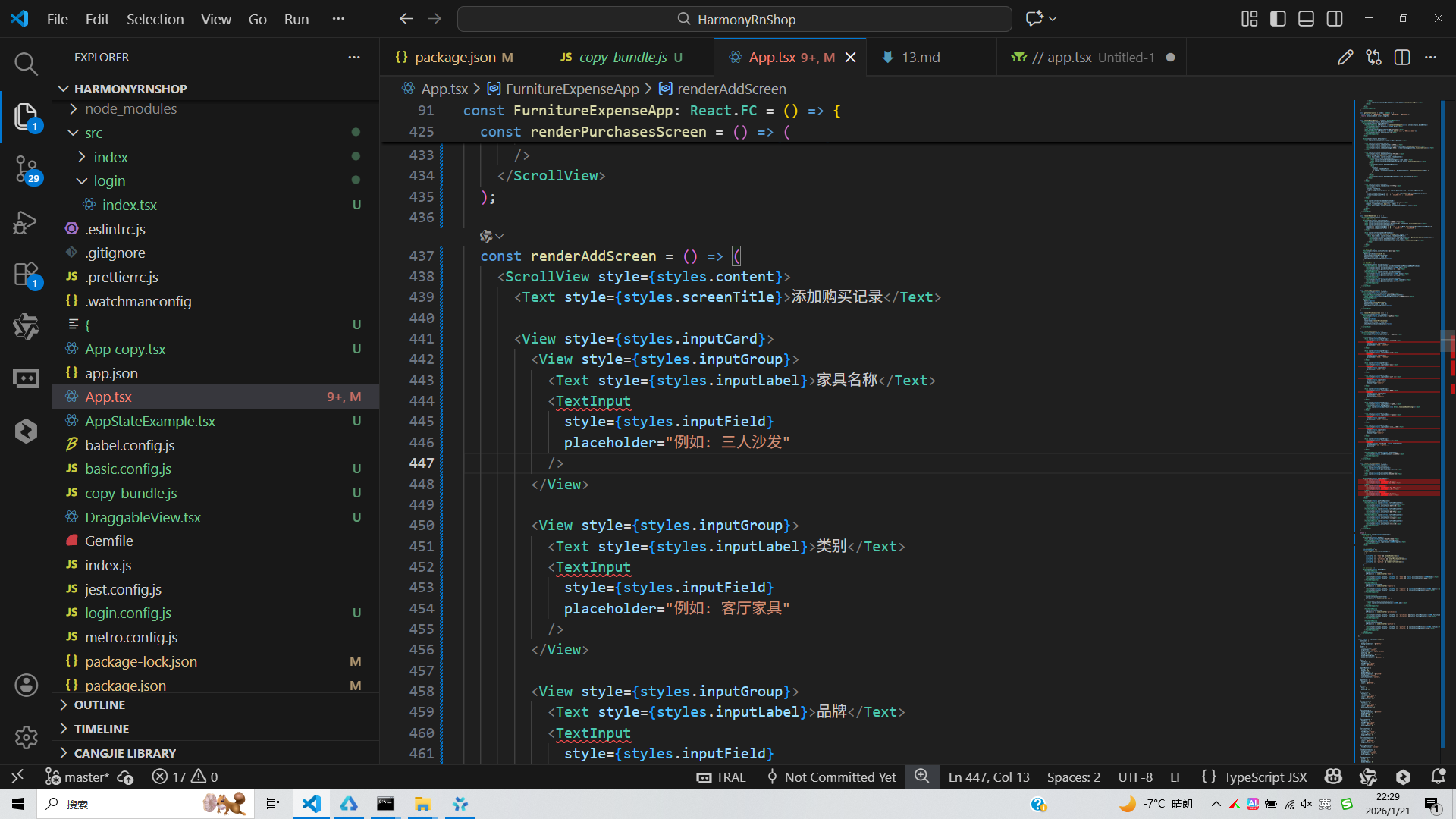
打包
接下来通过打包命令npn run harmony将reactNative的代码打包成为bundle,这样可以进行在开源鸿蒙OpenHarmony中进行使用。

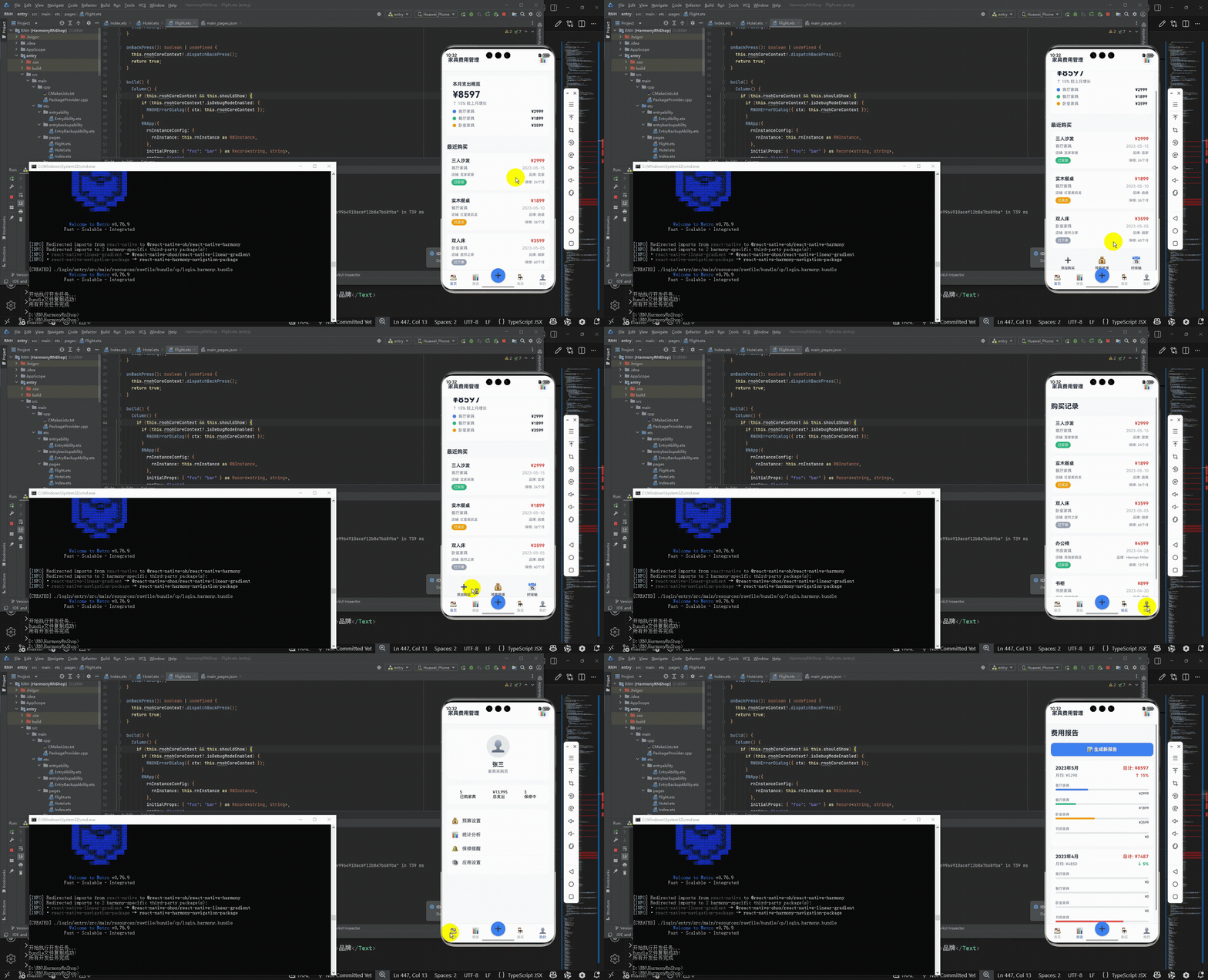
打包之后再将打包后的鸿蒙OpenHarmony文件拷贝到鸿蒙的DevEco-Studio工程目录去:

最后运行效果图如下显示:
欢迎大家加入开源鸿蒙跨平台开发者社区,一起共建开源鸿蒙跨平台生态。

开源鸿蒙跨平台开发社区汇聚开发者与厂商,共建“一次开发,多端部署”的开源生态,致力于降低跨端开发门槛,推动万物智联创新。
更多推荐
 20
20 0
0- 0


 已为社区贡献24条内容

所有评论(0)