React Native跨平台技术在开源鸿蒙中ScrollView滚动容器在鸿蒙中也有对应组件,用于处理内容超出屏幕的情况,TouchableOpacity触摸反馈组件体现了交互响应设计
本文介绍了开发基于React Native的鸿蒙影视内容智能推荐系统的实现方案。系统包含前端界面设计、后端逻辑处理、数据分析和机器学习模型等多个模块。前端采用React Native构建原生应用UI,后端可选择Node.js或Python框架,数据库推荐MongoDB或MySQL,机器学习部分使用TensorFlow/PyTorch实现推荐算法。文章详细说明了系统架构设计,包括用户界面开发、API
开发一个基于React Native的鸿蒙 Component)影视内容智能推荐系统涉及到多个方面,包括前端界面设计、后端逻辑处理、数据分析和机器学习模型等。下面我将分步介绍如何实现这一系统。
- 项目规划
首先,你需要明确系统的功能需求,例如:
- 用户注册与登录
- 影视内容浏览
- 智能推荐算法
- 用户交互反馈(如评分、点赞、评论)
- 技术栈选择
- 前端:React Native
- 后端:Node.js 或 Python (Flask, Django)
- 数据库:MongoDB 或 MySQL
- 机器学习:TensorFlow, PyTorch
- 云服务:AWS, Google Cloud, Azure
- 系统设计
3.1 用户界面设计
使用React Native创建原生应用的UI,可以使用以下库:
react-navigation:用于导航react-native-elements:提供丰富的UI组件react-native-paper:Material Design风格的组件
3.2 后端API开发
使用Node.js或Python搭建后端服务。
Node.js示例:
const express = require('express');
const bodyParser = require('body-parser');
const app = express();
app.use(bodyParser.json());

// 示例路由:获取影视列表
app.get('/api/movies', (req, res) => {
    // 从数据库获取数据
    Movies.find({}, (err, movies) => {
        if (err) {
            res.status(500).send(err);
        } else {
            res.json(movies);
        }
    });
});

app.listen(3000, () => {
    console.log('Server is running on port 3000');
});
Python示例 (Flask):
from flask import Flask, jsonify, request
from pymongo import MongoClient
app = Flask(__name__)

@app.route('/api/movies', methods=['GET'])
def get_movies():
    client = MongoClient('mongodb://localhost:27017/')
    db = client['moviedb']
    collection = db['movies']
    movies = list(collection.find())
    return jsonify(movies)

if __name__ == '__main__':
    app.run(debug=True)
3.3 机器学习模型集成
使用Python进行机器学习模型的训练和集成。例如,使用协同过滤或内容基过滤算法。
from sklearn.neighbors import NearestNeighbors
import pandas as pd
from surprise import Dataset, Reader, SVD
from surprise.model_selection import cross_validate
from surprise import accuracy
import numpy as np
import pickle

加载数据并训练模型(示例为SVD)
data = Dataset.load_from_df(df[['userID', 'movieID', 'rating']], reader)
trainset = data.build_full_trainset()
algo = SVD()  使用SVD算法进行训练
algo.fit(trainset)  训练模型
将训练好的模型部署到后端,并通过API提供推荐服务。
@app.route('/api/recommend', methods=['POST'])
def recommend():
    user_id = request.json['userID']  获取用户ID和电影ID作为输入特征向量的一部分或直接使用用户历史评分进行预测。  使用模型进行推荐计算...  return jsonify(recommendations)  返回推荐结果列表。  if __name__ == '__main__':  app.run(debug=True)  ```3.4 数据库设计 设计MongoDB或MySQL数据库来存储用户数据、影视内容数据和用户交互数据。例如,在MongoDB中可以设计如下集合:  ```javascript // MongoDB集合示例 {  "users": [    {      "userId": "123",      "name": "John Doe",      "email": "john@example.com",      "ratings": [        {          "movieId": "101",          "rating": 5        }      ]    }  ],  "movies": [    {      "movieId": "101",      "title": "Movie Title",      "genre": "Action",      "description": "Movie description..."    }  ] } ```
真实场景案例演示效果:
// app.tsx
import React, { useState } from 'react';
import { SafeAreaView, View, Text, StyleSheet, TouchableOpacity, ScrollView, Modal, Image } from 'react-native';

// 图标库(使用文本替代SVG)
const ICONS = {
  home: '🏠',
  recommend: '🔥',
  movie: '🎬',
  tv: '📺',
  search: '🔍',
  user: '👤',
  like: '❤️',
  star: '⭐',
  play: '▶️',
  info: 'ℹ',
  close: '✕',
  heart: '❤️',
  share: '📤',
  bookmark: '🔖',
  settings: '⚙️',
  calendar: '📅',
  time: '⏱️',
  genre: '🎭'
};

// 影视内容数据
const MOVIE_DATA = [
  { id: 1, title: '星际穿越', genre: '科幻', rating: 9.3, year: 2014, image: 'https://picsum.photos/300/450?random=1' },
  { id: 2, title: '盗梦空间', genre: '动作', rating: 9.2, year: 2010, image: 'https://picsum.photos/300/450?random=2' },
  { id: 3, title: '阿甘正传', genre: '剧情', rating: 9.5, year: 1994, image: 'https://picsum.photos/300/450?random=3' },
  { id: 4, title: '泰坦尼克号', genre: '爱情', rating: 9.4, year: 1997, image: 'https://picsum.photos/300/450?random=4' },
  { id: 5, title: '肖申克的救赎', genre: '剧情', rating: 9.7, year: 1994, image: 'https://picsum.photos/300/450?random=5' },
  { id: 6, title: '复仇者联盟', genre: '动作', rating: 8.4, year: 2012, image: 'https://picsum.photos/300/450?random=6' }
];

const TV_DATA = [
  { id: 1, title: '权力的游戏', genre: '奇幻', rating: 9.3, seasons: 8, image: 'https://picsum.photos/300/450?random=7' },
  { id: 2, title: '老友记', genre: '喜剧', rating: 9.0, seasons: 10, image: 'https://picsum.photos/300/450?random=8' },
  { id: 3, title: '黑镜', genre: '科幻', rating: 8.8, seasons: 6, image: 'https://picsum.photos/300/450?random=9' },
  { id: 4, title: '纸牌屋', genre: '政治', rating: 8.7, seasons: 6, image: 'https://picsum.photos/300/450?random=10' }
];

const MovieRecommendation: React.FC = () => {
  const [selectedMovie, setSelectedMovie] = useState<any>(null);
  const [modalVisible, setModalVisible] = useState(false);
  const [infoModalVisible, setInfoModalVisible] = useState(false);
  const [activeTab, setActiveTab] = useState('home');

  // 渲染图标
  const renderIcon = (iconName: string, style: any) => {
    return (
      <Text style={[styles.iconText, style]}>
        {ICONS[iconName as keyof typeof ICONS] || '□'}
      </Text>
    );
  };

  // 显示电影详情
  const showMovieDetails = (movie: any) => {
    setSelectedMovie(movie);
    setModalVisible(true);
  };

  return (
    <SafeAreaView style={styles.container}>
      <View style={styles.header}>
        <Text style={styles.title}>🎬 影视内容智能推荐</Text>
        <Text style={styles.subtitle}>为您推荐精彩影视内容</Text>

        <TouchableOpacity
          style={styles.infoButton}
          onPress={() => setInfoModalVisible(true)}
        >
          {renderIcon('info', styles.infoIcon)}
        </TouchableOpacity>
      </View>

      <ScrollView contentContainerStyle={styles.content}>
        {activeTab === 'home' && (
          <View>
            <View style={styles.bannerCard}>
              <Text style={styles.bannerTitle}>为您推荐</Text>
              <Text style={styles.bannerSubtitle}>基于您的观影历史</Text>
            </View>

            <View style={styles.sectionTitleContainer}>
              <Text style={styles.sectionTitle}>热门电影</Text>
              <Text style={styles.sectionSubtitle}>本周热门影片</Text>
            </View>

            <ScrollView
              horizontal
              showsHorizontalScrollIndicator={false}
              contentContainerStyle={styles.movieList}
            >
              {MOVIE_DATA.map((movie) => (
                <TouchableOpacity
                  key={movie.id}
                  style={styles.movieCard}
                  onPress={() => showMovieDetails(movie)}
                >
                  <Image source={{ uri: movie.image }} style={styles.movieImage} />
                  <View style={styles.movieInfo}>
                    <Text style={styles.movieTitle} numberOfLines={1}>{movie.title}</Text>
                    <Text style={styles.movieGenre}>{movie.genre} • {movie.year}</Text>
                    <View style={styles.ratingContainer}>
                      <Text style={styles.ratingIcon}>{renderIcon('star', {})}</Text>
                      <Text style={styles.ratingValue}>{movie.rating}</Text>
                    </View>
                  </View>
                </TouchableOpacity>
              ))}
            </ScrollView>

            <View style={styles.sectionTitleContainer}>
              <Text style={styles.sectionTitle}>热门电视剧</Text>
              <Text style={styles.sectionSubtitle}>本周热门剧集</Text>
            </View>

            <View style={styles.tvList}>
              {TV_DATA.map((tv) => (
                <TouchableOpacity
                  key={tv.id}
                  style={styles.tvCard}
                  onPress={() => showMovieDetails(tv)}
                >
                  <Image source={{ uri: tv.image }} style={styles.tvImage} />
                  <View style={styles.tvInfo}>
                    <Text style={styles.tvTitle} numberOfLines={1}>{tv.title}</Text>
                    <Text style={styles.tvGenre}>{tv.genre} • {tv.seasons}季</Text>
                    <View style={styles.ratingContainer}>
                      <Text style={styles.ratingIcon}>{renderIcon('star', {})}</Text>
                      <Text style={styles.ratingValue}>{tv.rating}</Text>
                    </View>
                  </View>
                </TouchableOpacity>
              ))}
            </View>
          </View>
        )}

        {activeTab === 'recommend' && (
          <View style={styles.tabContent}>
            <Text style={styles.tabTitle}>智能推荐</Text>
            <View style={styles.recommendCard}>
              <View style={styles.recommendItem}>
                <Text style={styles.recommendIcon}>{renderIcon('heart', {})}</Text>
                <Text style={styles.recommendText}>根据您的喜好推荐</Text>
              </View>
              <View style={styles.recommendItem}>
                <Text style={styles.recommendIcon}>{renderIcon('star', {})}</Text>
                <Text style={styles.recommendText}>高评分影片</Text>
              </View>
              <View style={styles.recommendItem}>
                <Text style={styles.recommendIcon}>{renderIcon('time', {})}</Text>
                <Text style={styles.recommendText}>最新上映</Text>
              </View>
            </View>
          </View>
        )}

        {activeTab === 'user' && (
          <View style={styles.tabContent}>
            <Text style={styles.tabTitle}>我的收藏</Text>
            <View style={styles.userCard}>
              <View style={styles.userItem}>
                <Text style={styles.userIcon}>{renderIcon('bookmark', {})}</Text>
                <Text style={styles.userText}>已收藏: 12部</Text>
              </View>
              <View style={styles.userItem}>
                <Text style={styles.userIcon}>{renderIcon('time', {})}</Text>
                <Text style={styles.userText}>观看历史: 45部</Text>
              </View>
              <View style={styles.userItem}>
                <Text style={styles.userIcon}>{renderIcon('heart', {})}</Text>
                <Text style={styles.userText}>喜欢: 8部</Text>
              </View>
            </View>
          </View>
        )}
      </ScrollView>

      <View style={styles.tabBar}>
        <TouchableOpacity
          style={[styles.tabButton, activeTab === 'home' && styles.activeTab]}
          onPress={() => setActiveTab('home')}
        >
          {renderIcon('home', styles.tabIcon)}
          <Text style={[styles.tabText, activeTab === 'home' && styles.activeTabText]}>首页</Text>
        </TouchableOpacity>

        <TouchableOpacity
          style={[styles.tabButton, activeTab === 'recommend' && styles.activeTab]}
          onPress={() => setActiveTab('recommend')}
        >
          {renderIcon('recommend', styles.tabIcon)}
          <Text style={[styles.tabText, activeTab === 'recommend' && styles.activeTabText]}>推荐</Text>
        </TouchableOpacity>

        <TouchableOpacity
          style={[styles.tabButton, activeTab === 'user' && styles.activeTab]}
          onPress={() => setActiveTab('user')}
        >
          {renderIcon('user', styles.tabIcon)}
          <Text style={[styles.tabText, activeTab === 'user' && styles.activeTabText]}>我的</Text>
        </TouchableOpacity>
      </View>

      {/* 电影详情模态框 */}
      <Modal
        animationType="slide"
        transparent={true}
        visible={modalVisible}
        onRequestClose={() => setModalVisible(false)}
      >
        <View style={styles.modalOverlay}>
          <View style={styles.modalContent}>
            <View style={styles.modalHeader}>
              <Text style={styles.modalTitle}>{selectedMovie?.title} 详情</Text>
              <TouchableOpacity onPress={() => setModalVisible(false)}>
                <Text style={styles.closeButton}>{renderIcon('close', {})}</Text>
              </TouchableOpacity>
            </View>

            {selectedMovie && (
              <ScrollView style={styles.modalBody}>
                <Image source={{ uri: selectedMovie.image }} style={styles.modalImage} />

                <View style={styles.detailItem}>
                  <Text style={styles.detailLabel}>类型:</Text>
                  <Text style={styles.detailValue}>{selectedMovie.genre}</Text>
                </View>

                <View style={styles.detailItem}>
                  <Text style={styles.detailLabel}>评分:</Text>
                  <Text style={styles.detailValue}>{selectedMovie.rating}</Text>
                </View>

                <View style={styles.detailItem}>
                  <Text style={styles.detailLabel}>年份:</Text>
                  <Text style={styles.detailValue}>{selectedMovie.year || selectedMovie.seasons + '季'}</Text>
                </View>

                <View style={styles.detailItem}>
                  <Text style={styles.detailLabel}>简介:</Text>
                  <Text style={styles.detailValue}>这是一部精彩的影视作品,值得观看。</Text>
                </View>

                <View style={styles.actionButtons}>
                  <TouchableOpacity style={styles.actionButton}>
                    <Text style={styles.actionButtonText}>观看</Text>
                  </TouchableOpacity>
                  <TouchableOpacity style={styles.actionButton}>
                    <Text style={styles.actionButtonText}>收藏</Text>
                  </TouchableOpacity>
                </View>
              </ScrollView>
            )}
          </View>
        </View>
      </Modal>

      {/* 应用说明模态框 */}
      <Modal
        animationType="slide"
        transparent={true}
        visible={infoModalVisible}
        onRequestClose={() => setInfoModalVisible(false)}
      >
        <View style={styles.modalOverlay}>
          <View style={styles.infoModalContent}>
            <View style={styles.modalHeader}>
              <Text style={styles.modalTitle}>影视内容推荐系统</Text>
              <TouchableOpacity onPress={() => setInfoModalVisible(false)}>
                <Text style={styles.closeButton}>{renderIcon('close', {})}</Text>
              </TouchableOpacity>
            </View>

            <ScrollView style={styles.infoModalBody}>
              <Text style={styles.infoTitle}>功能介绍</Text>
              <Text style={styles.infoText}>
                • 智能推荐影视内容{'\n'}
                • 个性化推荐算法{'\n'}
                • 收藏与观看历史{'\n'}
                • 评分与评论系统
              </Text>

              <Text style={styles.infoSubtitle}>推荐算法</Text>
              <Text style={styles.infoText}>
                • 协同过滤{'\n'}
                • 内容基础推荐{'\n'}
                • 深度学习模型{'\n'}
                • 用户行为分析
              </Text>

              <Text style={styles.infoSubtitle}>使用建议</Text>
              <Text style={styles.infoText}>
                • 完善个人偏好{'\n'}
                • 积极评价影视作品{'\n'}
                • 关注收藏功能{'\n'}
                • 分享喜欢的内容
              </Text>
            </ScrollView>
          </View>
        </View>
      </Modal>
    </SafeAreaView>
  );
};

const styles = StyleSheet.create({
  container: {
    flex: 1,
    backgroundColor: '#f9fafb',
  },
  header: {
    paddingTop: 30,
    paddingBottom: 20,
    paddingHorizontal: 20,
    backgroundColor: '#ffffff',
    borderBottomWidth: 1,
    borderBottomColor: '#e5e7eb',
    flexDirection: 'row',
    justifyContent: 'space-between',
    alignItems: 'center',
  },
  title: {
    fontSize: 22,
    fontWeight: 'bold',
    color: '#1f2937',
  },
  subtitle: {
    fontSize: 13,
    color: '#6b7280',
    marginTop: 4,
  },
  infoButton: {
    width: 36,
    height: 36,
    borderRadius: 18,
    backgroundColor: '#e5e7eb',
    alignItems: 'center',
    justifyContent: 'center',
  },
  infoIcon: {
    fontSize: 20,
    color: '#6b7280',
  },
  iconText: {
    fontSize: 20,
  },
  content: {
    padding: 16,
    paddingBottom: 80, // 为底部标签栏留出空间
  },
  bannerCard: {
    backgroundColor: '#3b82f6',
    borderRadius: 16,
    padding: 20,
    marginBottom: 20,
  },
  bannerTitle: {
    fontSize: 20,
    fontWeight: 'bold',
    color: '#ffffff',
  },
  bannerSubtitle: {
    fontSize: 14,
    color: '#dbeafe',
    marginTop: 4,
  },
  sectionTitleContainer: {
    marginBottom: 15,
  },
  sectionTitle: {
    fontSize: 18,
    fontWeight: 'bold',
    color: '#1f2937',
    marginBottom: 5,
  },
  sectionSubtitle: {
    fontSize: 14,
    color: '#6b7280',
  },
  movieList: {
    flexDirection: 'row',
    marginBottom: 20,
  },
  movieCard: {
    backgroundColor: '#ffffff',
    borderRadius: 12,
    marginRight: 15,
    width: 140,
    elevation: 3,
    shadowColor: '#000',
    shadowOffset: { width: 0, height: 2 },
    shadowOpacity: 0.1,
    shadowRadius: 4,
  },
  movieImage: {
    width: '100%',
    height: 180,
    borderTopLeftRadius: 12,
    borderTopRightRadius: 12,
  },
  movieInfo: {
    padding: 10,
  },
  movieTitle: {
    fontSize: 14,
    fontWeight: 'bold',
    color: '#1f2937',
  },
  movieGenre: {
    fontSize: 12,
    color: '#6b7280',
    marginTop: 4,
  },
  ratingContainer: {
    flexDirection: 'row',
    alignItems: 'center',
    marginTop: 5,
  },
  ratingIcon: {
    fontSize: 14,
    color: '#f59e0b',
    marginRight: 4,
  },
  ratingValue: {
    fontSize: 12,
    color: '#1f2937',
    fontWeight: 'bold',
  },
  tvList: {
    // TV list styles
  },
  tvCard: {
    backgroundColor: '#ffffff',
    borderRadius: 12,
    marginBottom: 12,
    flexDirection: 'row',
    elevation: 2,
    shadowColor: '#000',
    shadowOffset: { width: 0, height: 1 },
    shadowOpacity: 0.1,
    shadowRadius: 3,
  },
  tvImage: {
    width: 100,
    height: 120,
    borderTopLeftRadius: 12,
    borderBottomLeftRadius: 12,
  },
  tvInfo: {
    flex: 1,
    padding: 10,
  },
  tvTitle: {
    fontSize: 14,
    fontWeight: 'bold',
    color: '#1f2937',
  },
  tvGenre: {
    fontSize: 12,
    color: '#6b7280',
    marginTop: 4,
  },
  tabContent: {
    // Tab content styles
  },
  tabTitle: {
    fontSize: 20,
    fontWeight: 'bold',
    color: '#1f2937',
    marginBottom: 15,
  },
  recommendCard: {
    backgroundColor: '#ffffff',
    borderRadius: 16,
    padding: 20,
    marginBottom: 15,
    elevation: 4,
    shadowColor: '#000',
    shadowOffset: { width: 0, height: 2 },
    shadowOpacity: 0.1,
    shadowRadius: 8,
  },
  recommendItem: {
    flexDirection: 'row',
    alignItems: 'center',
    marginBottom: 15,
  },
  recommendIcon: {
    fontSize: 24,
    color: '#3b82f6',
    marginRight: 15,
  },
  recommendText: {
    fontSize: 14,
    color: '#1f2937',
    flex: 1,
  },
  userCard: {
    backgroundColor: '#ffffff',
    borderRadius: 16,
    padding: 20,
    marginBottom: 15,
    elevation: 4,
    shadowColor: '#000',
    shadowOffset: { width: 0, height: 2 },
    shadowOpacity: 0.1,
    shadowRadius: 8,
  },
  userItem: {
    flexDirection: 'row',
    alignItems: 'center',
    marginBottom: 15,
  },
  userIcon: {
    fontSize: 24,
    color: '#10b981',
    marginRight: 15,
  },
  userText: {
    fontSize: 14,
    color: '#1f2937',
    flex: 1,
  },
  tabBar: {
    flexDirection: 'row',
    backgroundColor: '#ffffff',
    borderTopWidth: 1,
    borderTopColor: '#e5e7eb',
    paddingVertical: 10,
    position: 'absolute',
    bottom: 0,
    left: 0,
    right: 0,
  },
  tabButton: {
    flex: 1,
    alignItems: 'center',
    paddingVertical: 8,
  },
  activeTab: {
    backgroundColor: '#e5e7eb',
    borderRadius: 10,
    marginHorizontal: 8,
  },
  tabIcon: {
    fontSize: 20,
    marginBottom: 4,
  },
  tabText: {
    fontSize: 12,
    color: '#6b7280',
  },
  activeTabText: {
    color: '#1f2937',
    fontWeight: 'bold',
  },
  modalOverlay: {
    flex: 1,
    backgroundColor: 'rgba(0, 0, 0, 0.5)',
    justifyContent: 'center',
    alignItems: 'center',
  },
  modalContent: {
    backgroundColor: '#ffffff',
    width: '90%',
    height: '70%',
    borderRadius: 20,
    overflow: 'hidden',
  },
  infoModalContent: {
    backgroundColor: '#ffffff',
    width: '90%',
    height: '50%',
    borderRadius: 20,
    overflow: 'hidden',
  },
  modalHeader: {
    flexDirection: 'row',
    justifyContent: 'space-between',
    alignItems: 'center',
    padding: 20,
    borderBottomWidth: 1,
    borderBottomColor: '#e5e7eb',
    backgroundColor: '#f9fafb',
  },
  modalTitle: {
    fontSize: 20,
    fontWeight: 'bold',
    color: '#1f2937',
  },
  closeButton: {
    fontSize: 30,
    color: '#d1d5db',
    fontWeight: '200',
  },
  modalBody: {
    flex: 1,
    padding: 20,
  },
  modalImage: {
    width: '100%',
    height: 200,
    borderRadius: 12,
    marginBottom: 15,
  },
  infoModalBody: {
    flex: 1,
    padding: 20,
  },
  detailItem: {
    marginBottom: 15,
  },
  detailLabel: {
    fontSize: 14,
    color: '#1f2937',
    fontWeight: '600',
    marginBottom: 4,
  },
  detailValue: {
    fontSize: 14,
    color: '#1f2937',
    backgroundColor: '#f9fafb',
    padding: 10,
    borderRadius: 6,
  },
  actionButtons: {
    flexDirection: 'row',
    justifyContent: 'space-between',
    marginTop: 20,
  },
  actionButton: {
    backgroundColor: '#3b82f6',
    paddingHorizontal: 15,
    paddingVertical: 10,
    borderRadius: 8,
    flex: 1,
    marginHorizontal: 5,
  },
  actionButtonText: {
    color: '#ffffff',
    fontWeight: 'bold',
    textAlign: 'center',
  },
  infoTitle: {
    fontSize: 20,
    fontWeight: 'bold',
    color: '#1f2937',
    marginBottom: 15,
    textAlign: 'center',
  },
  infoText: {
    fontSize: 15,
    color: '#6b7280',
    lineHeight: 22,
    marginBottom: 15,
  },
  infoSubtitle: {
    fontSize: 17,
    fontWeight: 'bold',
    color: '#1f2937',
    marginBottom: 10,
  },
});

export default MovieRecommendation;
这段代码是一个React Native实现的影视内容推荐界面,采用了函数式组件和Hooks进行状态管理。从鸿蒙系统角度深入分析,虽然这是React Native代码,但其核心理念与鸿蒙开发有很多相通之处。
在鸿蒙生态中,这种界面可以通过ArkTS和ArkUI框架来实现。ArkTS使用声明式编程范式,通过组件化方式构建用户界面,这与React的组件化思想非常相似。状态管理方面,鸿蒙的@State装饰器与React的useState功能类似,都用于管理组件的响应式状态,当状态发生变化时会自动触发UI更新。
代码中的SafeAreaView对应鸿蒙的安全区域布局概念,确保内容在不同设备上正确显示,特别是考虑到鸿蒙设备多样化的屏幕形态。ScrollView滚动容器在鸿蒙中也有对应组件,用于处理内容超出屏幕的情况,鸿蒙还提供了更丰富的滚动控制能力。
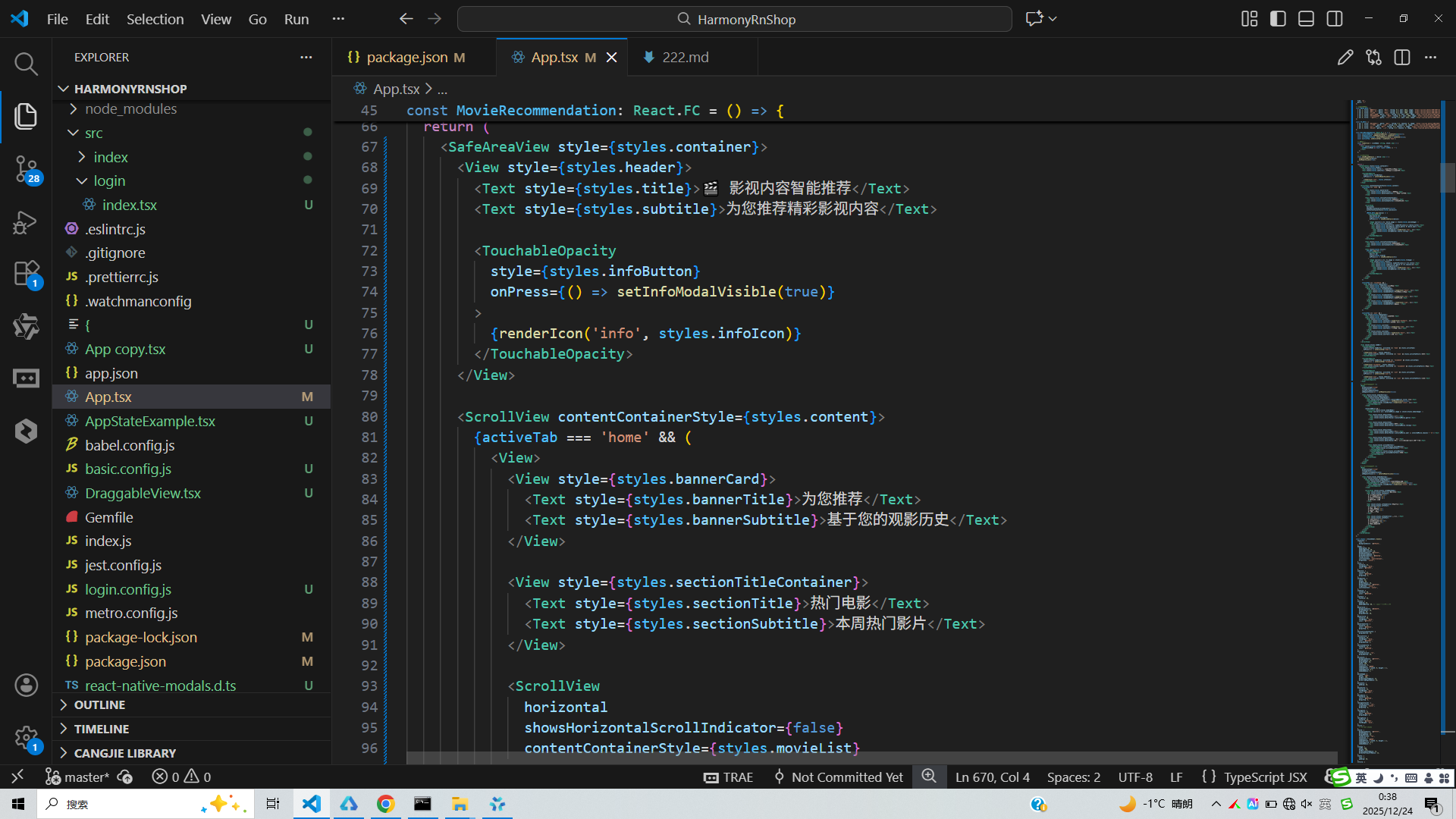
TouchableOpacity触摸反馈组件体现了交互响应设计,鸿蒙系统同样重视触摸交互体验,提供了丰富的手势识别能力,包括点击、长按、滑动等多种交互方式。在鸿蒙中可以通过GestureDetector等组件实现类似的效果。
对于样式处理,React Native的StyleSheet与鸿蒙的样式系统都支持flexbox布局,能够实现响应式界面设计。鸿蒙还提供了更灵活的布局能力,如栅格系统、弹性布局等,可以更好地适配不同屏幕尺寸。
代码中的条件渲染(activeTab状态切换不同视图)在鸿蒙开发中可以通过if/else条件语句或ForEach循环实现类似效果。鸿蒙的声明式语法使得这种条件渲染更加直观和高效。
数据展示方面,MOVIE_DATA和TV_DATA数组映射生成列表的方式,与鸿蒙中使用ForEach渲染列表数据的模式一致。鸿蒙的ForEach不仅支持数组遍历,还提供了索引访问、条件过滤等高级功能。
在鸿蒙开发中,图片加载和显示通过Image组件实现,支持网络图片、本地资源等多种来源。鸿蒙还提供了图片缓存、预加载等优化机制,提升用户体验。
横向滚动的电影列表在鸿蒙中可以通过Scroll组件的horizontal属性实现,鸿蒙的滚动组件还支持嵌套滚动、滚动监听等高级功能。
若要在鸿蒙平台实现类似功能,可以使用DevEco Studio开发工具,采用ArkTS语言编写。通过@State管理选中电影、模态框可见性等状态,使用Column、Row、Stack等布局组件构建界面,利用鸿蒙的动画API增强交互效果。
鸿蒙的应用生命周期管理与React Native有所不同,鸿蒙通过Ability和ExtensionAbility来管理应用的不同功能模块。页面间的导航和数据传递通过router模块实现,这与React Navigation等导航库的概念相似。
打包
接下来通过打包命令npn run harmony将reactNative的代码打包成为bundle,这样可以进行在开源鸿蒙OpenHarmony中进行使用。

打包之后再将打包后的鸿蒙OpenHarmony文件拷贝到鸿蒙的DevEco-Studio工程目录去:

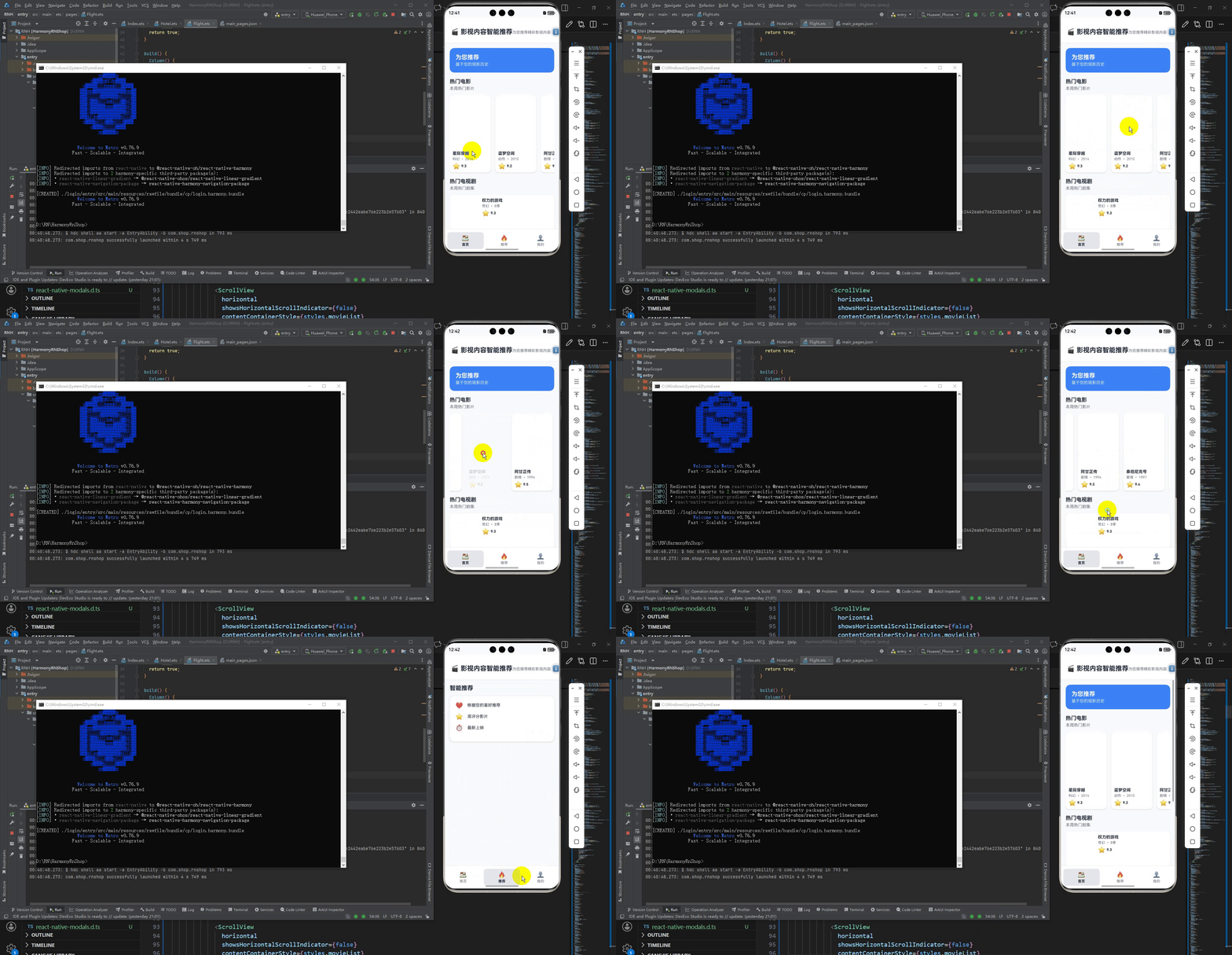
最后运行效果图如下显示:
欢迎大家加入开源鸿蒙跨平台开发者社区,一起共建开源鸿蒙跨平台生态。

开源鸿蒙跨平台开发社区汇聚开发者与厂商,共建“一次开发,多端部署”的开源生态,致力于降低跨端开发门槛,推动万物智联创新。
更多推荐

 10
10 0
0- 0


 已为社区贡献28条内容

所有评论(0)