Flutter框架跨平台鸿蒙开发——Positioned定位技巧
它提供了基于Stack边界的相对定位能力,通过设置left、right、top、bottom、width、height等属性,可以实现子组件的精确控制。:这些属性是可选的,可以单独使用,也可以组合使用。通过以上的优化策略和技巧,可以充分发挥Positioned组件的强大功能,同时保持应用的流畅性和高性能。这是最基础的定位方式,通过指定left、top、width、height实现固定的位置和尺寸。
Positioned定位技巧
Positioned指南
一、Positioned组件概述
Positioned是专门用于Stack子组件的定位组件,它提供了相对于Stack边界的绝对定位能力。通过Positioned,我们可以精确控制子组件在Stack中的位置和大小,是实现复杂层叠布局的核心工具。在Flutter的布局体系中,Positioned与Stack形成了完美的搭档关系,为开发者提供了强大而灵活的定位解决方案。
Positioned的核心特性
Positioned的设计思想是提供简单而强大的定位API。开发者可以通过设置left、top、right、bottom、width、height等属性,精确控制子组件的位置和大小。这种绝对定位方式虽然不够灵活,但在需要精确控制布局的场景下非常有用。
在跨平台应用开发中,Positioned的作用尤为突出。无论是Android、iOS还是鸿蒙平台,开发者都面临着各种精确定位的需求,而Positioned提供了一种统一的解决方案。与原生平台的绝对定位相比,Flutter的Positioned更加简洁和高效,无需关心不同平台的布局差异。
Positioned的工作原理
Positioned组件必须在Stack中使用,它通过修改子组件的约束来实现定位。当Stack的布局算法遇到Positioned子组件时,会根据Positioned的属性值计算子组件的最终位置和大小。这个过程是自动进行的,开发者只需要设置属性值,Flutter会处理所有细节。
Positioned的定位是基于Stack边界的,这意味着所有的left、top、right、bottom值都是相对于Stack容器的。这种相对定位的方式使得布局更加灵活,Stack容器尺寸的变化会自动影响子组件的位置关系。
Positioned与绝对定位的对比
| 特性 | Flutter Positioned | CSS absolute | Android FrameLayout |
|---|---|---|---|
| 定位参考 | Stack边界 | 父元素边界 | 父容器边界 |
| 属性设置 | left/top/right/bottom | left/top/right/bottom | layout_margin |
| 大小控制 | width/height | width/height | layout_width/height |
| 负值支持 | 支持 | 支持 | 通过负margin实现 |
| 响应式 | 需手动计算 | 可使用百分比 | 需手动计算 |
二、Positioned的主要属性
核心属性详解表
| 属性名 | 类型 | 说明 | 单位 | 默认值 | 必需 |
|---|---|---|---|---|---|
| left | double | 左边缘距离 | 像素 | null | 否 |
| top | double | 上边缘距离 | 像素 | null | 否 |
| right | double | 右边缘距离 | 像素 | null | 否 |
| bottom | double | 下边缘距离 | 像素 | null | 否 |
| width | double | 组件宽度 | 像素 | null | 否 |
| height | double | 组件高度 | 像素 | null | 否 |
| child | Widget | 子组件 | - | - | 是 |
属性详细说明
1. 位置属性(left/top/right/bottom)
位置属性控制子组件相对于Stack边界的距离。这些属性都是可选的,但需要遵循一定的使用规则。
位置属性的使用规则:
| 规则 | 说明 | 示例 |
|---|---|---|
| 水平方向 | left和right不能同时为null | left: 10 或 right: 20 或 left: 10, right: 10 |
| 垂直方向 | top和bottom不能同时为null | top: 10 或 bottom: 20 或 top: 10, bottom: 10 |
| 完全定位 | 四个方向都设置 | left: 10, top: 10, right: 10, bottom: 10 |
| 部分定位 | 只设置部分方向 | left: 10, top: 20 (配合子组件自身尺寸) |
位置属性的效果图:
2. 尺寸属性(width/height)
尺寸属性控制子组件的宽度和高度。这些属性也是可选的,可以根据需要设置。
尺寸属性的使用场景:
| 场景 | 设置方式 | 效果 |
|---|---|---|
| 固定尺寸 | width: 100, height: 50 | 子组件固定大小 |
| 宽度固定,高度自适应 | width: 100 | 宽度固定,高度由内容决定 |
| 高度固定,宽度自适应 | height: 50 | 高度固定,宽度由内容决定 |
| 完全定位拉伸 | left/top/right/bottom | 根据边界计算尺寸 |
Positioned属性使用规则表
| 规则 | 说明 | 示例 | 注意事项 |
|---|---|---|---|
| 水平方向 | left/right不能同时设置,或配合width使用 | left: 10, width: 100 | 不能同时设置left和right而不设置width |
| 垂直方向 | top/bottom不能同时设置,或配合height使用 | top: 10, height: 50 | 不能同时设置top和bottom而不设置height |
| 完全定位 | 四个方向都设置时,width/height会被忽略 | left/top/right/bottom | width/height不生效 |
| 负值支持 | 所有属性都支持负值,可超出Stack边界 | left: -10 | 需注意裁剪行为 |
Positioned定位方式对比
| 定位方式 | 属性组合 | 效果 | 适用场景 | 示例 |
|---|---|---|---|---|
| 左上定位 | left + top | 相对左上角定位 | 角标、标签 | left: 10, top: 10 |
| 右上定位 | right + top | 相对右上角定位 | 状态徽章 | right: 10, top: 10 |
| 左下定位 | left + bottom | 相对左下角定位 | 底部提示 | left: 10, bottom: 10 |
| 右下定位 | right + bottom | 相对右下角定位 | 操作按钮 | right: 10, bottom: 10 |
| 水平居中 | left/right + width | 水平居中 | 标题、导航 | left: 20, right: 20 |
| 垂直居中 | top/bottom + height | 垂直居中 | 图标、徽章 | top: 20, bottom: 20 |
| 水平拉伸 | left + right + width | 水平方向填充 | 进度条、分隔线 | left: 0, right: 0 |
| 垂直拉伸 | top + bottom + height | 垂直方向填充 | 侧边栏 | top: 0, bottom: 0 |
三、Positioned基础用法
实际案例代码
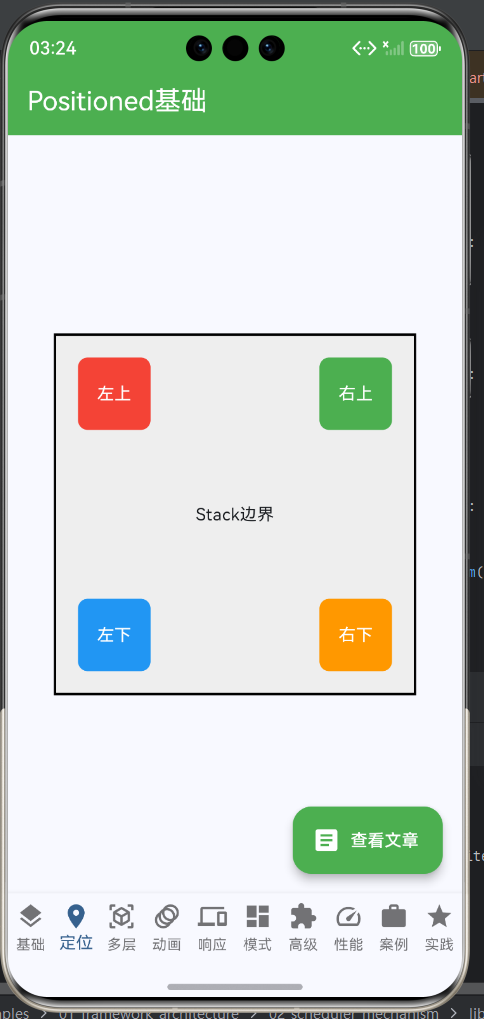
以下展示Positioned的基础使用,该类演示了四个角的基本定位方式:
// lib/main.dart 252-356行
class _Page02PositionedBasics extends StatefulWidget {
const _Page02PositionedBasics();
State<_Page02PositionedBasics> createState() => _Page02PositionedBasicsState();
}
class _Page02PositionedBasicsState extends State<_Page02PositionedBasics> {
Widget build(BuildContext context) {
return Scaffold(
appBar: AppBar(
title: const Text('Positioned基础'),
backgroundColor: Colors.green,
foregroundColor: Colors.white,
),
body: Center(
child: SizedBox(
width: 300,
height: 300,
child: Stack(
children: [
// 基础容器
Container(
width: 300,
height: 300,
decoration: BoxDecoration(
border: Border.all(color: Colors.black, width: 2),
color: Colors.grey[200],
),
child: const Center(child: Text('Stack边界')),
),
// 左上角
Positioned(
left: 20,
top: 20,
child: Container(
width: 60,
height: 60,
decoration: BoxDecoration(
color: Colors.red,
borderRadius: BorderRadius.circular(8),
),
child: const Center(
child: Text('左上', style: TextStyle(color: Colors.white)),
),
),
),
// 右上角
Positioned(
right: 20,
top: 20,
child: Container(
width: 60,
height: 60,
decoration: BoxDecoration(
color: Colors.green,
borderRadius: BorderRadius.circular(8),
),
child: const Center(
child: Text('右上', style: TextStyle(color: Colors.white)),
),
),
),
// 左下角
Positioned(
left: 20,
bottom: 20,
child: Container(
width: 60,
height: 60,
decoration: BoxDecoration(
color: Colors.blue,
borderRadius: BorderRadius.circular(8),
),
child: const Center(
child: Text('左下', style: TextStyle(color: Colors.white)),
),
),
),
// 右下角
Positioned(
right: 20,
bottom: 20,
child: Container(
width: 60,
height: 60,
decoration: BoxDecoration(
color: Colors.orange,
borderRadius: BorderRadius.circular(8),
),
child: const Center(
child: Text('右下', style: TextStyle(color: Colors.white)),
),
),
),
],
),
),
),
);
}
}
案例解析
这个案例展示了Positioned最基本的四种定位方式:左上、右上、左下、右下。每个Positioned子组件都设置了两个方向属性(水平方向和垂直方向),配合固定的宽度和高度,实现了精确的角落定位。
关键技术点:
-
Stack容器尺寸明确
- 设置了width: 300, height: 300
- 这是Positioned定位的基础参考
-
Positioned属性组合
- 左上: left + top
- 右上: right + top
- 左下: left + bottom
- 右下: right + bottom
-
子组件尺寸固定
- 每个容器都是60x60
- 配合偏移量实现精确定位
-
边界框参考
- 灰色容器显示Stack边界
- 帮助理解定位的参考系
Positioned定位原理图
四、Positioned的高级用法
1. 完全定位
当设置left、top、right、bottom四个属性时,Positioned子组件的宽度和高度会自动计算为:
width = Stack宽度 - left - right
height = Stack高度 - top - bottom
这种方式可以实现子组件填满Stack的效果,非常适合作为背景层或遮罩层。
完全定位示例:
Stack(
  children: [
    Positioned(
      left: 0,
      top: 0,
      right: 0,
      bottom: 0,
      child: Container(
        color: Colors.black.withOpacity(0.5),
      ),
    ),
  ],
)
2. 负值定位
Positioned的所有属性都支持负值,这意味着子组件可以超出Stack边界。这个特性在某些特殊效果中非常有用。
负值定位的应用场景:
| 场景 | 实现方式 | 效果 |
|---|---|---|
| 阴影效果 | 使用负值偏移 | 创建立体感 |
| 装饰元素 | 角落装饰 | 增加设计感 |
| 悬浮效果 | 向外延伸 | 强调重要性 |
负值定位示例:
Stack(
  children: [
    Container(
      width: 200,
      height: 200,
      color: Colors.blue,
    ),
    Positioned(
      left: -10,
      top: -10,
      child: Container(
        width: 20,
        height: 20,
        decoration: BoxDecoration(
          color: Colors.red,
          borderRadius: BorderRadius.circular(10),
        ),
      ),
    ),
  ],
)
3. 拉伸定位
通过设置left和right(或top和bottom)而不设置width(或height),可以实现子组件在某个方向上的拉伸效果。
拉伸定位的常见应用:
| 方向 | 属性设置 | 效果 | 应用场景 |
|---|---|---|---|
| 水平拉伸 | left + right | 宽度自适应 | 进度条、分隔线 |
| 垂直拉伸 | top + bottom | 高度自适应 | 侧边栏、时间轴 |
| 完全拉伸 | 四个方向 | 填满Stack | 背景、遮罩 |
五、Positioned的常见应用场景
应用场景分类表
| 场景类别 | 具体应用 | 技术要点 | 示例 |
|---|---|---|---|
| 标记徽章 | 未读消息数、状态标签 | 使用Positioned配合CircleAvatar | 右上角红色圆点 |
| 悬浮按钮 | FAB、返回按钮 | 定位在底部或角落 | 底部居中按钮 |
| 图片覆盖 | 文字叠加、渐变遮罩 | 使用Positioned.fill或自定义定位 | 图片底部标题 |
| 卡片装饰 | 角落图标、装饰图案 | 使用负值或小偏移量 | 左上角装饰图标 |
| 动画效果 | 位移动画、缩放动画 | 配合AnimatedPositioned使用 | 位置平滑过渡 |
1. 徽章标记模式详解
徽章标记是Positioned最常见的应用场景之一,用于显示未读消息数、状态标签等信息。
徽章标记的实现模式:
徽章标记代码示例:
Stack(
  children: [
    // 主图标
    Icon(Icons.notifications, size: 48),
    // 徽章
    Positioned(
      right: 0,
      top: 0,
      child: CircleAvatar(
        radius: 10,
        backgroundColor: Colors.red,
        child: const Text(
          '5',
          style: TextStyle(color: Colors.white, fontSize: 12),
        ),
      ),
    ),
  ],
)
徽章标记的设计要点:
| 要点 | 说明 | 建议 |
|---|---|---|
| 位置 | 通常在右下角或右上角 | 根据图标形状选择 |
| 尺寸 | 通常为主图标的1/4到1/3 | 保持比例协调 |
| 颜色 | 使用醒目的颜色 | 红色、橙色等 |
| 文字 | 简洁的数字或简写 | 避免过多文字 |
| 边距 | 轻微超出图标边缘 | 增强可见性 |
2. 图片覆盖模式详解
在图片上叠加文字、渐变或其他内容是Positioned的重要应用场景。
图片覆盖的实现模式:
图片覆盖代码示例:
Stack(
  children: [
    // 背景图片
    Positioned.fill(
      child: Image.network(
        'https://example.com/image.jpg',
        fit: BoxFit.cover,
      ),
    ),
    // 渐变遮罩
    Positioned(
      bottom: 0,
      left: 0,
      right: 0,
      height: 100,
      child: Container(
        decoration: BoxDecoration(
          gradient: LinearGradient(
            begin: Alignment.topCenter,
            end: Alignment.bottomCenter,
            colors: [
              Colors.transparent,
              Colors.black.withOpacity(0.7),
            ],
          ),
        ),
      ),
    ),
    // 文字内容
    Positioned(
      left: 16,
      right: 16,
      bottom: 16,
      child: Column(
        crossAxisAlignment: CrossAxisAlignment.start,
        children: [
          Text(
            '美丽风景',
            style: TextStyle(
              color: Colors.white,
              fontSize: 24,
              fontWeight: FontWeight.bold,
            ),
          ),
          Text(
            '这是一张精美的风景照片',
            style: TextStyle(color: Colors.white),
          ),
        ],
      ),
    ),
  ],
)
3. 悬浮按钮模式详解
悬浮按钮通常固定在屏幕的某个位置,提供主要操作入口。
悬浮按钮的设计要点:
| 要点 | 说明 | 推荐值 |
|---|---|---|
| 位置 | 右下角最为常见 | right: 16, bottom: 16 |
| 尺寸 | Material Design标准 | 56x56像素 |
| 图标 | 简洁明了 | 单一图标 |
| 阴影 | 增强立体感 | elevation: 6 |
| 动画 | 进出动画 | smooth |
六、Positioned高级技巧
技巧对比表
| 技巧名称 | 实现方式 | 优势 | 注意事项 |
|---|---|---|---|
| 负值定位 | 设置负的left/top/right/bottom | 实现阴影、超出效果 | 需配合Clip处理 |
| 居中定位 | left: (宽度-子宽)/2 | 精确居中 | 计算较复杂 |
| 百分比定位 | 使用LayoutBuilder获取尺寸 | 响应式布局 | 需要额外计算 |
| 相对父容器 | 不使用Positioned | 自动布局 | 不适合绝对定位 |
技巧1: 精确居中定位
虽然Stack提供了alignment属性可以实现居中,但使用Positioned可以实现更精确的居中控制。
居中定位的计算方法:
left = (Stack宽度 - 子组件宽度) / 2
top = (Stack高度 - 子组件高度) / 2
居中定位示例:
Stack(
  children: [
    Positioned(
      left: 100,  // (300 - 100) / 2
      top: 100,   // (300 - 100) / 2
      child: Container(
        width: 100,
        height: 100,
        color: Colors.blue,
      ),
    ),
  ],
)
技巧2: 响应式百分比定位
使用LayoutBuilder可以实现基于百分比的响应式定位。
响应式定位示例:
LayoutBuilder(
  builder: (context, constraints) {
    final stackWidth = constraints.maxWidth;
    final stackHeight = constraints.maxHeight;
    final childWidth = stackWidth * 0.3;  // 30%宽度
    final childHeight = stackHeight * 0.2;  // 20%高度

    return Stack(
      children: [
        Positioned(
          left: stackWidth * 0.1,  // 距左边10%
          top: stackHeight * 0.1,  // 距顶部10%
          child: Container(
            width: childWidth,
            height: childHeight,
            color: Colors.blue,
          ),
        ),
      ],
    );
  },
)
技巧3: 动态位置计算
根据某些条件动态计算Positioned的位置,可以实现更加灵活的布局。
动态位置计算示例:
class DynamicPositionedExample extends StatefulWidget {
_DynamicPositionedExampleState createState() => _DynamicPositionedExampleState();
}
class _DynamicPositionedExampleState extends State<DynamicPositionedExample> {
int index = 0;
Widget build(BuildContext context) {
final positions = [
{'left': 10, 'top': 10},
{'right': 10, 'top': 10},
{'left': 10, 'bottom': 10},
{'right': 10, 'bottom': 10},
];
final position = positions[index];
return Stack(
children: [
Positioned(
left: position['left']?.toDouble(),
top: position['top']?.toDouble(),
right: position['right']?.toDouble(),
bottom: position['bottom']?.toDouble(),
child: ElevatedButton(
onPressed: () {
setState(() {
index = (index + 1) % positions.length;
});
},
child: Text('按钮 ${index + 1}'),
),
),
],
);
}
}
Positioned选择流程
七、Positioned与Alignment的对比
在实际开发中,很多时候需要在Positioned和Alignment之间做出选择。理解它们的区别和适用场景非常重要。
| 特性 | Positioned | Alignment |
|---|---|---|
| 定位方式 | 绝对定位(像素值) | 相对对齐(预定义位置) |
| 灵活性 | 高,精确控制 | 低,预设位置 |
| 响应式 | 差,需要手动计算 | 好,自动适配 |
| 使用场景 | 精确布局、覆盖层 | 一般布局、居中 |
| 性能 | 稍低,需要计算 | 较高,固定逻辑 |
| 代码复杂度 | 高,需要设置多个属性 | 低,只需一个属性 |
选择Positioned还是Alignment流程图
适用场景对照表
| 场景 | 推荐方案 | 原因 |
|---|---|---|
| 四个角落的图标 | Positioned | 需要精确的距离控制 |
| 居中的徽章 | Positioned + 居中计算 | 需要特定位置且精确控制 |
| 简单居中图标 | Stack alignment | 简单,无需复杂计算 |
| 九宫格布局 | Positioned | 每个位置都需要精确控制 |
| 纯装饰元素 | Stack alignment | 不需要精确定位 |
八、Positioned最佳实践
实践建议列表
-
优先使用非Positioned布局
- 能用alignment实现的就不用Positioned
- 减少绝对定位,提高可维护性
- 简化代码逻辑
-
合理使用负值
- 负值可以实现超出Stack的效果
- 但要注意不影响交互和可见性
- 确保超出部分不会造成布局问题
-
考虑响应式设计
- 避免硬编码固定像素值
- 使用MediaQuery获取屏幕尺寸
- 使用LayoutBuilder实现相对定位
-
注意z-index顺序
- 后添加的子组件在上层
- 通过children列表顺序控制层级
- 重要内容放在上层
-
性能优化
- 避免在build中频繁创建Positioned
- 使用const构造函数减少重建
- 合理控制Positioned数量
-
可维护性
- 使用命名常量定义位置
- 添加注释说明定位意图
- 避免魔法数字
最佳实践示例
使用常量定义位置:
class PositionConstants {
  static const double badgeOffset = 10.0;
  static const double buttonBottomOffset = 16.0;
  static const double iconSize = 24.0;
}

Stack(
  children: [
    Icon(Icons.notifications, size: PositionConstants.iconSize),
    Positioned(
      right: PositionConstants.badgeOffset,
      top: PositionConstants.badgeOffset,
      child: Badge(count: 5),
    ),
  ],
)
常见问题与解决方案表
| 问题 | 可能原因 | 解决方案 |
|---|---|---|
| 子组件不显示 | Positioned属性冲突或超出边界 | 检查属性组合和Stack尺寸 |
| 定位不准确 | Stack自身尺寸未正确设置 | 明确Stack的width和height |
| 性能问题 | 过度使用Positioned或频繁重建 | 减少Positioned数量,使用const |
| 响应式问题 | 使用了固定像素值 | 使用百分比或相对尺寸 |
| 层级错误 | children顺序不对 | 调整子组件顺序 |
| 超出被裁剪 | clipBehavior设置不当 | 设置Clip.none或调整裁剪行为 |
九、Positioned在跨平台开发中的注意事项
Android平台
在Android平台上,Positioned的行为类似于使用margin进行定位。但Flutter的Positioned更加简洁,不需要复杂的XML配置。
Android定位方式对比:
| Flutter | Android XML |
|---|---|
| Positioned(left: 10) | android:layout_marginLeft=“10dp” |
| Positioned(right: 10) | android:layout_marginRight=“10dp” |
| Positioned(top: 10) | android:layout_marginTop=“10dp” |
| Positioned(bottom: 10) | android:layout_marginBottom=“10dp” |
iOS平台
在iOS平台上,Positioned类似于设置frame的origin。Flutter的封装使得开发者不需要关心frame的计算细节。
iOS定位方式对比:
| Flutter | iOS |
|---|---|
| Positioned(left: 10) | view.frame.origin.x = 10 |
| Positioned(top: 10) | view.frame.origin.y = 10 |
| Positioned(width: 100) | view.frame.size.width = 100 |
| Positioned(height: 100) | view.frame.size.height = 100 |
鸿蒙平台
在鸿蒙平台上,Stack的定位机制与Flutter非常相似,这为跨平台开发提供了便利。
鸿蒙平台定位特点:
- Stack组件支持类似Positioned的定位
- 属性名称和使用方式基本一致
- 负值和拉伸机制相同
十、总结
Positioned是Stack布局中的核心定位组件,通过left、top、right、bottom、width、height等属性,实现了对子组件的精确控制。它特别适合需要精确位置、覆盖效果、悬浮元素的复杂UI设计。
核心要点:
- Positioned只能在Stack中使用,提供绝对定位能力
- 灵活组合属性可以实现各种定位效果
- 注意属性使用的规则和约束
- 合理使用负值可以实现特殊效果
- 考虑响应式设计和性能优化
适用场景:
- 徽章标记、悬浮按钮等小部件定位
- 图片上的文字覆盖和渐变遮罩
- 卡片的装饰元素和角标
- 需要精确控制位置的复杂布局
- 动画效果中的位移和缩放
最佳实践:
- 优先考虑非Positioned方案
- 使用常量定义位置值
- 注意响应式设计
- 控制Positioned数量
- 考虑跨平台兼容性
通过掌握Positioned的使用技巧,我们可以创建出更加丰富和精美的用户界面,提升应用的视觉质量和用户体验。在Flutter跨平台开发中,Positioned为复杂的定位需求提供了统一而强大的解决方案,是每个Flutter开发者必须掌握的核心技能之一。
欢迎加入开源鸿蒙跨平台社区:https://openharmonycrossplatform.csdn.net

开源鸿蒙跨平台开发社区汇聚开发者与厂商,共建“一次开发,多端部署”的开源生态,致力于降低跨端开发门槛,推动万物智联创新。
更多推荐
 16
16 0
0- 0


 已为社区贡献30条内容

所有评论(0)