进阶实战 Flutter for OpenHarmony:CustomPainter 组件实战 - 自定义绘图与画板
在移动应用开发中,有时候标准的 UI 组件无法满足我们的需求。想象一下这样的场景:你需要开发一个签名板应用,用户可以在屏幕上签名;或者你需要开发一个数据可视化应用,需要绘制复杂的图表;又或者你需要开发一个绘图工具,用户可以自由创作。这些场景都需要我们能够直接在屏幕上绘制自定义的图形和路径。这就是为什么我们需要。是 Flutter 提供的自定义绘图 API,它允许开发者通过 Canvas 对象直接在
欢迎加入开源鸿蒙跨平台社区:https://openharmonycrossplatform.csdn.net
一、场景引入:为什么需要自定义绘图?
在移动应用开发中,有时候标准的 UI 组件无法满足我们的需求。想象一下这样的场景:你需要开发一个签名板应用,用户可以在屏幕上签名;或者你需要开发一个数据可视化应用,需要绘制复杂的图表;又或者你需要开发一个绘图工具,用户可以自由创作。这些场景都需要我们能够直接在屏幕上绘制自定义的图形和路径。
这就是为什么我们需要 CustomPainter。CustomPainter 是 Flutter 提供的自定义绘图 API,它允许开发者通过 Canvas 对象直接在屏幕上绘制各种图形、路径、文字和图片,实现完全自定义的视觉效果。
📱 1.1 自定义绘图的典型应用场景
在现代移动应用中,自定义绘图的需求非常广泛:
签名板与手写输入:电子签名、手写笔记、手写识别输入等场景都需要用户能够在屏幕上自由绘制。银行应用中的电子签名、快递应用中的签收签名、教育应用中的手写答题,都是典型的应用场景。
数据可视化图表:虽然 Flutter 有很多图表库,但有时我们需要定制化的图表样式。比如特殊的仪表盘、自定义的进度条、独特的柱状图等,使用 CustomPainter 可以完全控制图表的每一个细节。
绘图与设计工具:画板应用、涂鸦应用、简单的图形设计工具等,都需要用户能够自由绘制线条、形状,并进行颜色选择、画笔粗细调整等操作。
游戏开发:简单的 2D 游戏,如贪吃蛇、俄罗斯方块、打砖块等,都可以使用 CustomPainter 来绘制游戏画面。相比游戏引擎,CustomPainter 更轻量,更适合简单的游戏场景。
特殊视觉效果:一些特殊的 UI 效果,如波浪动画、粒子效果、自定义进度指示器等,使用标准组件难以实现,而 CustomPainter 可以轻松搞定。
1.2 CustomPainter 与其他绘图方案对比
Flutter 生态系统中提供了多种绘图方案,每种方案都有其适用场景:
| 方案 | 适用场景 | 性能 | 灵活度 | 学习成本 | 开发效率 |
|---|---|---|---|---|---|
| CustomPainter | 自定义图形、路径绘制、简单动画 | 高 | 极高 | 中 | 中 |
| CustomScrollView | 复杂滚动布局、Sliver效果 | 高 | 高 | 低 | 高 |
| Stack + Positioned | 绝对定位布局、叠加效果 | 高 | 中 | 低 | 高 |
| 第三方图表库 | 标准图表、快速实现 | 中 | 中 | 低 | 极高 |
| 游戏引擎(Flame) | 复杂游戏、物理引擎 | 极高 | 极高 | 高 | 中 |
对于自定义绘图场景,CustomPainter 是最佳选择:
完全控制:你可以控制每一个像素的绘制,实现任何你想要的视觉效果。没有预设的限制,只有你的想象力。
高性能:CustomPainter 直接操作 Canvas,没有中间层的开销。配合 shouldRepaint 方法,可以实现高效的局部重绘。
与 Flutter 完美集成:CustomPainter 是 Flutter 框架的一部分,可以与其他 Flutter 组件无缝配合,享受 Flutter 的热重载、布局系统等优势。
跨平台一致:同一套绘图代码,在 Android、iOS、OpenHarmony 等平台上表现一致,不需要为不同平台编写不同的绘图逻辑。
1.3 CustomPainter 的核心概念
理解 CustomPainter 的核心概念是掌握自定义绘图的关键:
Canvas(画布):Canvas 是绘制的目标,提供了各种绘制方法,如 drawLine、drawRect、drawCircle、drawPath 等。你可以把它想象成一块画布,你在上面绘制各种图形。
Paint(画笔):Paint 定义了绘制的样式,包括颜色、线条宽度、填充样式、抗锯齿等。你可以把它想象成画笔,决定了绘制出来的线条是什么样子的。
Path(路径):Path 定义了复杂的形状,可以通过移动、连线、曲线等操作创建任意形状。路径可以用来绘制不规则的图形,也可以用来裁剪画布。
Size(尺寸):CustomPainter 的 paint 方法会传入一个 Size 参数,表示绘制区域的大小。你可以根据这个大小来调整绘制的内容。
shouldRepaint(重绘判断):这个方法决定了何时需要重新绘制。返回 true 表示需要重绘,返回 false 表示不需要。正确实现这个方法对性能至关重要。
二、技术架构设计
在正式编写代码之前,我们需要设计一个清晰的架构。良好的架构设计可以让代码更易于理解、维护和扩展。
🏛️ 2.1 分层架构思想
我们采用经典的分层架构,将代码分为三层:
┌─────────────────────────────────────────────────────────────┐
│                      UI 层 (Widgets)                         │
│  ┌─────────────┐  ┌─────────────┐  ┌─────────────────────┐  │
│  │ DrawingPage │  │ ToolBar     │  │ ColorPicker         │  │
│  │  绘图页面    │  │  工具栏      │  │   颜色选择器         │  │
│  └─────────────┘  └─────────────┘  └─────────────────────┘  │
│                                                              │
│  职责:展示界面、响应用户交互、调用服务层方法                    │
└─────────────────────────────────────────────────────────────┘
                              │
                              │ 调用
                              ▼
┌─────────────────────────────────────────────────────────────┐
│                    服务层 (Services)                         │
│  ┌─────────────────────────────────────────────────────┐    │
│  │              DrawingService                          │    │
│  │  - addStroke() / undo() / redo()                    │    │
│  │  - clearCanvas()                                    │    │
│  │  - setStrokeWidth() / setColor()                    │    │
│  │  - exportToImage()                                  │    │
│  └─────────────────────────────────────────────────────┘    │
│                                                              │
│  职责:封装业务逻辑、管理绘制状态、提供高级API                   │
└─────────────────────────────────────────────────────────────┘
                              │
                              │ 使用
                              ▼
┌─────────────────────────────────────────────────────────────┐
│                    数据层 (Models)                           │
│  ┌─────────────┐  ┌─────────────┐  ┌─────────────────────┐  │
│  │ Stroke      │  │ Point       │  │ DrawingState       │  │
│  │  笔画数据    │  │  点数据      │  │   绘图状态          │  │
│  └─────────────┘  └─────────────┘  └─────────────────────┘  │
│                                                              │
│  职责:定义数据结构、存储绘制数据                               │
└─────────────────────────────────────────────────────────────┘
🎯 2.2 核心数据模型
我们定义以下核心数据模型:
/// 绘制点数据
class DrawPoint {
  final Offset position;    // 点的位置
  final DateTime timestamp; // 时间戳(用于压感模拟)

  const DrawPoint({
    required this.position,
    required this.timestamp,
  });
}

/// 笔画数据
class Stroke {
  final List<DrawPoint> points;  // 组成笔画的点
  final Color color;             // 笔画颜色
  final double strokeWidth;      // 笔画宽度
  final StrokeCap strokeCap;     // 线帽样式
  final StrokeJoin strokeJoin;   // 连接样式

  const Stroke({
    required this.points,
    required this.color,
    required this.strokeWidth,
    this.strokeCap = StrokeCap.round,
    this.strokeJoin = StrokeJoin.round,
  });
}

/// 绘图状态
class DrawingState {
  final List<Stroke> strokes;        // 所有笔画
  final Color currentColor;          // 当前颜色
  final double currentStrokeWidth;   // 当前笔画宽度
  final int historyIndex;            // 历史记录索引

  const DrawingState({
    this.strokes = const [],
    this.currentColor = Colors.black,
    this.currentStrokeWidth = 3.0,
    this.historyIndex = -1,
  });

  DrawingState copyWith({
    List<Stroke>? strokes,
    Color? currentColor,
    double? currentStrokeWidth,
    int? historyIndex,
  }) {
    return DrawingState(
      strokes: strokes ?? this.strokes,
      currentColor: currentColor ?? this.currentColor,
      currentStrokeWidth: currentStrokeWidth ?? this.currentStrokeWidth,
      historyIndex: historyIndex ?? this.historyIndex,
    );
  }
}
📐 2.3 绘图流程设计
用户绘图时的完整流程:
用户触摸屏幕
      │
      ▼
GestureDetector 检测手势
      │
      ├──▶ onPanStart: 创建新笔画,记录起始点
      │
      ├──▶ onPanUpdate: 添加点到当前笔画,触发重绘
      │
      └──▶ onPanEnd: 完成笔画,保存到历史记录
            │
            ▼
      CustomPainter.paint()
            │
            ├──▶ 遍历所有笔画
            │
            └──▶ 使用 Canvas 绘制每个笔画
                  │
                  ▼
            屏幕显示绘制结果
三、核心功能实现
🔧 3.1 自定义画板组件
首先,我们实现核心的画板组件:
import 'dart:ui' as ui;
import 'package:flutter/material.dart';
import 'package:flutter/rendering.dart';
import 'dart:typed_data';
/// 绘制点
class DrawPoint {
final Offset position;
final DateTime timestamp;
const DrawPoint({
required this.position,
required this.timestamp,
});
}
/// 笔画
class Stroke {
final List<DrawPoint> points;
final Color color;
final double strokeWidth;
const Stroke({
required this.points,
required this.color,
required this.strokeWidth,
});
}
/// 自定义画板 Painter
class DrawingPainter extends CustomPainter {
final List<Stroke> strokes;
final Stroke? currentStroke;
DrawingPainter({
required this.strokes,
this.currentStroke,
});
void paint(Canvas canvas, Size size) {
// 绘制背景
final backgroundPaint = Paint()..color = Colors.white;
canvas.drawRect(Rect.fromLTWH(0, 0, size.width, size.height), backgroundPaint);
// 绘制所有已完成的笔画
for (final stroke in strokes) {
_drawStroke(canvas, stroke);
}
// 绘制当前正在绘制的笔画
if (currentStroke != null) {
_drawStroke(canvas, currentStroke!);
}
}
void _drawStroke(Canvas canvas, Stroke stroke) {
if (stroke.points.isEmpty) return;
final paint = Paint()
..color = stroke.color
..strokeWidth = stroke.strokeWidth
..strokeCap = StrokeCap.round
..strokeJoin = StrokeJoin.round
..style = PaintingStyle.stroke;
final path = Path();
path.moveTo(stroke.points.first.position.dx, stroke.points.first.position.dy);
for (int i = 1; i < stroke.points.length; i++) {
final point = stroke.points[i];
path.lineTo(point.position.dx, point.position.dy);
}
canvas.drawPath(path, paint);
}
bool shouldRepaint(DrawingPainter oldDelegate) {
return oldDelegate.strokes.length != strokes.length ||
oldDelegate.currentStroke != currentStroke;
}
}
/// 画板组件
class DrawingCanvas extends StatefulWidget {
final Color strokeColor;
final double strokeWidth;
final VoidCallback? onStrokeAdded;
final GlobalKey? canvasKey;
const DrawingCanvas({
super.key,
this.strokeColor = Colors.black,
this.strokeWidth = 3.0,
this.onStrokeAdded,
this.canvasKey,
});
State<DrawingCanvas> createState() => DrawingCanvasState();
}
class DrawingCanvasState extends State<DrawingCanvas> {
final List<Stroke> _strokes = [];
final List<Stroke> _redoStack = [];
Stroke? _currentStroke;
final GlobalKey _repaintBoundaryKey = GlobalKey();
List<Stroke> get strokes => List.unmodifiable(_strokes);
void undo() {
if (_strokes.isNotEmpty) {
setState(() {
_redoStack.add(_strokes.removeLast());
});
}
}
void redo() {
if (_redoStack.isNotEmpty) {
setState(() {
_strokes.add(_redoStack.removeLast());
});
}
}
void clear() {
setState(() {
_strokes.clear();
_redoStack.clear();
});
}
Future<Uint8List?> exportToPng() async {
try {
final boundary = _repaintBoundaryKey.currentContext?.findRenderObject()
as RenderRepaintBoundary?;
if (boundary == null) return null;
final image = await boundary.toImage(pixelRatio: 3.0);
final byteData = await image.toByteData(format: ui.ImageByteFormat.png);
return byteData?.buffer.asUint8List();
} catch (e) {
return null;
}
}
Widget build(BuildContext context) {
return RepaintBoundary(
key: _repaintBoundaryKey,
child: GestureDetector(
onPanStart: (details) {
setState(() {
_currentStroke = Stroke(
points: [
DrawPoint(
position: details.localPosition,
timestamp: DateTime.now(),
),
],
color: widget.strokeColor,
strokeWidth: widget.strokeWidth,
);
});
},
onPanUpdate: (details) {
if (_currentStroke != null) {
setState(() {
_currentStroke = Stroke(
points: [
..._currentStroke!.points,
DrawPoint(
position: details.localPosition,
timestamp: DateTime.now(),
),
],
color: _currentStroke!.color,
strokeWidth: _currentStroke!.strokeWidth,
);
});
}
},
onPanEnd: (details) {
if (_currentStroke != null) {
setState(() {
_strokes.add(_currentStroke!);
_currentStroke = null;
_redoStack.clear();
});
widget.onStrokeAdded?.call();
}
},
child: CustomPaint(
key: widget.canvasKey,
painter: DrawingPainter(
strokes: _strokes,
currentStroke: _currentStroke,
),
size: Size.infinite,
),
),
);
}
}
🎨 3.2 颜色选择器组件
/// 预设颜色
const List<Color> presetColors = [
Colors.black,
Colors.grey,
Colors.brown,
Colors.red,
Colors.orange,
Colors.yellow,
Colors.green,
Colors.teal,
Colors.blue,
Colors.indigo,
Colors.purple,
Colors.pink,
];
/// 颜色选择器
class ColorPicker extends StatelessWidget {
final Color selectedColor;
final ValueChanged<Color> onColorSelected;
const ColorPicker({
super.key,
required this.selectedColor,
required this.onColorSelected,
});
Widget build(BuildContext context) {
return Container(
padding: const EdgeInsets.symmetric(vertical: 8),
child: Wrap(
spacing: 8,
runSpacing: 8,
alignment: WrapAlignment.center,
children: presetColors.map((color) {
final isSelected = color == selectedColor;
return GestureDetector(
onTap: () => onColorSelected(color),
child: Container(
width: 36,
height: 36,
decoration: BoxDecoration(
color: color,
shape: BoxShape.circle,
border: Border.all(
color: isSelected ? Colors.blue : Colors.grey.shade300,
width: isSelected ? 3 : 1,
),
boxShadow: isSelected
? [BoxShadow(color: color.withOpacity(0.4), blurRadius: 8)]
: null,
),
child: isSelected
? const Icon(Icons.check, color: Colors.white, size: 20)
: null,
),
);
}).toList(),
),
);
}
}
📏 3.3 画笔粗细选择器
/// 画笔粗细选择器
class StrokeWidthSelector extends StatelessWidget {
final double strokeWidth;
final ValueChanged<double> onStrokeWidthChanged;
const StrokeWidthSelector({
super.key,
required this.strokeWidth,
required this.onStrokeWidthChanged,
});
Widget build(BuildContext context) {
return Row(
children: [
const Icon(Icons.edit, size: 20),
const SizedBox(width: 8),
const Text('粗细:'),
Expanded(
child: Slider(
value: strokeWidth,
min: 1,
max: 20,
divisions: 19,
label: strokeWidth.round().toString(),
onChanged: onStrokeWidthChanged,
),
),
Container(
width: 30,
height: 30,
decoration: BoxDecoration(
color: Colors.grey.shade200,
shape: BoxShape.circle,
),
child: Center(
child: Container(
width: strokeWidth,
height: strokeWidth,
decoration: const BoxDecoration(
color: Colors.black,
shape: BoxShape.circle,
),
),
),
),
],
);
}
}
🛠️ 3.4 工具栏组件
/// 工具栏
class DrawingToolBar extends StatelessWidget {
final bool canUndo;
final bool canRedo;
final VoidCallback onUndo;
final VoidCallback onRedo;
final VoidCallback onClear;
final VoidCallback onExport;
const DrawingToolBar({
super.key,
required this.canUndo,
required this.canRedo,
required this.onUndo,
required this.onRedo,
required this.onClear,
required this.onExport,
});
Widget build(BuildContext context) {
return Container(
padding: const EdgeInsets.symmetric(horizontal: 8, vertical: 4),
decoration: BoxDecoration(
color: Colors.grey.shade100,
border: Border(top: BorderSide(color: Colors.grey.shade300)),
),
child: Row(
mainAxisAlignment: MainAxisAlignment.spaceEvenly,
children: [
IconButton(
onPressed: canUndo ? onUndo : null,
icon: const Icon(Icons.undo),
tooltip: '撤销',
),
IconButton(
onPressed: canRedo ? onRedo : null,
icon: const Icon(Icons.redo),
tooltip: '重做',
),
IconButton(
onPressed: onClear,
icon: const Icon(Icons.delete_outline),
tooltip: '清空',
),
IconButton(
onPressed: onExport,
icon: const Icon(Icons.save_alt),
tooltip: '保存',
),
],
),
);
}
}
四、完整应用示例
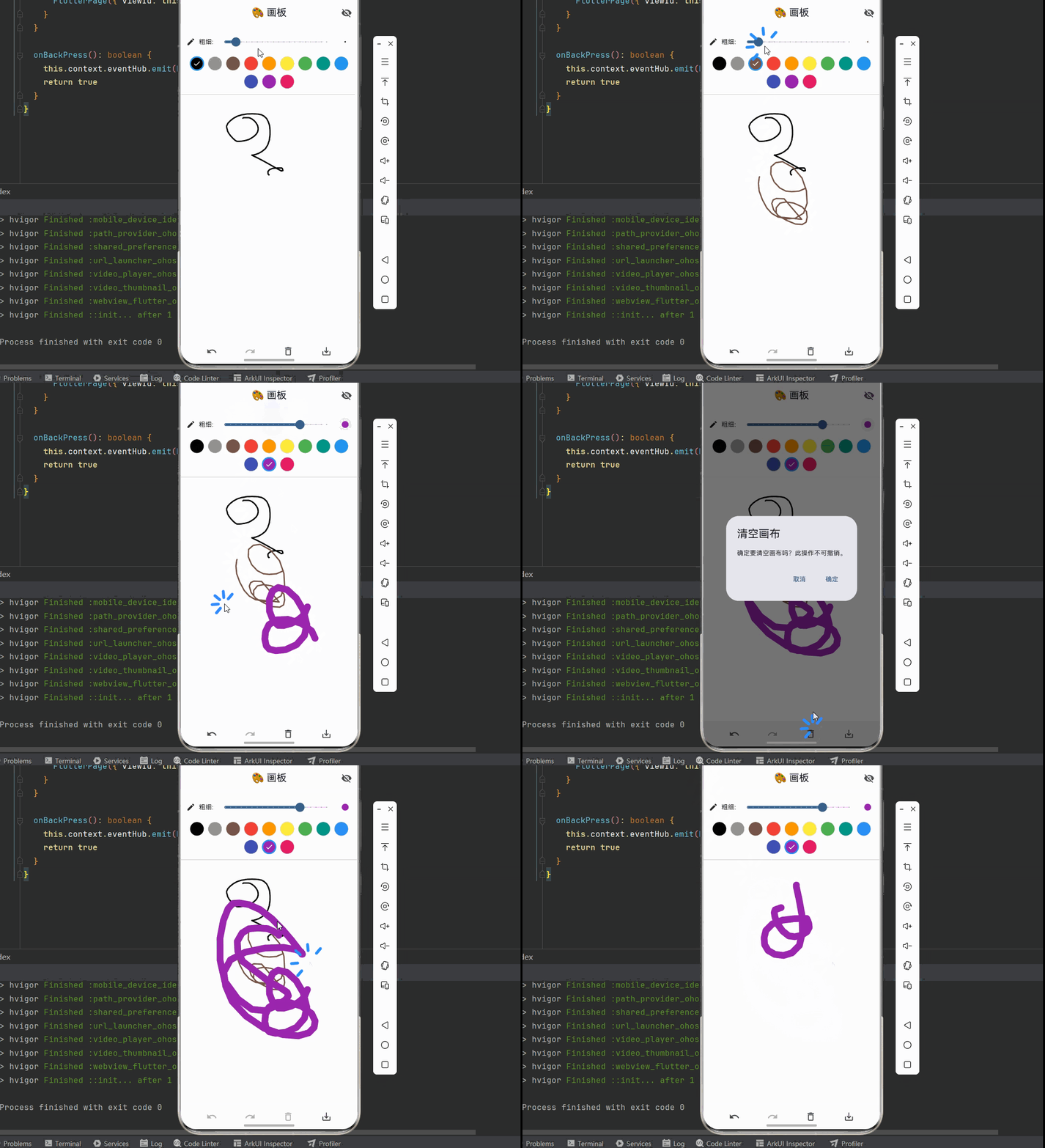
下面是一个完整的画板应用示例:
import 'dart:ui' as ui;
import 'package:flutter/material.dart';
import 'package:flutter/rendering.dart';
import 'dart:typed_data';
void main() {
runApp(const DrawingApp());
}
class DrawingApp extends StatelessWidget {
const DrawingApp({super.key});
Widget build(BuildContext context) {
return MaterialApp(
title: '画板应用',
debugShowCheckedModeBanner: false,
theme: ThemeData(
colorScheme: ColorScheme.fromSeed(seedColor: Colors.blue),
useMaterial3: true,
),
home: const DrawingPage(),
);
}
}
class DrawPoint {
final Offset position;
final DateTime timestamp;
const DrawPoint({
required this.position,
required this.timestamp,
});
}
class Stroke {
final List<DrawPoint> points;
final Color color;
final double strokeWidth;
const Stroke({
required this.points,
required this.color,
required this.strokeWidth,
});
}
class DrawingPainter extends CustomPainter {
final List<Stroke> strokes;
final Stroke? currentStroke;
DrawingPainter({
required this.strokes,
this.currentStroke,
});
void paint(Canvas canvas, Size size) {
final backgroundPaint = Paint()..color = Colors.white;
canvas.drawRect(Rect.fromLTWH(0, 0, size.width, size.height), backgroundPaint);
for (final stroke in strokes) {
_drawStroke(canvas, stroke);
}
if (currentStroke != null) {
_drawStroke(canvas, currentStroke!);
}
}
void _drawStroke(Canvas canvas, Stroke stroke) {
if (stroke.points.isEmpty) return;
final paint = Paint()
..color = stroke.color
..strokeWidth = stroke.strokeWidth
..strokeCap = StrokeCap.round
..strokeJoin = StrokeJoin.round
..style = PaintingStyle.stroke;
final path = Path();
path.moveTo(stroke.points.first.position.dx, stroke.points.first.position.dy);
for (int i = 1; i < stroke.points.length; i++) {
final point = stroke.points[i];
path.lineTo(point.position.dx, point.position.dy);
}
canvas.drawPath(path, paint);
}
bool shouldRepaint(DrawingPainter oldDelegate) {
return oldDelegate.strokes.length != strokes.length ||
oldDelegate.currentStroke != currentStroke;
}
}
const List<Color> presetColors = [
Colors.black,
Colors.grey,
Colors.brown,
Colors.red,
Colors.orange,
Colors.yellow,
Colors.green,
Colors.teal,
Colors.blue,
Colors.indigo,
Colors.purple,
Colors.pink,
];
class DrawingPage extends StatefulWidget {
const DrawingPage({super.key});
State<DrawingPage> createState() => _DrawingPageState();
}
class _DrawingPageState extends State<DrawingPage> {
final List<Stroke> _strokes = [];
final List<Stroke> _redoStack = [];
Stroke? _currentStroke;
final GlobalKey _repaintBoundaryKey = GlobalKey();
Color _selectedColor = Colors.black;
double _strokeWidth = 3.0;
bool _showSettings = true;
bool get _canUndo => _strokes.isNotEmpty;
bool get _canRedo => _redoStack.isNotEmpty;
void _undo() {
if (_strokes.isNotEmpty) {
setState(() {
_redoStack.add(_strokes.removeLast());
});
}
}
void _redo() {
if (_redoStack.isNotEmpty) {
setState(() {
_strokes.add(_redoStack.removeLast());
});
}
}
void _clear() {
showDialog(
context: context,
builder: (context) => AlertDialog(
title: const Text('清空画布'),
content: const Text('确定要清空画布吗?此操作不可撤销。'),
actions: [
TextButton(
onPressed: () => Navigator.pop(context),
child: const Text('取消'),
),
TextButton(
onPressed: () {
Navigator.pop(context);
setState(() {
_strokes.clear();
_redoStack.clear();
});
},
child: const Text('确定'),
),
],
),
);
}
Future<void> _export() async {
try {
final boundary = _repaintBoundaryKey.currentContext?.findRenderObject()
as RenderRepaintBoundary?;
if (boundary == null) {
_showMessage('导出失败');
return;
}
final image = await boundary.toImage(pixelRatio: 3.0);
final byteData = await image.toByteData(format: ui.ImageByteFormat.png);
if (byteData == null) {
_showMessage('导出失败');
return;
}
_showMessage('图片已生成 (${byteData.lengthInBytes} bytes)');
} catch (e) {
_showMessage('导出失败: $e');
}
}
void _showMessage(String message) {
ScaffoldMessenger.of(context).showSnackBar(
SnackBar(content: Text(message)),
);
}
Widget build(BuildContext context) {
return Scaffold(
appBar: AppBar(
title: const Text('🎨 画板'),
centerTitle: true,
actions: [
IconButton(
onPressed: () => setState(() => _showSettings = !_showSettings),
icon: Icon(_showSettings ? Icons.visibility_off : Icons.visibility),
tooltip: _showSettings ? '隐藏工具栏' : '显示工具栏',
),
],
),
body: Column(
children: [
if (_showSettings) ...[
Container(
padding: const EdgeInsets.all(12),
decoration: BoxDecoration(
color: Colors.grey.shade50,
border: Border(bottom: BorderSide(color: Colors.grey.shade300)),
),
child: Column(
children: [
Row(
children: [
const Icon(Icons.edit, size: 20),
const SizedBox(width: 8),
const Text('粗细:'),
Expanded(
child: Slider(
value: _strokeWidth,
min: 1,
max: 20,
divisions: 19,
label: _strokeWidth.round().toString(),
onChanged: (value) => setState(() => _strokeWidth = value),
),
),
Container(
width: 30,
height: 30,
decoration: BoxDecoration(
color: Colors.grey.shade200,
shape: BoxShape.circle,
),
child: Center(
child: Container(
width: _strokeWidth,
height: _strokeWidth,
decoration: BoxDecoration(
color: _selectedColor,
shape: BoxShape.circle,
),
),
),
),
],
),
const SizedBox(height: 8),
Wrap(
spacing: 8,
runSpacing: 8,
alignment: WrapAlignment.center,
children: presetColors.map((color) {
final isSelected = color == _selectedColor;
return GestureDetector(
onTap: () => setState(() => _selectedColor = color),
child: Container(
width: 32,
height: 32,
decoration: BoxDecoration(
color: color,
shape: BoxShape.circle,
border: Border.all(
color: isSelected ? Colors.blue : Colors.grey.shade300,
width: isSelected ? 3 : 1,
),
),
child: isSelected
? Icon(
Icons.check,
color: color.computeLuminance() > 0.5
? Colors.black
: Colors.white,
size: 18,
)
: null,
),
);
}).toList(),
),
],
),
),
],
Expanded(
child: RepaintBoundary(
key: _repaintBoundaryKey,
child: GestureDetector(
onPanStart: (details) {
setState(() {
_currentStroke = Stroke(
points: [
DrawPoint(
position: details.localPosition,
timestamp: DateTime.now(),
),
],
color: _selectedColor,
strokeWidth: _strokeWidth,
);
});
},
onPanUpdate: (details) {
if (_currentStroke != null) {
setState(() {
_currentStroke = Stroke(
points: [
..._currentStroke!.points,
DrawPoint(
position: details.localPosition,
timestamp: DateTime.now(),
),
],
color: _currentStroke!.color,
strokeWidth: _currentStroke!.strokeWidth,
);
});
}
},
onPanEnd: (details) {
if (_currentStroke != null) {
setState(() {
_strokes.add(_currentStroke!);
_currentStroke = null;
_redoStack.clear();
});
}
},
child: Container(
color: Colors.white,
child: CustomPaint(
painter: DrawingPainter(
strokes: _strokes,
currentStroke: _currentStroke,
),
size: Size.infinite,
),
),
),
),
),
Container(
padding: const EdgeInsets.symmetric(horizontal: 8, vertical: 4),
decoration: BoxDecoration(
color: Colors.grey.shade100,
border: Border(top: BorderSide(color: Colors.grey.shade300)),
),
child: Row(
mainAxisAlignment: MainAxisAlignment.spaceEvenly,
children: [
IconButton(
onPressed: _canUndo ? _undo : null,
icon: const Icon(Icons.undo),
tooltip: '撤销',
),
IconButton(
onPressed: _canRedo ? _redo : null,
icon: const Icon(Icons.redo),
tooltip: '重做',
),
IconButton(
onPressed: _strokes.isNotEmpty ? _clear : null,
icon: const Icon(Icons.delete_outline),
tooltip: '清空',
),
IconButton(
onPressed: _export,
icon: const Icon(Icons.save_alt),
tooltip: '保存',
),
],
),
),
],
),
);
}
}
五、进阶绘图技巧
🌟 5.1 平滑曲线绘制
使用贝塞尔曲线让线条更加平滑:
void _drawSmoothStroke(Canvas canvas, Stroke stroke) {
  if (stroke.points.length < 2) return;

  final paint = Paint()
    ..color = stroke.color
    ..strokeWidth = stroke.strokeWidth
    ..strokeCap = StrokeCap.round
    ..strokeJoin = StrokeJoin.round
    ..style = PaintingStyle.stroke;

  final path = Path();
  path.moveTo(stroke.points.first.position.dx, stroke.points.first.position.dy);

  for (int i = 1; i < stroke.points.length - 1; i++) {
    final p0 = stroke.points[i - 1].position;
    final p1 = stroke.points[i].position;
    final p2 = stroke.points[i + 1].position;

    final midPoint1 = Offset((p0.dx + p1.dx) / 2, (p0.dy + p1.dy) / 2);
    final midPoint2 = Offset((p1.dx + p2.dx) / 2, (p1.dy + p2.dy) / 2);

    path.quadraticBezierTo(p1.dx, p1.dy, midPoint2.dx, midPoint2.dy);
  }

  if (stroke.points.length > 1) {
    final lastPoint = stroke.points.last.position;
    path.lineTo(lastPoint.dx, lastPoint.dy);
  }

  canvas.drawPath(path, paint);
}
🎭 5.2 绘制形状工具
添加矩形、圆形等形状绘制:
enum DrawingTool {
pen,
line,
rectangle,
circle,
eraser,
}
class ShapePainter extends CustomPainter {
final List<Stroke> strokes;
final DrawingTool currentTool;
final Offset? startPoint;
final Offset? currentPoint;
final Color currentColor;
final double strokeWidth;
ShapePainter({
required this.strokes,
required this.currentTool,
this.startPoint,
this.currentPoint,
required this.currentColor,
required this.strokeWidth,
});
void paint(Canvas canvas, Size size) {
// 绘制背景
canvas.drawRect(
Rect.fromLTWH(0, 0, size.width, size.height),
Paint()..color = Colors.white,
);
// 绘制已保存的笔画
for (final stroke in strokes) {
_drawStroke(canvas, stroke);
}
// 绘制当前形状预览
if (startPoint != null && currentPoint != null) {
_drawShapePreview(canvas);
}
}
void _drawShapePreview(Canvas canvas) {
final paint = Paint()
..color = currentColor
..strokeWidth = strokeWidth
..style = PaintingStyle.stroke;
switch (currentTool) {
case DrawingTool.line:
canvas.drawLine(startPoint!, currentPoint!, paint);
break;
case DrawingTool.rectangle:
final rect = Rect.fromPoints(startPoint!, currentPoint!);
canvas.drawRect(rect, paint);
break;
case DrawingTool.circle:
final center = Offset(
(startPoint!.dx + currentPoint!.dx) / 2,
(startPoint!.dy + currentPoint!.dy) / 2,
);
final radius = (startPoint! - currentPoint!).distance / 2;
canvas.drawCircle(center, radius, paint);
break;
default:
break;
}
}
void _drawStroke(Canvas canvas, Stroke stroke) {
// ... 笔画绘制逻辑
}
bool shouldRepaint(ShapePainter oldDelegate) {
return true;
}
}
📊 5.3 绘制数据图表
使用 CustomPainter 绘制简单图表:
class ChartData {
final String label;
final double value;
final Color color;
const ChartData({
required this.label,
required this.value,
required this.color,
});
}
class BarChartPainter extends CustomPainter {
final List<ChartData> data;
final double maxValue;
BarChartPainter({
required this.data,
required this.maxValue,
});
void paint(Canvas canvas, Size size) {
if (data.isEmpty) return;
final barWidth = size.width / data.length;
final chartHeight = size.height - 40;
// 绘制网格线
final gridPaint = Paint()
..color = Colors.grey.shade300
..strokeWidth = 1;
for (int i = 0; i <= 5; i++) {
final y = chartHeight * i / 5;
canvas.drawLine(Offset(0, y), Offset(size.width, y), gridPaint);
}
// 绘制柱状图
for (int i = 0; i < data.length; i++) {
final item = data[i];
final barHeight = (item.value / maxValue) * chartHeight;
final left = i * barWidth + barWidth * 0.1;
final top = chartHeight - barHeight;
final right = (i + 1) * barWidth - barWidth * 0.1;
final rect = Rect.fromLTWH(left, top, right - left, barHeight);
final paint = Paint()..color = item.color;
canvas.drawRRect(
RRect.fromRectAndRadius(rect, const Radius.circular(4)),
paint,
);
// 绘制标签
final textPainter = TextPainter(
text: TextSpan(
text: item.label,
style: const TextStyle(color: Colors.black87, fontSize: 12),
),
textDirection: TextDirection.ltr,
)..layout();
textPainter.paint(
canvas,
Offset(left + (right - left - textPainter.width) / 2, chartHeight + 8),
);
}
}
bool shouldRepaint(BarChartPainter oldDelegate) {
return oldDelegate.data != data;
}
}
六、最佳实践与注意事项
✅ 6.1 性能优化建议
-
正确实现 shouldRepaint:只在数据真正变化时返回
true,避免不必要的重绘。 -
使用 RepaintBoundary:将 CustomPaint 包裹在 RepaintBoundary 中,可以隔离重绘范围。
-
避免在 paint 方法中创建对象:Paint、Path 等对象应该在构造函数或 initState 中创建,而不是在 paint 方法中。
-
使用 Isolate 处理复杂计算:如果绘图涉及大量计算,考虑使用 Isolate 在后台线程处理。
⚠️ 6.2 常见问题与解决方案
| 问题 | 原因 | 解决方案 |
|---|---|---|
| 绘制卡顿 | shouldRepaint 始终返回 true | 根据实际变化判断是否需要重绘 |
| 线条锯齿 | 未开启抗锯齿 | 设置 Paint 的 isAntiAlias 为 true |
| 内存泄漏 | 未释放资源 | 在 dispose 中释放大对象 |
| 导出图片模糊 | pixelRatio 太低 | 使用较高的 pixelRatio(如 3.0) |
| 手势冲突 | 多个手势识别器重叠 | 使用 GestureRecognizer 处理优先级 |
📝 6.3 代码规范建议
-
分离绘制逻辑:将复杂的绘制逻辑拆分成多个方法,提高可读性。
-
使用常量:对于固定的颜色、尺寸等,使用常量定义。
-
添加注释:复杂的绘制逻辑应该添加注释说明。
-
错误处理:对可能的异常情况进行处理,如空数据、越界等。
七、总结
本文详细介绍了 Flutter 中 CustomPainter 组件的使用方法,从基础概念到高级技巧,帮助你掌握自定义绘图的核心能力。
核心要点回顾:
📌 CustomPainter 基础:理解 Canvas、Paint、Path 的概念和用法
📌 手势处理:使用 GestureDetector 捕获用户绘制手势
📌 状态管理:管理笔画数据、撤销重做等状态
📌 性能优化:正确实现 shouldRepaint,使用 RepaintBoundary
📌 进阶技巧:平滑曲线、形状绘制、图表绘制等
通过本文的学习,你应该能够独立开发一个功能完善的画板应用,并能够将 CustomPainter 应用到更多场景中。
八、参考资料

开源鸿蒙跨平台开发社区汇聚开发者与厂商,共建“一次开发,多端部署”的开源生态,致力于降低跨端开发门槛,推动万物智联创新。
更多推荐



 21
21 0
0- 0


 已为社区贡献35条内容

所有评论(0)