进阶实战 Flutter for OpenHarmony:syncfusion_flutter_charts 第三方库实战 - 企业级图表系统
在现代移动应用开发中,数据可视化是展示业务数据的重要手段。是 Syncfusion 公司推出的专业级 Flutter 图表库,提供了丰富的图表类型和强大的交互功能。该插件支持创建实时、交互式、高性能的动画图表,广泛应用于数据分析、报表展示、仪表盘等场景。特性说明📈 丰富图表类型支持折线图、柱状图、饼图、面积图、散点图、雷达图等 30+ 种🎨 高度可定制支持自定义颜色、样式、标签、图例等⚡ 高性
欢迎加入开源鸿蒙跨平台社区:https://openharmonycrossplatform.csdn.net
🎯 一、组件概述与应用场景
📋 1.1 syncfusion_flutter_charts 简介
在现代移动应用开发中,数据可视化是展示业务数据的重要手段。syncfusion_flutter_charts 是 Syncfusion 公司推出的专业级 Flutter 图表库,提供了丰富的图表类型和强大的交互功能。该插件支持创建实时、交互式、高性能的动画图表,广泛应用于数据分析、报表展示、仪表盘等场景。
核心特性:
| 特性 | 说明 |
|---|---|
| 📈 丰富图表类型 | 支持折线图、柱状图、饼图、面积图、散点图、雷达图等 30+ 种 |
| 🎨 高度可定制 | 支持自定义颜色、样式、标签、图例等 |
| ⚡ 高性能渲染 | 支持大数据量图表渲染,流畅不卡顿 |
| 🔄 实时更新 | 支持动态数据更新和实时图表刷新 |
| 👆 交互功能 | 支持缩放、平移、选择、工具提示等交互 |
| 🎬 动画效果 | 内置多种动画效果,提升用户体验 |
| 🌐 跨平台支持 | 支持 Android、iOS、Web、OpenHarmony 等多平台 |
💡 1.2 实际应用场景
数据分析仪表盘:展示销售数据、用户增长、财务报表等关键指标。
股票金融应用:实时展示股票走势、K线图、交易量等金融数据。
健康运动应用:展示步数统计、心率变化、卡路里消耗等健康数据。
天气预报应用:展示温度变化、降水量、空气质量等气象数据。
电商后台管理:展示订单趋势、商品销量、用户活跃度等运营数据。
🏗️ 1.3 系统架构设计
┌─────────────────────────────────────────────────────────┐
│                    UI 展示层                             │
│  ┌─────────────┐  ┌─────────────┐  ┌─────────────┐     │
│  │ 折线图页面   │  │ 柱状图页面   │  │ 饼图页面    │     │
│  └─────────────┘  └─────────────┘  └─────────────┘     │
└─────────────────────────────────────────────────────────┘
                          │
                          ▼
┌─────────────────────────────────────────────────────────┐
│                    图表组件层                            │
│  ┌─────────────────────────────────────────────────┐   │
│  │          SfCartesianChart / SfCircularChart     │   │
│  │  • LineSeries  • ColumnSeries  • PieSeries     │   │
│  └─────────────────────────────────────────────────┘   │
└─────────────────────────────────────────────────────────┘
                          │
                          ▼
┌─────────────────────────────────────────────────────────┐
│                    数据模型层                            │
│  ┌─────────────┐  ┌─────────────┐  ┌─────────────┐     │
│  │ SalesData   │  │ ChartData   │  │ TimeSeries  │     │
│  └─────────────┘  └─────────────┘  └─────────────┘     │
└─────────────────────────────────────────────────────────┘
📦 二、项目配置与依赖安装
🔧 2.1 添加依赖配置
打开项目根目录下的 pubspec.yaml 文件,添加以下配置:
dependencies:
  syncfusion_flutter_charts:
    git:
      url: https://atomgit.com/openharmony-sig/fluttertpc_syncfusion_flutter_charts.git
      path: packages/syncfusion_flutter_charts
      ref: br_syncfusion_flutter_charts-v29.1.33_ohos
配置说明:
syncfusion_flutter_charts使用 OpenHarmony 适配版本- 使用 git 方式引用开源鸿蒙适配的仓库
path指定包路径为packages/syncfusion_flutter_chartsref指定分支为br_syncfusion_flutter_charts-v29.1.33_ohos
📥 2.2 下载依赖
配置完成后,在项目根目录执行以下命令:
flutter pub get
🔐 2.3 权限配置
syncfusion_flutter_charts 是纯 Dart 实现的 UI 组件库,不需要配置任何平台权限。这使得它非常适合在模拟器上进行开发和测试。
📱 2.4 支持的图表类型
| 图表类型 | 组件名称 | 说明 |
|---|---|---|
| 折线图 | LineSeries | 展示数据趋势变化 |
| 柱状图 | ColumnSeries | 展示数据对比 |
| 面积图 | AreaSeries | 展示数据累积变化 |
| 饼图 | PieSeries | 展示数据占比 |
| 环形图 | DoughnutSeries | 展示数据占比 |
| 散点图 | ScatterSeries | 展示数据分布 |
| 气泡图 | BubbleSeries | 展示三维数据 |
| 雷达图 | RadarSeries | 展示多维度数据 |
| K线图 | CandleSeries | 展示股票行情 |
| 迷你图 | SfSparkLineChart | 展示小型趋势图 |
🔧 三、核心功能详解
🎯 3.1 创建基础折线图
import 'package:syncfusion_flutter_charts/charts.dart';

SfCartesianChart(
  primaryXAxis: CategoryAxis(),
  title: ChartTitle(text: '月度销售分析'),
  legend: Legend(isVisible: true),
  tooltipBehavior: TooltipBehavior(enable: true),
  series: <CartesianSeries<SalesData, String>>[
    LineSeries<SalesData, String>(
      dataSource: salesData,
      xValueMapper: (SalesData data, _) => data.month,
      yValueMapper: (SalesData data, _) => data.sales,
      name: '销售额',
      dataLabelSettings: DataLabelSettings(isVisible: true),
    ),
  ],
)
📊 3.2 创建柱状图
SfCartesianChart(
  primaryXAxis: CategoryAxis(),
  series: <CartesianSeries<SalesData, String>>[
    ColumnSeries<SalesData, String>(
      dataSource: salesData,
      xValueMapper: (SalesData data, _) => data.month,
      yValueMapper: (SalesData data, _) => data.sales,
      color: Colors.blue,
      borderRadius: BorderRadius.circular(4),
    ),
  ],
)
🥧 3.3 创建饼图
SfCircularChart(
  title: ChartTitle(text: '市场份额'),
  legend: Legend(isVisible: true),
  series: <CircularSeries<ChartData, String>>[
    PieSeries<ChartData, String>(
      dataSource: chartData,
      xValueMapper: (ChartData data, _) => data.category,
      yValueMapper: (ChartData data, _) => data.value,
      dataLabelSettings: DataLabelSettings(isVisible: true),
      explode: true,
      explodeIndex: 0,
    ),
  ],
)
📈 3.4 创建面积图
SfCartesianChart(
  primaryXAxis: DateTimeAxis(),
  series: <CartesianSeries<TimeSeriesData, DateTime>>[
    AreaSeries<TimeSeriesData, DateTime>(
      dataSource: timeData,
      xValueMapper: (TimeSeriesData data, _) => data.time,
      yValueMapper: (TimeSeriesData data, _) => data.value,
      gradient: LinearGradient(
        colors: [Colors.blue.withOpacity(0.8), Colors.blue.withOpacity(0.2)],
      ),
    ),
  ],
)
⚙️ 3.5 常用配置说明
| 配置项 | 说明 |
|---|---|
| primaryXAxis | X 轴配置 |
| primaryYAxis | Y 轴配置 |
| title | 图表标题 |
| legend | 图例配置 |
| tooltipBehavior | 工具提示行为 |
| zoomPanBehavior | 缩放平移行为 |
| onDataLabelRender | 数据标签渲染回调 |
| onTooltipRender | 工具提示渲染回调 |
📝 四、完整示例代码
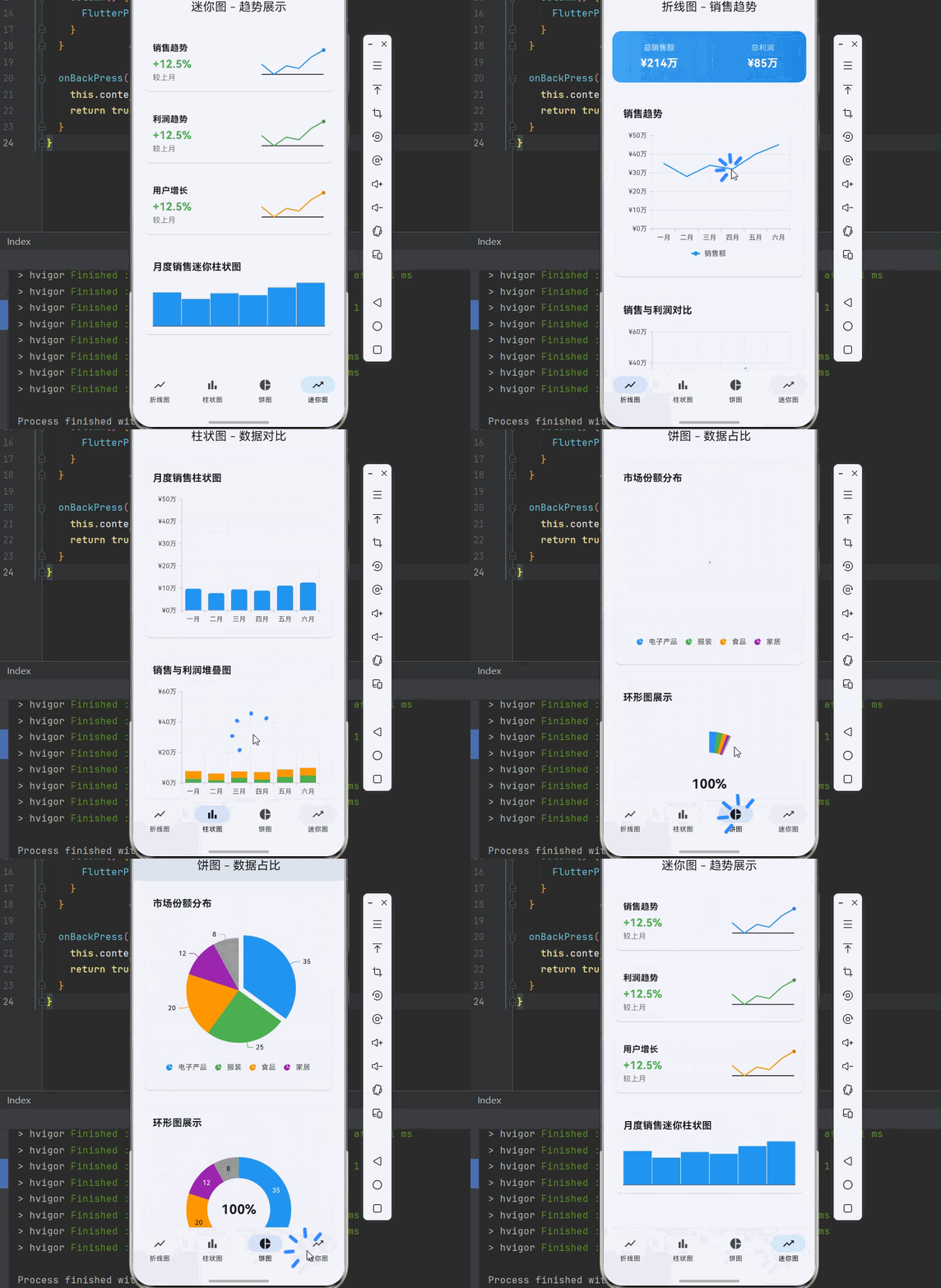
下面是一个完整的企业级图表系统示例:
import 'package:flutter/material.dart';
import 'package:syncfusion_flutter_charts/charts.dart';
import 'package:syncfusion_flutter_charts/sparkcharts.dart';
void main() {
runApp(const ChartApp());
}
class ChartApp extends StatelessWidget {
const ChartApp({super.key});
Widget build(BuildContext context) {
return MaterialApp(
title: '企业级图表系统',
debugShowCheckedModeBanner: false,
theme: ThemeData(
colorScheme: ColorScheme.fromSeed(seedColor: Colors.blue),
useMaterial3: true,
),
home: const MainPage(),
);
}
}
class MainPage extends StatefulWidget {
const MainPage({super.key});
State<MainPage> createState() => _MainPageState();
}
class _MainPageState extends State<MainPage> {
int _currentIndex = 0;
final List<Widget> _pages = [
const LineChartPage(),
const ColumnChartPage(),
const PieChartPage(),
const SparkChartPage(),
];
Widget build(BuildContext context) {
return Scaffold(
body: _pages[_currentIndex],
bottomNavigationBar: NavigationBar(
selectedIndex: _currentIndex,
onDestinationSelected: (index) {
setState(() => _currentIndex = index);
},
destinations: const [
NavigationDestination(icon: Icon(Icons.show_chart), label: '折线图'),
NavigationDestination(icon: Icon(Icons.bar_chart), label: '柱状图'),
NavigationDestination(icon: Icon(Icons.pie_chart), label: '饼图'),
NavigationDestination(icon: Icon(Icons.trending_up), label: '迷你图'),
],
),
);
}
}
// ============ 数据模型 ============
class SalesData {
final String month;
final double sales;
final double profit;
SalesData(this.month, this.sales, this.profit);
}
class ChartData {
final String category;
final double value;
final Color color;
ChartData(this.category, this.value, this.color);
}
// ============ 折线图页面 ============
class LineChartPage extends StatefulWidget {
const LineChartPage({super.key});
State<LineChartPage> createState() => _LineChartPageState();
}
class _LineChartPageState extends State<LineChartPage> {
late List<SalesData> _salesData;
late TooltipBehavior _tooltipBehavior;
void initState() {
super.initState();
_salesData = [
SalesData('一月', 35, 12),
SalesData('二月', 28, 8),
SalesData('三月', 34, 15),
SalesData('四月', 32, 10),
SalesData('五月', 40, 18),
SalesData('六月', 45, 22),
];
_tooltipBehavior = TooltipBehavior(enable: true);
}
Widget build(BuildContext context) {
return Scaffold(
appBar: AppBar(
title: const Text('折线图 - 销售趋势'),
centerTitle: true,
),
body: SingleChildScrollView(
padding: const EdgeInsets.all(16),
child: Column(
children: [
_buildSummaryCard(),
const SizedBox(height: 24),
_buildLineChart(),
const SizedBox(height: 24),
_buildMultiLineChart(),
],
),
),
);
}
Widget _buildSummaryCard() {
final totalSales = _salesData.fold<double>(0, (sum, item) => sum + item.sales);
final totalProfit = _salesData.fold<double>(0, (sum, item) => sum + item.profit);
return Container(
padding: const EdgeInsets.all(20),
decoration: BoxDecoration(
gradient: LinearGradient(
colors: [Colors.blue.shade400, Colors.blue.shade600],
),
borderRadius: BorderRadius.circular(16),
),
child: Row(
mainAxisAlignment: MainAxisAlignment.spaceAround,
children: [
_buildStatItem('总销售额', '¥${totalSales.toStringAsFixed(0)}万'),
Container(width: 1, height: 40, color: Colors.white30),
_buildStatItem('总利润', '¥${totalProfit.toStringAsFixed(0)}万'),
],
),
);
}
Widget _buildStatItem(String label, String value) {
return Column(
children: [
Text(label, style: const TextStyle(color: Colors.white70)),
const SizedBox(height: 4),
Text(value, style: const TextStyle(color: Colors.white, fontSize: 20, fontWeight: FontWeight.bold)),
],
);
}
Widget _buildLineChart() {
return Card(
child: Padding(
padding: const EdgeInsets.all(16),
child: Column(
crossAxisAlignment: CrossAxisAlignment.start,
children: [
const Text('销售趋势', style: TextStyle(fontSize: 18, fontWeight: FontWeight.bold)),
const SizedBox(height: 16),
SizedBox(
height: 250,
child: SfCartesianChart(
primaryXAxis: CategoryAxis(
majorGridLines: const MajorGridLines(width: 0),
),
primaryYAxis: NumericAxis(
labelFormat: '¥{value}万',
axisLine: const AxisLine(width: 0),
),
tooltipBehavior: _tooltipBehavior,
legend: Legend(isVisible: true, position: LegendPosition.bottom),
series: <CartesianSeries<SalesData, String>>[
LineSeries<SalesData, String>(
dataSource: _salesData,
xValueMapper: (SalesData data, _) => data.month,
yValueMapper: (SalesData data, _) => data.sales,
name: '销售额',
color: Colors.blue,
markerSettings: const MarkerSettings(isVisible: true),
dataLabelSettings: const DataLabelSettings(isVisible: true),
),
],
),
),
],
),
),
);
}
Widget _buildMultiLineChart() {
return Card(
child: Padding(
padding: const EdgeInsets.all(16),
child: Column(
crossAxisAlignment: CrossAxisAlignment.start,
children: [
const Text('销售与利润对比', style: TextStyle(fontSize: 18, fontWeight: FontWeight.bold)),
const SizedBox(height: 16),
SizedBox(
height: 250,
child: SfCartesianChart(
primaryXAxis: CategoryAxis(),
primaryYAxis: NumericAxis(labelFormat: '¥{value}万'),
tooltipBehavior: _tooltipBehavior,
legend: Legend(isVisible: true, position: LegendPosition.bottom),
series: <CartesianSeries<SalesData, String>>[
LineSeries<SalesData, String>(
dataSource: _salesData,
xValueMapper: (SalesData data, _) => data.month,
yValueMapper: (SalesData data, _) => data.sales,
name: '销售额',
color: Colors.blue,
markerSettings: const MarkerSettings(isVisible: true),
),
LineSeries<SalesData, String>(
dataSource: _salesData,
xValueMapper: (SalesData data, _) => data.month,
yValueMapper: (SalesData data, _) => data.profit,
name: '利润',
color: Colors.green,
markerSettings: const MarkerSettings(isVisible: true),
),
],
),
),
],
),
),
);
}
}
// ============ 柱状图页面 ============
class ColumnChartPage extends StatefulWidget {
const ColumnChartPage({super.key});
State<ColumnChartPage> createState() => _ColumnChartPageState();
}
class _ColumnChartPageState extends State<ColumnChartPage> {
late List<SalesData> _salesData;
late TooltipBehavior _tooltipBehavior;
void initState() {
super.initState();
_salesData = [
SalesData('一月', 35, 12),
SalesData('二月', 28, 8),
SalesData('三月', 34, 15),
SalesData('四月', 32, 10),
SalesData('五月', 40, 18),
SalesData('六月', 45, 22),
];
_tooltipBehavior = TooltipBehavior(enable: true);
}
Widget build(BuildContext context) {
return Scaffold(
appBar: AppBar(
title: const Text('柱状图 - 数据对比'),
centerTitle: true,
),
body: SingleChildScrollView(
padding: const EdgeInsets.all(16),
child: Column(
children: [
_buildColumnChart(),
const SizedBox(height: 24),
_buildStackedColumnChart(),
],
),
),
);
}
Widget _buildColumnChart() {
return Card(
child: Padding(
padding: const EdgeInsets.all(16),
child: Column(
crossAxisAlignment: CrossAxisAlignment.start,
children: [
const Text('月度销售柱状图', style: TextStyle(fontSize: 18, fontWeight: FontWeight.bold)),
const SizedBox(height: 16),
SizedBox(
height: 250,
child: SfCartesianChart(
primaryXAxis: CategoryAxis(),
primaryYAxis: NumericAxis(labelFormat: '¥{value}万'),
tooltipBehavior: _tooltipBehavior,
series: <CartesianSeries<SalesData, String>>[
ColumnSeries<SalesData, String>(
dataSource: _salesData,
xValueMapper: (SalesData data, _) => data.month,
yValueMapper: (SalesData data, _) => data.sales,
color: Colors.blue,
borderRadius: const BorderRadius.only(
topLeft: Radius.circular(4),
topRight: Radius.circular(4),
),
dataLabelSettings: const DataLabelSettings(isVisible: true),
),
],
),
),
],
),
),
);
}
Widget _buildStackedColumnChart() {
return Card(
child: Padding(
padding: const EdgeInsets.all(16),
child: Column(
crossAxisAlignment: CrossAxisAlignment.start,
children: [
const Text('销售与利润堆叠图', style: TextStyle(fontSize: 18, fontWeight: FontWeight.bold)),
const SizedBox(height: 16),
SizedBox(
height: 250,
child: SfCartesianChart(
primaryXAxis: CategoryAxis(),
primaryYAxis: NumericAxis(labelFormat: '¥{value}万'),
tooltipBehavior: _tooltipBehavior,
legend: Legend(isVisible: true, position: LegendPosition.bottom),
series: <CartesianSeries<SalesData, String>>[
StackedColumnSeries<SalesData, String>(
dataSource: _salesData,
xValueMapper: (SalesData data, _) => data.month,
yValueMapper: (SalesData data, _) => data.profit,
name: '利润',
color: Colors.green,
),
StackedColumnSeries<SalesData, String>(
dataSource: _salesData,
xValueMapper: (SalesData data, _) => data.month,
yValueMapper: (SalesData data, _) => data.sales - data.profit,
name: '成本',
color: Colors.orange,
),
],
),
),
],
),
),
);
}
}
// ============ 饼图页面 ============
class PieChartPage extends StatefulWidget {
const PieChartPage({super.key});
State<PieChartPage> createState() => _PieChartPageState();
}
class _PieChartPageState extends State<PieChartPage> {
late List<ChartData> _chartData;
void initState() {
super.initState();
_chartData = [
ChartData('电子产品', 35, Colors.blue),
ChartData('服装', 25, Colors.green),
ChartData('食品', 20, Colors.orange),
ChartData('家居', 12, Colors.purple),
ChartData('其他', 8, Colors.grey),
];
}
Widget build(BuildContext context) {
return Scaffold(
appBar: AppBar(
title: const Text('饼图 - 数据占比'),
centerTitle: true,
),
body: SingleChildScrollView(
padding: const EdgeInsets.all(16),
child: Column(
children: [
_buildPieChart(),
const SizedBox(height: 24),
_buildDoughnutChart(),
],
),
),
);
}
Widget _buildPieChart() {
return Card(
child: Padding(
padding: const EdgeInsets.all(16),
child: Column(
crossAxisAlignment: CrossAxisAlignment.start,
children: [
const Text('市场份额分布', style: TextStyle(fontSize: 18, fontWeight: FontWeight.bold)),
const SizedBox(height: 16),
SizedBox(
height: 300,
child: SfCircularChart(
legend: Legend(isVisible: true, position: LegendPosition.bottom),
tooltipBehavior: TooltipBehavior(enable: true),
series: <CircularSeries<ChartData, String>>[
PieSeries<ChartData, String>(
dataSource: _chartData,
xValueMapper: (ChartData data, _) => data.category,
yValueMapper: (ChartData data, _) => data.value,
pointColorMapper: (ChartData data, _) => data.color,
dataLabelSettings: const DataLabelSettings(
isVisible: true,
labelPosition: ChartDataLabelPosition.outside,
),
explode: true,
explodeIndex: 0,
),
],
),
),
],
),
),
);
}
Widget _buildDoughnutChart() {
return Card(
child: Padding(
padding: const EdgeInsets.all(16),
child: Column(
crossAxisAlignment: CrossAxisAlignment.start,
children: [
const Text('环形图展示', style: TextStyle(fontSize: 18, fontWeight: FontWeight.bold)),
const SizedBox(height: 16),
SizedBox(
height: 300,
child: SfCircularChart(
legend: Legend(isVisible: true, position: LegendPosition.bottom),
tooltipBehavior: TooltipBehavior(enable: true),
annotations: <CircularChartAnnotation>[
CircularChartAnnotation(
widget: Container(
child: const Text(
'100%',
style: TextStyle(fontSize: 24, fontWeight: FontWeight.bold),
),
),
),
],
series: <CircularSeries<ChartData, String>>[
DoughnutSeries<ChartData, String>(
dataSource: _chartData,
xValueMapper: (ChartData data, _) => data.category,
yValueMapper: (ChartData data, _) => data.value,
pointColorMapper: (ChartData data, _) => data.color,
innerRadius: '60%',
dataLabelSettings: const DataLabelSettings(isVisible: true),
),
],
),
),
],
),
),
);
}
}
// ============ 迷你图页面 ============
class SparkChartPage extends StatelessWidget {
const SparkChartPage({super.key});
List<SalesData> get _salesData => [
SalesData('一月', 35, 12),
SalesData('二月', 28, 8),
SalesData('三月', 34, 15),
SalesData('四月', 32, 10),
SalesData('五月', 40, 18),
SalesData('六月', 45, 22),
];
Widget build(BuildContext context) {
return Scaffold(
appBar: AppBar(
title: const Text('迷你图 - 趋势展示'),
centerTitle: true,
),
body: SingleChildScrollView(
padding: const EdgeInsets.all(16),
child: Column(
children: [
_buildSparkLineCard('销售趋势', Colors.blue),
const SizedBox(height: 16),
_buildSparkLineCard('利润趋势', Colors.green),
const SizedBox(height: 16),
_buildSparkLineCard('用户增长', Colors.orange),
const SizedBox(height: 24),
_buildSparkBarCard(),
],
),
),
);
}
Widget _buildSparkLineCard(String title, Color color) {
return Card(
child: Padding(
padding: const EdgeInsets.all(16),
child: Row(
children: [
Expanded(
child: Column(
crossAxisAlignment: CrossAxisAlignment.start,
children: [
Text(title, style: const TextStyle(fontSize: 16, fontWeight: FontWeight.bold)),
const SizedBox(height: 4),
Text('+12.5%', style: TextStyle(color: Colors.green, fontSize: 20, fontWeight: FontWeight.bold)),
Text('较上月', style: TextStyle(color: Colors.grey.shade600)),
],
),
),
SizedBox(
width: 120,
height: 50,
child: SfSparkLineChart.custom(
xValueMapper: (int index) => _salesData[index].month,
yValueMapper: (int index) => _salesData[index].sales,
dataCount: _salesData.length,
color: color,
marker: const SparkChartMarker(displayMode: SparkChartMarkerDisplayMode.last),
),
),
],
),
),
);
}
Widget _buildSparkBarCard() {
return Card(
child: Padding(
padding: const EdgeInsets.all(16),
child: Column(
crossAxisAlignment: CrossAxisAlignment.start,
children: [
const Text('月度销售迷你柱状图', style: TextStyle(fontSize: 18, fontWeight: FontWeight.bold)),
const SizedBox(height: 16),
SizedBox(
height: 80,
child: SfSparkBarChart.custom(
xValueMapper: (int index) => _salesData[index].month,
yValueMapper: (int index) => _salesData[index].sales,
dataCount: _salesData.length,
color: Colors.blue,
),
),
],
),
),
);
}
}
🏆 五、最佳实践与注意事项
⚠️ 5.1 性能优化
大数据量处理:当数据量较大时,建议使用 SfCartesianChart 的 onRendererCreated 回调进行懒加载。
SfCartesianChart(
  onRendererCreated: (ChartSeriesController controller) {
    // 控制器可用于动态更新数据
  },
)
📊 5.2 图表交互
缩放和平移:通过 ZoomPanBehavior 实现图表的缩放和平移功能。
late ZoomPanBehavior _zoomPanBehavior;
void initState() {
super.initState();
_zoomPanBehavior = ZoomPanBehavior(
enablePinching: true,
enablePanning: true,
zoomMode: ZoomMode.x,
);
}
🎨 5.3 自定义样式
渐变效果:使用 gradient 属性为图表添加渐变效果。
AreaSeries<Data, String>(
  gradient: LinearGradient(
    colors: [Colors.blue, Colors.blue.withOpacity(0.3)],
    begin: Alignment.topCenter,
    end: Alignment.bottomCenter,
  ),
)
📱 5.4 常见问题处理
图表不显示:检查数据源是否为空,确保 xValueMapper 和 yValueMapper 返回正确的值。
标签重叠:调整 axisLabelIntersectAction 属性处理标签重叠问题。
图例位置:通过 Legend 的 position 属性调整图例位置。
📌 六、总结
本文通过一个完整的企业级图表系统案例,深入讲解了 syncfusion_flutter_charts 插件的使用方法与最佳实践:
折线图:掌握趋势数据的可视化展示。
柱状图:学会数据对比和堆叠图的创建。
饼图:实现数据占比的可视化呈现。
迷你图:了解小型趋势图的嵌入使用。
掌握这些技巧,你就能构建出专业级的数据可视化应用,提升用户体验和数据分析能力。
参考资料

开源鸿蒙跨平台开发社区汇聚开发者与厂商,共建“一次开发,多端部署”的开源生态,致力于降低跨端开发门槛,推动万物智联创新。
更多推荐
 28
28 0
0- 0


 已为社区贡献57条内容

所有评论(0)