进阶实战 Flutter for OpenHarmony:palette_generator 第三方库实战 - 图片配色提取
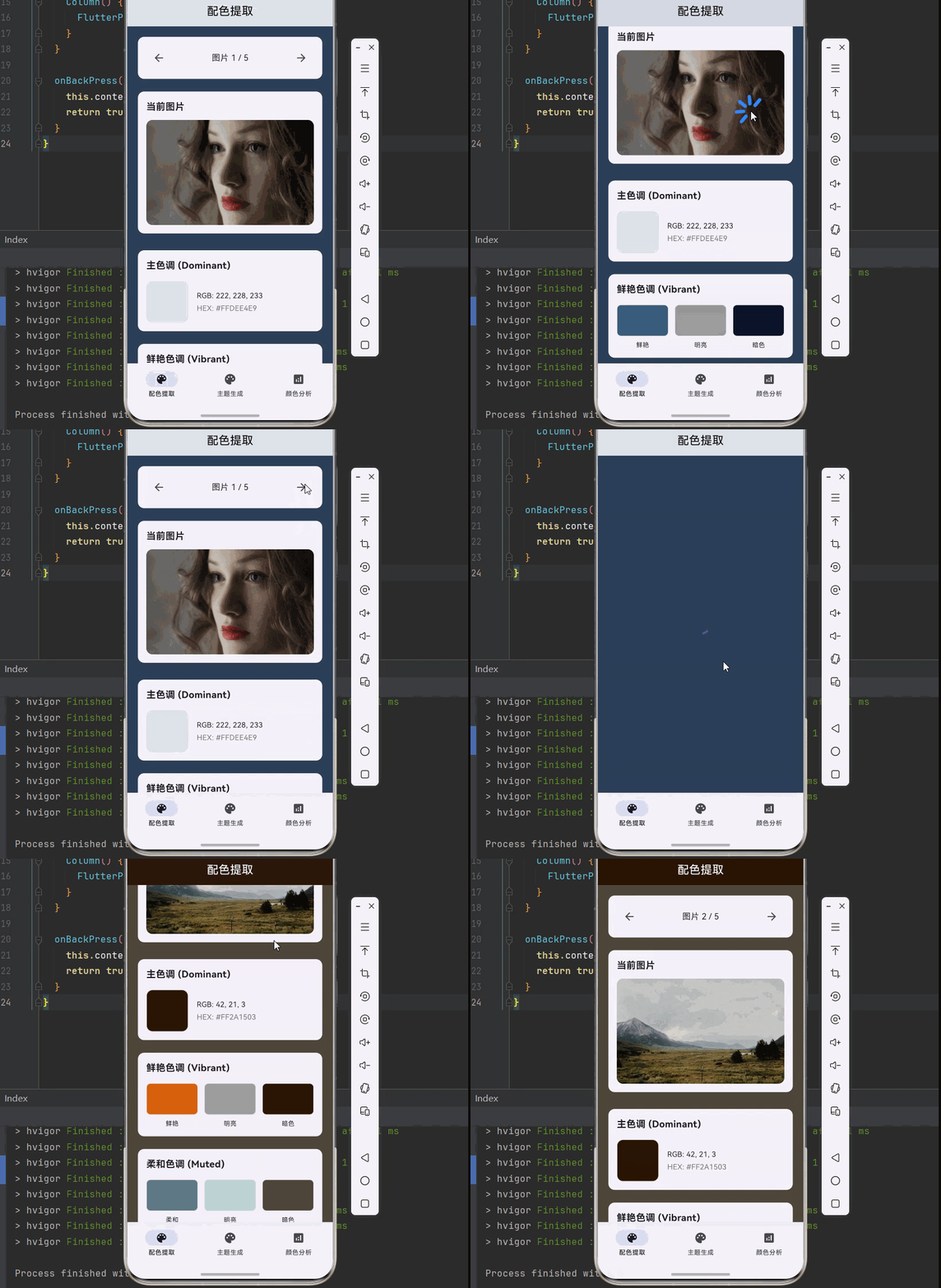
在 Flutter for OpenHarmony 应用开发中,是一个非常实用的工具库,用于从图片中提取突出颜色并生成配色方案。它基于 Android 的 Palette 库实现,可以智能分析图片的颜色分布,提取出最合适的配色组合。特性说明🔍 智能提取自动从图片中提取突出颜色🎨 多种调色板提供多种预定义的调色板类型📱 跨平台支持支持 Android、iOS、Linux、macOS、Windo
欢迎加入开源鸿蒙跨平台社区:https://openharmonycrossplatform.csdn.net
🎯 一、组件概述与应用场景
📋 1.1 palette_generator 简介
在 Flutter for OpenHarmony 应用开发中,palette_generator 是一个非常实用的工具库,用于从图片中提取突出颜色并生成配色方案。它基于 Android 的 Palette 库实现,可以智能分析图片的颜色分布,提取出最合适的配色组合。
核心特性:
| 特性 | 说明 |
|---|---|
| 🔍 智能提取 | 自动从图片中提取突出颜色 |
| 🎨 多种调色板 | 提供多种预定义的调色板类型 |
| 📱 跨平台支持 | 支持 Android、iOS、Linux、macOS、Windows、OpenHarmony |
| ⚡ 高效分析 | 快速分析图片颜色分布 |
| 🌙 主题适配 | 自动适配明暗主题 |
| 🔧 易于使用 | API 简洁,几行代码即可生成配色方案 |
💡 1.2 实际应用场景
音乐播放器:根据专辑封面自动生成播放器界面配色,实现沉浸式体验。
图片浏览器:动态调整界面颜色以匹配当前查看的图片,提升视觉一致性。
电商应用:根据商品图片自动生成详情页配色,增强产品展示效果。
社交应用:根据用户头像或发布的图片动态调整个人主页配色。
新闻资讯:根据文章配图自动生成阅读界面配色,提升阅读体验。
🏗️ 1.3 系统架构设计
┌─────────────────────────────────────────────────────────┐
│                    UI 展示层                             │
│  ┌─────────────┐  ┌─────────────┐  ┌─────────────┐     │
│  │ 图片展示组件 │  │ 调色板展示  │  │ 应用示例组件 │     │
│  └─────────────┘  └─────────────┘  └─────────────┘     │
└─────────────────────────────────────────────────────────┘
                          │
                          ▼
┌─────────────────────────────────────────────────────────┐
│                    业务逻辑层                            │
│  ┌─────────────────────────────────────────────────┐   │
│  │           PaletteService 配色服务                │   │
│  │  • generateFromAsset()  • generateFromNetwork() │   │
│  │  • generateFromFile()    • generateFromColors() │   │
│  └─────────────────────────────────────────────────┘   │
└─────────────────────────────────────────────────────────┘
                          │
                          ▼
┌─────────────────────────────────────────────────────────┐
│                    数据处理层                            │
│  ┌─────────────┐  ┌─────────────┐  ┌─────────────┐     │
│  │ 图片加载器  │  │ 颜色分析器  │  │ 调色板生成器 │     │
│  └─────────────┘  └─────────────┘  └─────────────┘     │
└─────────────────────────────────────────────────────────┘
📦 二、项目配置与依赖安装
🔧 2.1 添加依赖配置
打开项目根目录下的 pubspec.yaml 文件,添加以下配置:
dependencies:
  flutter:
    sdk: flutter

  # palette_generator - 调色板生成插件
  palette_generator:
    git:
      url: "https://atomgit.com/openharmony-tpc/flutter_packages.git"
      path: "packages/palette_generator"

  # http - 网络请求(可选,用于网络图片)
  http: ^1.0.0
配置说明:
- 使用 git 方式引用开源鸿蒙适配的 flutter_packages 仓库
- 本项目基于
palette_generator@0.3.3+3开发 - 适配 Flutter 3.27.5-ohos-1.0.4
⚠️ 重要提示:对于 OpenHarmony 平台,必须使用 git 方式引用适配版本,不能直接使用 pub.dev 的版本号。
📥 2.2 下载依赖
配置完成后,在项目根目录执行以下命令:
flutter pub get
📱 2.3 平台兼容性
| 调色板类型 | 说明 | OpenHarmony 支持 |
|---|---|---|
| dominant | 主色调 | ✅ yes |
| vibrant | 鲜艳色调 | ✅ yes |
| lightVibrant | 明亮鲜艳色调 | ✅ yes |
| darkVibrant | 暗色鲜艳色调 | ✅ yes |
| muted | 柔和色调 | ✅ yes |
| lightMuted | 明亮柔和色调 | ✅ yes |
| darkMuted | 暗色柔和色调 | ✅ yes |
🔧 三、核心功能详解
🎨 3.1 调色板类型说明
Dominant(主色调):图片中最突出的颜色,通常是图片中占比最大的颜色。适合用于页面背景色、导航栏背景色、大面积填充色。
Vibrant(鲜艳色调):图片中饱和度较高的突出颜色。适合用于按钮背景色、强调文本、图标颜色。
Light Vibrant(明亮鲜艳色调):图片中亮度较高的鲜艳颜色。适合用于浅色主题的强调色、浅色背景的按钮。
Dark Vibrant(暗色鲜艳色调):图片中亮度较低的鲜艳颜色。适合用于深色主题的强调色、深色背景的按钮。
Muted(柔和色调):图片中饱和度较低的突出颜色。适合用于卡片背景色、分隔线颜色、辅助背景。
Light Muted(明亮柔和色调):图片中亮度较高的柔和颜色。适合用于浅色卡片背景、浅色分隔线。
Dark Muted(暗色柔和色调):图片中亮度较低的柔和颜色。适合用于深色卡片背景、深色分隔线。
📝 3.2 基础用法
从 Asset 图片生成调色板
Future<PaletteGenerator> generatePaletteFromAsset(String assetPath) async {
  final ByteData data = await rootBundle.load(assetPath);
  final Uint8List bytes = data.buffer.asUint8List();

  final codec = await ui.instantiateImageCodec(bytes);
  final frame = await codec.getNextFrame();
  final ui.Image image = frame.image;

  return await PaletteGenerator.fromImage(image);
}
从网络图片生成调色板
Future<PaletteGenerator> generatePaletteFromNetwork(String imageUrl) async {
  final response = await http.get(Uri.parse(imageUrl));
  final Uint8List bytes = response.bodyBytes;

  final codec = await ui.instantiateImageCodec(bytes);
  final frame = await codec.getNextFrame();
  final ui.Image image = frame.image;

  return await PaletteGenerator.fromImage(image);
}
从本地文件生成调色板
Future<PaletteGenerator> generatePaletteFromFile(String filePath) async {
  final File file = File(filePath);
  final Uint8List bytes = await file.readAsBytes();

  final codec = await ui.instantiateImageCodec(bytes);
  final frame = await codec.getNextFrame();
  final ui.Image image = frame.image;

  return await PaletteGenerator.fromImage(image);
}
🎯 3.3 获取调色板颜色
final PaletteGenerator palette = await PaletteGenerator.fromImage(image);

Color? dominantColor = palette.dominantColor?.color;
Color? vibrantColor = palette.vibrantColor?.color;
Color? lightVibrantColor = palette.lightVibrantColor?.color;
Color? darkVibrantColor = palette.darkVibrantColor?.color;
Color? mutedColor = palette.mutedColor?.color;
Color? lightMutedColor = palette.lightMutedColor?.color;
Color? darkMutedColor = palette.darkMutedColor?.color;
📝 四、完整示例代码
下面是一个完整的智能图片配色提取系统示例:
import 'package:flutter/material.dart';
import 'package:palette_generator/palette_generator.dart';
import 'package:http/http.dart' as http;
import 'dart:ui' as ui;
import 'dart:typed_data';
void main() {
runApp(const PaletteGeneratorApp());
}
class PaletteGeneratorApp extends StatelessWidget {
const PaletteGeneratorApp({super.key});
Widget build(BuildContext context) {
return MaterialApp(
title: '智能配色提取系统',
debugShowCheckedModeBanner: false,
theme: ThemeData(
colorScheme: ColorScheme.fromSeed(seedColor: Colors.indigo),
useMaterial3: true,
),
home: const MainPage(),
);
}
}
class MainPage extends StatefulWidget {
const MainPage({super.key});
State<MainPage> createState() => _MainPageState();
}
class _MainPageState extends State<MainPage> {
int _currentIndex = 0;
final List<Widget> _pages = [
const ColorExtractorPage(),
const ThemeGeneratorPage(),
const ColorAnalysisPage(),
];
Widget build(BuildContext context) {
return Scaffold(
body: _pages[_currentIndex],
bottomNavigationBar: NavigationBar(
selectedIndex: _currentIndex,
onDestinationSelected: (index) {
setState(() => _currentIndex = index);
},
destinations: const [
NavigationDestination(icon: Icon(Icons.color_lens), label: '配色提取'),
NavigationDestination(icon: Icon(Icons.palette), label: '主题生成'),
NavigationDestination(icon: Icon(Icons.analytics), label: '颜色分析'),
],
),
);
}
}
// ============ 配色提取页面 ============
class ColorExtractorPage extends StatefulWidget {
const ColorExtractorPage({super.key});
State<ColorExtractorPage> createState() => _ColorExtractorPageState();
}
class _ColorExtractorPageState extends State<ColorExtractorPage> {
PaletteGenerator? _palette;
bool _isLoading = false;
String? _error;
final List<String> _sampleImages = [
'https://picsum.photos/800/600?random=1',
'https://picsum.photos/800/600?random=2',
'https://picsum.photos/800/600?random=3',
'https://picsum.photos/800/600?random=4',
'https://picsum.photos/800/600?random=5',
];
int _currentImageIndex = 0;
void initState() {
super.initState();
_generatePalette(_sampleImages[0]);
}
Future<void> _generatePalette(String imageUrl) async {
setState(() {
_isLoading = true;
_error = null;
});
try {
final palette = await _generatePaletteFromUrl(imageUrl);
setState(() {
_palette = palette;
_isLoading = false;
});
} catch (e) {
setState(() {
_error = '生成调色板失败: $e';
_isLoading = false;
});
}
}
Future<PaletteGenerator> _generatePaletteFromUrl(String imageUrl) async {
try {
final response = await http.get(Uri.parse(imageUrl));
if (response.statusCode == 200) {
final bytes = response.bodyBytes;
final codec = await ui.instantiateImageCodec(bytes);
final frame = await codec.getNextFrame();
final uiImage = frame.image;
return await PaletteGenerator.fromImage(uiImage);
}
throw Exception('无法加载图片');
} catch (e) {
return await PaletteGenerator.fromColors([
PaletteColor(Colors.indigo, 100),
PaletteColor(Colors.teal, 80),
PaletteColor(Colors.amber, 90),
PaletteColor(Colors.deepPurple, 70),
PaletteColor(Colors.pink, 85),
]);
}
}
void _nextImage() {
_currentImageIndex = (_currentImageIndex + 1) % _sampleImages.length;
_generatePalette(_sampleImages[_currentImageIndex]);
}
void _prevImage() {
_currentImageIndex = (_currentImageIndex - 1 + _sampleImages.length) % _sampleImages.length;
_generatePalette(_sampleImages[_currentImageIndex]);
}
Widget build(BuildContext context) {
return Scaffold(
appBar: AppBar(
title: const Text('配色提取'),
centerTitle: true,
backgroundColor: _palette?.dominantColor?.color,
foregroundColor: _getContrastColor(_palette?.dominantColor?.color),
),
body: Container(
color: _palette?.darkMutedColor?.color ?? Colors.grey.shade100,
child: _isLoading
? const Center(child: CircularProgressIndicator())
: _error != null
? Center(child: Text(_error!))
: _buildContent(),
),
);
}
Widget _buildContent() {
return SingleChildScrollView(
padding: const EdgeInsets.all(16),
child: Column(
children: [
_buildImageNavigation(),
const SizedBox(height: 16),
_buildCurrentImageCard(),
const SizedBox(height: 24),
_buildDominantColorCard(),
const SizedBox(height: 16),
_buildVibrantColorsCard(),
const SizedBox(height: 16),
_buildMutedColorsCard(),
],
),
);
}
Widget _buildImageNavigation() {
return Card(
child: Padding(
padding: const EdgeInsets.all(16),
child: Row(
mainAxisAlignment: MainAxisAlignment.spaceBetween,
children: [
IconButton(
onPressed: _prevImage,
icon: const Icon(Icons.arrow_back),
tooltip: '上一张',
),
Expanded(
child: Center(
child: Text(
'图片 ${_currentImageIndex + 1} / ${_sampleImages.length}',
style: const TextStyle(fontSize: 16),
),
),
),
IconButton(
onPressed: _nextImage,
icon: const Icon(Icons.arrow_forward),
tooltip: '下一张',
),
],
),
),
);
}
Widget _buildCurrentImageCard() {
final currentImageUrl = _sampleImages[_currentImageIndex];
return Card(
child: Padding(
padding: const EdgeInsets.all(16),
child: Column(
crossAxisAlignment: CrossAxisAlignment.start,
children: [
const Text(
'当前图片',
style: TextStyle(fontSize: 18, fontWeight: FontWeight.bold),
),
const SizedBox(height: 12),
ClipRRect(
borderRadius: BorderRadius.circular(12),
child: Image.network(
currentImageUrl,
height: 200,
width: double.infinity,
fit: BoxFit.cover,
errorBuilder: (context, error, stackTrace) {
return Container(
height: 200,
color: Colors.grey.shade300,
child: const Center(child: Icon(Icons.error_outline, size: 48)),
);
},
loadingBuilder: (context, child, loadingProgress) {
if (loadingProgress == null) return child;
return Container(
height: 200,
color: Colors.grey.shade200,
child: Center(
child: CircularProgressIndicator(
value: loadingProgress.expectedTotalBytes != null
? loadingProgress.cumulativeBytesLoaded /
loadingProgress.expectedTotalBytes!
: null,
),
),
);
},
),
),
],
),
),
);
}
Widget _buildDominantColorCard() {
return Card(
child: Padding(
padding: const EdgeInsets.all(16),
child: Column(
crossAxisAlignment: CrossAxisAlignment.start,
children: [
const Text(
'主色调 (Dominant)',
style: TextStyle(fontSize: 18, fontWeight: FontWeight.bold),
),
const SizedBox(height: 16),
Row(
children: [
Container(
width: 80,
height: 80,
decoration: BoxDecoration(
color: _palette?.dominantColor?.color ?? Colors.grey,
borderRadius: BorderRadius.circular(12),
border: Border.all(color: Colors.grey.shade300),
),
),
const SizedBox(width: 16),
Expanded(
child: Column(
crossAxisAlignment: CrossAxisAlignment.start,
children: [
Text(
'RGB: ${_getColorRGB(_palette?.dominantColor?.color)}',
style: const TextStyle(fontSize: 14),
),
const SizedBox(height: 4),
Text(
'HEX: ${_getColorHex(_palette?.dominantColor?.color)}',
style: TextStyle(fontSize: 14, color: Colors.grey.shade600),
),
],
),
),
],
),
],
),
),
);
}
Widget _buildVibrantColorsCard() {
return Card(
child: Padding(
padding: const EdgeInsets.all(16),
child: Column(
crossAxisAlignment: CrossAxisAlignment.start,
children: [
const Text(
'鲜艳色调 (Vibrant)',
style: TextStyle(fontSize: 18, fontWeight: FontWeight.bold),
),
const SizedBox(height: 16),
Row(
children: [
_buildColorSwatch('鲜艳', _palette?.vibrantColor?.color),
const SizedBox(width: 12),
_buildColorSwatch('明亮', _palette?.lightVibrantColor?.color),
const SizedBox(width: 12),
_buildColorSwatch('暗色', _palette?.darkVibrantColor?.color),
],
),
],
),
),
);
}
Widget _buildMutedColorsCard() {
return Card(
child: Padding(
padding: const EdgeInsets.all(16),
child: Column(
crossAxisAlignment: CrossAxisAlignment.start,
children: [
const Text(
'柔和色调 (Muted)',
style: TextStyle(fontSize: 18, fontWeight: FontWeight.bold),
),
const SizedBox(height: 16),
Row(
children: [
_buildColorSwatch('柔和', _palette?.mutedColor?.color),
const SizedBox(width: 12),
_buildColorSwatch('明亮', _palette?.lightMutedColor?.color),
const SizedBox(width: 12),
_buildColorSwatch('暗色', _palette?.darkMutedColor?.color),
],
),
],
),
),
);
}
Widget _buildColorSwatch(String label, Color? color) {
return Expanded(
child: Column(
children: [
Container(
height: 60,
decoration: BoxDecoration(
color: color ?? Colors.grey,
borderRadius: BorderRadius.circular(8),
border: Border.all(color: Colors.grey.shade300),
),
),
const SizedBox(height: 8),
Text(label, style: const TextStyle(fontSize: 12)),
],
),
);
}
String _getColorRGB(Color? color) {
if (color == null) return 'N/A';
return '${color.red}, ${color.green}, ${color.blue}';
}
String _getColorHex(Color? color) {
if (color == null) return 'N/A';
return '#${color.value.toRadixString(16).padLeft(8, '0').toUpperCase()}';
}
Color _getContrastColor(Color? color) {
if (color == null) return Colors.white;
final luminance = color.computeLuminance();
return luminance > 0.5 ? Colors.black : Colors.white;
}
}
// ============ 主题生成页面 ============
class ThemeGeneratorPage extends StatefulWidget {
const ThemeGeneratorPage({super.key});
State<ThemeGeneratorPage> createState() => _ThemeGeneratorPageState();
}
class _ThemeGeneratorPageState extends State<ThemeGeneratorPage> {
PaletteGenerator? _palette;
bool _isDarkMode = false;
final List<String> _themeImages = [
'https://picsum.photos/800/600?random=10',
'https://picsum.photos/800/600?random=11',
'https://picsum.photos/800/600?random=12',
];
void initState() {
super.initState();
_generateTheme(_themeImages[0]);
}
Future<void> _generateTheme(String imageUrl) async {
try {
final response = await http.get(Uri.parse(imageUrl));
if (response.statusCode == 200) {
final bytes = response.bodyBytes;
final codec = await ui.instantiateImageCodec(bytes);
final frame = await codec.getNextFrame();
final uiImage = frame.image;
final palette = await PaletteGenerator.fromImage(uiImage);
setState(() => _palette = palette);
}
} catch (e) {
setState(() {
_palette = null;
});
}
}
Widget build(BuildContext context) {
return Scaffold(
appBar: AppBar(
title: const Text('主题生成'),
centerTitle: true,
backgroundColor: _isDarkMode
? _palette?.darkVibrantColor?.color
: _palette?.lightVibrantColor?.color,
foregroundColor: _isDarkMode ? Colors.white : Colors.black,
actions: [
IconButton(
icon: Icon(_isDarkMode ? Icons.light_mode : Icons.dark_mode),
onPressed: () => setState(() => _isDarkMode = !_isDarkMode),
),
],
),
body: AnimatedContainer(
duration: const Duration(milliseconds: 300),
color: _isDarkMode
? _palette?.darkMutedColor?.color ?? Colors.grey.shade900
: _palette?.lightMutedColor?.color ?? Colors.grey.shade100,
child: SingleChildScrollView(
padding: const EdgeInsets.all(16),
child: Column(
children: [
_buildThemePreview(),
const SizedBox(height: 16),
_buildColorSchemeCard(),
const SizedBox(height: 16),
_buildComponentPreview(),
],
),
),
),
);
}
Widget _buildThemePreview() {
return Card(
color: _isDarkMode ? Colors.grey.shade800 : Colors.white,
child: Padding(
padding: const EdgeInsets.all(16),
child: Column(
crossAxisAlignment: CrossAxisAlignment.start,
children: [
Text(
'主题预览',
style: TextStyle(
fontSize: 18,
fontWeight: FontWeight.bold,
color: _isDarkMode ? Colors.white : Colors.black,
),
),
const SizedBox(height: 16),
Row(
children: _themeImages.asMap().entries.map((entry) {
final index = entry.key;
final url = entry.value;
return Expanded(
child: GestureDetector(
onTap: () => _generateTheme(url),
child: Container(
margin: EdgeInsets.only(left: index == 0 ? 0 : 8),
height: 80,
decoration: BoxDecoration(
borderRadius: BorderRadius.circular(8),
border: Border.all(
color: _palette?.dominantColor?.color ?? Colors.indigo,
width: 2,
),
),
child: ClipRRect(
borderRadius: BorderRadius.circular(6),
child: Image.network(url, fit: BoxFit.cover),
),
),
),
);
}).toList(),
),
],
),
),
);
}
Widget _buildColorSchemeCard() {
return Card(
color: _isDarkMode ? Colors.grey.shade800 : Colors.white,
child: Padding(
padding: const EdgeInsets.all(16),
child: Column(
crossAxisAlignment: CrossAxisAlignment.start,
children: [
Text(
'配色方案',
style: TextStyle(
fontSize: 18,
fontWeight: FontWeight.bold,
color: _isDarkMode ? Colors.white : Colors.black,
),
),
const SizedBox(height: 16),
Wrap(
spacing: 12,
runSpacing: 12,
children: [
_buildColorChip('主色', _palette?.dominantColor?.color),
_buildColorChip('强调色', _palette?.vibrantColor?.color),
_buildColorChip('背景色', _isDarkMode
? _palette?.darkMutedColor?.color
: _palette?.lightMutedColor?.color),
_buildColorChip('卡片色', _isDarkMode
? _palette?.darkVibrantColor?.color
: _palette?.lightVibrantColor?.color),
],
),
],
),
),
);
}
Widget _buildColorChip(String label, Color? color) {
return Container(
padding: const EdgeInsets.symmetric(horizontal: 12, vertical: 8),
decoration: BoxDecoration(
color: color ?? Colors.grey,
borderRadius: BorderRadius.circular(20),
),
child: Text(
label,
style: TextStyle(
color: _getContrastColor(color),
fontWeight: FontWeight.w500,
),
),
);
}
Widget _buildComponentPreview() {
return Card(
color: _isDarkMode ? Colors.grey.shade800 : Colors.white,
child: Padding(
padding: const EdgeInsets.all(16),
child: Column(
crossAxisAlignment: CrossAxisAlignment.start,
children: [
Text(
'组件预览',
style: TextStyle(
fontSize: 18,
fontWeight: FontWeight.bold,
color: _isDarkMode ? Colors.white : Colors.black,
),
),
const SizedBox(height: 16),
ElevatedButton(
onPressed: () {},
style: ElevatedButton.styleFrom(
backgroundColor: _palette?.vibrantColor?.color ?? Colors.indigo,
foregroundColor: Colors.white,
),
child: const Text('主要按钮'),
),
const SizedBox(height: 12),
OutlinedButton(
onPressed: () {},
style: OutlinedButton.styleFrom(
foregroundColor: _palette?.vibrantColor?.color ?? Colors.indigo,
side: BorderSide(color: _palette?.vibrantColor?.color ?? Colors.indigo),
),
child: const Text('次要按钮'),
),
const SizedBox(height: 12),
ListTile(
contentPadding: EdgeInsets.zero,
leading: CircleAvatar(
backgroundColor: _palette?.vibrantColor?.color ?? Colors.indigo,
child: const Icon(Icons.person, color: Colors.white),
),
title: Text(
'用户名',
style: TextStyle(color: _isDarkMode ? Colors.white : Colors.black),
),
subtitle: Text(
'用户描述信息',
style: TextStyle(color: _isDarkMode ? Colors.grey.shade400 : Colors.grey.shade600),
),
),
],
),
),
);
}
Color _getContrastColor(Color? color) {
if (color == null) return Colors.white;
final luminance = color.computeLuminance();
return luminance > 0.5 ? Colors.black : Colors.white;
}
}
// ============ 颜色分析页面 ============
class ColorAnalysisPage extends StatefulWidget {
const ColorAnalysisPage({super.key});
State<ColorAnalysisPage> createState() => _ColorAnalysisPageState();
}
class _ColorAnalysisPageState extends State<ColorAnalysisPage> {
final TextEditingController _urlController = TextEditingController();
PaletteGenerator? _palette;
bool _isLoading = false;
List<ColorSwatch> _swatches = [];
void initState() {
super.initState();
_urlController.text = 'https://picsum.photos/800/600?random=20';
}
Future<void> _analyzeImage() async {
if (_urlController.text.isEmpty) return;
setState(() {
_isLoading = true;
});
try {
final response = await http.get(Uri.parse(_urlController.text));
if (response.statusCode == 200) {
final bytes = response.bodyBytes;
final codec = await ui.instantiateImageCodec(bytes);
final frame = await codec.getNextFrame();
final uiImage = frame.image;
final palette = await PaletteGenerator.fromImage(uiImage);
setState(() {
_palette = palette;
_swatches = [
ColorSwatch('主色调', palette.dominantColor?.color, 'Dominant'),
ColorSwatch('鲜艳色调', palette.vibrantColor?.color, 'Vibrant'),
ColorSwatch('明亮鲜艳', palette.lightVibrantColor?.color, 'Light Vibrant'),
ColorSwatch('暗色鲜艳', palette.darkVibrantColor?.color, 'Dark Vibrant'),
ColorSwatch('柔和色调', palette.mutedColor?.color, 'Muted'),
ColorSwatch('明亮柔和', palette.lightMutedColor?.color, 'Light Muted'),
ColorSwatch('暗色柔和', palette.darkMutedColor?.color, 'Dark Muted'),
];
_isLoading = false;
});
}
} catch (e) {
setState(() => _isLoading = false);
}
}
Widget build(BuildContext context) {
return Scaffold(
appBar: AppBar(
title: const Text('颜色分析'),
centerTitle: true,
),
body: SingleChildScrollView(
padding: const EdgeInsets.all(16),
child: Column(
children: [
TextField(
controller: _urlController,
decoration: InputDecoration(
labelText: '图片URL',
suffixIcon: IconButton(
icon: const Icon(Icons.palette),
onPressed: _analyzeImage,
),
border: OutlineInputBorder(
borderRadius: BorderRadius.circular(12),
),
),
),
const SizedBox(height: 16),
if (_isLoading)
const Center(child: CircularProgressIndicator())
else if (_palette != null)
_buildAnalysisResult(),
],
),
),
);
}
Widget _buildAnalysisResult() {
return Column(
children: [
Card(
child: Padding(
padding: const EdgeInsets.all(16),
child: Column(
crossAxisAlignment: CrossAxisAlignment.start,
children: [
const Text(
'颜色分析结果',
style: TextStyle(fontSize: 18, fontWeight: FontWeight.bold),
),
const SizedBox(height: 16),
..._swatches.map((swatch) => _buildSwatchItem(swatch)),
],
),
),
),
],
);
}
Widget _buildSwatchItem(ColorSwatch swatch) {
return Padding(
padding: const EdgeInsets.only(bottom: 12),
child: Row(
children: [
Container(
width: 50,
height: 50,
decoration: BoxDecoration(
color: swatch.color ?? Colors.grey,
borderRadius: BorderRadius.circular(8),
border: Border.all(color: Colors.grey.shade300),
),
),
const SizedBox(width: 12),
Expanded(
child: Column(
crossAxisAlignment: CrossAxisAlignment.start,
children: [
Text(
swatch.name,
style: const TextStyle(fontWeight: FontWeight.w500),
),
Text(
swatch.type,
style: TextStyle(fontSize: 12, color: Colors.grey.shade600),
),
],
),
),
if (swatch.color != null)
Text(
'#${swatch.color!.value.toRadixString(16).padLeft(8, '0').toUpperCase().substring(2)}',
style: TextStyle(
fontFamily: 'monospace',
color: Colors.grey.shade600,
),
),
],
),
);
}
void dispose() {
_urlController.dispose();
super.dispose();
}
}
class ColorSwatch {
final String name;
final Color? color;
final String type;
ColorSwatch(this.name, this.color, this.type);
}
🏆 五、最佳实践与注意事项
⚠️ 5.1 性能优化
图片尺寸:在生成调色板前,建议将图片缩放到合适尺寸,避免处理过大的图片。
异步处理:调色板生成是耗时操作,务必在异步方法中执行。
缓存机制:对于重复使用的图片,建议缓存生成的调色板结果。
🔐 5.2 用户体验优化
加载状态:显示加载指示器,让用户知道正在处理。
降级方案:当调色板生成失败时,提供默认配色方案。
对比度检查:确保文本颜色与背景颜色有足够的对比度。
📱 5.3 常见问题处理
颜色为空:某些图片可能无法提取特定类型的颜色,需要做空值处理。
网络图片加载:处理网络错误和超时情况。
内存管理:及时释放不再使用的图片资源。
📌 六、总结
本文通过一个完整的智能图片配色提取系统案例,深入讲解了 palette_generator 组件的使用方法与最佳实践:
调色板类型:掌握 7 种调色板类型的特点和使用场景。
图片来源:支持 Asset、网络图片、本地文件三种图片来源。
主题生成:根据图片配色自动生成明暗主题。
颜色分析:提供详细的颜色信息展示。
掌握这些技巧,你就能构建出专业级的图片配色提取和主题生成功能,提升应用的视觉体验。
参考资料

开源鸿蒙跨平台开发社区汇聚开发者与厂商,共建“一次开发,多端部署”的开源生态,致力于降低跨端开发门槛,推动万物智联创新。
更多推荐
 29
29 0
0- 0


 已为社区贡献57条内容

所有评论(0)