【HarmonyOS】DAY21:React Native for OpenHarmony 日历组件开发实战
本文介绍了在React Native for OpenHarmony(RNOH)中实现日历组件的完整指南。首先讲解了环境准备和项目创建步骤,包括安装RNOH相关依赖。然后详细展示了基础日历组件的实现代码,涵盖月份切换、日期显示、星期标题等功能。组件支持日期选择、特殊日期标记等交互特性,并提供了完整的样式定义。该实现采用React Native开发范式,可用于构建跨平台的OpenHarmony应用,
【HarmonyOS】DAY21:React Native for OpenHarmony:Calendar日历组件实现指南
引言
在OpenHarmony应用开发中,日历组件是一个常见的UI需求,用于显示日期、选择日期以及管理日程安排。随着React Native for OpenHarmony(简称RNOH)的成熟,我们现在可以使用React Native的开发范式来构建跨平台的OpenHarmony应用。本文将详细介绍如何在RNOH中实现一个功能完整的Calendar日历组件。
一、环境准备与项目创建
首先确保你的开发环境已经配置好RNOH开发所需的一切:
# 安装必要的工具
npm install -g @react-native-community/cli

# 创建新的RNOH项目
npx react-native init HarmonyCalendar --version react-native@0.72.0

# 进入项目目录
cd HarmonyCalendar

# 安装RNOH相关依赖
npm install @rnoh/react-native-openharmony@latest
二、基础日历组件实现
1. 创建基础日历组件
// components/Calendar.jsx
import React, { useState } from 'react';
import { View, Text, StyleSheet, TouchableOpacity } from 'react-native';

const Calendar = ({
  onDateSelect,
  initialDate = new Date(),
  markedDates = {}
}) => {
  const [currentDate, setCurrentDate] = useState(initialDate);
  const [currentMonth, setCurrentMonth] = useState(initialDate.getMonth());
  const [currentYear, setCurrentYear] = useState(initialDate.getFullYear());

  // 获取月份天数
  const getDaysInMonth = (year, month) => {
    return new Date(year, month + 1, 0).getDate();
  };

  // 获取月份第一天是星期几
  const getFirstDayOfMonth = (year, month) => {
    return new Date(year, month, 1).getDay();
  };

  // 渲染月份标题
  const renderHeader = () => {
    const monthNames = [
      '一月', '二月', '三月', '四月', '五月', '六月',
      '七月', '八月', '九月', '十月', '十一月', '十二月'
    ];

    return (
      <View style={styles.header}>
        <TouchableOpacity onPress={goToPreviousMonth}>
          <Text style={styles.navButton}>{'<'}</Text>
        </TouchableOpacity>

        <Text style={styles.monthYear}>
          {monthNames[currentMonth]} {currentYear}
        </Text>

        <TouchableOpacity onPress={goToNextMonth}>
          <Text style={styles.navButton}>{'>'}</Text>
        </TouchableOpacity>
      </View>
    );
  };

  // 渲染星期标题
  const renderWeekDays = () => {
    const weekDays = ['日', '一', '二', '三', '四', '五', '六'];

    return (
      <View style={styles.weekDaysContainer}>
        {weekDays.map((day, index) => (
          <Text key={index} style={styles.weekDayText}>
            {day}
          </Text>
        ))}
      </View>
    );
  };

  // 渲染日期格子
  const renderDays = () => {
    const daysInMonth = getDaysInMonth(currentYear, currentMonth);
    const firstDayOfMonth = getFirstDayOfMonth(currentYear, currentMonth);
    const days = [];

    // 添加空白格子
    for (let i = 0; i < firstDayOfMonth; i++) {
      days.push(<View key={`empty-${i}`} style={styles.dayCell} />);
    }

    // 添加日期格子
    for (let day = 1; day <= daysInMonth; day++) {
      const dateStr = `${currentYear}-${currentMonth + 1}-${day}`;
      const isMarked = markedDates[dateStr];
      const isToday = isTodayDate(day);

      days.push(
        <TouchableOpacity
          key={day}
          style={[
            styles.dayCell,
            isToday && styles.todayCell,
            isMarked && styles.markedCell
          ]}
          onPress={() => handleDateSelect(day)}
        >
          <Text style={[
            styles.dayText,
            isToday && styles.todayText,
            isMarked && styles.markedText
          ]}>
            {day}
          </Text>
          {isMarked && <View style={styles.markIndicator} />}
        </TouchableOpacity>
      );
    }

    return (
      <View style={styles.daysContainer}>
        {days}
      </View>
    );
  };

  // 判断是否为今天
  const isTodayDate = (day) => {
    const today = new Date();
    return (
      day === today.getDate() &&
      currentMonth === today.getMonth() &&
      currentYear === today.getFullYear()
    );
  };

  // 处理日期选择
  const handleDateSelect = (day) => {
    const selectedDate = new Date(currentYear, currentMonth, day);
    setCurrentDate(selectedDate);
    onDateSelect?.(selectedDate);
  };

  // 切换到上个月
  const goToPreviousMonth = () => {
    if (currentMonth === 0) {
      setCurrentMonth(11);
      setCurrentYear(currentYear - 1);
    } else {
      setCurrentMonth(currentMonth - 1);
    }
  };

  // 切换到下个月
  const goToNextMonth = () => {
    if (currentMonth === 11) {
      setCurrentMonth(0);
      setCurrentYear(currentYear + 1);
    } else {
      setCurrentMonth(currentMonth + 1);
    }
  };

  return (
    <View style={styles.container}>
      {renderHeader()}
      {renderWeekDays()}
      {renderDays()}
    </View>
  );
};

const styles = StyleSheet.create({
  container: {
    backgroundColor: '#ffffff',
    borderRadius: 12,
    padding: 16,
    shadowColor: '#000',
    shadowOffset: { width: 0, height: 2 },
    shadowOpacity: 0.1,
    shadowRadius: 4,
    elevation: 3,
  },
  header: {
    flexDirection: 'row',
    justifyContent: 'space-between',
    alignItems: 'center',
    marginBottom: 20,
  },
  monthYear: {
    fontSize: 18,
    fontWeight: '600',
    color: '#333333',
  },
  navButton: {
    fontSize: 20,
    fontWeight: 'bold',
    color: '#007AFF',
    paddingHorizontal: 16,
    paddingVertical: 8,
  },
  weekDaysContainer: {
    flexDirection: 'row',
    marginBottom: 10,
  },
  weekDayText: {
    flex: 1,
    textAlign: 'center',
    fontSize: 14,
    fontWeight: '500',
    color: '#666666',
  },
  daysContainer: {
    flexDirection: 'row',
    flexWrap: 'wrap',
  },
  dayCell: {
    width: '14.28%', // 7天等分
    aspectRatio: 1,
    justifyContent: 'center',
    alignItems: 'center',
    marginVertical: 4,
  },
  dayText: {
    fontSize: 16,
    color: '#333333',
  },
  todayCell: {
    backgroundColor: '#007AFF',
    borderRadius: 8,
  },
  todayText: {
    color: '#ffffff',
    fontWeight: 'bold',
  },
  markedCell: {
    position: 'relative',
  },
  markedText: {
    color: '#FF3B30',
  },
  markIndicator: {
    position: 'absolute',
    bottom: 4,
    width: 4,
    height: 4,
    borderRadius: 2,
    backgroundColor: '#FF3B30',
  },
});

export default Calendar;
2. 在主应用中使用日历组件
// App.jsx
import React, { useState } from 'react';
import { View, Text, StyleSheet, ScrollView } from 'react-native';
import Calendar from './components/Calendar';

const App = () => {
  const [selectedDate, setSelectedDate] = useState(new Date());
  const [markedDates, setMarkedDates] = useState({
    '2024-1-15': { color: '#FF3B30', dotColor: '#FF3B30' },
    '2024-1-20': { color: '#34C759', dotColor: '#34C759' },
    '2024-1-25': { color: '#FF9500', dotColor: '#FF9500' },
  });

  const handleDateSelect = (date) => {
    setSelectedDate(date);
    console.log('Selected date:', date.toLocaleDateString());

    // 添加标记日期示例
    const dateStr = `${date.getFullYear()}-${date.getMonth() + 1}-${date.getDate()}`;
    if (!markedDates[dateStr]) {
      setMarkedDates({
        ...markedDates,
        [dateStr]: { color: '#007AFF', dotColor: '#007AFF' }
      });
    }
  };

  return (
    <ScrollView style={styles.container}>
      <View style={styles.header}>
        <Text style={styles.title}>OpenHarmony 日历</Text>
        <Text style={styles.subtitle}>React Native for OpenHarmony 实现</Text>
      </View>

      <View style={styles.calendarContainer}>
        <Calendar
          onDateSelect={handleDateSelect}
          initialDate={new Date()}
          markedDates={markedDates}
        />
      </View>

      <View style={styles.selectedInfo}>
        <Text style={styles.selectedLabel}>选中的日期:</Text>
        <Text style={styles.selectedDate}>
          {selectedDate.toLocaleDateString('zh-CN', {
            year: 'numeric',
            month: 'long',
            day: 'numeric',
            weekday: 'long'
          })}
        </Text>
      </View>

      <View style={styles.features}>
        <Text style={styles.featuresTitle}>组件特性:</Text>
        <View style={styles.featureItem}>
          <View style={[styles.colorDot, { backgroundColor: '#FF3B30' }]} />
          <Text style={styles.featureText}>重要日期标记</Text>
        </View>
        <View style={styles.featureItem}>
          <View style={[styles.colorDot, { backgroundColor: '#34C759' }]} />
          <Text style={styles.featureText}>事件提醒</Text>
        </View>
        <View style={styles.featureItem}>
          <View style={[styles.colorDot, { backgroundColor: '#007AFF' }]} />
          <Text style={styles.featureText}>月份切换</Text>
        </View>
      </View>
    </ScrollView>
  );
};

const styles = StyleSheet.create({
  container: {
    flex: 1,
    backgroundColor: '#F2F2F7',
  },
  header: {
    padding: 24,
    paddingTop: 48,
    backgroundColor: '#FFFFFF',
    marginBottom: 16,
  },
  title: {
    fontSize: 28,
    fontWeight: 'bold',
    color: '#1C1C1E',
    marginBottom: 8,
  },
  subtitle: {
    fontSize: 16,
    color: '#8E8E93',
  },
  calendarContainer: {
    paddingHorizontal: 16,
    marginBottom: 24,
  },
  selectedInfo: {
    backgroundColor: '#FFFFFF',
    padding: 20,
    marginHorizontal: 16,
    borderRadius: 12,
    marginBottom: 16,
  },
  selectedLabel: {
    fontSize: 14,
    color: '#8E8E93',
    marginBottom: 8,
  },
  selectedDate: {
    fontSize: 18,
    fontWeight: '600',
    color: '#1C1C1E',
  },
  features: {
    backgroundColor: '#FFFFFF',
    padding: 20,
    marginHorizontal: 16,
    borderRadius: 12,
    marginBottom: 32,
  },
  featuresTitle: {
    fontSize: 18,
    fontWeight: '600',
    color: '#1C1C1E',
    marginBottom: 16,
  },
  featureItem: {
    flexDirection: 'row',
    alignItems: 'center',
    marginBottom: 12,
  },
  colorDot: {
    width: 12,
    height: 12,
    borderRadius: 6,
    marginRight: 12,
  },
  featureText: {
    fontSize: 16,
    color: '#1C1C1E',
  },
});

export default App;
三、高级功能扩展
1. 支持月视图/周视图切换
// components/Calendar.jsx 扩展
const Calendar = ({
  onDateSelect,
  initialDate = new Date(),
  markedDates = {},
  viewMode = 'month' // 'month' 或 'week'
}) => {
  const [viewMode, setViewMode] = useState('month');

  // 在renderHeader中添加视图切换按钮
  const renderHeader = () => {
    return (
      <View style={styles.header}>
        {/* 月份导航按钮 */}
        <View style={styles.navSection}>
          <TouchableOpacity onPress={goToPrevious}>
            <Text style={styles.navButton}>{'<'}</Text>
          </TouchableOpacity>

          <Text style={styles.monthYear}>
            {monthNames[currentMonth]} {currentYear}
          </Text>

          <TouchableOpacity onPress={goToNext}>
            <Text style={styles.navButton}>{'>'}</Text>
          </TouchableOpacity>
        </View>

        {/* 视图切换按钮 */}
        <View style={styles.viewModeButtons}>
          <TouchableOpacity
            style={[styles.viewModeButton, viewMode === 'month' && styles.activeViewMode]}
            onPress={() => setViewMode('month')}
          >
            <Text style={[styles.viewModeText, viewMode === 'month' && styles.activeViewModeText]}>
              月
            </Text>
          </TouchableOpacity>

          <TouchableOpacity
            style={[styles.viewModeButton, viewMode === 'week' && styles.activeViewMode]}
            onPress={() => setViewMode('week')}
          >
            <Text style={[styles.viewModeText, viewMode === 'week' && styles.activeViewModeText]}>
              周
            </Text>
          </TouchableOpacity>
        </View>
      </View>
    );
  };

  // 根据视图模式渲染不同的日期
  const renderDays = () => {
    if (viewMode === 'month') {
      return renderMonthDays();
    } else {
      return renderWeekDaysView();
    }
  };

  const renderWeekDaysView = () => {
    // 实现周视图逻辑
    // ...
  };
};
2. 添加日程事件支持
// components/EventCalendar.jsx
import React, { useState, useEffect } from 'react';
import { View, Text, Modal, TouchableOpacity, TextInput } from 'react-native';

const EventCalendar = () => {
  const [events, setEvents] = useState({});
  const [selectedEventDate, setSelectedEventDate] = useState(null);
  const [eventModalVisible, setEventModalVisible] = useState(false);
  const [newEventText, setNewEventText] = useState('');

  // 渲染带事件的日期
  const renderDayWithEvents = (day) => {
    const dateStr = `${currentYear}-${currentMonth + 1}-${day}`;
    const dayEvents = events[dateStr] || [];

    return (
      <TouchableOpacity
        style={styles.dayCell}
        onPress={() => handleDayPress(day)}
        onLongPress={() => handleDayLongPress(day)}
      >
        <Text style={styles.dayText}>{day}</Text>

        {dayEvents.map((event, index) => (
          <View key={index} style={[styles.eventDot, { backgroundColor: event.color }]} />
        ))}
      </TouchableOpacity>
    );
  };

  const handleDayLongPress = (day) => {
    const dateStr = `${currentYear}-${currentMonth + 1}-${day}`;
    setSelectedEventDate(dateStr);
    setEventModalVisible(true);
  };

  const addEvent = () => {
    if (newEventText.trim()) {
      const updatedEvents = {
        ...events,
        [selectedEventDate]: [
          ...(events[selectedEventDate] || []),
          {
            id: Date.now(),
            text: newEventText,
            color: getRandomColor(),
            date: selectedEventDate,
          }
        ]
      };
      setEvents(updatedEvents);
      setNewEventText('');
      setEventModalVisible(false);
    }
  };

  const renderEventModal = () => {
    return (
      <Modal
        visible={eventModalVisible}
        animationType="slide"
        transparent={true}
      >
        <View style={styles.modalContainer}>
          <View style={styles.modalContent}>
            <Text style={styles.modalTitle}>
              添加事件 - {selectedEventDate}
            </Text>

            <TextInput
              style={styles.eventInput}
              placeholder="输入事件内容"
              value={newEventText}
              onChangeText={setNewEventText}
            />

            <View style={styles.modalButtons}>
              <TouchableOpacity
                style={[styles.modalButton, styles.cancelButton]}
                onPress={() => {
                  setEventModalVisible(false);
                  setNewEventText('');
                }}
              >
                <Text style={styles.cancelButtonText}>取消</Text>
              </TouchableOpacity>

              <TouchableOpacity
                style={[styles.modalButton, styles.saveButton]}
                onPress={addEvent}
              >
                <Text style={styles.saveButtonText}>保存</Text>
              </TouchableOpacity>
            </View>
          </View>
        </View>
      </Modal>
    );
  };

  return (
    <View>
      {/* 日历渲染 */}
      {renderEventModal()}
    </View>
  );
};
四、OpenHarmony特定优化
1. 适配OpenHarmony系统主题
// utils/ThemeContext.jsx
import React, { createContext, useContext, useState } from 'react';
import { useColorScheme } from 'react-native';

const ThemeContext = createContext();

export const useTheme = () => useContext(ThemeContext);

export const ThemeProvider = ({ children }) => {
  const colorScheme = useColorScheme();
  const [isDarkMode, setIsDarkMode] = useState(colorScheme === 'dark');

  const lightTheme = {
    background: '#FFFFFF',
    text: '#000000',
    card: '#F2F2F7',
    primary: '#007AFF',
    secondary: '#5856D6',
    border: '#C7C7CC',
  };

  const darkTheme = {
    background: '#000000',
    text: '#FFFFFF',
    card: '#1C1C1E',
    primary: '#0A84FF',
    secondary: '#5E5CE6',
    border: '#38383A',
  };

  const theme = isDarkMode ? darkTheme : lightTheme;

  return (
    <ThemeContext.Provider value={{ theme, isDarkMode, setIsDarkMode }}>
      {children}
    </ThemeContext.Provider>
  );
};

// 在日历组件中使用主题
const Calendar = () => {
  const { theme } = useTheme();

  const styles = StyleSheet.create({
    container: {
      backgroundColor: theme.card,
      borderColor: theme.border,
    },
    dayText: {
      color: theme.text,
    },
    // ... 其他样式
  });
};
2. 利用OpenHarmony本地存储
// utils/Storage.js
import { AsyncStorage } from 'react-native';

export const CalendarStorage = {
  // 保存事件数据
  async saveEvents(events) {
    try {
      await AsyncStorage.setItem('calendar_events', JSON.stringify(events));
    } catch (error) {
      console.error('保存事件失败:', error);
    }
  },

  // 加载事件数据
  async loadEvents() {
    try {
      const eventsJson = await AsyncStorage.getItem('calendar_events');
      return eventsJson ? JSON.parse(eventsJson) : {};
    } catch (error) {
      console.error('加载事件失败:', error);
      return {};
    }
  },

  // 保存用户偏好设置
  async savePreferences(preferences) {
    try {
      await AsyncStorage.setItem('calendar_preferences', JSON.stringify(preferences));
    } catch (error) {
      console.error('保存偏好设置失败:', error);
    }
  },

  // 加载用户偏好设置
  async loadPreferences() {
    try {
      const prefsJson = await AsyncStorage.getItem('calendar_preferences');
      return prefsJson ? JSON.parse(prefsJson) : {
        startOfWeek: 0, // 0=周日,1=周一
        defaultView: 'month',
        theme: 'auto',
      };
    } catch (error) {
      console.error('加载偏好设置失败:', error);
      return null;
    }
  },
};
五、性能优化建议
- 虚拟化渲染:对于大量事件的日期,实现虚拟滚动
- 记忆化组件:使用React.memo避免不必要的重渲染
- 图片优化:使用适当的图片格式和尺寸
- 减少重绘:避免在render函数中进行复杂计算
// 使用React.memo优化
const DayCell = React.memo(({ day, isToday, isMarked, onPress }) => {
  // 组件实现
});

// 使用useMemo避免重复计算
const calendarDays = useMemo(() => {
  return calculateDays(currentYear, currentMonth);
}, [currentYear, currentMonth]);
六、构建与部署
# 开发模式运行
npm run ohos

# 构建Release版本
npm run build:ohos

# 部署到OpenHarmony设备
npm run deploy:ohos
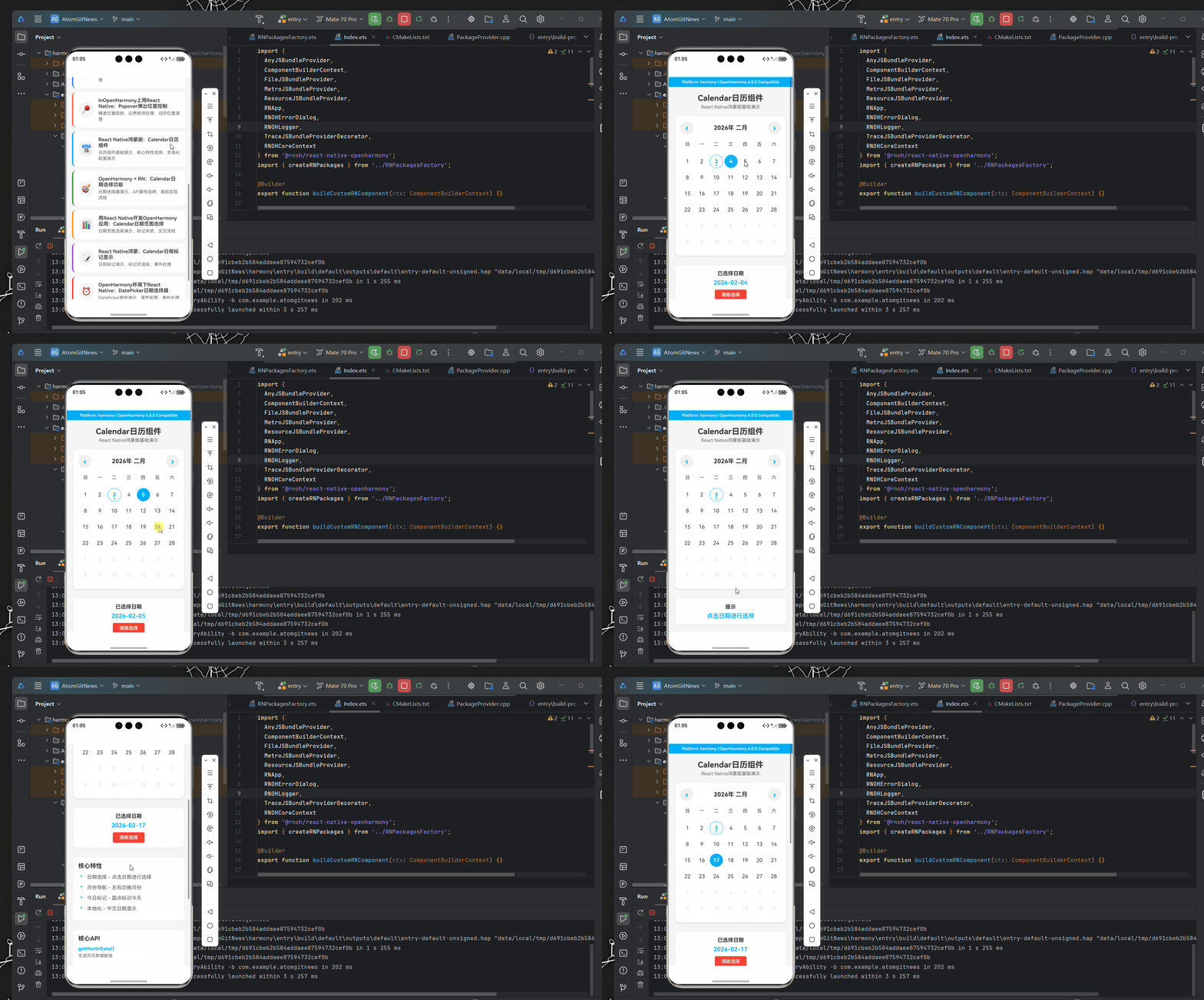
七、效果图
结语
通过本文的指导,你已经学会了如何在React Native for OpenHarmony中实现一个功能完整的Calendar日历组件。这个组件不仅包含了基本的日期显示和选择功能,还扩展了事件管理、视图切换等高级特性,并针对OpenHarmony平台进行了专门优化。
关键要点总结:
- 利用React Native的跨平台能力,快速构建OpenHarmony应用
- 实现日历的核心日期计算和渲染逻辑
- 添加事件管理和用户交互功能
- 适配OpenHarmony的系统特性和主题
- 进行性能优化确保应用流畅性
随着RNOH生态的不断完善,我们可以期待更多优秀的React Native组件能够无缝运行在OpenHarmony平台上,为开发者提供更加丰富的开发选择。
希望这篇指南对你的OpenHarmony开发之旅有所帮助!如果有任何问题或建议,欢迎在评论区讨论交流。
欢迎加入开源鸿蒙跨平台社区: https://openharmonycrossplatform.csdn.net

开源鸿蒙跨平台开发社区汇聚开发者与厂商,共建“一次开发,多端部署”的开源生态,致力于降低跨端开发门槛,推动万物智联创新。
更多推荐



 15
15 0
0- 0


 已为社区贡献26条内容

所有评论(0)