进阶实战 Flutter for OpenHarmony:shared_preferences 第三方库实战
架构设计:采用分层架构(UI层 → 服务层 → 存储层),让代码更清晰,便于维护和测试。每一层都有明确的职责,降低了代码的耦合度。服务封装:统一封装存储逻辑,提供语义化的方法名,让调用代码更易读。同时,服务层也处理了数据类型转换、默认值管理等通用逻辑。状态管理:使用 ChangeNotifier 实现响应式更新,当设置变化时自动更新 UI,提升用户体验。数据迁移:版本升级时的数据兼容处理,确保用户
欢迎加入开源鸿蒙跨平台社区:https://openharmonycrossplatform.csdn.net
一、场景引入:为什么需要本地数据持久化?
在移动应用开发中,用户体验是至关重要的。想象一下这样的场景:用户打开你的应用,精心调整了主题颜色、关闭了推送通知、设置了字体大小,然后满意地退出了应用。然而,当用户第二天再次打开应用时,发现所有的设置都恢复到了默认值——主题变回了浅色、通知又开始推送、字体又变回了默认大小。这种体验无疑会让用户感到沮丧,甚至可能导致用户卸载应用。
这就是为什么我们需要本地数据持久化。数据持久化是指将数据保存到设备的存储介质中,使得数据在应用关闭、设备重启后依然存在。对于用户的偏好设置这类轻量级数据,我们需要一种简单、高效、可靠的持久化方案。
📱 1.1 移动应用中的数据持久化需求
在现代移动应用中,数据持久化的需求无处不在:
用户偏好设置:这是最常见的持久化需求。用户对应用的个性化设置应该被记住,包括但不限于主题模式(深色/浅色)、语言选择、字体大小、通知开关等。这些设置反映了用户的个人喜好,应用应该尊重并记住这些选择。
用户会话状态:当用户登录应用后,即使关闭应用再打开,也应该保持登录状态,而不是要求用户重新输入账号密码。这需要安全地存储用户的认证令牌和会话信息。
应用配置信息:应用的一些运行时配置,如服务器地址、功能开关、上次同步时间等,也需要持久化存储,以便应用在下次启动时能够正确配置运行环境。
用户行为数据:用户的浏览历史、收藏列表、购物车内容等,这些数据需要在应用重启后依然可用,以提供连续的用户体验。
1.2 常见持久化方案对比
Flutter 生态系统中提供了多种数据持久化方案,每种方案都有其适用场景和优缺点。选择合适的方案需要根据数据量、数据结构、性能要求和开发成本综合考虑。
| 方案 | 适用场景 | 数据量 | 复杂度 | 性能 | 学习成本 |
|---|---|---|---|---|---|
| shared_preferences | 用户设置、简单配置、小型键值对 | KB级别 | 低 | 高 | 低 |
| 文件存储 (File) | 日志、缓存文件、导出数据、图片 | MB级别 | 中 | 中 | 低 |
| SQLite | 结构化数据、需要复杂查询、关系型数据 | GB级别 | 高 | 中 | 中 |
| Hive | 对象存储、需要快速读写、NoSQL场景 | MB-GB | 中 | 高 | 中 |
| ObjectBox | 大量数据、高性能要求、实时同步 | GB级别 | 中 | 极高 | 中 |
对于用户偏好设置这类轻量级数据,shared_preferences 无疑是最佳选择:
API 简单直观:shared_preferences 提供了类似 Map 的键值对接口,开发者只需要记住几个简单的方法就能完成大部分操作。不需要学习 SQL 语法,不需要理解复杂的数据库概念,上手门槛极低。
性能优秀:由于采用键值对存储,读写操作的时间复杂度接近 O(1),即使存储上百个配置项,性能也不会有明显下降。对于频繁读取的设置项,响应速度几乎是即时的。
跨平台支持:shared_preferences 底层会根据不同平台使用相应的原生存储方案——Android 使用 SharedPreferences,iOS 使用 UserDefaults,OpenHarmony 使用本地首选项存储。开发者只需要编写一套代码,就能在所有平台上运行。
自动持久化:数据写入后会自动持久化到磁盘,开发者不需要手动管理文件的打开、关闭、同步等操作,大大降低了出错的可能性。
类型安全:shared_preferences 支持多种基本数据类型(String、int、double、bool、List),每种类型都有对应的 get/set 方法,编译器会帮助检查类型错误。
1.3 shared_preferences 的底层原理
了解 shared_preferences 的底层原理,有助于我们更好地使用它。
在 Android 平台上,shared_preferences 底层使用的是 Android 系统的 SharedPreferences API。数据以 XML 文件的形式存储在应用的私有目录中,文件路径通常是 /data/data/<package_name>/shared_prefs/<name>.xml。每次写入操作都会触发文件的同步写入,确保数据不会因为应用崩溃而丢失。
在 iOS 平台上,底层使用的是 UserDefaults API。数据以 plist 文件的形式存储,路径通常是 Library/Preferences/<bundle-id>.plist。UserDefaults 会自动管理内存缓存和磁盘同步,在性能和可靠性之间取得平衡。
在 OpenHarmony 平台上,适配版本使用了 OpenHarmony 的本地首选项存储能力。数据存储在应用沙箱目录中,具有与其他平台类似的特性和性能表现。
需要注意的是,shared_preferences 的所有操作都是异步的。这是因为磁盘 I/O 是耗时操作,如果在主线程同步执行,会导致 UI 卡顿。Flutter 的异步模型(Future/async-await)让我们可以轻松处理这些异步操作,同时保持代码的可读性。
二、技术架构设计
在正式编写代码之前,我们需要设计一个清晰的架构。良好的架构设计可以让代码更易于理解、维护和扩展。很多开发者习惯于直接在 UI 代码中调用 shared_preferences 的 API,这种方式虽然简单直接,但随着应用规模的增长,会导致代码难以维护、难以测试、难以复用。
🏛️ 2.1 分层架构思想
我们采用经典的分层架构,将代码分为三层:
┌─────────────────────────────────────────────────────────────┐
│                      UI 层 (Widgets)                         │
│  ┌─────────────┐  ┌─────────────┐  ┌─────────────────────┐  │
│  │ SettingsPage│  │ ThemeSwitch │  │ FontSizeSlider     │  │
│  │  设置页面    │  │  主题开关    │  │   字体大小滑块      │  │
│  └─────────────┘  └─────────────┘  └─────────────────────┘  │
│                                                              │
│  职责:展示界面、响应用户交互、调用服务层方法                    │
└─────────────────────────────────────────────────────────────┘
                              │
                              │ 调用
                              ▼
┌─────────────────────────────────────────────────────────────┐
│                    服务层 (Services)                         │
│  ┌─────────────────────────────────────────────────────┐    │
│  │              SettingsService                         │    │
│  │  - getThemeMode() / setThemeMode()                  │    │
│  │  - getFontSize() / setFontSize()                    │    │
│  │  - isNotificationsEnabled() / setNotifications...   │    │
│  │  - resetToDefaults()                                │    │
│  └─────────────────────────────────────────────────────┘    │
│                                                              │
│  职责:封装业务逻辑、提供高级API、处理数据转换                   │
└─────────────────────────────────────────────────────────────┘
                              │
                              │ 调用
                              ▼
┌─────────────────────────────────────────────────────────────┐
│                   存储层 (Storage)                           │
│  ┌─────────────────────────────────────────────────────┐    │
│  │           StorageService (SharedPreferences)        │    │
│  │  - setString() / getString()                        │    │
│  │  - setInt() / getInt()                              │    │
│  │  - setBool() / getBool()                            │    │
│  │  - setDouble() / getDouble()                        │    │
│  └─────────────────────────────────────────────────────┘    │
│                                                              │
│  职责:封装底层存储API、提供统一的存储接口                       │
└─────────────────────────────────────────────────────────────┘
UI 层负责展示界面和响应用户交互。这一层的代码应该尽量简单,只包含界面相关的逻辑。当用户点击某个设置项时,UI 层调用服务层的方法来保存设置,然后更新界面显示。
服务层负责封装业务逻辑。这一层知道每个设置项应该用什么键名存储、应该用什么数据类型、默认值是什么。服务层将复杂的存储逻辑封装起来,为 UI 层提供简单易用的高级 API。
存储层是对 shared_preferences 的封装。这一层屏蔽了底层存储 API 的细节,提供统一的存储接口。如果将来需要更换存储方案(比如换成 Hive),只需要修改这一层的实现,而不需要改动服务层和 UI 层的代码。
2.2 数据模型设计
除了分层架构,我们还需要设计数据模型来表示用户的设置。数据模型可以帮助我们:
- 类型安全:确保每个设置项都有正确的类型
- 默认值管理:集中管理所有设置项的默认值
- 代码提示:IDE 可以为我们提供代码补全和类型检查
- 易于扩展:添加新的设置项只需要修改数据模型
/// 用户设置数据模型
///
/// 该类封装了所有用户偏好设置,提供统一的访问接口。
/// 所有设置项都有合理的默认值,确保应用首次启动时也能正常工作。
class UserSettings {
  /// 主题模式:system(跟随系统)、light(浅色)、dark(深色)
  final ThemeMode themeMode;

  /// 应用语言:zh_CN(简体中文)、en_US(英语)、ja_JP(日语)等
  final String language;

  /// 是否启用推送通知
  final bool notificationsEnabled;

  /// 字体大小:范围通常在 12.0 到 20.0 之间
  final double fontSize;

  /// 是否自动播放视频(在信息流中)
  final bool autoPlayVideo;

  /// 是否仅在 WiFi 下下载/保存内容
  final bool saveWifiOnly;

  /// 上次同步时间:ISO 8601 格式的日期时间字符串
  final String? lastSyncTime;

  /// 构造函数
  ///
  /// 所有参数都有默认值,确保即使不传参也能创建有效的设置对象。
  const UserSettings({
    this.themeMode = ThemeMode.system,
    this.language = 'zh_CN',
    this.notificationsEnabled = true,
    this.fontSize = 14.0,
    this.autoPlayVideo = true,
    this.saveWifiOnly = false,
    this.lastSyncTime,
  });

  /// 创建设置副本
  ///
  /// 当需要修改部分设置项时,使用此方法创建新对象,
  /// 避免直接修改原对象,保持数据的不可变性。
  UserSettings copyWith({
    ThemeMode? themeMode,
    String? language,
    bool? notificationsEnabled,
    double? fontSize,
    bool? autoPlayVideo,
    bool? saveWifiOnly,
    String? lastSyncTime,
  }) {
    return UserSettings(
      themeMode: themeMode ?? this.themeMode,
      language: language ?? this.language,
      notificationsEnabled: notificationsEnabled ?? this.notificationsEnabled,
      fontSize: fontSize ?? this.fontSize,
      autoPlayVideo: autoPlayVideo ?? this.autoPlayVideo,
      saveWifiOnly: saveWifiOnly ?? this.saveWifiOnly,
      lastSyncTime: lastSyncTime ?? this.lastSyncTime,
    );
  }

  /// 转换为 Map,便于调试和日志记录
  Map<String, dynamic> toMap() {
    return {
      'themeMode': themeMode.name,
      'language': language,
      'notificationsEnabled': notificationsEnabled,
      'fontSize': fontSize,
      'autoPlayVideo': autoPlayVideo,
      'saveWifiOnly': saveWifiOnly,
      'lastSyncTime': lastSyncTime,
    };
  }
}
🔑 2.3 存储键的设计原则
存储键(Storage Key)是数据在存储系统中的唯一标识符。良好的键名设计可以提高代码的可读性和可维护性。
命名规范:
- 使用有意义的名称,能够一眼看出存储的是什么数据
- 使用统一的前缀,避免与其他存储数据冲突
- 使用小写字母和下划线,保持风格一致
示例:
/// 存储键常量定义
///
/// 将所有存储键集中管理,避免在代码中硬编码字符串,
/// 减少拼写错误的风险,便于后期维护和重构。
class StorageKeys {
  // ===== 主题相关 =====
  /// 主题模式:存储 ThemeMode 的 index 值
  static const String themeMode = 'settings_theme_mode';

  // ===== 语言相关 =====
  /// 应用语言:存储语言代码,如 'zh_CN'、'en_US'
  static const String language = 'settings_language';

  // ===== 通知相关 =====
  /// 通知开关:存储布尔值
  static const String notificationsEnabled = 'settings_notifications';

  // ===== 显示相关 =====
  /// 字体大小:存储浮点数,单位是逻辑像素
  static const String fontSize = 'settings_font_size';

  /// 自动播放视频开关
  static const String autoPlayVideo = 'settings_auto_play_video';

  // ===== 网络相关 =====
  /// 仅 WiFi 下保存开关
  static const String saveWifiOnly = 'settings_save_wifi_only';

  // ===== 同步相关 =====
  /// 上次同步时间:存储 ISO 8601 格式的日期时间字符串
  static const String lastSyncTime = 'settings_last_sync_time';

  // ===== 用户相关 =====
  /// 用户认证令牌
  static const String userToken = 'user_token';

  /// 用户ID
  static const String userId = 'user_id';

  /// 用户名
  static const String username = 'user_name';
}
📦 三、项目配置与依赖安装
3.1 添加依赖
在 Flutter 项目中使用 shared_preferences,需要在 pubspec.yaml 文件中添加依赖。由于我们要支持 OpenHarmony 平台,需要使用适配版本的仓库。
打开项目根目录下的 pubspec.yaml 文件,找到 dependencies 部分,添加以下配置:
dependencies:
  flutter:
    sdk: flutter

  # shared_preferences - 轻量级键值对存储
  # 使用 OpenHarmony 适配版本
  shared_preferences:
    git:
      url: "https://gitcode.com/openharmony-tpc/flutter_packages.git"
      path: "packages/shared_preferences/shared_preferences"
配置说明:
git方式引用:因为 OpenHarmony 适配版本还没有发布到 pub.dev,所以需要从 Git 仓库引用url:指向开源鸿蒙 TPC(Third Party Components)维护的 flutter_packages 仓库path:指定仓库中 shared_preferences 包的具体路径
⚙️ 3.2 安装依赖
配置完成后,在项目根目录执行以下命令下载依赖:
flutter pub get
执行成功后,终端会显示类似以下的输出:
Running "flutter pub get" in my_cross_platform_app...
Resolving dependencies...
Got dependencies!
🔐 3.3 平台权限配置
在 OpenHarmony 平台上,使用 shared_preferences 需要配置相应的权限。打开 ohos/entry/src/main/module.json5 文件,确保 requestPermissions 中包含必要的权限:
{
  "module": {
    "name": "entry",
    "type": "entry",
    "requestPermissions": [
      {
        "name": "ohos.permission.INTERNET",
        "reason": "$string:network_reason",
        "usedScene": {
          "abilities": ["EntryAbility"],
          "when": "inuse"
        }
      }
    ]
  }
}
四、核心服务实现
💾 4.1 基础存储服务
首先,我们实现一个通用的存储服务,封装 shared_preferences 的底层 API。这样做的好处是:
- 统一接口:所有存储操作都通过这个服务进行,便于统一管理
- 错误处理:可以在服务层统一处理异常,避免在业务代码中重复写 try-catch
- 易于测试:可以轻松地 Mock 这个服务进行单元测试
- 便于切换:如果将来需要更换存储方案,只需要修改这个服务的实现
import 'package:shared_preferences/shared_preferences.dart';

/// 基础存储服务
///
/// 该服务封装了 SharedPreferences 的底层 API,提供统一的存储接口。
/// 所有方法都是静态的,可以在应用的任何地方直接调用。
///
/// 使用前必须先调用 [initialize] 方法进行初始化,通常在 main() 函数中调用。
///
/// 示例:
/// ```dart
/// void main() async {
///   WidgetsFlutterBinding.ensureInitialized();
///   await StorageService.initialize();
///   runApp(MyApp());
/// }
/// ```
class StorageService {
  /// SharedPreferences 实例
  ///
  /// 初始化后会被赋值,在此之前为 null。
  static SharedPreferences? _prefs;

  /// 初始化存储服务
  ///
  /// 此方法必须在应用启动时调用,用于获取 SharedPreferences 实例。
  /// 由于获取实例是异步操作,所以此方法返回 Future。
  ///
  /// 示例:
  /// ```dart
  /// await StorageService.initialize();
  /// ```
  static Future<void> initialize() async {
    _prefs = await SharedPreferences.getInstance();
  }

  /// 获取 SharedPreferences 实例
  ///
  /// 内部方法,用于获取已初始化的实例。
  /// 如果实例未初始化,会抛出 StateError 异常。
  static SharedPreferences get instance {
    if (_prefs == null) {
      throw StateError(
        'StorageService 未初始化。'
        '请在 main() 中调用 StorageService.initialize()'
      );
    }
    return _prefs!;
  }

  // ============ 字符串操作 ============

  /// 存储字符串
  ///
  /// [key] 存储键名
  /// [value] 要存储的字符串值
  /// 返回是否存储成功
  static Future<bool> setString(String key, String value) {
    return instance.setString(key, value);
  }

  /// 读取字符串
  ///
  /// [key] 存储键名
  /// 返回存储的字符串值,如果不存在则返回 null
  static String? getString(String key) {
    return instance.getString(key);
  }

  // ============ 整数操作 ============

  /// 存储整数
  ///
  /// [key] 存储键名
  /// [value] 要存储的整数值
  /// 返回是否存储成功
  static Future<bool> setInt(String key, int value) {
    return instance.setInt(key, value);
  }

  /// 读取整数
  ///
  /// [key] 存储键名
  /// 返回存储的整数值,如果不存在则返回 null
  static int? getInt(String key) {
    return instance.getInt(key);
  }

  // ============ 布尔值操作 ============

  /// 存储布尔值
  ///
  /// [key] 存储键名
  /// [value] 要存储的布尔值
  /// 返回是否存储成功
  static Future<bool> setBool(String key, bool value) {
    return instance.setBool(key, value);
  }

  /// 读取布尔值
  ///
  /// [key] 存储键名
  /// 返回存储的布尔值,如果不存在则返回 null
  static bool? getBool(String key) {
    return instance.getBool(key);
  }

  // ============ 浮点数操作 ============

  /// 存储浮点数
  ///
  /// [key] 存储键名
  /// [value] 要存储的浮点数值
  /// 返回是否存储成功
  static Future<bool> setDouble(String key, double value) {
    return instance.setDouble(key, value);
  }

  /// 读取浮点数
  ///
  /// [key] 存储键名
  /// 返回存储的浮点数值,如果不存在则返回 null
  static double? getDouble(String key) {
    return instance.getDouble(key);
  }

  // ============ 字符串列表操作 ============

  /// 存储字符串列表
  ///
  /// [key] 存储键名
  /// [value] 要存储的字符串列表
  /// 返回是否存储成功
  static Future<bool> setStringList(String key, List<String> value) {
    return instance.setStringList(key, value);
  }

  /// 读取字符串列表
  ///
  /// [key] 存储键名
  /// 返回存储的字符串列表,如果不存在则返回 null
  static List<String>? getStringList(String key) {
    return instance.getStringList(key);
  }

  // ============ 管理操作 ============

  /// 删除指定键的数据
  ///
  /// [key] 要删除的存储键名
  /// 返回是否删除成功
  static Future<bool> remove(String key) {
    return instance.remove(key);
  }

  /// 检查指定键是否存在
  ///
  /// [key] 要检查的存储键名
  /// 返回该键是否存在
  static bool containsKey(String key) {
    return instance.containsKey(key);
  }

  /// 获取所有存储键
  ///
  /// 返回所有已存储数据的键名集合
  static Set<String> getKeys() {
    return instance.getKeys();
  }

  /// 清空所有数据
  ///
  /// ⚠️ 警告:此操作会删除所有存储的数据,请谨慎使用!
  /// 返回是否清空成功
  static Future<bool> clear() {
    return instance.clear();
  }
}
⚙️ 4.2 用户设置服务
基于存储服务,我们实现用户设置的业务逻辑。这个服务知道每个设置项的存储细节,为上层提供语义化的方法。
import 'package:flutter/material.dart';

/// 用户设置服务
///
/// 该服务封装了用户偏好设置的业务逻辑,提供语义化的方法来读写各种设置。
/// 所有方法都基于 [StorageService] 实现,确保数据持久化。
///
/// 使用示例:
/// ```dart
/// // 获取当前主题
/// ThemeMode theme = SettingsService.getThemeMode();
///
/// // 设置新主题
/// await SettingsService.setThemeMode(ThemeMode.dark);
/// ```
class SettingsService {
  // ============ 主题设置 ============

  /// 获取当前主题模式
  ///
  /// 返回当前的主题模式,默认为跟随系统(ThemeMode.system)
  static ThemeMode getThemeMode() {
    // 从存储中读取主题模式的索引值
    final index = StorageService.getInt(StorageKeys.themeMode);

    // 根据索引值找到对应的 ThemeMode 枚举
    // 如果索引无效或不存在,返回默认值 ThemeMode.system
    return ThemeMode.values.firstWhere(
      (mode) => mode.index == index,
      orElse: () => ThemeMode.system,
    );
  }

  /// 设置主题模式
  ///
  /// [mode] 要设置的主题模式
  static Future<void> setThemeMode(ThemeMode mode) async {
    // ThemeMode 是枚举,存储其 index 值
    await StorageService.setInt(StorageKeys.themeMode, mode.index);
  }

  // ============ 语言设置 ============

  /// 获取当前语言
  ///
  /// 返回当前的语言代码,如 'zh_CN'、'en_US',默认为 'zh_CN'
  static String getLanguage() {
    return StorageService.getString(StorageKeys.language) ?? 'zh_CN';
  }

  /// 设置语言
  ///
  /// [language] 语言代码,如 'zh_CN'、'en_US'、'ja_JP'
  static Future<void> setLanguage(String language) async {
    await StorageService.setString(StorageKeys.language, language);
  }

  // ============ 通知设置 ============

  /// 获取通知开关状态
  ///
  /// 返回是否启用推送通知,默认为 true
  static bool isNotificationsEnabled() {
    return StorageService.getBool(StorageKeys.notificationsEnabled) ?? true;
  }

  /// 设置通知开关
  ///
  /// [enabled] true 表示启用通知,false 表示禁用
  static Future<void> setNotificationsEnabled(bool enabled) async {
    await StorageService.setBool(StorageKeys.notificationsEnabled, enabled);
  }

  // ============ 显示设置 ============

  /// 获取字体大小
  ///
  /// 返回当前的字体大小(逻辑像素),默认为 14.0
  /// 通常范围在 12.0 到 20.0 之间
  static double getFontSize() {
    return StorageService.getDouble(StorageKeys.fontSize) ?? 14.0;
  }

  /// 设置字体大小
  ///
  /// [size] 字体大小(逻辑像素),建议范围 12.0 到 20.0
  static Future<void> setFontSize(double size) async {
    await StorageService.setDouble(StorageKeys.fontSize, size);
  }

  /// 获取自动播放视频设置
  ///
  /// 返回是否自动播放视频,默认为 true
  static bool isAutoPlayVideo() {
    return StorageService.getBool(StorageKeys.autoPlayVideo) ?? true;
  }

  /// 设置自动播放视频
  ///
  /// [autoPlay] true 表示自动播放,false 表示手动播放
  static Future<void> setAutoPlayVideo(bool autoPlay) async {
    await StorageService.setBool(StorageKeys.autoPlayVideo, autoPlay);
  }

  // ============ 网络设置 ============

  /// 获取仅 WiFi 下保存设置
  ///
  /// 返回是否仅在 WiFi 下下载/保存内容,默认为 false
  static bool isSaveWifiOnly() {
    return StorageService.getBool(StorageKeys.saveWifiOnly) ?? false;
  }

  /// 设置仅 WiFi 下保存
  ///
  /// [wifiOnly] true 表示仅在 WiFi 下保存,false 表示使用任何网络
  static Future<void> setSaveWifiOnly(bool wifiOnly) async {
    await StorageService.setBool(StorageKeys.saveWifiOnly, wifiOnly);
  }

  // ============ 同步设置 ============

  /// 获取上次同步时间
  ///
  /// 返回上次同步的时间字符串(ISO 8601 格式),如果没有同步过则返回 null
  static String? getLastSyncTime() {
    return StorageService.getString(StorageKeys.lastSyncTime);
  }

  /// 设置上次同步时间
  ///
  /// [time] 同步时间字符串,建议使用 ISO 8601 格式
  static Future<void> setLastSyncTime(String time) async {
    await StorageService.setString(StorageKeys.lastSyncTime, time);
  }

  // ============ 批量操作 ============

  /// 获取完整的用户设置
  ///
  /// 返回包含所有设置项的 UserSettings 对象
  static UserSettings getAllSettings() {
    return UserSettings(
      themeMode: getThemeMode(),
      language: getLanguage(),
      notificationsEnabled: isNotificationsEnabled(),
      fontSize: getFontSize(),
      autoPlayVideo: isAutoPlayVideo(),
      saveWifiOnly: isSaveWifiOnly(),
      lastSyncTime: getLastSyncTime(),
    );
  }

  /// 重置所有设置为默认值
  ///
  /// 将所有用户设置恢复到初始状态
  static Future<void> resetToDefaults() async {
    await Future.wait([
      setThemeMode(ThemeMode.system),
      setLanguage('zh_CN'),
      setNotificationsEnabled(true),
      setFontSize(14.0),
      setAutoPlayVideo(true),
      setSaveWifiOnly(false),
    ]);
  }
}
🔄 五、状态管理集成
5.1 为什么需要状态管理?
到目前为止,我们已经实现了数据的存储和读取。但是,当用户修改设置后,UI 如何自动更新呢?这就需要状态管理。
在 Flutter 中,状态管理有多种方案:Provider、Riverpod、Bloc、GetX 等。本文使用 Flutter 官方推荐的 Provider 方案,它简单易用,适合大多数应用场景。
5.2 设置状态管理实现
import 'package:flutter/material.dart';

/// 设置状态管理
///
/// 该类继承自 ChangeNotifier,用于管理用户设置的状态。
/// 当设置发生变化时,会通知所有监听者更新 UI。
///
/// 使用示例:
/// ```dart
/// // 在 main() 中初始化
/// runApp(
///   ChangeNotifierProvider(
///     create: (_) => SettingsProvider.fromStorage(),
///     child: MyApp(),
///   ),
/// );
///
/// // 在 Widget 中使用
/// final settings = Provider.of<SettingsProvider>(context);
/// print(settings.themeMode);
///
/// // 修改设置
/// settings.setThemeMode(ThemeMode.dark);
/// ```
class SettingsProvider extends ChangeNotifier {
  // ============ 私有字段 ============

  ThemeMode _themeMode;
  String _language;
  bool _notificationsEnabled;
  double _fontSize;
  bool _autoPlayVideo;
  bool _saveWifiOnly;

  // ============ 构造函数 ============

  /// 创建设置状态实例
  ///
  /// 所有参数都有默认值,确保可以创建有效的实例
  SettingsProvider({
    ThemeMode? themeMode,
    String? language,
    bool? notificationsEnabled,
    double? fontSize,
    bool? autoPlayVideo,
    bool? saveWifiOnly,
  })  : _themeMode = themeMode ?? ThemeMode.system,
        _language = language ?? 'zh_CN',
        _notificationsEnabled = notificationsEnabled ?? true,
        _fontSize = fontSize ?? 14.0,
        _autoPlayVideo = autoPlayVideo ?? true,
        _saveWifiOnly = saveWifiOnly ?? false;

  /// 从存储加载设置
  ///
  /// 工厂构造函数,从持久化存储中读取设置并创建实例
  factory SettingsProvider.fromStorage() {
    return SettingsProvider(
      themeMode: SettingsService.getThemeMode(),
      language: SettingsService.getLanguage(),
      notificationsEnabled: SettingsService.isNotificationsEnabled(),
      fontSize: SettingsService.getFontSize(),
      autoPlayVideo: SettingsService.isAutoPlayVideo(),
      saveWifiOnly: SettingsService.isSaveWifiOnly(),
    );
  }

  // ============ Getters ============

  /// 当前主题模式
  ThemeMode get themeMode => _themeMode;

  /// 当前语言
  String get language => _language;

  /// 是否启用通知
  bool get notificationsEnabled => _notificationsEnabled;

  /// 字体大小
  double get fontSize => _fontSize;

  /// 是否自动播放视频
  bool get autoPlayVideo => _autoPlayVideo;

  /// 是否仅 WiFi 下保存
  bool get saveWifiOnly => _saveWifiOnly;

  // ============ Setters ============

  /// 设置主题模式
  ///
  /// 会自动保存到持久化存储并通知监听者
  Future<void> setThemeMode(ThemeMode mode) async {
    // 如果值没有变化,直接返回,避免不必要的操作
    if (_themeMode == mode) return;

    // 更新内存中的值
    _themeMode = mode;

    // 保存到持久化存储
    await SettingsService.setThemeMode(mode);

    // 通知所有监听者
    notifyListeners();
  }

  /// 设置语言
  Future<void> setLanguage(String language) async {
    if (_language == language) return;
    _language = language;
    await SettingsService.setLanguage(language);
    notifyListeners();
  }

  /// 设置通知开关
  Future<void> setNotificationsEnabled(bool enabled) async {
    if (_notificationsEnabled == enabled) return;
    _notificationsEnabled = enabled;
    await SettingsService.setNotificationsEnabled(enabled);
    notifyListeners();
  }

  /// 设置字体大小
  Future<void> setFontSize(double size) async {
    if (_fontSize == size) return;
    _fontSize = size;
    await SettingsService.setFontSize(size);
    notifyListeners();
  }

  /// 设置自动播放视频
  Future<void> setAutoPlayVideo(bool autoPlay) async {
    if (_autoPlayVideo == autoPlay) return;
    _autoPlayVideo = autoPlay;
    await SettingsService.setAutoPlayVideo(autoPlay);
    notifyListeners();
  }

  /// 设置仅 WiFi 下保存
  Future<void> setSaveWifiOnly(bool wifiOnly) async {
    if (_saveWifiOnly == wifiOnly) return;
    _saveWifiOnly = wifiOnly;
    await SettingsService.setSaveWifiOnly(wifiOnly);
    notifyListeners();
  }

  /// 重置所有设置
  ///
  /// 将所有设置恢复为默认值,并通知监听者
  Future<void> resetAll() async {
    await SettingsService.resetToDefaults();

    _themeMode = ThemeMode.system;
    _language = 'zh_CN';
    _notificationsEnabled = true;
    _fontSize = 14.0;
    _autoPlayVideo = true;
    _saveWifiOnly = false;

    notifyListeners();
  }
}
🔧 六、常见问题与解决方案
6.1 数据迁移问题
当应用版本更新时,可能需要迁移旧版本的数据。例如,旧版本使用的键名可能与新版本不同,或者数据结构发生了变化。
/// 数据迁移服务
///
/// 负责处理应用版本升级时的数据迁移工作
class MigrationService {
  /// 存储版本号的键名
  static const String _versionKey = 'storage_version';

  /// 当前存储版本
  static const int _currentVersion = 2;

  /// 执行数据迁移
  ///
  /// 检查当前存储版本,执行必要的迁移操作
  static Future<void> migrate() async {
    final savedVersion = StorageService.getInt(_versionKey) ?? 0;

    // 版本 0 -> 1:重命名旧键名
    if (savedVersion < 1) {
      await _migrateToV1();
    }

    // 版本 1 -> 2:添加新默认值
    if (savedVersion < 2) {
      await _migrateToV2();
    }

    // 更新存储版本
    await StorageService.setInt(_versionKey, _currentVersion);
  }

  /// 迁移到版本 1:重命名旧键名
  static Future<void> _migrateToV1() async {
    // 示例:将旧的 'theme' 键迁移到新的 'settings_theme_mode'
    final oldTheme = StorageService.getString('theme');
    if (oldTheme != null) {
      // 将字符串转换为 ThemeMode 的 index
      final themeMode = oldTheme == 'dark' ? 2 : (oldTheme == 'light' ? 1 : 0);
      await StorageService.setInt(StorageKeys.themeMode, themeMode);
      // 删除旧键
      await StorageService.remove('theme');
    }
  }

  /// 迁移到版本 2:添加新默认值
  static Future<void> _migrateToV2() async {
    // 为新增的设置项设置默认值
    if (!StorageService.containsKey(StorageKeys.autoPlayVideo)) {
      await StorageService.setBool(StorageKeys.autoPlayVideo, true);
    }
  }
}
6.2 数据安全
shared_preferences 存储的数据是明文的,不适合存储敏感信息。如果需要存储密码、令牌等敏感数据,应该进行加密。
import 'dart:convert';
import 'package:crypto/crypto.dart';

/// 安全存储服务
///
/// 提供加密存储功能,用于存储敏感信息
class SecureStorageService {
  /// 使用 HMAC-SHA256 加密字符串
  static String _encrypt(String plainText, String secret) {
    final bytes = utf8.encode(plainText);
    final keyBytes = utf8.encode(secret);
    final hmac = Hmac(sha256, keyBytes);
    final digest = hmac.convert(bytes);
    return digest.toString();
  }

  /// 安全存储敏感数据
  ///
  /// [key] 存储键名
  /// [value] 要存储的值
  /// [secret] 加密密钥
  static Future<bool> setSecureString(
    String key,
    String value,
    String secret,
  ) async {
    final encrypted = _encrypt(value, secret);
    return StorageService.setString('secure_$key', encrypted);
  }

  /// 验证敏感数据
  ///
  /// [key] 存储键名
  /// [value] 要验证的值
  /// [secret] 加密密钥
  /// 返回存储的值是否与输入值匹配
  static bool verifySecureString(
    String key,
    String value,
    String secret,
  ) {
    final stored = StorageService.getString('secure_$key');
    if (stored == null) return false;
    final encrypted = _encrypt(value, secret);
    return stored == encrypted;
  }
}
6.3 性能优化建议
-
避免频繁写入:shared_preferences 每次写入都会触发磁盘 I/O,应该避免在短时间内频繁调用 set 方法。
-
批量操作:当需要同时更新多个设置项时,使用
Future.wait并行执行。 -
缓存实例:在应用启动时初始化 SharedPreferences 实例,避免重复获取。
-
合理使用默认值:读取数据时提供合理的默认值,避免 null 检查带来的额外代码。
📝 七、完整示例代码
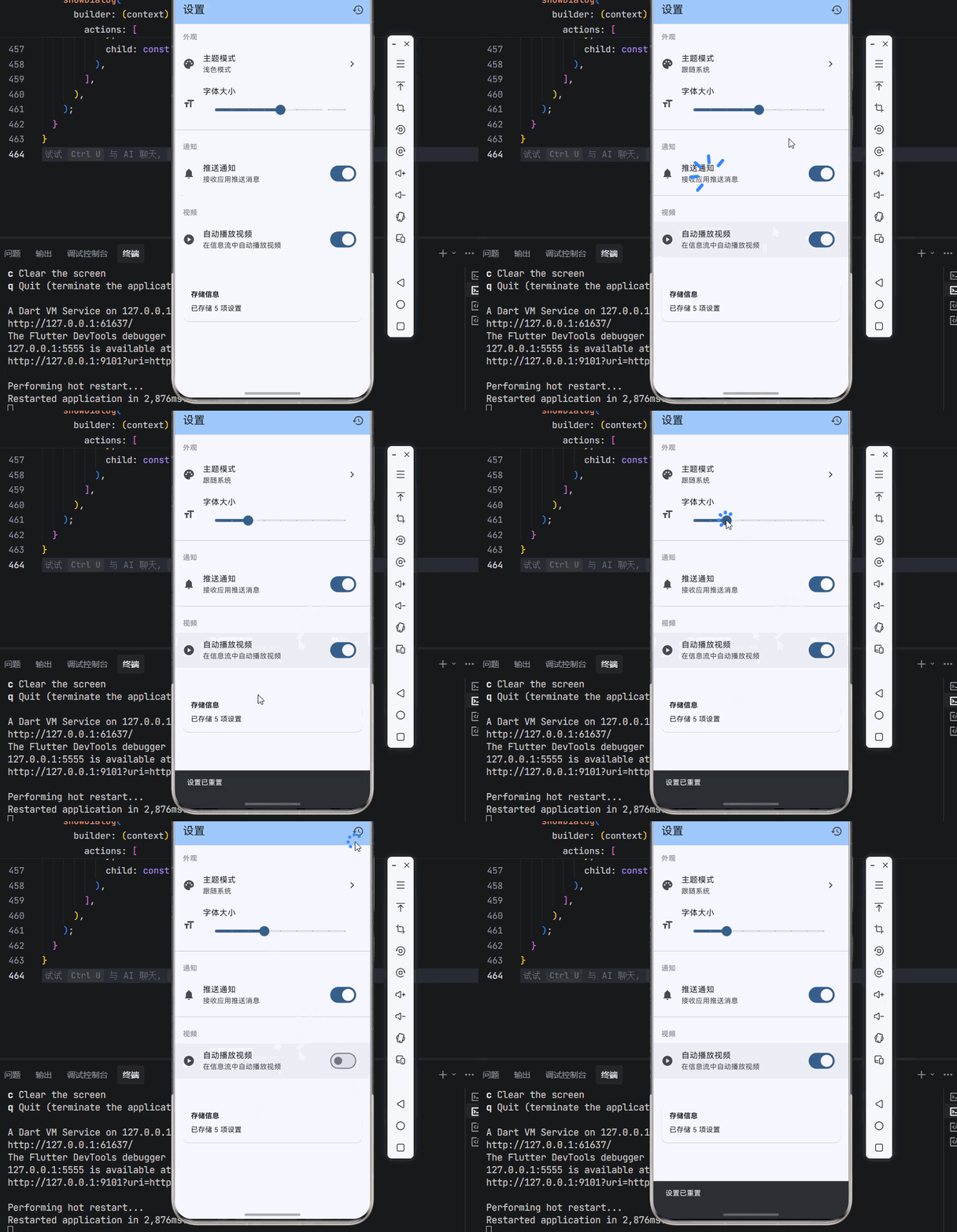
下面是一个完整的可运行示例,展示了如何使用 shared_preferences 实现用户偏好设置管理:
import 'package:flutter/material.dart';
import 'package:shared_preferences/shared_preferences.dart';
void main() async {
// 确保 Flutter 绑定初始化
WidgetsFlutterBinding.ensureInitialized();
// 初始化存储服务
await StorageService.initialize();
// 执行数据迁移
await MigrationService.migrate();
runApp(
const SettingsWrapper(
child: MyApp(),
),
);
}
// ============ 存储键定义 ============
class StorageKeys {
static const String themeMode = 'settings_theme_mode';
static const String language = 'settings_language';
static const String notificationsEnabled = 'settings_notifications';
static const String fontSize = 'settings_font_size';
static const String autoPlayVideo = 'settings_auto_play_video';
static const String saveWifiOnly = 'settings_save_wifi_only';
}
// ============ 存储服务 ============
class StorageService {
static SharedPreferences? _prefs;
static Future<void> initialize() async {
_prefs = await SharedPreferences.getInstance();
}
static SharedPreferences get instance {
if (_prefs == null) {
throw StateError('StorageService 未初始化');
}
return _prefs!;
}
static Future<bool> setString(String key, String value) =>
instance.setString(key, value);
static String? getString(String key) => instance.getString(key);
static Future<bool> setInt(String key, int value) =>
instance.setInt(key, value);
static int? getInt(String key) => instance.getInt(key);
static Future<bool> setBool(String key, bool value) =>
instance.setBool(key, value);
static bool? getBool(String key) => instance.getBool(key);
static Future<bool> setDouble(String key, double value) =>
instance.setDouble(key, value);
static double? getDouble(String key) => instance.getDouble(key);
static Future<bool> remove(String key) => instance.remove(key);
static bool containsKey(String key) => instance.containsKey(key);
static Set<String> getKeys() => instance.getKeys();
static Future<bool> clear() => instance.clear();
}
// ============ 迁移服务 ============
class MigrationService {
static const String _versionKey = 'storage_version';
static const int _currentVersion = 1;
static Future<void> migrate() async {
final savedVersion = StorageService.getInt(_versionKey) ?? 0;
if (savedVersion < _currentVersion) {
await StorageService.setInt(_versionKey, _currentVersion);
}
}
}
// ============ 设置服务 ============
class SettingsService {
static ThemeMode getThemeMode() {
final index = StorageService.getInt(StorageKeys.themeMode);
return ThemeMode.values.firstWhere(
(mode) => mode.index == index,
orElse: () => ThemeMode.system,
);
}
static Future<void> setThemeMode(ThemeMode mode) async {
await StorageService.setInt(StorageKeys.themeMode, mode.index);
}
static double getFontSize() {
return StorageService.getDouble(StorageKeys.fontSize) ?? 14.0;
}
static Future<void> setFontSize(double size) async {
await StorageService.setDouble(StorageKeys.fontSize, size);
}
static bool isNotificationsEnabled() {
return StorageService.getBool(StorageKeys.notificationsEnabled) ?? true;
}
static Future<void> setNotificationsEnabled(bool enabled) async {
await StorageService.setBool(StorageKeys.notificationsEnabled, enabled);
}
static bool isAutoPlayVideo() {
return StorageService.getBool(StorageKeys.autoPlayVideo) ?? true;
}
static Future<void> setAutoPlayVideo(bool autoPlay) async {
await StorageService.setBool(StorageKeys.autoPlayVideo, autoPlay);
}
static Future<void> resetToDefaults() async {
await Future.wait([
setThemeMode(ThemeMode.system),
setFontSize(14.0),
setNotificationsEnabled(true),
setAutoPlayVideo(true),
]);
}
}
// ============ 状态管理 ============
class SettingsProvider extends ChangeNotifier {
ThemeMode _themeMode;
double _fontSize;
bool _notificationsEnabled;
bool _autoPlayVideo;
SettingsProvider({
ThemeMode? themeMode,
double? fontSize,
bool? notificationsEnabled,
bool? autoPlayVideo,
}) : _themeMode = themeMode ?? ThemeMode.system,
_fontSize = fontSize ?? 14.0,
_notificationsEnabled = notificationsEnabled ?? true,
_autoPlayVideo = autoPlayVideo ?? true;
factory SettingsProvider.fromStorage() {
return SettingsProvider(
themeMode: SettingsService.getThemeMode(),
fontSize: SettingsService.getFontSize(),
notificationsEnabled: SettingsService.isNotificationsEnabled(),
autoPlayVideo: SettingsService.isAutoPlayVideo(),
);
}
ThemeMode get themeMode => _themeMode;
double get fontSize => _fontSize;
bool get notificationsEnabled => _notificationsEnabled;
bool get autoPlayVideo => _autoPlayVideo;
Future<void> setThemeMode(ThemeMode mode) async {
if (_themeMode == mode) return;
_themeMode = mode;
await SettingsService.setThemeMode(mode);
notifyListeners();
}
Future<void> setFontSize(double size) async {
if (_fontSize == size) return;
_fontSize = size;
await SettingsService.setFontSize(size);
notifyListeners();
}
Future<void> setNotificationsEnabled(bool enabled) async {
if (_notificationsEnabled == enabled) return;
_notificationsEnabled = enabled;
await SettingsService.setNotificationsEnabled(enabled);
notifyListeners();
}
Future<void> setAutoPlayVideo(bool autoPlay) async {
if (_autoPlayVideo == autoPlay) return;
_autoPlayVideo = autoPlay;
await SettingsService.setAutoPlayVideo(autoPlay);
notifyListeners();
}
Future<void> resetAll() async {
await SettingsService.resetToDefaults();
_themeMode = ThemeMode.system;
_fontSize = 14.0;
_notificationsEnabled = true;
_autoPlayVideo = true;
notifyListeners();
}
}
// ============ 简化的 Provider 实现 ============
class InheritedSettings extends InheritedWidget {
final SettingsProvider settings;
const InheritedSettings({
super.key,
required this.settings,
required super.child,
});
static SettingsProvider of(BuildContext context) {
return context.dependOnInheritedWidgetOfExactType<InheritedSettings>()!.settings;
}
bool updateShouldNotify(InheritedSettings oldWidget) {
return true;
}
}
class SettingsWrapper extends StatefulWidget {
final Widget child;
const SettingsWrapper({super.key, required this.child});
State<SettingsWrapper> createState() => _SettingsWrapperState();
}
class _SettingsWrapperState extends State<SettingsWrapper> {
late SettingsProvider _settings;
void initState() {
super.initState();
_settings = SettingsProvider.fromStorage();
_settings.addListener(_onSettingsChanged);
}
void _onSettingsChanged() {
setState(() {});
}
void dispose() {
_settings.removeListener(_onSettingsChanged);
_settings.dispose();
super.dispose();
}
Widget build(BuildContext context) {
return InheritedSettings(
settings: _settings,
child: widget.child,
);
}
}
// ============ 应用入口 ============
class MyApp extends StatelessWidget {
const MyApp({super.key});
Widget build(BuildContext context) {
final settings = InheritedSettings.of(context);
return MaterialApp(
title: '用户偏好设置管理',
debugShowCheckedModeBanner: false,
theme: ThemeData(
colorScheme: ColorScheme.fromSeed(seedColor: Colors.blue),
useMaterial3: true,
),
darkTheme: ThemeData(
colorScheme: ColorScheme.fromSeed(
seedColor: Colors.blue,
brightness: Brightness.dark,
),
useMaterial3: true,
),
themeMode: settings.themeMode,
home: const SettingsPage(),
);
}
}
// ============ 设置页面 ============
class SettingsPage extends StatelessWidget {
const SettingsPage({super.key});
Widget build(BuildContext context) {
final settings = InheritedSettings.of(context);
return Scaffold(
appBar: AppBar(
title: const Text('设置'),
backgroundColor: Theme.of(context).colorScheme.inversePrimary,
actions: [
IconButton(
icon: const Icon(Icons.restore),
onPressed: () => _showResetDialog(context, settings),
tooltip: '重置设置',
),
],
),
body: ListView(
children: [
_buildSectionHeader('外观'),
_buildThemeTile(context, settings),
_buildFontSizeTile(context, settings),
const Divider(),
_buildSectionHeader('通知'),
_buildNotificationTile(settings),
const Divider(),
_buildSectionHeader('视频'),
_buildAutoPlayTile(settings),
const SizedBox(height: 32),
_buildStorageInfo(context),
],
),
);
}
Widget _buildSectionHeader(String title) {
return Padding(
padding: const EdgeInsets.fromLTRB(16, 16, 16, 8),
child: Text(
title,
style: const TextStyle(
fontSize: 14,
fontWeight: FontWeight.bold,
color: Colors.grey,
),
),
);
}
Widget _buildThemeTile(BuildContext context, SettingsProvider settings) {
return ListTile(
leading: const Icon(Icons.palette),
title: const Text('主题模式'),
subtitle: Text(_getThemeModeName(settings.themeMode)),
trailing: const Icon(Icons.chevron_right),
onTap: () => _showThemeDialog(context, settings),
);
}
String _getThemeModeName(ThemeMode mode) {
switch (mode) {
case ThemeMode.system:
return '跟随系统';
case ThemeMode.light:
return '浅色模式';
case ThemeMode.dark:
return '深色模式';
}
}
void _showThemeDialog(BuildContext context, SettingsProvider settings) {
showDialog(
context: context,
builder: (context) => AlertDialog(
title: const Text('选择主题'),
content: Column(
mainAxisSize: MainAxisSize.min,
children: ThemeMode.values.map((mode) {
return RadioListTile<ThemeMode>(
title: Text(_getThemeModeName(mode)),
value: mode,
groupValue: settings.themeMode,
onChanged: (value) {
if (value != null) {
settings.setThemeMode(value);
Navigator.pop(context);
}
},
);
}).toList(),
),
),
);
}
Widget _buildFontSizeTile(BuildContext context, SettingsProvider settings) {
return ListTile(
leading: const Icon(Icons.format_size),
title: const Text('字体大小'),
subtitle: Slider(
value: settings.fontSize,
min: 12,
max: 20,
divisions: 8,
label: settings.fontSize.toStringAsFixed(0),
onChanged: (value) => settings.setFontSize(value),
),
);
}
Widget _buildNotificationTile(SettingsProvider settings) {
return SwitchListTile(
secondary: const Icon(Icons.notifications),
title: const Text('推送通知'),
subtitle: const Text('接收应用推送消息'),
value: settings.notificationsEnabled,
onChanged: (value) => settings.setNotificationsEnabled(value),
);
}
Widget _buildAutoPlayTile(SettingsProvider settings) {
return SwitchListTile(
secondary: const Icon(Icons.play_circle),
title: const Text('自动播放视频'),
subtitle: const Text('在信息流中自动播放视频'),
value: settings.autoPlayVideo,
onChanged: (value) => settings.setAutoPlayVideo(value),
);
}
Widget _buildStorageInfo(BuildContext context) {
return Card(
margin: const EdgeInsets.all(16),
child: Padding(
padding: const EdgeInsets.all(16),
child: Column(
crossAxisAlignment: CrossAxisAlignment.start,
children: [
const Text(
'存储信息',
style: TextStyle(fontWeight: FontWeight.bold),
),
const SizedBox(height: 8),
Text('已存储 ${StorageService.getKeys().length} 项设置'),
],
),
),
);
}
void _showResetDialog(BuildContext context, SettingsProvider settings) {
showDialog(
context: context,
builder: (context) => AlertDialog(
title: const Text('重置设置'),
content: const Text('确定要将所有设置恢复为默认值吗?'),
actions: [
TextButton(
onPressed: () => Navigator.pop(context),
child: const Text('取消'),
),
TextButton(
onPressed: () {
settings.resetAll();
Navigator.pop(context);
ScaffoldMessenger.of(context).showSnackBar(
const SnackBar(content: Text('设置已重置')),
);
},
child: const Text('确定'),
),
],
),
);
}
}
📌 八、总结
本文通过一个完整的用户偏好设置管理案例,深入讲解了 shared_preferences 第三方库的使用方法与最佳实践:
架构设计:采用分层架构(UI层 → 服务层 → 存储层),让代码更清晰,便于维护和测试。每一层都有明确的职责,降低了代码的耦合度。
服务封装:统一封装存储逻辑,提供语义化的方法名,让调用代码更易读。同时,服务层也处理了数据类型转换、默认值管理等通用逻辑。
状态管理:使用 ChangeNotifier 实现响应式更新,当设置变化时自动更新 UI,提升用户体验。
数据迁移:版本升级时的数据兼容处理,确保用户升级应用后设置不会丢失。
安全考虑:敏感数据需要加密存储,shared_preferences 不适合存储密码、令牌等敏感信息。
掌握这些技巧,你就能构建出专业级的应用设置功能,为用户提供流畅、可靠的个性化体验。
参考资料

开源鸿蒙跨平台开发社区汇聚开发者与厂商,共建“一次开发,多端部署”的开源生态,致力于降低跨端开发门槛,推动万物智联创新。
更多推荐

 20
20 0
0- 0


 已为社区贡献36条内容

所有评论(0)