基础入门 Flutter for OpenHarmony:RefreshIndicator 下拉刷新详解
在 Flutter for OpenHarmony 应用开发中,RefreshIndicator(下拉刷新)是一种用于实现下拉刷新效果的 Material Design 组件。用户通过下拉操作触发刷新,组件会显示一个圆形进度指示器,刷新完成后自动收起。这种交互模式在移动应用中非常常见,用户已经形成了习惯性的操作预期。),RefreshIndicator 是 Flutter for OpenHarm
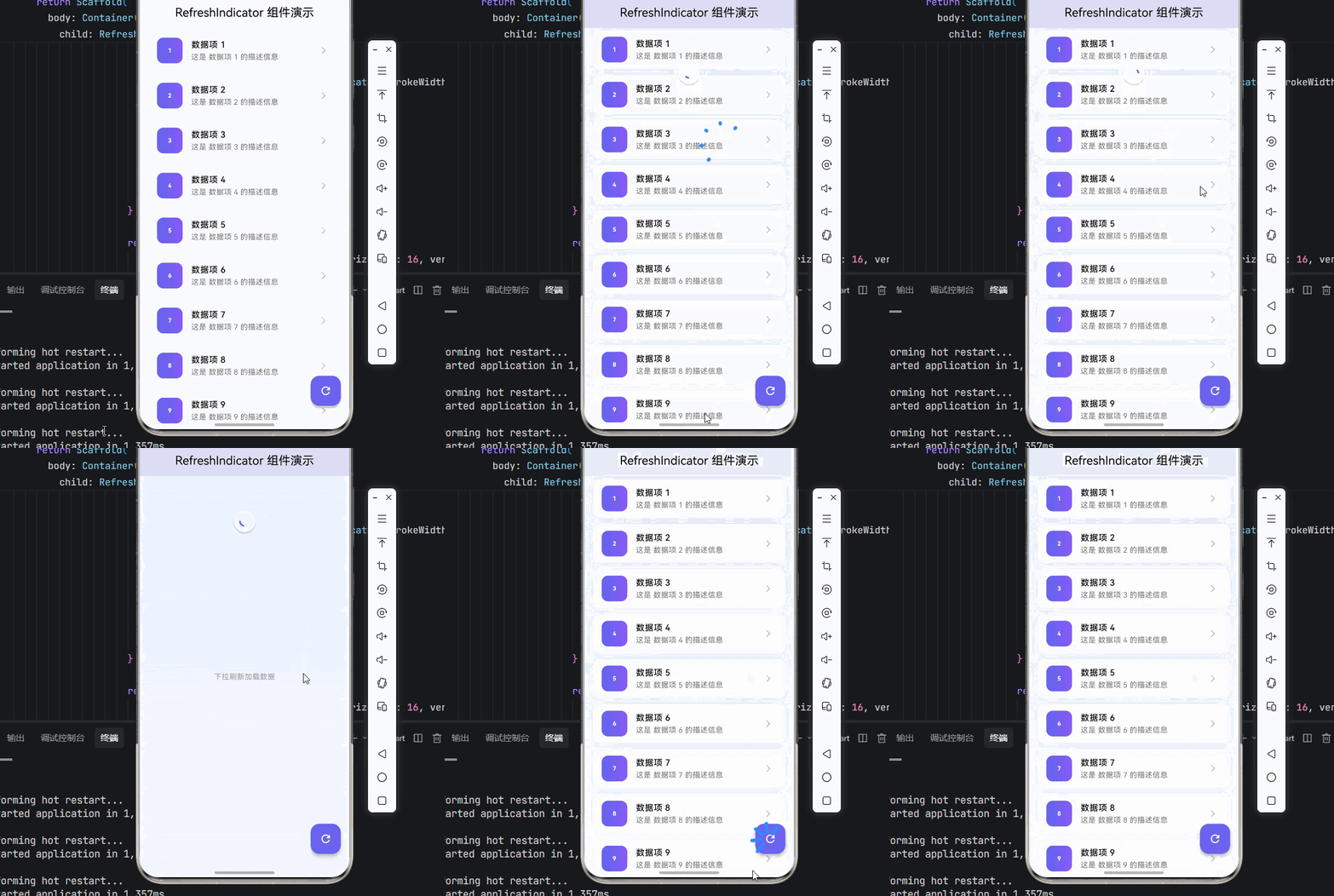
欢迎加入开源鸿蒙跨平台社区:https://openharmonycrossplatform.csdn.net
🎯 欢迎来到 Flutter for OpenHarmony 社区!本文将深入讲解 Flutter 中 RefreshIndicator 下拉刷新组件的使用方法,带你从基础到精通,掌握这一常用的刷新交互组件。
一、RefreshIndicator 组件概述
在 Flutter for OpenHarmony 应用开发中,RefreshIndicator(下拉刷新)是一种用于实现下拉刷新效果的 Material Design 组件。用户通过下拉操作触发刷新,组件会显示一个圆形进度指示器,刷新完成后自动收起。这种交互模式在移动应用中非常常见,用户已经形成了习惯性的操作预期。
📋 RefreshIndicator 组件特点
| 特点 | 说明 |
|---|---|
| Material Design | 遵循 Material Design 规范的刷新样式 |
| 手势友好 | 支持自然的手势下拉操作 |
| 自动动画 | 刷新时显示加载动画 |
| 可定制 | 支持自定义颜色、位移等属性 |
| 回调机制 | 通过 onRefresh 回调处理刷新逻辑 |
💡 使用场景:RefreshIndicator 常用于列表数据刷新、新闻列表更新、商品列表刷新、消息列表同步等需要更新数据的场景。
二、RefreshIndicator 基础用法
RefreshIndicator 需要包裹一个可滚动的组件(如 ListView、GridView、SingleChildScrollView 等)。
2.1 最简单的下拉刷新
class RefreshIndicatorExample extends StatefulWidget {
const RefreshIndicatorExample({super.key});
State<RefreshIndicatorExample> createState() => _RefreshIndicatorExampleState();
}
class _RefreshIndicatorExampleState extends State<RefreshIndicatorExample> {
List<String> _items = List.generate(10, (index) => '项目 ${index + 1}');
Future<void> _refresh() async {
await Future.delayed(const Duration(seconds: 2));
setState(() {
_items = List.generate(10, (index) => '新项目 ${index + 1}');
});
}
Widget build(BuildContext context) {
return Scaffold(
appBar: AppBar(title: const Text('下拉刷新')),
body: RefreshIndicator(
onRefresh: _refresh,
child: ListView.builder(
itemCount: _items.length,
itemBuilder: (context, index) {
return ListTile(
title: Text(_items[index]),
);
},
),
),
);
}
}
代码解析:
onRefresh:下拉刷新时触发的回调,必须返回一个 Futurechild:可滚动的子组件,必须是可滚动的 Widget- 刷新过程中会显示圆形进度指示器
- Future 完成后,刷新指示器自动收起
⚠️ 注意:child 必须是可滚动的组件,否则下拉刷新无法正常工作。
2.2 完整示例
下面是一个完整的可运行示例,展示 RefreshIndicator 的基本使用:
class RefreshDemo extends StatefulWidget {
const RefreshDemo({super.key});
State<RefreshDemo> createState() => _RefreshDemoState();
}
class _RefreshDemoState extends State<RefreshDemo> {
final List<int> _items = [];
int _count = 0;
void initState() {
super.initState();
_loadData();
}
void _loadData() {
for (int i = 0; i < 15; i++) {
_items.add(++_count);
}
}
Future<void> _refresh() async {
await Future.delayed(const Duration(seconds: 2));
setState(() {
_items.clear();
_count = 0;
_loadData();
});
}
Widget build(BuildContext context) {
return Scaffold(
appBar: AppBar(title: const Text('下拉刷新示例')),
body: RefreshIndicator(
onRefresh: _refresh,
child: ListView.builder(
itemCount: _items.length,
itemBuilder: (context, index) {
return Card(
margin: const EdgeInsets.symmetric(horizontal: 16, vertical: 8),
child: ListTile(
leading: CircleAvatar(child: Text('${_items[index]}')),
title: Text('数据项 ${_items[index]}'),
),
);
},
),
),
);
}
}
三、RefreshIndicator 常用属性
3.1 onRefresh - 刷新回调
下拉刷新时触发的回调函数,必须返回一个 Future。
RefreshIndicator(
  onRefresh: () async {
    await fetchData();
  },
  child: ListView(),
)
最佳实践:
Future<void> _refresh() async {
  try {
    final data = await apiService.fetchData();
    setState(() {
      _items = data;
    });
  } catch (e) {
    ScaffoldMessenger.of(context).showSnackBar(
      SnackBar(content: Text('刷新失败: $e')),
    );
  }
}
3.2 color - 进度指示器颜色
设置刷新时圆形进度指示器的颜色。
RefreshIndicator(
  color: Colors.blue,
  onRefresh: _refresh,
  child: ListView(),
)
3.3 backgroundColor - 背景颜色
设置刷新指示器的背景颜色。
RefreshIndicator(
  color: Colors.white,
  backgroundColor: Colors.blue,
  onRefresh: _refresh,
  child: ListView(),
)
3.4 displacement - 下拉位移
设置刷新指示器出现的位置距离顶部的距离。
RefreshIndicator(
  displacement: 80,
  onRefresh: _refresh,
  child: ListView(),
)
3.5 strokeWidth - 线条粗细
设置进度指示器的线条粗细。
RefreshIndicator(
  strokeWidth: 3,
  onRefresh: _refresh,
  child: ListView(),
)
3.6 triggerMode - 触发模式
设置刷新的触发方式。
RefreshIndicator(
  triggerMode: RefreshIndicatorTriggerMode.onEdge,
  onRefresh: _refresh,
  child: ListView(),
)
| 模式 | 说明 |
|---|---|
RefreshIndicatorTriggerMode.anywhere |
任意位置下拉都可触发 |
RefreshIndicatorTriggerMode.onEdge |
仅在边缘下拉触发(默认) |
3.7 notificationPredicate - 通知谓词
控制哪些滚动通知可以触发刷新。
RefreshIndicator(
  notificationPredicate: (notification) {
    return notification.depth == 0;
  },
  onRefresh: _refresh,
  child: ListView(),
)
📊 RefreshIndicator 属性速查表
| 属性 | 类型 | 默认值 | 说明 |
|---|---|---|---|
onRefresh |
RefreshCallback | - | 刷新回调(必填) |
child |
Widget | - | 可滚动子组件(必填) |
color |
Color? | - | 进度指示器颜色 |
backgroundColor |
Color? | - | 背景颜色 |
displacement |
double | 40 | 下拉位移 |
strokeWidth |
double? | 2.0 | 线条粗细 |
triggerMode |
RefreshIndicatorTriggerMode | onEdge | 触发模式 |
notificationPredicate |
ScrollNotificationPredicate | - | 通知谓词 |
semanticsLabel |
String? | - | 语义标签 |
semanticsValue |
String? | - | 语义值 |
四、RefreshIndicator 与其他组件配合
4.1 与 ListView 配合
RefreshIndicator(
  onRefresh: _refresh,
  child: ListView.builder(
    itemCount: _items.length,
    itemBuilder: (context, index) => ListTile(title: Text(_items[index])),
  ),
)
4.2 与 GridView 配合
RefreshIndicator(
  onRefresh: _refresh,
  child: GridView.builder(
    gridDelegate: const SliverGridDelegateWithFixedCrossAxisCount(
      crossAxisCount: 2,
    ),
    itemCount: _items.length,
    itemBuilder: (context, index) => Card(child: Text(_items[index])),
  ),
)
4.3 与 SingleChildScrollView 配合
RefreshIndicator(
  onRefresh: _refresh,
  child: SingleChildScrollView(
    physics: const AlwaysScrollableScrollPhysics(),
    child: Column(
      children: [
        Container(height: 200, color: Colors.blue),
        Container(height: 200, color: Colors.green),
        Container(height: 200, color: Colors.orange),
      ],
    ),
  ),
)
⚠️ 注意:SingleChildScrollView 需要设置
physics: AlwaysScrollableScrollPhysics()确保内容不足时也能滚动。
4.4 与 CustomScrollView 配合
RefreshIndicator(
  onRefresh: _refresh,
  child: CustomScrollView(
    slivers: [
      const SliverAppBar(
        title: Text('标题'),
        floating: true,
      ),
      SliverList(
        delegate: SliverChildBuilderDelegate(
          (context, index) => ListTile(title: Text('项目 $index')),
          childCount: _items.length,
        ),
      ),
    ],
  ),
)
五、下拉刷新 + 上拉加载更多
在实际应用中,下拉刷新通常与上拉加载更多配合使用。
5.1 实现方式
class RefreshAndLoadMore extends StatefulWidget {
const RefreshAndLoadMore({super.key});
State<RefreshAndLoadMore> createState() => _RefreshAndLoadMoreState();
}
class _RefreshAndLoadMoreState extends State<RefreshAndLoadMore> {
final List<String> _items = [];
int _page = 1;
bool _hasMore = true;
bool _isLoading = false;
void initState() {
super.initState();
_loadData();
}
Future<void> _loadData() async {
if (_isLoading) return;
_isLoading = true;
await Future.delayed(const Duration(seconds: 1));
setState(() {
for (int i = 0; i < 15; i++) {
_items.add('项目 ${(_page - 1) * 15 + i + 1}');
}
_page++;
_hasMore = _page <= 5;
_isLoading = false;
});
}
Future<void> _refresh() async {
await Future.delayed(const Duration(seconds: 1));
setState(() {
_items.clear();
_page = 1;
_hasMore = true;
});
await _loadData();
}
Widget build(BuildContext context) {
return Scaffold(
appBar: AppBar(title: const Text('刷新与加载')),
body: RefreshIndicator(
onRefresh: _refresh,
child: ListView.builder(
itemCount: _items.length + (_hasMore ? 1 : 0),
itemBuilder: (context, index) {
if (index == _items.length) {
if (!_isLoading) {
_loadData();
}
return const Padding(
padding: EdgeInsets.all(16),
child: Center(child: CircularProgressIndicator()),
);
}
return ListTile(title: Text(_items[index]));
},
),
),
);
}
}
5.2 使用 ScrollController 实现
class ScrollControllerLoadMore extends StatefulWidget {
const ScrollControllerLoadMore({super.key});
State<ScrollControllerLoadMore> createState() => _ScrollControllerLoadMoreState();
}
class _ScrollControllerLoadMoreState extends State<ScrollControllerLoadMore> {
final ScrollController _scrollController = ScrollController();
final List<String> _items = [];
bool _isLoading = false;
bool _hasMore = true;
int _page = 1;
void initState() {
super.initState();
_loadData();
_scrollController.addListener(_onScroll);
}
void dispose() {
_scrollController.dispose();
super.dispose();
}
void _onScroll() {
if (_scrollController.position.pixels >=
_scrollController.position.maxScrollExtent - 200) {
if (!_isLoading && _hasMore) {
_loadData();
}
}
}
Future<void> _loadData() async {
if (_isLoading) return;
setState(() => _isLoading = true);
await Future.delayed(const Duration(seconds: 1));
setState(() {
for (int i = 0; i < 15; i++) {
_items.add('项目 ${(_page - 1) * 15 + i + 1}');
}
_page++;
_hasMore = _page <= 5;
_isLoading = false;
});
}
Future<void> _refresh() async {
await Future.delayed(const Duration(seconds: 1));
setState(() {
_items.clear();
_page = 1;
_hasMore = true;
});
await _loadData();
}
Widget build(BuildContext context) {
return Scaffold(
appBar: AppBar(title: const Text('滚动加载')),
body: RefreshIndicator(
onRefresh: _refresh,
child: ListView.builder(
controller: _scrollController,
itemCount: _items.length + (_hasMore ? 1 : 0),
itemBuilder: (context, index) {
if (index == _items.length) {
return const Padding(
padding: EdgeInsets.all(16),
child: Center(child: CircularProgressIndicator()),
);
}
return ListTile(title: Text(_items[index]));
},
),
),
);
}
}
六、自定义刷新指示器
6.1 自定义样式
RefreshIndicator(
  color: Colors.white,
  backgroundColor: const Color(0xFF6366F1),
  strokeWidth: 3,
  displacement: 60,
  onRefresh: _refresh,
  child: ListView.builder(
    itemCount: _items.length,
    itemBuilder: (context, index) => ListTile(title: Text(_items[index])),
  ),
)
6.2 使用第三方刷新组件
如果需要更丰富的刷新效果,可以使用第三方库如 pull_to_refresh:
dependencies:
  pull_to_refresh: ^2.0.0
import 'package:pull_to_refresh/pull_to_refresh.dart';
class CustomRefreshDemo extends StatefulWidget {
const CustomRefreshDemo({super.key});
State<CustomRefreshDemo> createState() => _CustomRefreshDemoState();
}
class _CustomRefreshDemoState extends State<CustomRefreshDemo> {
final RefreshController _refreshController = RefreshController();
final List<String> _items = List.generate(20, (index) => '项目 ${index + 1}');
void _onRefresh() async {
await Future.delayed(const Duration(seconds: 1));
_refreshController.refreshCompleted();
}
void _onLoading() async {
await Future.delayed(const Duration(seconds: 1));
setState(() {
_items.addAll(List.generate(10, (index) => '新项目 ${_items.length + index + 1}'));
});
_refreshController.loadComplete();
}
void dispose() {
_refreshController.dispose();
super.dispose();
}
Widget build(BuildContext context) {
return Scaffold(
appBar: AppBar(title: const Text('自定义刷新')),
body: SmartRefresher(
controller: _refreshController,
enablePullDown: true,
enablePullUp: true,
onRefresh: _onRefresh,
onLoading: _onLoading,
header: const WaterDropHeader(),
footer: CustomFooter(
builder: (context, mode) {
if (mode == LoadStatus.noMore) {
return const Center(child: Text('没有更多数据了'));
}
return const Center(child: CircularProgressIndicator());
},
),
child: ListView.builder(
itemCount: _items.length,
itemBuilder: (context, index) => ListTile(title: Text(_items[index])),
),
),
);
}
}
七、实际应用场景
7.1 新闻列表刷新
class NewsListPage extends StatefulWidget {
const NewsListPage({super.key});
State<NewsListPage> createState() => _NewsListPageState();
}
class _NewsListPageState extends State<NewsListPage> {
final List<Map<String, String>> _news = [];
bool _isLoading = false;
void initState() {
super.initState();
_loadNews();
}
Future<void> _loadNews() async {
if (_isLoading) return;
setState(() => _isLoading = true);
await Future.delayed(const Duration(seconds: 1));
setState(() {
_news.addAll([
{'title': 'Flutter 3.0 正式发布', 'source': '官方博客'},
{'title': 'OpenHarmony 新版本更新', 'source': '开源社区'},
{'title': '跨平台开发最佳实践', 'source': '技术专栏'},
]);
_isLoading = false;
});
}
Future<void> _refresh() async {
await Future.delayed(const Duration(seconds: 1));
setState(() {
_news.clear();
});
await _loadNews();
}
Widget build(BuildContext context) {
return Scaffold(
appBar: AppBar(title: const Text('新闻列表')),
body: RefreshIndicator(
onRefresh: _refresh,
child: ListView.builder(
itemCount: _news.length,
itemBuilder: (context, index) {
final item = _news[index];
return Card(
margin: const EdgeInsets.all(8),
child: ListTile(
title: Text(item['title']!),
subtitle: Text(item['source']!),
trailing: const Icon(Icons.arrow_forward_ios, size: 16),
),
);
},
),
),
);
}
}
7.2 商品列表刷新
class ProductListPage extends StatefulWidget {
const ProductListPage({super.key});
State<ProductListPage> createState() => _ProductListPageState();
}
class _ProductListPageState extends State<ProductListPage> {
final List<Map<String, dynamic>> _products = [];
int _page = 1;
bool _hasMore = true;
void initState() {
super.initState();
_loadProducts();
}
Future<void> _loadProducts() async {
await Future.delayed(const Duration(seconds: 1));
setState(() {
for (int i = 0; i < 10; i++) {
_products.add({
'name': '商品 ${(_page - 1) * 10 + i + 1}',
'price': (i + 1) * 100,
'image': 'https://via.placeholder.com/100',
});
}
_page++;
_hasMore = _page <= 5;
});
}
Future<void> _refresh() async {
await Future.delayed(const Duration(seconds: 1));
setState(() {
_products.clear();
_page = 1;
_hasMore = true;
});
await _loadProducts();
}
Widget build(BuildContext context) {
return Scaffold(
appBar: AppBar(title: const Text('商品列表')),
body: RefreshIndicator(
color: const Color(0xFF6366F1),
onRefresh: _refresh,
child: GridView.builder(
gridDelegate: const SliverGridDelegateWithFixedCrossAxisCount(
crossAxisCount: 2,
childAspectRatio: 0.75,
),
itemCount: _products.length + (_hasMore ? 1 : 0),
itemBuilder: (context, index) {
if (index == _products.length) {
WidgetsBinding.instance.addPostFrameCallback((_) => _loadProducts());
return const Center(child: CircularProgressIndicator());
}
final product = _products[index];
return Card(
child: Column(
children: [
Expanded(
child: Container(
color: Colors.grey[200],
child: const Center(child: Icon(Icons.image, size: 48)),
),
),
Padding(
padding: const EdgeInsets.all(8),
child: Column(
crossAxisAlignment: CrossAxisAlignment.start,
children: [
Text(product['name']),
Text(
'¥${product['price']}',
style: const TextStyle(
color: Colors.red,
fontWeight: FontWeight.bold,
),
),
],
),
),
],
),
);
},
),
),
);
}
}
八、完整示例代码
下面是一个完整的 Flutter 应用示例,展示 RefreshIndicator 组件的各种用法。
import 'package:flutter/material.dart';
void main() {
runApp(const RefreshIndicatorDemo());
}
class RefreshIndicatorDemo extends StatelessWidget {
const RefreshIndicatorDemo({super.key});
Widget build(BuildContext context) {
return MaterialApp(
title: 'RefreshIndicator 组件演示',
debugShowCheckedModeBanner: false,
theme: ThemeData(
colorScheme: ColorScheme.light(
primary: const Color(0xFF6366F1),
secondary: const Color(0xFF8B5CF6),
surface: const Color(0xFFE8EAF6),
background: const Color(0xFFF8F9FF),
brightness: Brightness.light,
),
useMaterial3: true,
),
home: const RefreshIndicatorPage(),
);
}
}
class RefreshIndicatorPage extends StatefulWidget {
const RefreshIndicatorPage({super.key});
State<RefreshIndicatorPage> createState() => _RefreshIndicatorPageState();
}
class _RefreshIndicatorPageState extends State<RefreshIndicatorPage> {
final List<String> _items = [];
int _count = 0;
bool _hasMore = true;
bool _isLoading = false;
void initState() {
super.initState();
_loadData();
}
Future<void> _loadData() async {
if (_isLoading) return;
_isLoading = true;
await Future.delayed(const Duration(seconds: 1));
setState(() {
for (int i = 0; i < 15; i++) {
_items.add('数据项 ${++_count}');
}
_hasMore = _count < 60;
_isLoading = false;
});
}
Future<void> _refresh() async {
await Future.delayed(const Duration(seconds: 2));
setState(() {
_items.clear();
_count = 0;
_hasMore = true;
});
await _loadData();
}
Widget build(BuildContext context) {
return Scaffold(
appBar: AppBar(
title: const Text('RefreshIndicator 组件演示'),
centerTitle: true,
elevation: 0,
),
body: Container(
decoration: const BoxDecoration(
gradient: LinearGradient(
begin: Alignment.topCenter,
end: Alignment.bottomCenter,
colors: [
Color(0xFFE8F4FF),
Color(0xFFF8F9FF),
],
),
),
child: RefreshIndicator(
color: const Color(0xFF6366F1),
backgroundColor: Colors.white,
strokeWidth: 3,
displacement: 60,
onRefresh: _refresh,
child: _items.isEmpty
? const Center(
child: Text(
'下拉刷新加载数据',
style: TextStyle(color: Colors.grey),
),
)
: ListView.builder(
physics: const AlwaysScrollableScrollPhysics(),
itemCount: _items.length + (_hasMore ? 1 : 0),
itemBuilder: (context, index) {
if (index == _items.length) {
if (!_isLoading) {
_loadData();
}
return Container(
padding: const EdgeInsets.all(16),
child: const Center(
child: Row(
mainAxisAlignment: MainAxisAlignment.center,
children: [
SizedBox(
width: 20,
height: 20,
child: CircularProgressIndicator(strokeWidth: 2),
),
SizedBox(width: 12),
Text('加载中...'),
],
),
),
);
}
return Container(
margin: const EdgeInsets.symmetric(horizontal: 16, vertical: 6),
decoration: BoxDecoration(
color: Colors.white,
borderRadius: BorderRadius.circular(12),
boxShadow: [
BoxShadow(
color: Colors.black.withOpacity(0.05),
blurRadius: 10,
),
],
),
child: ListTile(
leading: Container(
width: 48,
height: 48,
decoration: BoxDecoration(
gradient: LinearGradient(
colors: [
const Color(0xFF6366F1),
const Color(0xFF8B5CF6),
],
),
borderRadius: BorderRadius.circular(12),
),
child: Center(
child: Text(
'${index + 1}',
style: const TextStyle(
color: Colors.white,
fontWeight: FontWeight.bold,
),
),
),
),
title: Text(
_items[index],
style: const TextStyle(
fontWeight: FontWeight.w500,
),
),
subtitle: Text(
'这是 ${_items[index]} 的描述信息',
style: TextStyle(color: Colors.grey[600]),
),
trailing: Icon(
Icons.arrow_forward_ios,
size: 16,
color: Colors.grey[400],
),
),
);
},
),
),
),
floatingActionButton: FloatingActionButton(
onPressed: _refresh,
child: const Icon(Icons.refresh),
),
);
}
}
九、总结
RefreshIndicator 是 Flutter for OpenHarmony 应用开发中常用的刷新交互组件。通过本文的学习,我们掌握了:
- 基础用法:RefreshIndicator 的基本属性和使用方式
- 常用属性:color、backgroundColor、displacement、strokeWidth 等
- 配合组件:与 ListView、GridView、SingleChildScrollView 等配合使用
- 上拉加载:实现下拉刷新 + 上拉加载更多的组合
- 自定义样式:自定义刷新指示器的外观
- 实际应用:新闻列表、商品列表等场景
💡 开发建议:使用 RefreshIndicator 时应注意:
- child 必须是可滚动的组件
- onRefresh 必须返回 Future
- 内容不足时设置 AlwaysScrollableScrollPhysics
- 合理处理加载状态和错误情况
- 避免重复触发刷新请求

开源鸿蒙跨平台开发社区汇聚开发者与厂商,共建“一次开发,多端部署”的开源生态,致力于降低跨端开发门槛,推动万物智联创新。
更多推荐



 16
16 0
0- 0


 已为社区贡献25条内容

所有评论(0)